
Models endpoint on CloudFerro Cloud
The models endpoint returns the list of Sherlock AI models available through the OpenAI-compatible API. Use it to check which model IDs can be used in chat completion requests, embedding requests, or other supported API calls.
The endpoint is useful when you want to verify model availability before updating an application, when you are preparing examples for users, or when you need to confirm that a project can access a specific model.
Endpoint
Send a GET request to the following endpoint:
https://api-sherlock.cloudferro.com/openai/v1/models
The request must include the Sherlock AI API key in the Authorization header. The key is passed as a bearer token.
Prerequisites
No. 1 A configured client and project API key
Complete the client installation and API-key configuration in Get started with the Sherlock API. Have SHERLOCK_API_KEY set in the terminal where you will run the examples, with curl or the OpenAI Python client available for your chosen method.
List models with curl
The following curl command sends a GET request to the models endpoint and prints the response returned by Sherlock AI:
curl https://api-sherlock.cloudferro.com/openai/v1/models \
  -H "Authorization: Bearer $SHERLOCK_API_KEY"
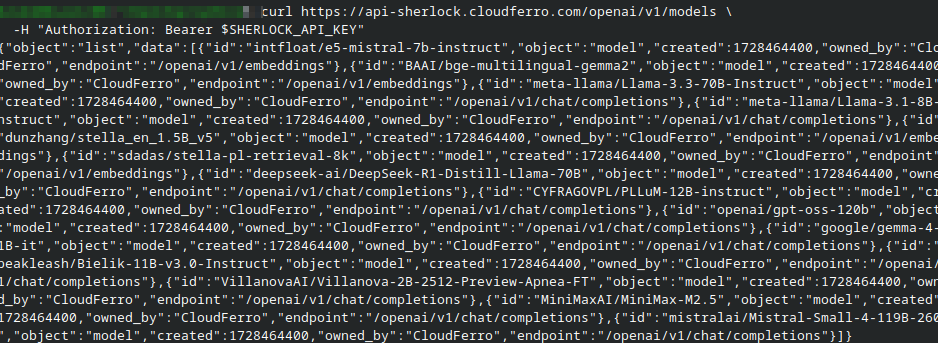
A successful response contains a list of available models. Copy the required model ID from the response and use it as the value of the model field in later API requests.
Here is what the output could look like:
List models with Python
The Python example uses the OpenAI client library and changes the base_url so that requests are sent to Sherlock AI.
Run the following script in your configured Python environment:
import os
from openai import OpenAI

client = OpenAI(
    api_key=os.environ["SHERLOCK_API_KEY"],
    base_url="https://api-sherlock.cloudferro.com/openai/v1",
)

models = client.models.list()

for model in models.data:
    print(model.id)
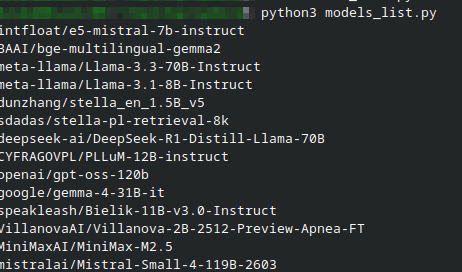
This version prints only the model IDs, which are usually the values needed when preparing chat completion or embedding requests.
The output is something like this:
If you want to inspect the full response object, use:
print(models)
Note
Some deployments may also accept shorter model aliases, but the recommended value is the full model ID returned by the models endpoint.
Use the returned model ID
After you find the required model ID, pass it in the model field of the next request. For example:
{
  "model": "Bielik-11B-v3.0-Instruct",
  "messages": [
    {
      "role": "user",
      "content": "Explain what Sherlock AI is."
    }
  ]
}
Model IDs are case-sensitive. Copy them exactly as returned by the models endpoint or as shown in the Sherlock AI model list.
Troubleshooting
If the request returns an authentication error, check that the SHERLOCK_API_KEY variable is set in the same terminal session where you run the command. Also verify that the key was copied correctly and that it belongs to the Sherlock AI project you want to use.
If the response does not contain the model you expected, the model may not be available in your project. In that case, use one of the returned model IDs or check project access with the administrator of your Sherlock AI environment.
What to do next
Continue with the chat completion guide.
Continue with the text embeddings guide.