
Sherlock text embedding models on CloudFerro Cloud
Text embedding models convert text into numerical vectors that represent semantic meaning. These vectors can then be used for similarity search, document retrieval, clustering, classification, recommendation systems, and retrieval-augmented generation workflows. Sherlock AI provides embedding models through an OpenAI-compatible API, so existing client libraries can be used by setting the Sherlock AI API key and base URL.
Endpoint
Send a POST request to the embeddings endpoint:
https://api-sherlock.cloudferro.com/openai/v1/embeddings
The request must include the Sherlock AI API key in the Authorization header. The selected embedding model is passed in the model field, and the text to embed is passed in the input field.
Prerequisites
No. 1 A configured client and project API key
Complete the client installation and API-key configuration in Get started with the Sherlock API. Have SHERLOCK_API_KEY set in the terminal where you will run the examples, with curl or the OpenAI Python client available for your chosen method.
No. 2 An available embedding model ID
Use AI models to identify embedding models and the models endpoint to check availability. Copy the model ID exactly; replace the example BAAI/bge-multilingual-gemma2 if it is not available in your project.
Create embeddings with curl
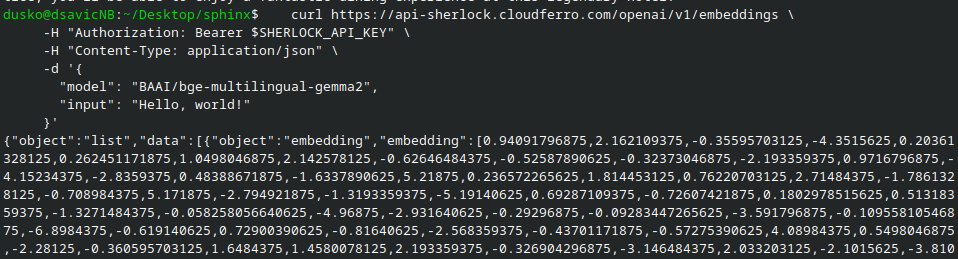
The following curl example sends one text input to the embeddings endpoint. The API key is read from the SHERLOCK_API_KEY environment variable and passed as a bearer token.
curl https://api-sherlock.cloudferro.com/openai/v1/embeddings \
  -H "Authorization: Bearer $SHERLOCK_API_KEY" \
  -H "Content-Type: application/json" \
  -d '{
    "model": "BAAI/bge-multilingual-gemma2",
    "input": "Hello, world!"
  }'
A successful response contains an embedding vector for the provided input text. The vector is an array of numbers and is usually stored in a vector database, search index, or application database together with the original text or document identifier.
The result:
Create embeddings with Python
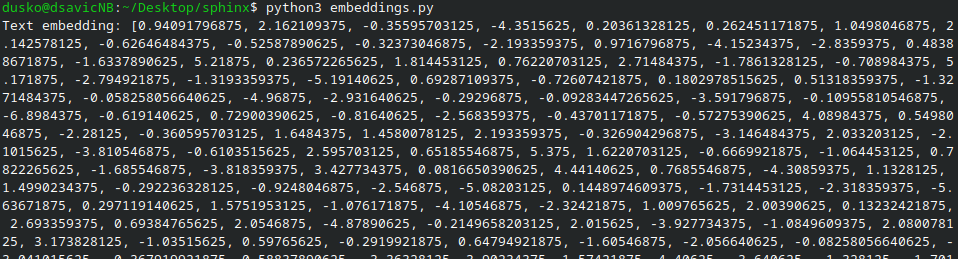
The Python example uses the OpenAI client library and sends requests to Sherlock AI by setting the base_url value.
import os
from openai import OpenAI

client = OpenAI(
    api_key=os.environ["SHERLOCK_API_KEY"],
    base_url="https://api-sherlock.cloudferro.com/openai/v1",
)

response = client.embeddings.create(
    model="BAAI/bge-multilingual-gemma2",
    input="Hello, world!",
)

embedding = response.data[0].embedding

print("Text embedding:", embedding)
In real applications, you usually do not print the full vector. Instead, store it and use it later for similarity search, for example to find documents that are semantically close to a user query.
Embed more than one text
You can also send multiple text inputs in one request. This is useful when preparing a document collection for search or retrieval.
response = client.embeddings.create(
    model="BAAI/bge-multilingual-gemma2",
    input=[
        "Sherlock AI provides OpenAI-compatible endpoints.",
        "Embedding models convert text into numerical vectors.",
        "Vector search can be used for document retrieval.",
    ],
)

for item in response.data:
    print(item.index, item.embedding)
Keep the original text, document ID, source file name, or other metadata together with each vector. Without metadata, the vector alone is difficult to use in search results or retrieval workflows.
Use embeddings in applications
Embeddings are most often used as part of a larger workflow. A common pattern is to split documents into smaller chunks, create an embedding for each chunk, store the vectors in a vector database, and then embed the user query at search time. The application compares the query vector with stored vectors and returns the most similar chunks to the model or to the user.
For retrieval-augmented generation, send only the relevant retrieved text to a chat completion model. Do not send entire documents when a small number of matching chunks is enough. This reduces request size, improves latency, and keeps the prompt focused on the information needed for the answer.
Troubleshooting
If the request returns an authentication error, check that SHERLOCK_API_KEY is set in the same terminal session where you run curl or Python. If the model is rejected, copy the model ID again from the models endpoint and make sure that the selected model is available in your Sherlock AI project.
If Python cannot import the OpenAI library, install it in the same environment in which you run the script. On systems with several Python versions, use python3 -m pip install openai and run the script with the same python3 command.
What to do next
Continue with the AI Agents guide.
Continue with the vision request guide.