
Assign roles to a user on CloudFerro Cloud
An organization member needs roles that permit the tasks they will perform in each service. You can choose existing roles manually or describe the required access to Roles Agent and review its suggestion. The example below assigns FunctionsViewer to a member who needs to inspect Functions resources and their metrics.
Prerequisites
No. 1 Access to user management in the intended organization
Sign in to My Portal and check the organization using Register or join an organization in My Portal on CloudFerro Cloud. Your account must be allowed to manage the member’s role assignments. Have the intended organization selected and access to the Users view.
No. 2 An existing member and a defined access requirement
Locate the member using Users: find organization members on CloudFerro Cloud. Identify the services and tasks they need, including whether they only need to view resources or also change them. Compare the available permissions and limitations in Predefined IAM roles on CloudFerro Cloud. Have the member’s name or email and the required access ready before selecting roles.
Open the member’s role assignments
Open IAM → Users. Locate the member by Name or Email. The Roles column shows some of their roles; an additional-count label such as +9 indicates that more roles are associated with the member.
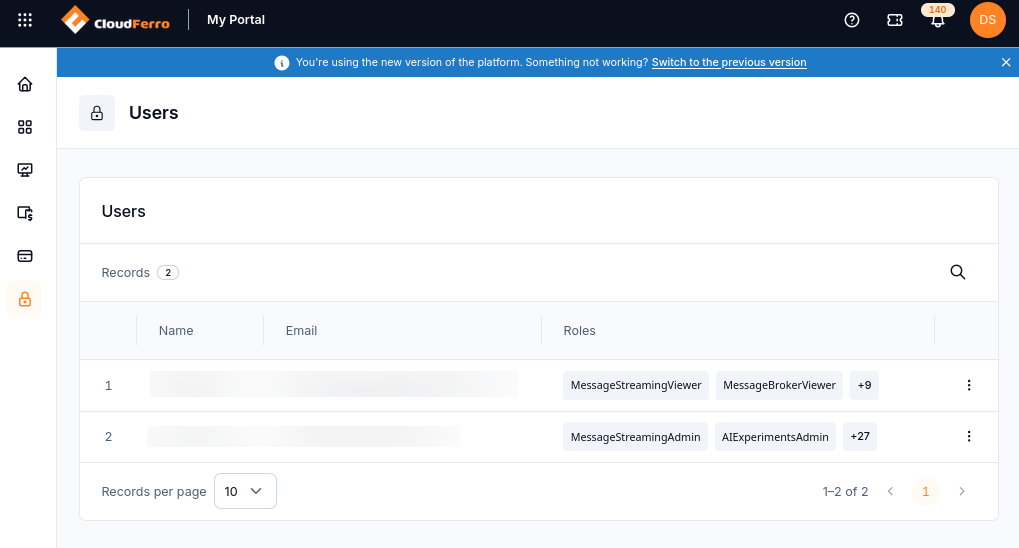
Find the member whose access you want to manage.
Open the three-dot menu on that member’s row and select Edit.
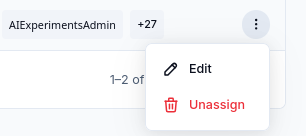
Edit opens the member’s details and role assignments.
Check Name and Email in Basic metadata, then review the Roles section. Direct Roles lists assignments made directly to the member. Roles via Groups shows their group-based roles. An empty Direct Roles tab does not establish that the member has no access through groups.
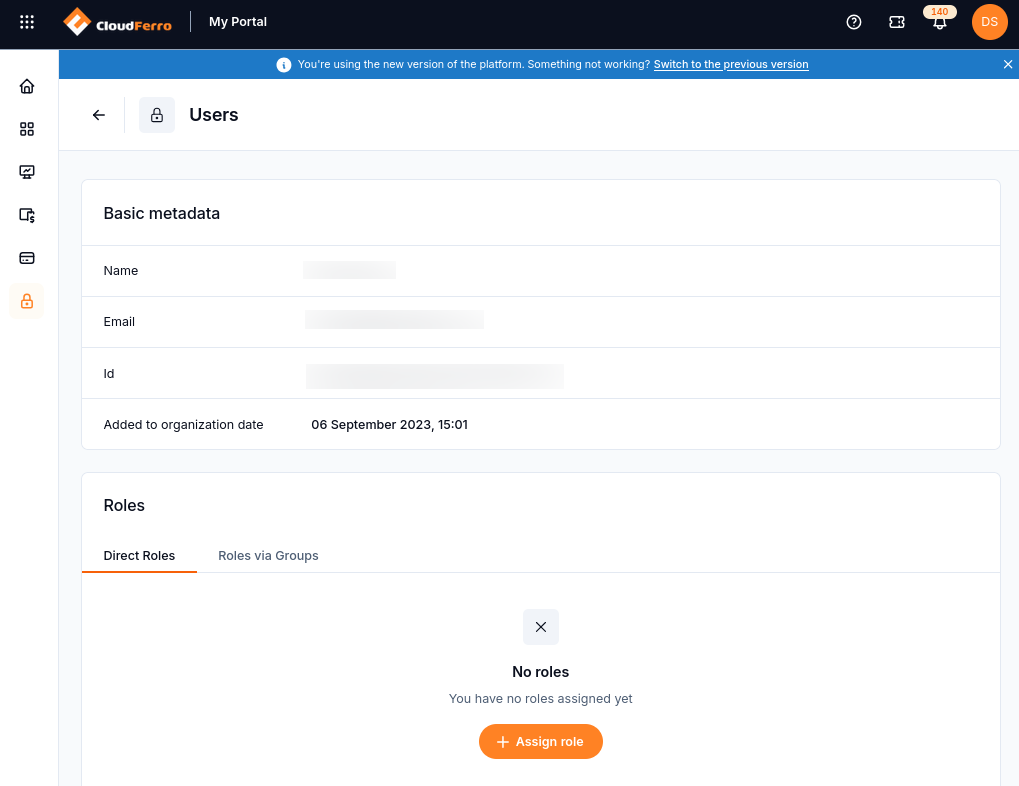
The example member has no direct role assignments yet.
Select Assign role to choose Manually or Using AI Agent. The next section follows the agent workflow; the manual alternative is described afterward.
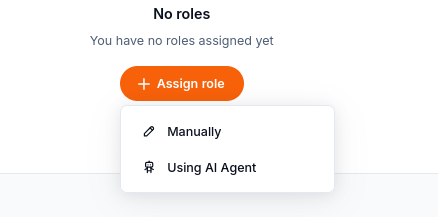
Both options start from the member’s role assignments.
Assign a role with Roles Agent
Select Using AI Agent. The Roles Agent dialog contains a required Prompt field and a Suggest role button.
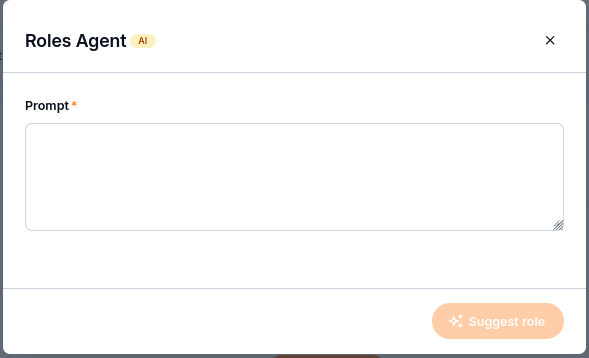
Describe the access the member needs.
Enter a request that identifies the service and the tasks to permit. The following prompt was used for the Functions example:
Find an existing role that lets a user view Functions resources and their
metrics without creating, modifying, deploying, or running functions.
Select Suggest role. In this example, FunctionsViewer appears under Suggested role. The eye icon opens the role’s details, and Why we suggest you this role? opens the agent’s explanation.
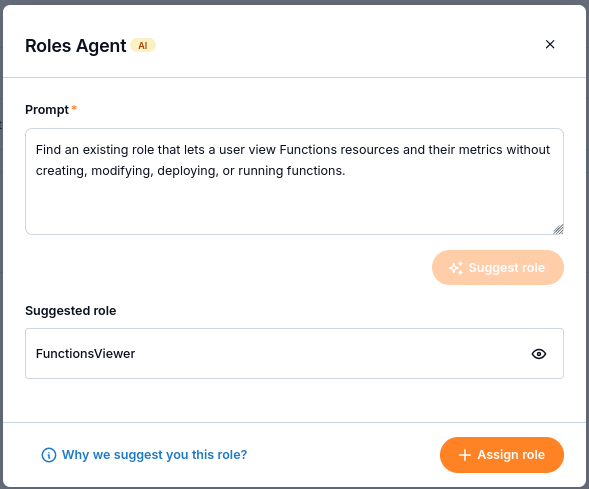
Review the suggested role before selecting Assign role.
Review the role and its explanation
Select the eye icon beside FunctionsViewer. In Role details, check Name, Description, and the Services table.
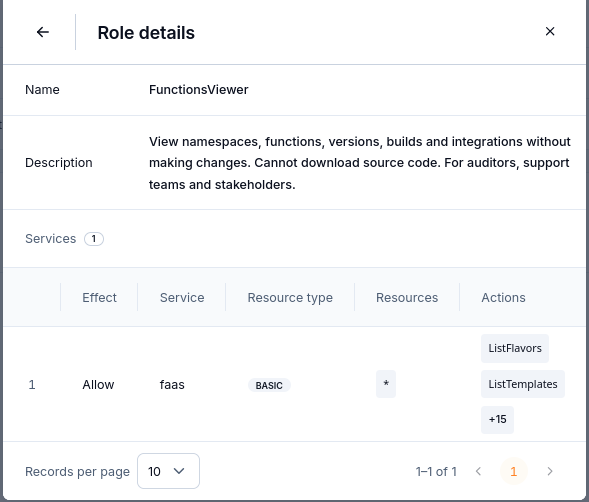
The role description and service rule show the access being assigned.
The description covers viewing namespaces, functions, versions, builds, and integrations without making changes. It also states that the role cannot download source code. The service rule has Effect set to Allow, Service set to faas, and Resource type set to BASIC. Resources contains an asterisk, indicating all resources in the rule’s scope. The visible actions are ListFlavors and ListTemplates, with +15 indicating additional actions.
Use the back arrow to return to Roles Agent, then select Why we suggest you this role?.
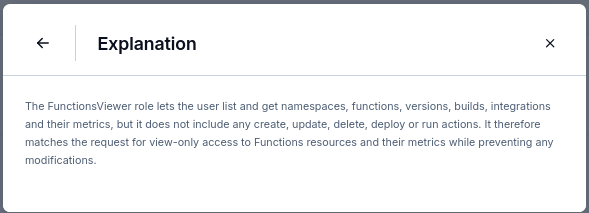
The explanation connects the suggested role to the requested tasks.
The agent explains that FunctionsViewer provides list and get operations for namespaces, functions, versions, builds, integrations, and their metrics. It states that create, update, delete, deploy, and run actions are excluded. Compare that explanation with the role’s details and the access the member needs.
Assign the role and confirm the result
Use the back arrow to return to Roles Agent. If FunctionsViewer meets the requirement, select Assign role.
Check the member’s Direct Roles tab. The completed example shows one record: FunctionsViewer, with Functions in the Services column.
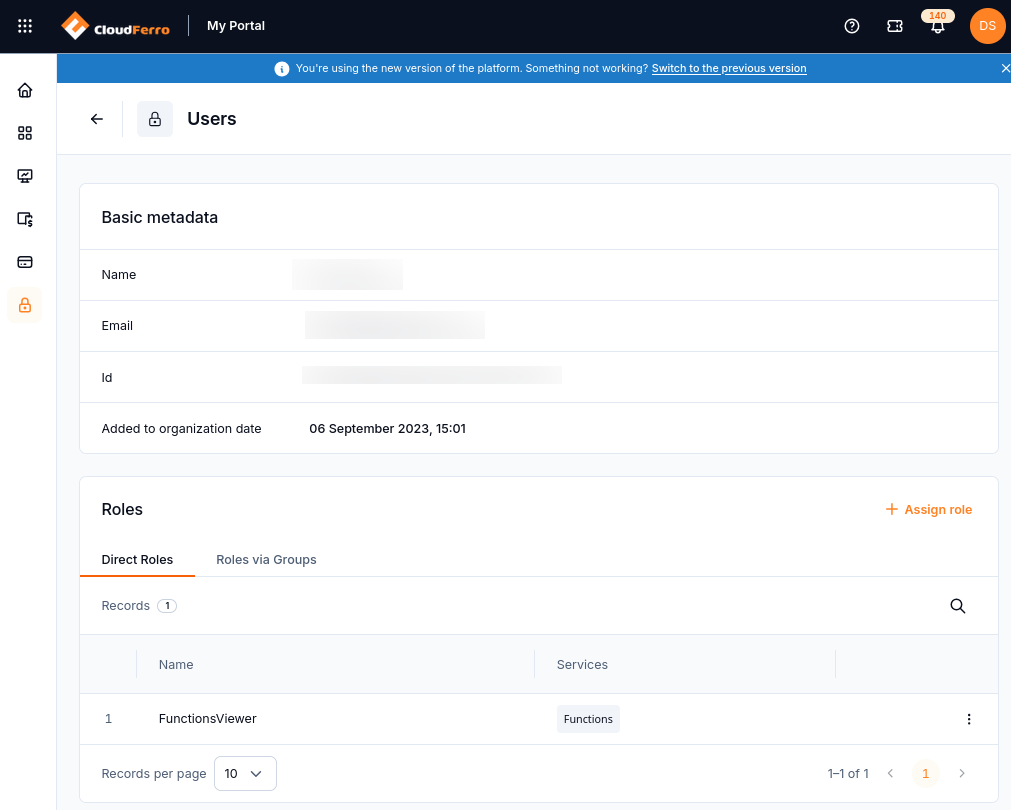
FunctionsViewer is now assigned directly to the member.
This confirms the direct assignment of the existing role. When reviewing the member’s overall access, also check Roles via Groups and any other direct roles.
Assign roles manually
Use the manual method when you want to browse the available roles and choose them yourself.
From the member’s Roles section, select Assign role → Manually.
In Assign roles, locate the required role using the search control or page controls. The table shows Type, Name, and Services. Select the eye icon beside a role to inspect its details.
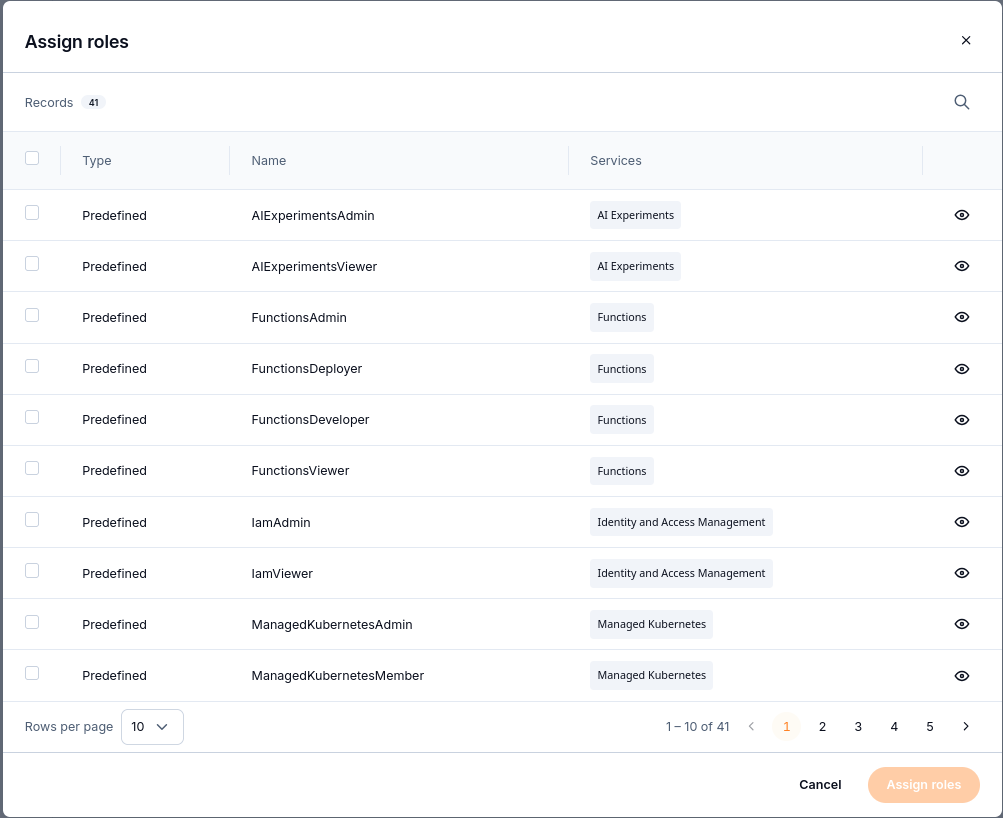
Browse the existing roles and inspect their permissions before selecting them.
Select the checkboxes for the roles the member needs, then choose Assign roles. Check any validation message and confirm the resulting entries under Direct Roles.
Selecting several roles assigns those existing roles to the member. It does not create a new combined role.
The following example shows five roles under Direct Roles: AIExperimentsViewer, FunctionsViewer, MessageBrokerViewer, MLOpsStudioViewer, and WorkflowsViewer. The Services column identifies the service associated with each role. Records 5 confirms that the table contains five separate direct assignments.
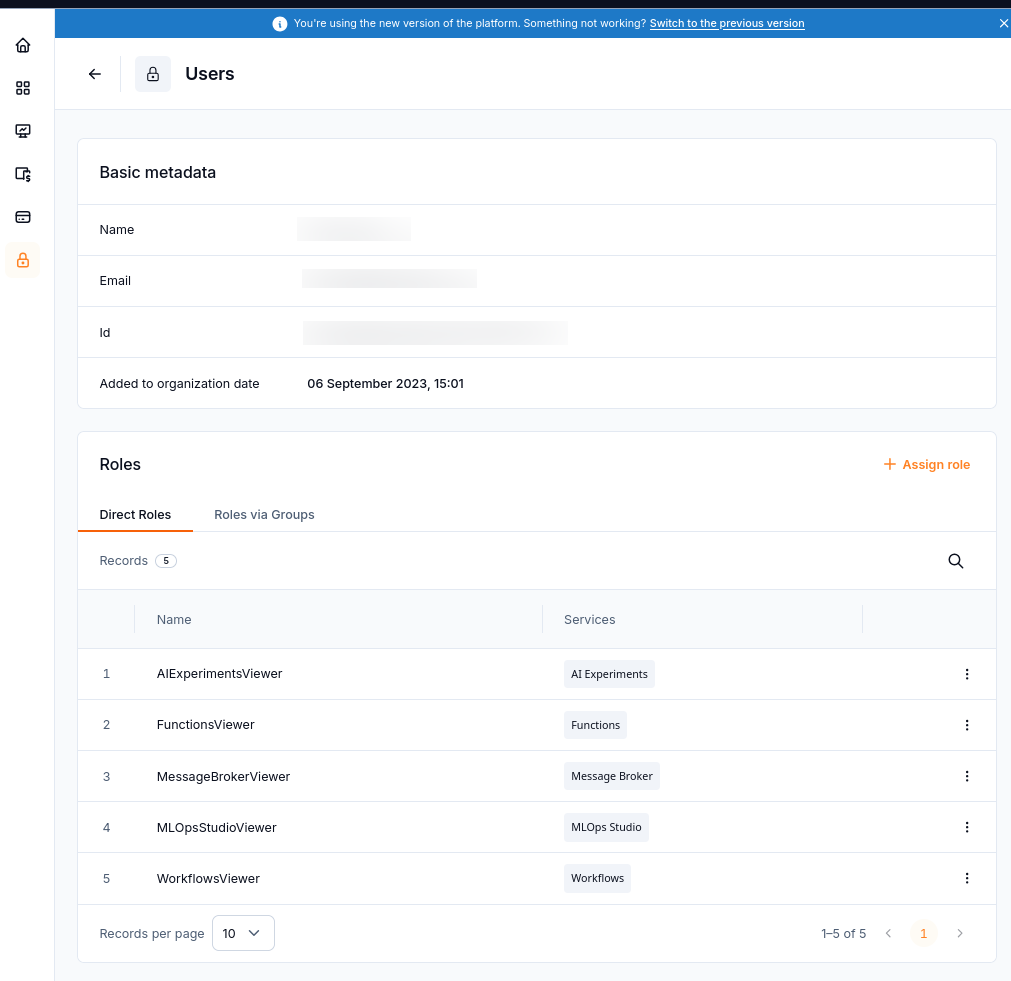
Several existing roles give the member access across services while remaining separate assignments.
Choose each role according to the member’s tasks and inspect its permissions before assigning it. The five roles shown are an example, rather than a required set for every user.
If Roles Agent finds no matching role
No matching role found means the request produced no candidate to review or assign. In the example below, a request to create PlatformReadOnly by combining FunctionsViewer, RegistryViewer, MessageBrokerViewer, MessageStreamingViewer, and WorkflowsViewer returned this message.
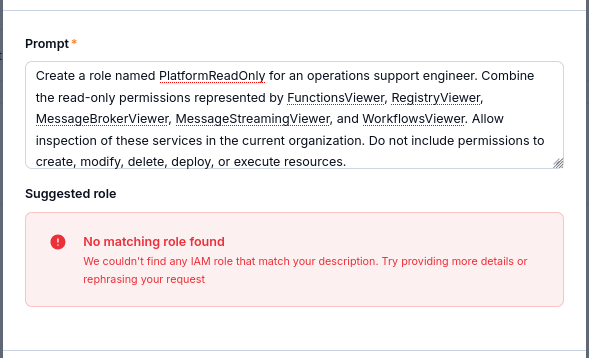
The combined-role request did not produce a matching role.
Rephrase the request around one service and the tasks the member needs to perform, then select Suggest role again. The Functions-only prompt used earlier returned FunctionsViewer. If no suitable suggestion is returned, use Manually to inspect the available roles.
What to do next
If the existing roles do not cover the required access, use IAM → Roles to define custom service rules. Follow Roles: review and create access rules on CloudFerro Cloud for that separate workflow.