
Groups: organize users and service accounts on CloudFerro Cloud
When several team members need the same roles, assign those roles to an IAM group and add the users as members. You can then manage the shared role assignments in one place. The PlatformReviewers example below brings together five existing viewer roles for a team that reviews several services.
IAM groups can contain users and service accounts; this example follows the Users tab. They are separate from the billing Resource Groups view.
Prerequisites
No. 1 Access to group management in the intended organization
Sign in and check the organization using Register or join an organization in My Portal on CloudFerro Cloud. Your account must be allowed to create groups, assign their roles, and add members. Have the intended organization selected and access to IAM → Groups.
No. 2 An existing organization member and the roles they need
Find the intended member using Users: find organization members on CloudFerro Cloud. Compare role permissions in Predefined IAM roles on CloudFerro Cloud, and use Assign roles to a user on CloudFerro Cloud to inspect role details. Have the member’s name or email ready so that you can identify the same person when adding them to the group and checking their roles.
Create PlatformReviewers
Open IAM → Groups. The table shows Type, Name, Created, and Updated. In this example, the predefined groups admin, member, and member+ are already present.
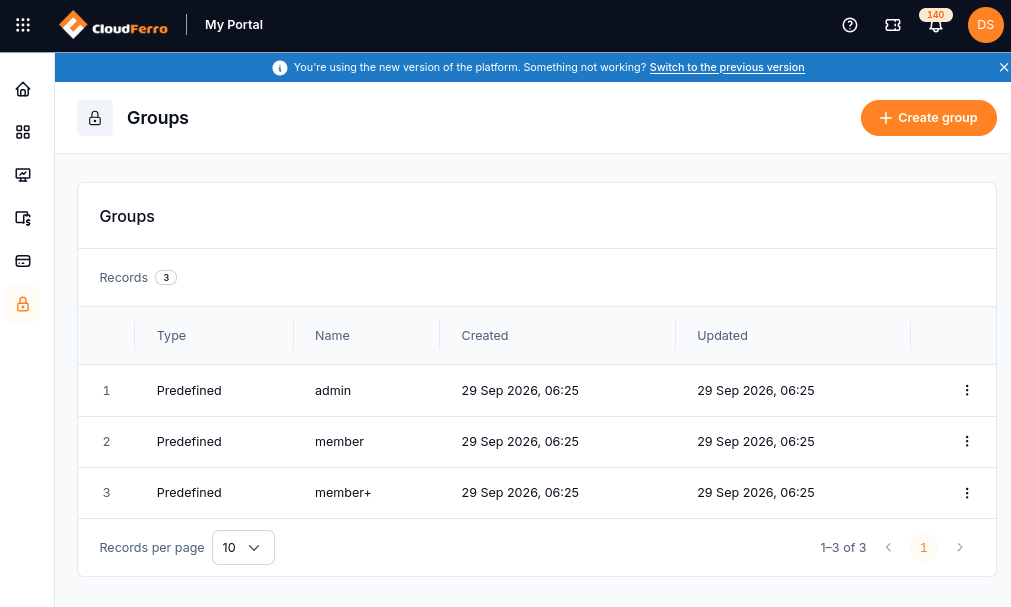
Create a group for the team’s shared roles.
Select Create group. In New group, enter PlatformReviewers as the required Group name. Add the following optional Description:
Shared viewer roles for team members reviewing AI Experiments, Functions,
Message Broker, MLOps Studio, and Workflows.
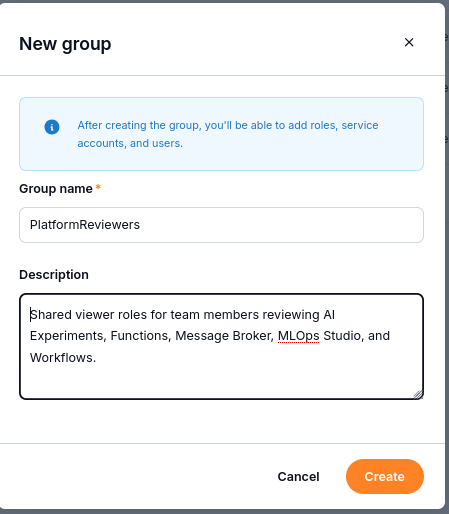
The name and description identify the group’s purpose; roles and members are added afterward.
Select Create. The confirmation Group PlatformReviewers has been created appears, and the group’s details open.
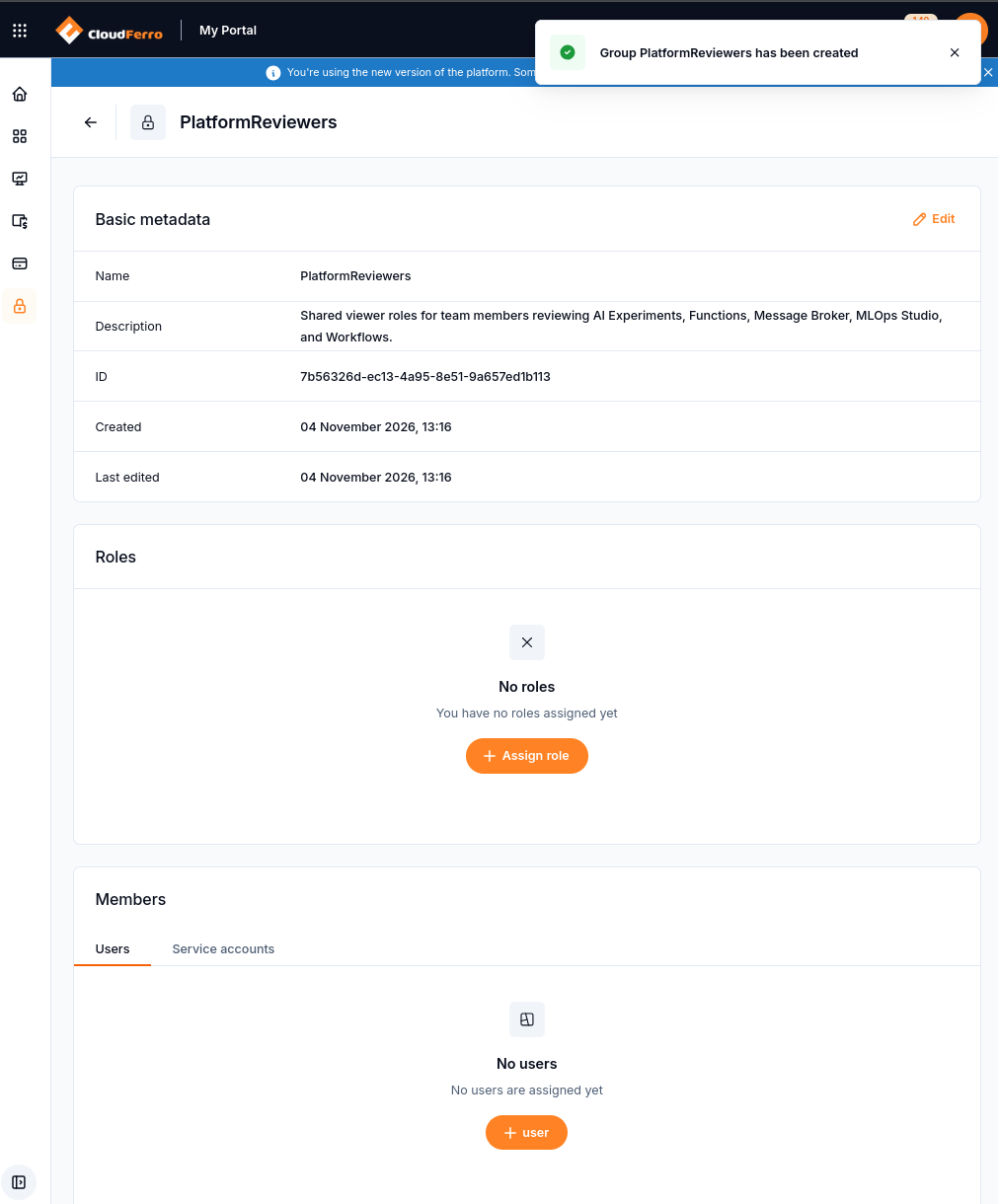
The new group exists, but its Roles and Members sections are still empty.
The description does not assign permissions. Configure the group’s roles and membership in the next steps.
Assign roles to the group
In the group’s Roles section, select Assign role.
Locate and review the existing roles required for the team. This example uses the following five roles:
Role
Service
AIExperimentsViewer
AI Experiments
FunctionsViewer
Functions
MessageBrokerViewer
Message Broker
MLOpsStudioViewer
MLOps Studio
WorkflowsViewer
Workflows
Assign the selected roles, then check the group’s Roles table. It should contain the five names above. The example shows Records 5.
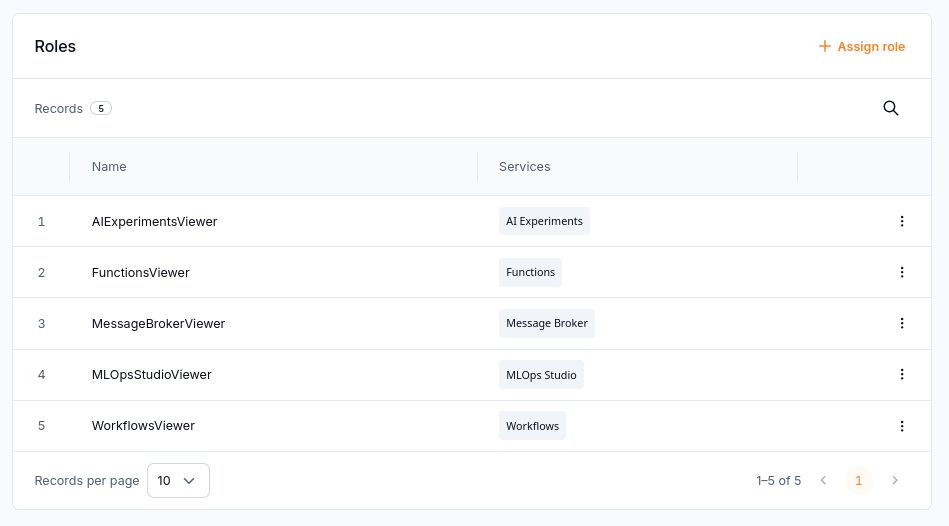
These five existing roles form the group’s shared set of role assignments.
Choose the roles according to the team’s tasks and inspect their permissions before assigning them. PlatformReviewers brings these existing roles together for its members; each remains a separate role assignment.
Add a user to the group
In Members, keep the Users tab selected and choose + user. Once the group has members, the action is shown as Assign user.
In Assign users, identify the member by Name and Email, then select their checkbox. The example shows Selected 1.
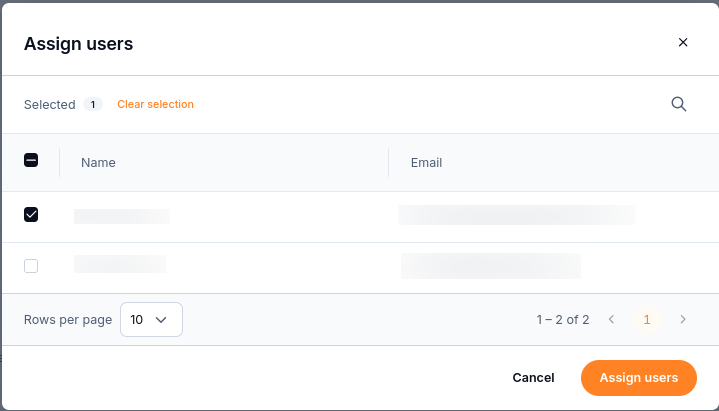
Select the existing organization member who should join PlatformReviewers.
Select Assign users. Back in the group, confirm that the intended person appears under Members → Users. The example now shows Records 1.
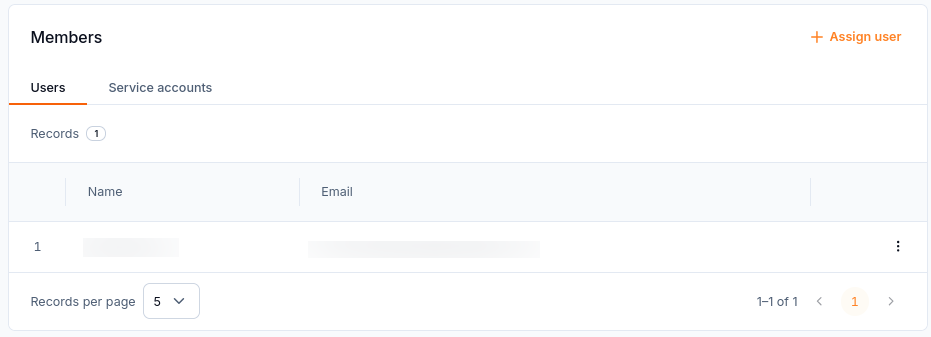
The member is now assigned to the group.
Check the member’s roles
Open IAM → Users and locate the same member by name or email.
Open the member’s three-dot menu and select Edit.
Under Roles, select Roles via Groups. Compare the names in this list with the five roles configured for PlatformReviewers.
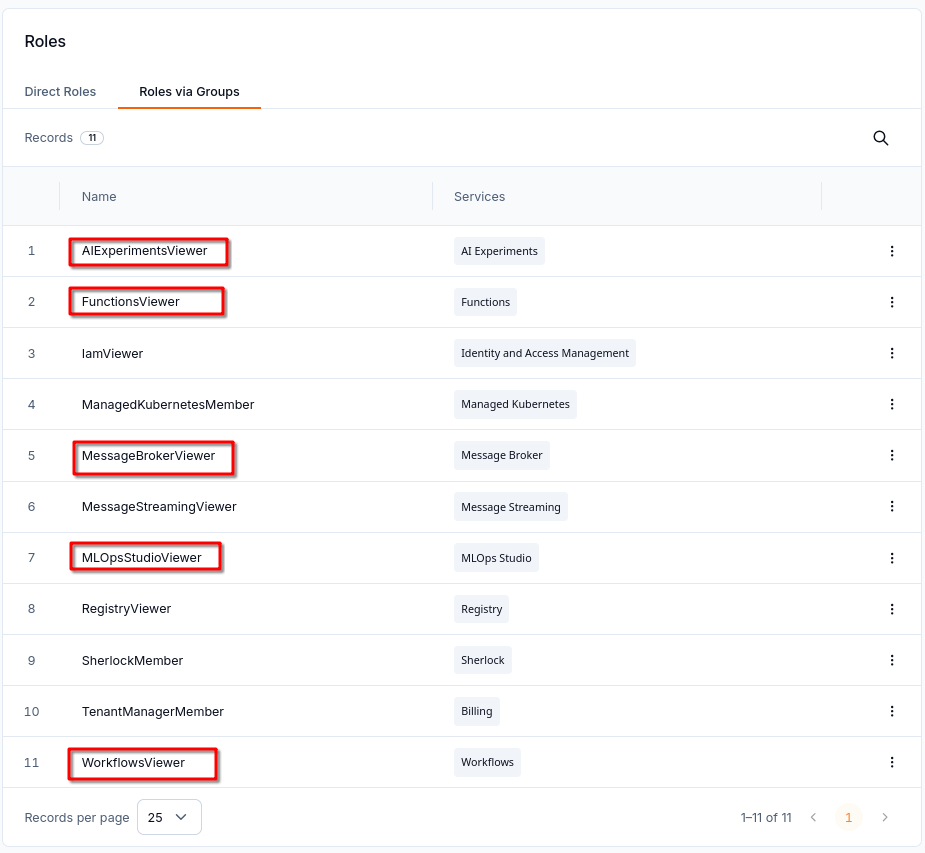
The five highlighted names match PlatformReviewers. The combined group-based role list contains eleven entries.
The Records 11 count covers the member’s combined group-based role list. The five highlighted entries match PlatformReviewers. Six additional entries, including IamViewer and RegistryViewer, are outside that group’s five-role configuration.
The screenshot does not identify the source group for each row. A highlighted role might also be assigned through another group, so its presence alone does not show that joining PlatformReviewers granted new access. To verify the configuration, check both the five entries in the group’s Roles table and the user’s entry under Members.
Review Direct Roles separately when assessing the member’s overall access. Group membership and direct role assignments are distinct sources of access. This example demonstrates creating the group, assigning its roles, adding a member, and finding the matching role names in Roles via Groups; it does not isolate the change in the member’s effective permissions.