
Getting started with Managed Notebooks on CloudFerro Cloud
This guide walks you through the full lifecycle of a notebook: create it, start it, work in JupyterLab, stop it, and delete it when you no longer need it.
Numbers in brackets, such as (1), refer to the numbered markers on the screenshots.
Before you start
CloudFerro account. You need an account in MyPortal. If you do not have one, register on the CloudFerro website.
Organization with billing. Your account must belong to an organization with an active payment method. Notebooks are billed to the organization. If you are not sure, ask your organization administrator.
Pop-ups allowed. Managed Notebooks opens JupyterLab in a new browser tab. Allow pop-ups for MyPortal in your browser.
Open Managed Notebooks
Sign in to MyPortal.
On the home page, scroll to Quick access and find the Managed Notebooks card (1).
Click Go to product (2).
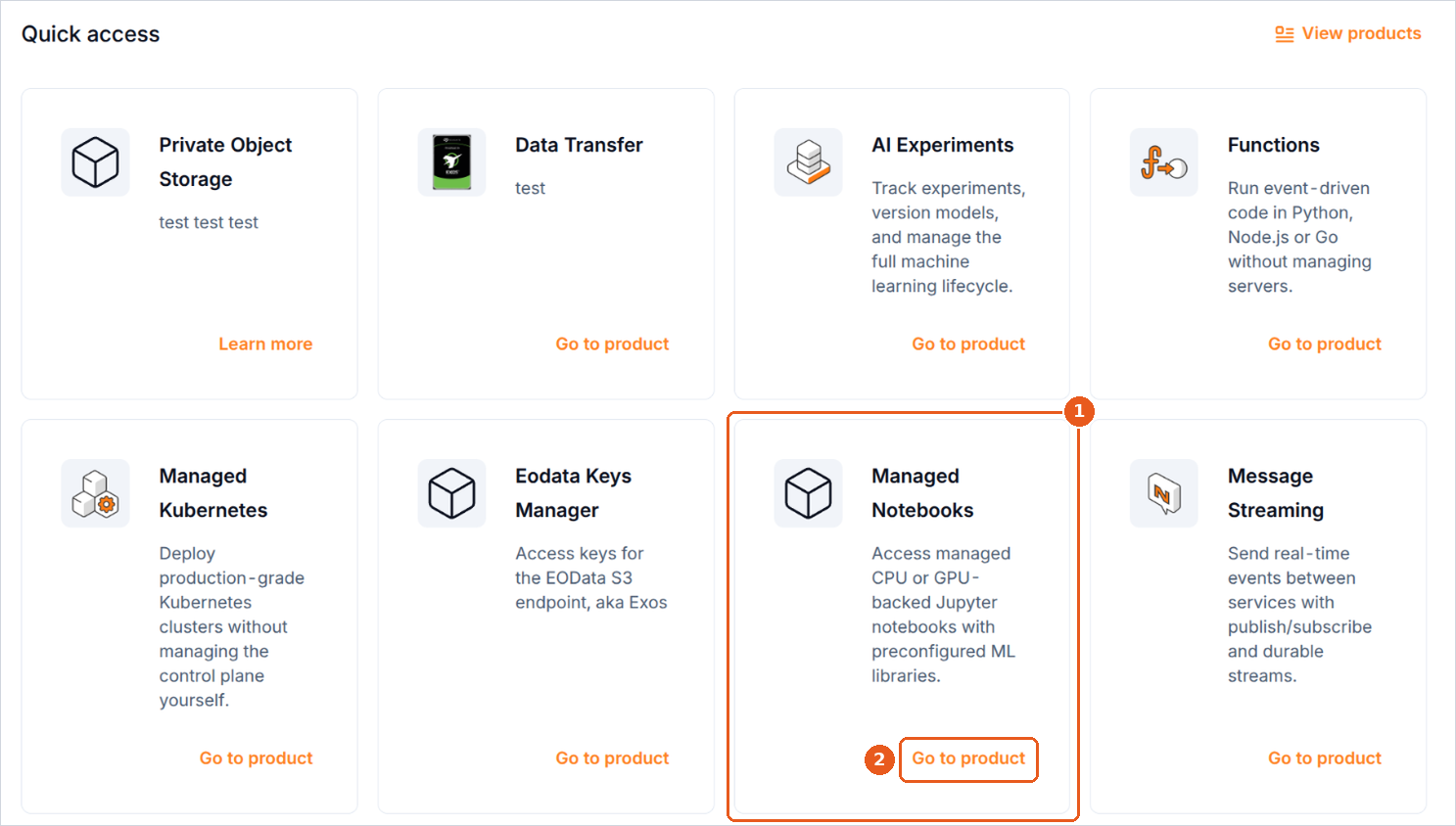
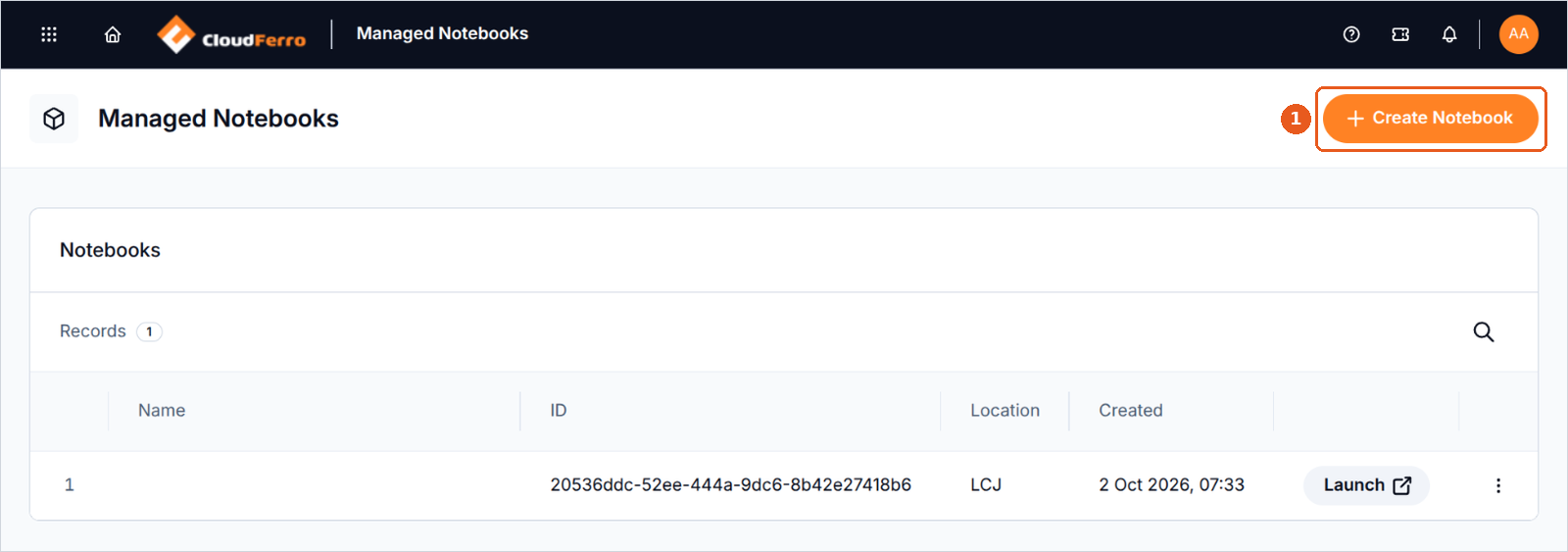
The Managed Notebooks page opens. It lists all your notebooks.
Create a notebook
On the Managed Notebooks page, click Create Notebook (1).
In the New Notebook dialog, fill in:
Name (1): a name that helps you recognise the notebook, for example
my-first-notebook.Location (2): the region where the notebook runs. Keep the preselected value.
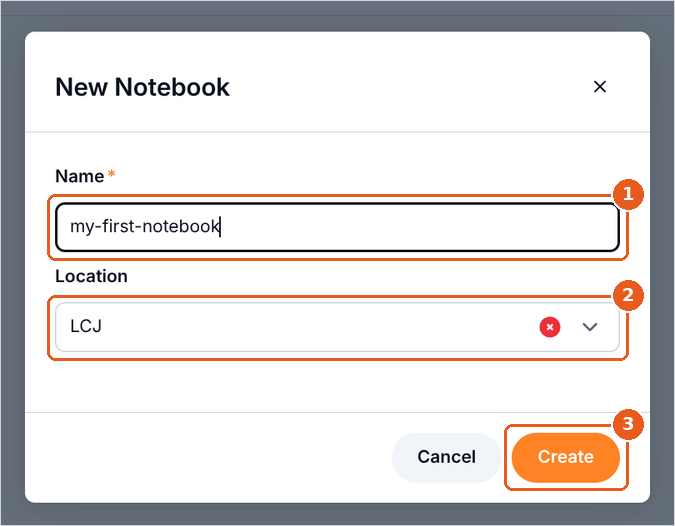
Click Create (3).
A notification confirms that the notebook is being created, and the notebook appears in the list (1).
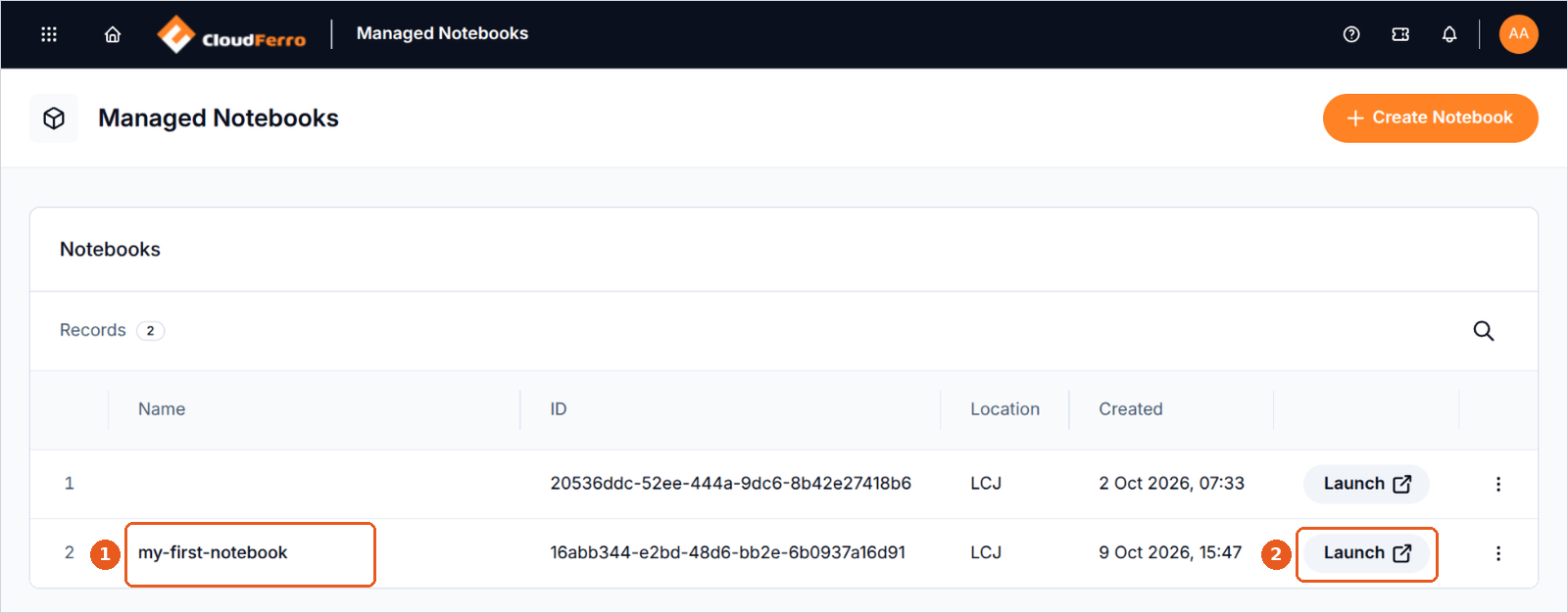
The notebook does not run yet. Nothing is started until you click Launch (2). You can create several notebooks. Each one has its own storage.
Start the notebook
In the notebook list, click Launch next to your notebook. A new browser tab opens.
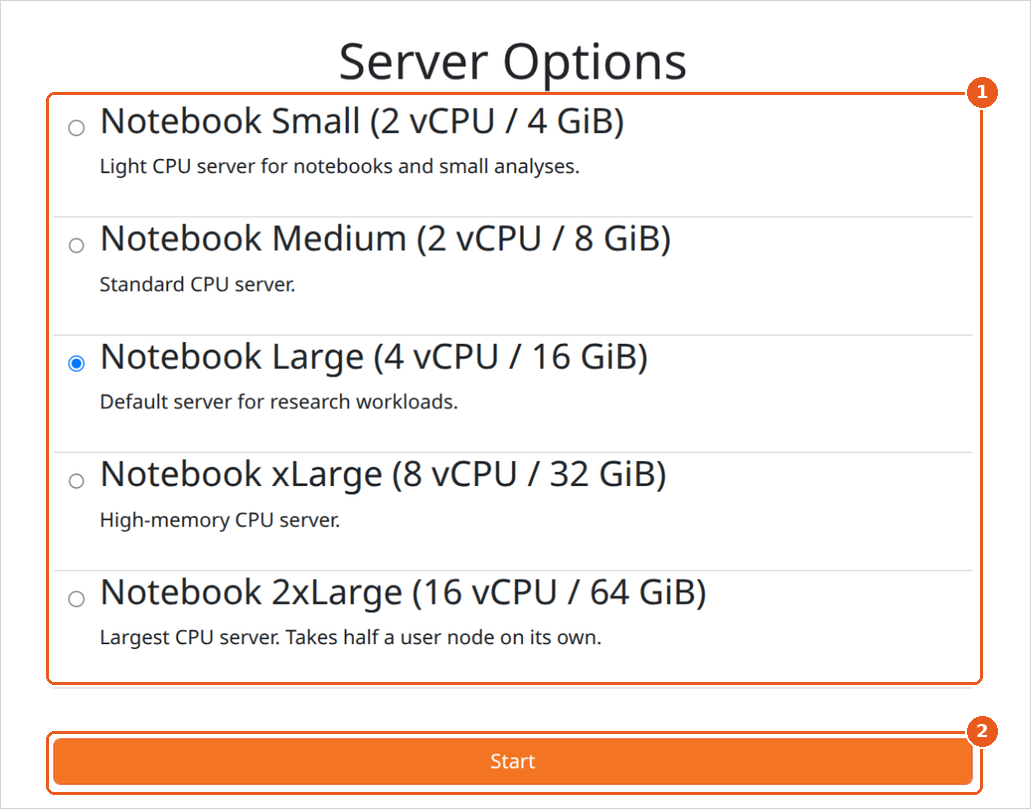
On the Server Options page, choose the size of the server (1). See Server sizes.
Click Start (2).
Note
You choose the size every time you start the notebook. On the first start, Notebook Large is preselected. On later starts, the size you used last time is preselected. Check the selection before you click Start: your organization is billed according to the size you choose.
Wait while the server starts. A progress bar (1) shows the progress. The first start usually takes under a minute.

Note
During the first start, the page can show technical messages (1), for example about volumes or nodes. They are part of the normal start-up. Wait until the page opens JupyterLab.
When the server is ready, JupyterLab opens in the same tab.
Work in JupyterLab
The Launcher
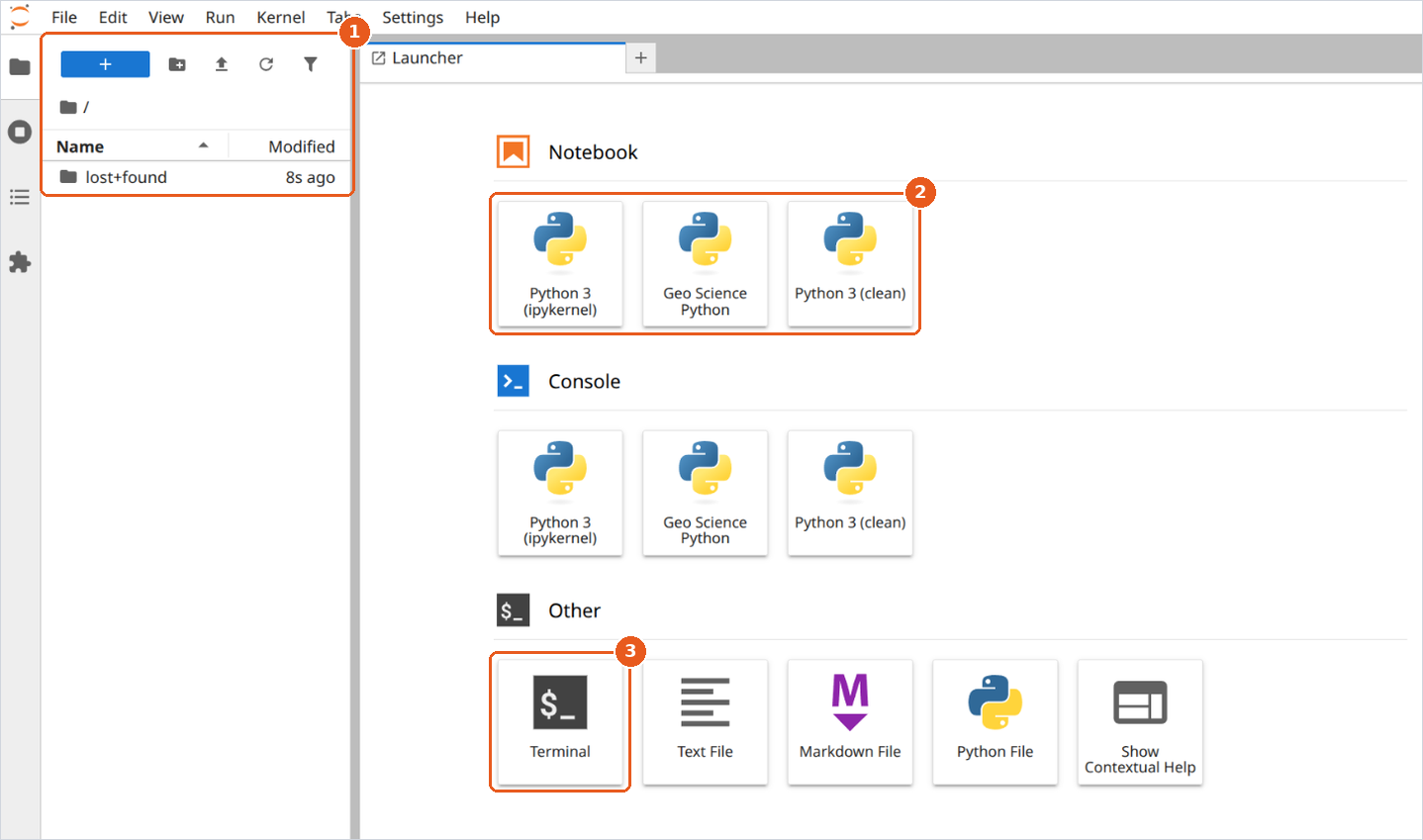
JupyterLab opens with the Launcher:
The file browser (1) shows the files in your notebook’s storage.
Notebook (2) creates a new notebook with the selected kernel:
Python 3 (ipykernel): the default Python environment.
Geo Science Python: Python with preinstalled geoscience libraries.
Python 3 (clean): a minimal Python environment for your own packages.
Terminal (3) opens a command line in the notebook’s environment.
Run your first cell
In the Launcher, click Python 3 (ipykernel). A new notebook opens.
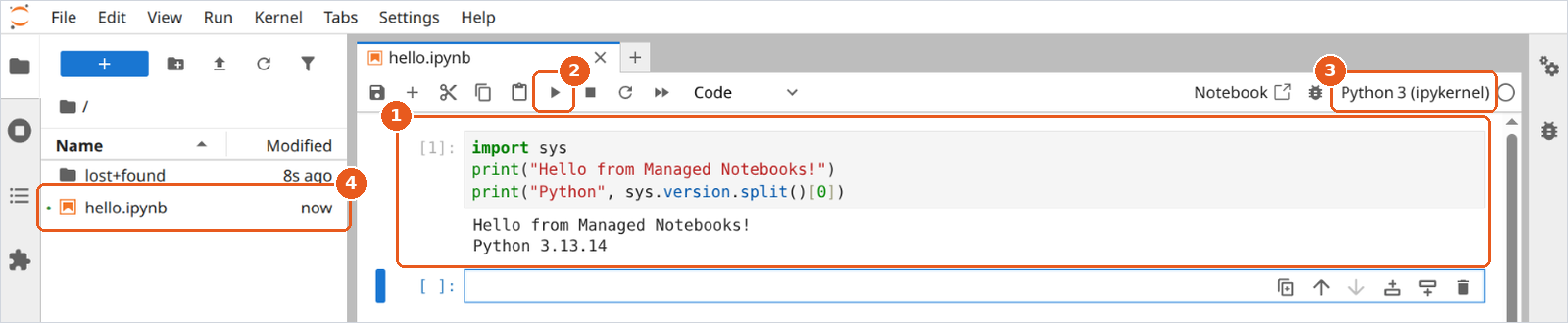
Type your code in the first cell (1), for example:
import sys
print("Hello from Managed Notebooks!")
print("Python", sys.version.split()[0])
Click Run (2) or press Shift+Enter. The output appears below the cell.
The kernel name (3) shows which environment runs your code. The notebook file (4) appears in the file browser.
Save your work
Press Ctrl+S or click the save icon in the notebook toolbar.
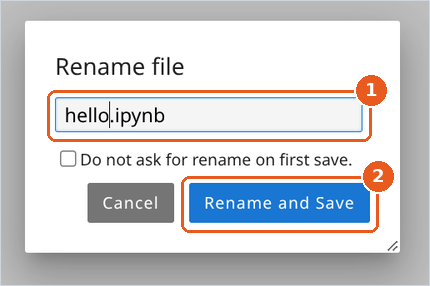
When you save a new notebook for the first time, JupyterLab asks for a file name:
Enter a name (1), for example
hello.ipynb.Click Rename and Save (2).
Upload and download files
To upload files, click the upload icon at the top of the file browser, or drag files from your computer into the file browser.
To download a file, right-click it in the file browser and select Download.
Stop the notebook
Stop the notebook when you finish working. A stopped notebook does not use compute, and your organization is not billed for compute. Your files stay in the notebook’s storage, and you can start it again at any time with Launch.
Note
Closing the JupyterLab tab or selecting File > Log Out does not stop the notebook. It keeps running, and your organization is billed, until you stop it or it stops automatically after 4 hours without use.
While the notebook runs, its row shows Open (1) instead of Launch. Open takes you back to the running JupyterLab.
Click the actions menu (2) of the notebook.
Select Suspend (3).
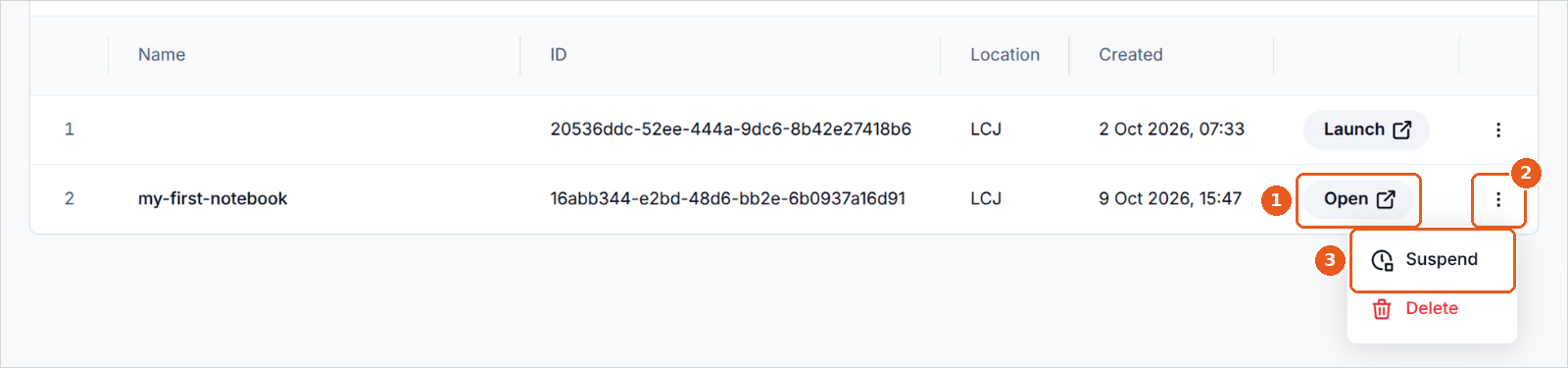
After a few seconds the row shows Launch again.
You can also stop the notebook in JupyterLab, on the Hub Control Panel page: see Hub Control Panel.
If JupyterLab is still open
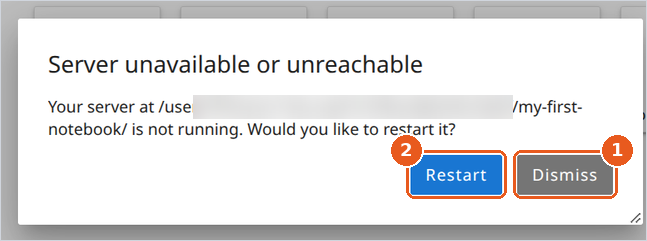
If a JupyterLab tab is still open when the notebook stops, it shows Server unavailable or unreachable. Click Dismiss (1) and close the tab. Do not click Restart (2): it starts the server again.
Delete a notebook
Deleting a notebook removes it together with its storage and all files on it. You cannot undo this. Download any files you want to keep before you delete the notebook.
Stop the notebook. See Stop the notebook.
Close all JupyterLab tabs of the notebook.
On the Managed Notebooks page, click the actions menu of the notebook and select Delete.
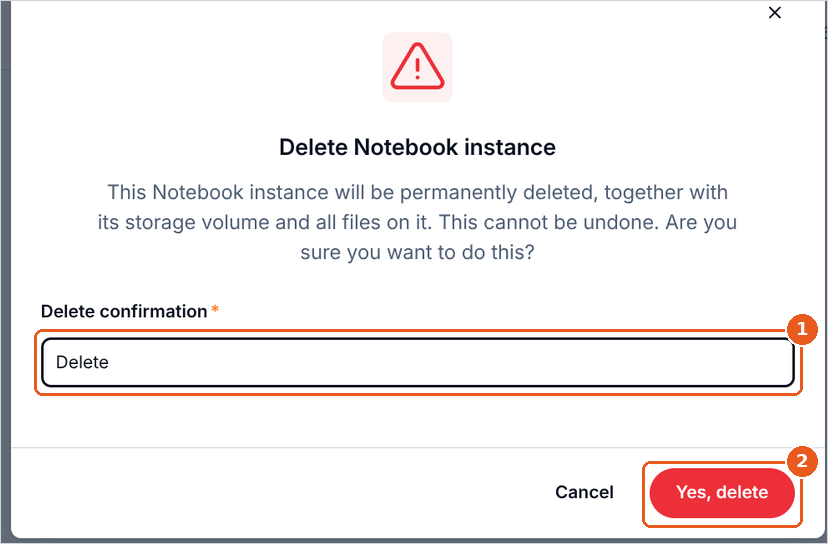
In the Delete Notebook instance dialog, type
Deletein Delete confirmation (1).Click Yes, delete (2).
Note
The dialog does not show the name of the notebook. Make sure you opened the actions menu in the right row.
The notebook disappears from the list.
Note
If a JupyterLab tab of the deleted notebook is still open and shows Server unavailable or unreachable, click Dismiss and close the tab. Restart in that dialog does not bring back the deleted notebook: it starts a new notebook without a name, and your organization is billed for it.
Server sizes
You choose the server size on the Server Options page every time you start a notebook.
Size |
vCPU |
Memory |
|---|---|---|
Notebook Small |
2 |
4 GiB |
Notebook Medium |
2 |
8 GiB |
Notebook Large |
4 |
16 GiB |
Notebook xLarge |
8 |
32 GiB |
Notebook 2xLarge |
16 |
64 GiB |
All sizes run on CPU. Every size has the same 20 GiB of storage for your files.
Choosing a size
Start with Notebook Small or Notebook Medium for exploring data and small analyses.
Choose a larger size when your data does not fit into memory or your computations take too long.
Your organization is billed according to the size you choose, for the time the server runs. You can choose a different size every time you start the notebook.
Your files and automatic stop
What is kept
Files in your home folder, the folder the file browser shows, are kept on the notebook’s storage. They stay when you stop the notebook and when the notebook is stopped automatically.
Variables, loaded data and running computations live in memory. They are lost when the notebook stops.
Each notebook has its own storage. Notebooks do not share files.
Deleting a notebook deletes its storage and all files on it.
Automatic stop
A notebook that is not used for 4 hours is stopped automatically. Your files are kept, and you can start the notebook again with Launch.
Using the notebook means working in JupyterLab: opening it, running cells, saving files.
Note
A computation that keeps running while the JupyterLab tab is closed does not count as use. If nobody uses JupyterLab for 4 hours, the notebook stops, and the results that exist only in memory are lost. For long computations, keep the JupyterLab tab open and write intermediate results to files.
Hub Control Panel
Hub Control Panel is a service page of the notebook service. You do not need it for everyday work: create, start, stop and delete your notebooks in MyPortal.
How you get there
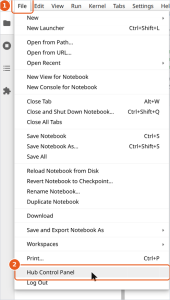
In JupyterLab, you open the File menu (1) and select Hub Control Panel (2).
You sign in to the notebook service again, for example after File > Log Out.
Stop a notebook here
In the row of your notebook, click stop (1). Do not click Start My Server (2) or Add New Server (3).
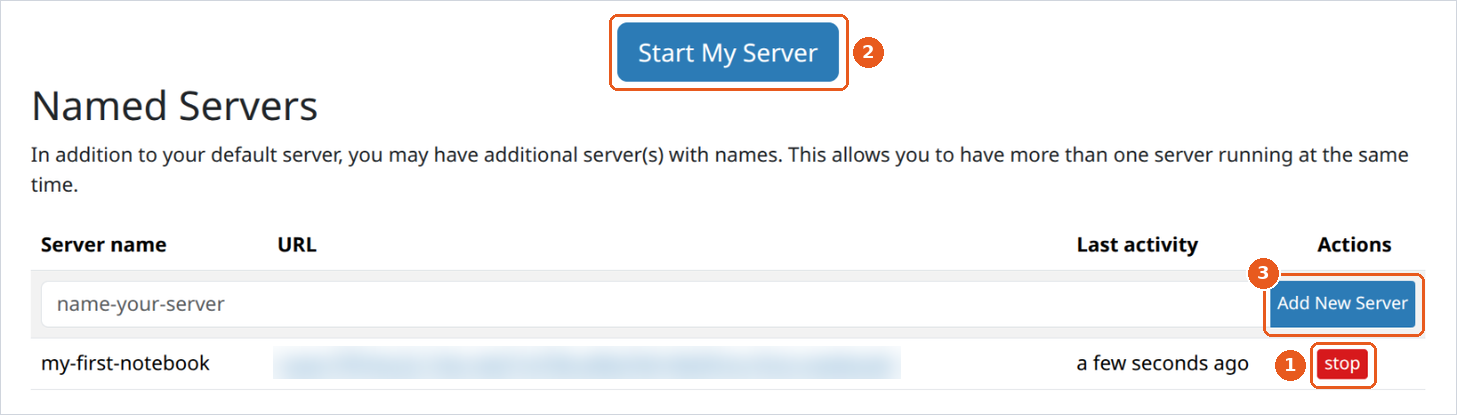
After the server stops, the row shows start and delete (1). Leave them: start and delete your notebooks in MyPortal.

Go back to MyPortal and refresh the Managed Notebooks page. MyPortal does not update the list on its own, so until you refresh it still shows Open.
Go back to MyPortal
The page has no link to MyPortal. Close the tab and open Managed Notebooks in MyPortal.
What to do next
For help with common problems, see Troubleshooting on CloudFerro Cloud.