
Workflows user guide on CloudFerro Cloud
A workflow is a sequence of steps that complete a job. For example, a job might download a dataset, process it, and save the result. Workflows runs the steps in the required order and records what happens along the way. The same job can then be repeated, either when you start it yourself or on a schedule.
Sign-in and access
Workflows is available from My Portal. After signing in, the Products icon in the left sidebar opens the product catalogue.
The article Access MLOps Studio, AI Experiments, and Workflows from My Portal on CloudFerro Cloud illustrates this route, the dashboard’s Quick access shortcuts, and the Welcome to MLOps service chooser.
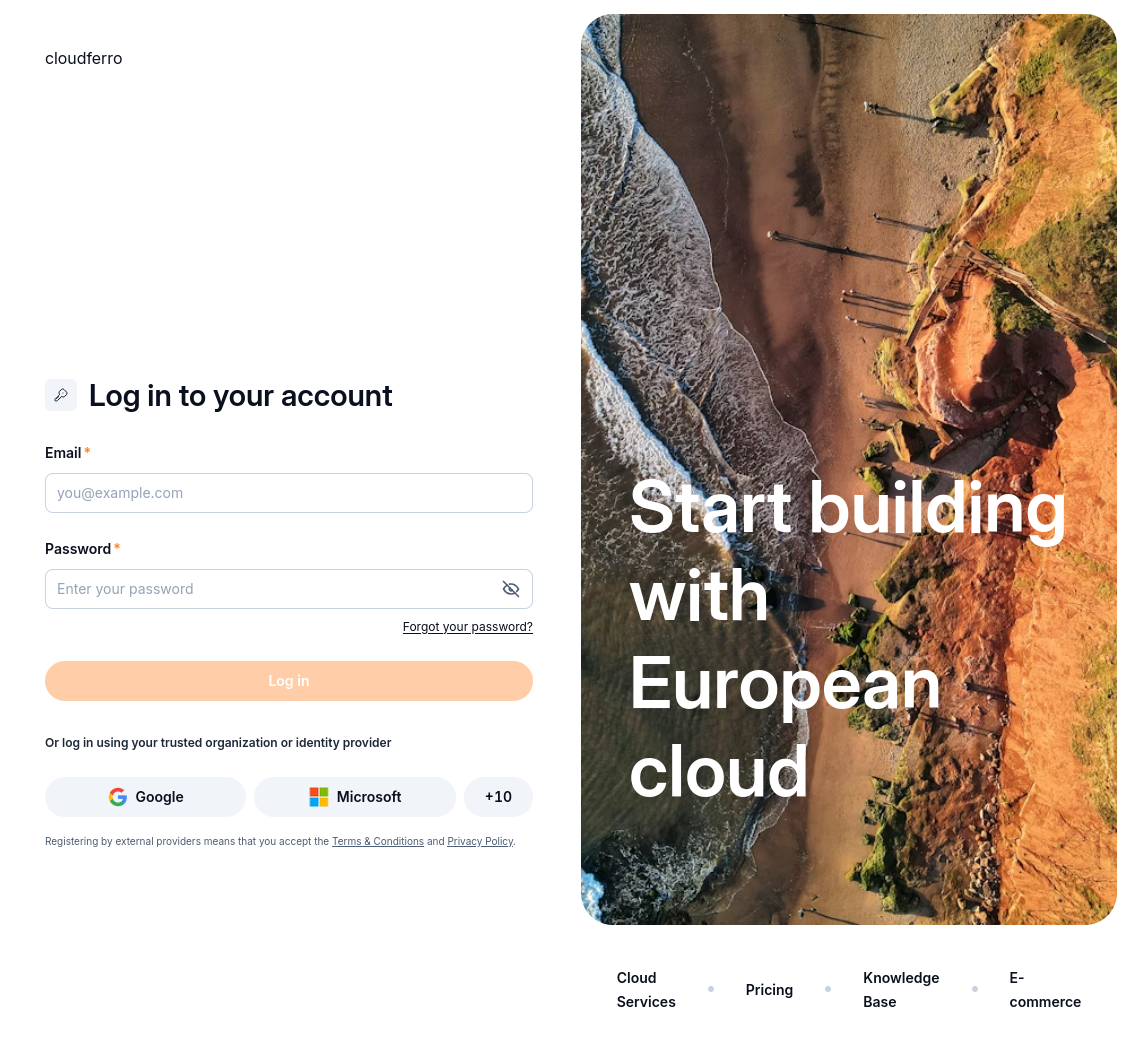
The sign-in page for My Portal.
In the product catalogue, Go to product on the Workflows card opens My Workflows, the page where your Workflows instances are listed.
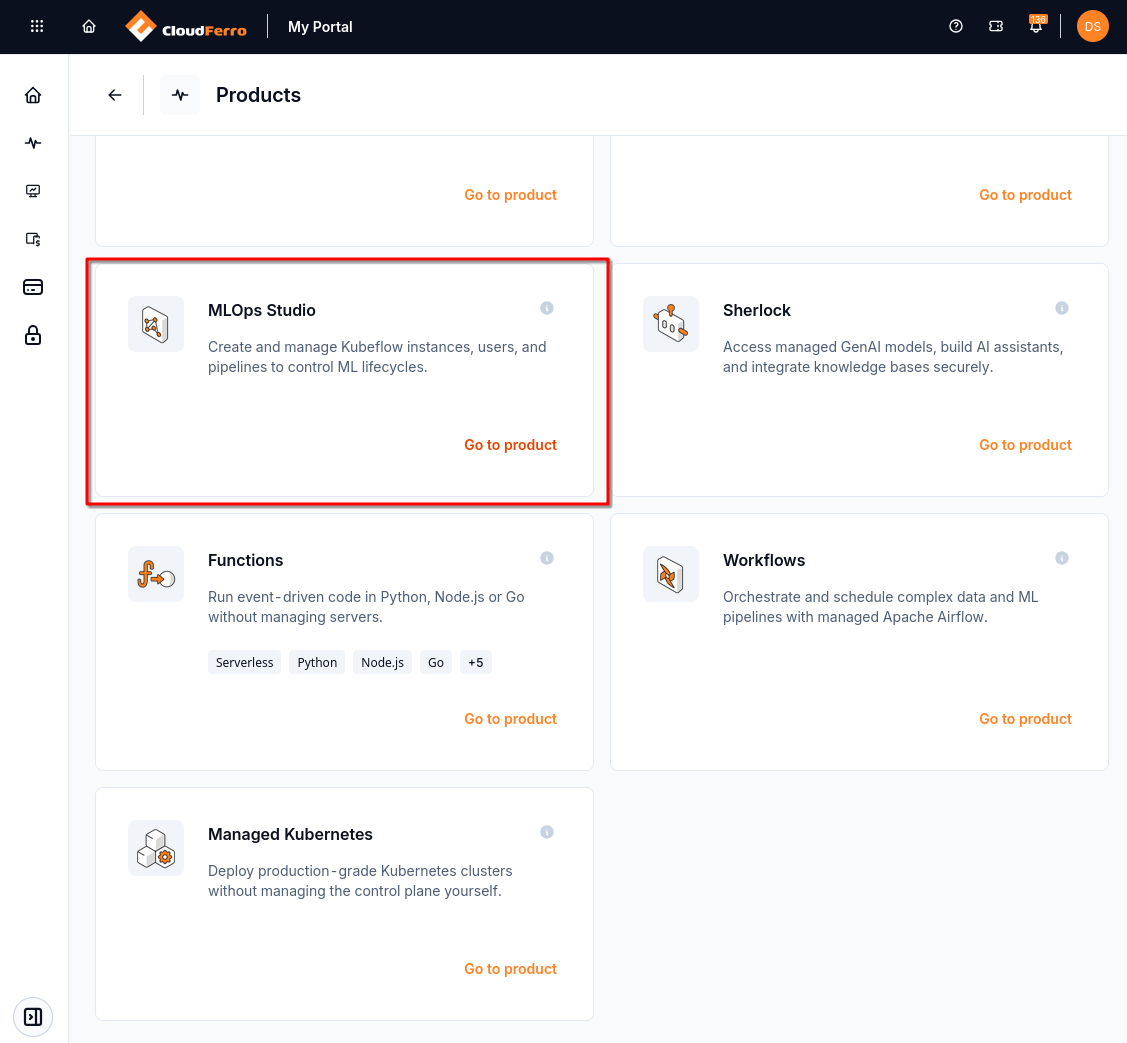
Go to product on the Workflows card at the lower right opens My Workflows.
The My Workflows page lists the Workflows instances available to you. An instance is the environment where workflows run. Before you create your first one, the list may be empty and show No instances yet. If an instance is already available, you can open it and continue working with its DAGs and runs.
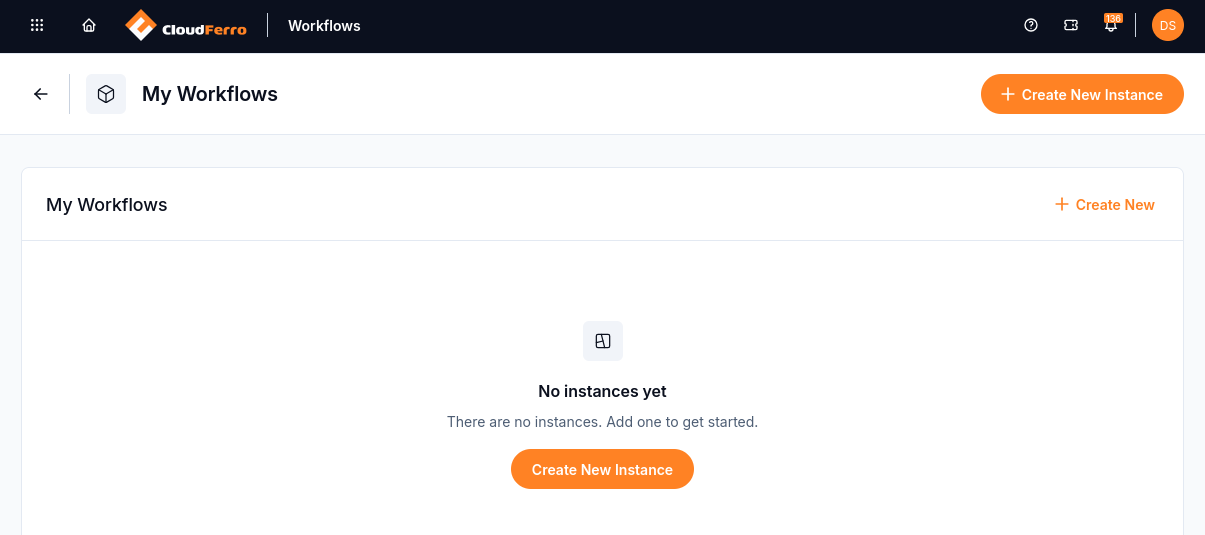
My Workflows before the first instance has been created.
Your first instance
On the My Workflows page, the Create New Instance button opens the creation form. The form has four sections: Basic Settings, Node pools, DAG Repository Configuration, and Object storage. The first section gives the instance a name and defines its size and service version.
The Git repository and object storage connection details are also needed to complete this setup.
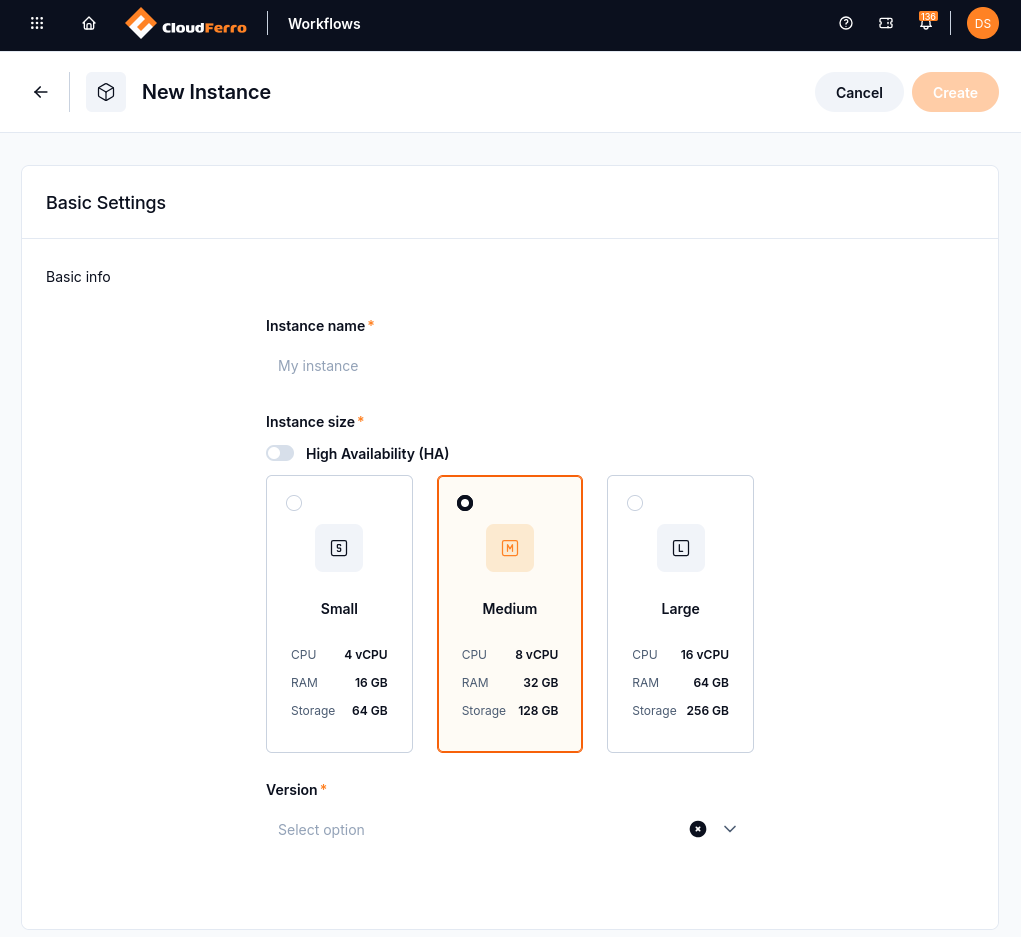
Basic Settings at the top of the instance creation form.
The fields in Basic Settings are:
Instance name: a display name that helps you identify the instance in My Workflows, for example My Workflows.
High Availability (HA): an option for production workloads that runs redundant copies of the core components.
Instance size: Small (4 vCPU / 16 GB RAM / 64 GB storage), Medium (8 vCPU / 32 GB RAM / 128 GB storage), or Large (16 vCPU / 64 GB RAM / 256 GB storage). Medium is preselected. Your first Workflows instance on CloudFerro Cloud compares the sizes and concurrency limits.
Version: the service version to run. The list identifies the recommended stable version. The supplied example uses 3.x.
Node pools
A node pool is a group of machines that runs workflow tasks. For this first example, the Node pools section can remain empty: the service supplies a default pool. The article Node pools on CloudFerro Cloud covers custom pools for workloads that need different machines or scaling settings.
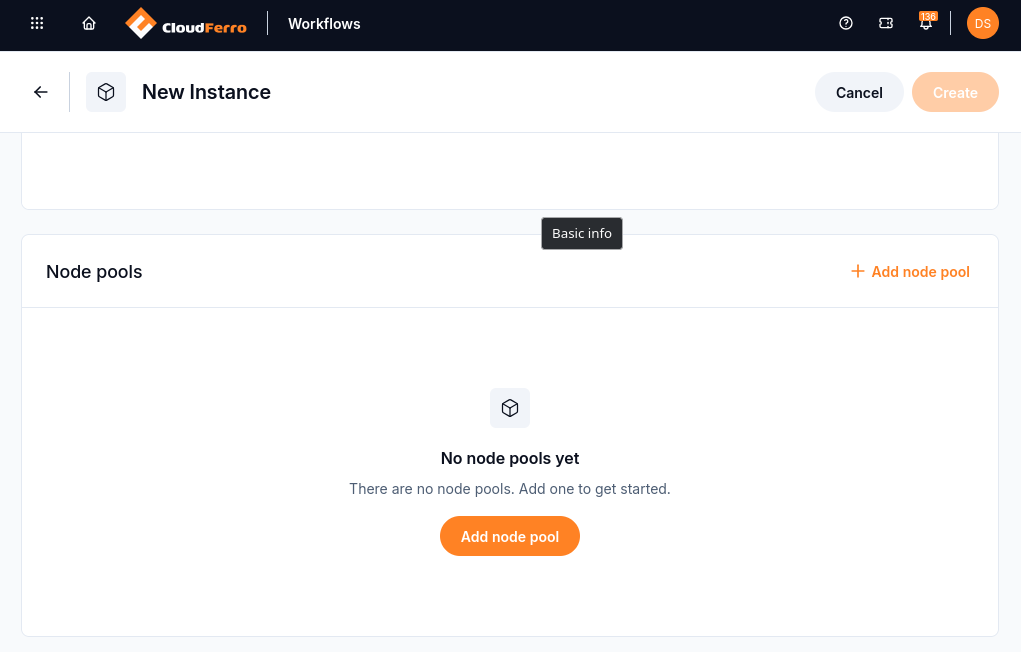
The first example uses the default pool, so no custom pool is added here.
DAG repository
Further down the form, DAG Repository Configuration identifies where the workflow’s Python files are stored. In this example, they are kept in a Git repository on GitHub, which stores the files and their history of changes. A file defining a workflow’s tasks and their order is called a DAG.
DAGs and a Git repository on CloudFerro Cloud supplies first_workflow.py and shows how to upload it to a repository and generate a token that allows Workflows to read it. That preparation provides the three values needed here:
GIT Repository URL: the repository’s HTTPS clone URL, for example
https://github.com/my-org/workflows-dags.git. This points to the repository, without a file path or branch suffix.Branch: the branch containing first_workflow.py, for example main. The form may suggest master; the value must match the branch in your repository.
Git Access Token / Secret: the token with read access to that repository.
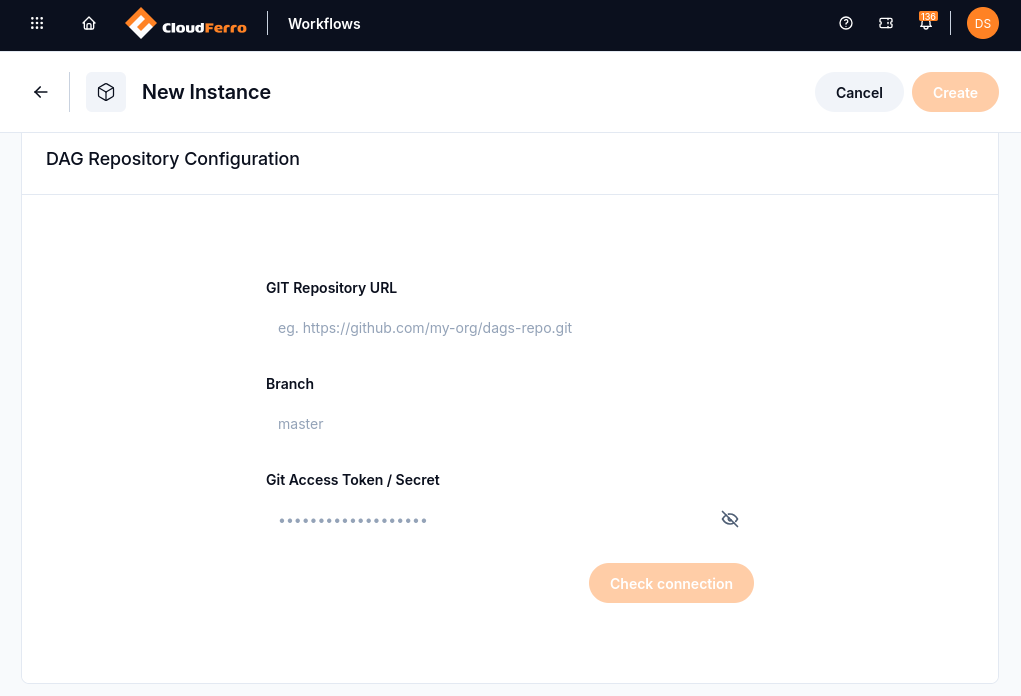
The repository connection is configured in the same New Instance form.
With these three fields filled in, Check connection checks access to the repository. The check may finish without a success badge. If it reports an error, the repository URL, branch name, and token permissions and expiration are the first details to check. Once the instance is running, first_workflow appearing in its DAG list confirms that the file has been obtained and loaded.
Object storage
The last section connects the instance to a bucket, a named container for files in object storage. Workflows saves task logs there: the messages that show progress, results, and errors. The bucket must already exist and allow Workflows to read and write files. It can be empty; log files are created when tasks run.
Object storage for Workflows on CloudFerro Cloud shows the example bucket workflow1 and explains preparation using the existing s3cmd or boto3 documentation. The settings used for a successful test upload and download belong in these fields:
Access key: the access key used for the bucket’s read and write checks.
Secret key: the matching secret key from the same key pair.
Endpoint: the S3 service address, including https://, used by the S3 client.
Bucket name: the existing bucket’s name, for example workflow1, without a folder path or an S3 URI prefix.
Region: the region value used by the S3 client for that endpoint.
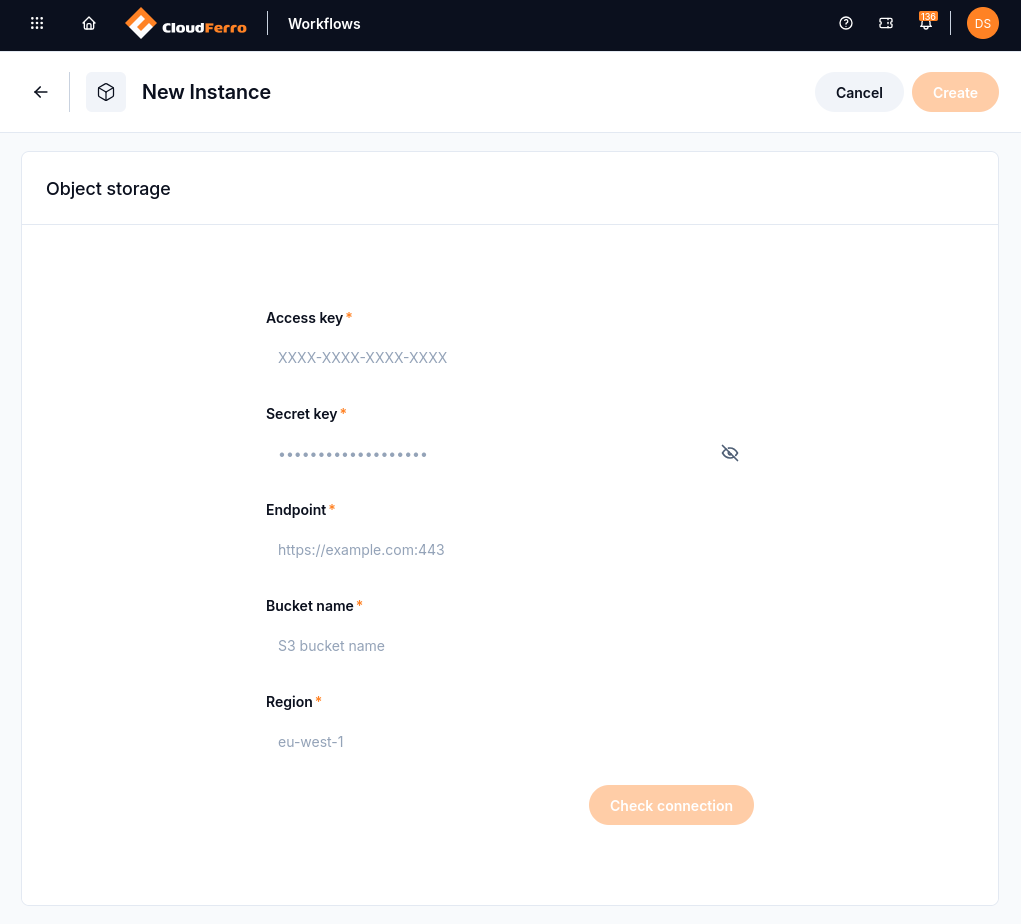
The storage connection belongs to the same New Instance form.
The Check connection button in this section checks access to the bucket. A successful check displays CONNECTED.
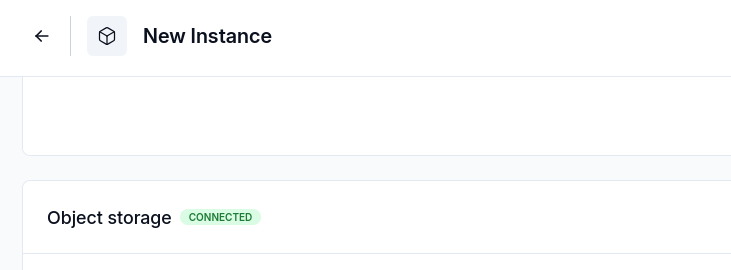
CONNECTED confirms that the storage connection check succeeded.
Instance creation
Once Basic Settings and the Git fields are complete and the storage check shows CONNECTED, the Create button becomes available. Clicking it submits the form and starts provisioning the instance.
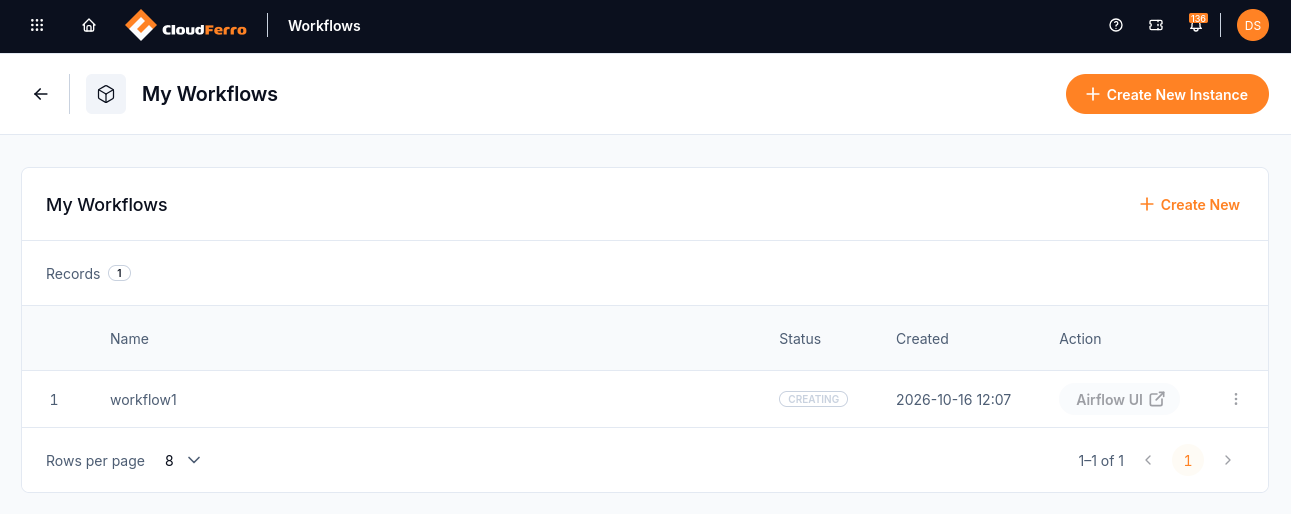
The new instance starts with the status Creating.
Provisioning takes a few minutes. The instance appears on My Workflows with the status Creating, which changes to Running when it is ready. Its Airflow UI button opens the Workflow web UI, where available DAGs can be run.
Your first workflow
The example in this guide adds 10, 20, and 30, then displays Total: 60 in a log. The calculation is deliberately small: it gives you a way to see how a workflow starts, how its steps progress, and where the result appears. The Python file is supplied with the guide, so writing the code is not part of this first exercise.
There are three steps in the example: preparing the numbers, adding them, and reporting the total. Workflows calls these steps tasks. The file that describes the tasks and their order is a DAG, short for directed acyclic graph. Each time the example executes, it creates a new run, with its own progress information and results.
One instance can hold several workflows, so a new instance is not needed for every job. Its web UI lists the available DAGs and lets you start runs and watch their progress.
The preparation guides explain how to create the bucket and Git repository used by the instance. The instance guide provides the detailed size and concurrency limits, while the run guide follows the example through to the log containing Total: 60.
The example runs on the computing resources supplied automatically by the service. Additional machines and access for other people can be considered later, when they become useful to you.
Preparation
The instance guide provides more detail about the settings above. Once the instance is Running, the run guide explains how to find first_workflow, start it, and read the result.
First workflow
As your workflows grow, you may want to change the machines available to their tasks. The node-pool guide explains the available sizes and how a group can grow automatically when more machines are needed.
The instance itself is managed in My Portal, where its status shows whether it is ready, being updated, or being deleted. Its separate Workflow web UI contains the DAGs, runs, and task logs. The portal currently opens that interface through a button labelled Airflow UI.
An instance can be used by one person. If you later want someone else to run your workflows or read their results, membership gives that person access to the instance. The members guide explains the available roles and how access can be added or removed.
Operation and support
Your Python files remain in the Git repository, and the task logs remain in your bucket. They are still there if you delete the Workflows instance after experimenting. The storage and instance guides explain what is retained and how to look after the files you want to keep.