
MLOps Studio on CloudFerro Cloud
When you want to explore a dataset or develop a model, a browser notebook gives you a place to write Python and see its results. MLOps Studio provides the cloud environment for that work, with Kubeflow notebooks and tools for training, pipelines, and model serving.
Here is a bird’s-eye view of MLOps Studio.
Sign-in and access
Sign in to My Portal with your platform account.
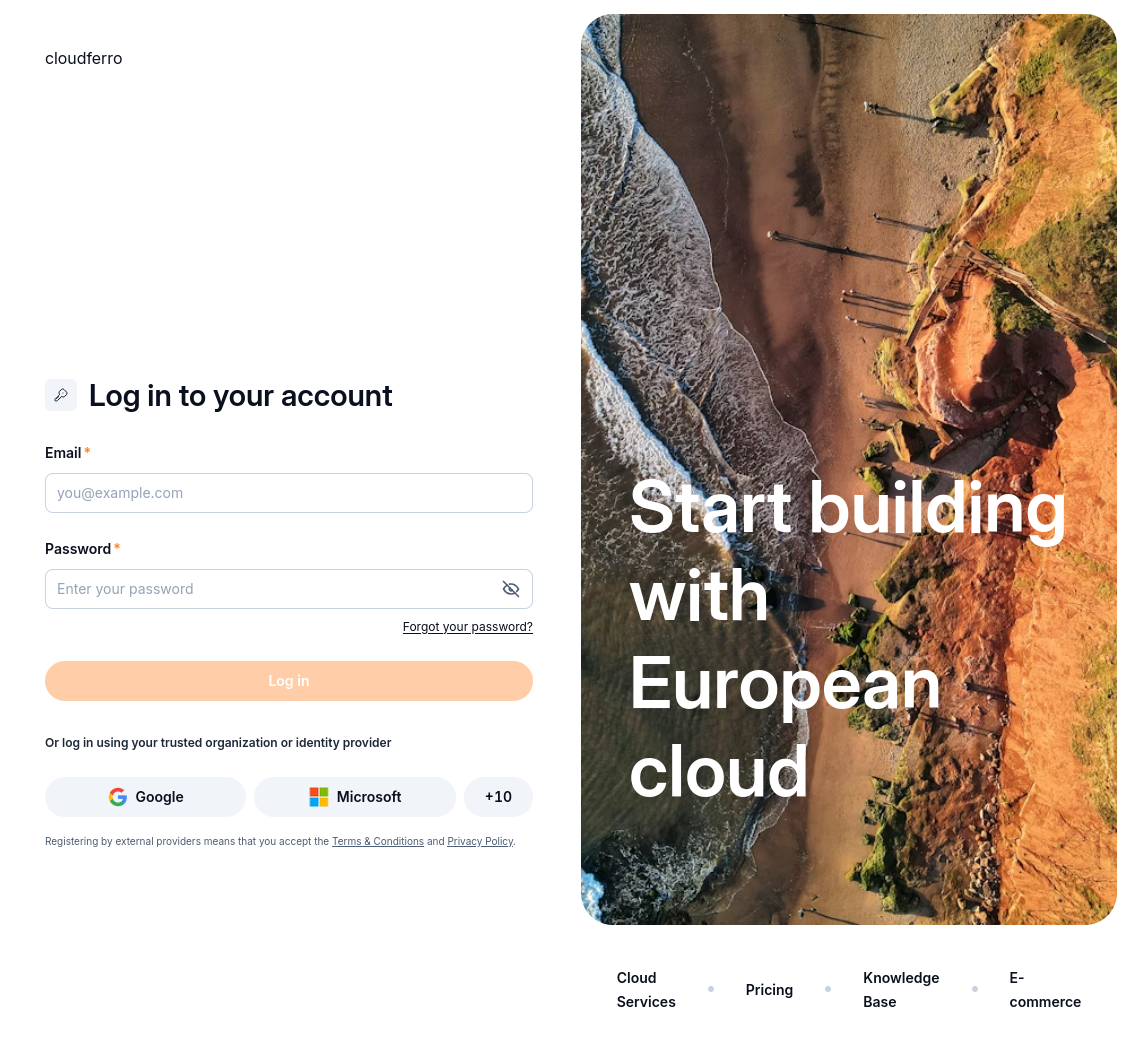
Sign in with the account that will use MLOps Studio.
Open Products in the left sidebar, find MLOps Studio, and click Go to product.
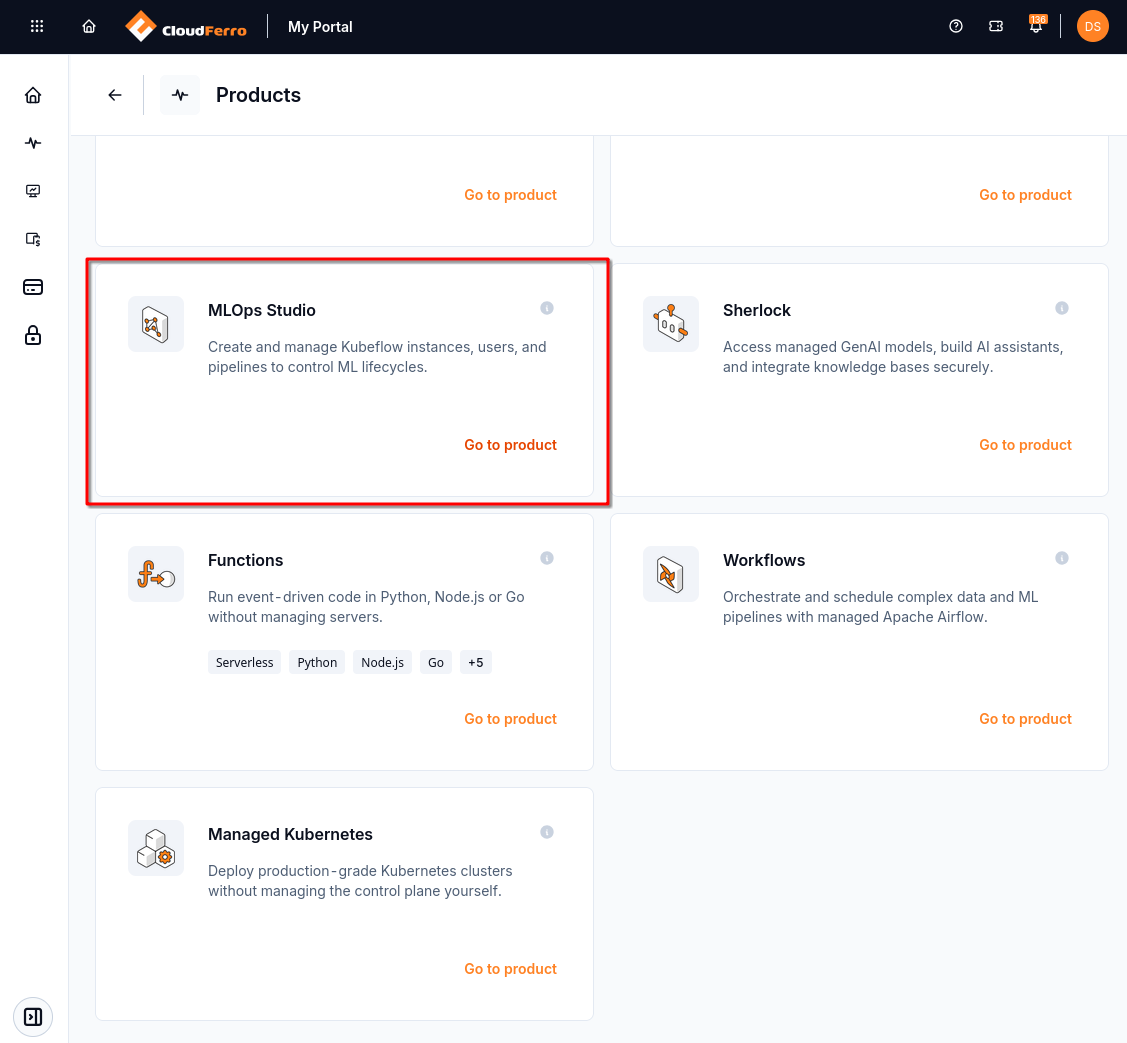
The MLOps Studio card opens the instance list.
An instance is the environment that runs Kubeflow and your team’s notebooks and other workloads. The list below is empty. Create New Instance opens the setup form; if your team already has an instance, ask for its name and workspace access.
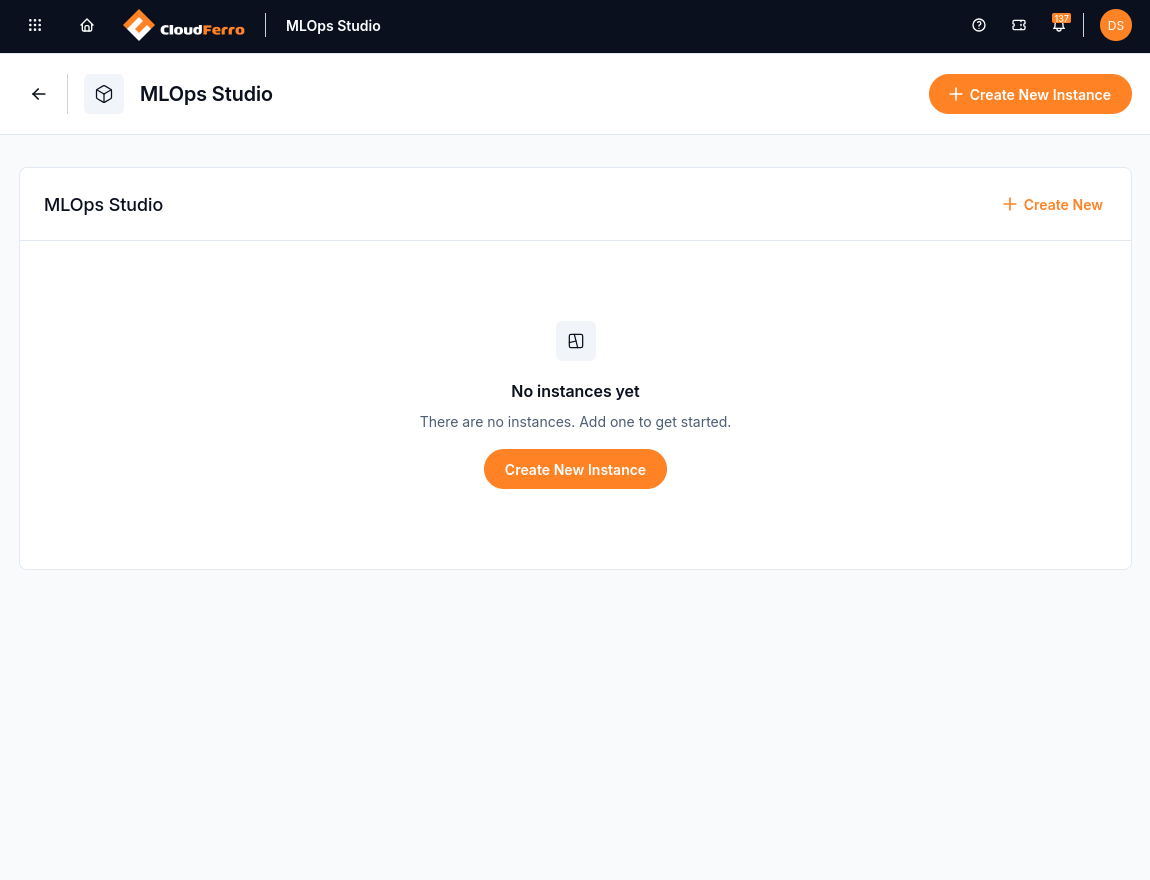
MLOps Studio before the first instance has been created.
Your first instance
The New Instance form starts with Control plane. Enter an instance name, choose its size and availability settings, and select a Version. The control plane manages the environment; worker machines run your notebooks and training jobs.
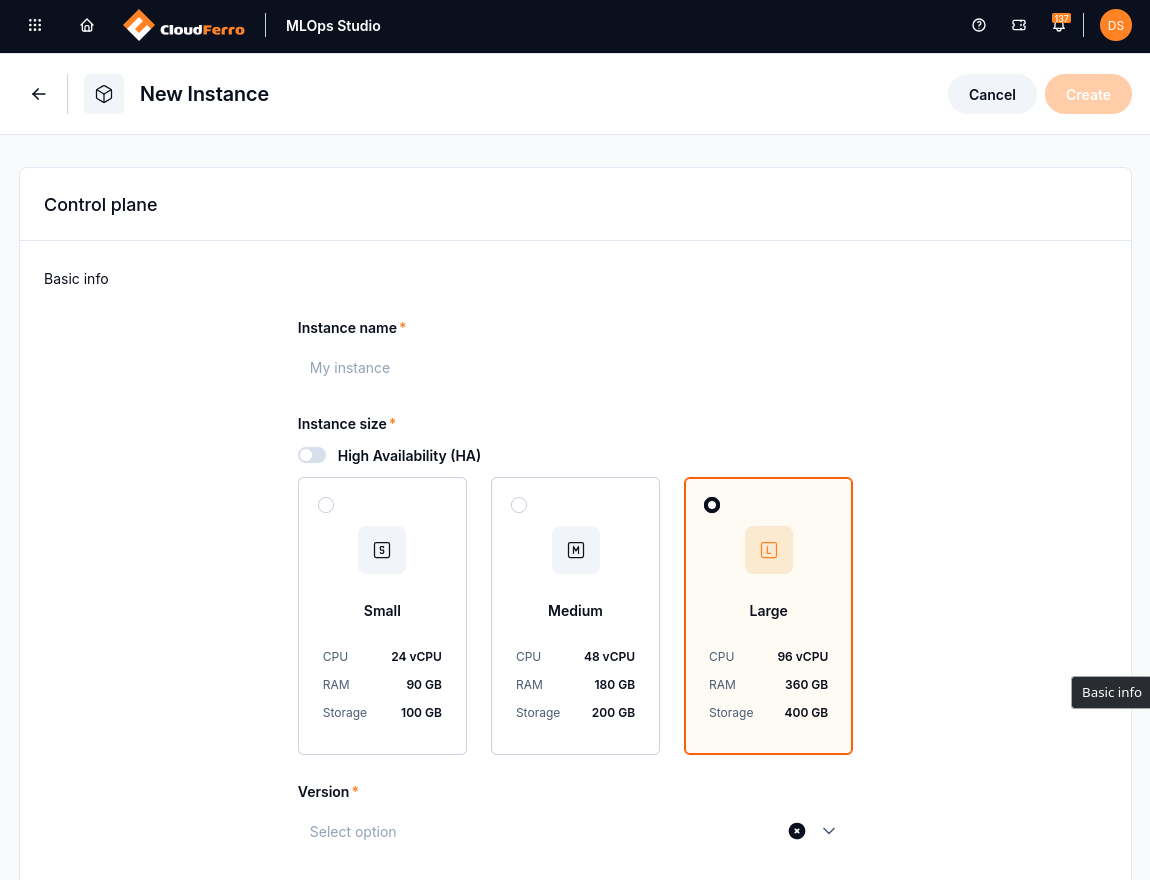
This capture shows Large selected and Version still empty. Choose the capacity agreed for your environment.
Further down the form, Node pools configures the worker machines. Object storage connects an existing bucket using its access key, secret key, endpoint, bucket name, and region. Prepare the bucket and check its connection before submitting the form.
The application choices determine which tools are installed. Central Dashboard is included; select Notebooks for the first Python exercise. The example below also selects tools for pipelines, training, and model serving.
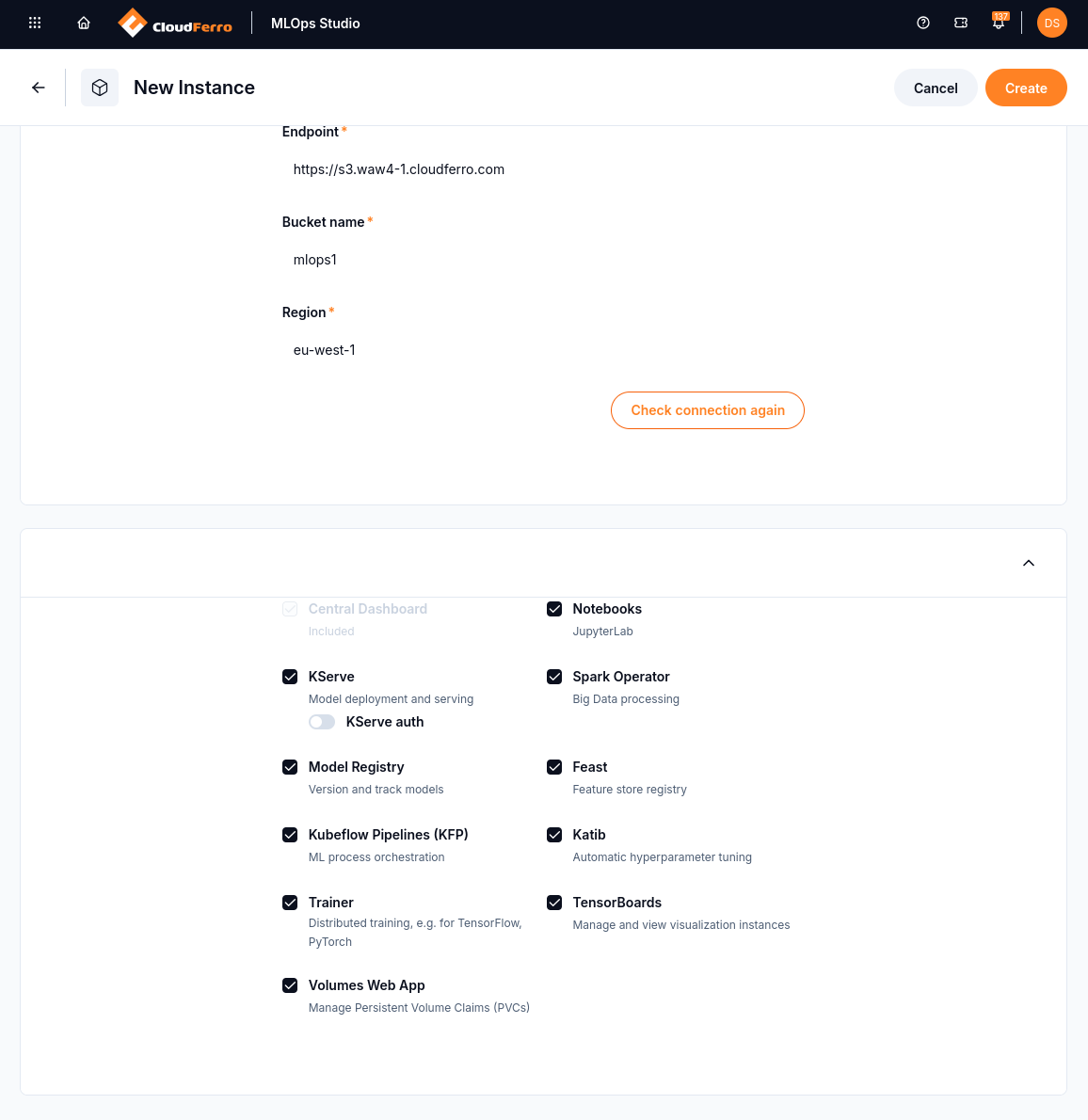
The example connects the mlops1 bucket and selects the applications in the same creation form.
Prepare the storage and compute settings, then follow the creation procedure:
Your workspace and access
After Create, the instance appears with CREATING while provisioning runs. When it reaches RUNNING, open its details. The mlops1 example below uses Medium capacity and has one worker node pool.
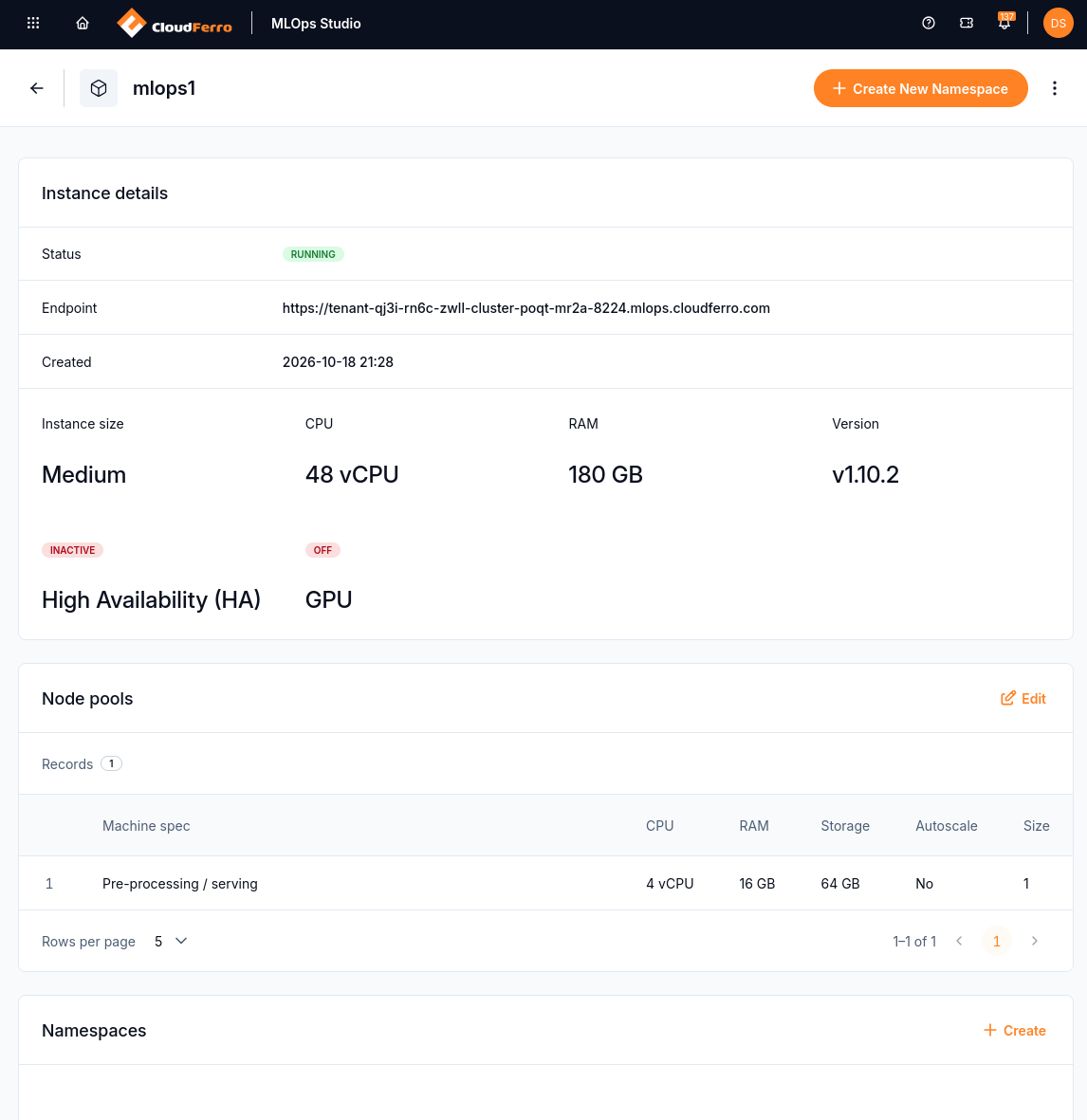
RUNNING is the instance state. INACTIVE under High Availability and OFF under GPU describe those settings.
A namespace groups a workspace’s resources and members. Create New Namespace adds one to the instance. Open the saved namespace and use Add Members to assign access. The example workspace is named mlops-namespace.
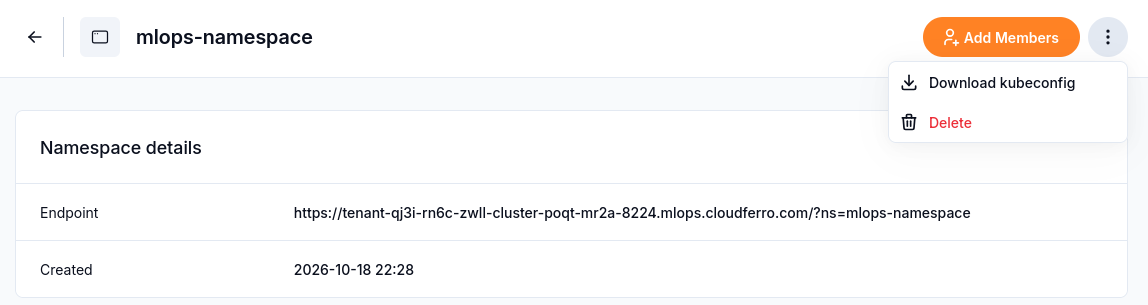
Add people to the namespace they will use in Kubeflow.
Portal sign-in alone does not assign a workspace. Someone creating notebooks needs Edit access to the namespace. The membership procedure covers the roles and how to assign them:
Open Kubeflow and find a notebook
Return to the instance list and open Central Dashboard for the running instance. Kubeflow opens with shortcuts for notebooks, pipelines, models, and the feature store. Choose your workspace using Select namespace at the top left.
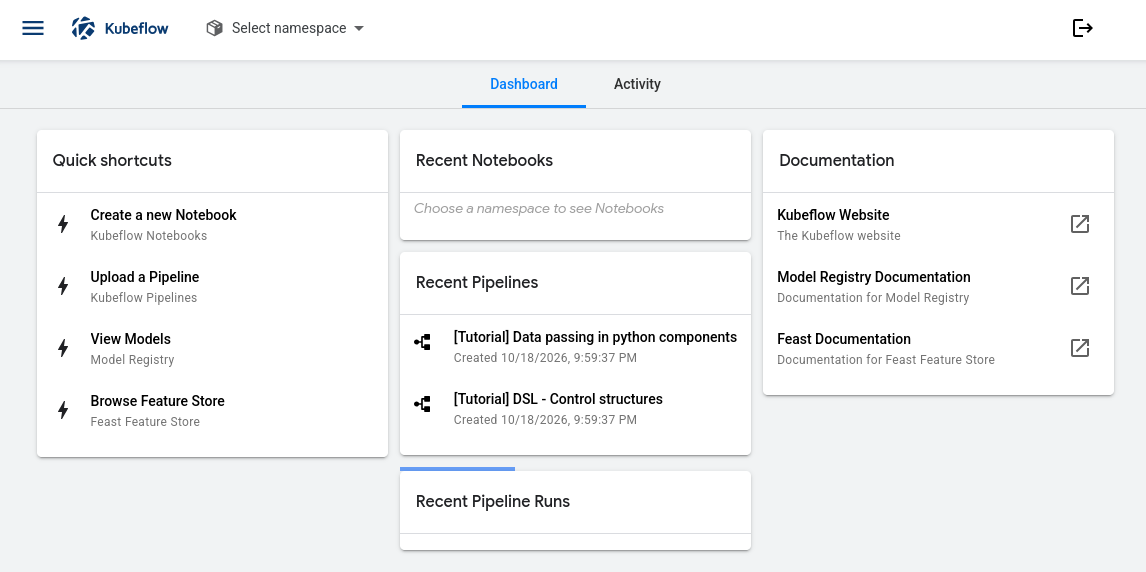
No namespace is selected in this capture. Select yours to see its notebooks and other resources.
Open Notebooks to find a prepared environment, or use New Notebook to create one with the image, CPU, memory, and storage your work needs. The notebook list shows its status and a CONNECT action.
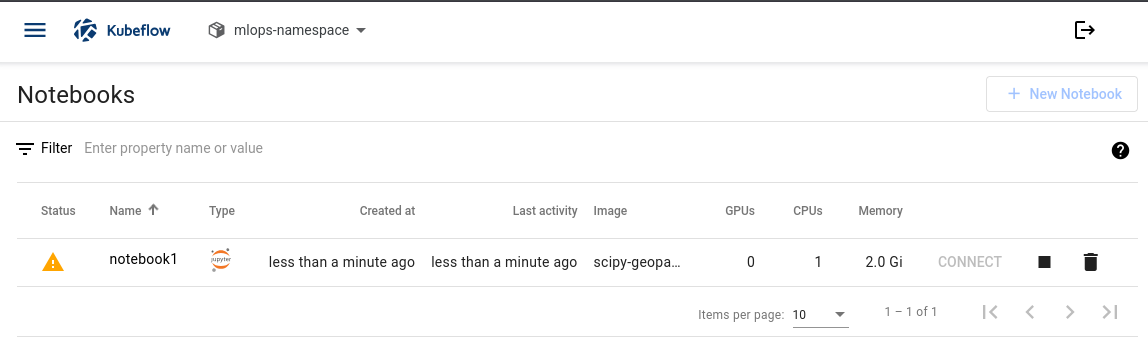
notebook1 is still starting here. CONNECT becomes available when it is ready.
Use the first guide for a notebook prepared by your team, or the second to create your own:
Work in JupyterLab
CONNECT opens JupyterLab. Choose a Python kernel in the launcher to open a notebook document, then enter and run a code cell.
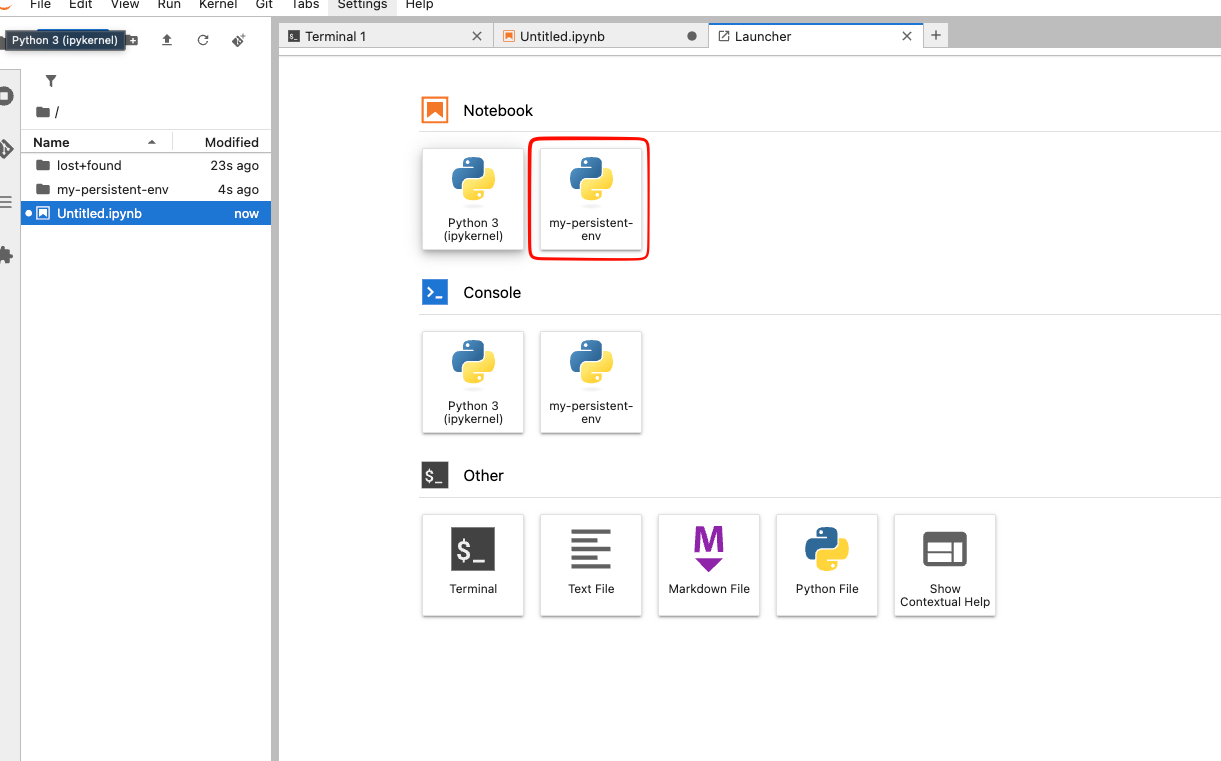
Python 3 (ipykernel) opens a Python notebook. The highlighted my-persistent-env kernel is an additional environment configured in the persistent-packages guide below.
For a first check, run:
print("My Python kernel is working.")
The output My Python kernel is working. appears below the cell. Save the notebook in its mounted persistent workspace. Packages can also be kept there in a separate Python environment, so they remain available after a notebook restart.
Continue with persistent packages, local-editor access, or the other installed tools:
Try a small example
Start with a greeting and a saved file, then train a tiny model. Try a two-step pipeline, or continue with a model pipeline that saves the model and compares prediction errors across two runs. The pipeline examples include YAML files ready to upload.
Manage and troubleshoot
Use the instance’s status and the symptom you see to choose the next check. Kubernetes diagnostic commands require the appropriate access; the troubleshooting articles identify when an administrator needs to help.
- Check instance states and manage the environment on CloudFerro Cloud
- Troubleshooting and known limitations on CloudFerro Cloud
- Troubleshoot notebooks and volume attachments on CloudFerro Cloud
- Troubleshoot pipeline startup and reused results on CloudFerro Cloud
- Troubleshoot Katib experiments on CloudFerro Cloud
What to do next
If your team has prepared an environment, Open an existing Kubeflow notebook on CloudFerro Cloud takes you through the first Python check. To create a new instance, start by preparing its bucket and connection details in Prepare object storage for MLOps Studio on CloudFerro Cloud.