
Open an existing Kubeflow notebook on CloudFerro Cloud
If your team has already prepared a MLOps Studio instance and a notebook environment, open that notebook and check that Python runs. Kubeflow manages the running notebook environment, with its image, compute resources, and storage. JupyterLab is the browser interface used in this example to edit and run notebook documents.
Prerequisites
No. 1 Access to My Portal
Sign in with your platform account and open MLOps Studio from Products. Access MLOps Studio, AI Experiments, and Workflows from My Portal on CloudFerro Cloud shows the sign-in route. Keep the instance list open for the steps below.
No. 2 An assigned namespace and a prepared Python notebook
Ask the administrator for the instance name, namespace, and notebook name. Your account needs permission to use that notebook, with a Python kernel and a mounted persistent workspace. If a notebook has not been prepared, follow Create and check a Kubeflow notebook on CloudFerro Cloud with Edit access first. Namespace membership is separate from portal sign-in.
Step 1: Open the MLOps Studio instance list
Open MLOps Studio in My Portal using the access guide in Prerequisite No. 1. Its product card opens the instance list directly. The portal reuses your sign-in session through Single Sign-On (SSO).
Step 2: Find the prepared instance
Find the instance named by your administrator and check its state. running means that the cluster and its applications are ready to access. An instance in creating is still being prepared. If the instance is missing or shows an error, give its name and state to the administrator rather than creating a replacement.
The list shows Name, Status, Created, and Action. Use Rows per page and the page controls to move through a longer list. Central Dashboard is unavailable while an instance is being created.
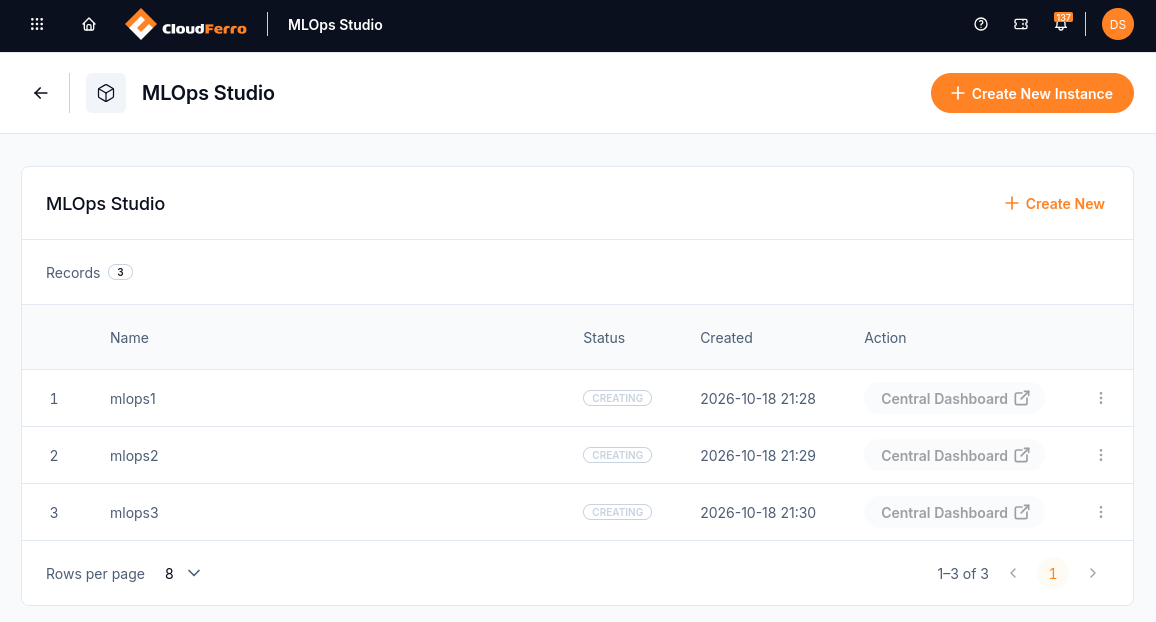
These three instances are still being provisioned. Each has its own status and Central Dashboard action.
Step 3: Enter the workspace and choose your namespace
Open Central Dashboard for the running instance. In Kubeflow, use Select namespace at the top left to choose the namespace assigned to you. This selection determines which project resources you work with. If your namespace is unavailable, ask the administrator to check your membership and the email address used for the invitation.
Before a namespace is selected, Recent Notebooks displays Choose a namespace to see Notebooks. Select the intended namespace before creating or opening notebook resources. This is the workspace interface, separate from the instance list in My Portal.
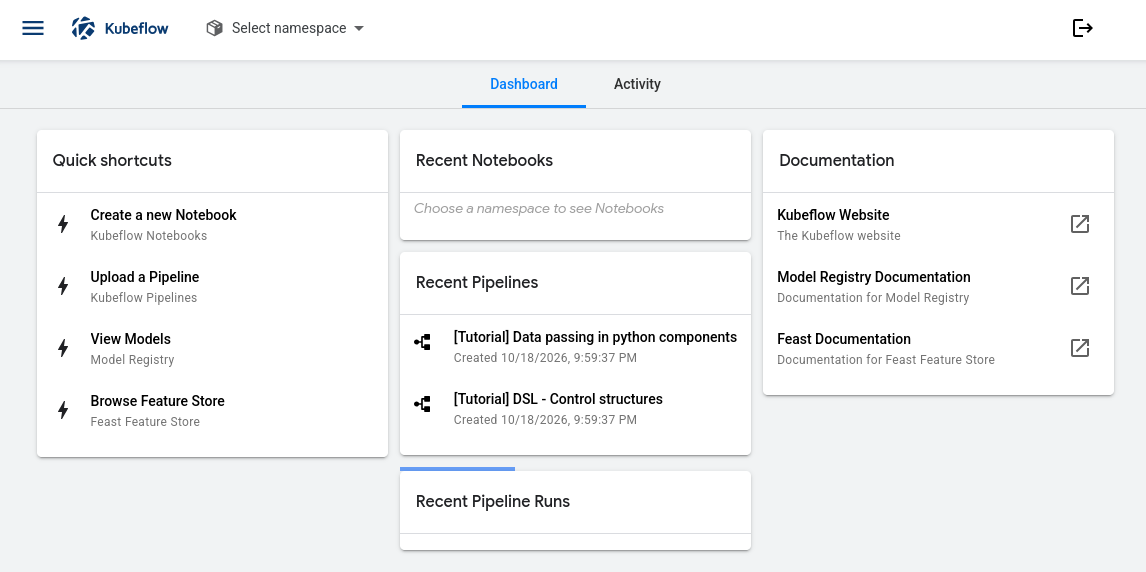
The dashboard is open, but Select namespace shows that no workspace has been selected yet.
The home page provides Create a new Notebook, Upload a Pipeline, View Models, and Browse Feature Store shortcuts. The tutorial entries under Recent Pipelines are pipeline definitions; their presence does not show that your own notebook or pipeline run has succeeded.
Step 4: Check Python in a prepared notebook
The notebook environment prepared in Prerequisite No. 2 supplies the image, compute resources, and storage for this check.
Open Notebooks in Central Dashboard. Find the notebook environment assigned to you and click CONNECT when it is ready. This opens JupyterLab.
In JupyterLab, open or create a notebook document in the persistent workspace and select an available Python kernel. A notebook document is an .ipynb file; the kernel executes its code cells.
In a code cell, run:
print("My Python kernel is working.")
The output should be:
My Python kernel is working.
Save the notebook in the persistent workspace prepared for you. The supplied notebook examples use
/home/jovyanfor that workspace; confirm the mounted location in your environment.
The displayed output confirms that this Python kernel can execute code. It does not check dataset access, GPU availability, or pipeline permissions. Those depend on the resources configured for your next task.
Keep work in the right place
A notebook container can be replaced when the notebook restarts. Save files in its mounted persistent volume. Installing packages into container system directories such as /opt/conda or /usr/local does not make those installations persistent; a Python environment stored on the persistent volume can keep installed packages.
The notebook controller uses Jupyter kernel activity and heartbeats to detect idle notebooks. Work started in a separate terminal, including processes in tmux, nohup, or the background, may be stopped when the notebook is culled. Run notebook work through the existing Jupyter kernel. Use a separate Kubernetes Job, pipeline, or other scheduled workload for work that must run independently of the notebook; ask an administrator to help if that is outside your access or experience.
What to do next
Try Say hello and train a tiny model on CloudFerro Cloud to save a file and train a tiny model in the environment you have just opened.
Keep packages across restarts with Keep Python packages across notebook restarts on CloudFerro Cloud. For optional local-editor access, use Connect a local editor to a Kubeflow notebook on CloudFerro Cloud. Choose tools for your machine learning work on CloudFerro Cloud explains the tools available for later tasks.
For a new team environment, Create an MLOps Studio instance on CloudFerro Cloud covers provisioning; Create namespaces and manage team access on CloudFerro Cloud covers the workspace and its members.
Choose compute capacity and scaling limits on CloudFerro Cloud explains the difference between control plane capacity and worker resources.
Check instance states and manage the environment on CloudFerro Cloud explains instance states and recovery actions.