
Keep Python packages across notebook restarts on CloudFerro Cloud
A package may work today and disappear after the notebook server restarts if it was installed in the container’s system directories. Store your Python dependencies on the mounted workspace and select the environment that contains them when running notebook cells.
Prerequisites
No. 1 A working Python notebook and persistent workspace
Complete Create and check a Kubeflow notebook on CloudFerro Cloud or open a notebook prepared by the administrator. Confirm the mounted workspace path; the examples below use /home/jovyan. You need permission to write there.
No. 2 Package and environment tools
The selected image must supply pip for Method 1, or conda for Method 2, and access to the required package repository. Choose packages and Python versions compatible with your project. In code fragments, replace <package_name> with the package you need.
Why packages disappear
In the documented Kubeflow setup, a Jupyter notebook server runs in a container with a mounted Persistent Volume (PV).
The container filesystem: System directories like
/opt/condaor/usr/localbelong to the container image unless a volume is mounted there. Changes in the container filesystem are lost when the container is replaced.The Persistent Volume: Your personal workspace—typically mounted at
/home/jovyan—is backed by the Persistent Volume. Anything saved inside this specific directory survives a restart.
If pip or conda installs a package in those system directories, the installation is lost when the container is replaced. Choose an installation path on the mounted workspace to keep the package across restarts.
Method 1: Install into the persistent user directory
If you are just installing a few Python packages using pip, the simplest solution is to use the --user flag. This forces pip to install the package into /home/jovyan/.local/lib/, which is located on your persistent volume.
Step-by-Step:
Open your Kubeflow Jupyter Notebook.
Use a notebook cell connected to the existing Python kernel. This keeps installation activity visible to the notebook controller.
Add
--userto your pip install command:%pip install --user <package_name>
Restart the kernel after installation if needed, then check the package location. User-site installation must be enabled for this Python environment; if it is disabled, use a persistent environment instead.
Method 2: Create a persistent Conda environment
If you need a completely separate environment with specific Python versions or complex dependencies, you can create a custom Conda environment directly inside your persistent volume.
Run the commands from cells connected to the current Jupyter kernel. This keeps environment creation visible as notebook activity. The example keeps Python 3.10 from the documented setup; use the version your project requires.
Create the environment under the mounted workspace:
!conda create --yes --prefix /home/jovyan/my-persistent-env python=3.10 pip ipykernel
Install a required package with that environment’s Python:
!/home/jovyan/my-persistent-env/bin/python -m pip install <package_name>
Register the environment as a Jupyter kernel:
!/home/jovyan/my-persistent-env/bin/python -m ipykernel install --user --name=my-persistent-env
Select my-persistent-env in Jupyter’s kernel picker, then run notebook cells with that kernel.
If using a terminal for short commands, activate the environment first:
conda activate /home/jovyan/my-persistent-env
Terminal activity alone does not prevent idle culling. Use the notebook-cell route above for longer installations and downloads.
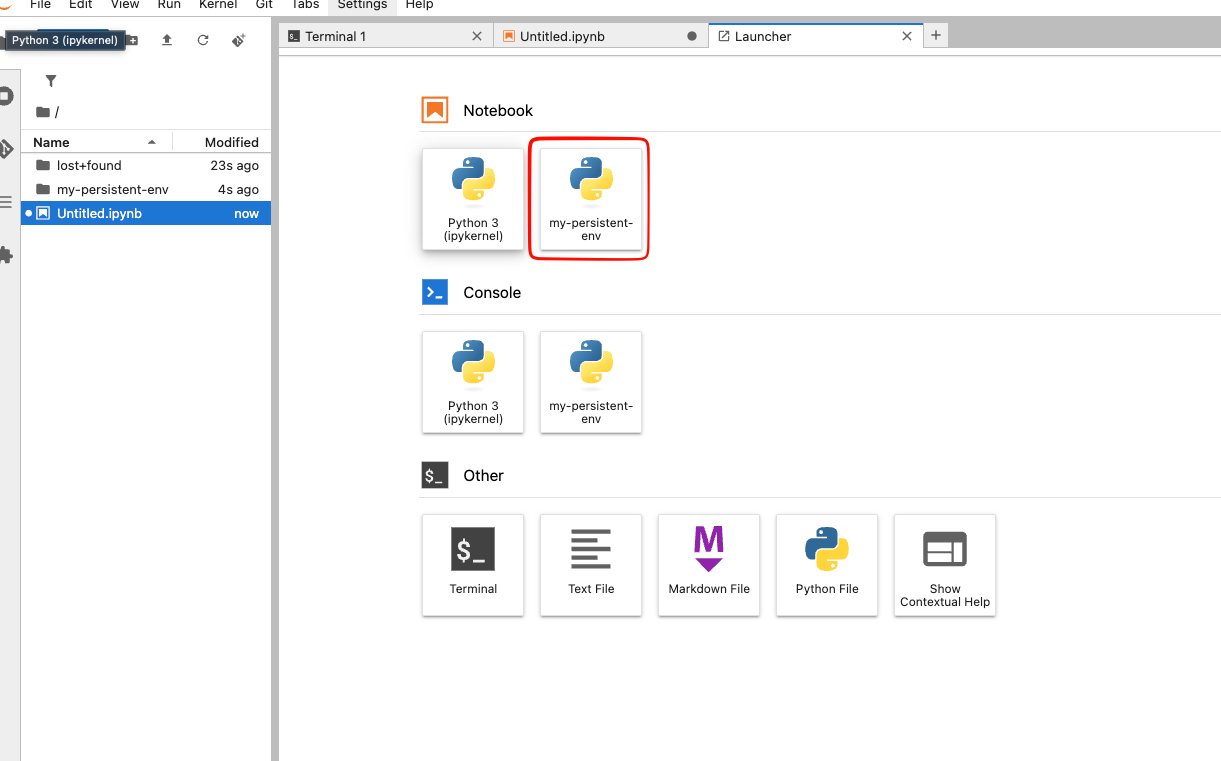
A registered environment appears as a kernel choice.
Check the installation location
Check the package location in the Python environment used by the notebook. A path on the mounted workspace is persistent; the home-directory name alone is not proof that a volume is mounted.
In a cell using the selected kernel, run:
%pip show <package_name>
Look at the Location field in the output.
Persistent (Will Survive): If the path starts with
/home/jovyan/...(or your specific home directory), the package is stored on that mounted volume.Ephemeral (Will Delete): If the path starts with
/opt/conda/...or/usr/local/..., the package will be lost on restart.
Keep a requirements.txt file in the persistent workspace so the dependencies can be installed again. For a user-site installation, run %pip install –user -r requirements.txt from the notebook kernel.
Check the notebook after a restart
Save your work, stop and restart your own notebook server, reconnect, and select the same kernel. Import the package again and confirm its location. Files on the persistent volume survive container replacement, but deleting the volume or the environment is a separate operation.
What to do next
For terminal operations and idle culling, read Connect a local editor to a Kubeflow notebook on CloudFerro Cloud. Troubleshoot notebooks and volume attachments on CloudFerro Cloud covers workspace attachment failures.