
Managed Notebooks on CloudFerro Cloud
When you need to inspect data or try a few lines of Python, preparing a server and a notebook environment can become a task of its own. Managed Notebooks gives you a JupyterLab workspace in your browser for interactive analysis and experiments.
Create a notebook in MyPortal, choose its server size when you start it, and work with Python cells, files, or a terminal. Each notebook has its own file storage. You can stop the compute when you finish and return to your saved files later.
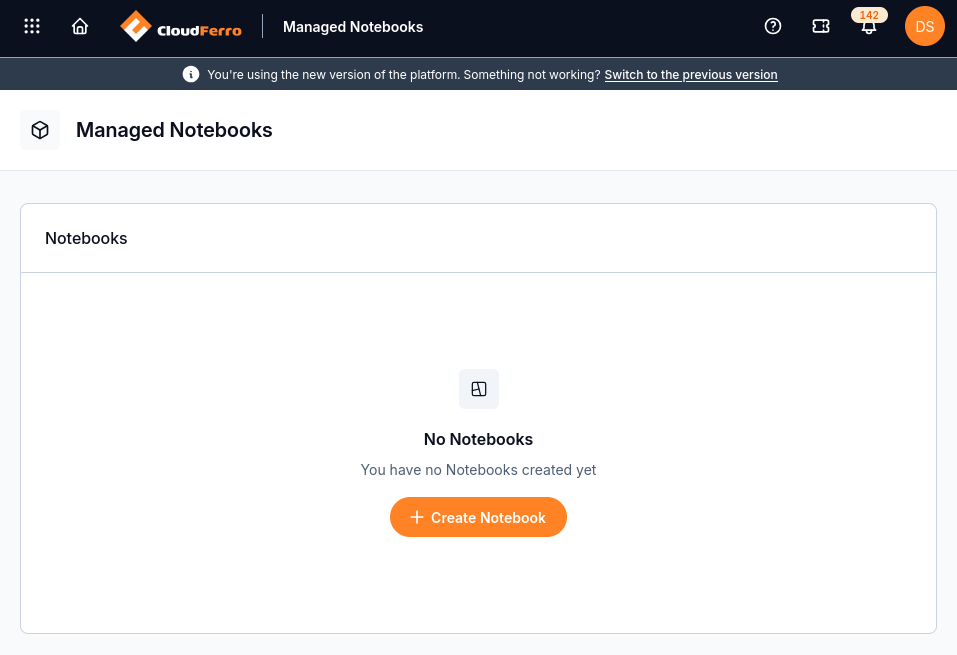
Before your first notebook, the Managed Notebooks page shows No Notebooks. Create Notebook opens the creation form.
Start and manage a notebook
Start with Getting started to create a notebook and run your first Python cell. The guide explains the available kernels, server sizes, file uploads and downloads, and the difference between stopping and deleting a notebook. Follow the lifecycle through to stopping the server so you know how to finish a session without leaving compute running.
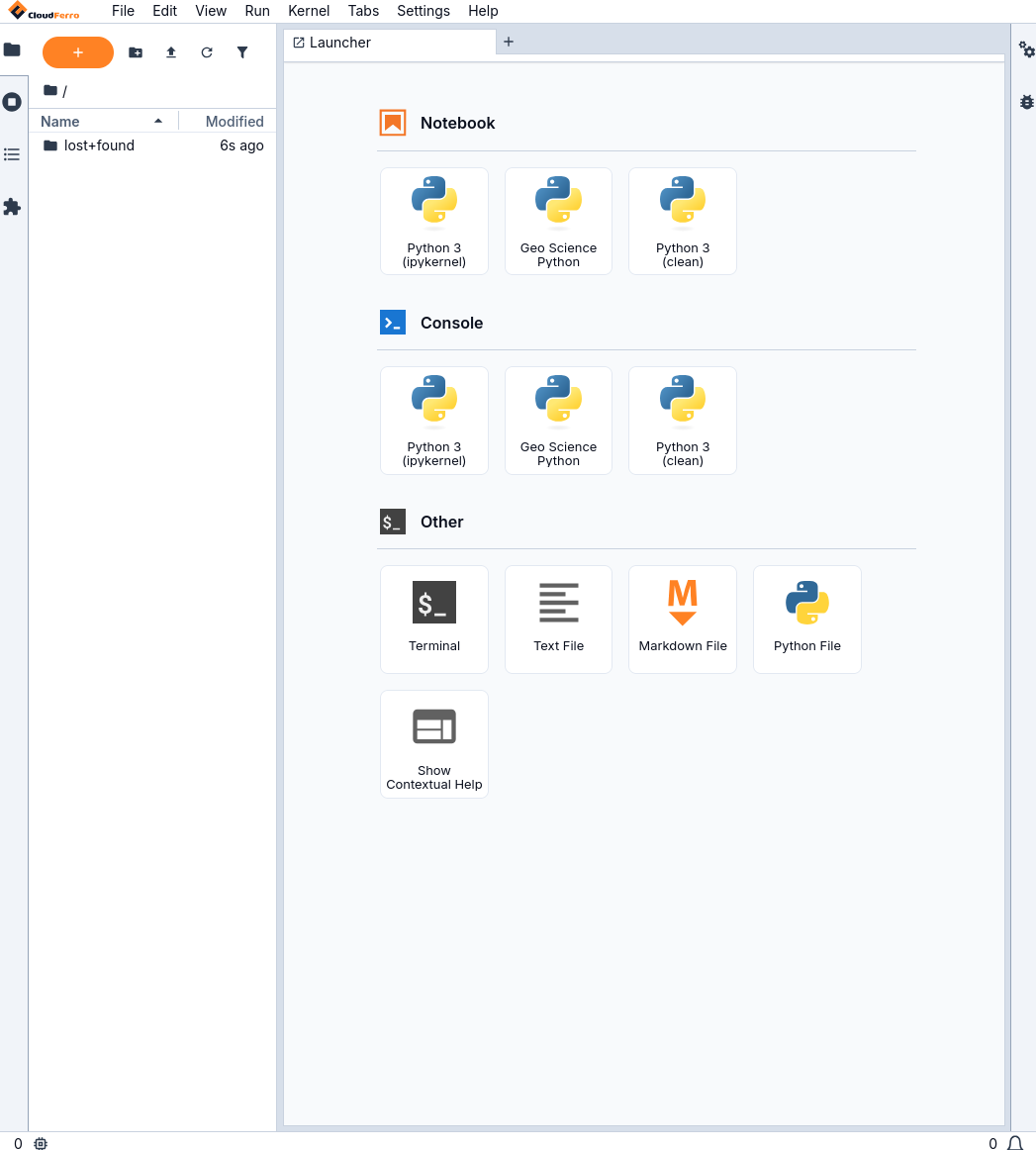
After the server starts, JupyterLab opens with its file browser on the left. The Launcher offers Python notebook kernels and a Terminal.
Find a fix
Use Troubleshooting when the portal, server, or JupyterLab does not behave as expected. The fixes are grouped by the stage you have reached: opening the service, starting a notebook, working in JupyterLab, or stopping and deleting it. The guide also explains which details to include when contacting support.
Save files and stop compute separately. Closing the browser tab does not stop the notebook. Saved files remain after a stop, but variables and running computations in memory do not. The getting-started guide explains the automatic stop after four hours without use and how it affects long computations.
Download files before deleting a notebook. Deletion removes the notebook’s storage and its files permanently. Use Suspend when you intend to return to the same work later.