
Message Broker (Managed RabbitMQ) on CloudFerro Cloud
When one part of an application produces work faster than another part can complete it, a queue holds the requests until a worker is ready. Message Broker supplies a managed RabbitMQ cluster for that exchange. For example, a web application can accept an image upload while a separate worker converts the image in the background.
The application sending a message is the producer. The application receiving it is the consumer. RabbitMQ holds messages in queues so producers and consumers can work at different rates. The web application can return a job identifier to the user while the worker processes the image.
Typical uses
Background processing: move report generation, image conversion, or data validation out of an interactive request.
Bursts of work: queue incoming jobs while workers are busy, then add workers to process the backlog.
Several actions after one event: route a processing-completed message to separate queues for notifications and catalogue updates.
For an image-processing job, the message can contain an object key and the requested operation while the image stays in Object Storage. Your worker runs on a VM, in a container, or in another execution environment. The integration guide under Build an application covers these arrangements, including Workflows, Functions, and Sherlock.
What you get
CloudFerro provisions and operates the RabbitMQ infrastructure. You manage vhosts, users, queues, exchanges, and policies through the RabbitMQ Management UI or API. Each deployment includes:
a dedicated RabbitMQ deployment with one or three replicas;
the selected resource variant (flavor) and engine version;
AMQPS and the RabbitMQ Management UI, with TLS 1.2/1.3;
a public load balancer and Allowed IP Ranges;
metrics, logs, and audit logs in My Portal.
The screenshots in this section show RabbitMQ 4.2. Read the available versions from the creation form. Your application code and workers run in the environment you choose; the broker stores and delivers their messages.
Find Message Broker in My Portal
Sign in to My Portal with an account that can access Message Broker in your organization. Open Products and select Go to product on the Message Broker card.
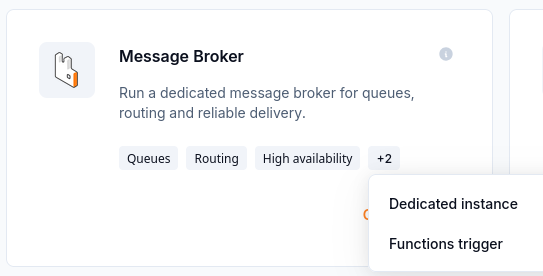
Open Message Broker from the product catalogue.
The product page shows Organization quotas and the RabbitMQ brokers list for the selected Region. An empty list means there are no brokers to display in that region. If your team already has a broker, ask its owner for the organization, region, and broker name.
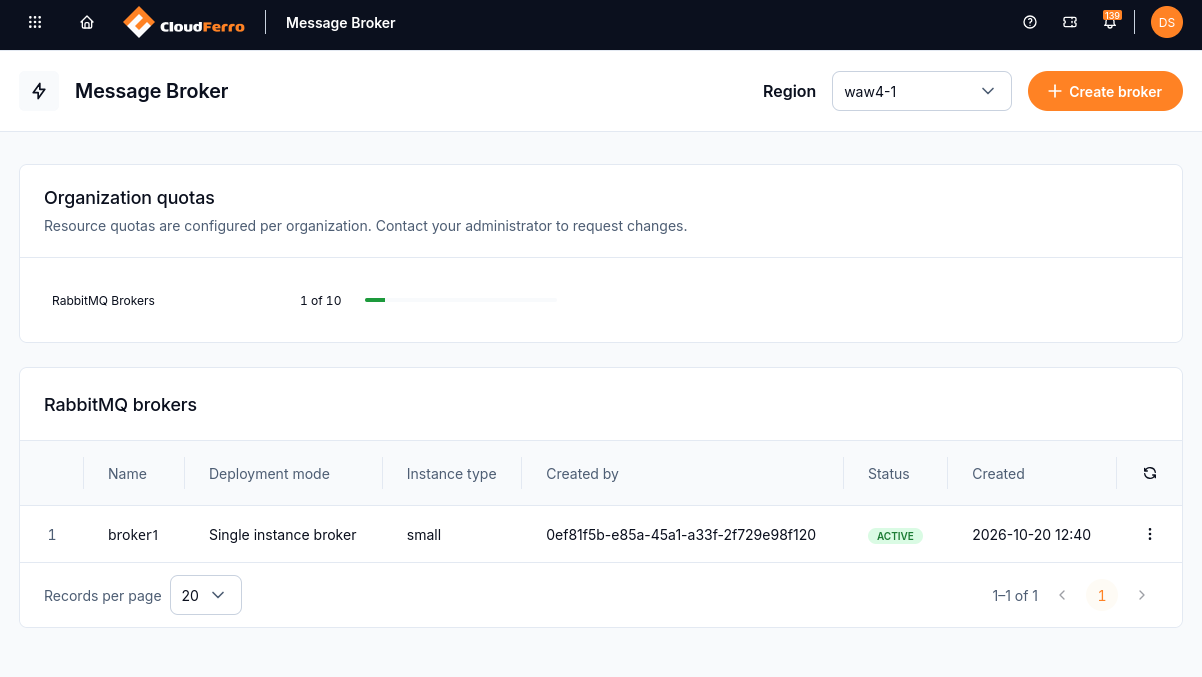
The example lists broker1 with Active status. Create broker starts a new deployment in the selected region.
If the product is unavailable or an expected broker is missing, use the troubleshooting guide under Operate and troubleshoot below.
Start here
Start with the definitions and preparation guides to choose the deployment mode, resource size, account, and allowed client IP ranges. Then create the broker and send and receive a first message with the supplied Python example.
Create broker opens the creation form. Under Configuration, enter the Broker name and select the Broker instance type and Broker engine version. The form also includes the deployment mode, initial RabbitMQ account, and network access settings.
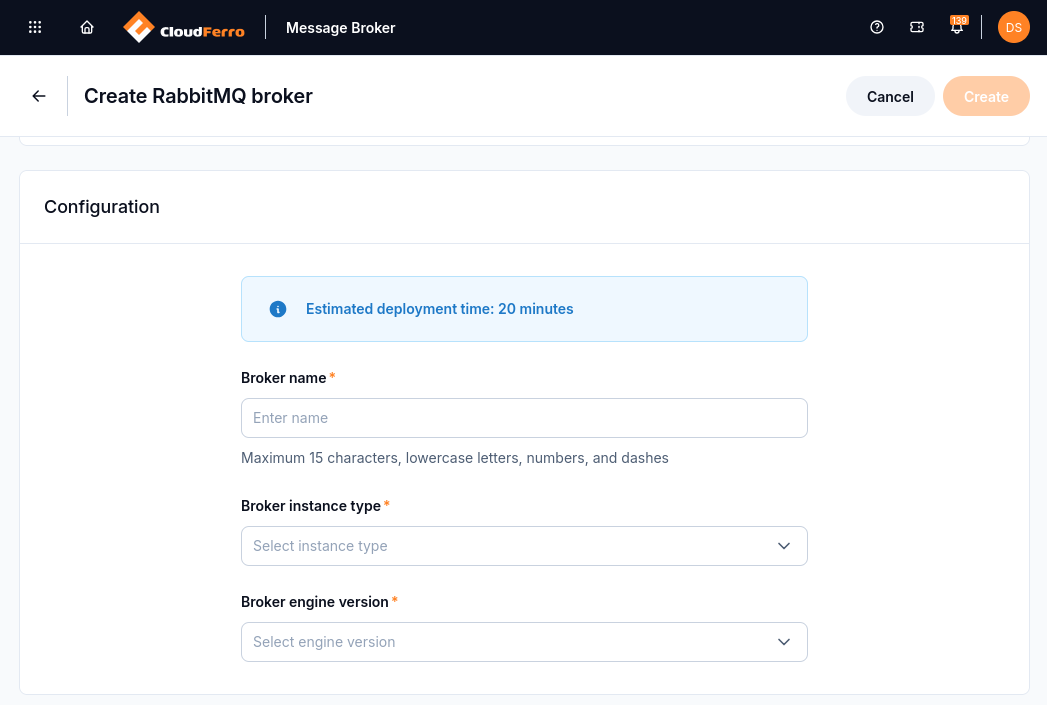
Configuration identifies the broker and selects its resource size and RabbitMQ version.
A new broker first appears as Creating. When provisioning finishes, its status becomes Active. If your team already has an active broker, begin with Connect an application and send a first message in the following list.
The first Python test sends Hello from Message Broker, receives it back, and prints Connection test passed. It uses a temporary queue and closes its connection when finished, so neither remains visible after the test exits.
From the broker list to its access details
For an active broker, open its three-dot menu, choose See Details, and find Access. This area provides two addresses:
Link opens the RabbitMQ web console in a browser.
AMQP provides the encrypted connection address used by your application. The address begins with amqps://.
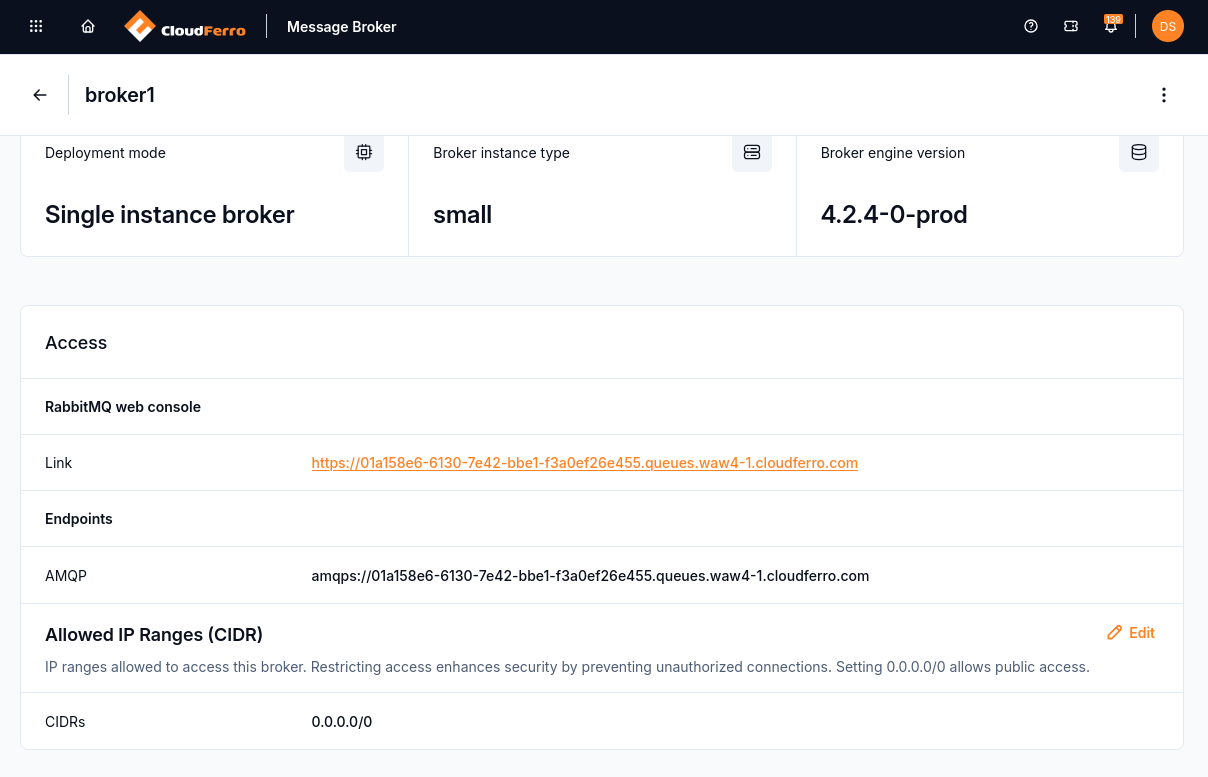
Use the web console link to inspect RabbitMQ and the AMQP endpoint to connect application code.
Allowed IP Ranges controls which source networks may connect. The screenshot shows 0.0.0.0/0, which allows the whole internet; use the specific public source ranges your clients need. The Manage and delete message brokers guide under Operate and troubleshoot explains how to change these ranges later.
Build an application
After the first connection succeeds, prepare the queues and access rules your application needs. Try a persistent text-processing queue, then use its worker to translate text through Sherlock. The integration guide shows where Message Broker fits with virtual machines, Kubernetes, Workflows, and Functions.
Follow Link and sign in with the RabbitMQ username and password entered during broker creation, or credentials supplied by its administrator. These are separate from your My Portal sign-in. Your computer’s public source address must also be allowed by the broker.
The RabbitMQ Management UI opens on Overview, which shows message activity, connection and queue counts, and broker nodes. Connections shows connected applications. Exchanges, Queues and Streams, and Admin provide routing, queue, user, and permission settings. The interface walkthrough under Start here explains each tab.
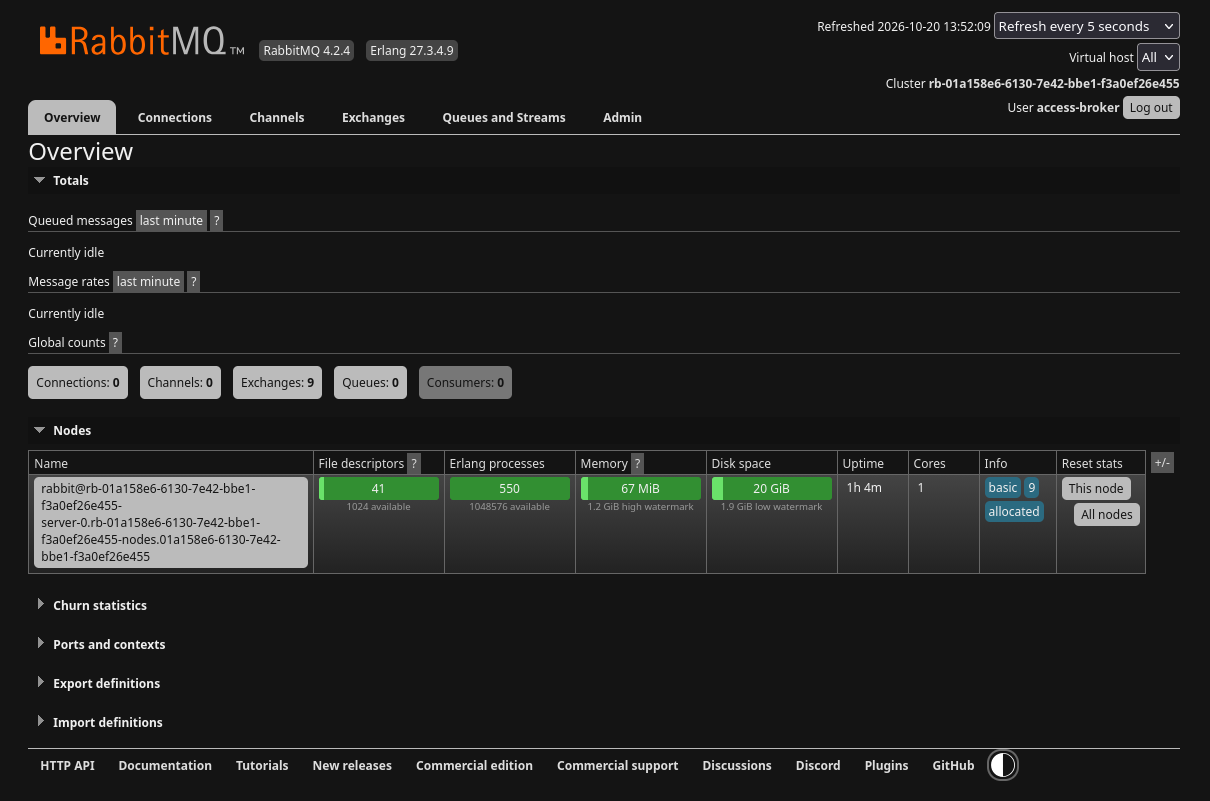
This broker has no connections, queues, or consumers yet. The tabs at the top lead to application connections and queue management.
Operate and troubleshoot
The operation guides cover the broker’s details, IP access rules, deletion, and the checks to make when access or message processing fails.
In the broker’s details in My Portal, Observability provides Metrics, Logs, and Audit logs. Setup time range selects the period to inspect. The metrics view includes CPU and RAM usage alongside application connection and channel counts.
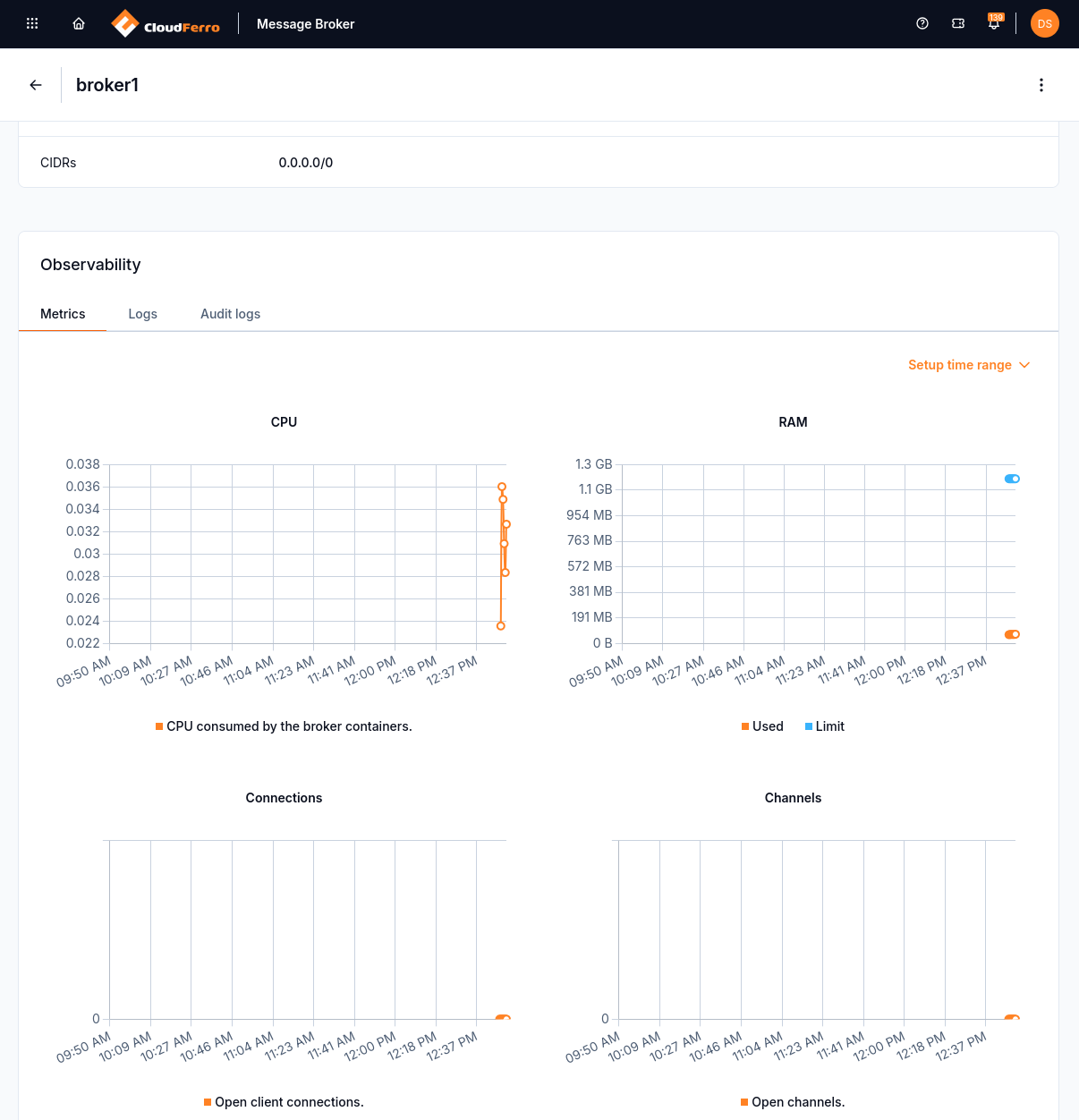
Metrics and logs are available in My Portal. Use them alongside the RabbitMQ console when investigating a problem.