
Manage and delete message brokers on CloudFerro Cloud
A broker’s deployment, network access, and eventual removal are managed in My Portal. Keeping those controls separate from queue administration helps you change the intended resource without affecting an unrelated organization or region.
Prerequisites
No. 1 Portal access to the existing broker
Use the organization and region in which the broker was created. Create your first message broker on CloudFerro Cloud explains portal access and regional selection. Your account must be allowed to perform the intended broker operation.
No. 2 Connection details and application ownership
Before changing access or deleting a broker, identify its producers, consumers, and Functions integrations. Keep the public outbound IP ranges they require and the contact for each application. Connect an application and send a first message on CloudFerro Cloud shows where to find the endpoint and check a client connection.
Details and Access
In the broker list, open the row’s three-dot menu and select See Details. The same menu provides Delete, described later in this article.
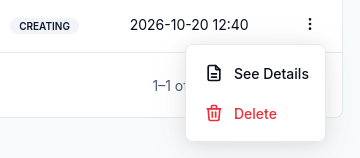
Open See Details to inspect the selected broker.
The broker details show its identity and deployment configuration:
Status shows the deployment’s current state. Wait for Active before checking an application connection; an active broker still needs the correct network and RabbitMQ access settings.
CRN/ID identifies this specific broker independently of its display name. Include it in support requests so the correct resource can be found.
Created on records when the broker was provisioned. Compare it with audit events when investigating its creation or distinguishing similar deployments.
Deployment mode shows whether the broker uses a single instance or a three-replica cluster. Queue replication also depends on queue type; a cluster alone does not replicate a classic queue.
Broker instance type identifies the selected resource size. Compare the available CPU and RAM with observed usage when assessing capacity.
Broker engine version identifies the RabbitMQ release running on the broker. Use it when checking client compatibility or consulting version-specific RabbitMQ documentation.
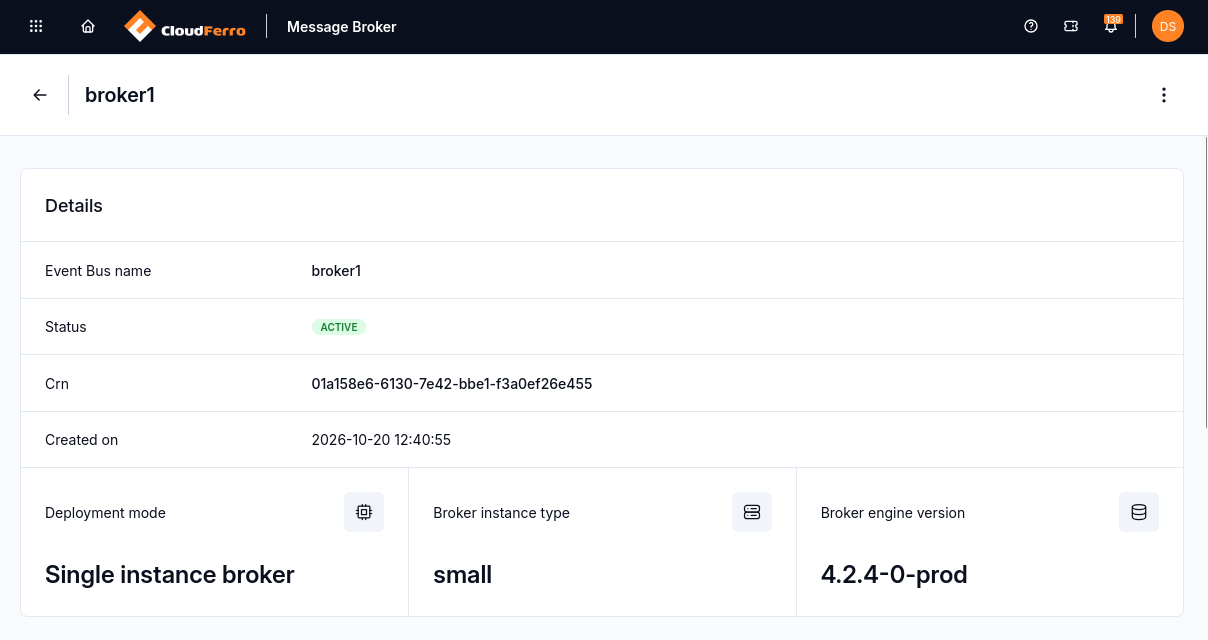
Active broker details, deployment mode, instance type, and engine version.
The deployment mode, flavor, and engine version shown here describe this broker. Viewing them is not evidence that they can be changed in place. Use the actions offered for your broker; ask support about a change that is not available in the interface.
Change allowed IP ranges
Open the broker in My Portal and check its identity, organization, and region.
In Access, find Allowed IP Ranges (CIDR) and select Edit.
Enter the public source ranges that need access, including your own current address if you still need the console. Keep required application ranges when adding another client.
Save the change and repeat the client connection check from the network that will use the broker.
For an individual public IPv4 address, use /32. A VPN or outbound gateway can change the address seen by the broker. Removing an application’s range prevents new connections from that source; do not treat a saved form as proof that every client still connects.
Delete a broker
A RabbitMQ definition export records configuration such as queues, exchanges, and bindings; it does not contain queued message bodies. If pending messages must be retained, arrange application-level processing or preservation before deletion. Let consumers finish any required work before stopping them.
Warning
This operation cannot be undone.
Before you delete the broker:
Check the Functions integrations.
Stop producers and consumers.
Export or back up anything you need to keep.
Delete the broker in My Portal.
What to do next
For access failures or support escalation, use Monitor and troubleshoot Message Broker on CloudFerro Cloud. RabbitMQ’s definition export documentation explains what a configuration export contains.