
Connect an application and send a first message on CloudFerro Cloud
A broker marked Active is ready for connection checks, but an application still needs its own endpoint, RabbitMQ credentials, and access to a virtual host. This example sends Hello from Message Broker, receives the same text, and prints a confirmation so you can check those settings before writing a worker.
The supplied Python program acts as both producer and consumer. It creates a temporary queue for this connection only, and RabbitMQ removes the queue when the connection closes. It is a first connection test, not a persistent job queue.
Prerequisites
No. 1 An active broker and its access details
Complete Create your first message broker on CloudFerro Cloud or ask the broker’s owner for an Active instance, its AMQPS endpoint, and RabbitMQ username and password. The computer running Python must use a source address admitted by Allowed IP Ranges. Portal sign-in alone does not supply the application’s RabbitMQ credentials.
No. 2 A virtual host and permission to use it
Have the exact vhost name and a user allowed to configure a temporary queue, publish to it, and read from it. The initial account is the one entered when creating the broker; for an existing team broker, ask its administrator which account and vhost to use. Manage RabbitMQ queues and access on CloudFerro Cloud explains where those permissions are managed. Use / only if that vhost is present and your account has access to it.
No. 3 Python and a terminal
The commands use Python 3, its venv module, and a Bash-compatible terminal on Linux or macOS. Check with python3 --version and python3 -m venv --help. If either is unavailable, follow the Python installation documentation for your system. Download first_message.py into an empty working folder; run the following commands from that folder.
Find the connection settings
In My Portal, open the broker in its organization and region, then find Access. Connection and access information includes:
RabbitMQ web console — Link: opens the RabbitMQ Management UI in a browser. Use it to create queues, manage permissions, and inspect application connections.
Endpoints — AMQP: gives the address used by messaging clients. The screenshot shows amqps://, which means the application connects over TLS; copy your broker’s endpoint rather than its HTTPS console address.
Allowed IP Ranges (CIDR): controls which source networks can reach the broker. Include the public outbound IP of the computer or network running the client; reaching the broker still requires valid RabbitMQ credentials and vhost permissions.
Edit: changes the allowed network ranges when clients move or their outbound addresses change. Keep the ranges needed by existing workers and administrators, then check a new connection after saving.
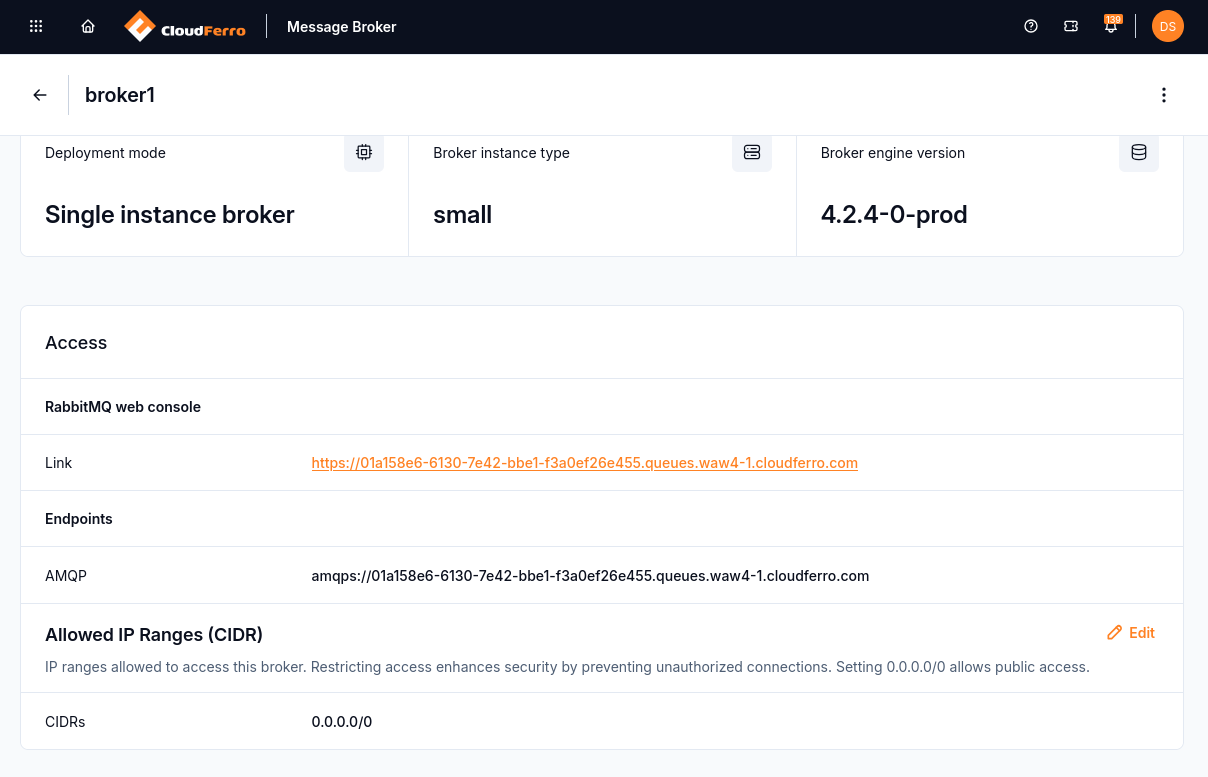
RabbitMQ web console link, AMQP endpoint, and allowed IP ranges.
The screenshot shows 0.0.0.0/0, which allows access from the whole internet. Keep Allowed IP Ranges limited to the public source ranges your clients and administrators need.
Setting |
Value to supply |
|---|---|
RABBITMQ_HOST |
The hostname from the AMQPS endpoint, without amqps://, a port, or a path. |
RABBITMQ_PORT |
The port in the AMQPS endpoint. If no port is shown, AMQPS uses 5671. |
RABBITMQ_USER |
The RabbitMQ username supplied by the broker owner or entered during creation. |
RABBITMQ_VHOST |
The exact virtual host name. The example / value is valid only when that vhost exists and the user is permitted to access it. |
Password |
Entered at the program’s hidden prompt, rather than stored in the script or command history. |
Prepare the Python client
Create a virtual environment and install the client version used by this example:
python3 -m venv .venv
source .venv/bin/activate
python -m pip install pika==1.3.2
Set the connection values. Replace broker.example.invalid and YOUR_RABBITMQ_USER, and change the port and vhost if your broker uses different values:
export RABBITMQ_HOST='broker.example.invalid'
export RABBITMQ_PORT='5671'
export RABBITMQ_USER='YOUR_RABBITMQ_USER'
export RABBITMQ_VHOST='/'
Send and receive the message
Run the downloaded program and enter the RabbitMQ password when prompted:
python first_message.py
A successful run prints:
Sent: Hello from Message Broker
Received: Hello from Message Broker
Connection test passed.
The program verifies the broker’s TLS certificate and hostname, opens a temporary classic queue, publishes one message through the default exchange, and reads that message back. It acknowledges the received message and closes the connection. The temporary queue is then removed, so there is no demonstration queue to clean up in the console.
RabbitMQ automatically binds each new queue to the default exchange using the queue’s name as the routing key. The example uses that route, so you do not need to create a separate exchange or binding for this test.
Both Sent and Received are needed to complete the check. Sent reports the broker’s publish confirmation; it does not mean that a separate worker has finished a job. The program uses a single connection for this short test. A production application normally separates producers and consumers and chooses its queue durability and replication deliberately.
Example source
#!/usr/bin/env python3
"""Send and receive one message over TLS using a temporary RabbitMQ queue."""

import getpass
import os
import ssl
import sys

import pika


def connection_parameters():
    """Read non-secret settings and prompt for the RabbitMQ password."""
    names = ("RABBITMQ_HOST", "RABBITMQ_USER", "RABBITMQ_VHOST")
    missing = [name for name in names if not os.environ.get(name)]
    if missing:
        raise ValueError("Set these variables first: " + ", ".join(missing))

    host = os.environ["RABBITMQ_HOST"]
    if "://" in host or "/" in host or host.endswith(".invalid"):
        raise ValueError("RABBITMQ_HOST must contain your broker's hostname only.")
    port = int(os.environ.get("RABBITMQ_PORT", "5671"))
    if not 1 <= port <= 65535:
        raise ValueError("RABBITMQ_PORT must be between 1 and 65535.")

    context = ssl.create_default_context()
    password = getpass.getpass("RabbitMQ password: ")
    return pika.ConnectionParameters(
        host=host,
        port=port,
        virtual_host=os.environ["RABBITMQ_VHOST"],
        credentials=pika.PlainCredentials(os.environ["RABBITMQ_USER"], password),
        ssl_options=pika.SSLOptions(context, host),
        heartbeat=60,
        socket_timeout=10,
        stack_timeout=30,
        blocked_connection_timeout=30,
    )


def main():
    connection = pika.BlockingConnection(connection_parameters())
    try:
        channel = connection.channel()
        declared = channel.queue_declare(
            queue="",
            durable=False,
            exclusive=True,
            auto_delete=True,
            arguments={"x-queue-type": "classic"},
        )
        queue_name = declared.method.queue
        message = b"Hello from Message Broker"

        channel.confirm_delivery()
        channel.basic_publish(
            exchange="",
            routing_key=queue_name,
            body=message,
            mandatory=True,
        )
        print("Sent:", message.decode("utf-8"))

        method, properties, body = channel.basic_get(
            queue=queue_name, auto_ack=False
        )
        if method is None or body != message:
            raise RuntimeError("The expected test message was not received.")

        channel.basic_ack(delivery_tag=method.delivery_tag)
        print("Received:", body.decode("utf-8"))
        print("Connection test passed.")
    finally:
        if connection.is_open:
            connection.close()


if __name__ == "__main__":
    try:
        main()
    except (ValueError, RuntimeError) as error:
        print(str(error), file=sys.stderr)
        sys.exit(1)
    except (pika.exceptions.AMQPError, OSError, EOFError) as error:
        print(
            f"Connection test failed ({type(error).__name__}). "
            "Check the endpoint, TLS, allowed IP ranges, credentials, "
            "and vhost permissions.",
            file=sys.stderr,
        )
        sys.exit(1)
    except KeyboardInterrupt:
        print("Connection test interrupted.", file=sys.stderr)
        sys.exit(130)
What to do next
For a timeout, TLS failure, or permission error, follow Monitor and troubleshoot Message Broker on CloudFerro Cloud. To connect a function, container, or scheduled workflow, use Use Message Broker with other products on CloudFerro Cloud. The RabbitMQ Python tutorial develops the producer and consumer into separate programs; use your managed broker’s TLS endpoint and credentials instead of its localhost defaults.