
Create your first message broker on CloudFerro Cloud
Before an application can send work to a queue, it needs a running broker and a network path to that broker. The steps below create the RabbitMQ deployment in My Portal and leave you with the account details needed for the first connection.
Prerequisites
No. 1 Portal access, an organization, and a region
Complete Prepare access and choose a broker on CloudFerro Cloud so you can open Message Broker for your organization and create a broker in the intended region.
No. 2 The values for the creation form
Have the deployment mode, resource size, engine version, broker name, initial RabbitMQ credentials, and public client IP range prepared in that article. The steps below enter those choices in My Portal.
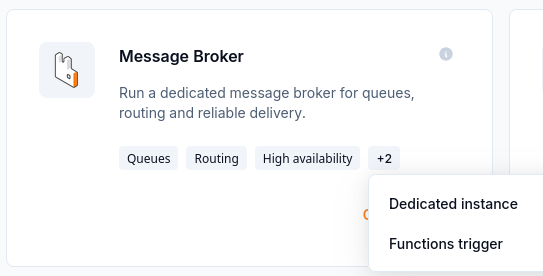
Open Message Broker in My Portal
Create a broker
In My Portal, open Message Brokers.
Check Region above the broker list. It must match the region chosen during preparation.
Select Create broker.
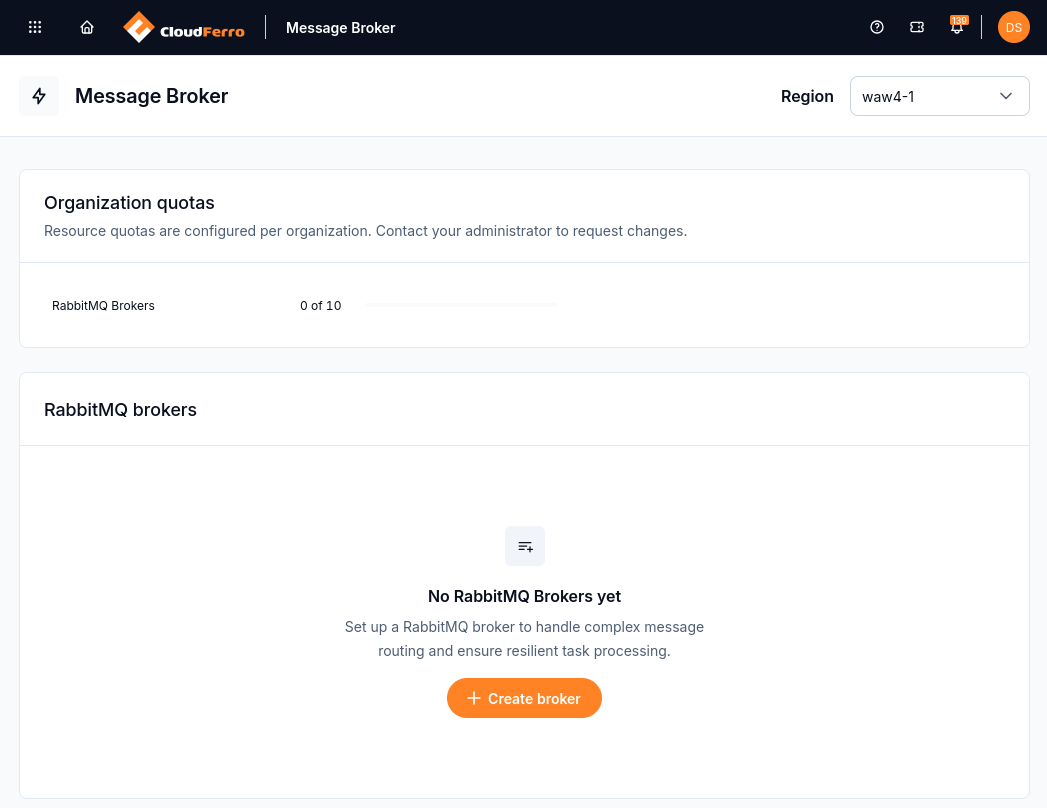
Use Create broker to add the first broker in the selected region.
Choose the deployment mode: Single instance broker for one replica or Cluster deployment for three replicas.
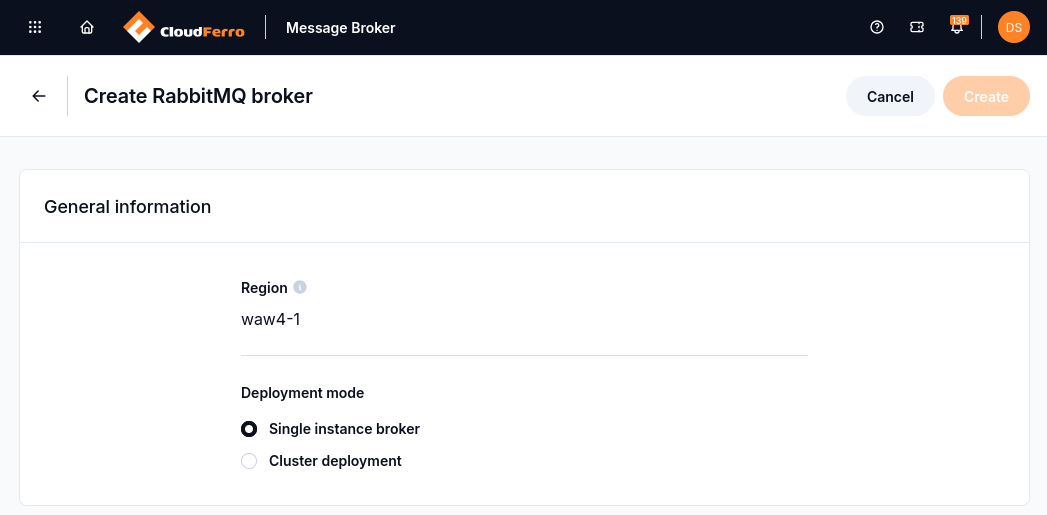
Choose the deployment mode for the region shown in the form.
Enter the broker name. The form accepts up to 15 characters: lowercase letters, numbers, and dashes.
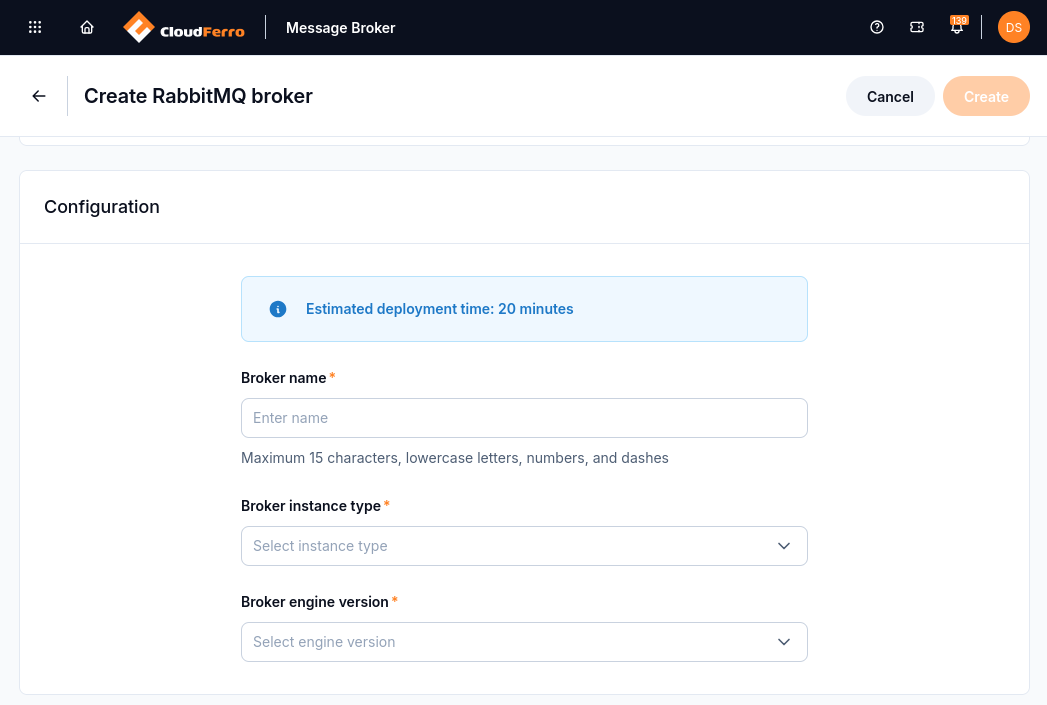
Enter the broker name and select the instance type and engine version.
Choose the instance type and the engine version from the available options.
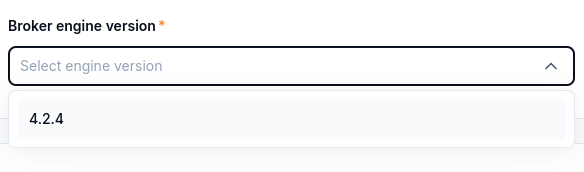
The example form offers RabbitMQ 4.2.4; use the versions available in your form.
Enter a username and a password of 12–128 characters. Keep these details.
Set Allowed IP Ranges.
Warning
0.0.0.0/0 allows traffic from the whole internet. Use the narrowest range you can.
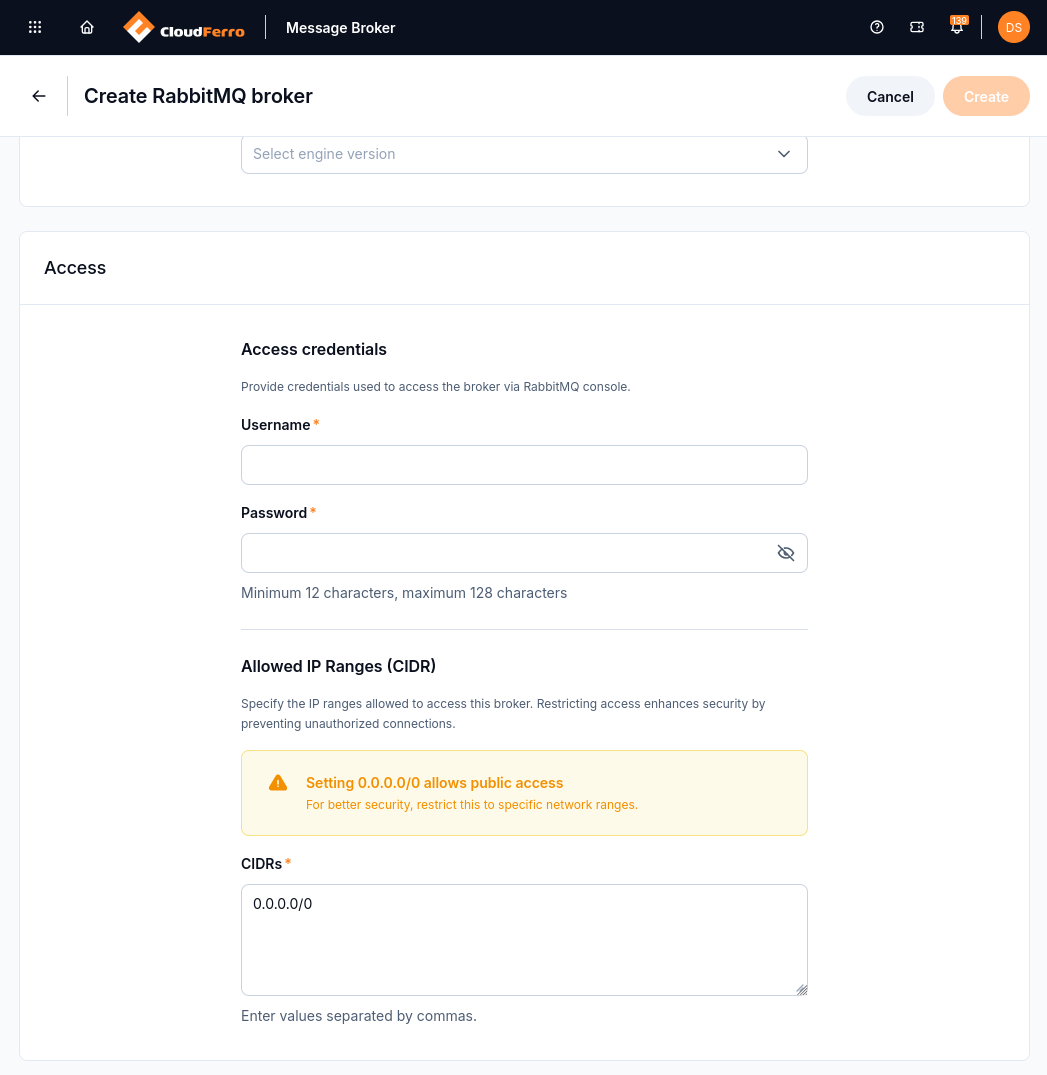
Broker access credentials and allowed IP ranges.
Select a resource group, if one is available.
Select Create. The broker appears in the list with status Creating.
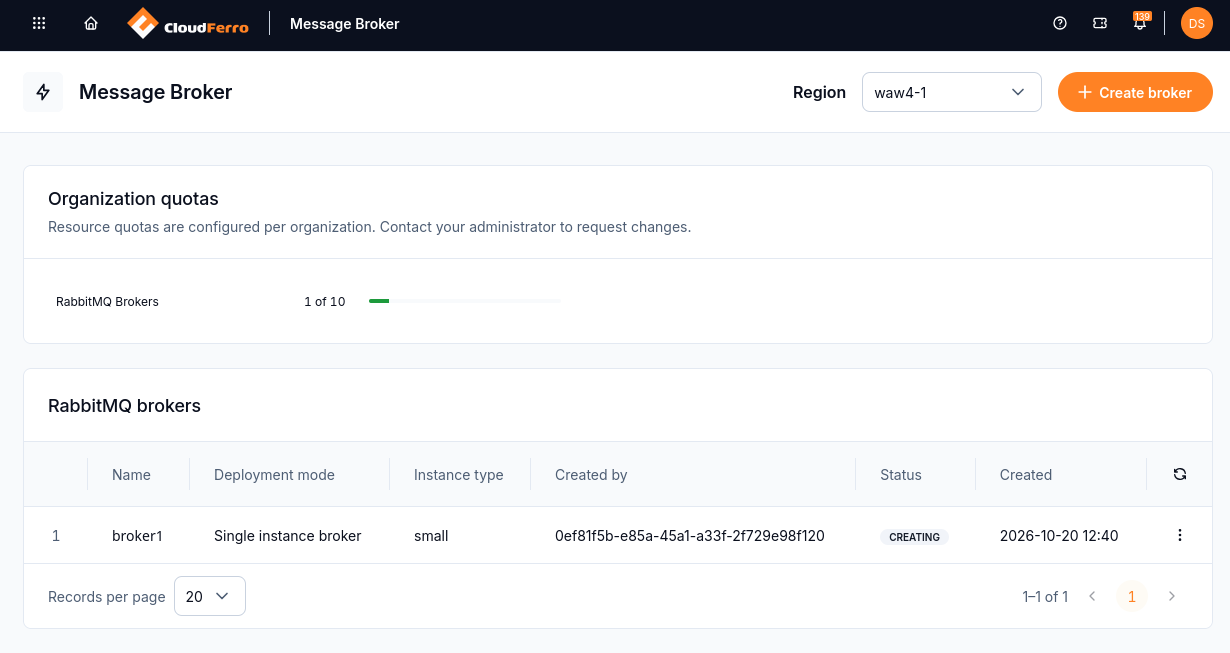
The new broker is being provisioned in the selected region.
Wait until the broker reaches Active. This can take 20 minutes.
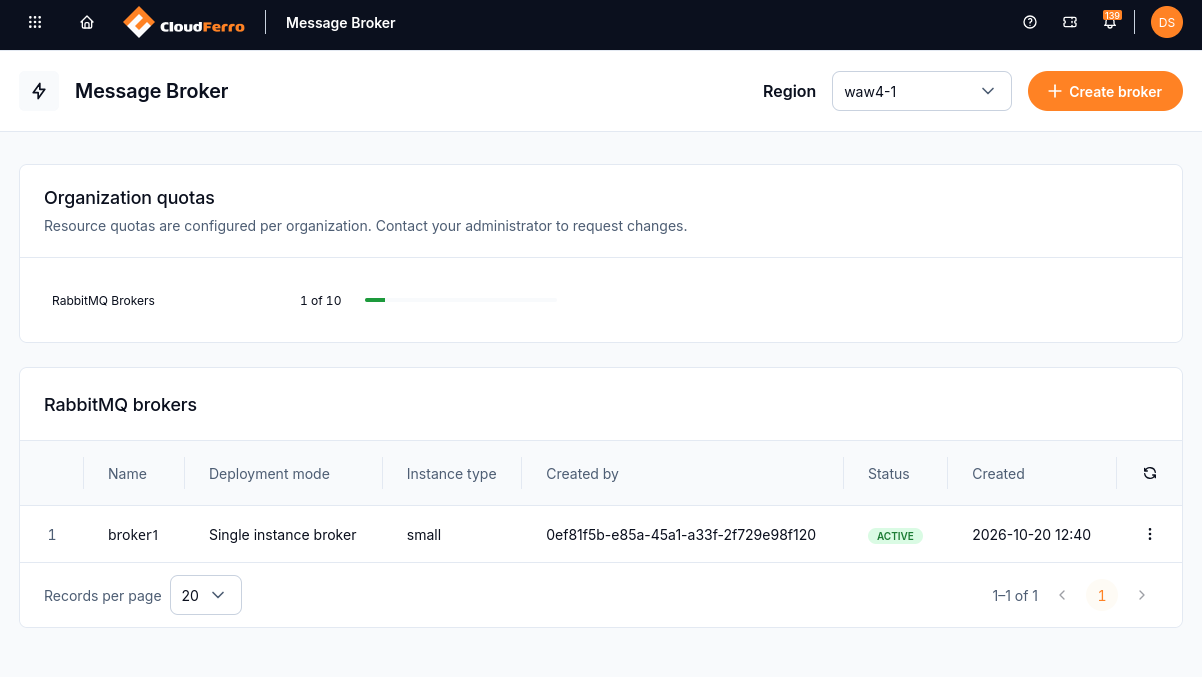
Active indicates that provisioning has finished.
The username and password entered in the form are RabbitMQ credentials. Keep them available for the connection test; signing in to My Portal is a separate step. The endpoint appears in the broker’s Access section after provisioning.
The following example shows an existing single-instance broker1 and a newly requested cluster-broker. Organization quotas reports two brokers out of an allowance of ten. The new cluster is still Creating; the older broker’s Active status does not mean the new deployment is ready.
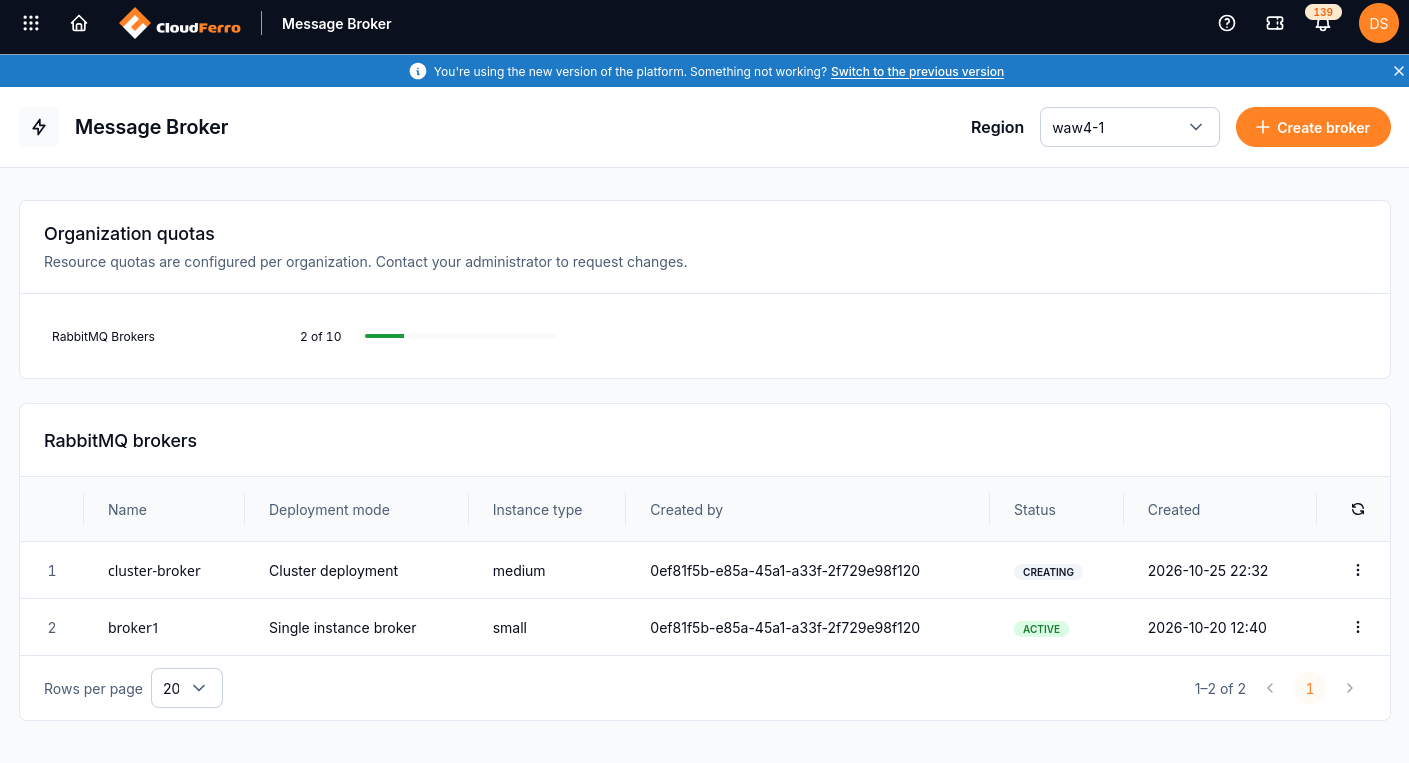
Check the status of the specific broker you intend to use.
What to do next
Continue with Connect an application and send a first message on CloudFerro Cloud to find the endpoint and send a test message. If the service is missing, access is restricted, or provisioning does not reach Active, use Monitor and troubleshoot Message Broker on CloudFerro Cloud.