
Monitor and troubleshoot Message Broker on CloudFerro Cloud
A missing product, a failed client connection, and a growing queue point to different parts of the system. Start with the stage that failed: portal access, broker provisioning, the application connection, or message processing. This keeps a permissions problem from being mistaken for a failed broker.
Prerequisites
No. 1 The affected organization, region, and broker
Have the organization, selected region, broker name or CRN/ID, time of the problem, and the exact error available. If you can open the portal, Manage and delete message brokers on CloudFerro Cloud shows where those details appear. A missing product can be investigated before a broker exists; in that case, record the organization, region, and portal message instead.
No. 2 The client or queue context, when applicable
For a connection problem, have the endpoint hostname, vhost name, client version, and public source IP available. For a processing problem, identify the queue and the expected producer or consumer. The first-message check in Connect an application and send a first message on CloudFerro Cloud helps separate basic connection failures from application behavior.
Check product availability
A product can be hidden, or can return an error page, when:
it is not listed in the Product Catalogue;
it has no configured endpoint in the selected region;
the user does not have the required role;
the product interface did not load;
the organization has no active service or contract.
If Access restricted appears, check the selected organization, your permissions, and product availability in the catalogue. This screen does not mean that a resource has failed.
If you can open Message Broker but cannot create another broker, check Organization quotas above the broker list. Compare the used count with the limit shown for your organization. The example below shows no existing brokers and an available quota; an empty list alone is not an access error. Contact your administrator if the quota needs to change.
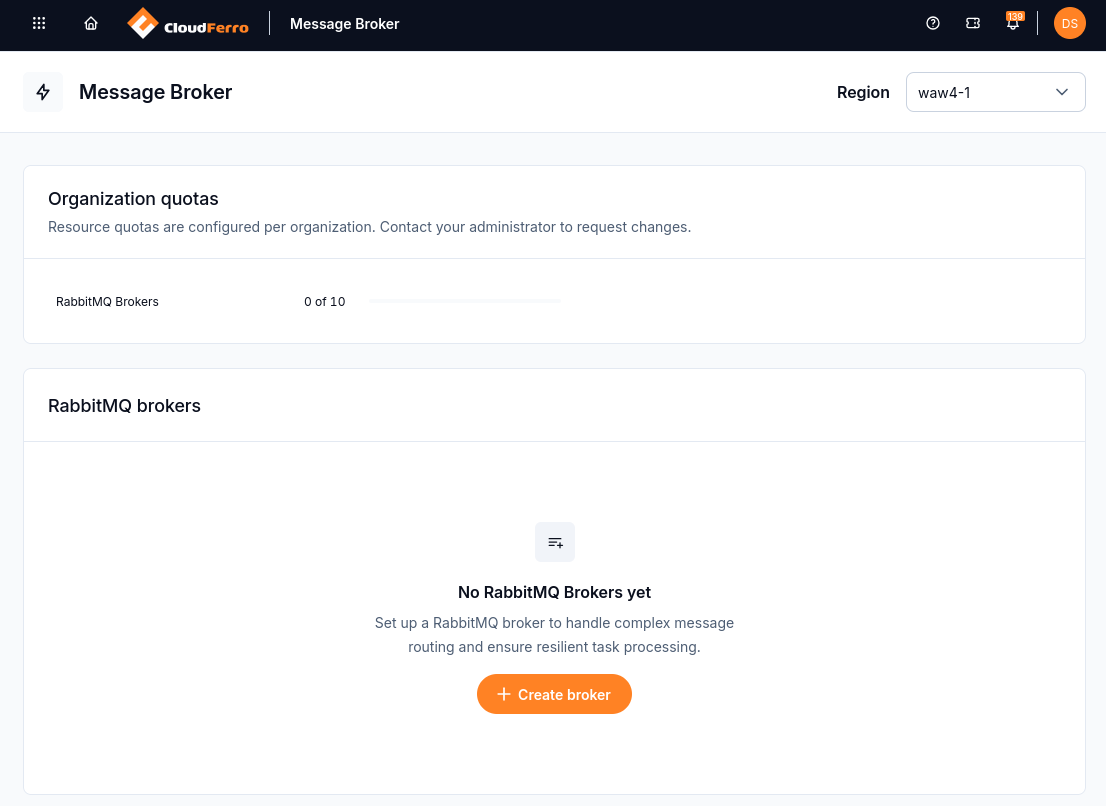
Check the organization quota above the RabbitMQ broker list.
Check provisioning and connection failures
Provisioning can take 20 minutes. Check the instance status in the correct organization and region. If provisioning reports an error or remains unresolved beyond the expected time, include the broker identifier and event time in a support ticket rather than creating repeated replacement brokers.
Symptom |
What to check |
|---|---|
Broker is not listed |
Verify the organization and region. A selection in another service does not change the Message Broker region. |
Connection times out |
Check the AMQPS hostname and port, the client’s public outbound address, Allowed IP Ranges, and any outbound firewall rules on the client network. |
TLS certificate error |
Use the endpoint’s hostname rather than a raw IP address. Check the client’s trust store and system clock; keep certificate verification enabled. |
Login or vhost access is refused |
Use the RabbitMQ account, its correct password, and a vhost to which that user has access. Portal membership does not replace these credentials. |
Console opens but the application fails |
Check the application’s AMQPS endpoint and port, not the HTTPS console URL. Then check its vhost and RabbitMQ permissions. |
PRECONDITION_FAILED when declaring a queue |
Compare the declaration with the existing queue’s type and durability. Do not delete a queue containing needed work to clear the error. |
Check application connections
Open Connections in the RabbitMQ Management UI to inspect current application connections. The example below has none. An empty list is expected before an application connects or after the short first-message test closes its connection. If a worker should be running, check its connection settings and logs.
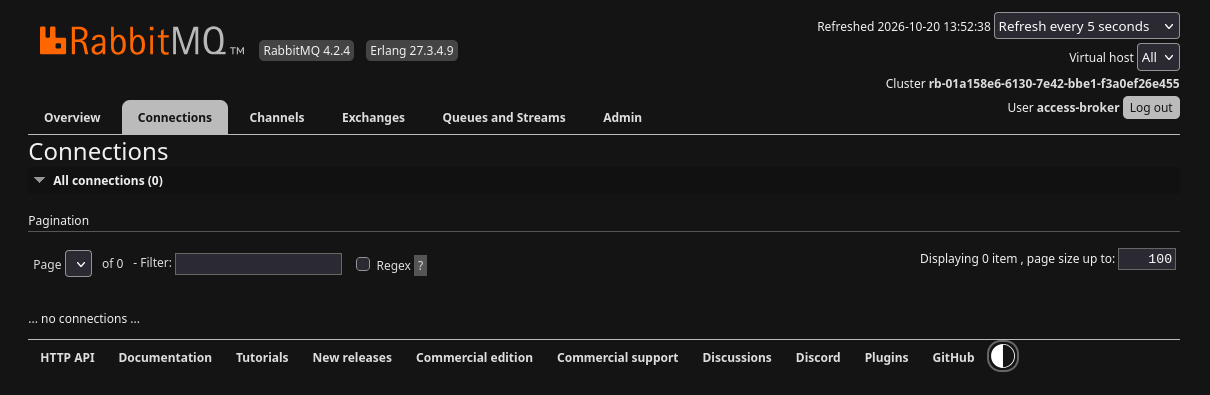
The Connections tab lists currently connected applications.
Read metrics and logs
Open the broker in My Portal and find Observability. Choose the view that matches the question you are investigating:
Metrics shows how resource usage and message activity change over time. Compare CPU, RAM, queue counts, and consumer activity to identify when a backlog or resource pressure began.
Logs contains messages emitted by the broker, including initialization and operational events. Match their timestamps with the client’s error to investigate a failed connection or processing interruption.
Audit logs records management actions, their identities, and outcomes. Check it when investigating who initiated an operation and whether it completed; it does not show the content of every application message.
Setup time range limits the displayed period. Select the incident window so that charts and log entries can be compared with the application’s timestamps.
Use the RabbitMQ Management UI to inspect individual queues, consumers, connections, channels, and message rates.
The Metrics tab shows CPU and RAM usage, followed by connection, channel, consumer, queue, and message charts. In the capture below, CPU and RAM are in use while connections, channels, consumers, and queues remain at zero. RabbitMQ itself uses resources even when no application is connected. The RAM chart compares Used with Limit; the upper line is not current memory consumption.
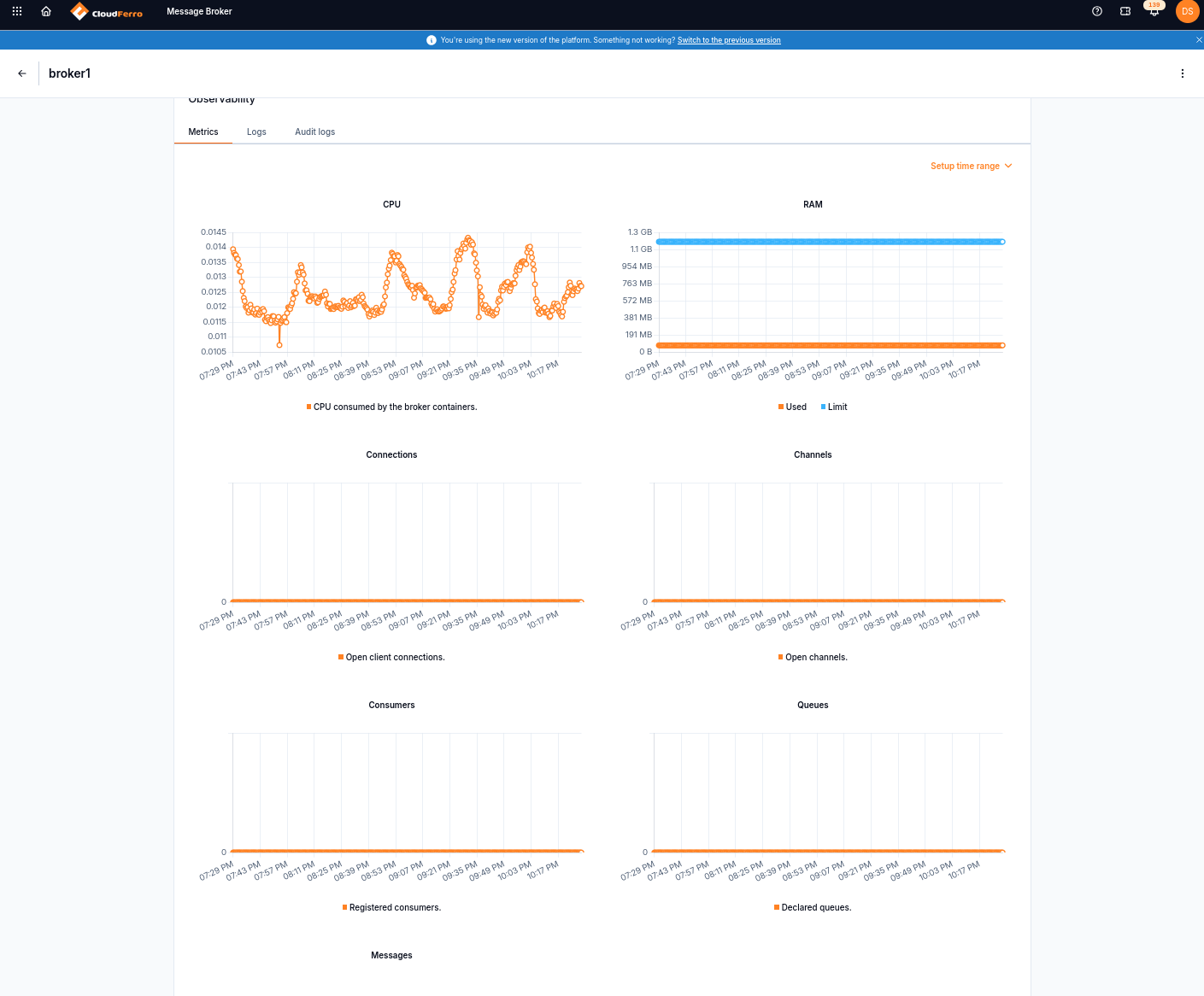
An idle broker still uses CPU and RAM; compare application counts over the same time range.
Observation |
Next check |
|---|---|
Ready messages increase |
Messages are waiting for delivery. Check whether consumers are connected and whether producers are sending faster than workers can process the work. |
Unacknowledged messages increase |
Messages have reached consumers but have not yet been acknowledged. Check worker processing time, errors, and acknowledgement behavior. |
No messages reach the expected queue |
Check the producer’s vhost, exchange, routing key, bindings, and publish result. |
A function does not run |
Check that the queue exists, the function and broker regions match, and the RabbitMQ integration passes Test configuration. Then inspect the function’s logs. |
Adding broker CPU or RAM does not speed up the computation performed by workers. Use the queue observations together with worker logs to decide which side needs attention; do not infer the cause from one queue count alone.
The Logs tab lists each entry’s timestamp, node, and payload. Compare entries around the failure time with the application logs.
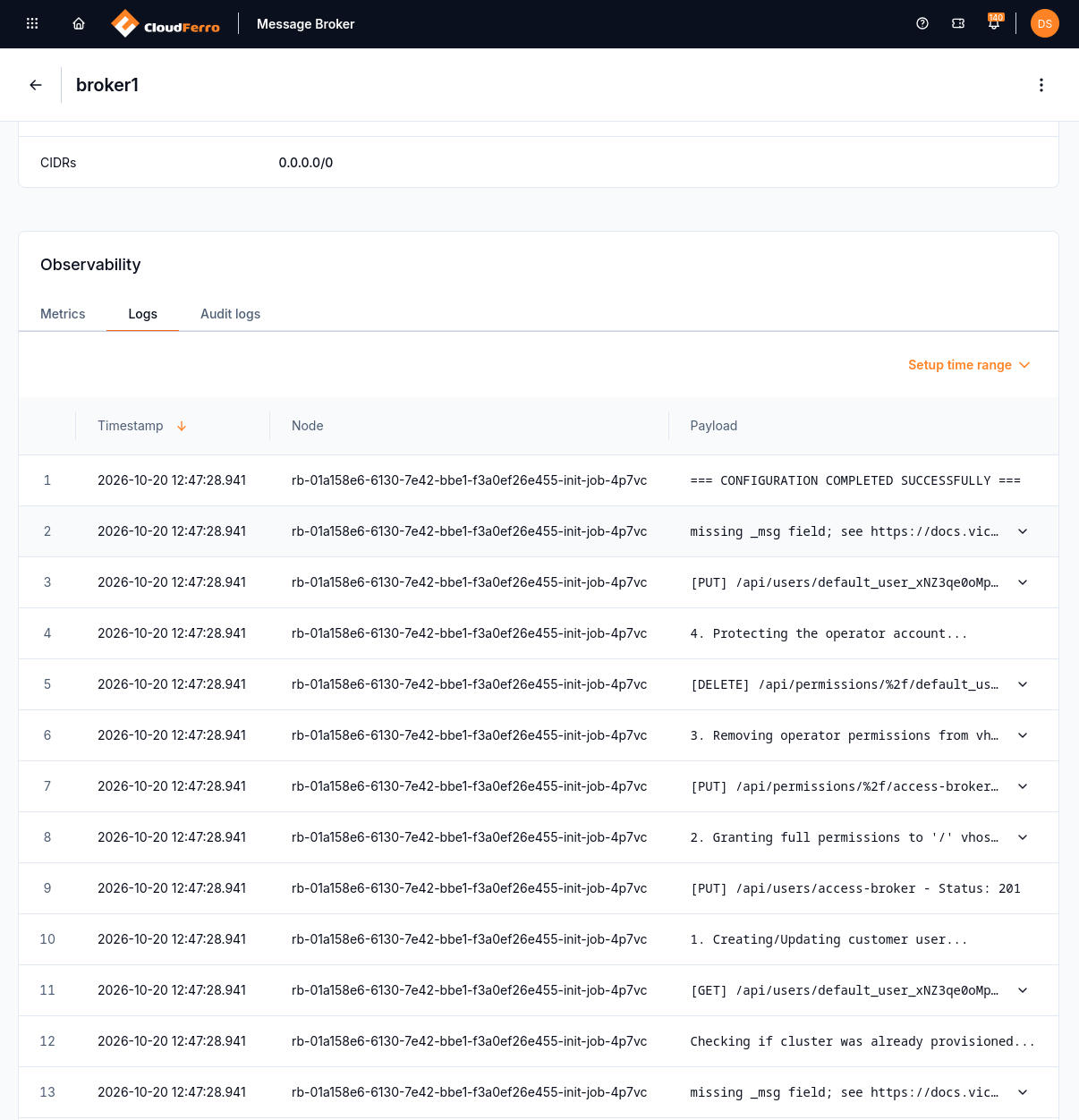
Broker initialization messages in the Logs tab.
Use Audit logs to inspect recorded actions and their outcomes. The example shows a successful broker provisioning action.
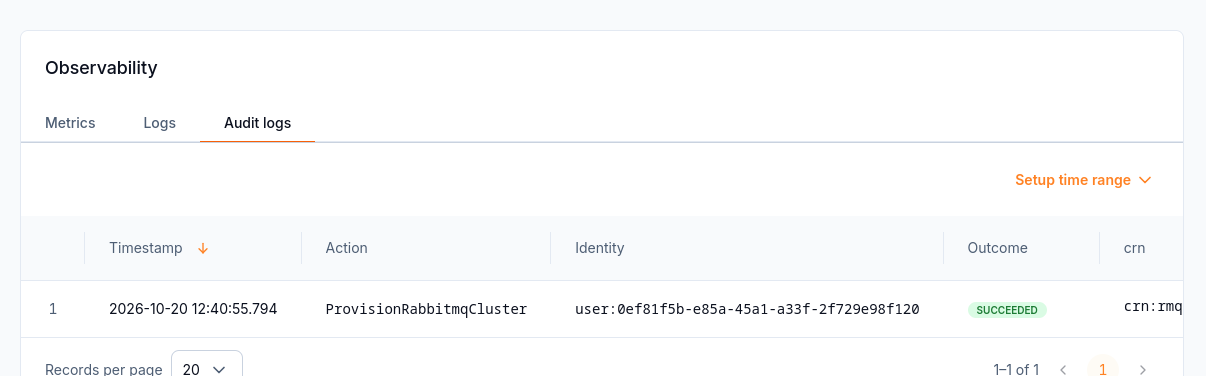
The audit entry records the action, identity, and outcome.
Ask for help
Include the organization, region, broker name and CRN/ID, the affected operation, the time and timezone, and the error text. State whether My Portal and the RabbitMQ console open, whether the first-message check succeeds, and whether one application or all clients are affected. Include relevant log excerpts with passwords and tokens removed.
Questions about available service roles, supported flavor changes, upgrades, backup arrangements, or recovery guarantees need a service-specific answer from support. Do not assume that an upstream RabbitMQ feature is exposed by this managed product.
What to do next
Use Manage RabbitMQ queues and access on CloudFerro Cloud to correct queue or vhost configuration. RabbitMQ’s monitoring guide explains queue metrics and their interpretation.