
Manage RabbitMQ queues and access on CloudFerro Cloud
Applications need a queue to hold their work and permission to use the resources in the right virtual host. These settings belong to RabbitMQ itself. My Portal creates the broker and controls network access; the RabbitMQ Management UI manages the messaging resources inside it.
Prerequisites
No. 1 A running broker and console access
Start with Create your first message broker on CloudFerro Cloud if the broker does not yet exist. Open its Access section in My Portal and keep the RabbitMQ web console link and the username and password supplied during creation. Your current source IP must be allowed by the broker’s network rules.
No. 2 Permission for the RabbitMQ changes you will make
An application user may be allowed to publish or consume without being allowed to create users or vhosts. Ask the broker administrator to perform any administrative changes your account cannot make. Have the application’s intended vhost, queue name, and access needs ready; these are separate from the permissions used to open Message Broker in My Portal.
RabbitMQ Management UI
Open the broker in My Portal, find Access, and select Link to open the RabbitMQ Management UI. Sign in with the broker’s RabbitMQ credentials. Overview shows message activity, resource counts, and broker nodes; the tabs across the top open connections, channels, exchanges, queues, and administration.
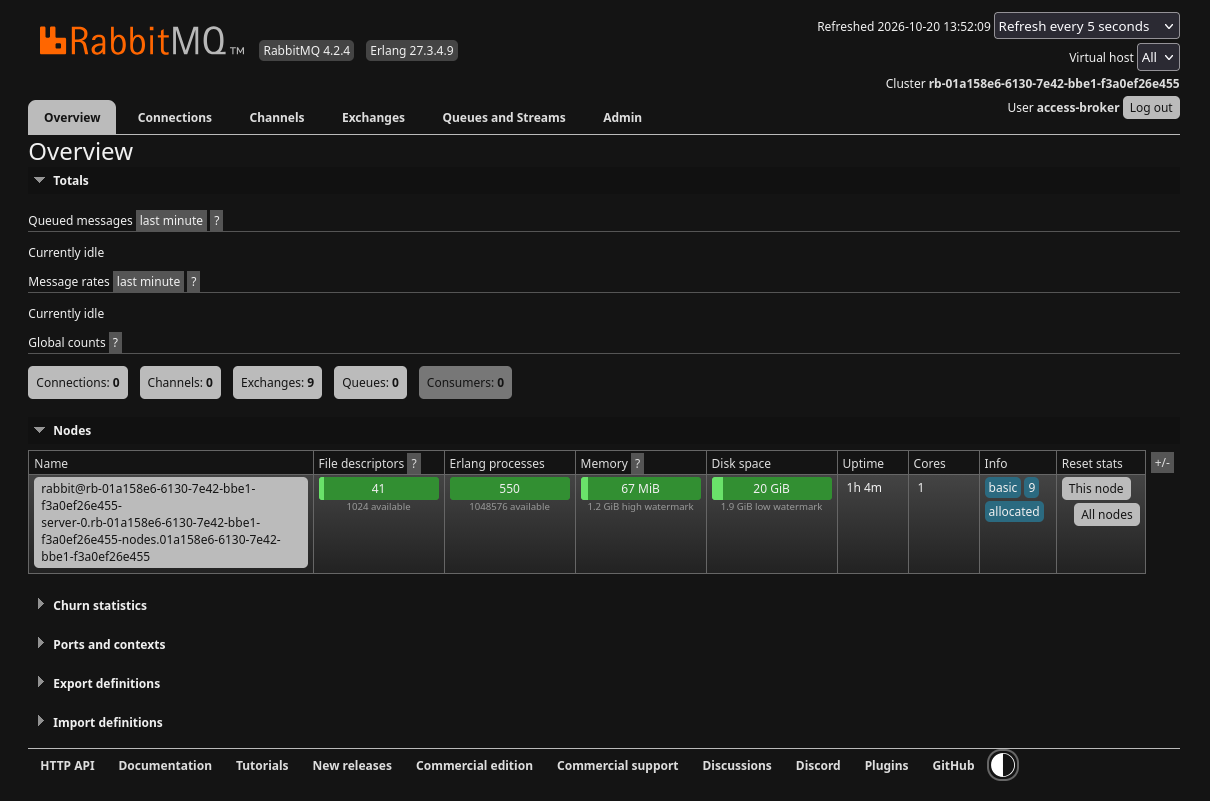
Use the tabs above Overview to open messaging resources and administration.
For a tour of each tab, see Understand the RabbitMQ Management UI on CloudFerro Cloud. It explains the empty lists, built-in exchanges, node statistics, and administration menu shown before applications start using the broker.
The console exposes the following resources and actions, according to your account’s permissions:
Virtual hosts (vhosts) separate applications’ queues, exchanges, and permissions inside one broker. Select the application’s vhost when inspecting its resources; identically named queues in different vhosts are separate queues.
Users and permissions determine who can connect and which resources they can configure, write to, or read from. Grant an application access to its intended vhost and resources; a My Portal account does not automatically grant RabbitMQ access.
Queues hold messages until consumers can process them. Open a queue to inspect waiting and unacknowledged messages, connected consumers, and properties such as durability and queue type.
Exchanges route messages from producers to queues. Choose an exchange type to match the routing rule, such as sending a routing key to one queue or distributing an event to several queues.
Bindings connect exchanges to queues and define the routing keys or patterns used by that route. If a published message does not reach the expected queue, check the binding together with the producer’s exchange and routing key.
Policies apply supported settings to resources whose names match a pattern, for example message expiry or dead-letter routing. Check the policy’s scope before saving because one policy can affect several queues.
Connections show the network sessions opened by applications. Use this list to check whether a producer or worker is connected to the expected vhost and account.
Channels are separate AMQP sessions within a connection. Their delivery and acknowledgement activity helps you distinguish an open network connection from an application that is actually processing messages.
Consumers are subscriptions that receive messages from a queue. If ready messages accumulate, check whether the expected consumers are present and whether their workers are still processing deliveries.
Publishing and consuming messages lets you test routing and inspect a message through the console. Use a test queue for manual checks: fetching a message with an acknowledgement mode that removes it can take work away from the application.
My Portal manages the broker deployment and its network access. To use RabbitMQ as a function trigger, first create the queue that the function will consume.
Warning
Do not delete the protected M2M operations user, and do not change its password. By default it cannot access user vhosts.
Prepare an application vhost and user
Open the RabbitMQ console using Access, then Link in the broker details. Sign in with the RabbitMQ account, not your portal password unless the broker owner explicitly supplied the same value.

Sign in with the RabbitMQ username and password.
Check which vhost the application will use. Keep related queues and exchanges in that vhost. If it needs a new vhost, an administrator creates it using the console’s Admin area.
Create or select an application user and grant it permissions on that vhost. Configure permits resource declarations, Write permits publishing, and Read permits consumption; the permission patterns also control which resource names the user can access.
Admin, then Users, lists account tags and accessible vhosts. In this example, the operations account has the protected tag and No access to vhosts.
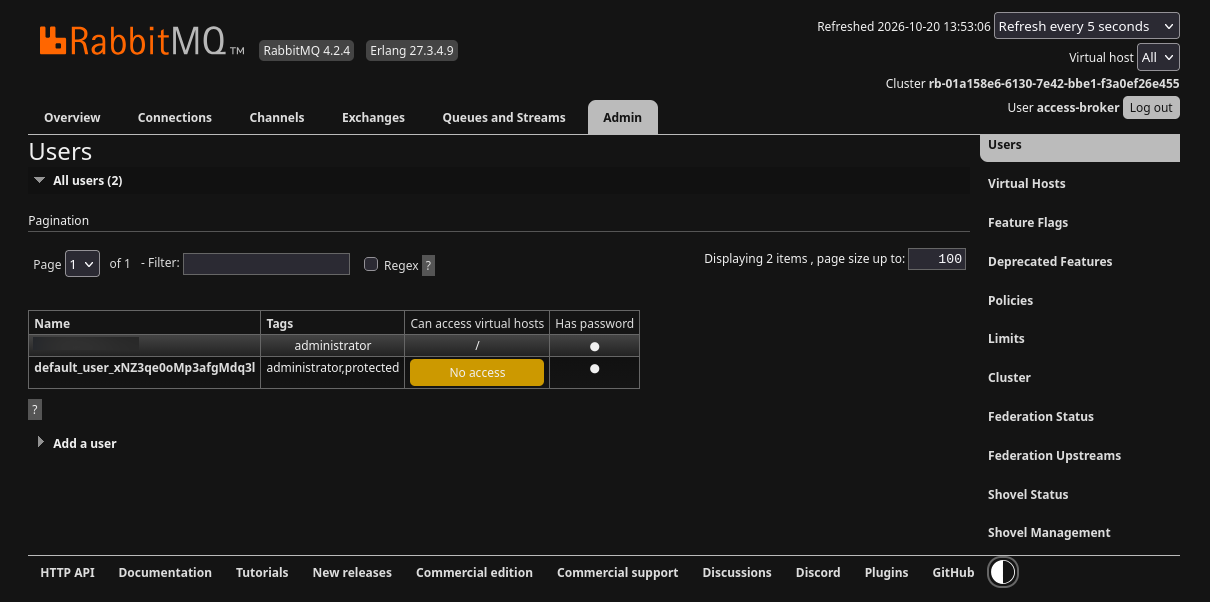
Account tags and vhost access appear beside each username.
Give the application owner the vhost name and the account credentials through your normal secret-sharing process. A RabbitMQ management tag controls console capabilities; it does not replace permissions on the application’s vhost.
Create a queue for the application
In the RabbitMQ Management UI, open the queue list and select the application’s vhost.
Open the queue creation controls and enter a queue name agreed with the producer and consumer, for example image-jobs.
Choose the queue type. On a three-replica broker, a quorum queue provides replicated queue storage. A classic queue does not provide the same replication. Choose the type when creating the queue; deploying three broker replicas alone does not convert a classic queue into a quorum queue.
Choose the queue properties needed by the application and create the queue. A durable queue survives a broker restart; retaining its messages also requires the publisher to mark messages as persistent. The temporary queue used in the first connection test serves a different purpose.
Confirm that the queue appears under the expected vhost. Keep its exact name for the application or Functions trigger configuration.
Route and acknowledge messages
A producer publishes to an exchange. Bindings connect that exchange to queues, and the exchange type determines how routing keys select the destinations. If several consumers share one task queue, they divide the work; separate queues are needed when independent applications must each receive a copy of an event.
The Exchanges tab lists exchanges by vhost, together with their types.
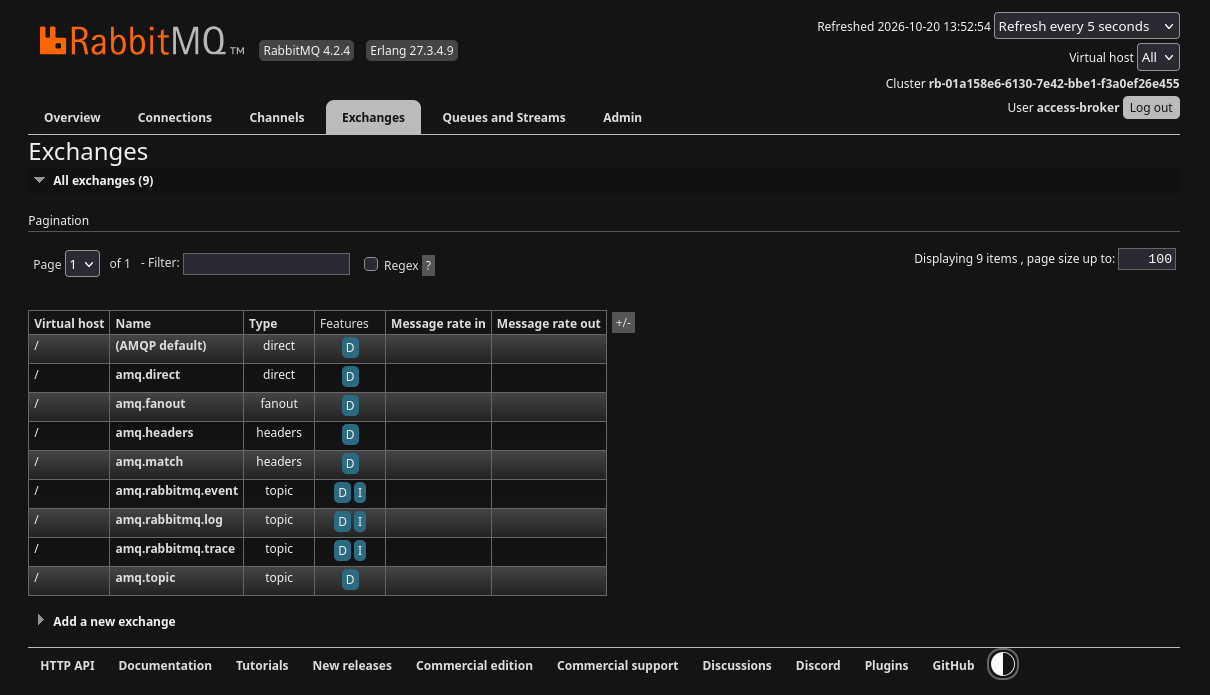
Check the exchange name, type, and vhost used by the producer.
Publisher confirms report whether RabbitMQ accepted a publication. Consumer acknowledgements report that a consumer has handled a delivery. They cover different stages: receiving a publish confirmation does not prove that the business operation has completed. Consumers should acknowledge at the point appropriate to the work they perform.
Queue declarations made by an application must agree with an existing queue’s properties. If a client receives PRECONDITION_FAILED, compare its queue type and durability settings with the queue already present. Avoid deleting a live queue simply to make a conflicting declaration succeed.
Plan for failed deliveries
With manual acknowledgements, a connection failure can cause an unacknowledged message to be delivered again. Make the worker safe to repeat: use a job identifier to detect completed work and avoid performing the same operation twice.
Set a retry limit and a delay for work that fails repeatedly. Immediately returning the same failing message to a queue can create a busy loop. If you use a dead-letter exchange to route rejected messages to a separate queue for investigation, configure and test that route first: rejecting a message without requeueing discards it when no dead-letter exchange is configured. RabbitMQ’s dead-letter exchange documentation explains the required configuration and permissions.
What to do next
Use Use Message Broker with other products on CloudFerro Cloud when these queues will feed Functions or workers on another product. For the full permission and delivery models, refer to RabbitMQ’s access control, queue properties, and acknowledgements and confirms documentation.