
Understand the RabbitMQ Management UI on CloudFerro Cloud
A broker can be active in My Portal while its RabbitMQ screens show no connections, queues, or messages. These screens describe the applications using the broker, so an empty list can be the expected state before any application starts work.
The screenshots below follow an idle broker from login through each main tab. They show what the counters mean, why exchanges already exist, and where to look when a producer or worker starts running. My Portal manages the deployment and network access; the RabbitMQ Management UI manages messaging resources inside that deployment.
Prerequisites
No. 1 An active broker and access to its console
Use Create your first message broker on CloudFerro Cloud to create a broker, or ask its owner for access to an existing one. Have the console link from Access, the RabbitMQ username and password, and an allowed source IP. Connect an application and send a first message on CloudFerro Cloud explains the console link, AMQPS endpoint, and network settings.
No. 2 An account with the appropriate visibility
The screenshots use an administrator account. Your account’s tags and vhost permissions determine which resources and controls you can see. Ask the broker administrator for the required access using Manage RabbitMQ queues and access on CloudFerro Cloud; ordinary application access does not require permission to administer all users.
Open the console and sign in
In My Portal, open the broker and select Access, then Link under RabbitMQ web console. Enter the RabbitMQ username and password supplied during broker creation or by its administrator, then select Login. These credentials belong to the broker and are separate from portal sign-in.
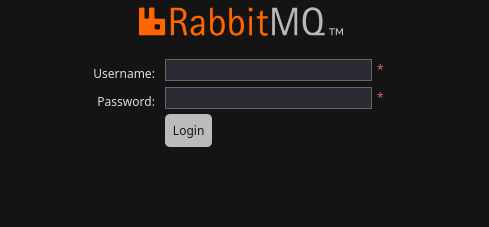
The console requires a RabbitMQ account.
After sign-in, the header identifies the RabbitMQ and Erlang versions, cluster, and current user. Virtual host filters the resources displayed; All shows the vhosts available to that account. Changing this selector does not create a vhost or change an application’s connection settings.
The refresh selector controls how often the browser updates its display. It does not control how quickly messages are processed. Log out ends the console session; it does not stop the broker or disconnect separately running application clients.
Overview: understand the idle broker
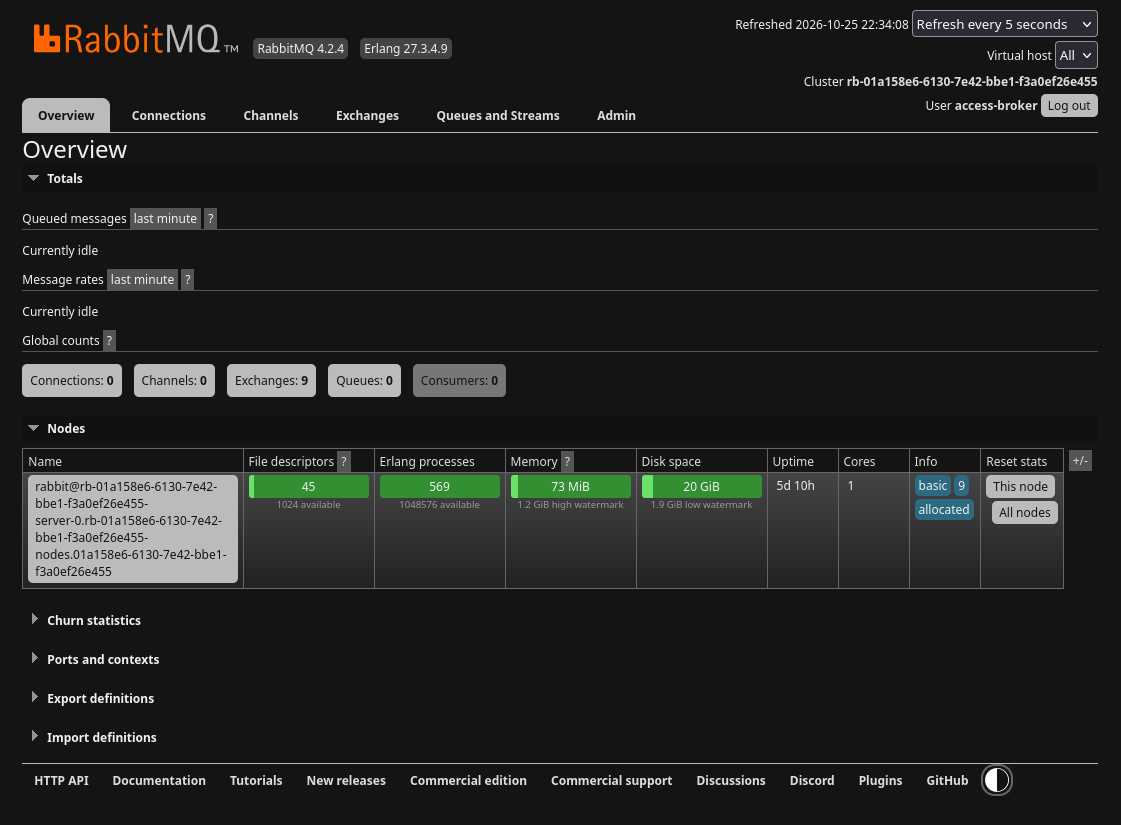
This broker has no application activity yet, but its built-in exchanges already exist.
Queued messages describes the messages held by queues, while Message rates describes activity over time. Currently idle and the zero counts are consistent with this example: no application is connected and no queue has been created. The Exchanges: 9 count describes routing resources, not nine queued messages.
The Global counts provide a quick route to the resource lists. Connections are application network sessions; channels are AMQP sessions inside them; queues hold work; consumers subscribe to deliveries. A browser session in this console is not itself an AMQP connection or consumer.
The Nodes table shows one running RabbitMQ node in this example. RabbitMQ uses the Cluster identifier in the header even for a single-node deployment. The table’s columns help distinguish broker resource pressure from an application that simply has no work:
File descriptors tracks operating-system handles used for sockets and files. A value approaching the available limit can constrain new connections or file access.
Erlang processes counts lightweight runtime processes used internally by RabbitMQ. These are not the same as your application workers or queued jobs.
Memory shows broker memory use relative to its threshold. Compare changes with connections, queues, and message activity when investigating pressure.
Disk space shows free storage and the low-water threshold. Low free space can lead RabbitMQ to block publishers; it is not a measure of the number of messages processed.
Uptime and Cores show how long the node has run and its reported CPU allocation. A recent restart can explain why counters or connections have changed.
Info provides further node details. Reset stats resets statistics for the selected scope; it does not purge queues or complete waiting jobs.
The collapsed Churn statistics section concerns resource creation and closure, such as connections repeatedly reopening. Ports and contexts lists listeners and web contexts; applications should still use the managed endpoint supplied in My Portal. Export definitions and Import definitions handle configuration such as queues, exchanges, and bindings. A definition export does not back up queued message bodies.
Connections: see which applications are connected
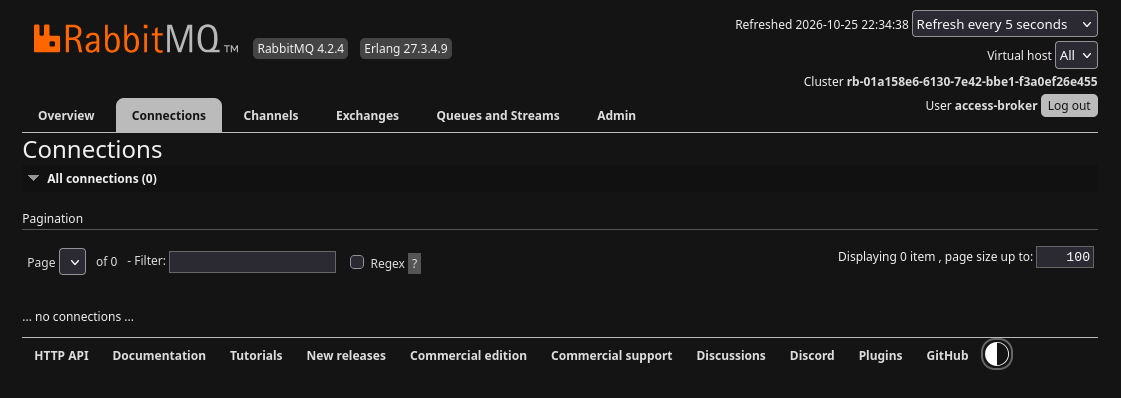
No messaging client has an open connection in this view.
An application opens a connection using the AMQPS endpoint, its RabbitMQ credentials, and a vhost. Once connected, its entry lets you inspect the session and associated traffic. If a worker should be running but this list is empty, check the vhost selector, application logs, allowed IP ranges, and connection settings.
Short programs can connect and disconnect between browser refreshes. The first-message example may finish before you see its connection here, so an empty list after a successful run is expected.
Filter narrows the list by text; Regex interprets that filter as a regular expression. Page and page size change which entries are displayed. These controls only affect the view and do not change broker resources.
Channels: inspect sessions inside a connection
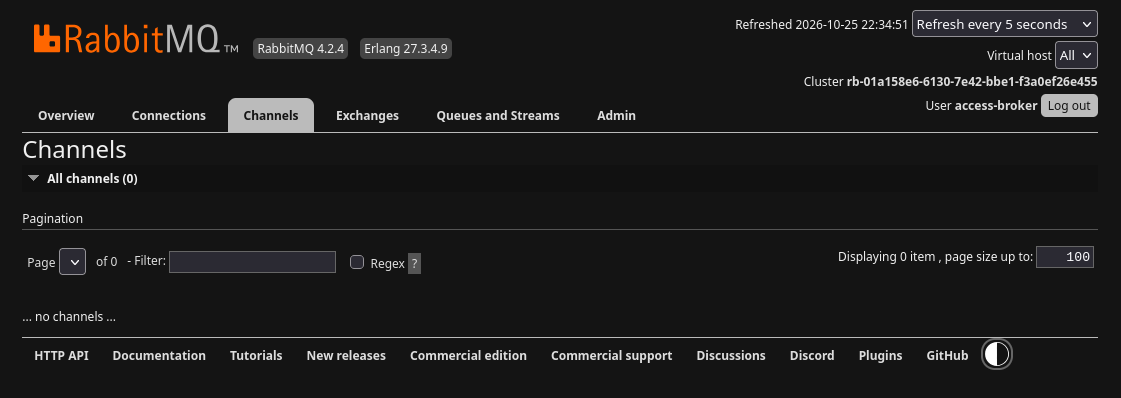
There are no channels because no application connection is open.
A channel lets an application publish, consume, and acknowledge messages within an existing connection. One connection can have several channels, so the two counts need not match. Open a channel to inspect its delivery activity and acknowledgement state when diagnosing a connected application that is not making progress.
If messages remain unacknowledged, the worker may still be processing them or may have failed before acknowledging them. Closing a channel is not a repair for the underlying processing error; unacknowledged deliveries can be returned to their queue and delivered again.
Exchanges: understand where messages are routed
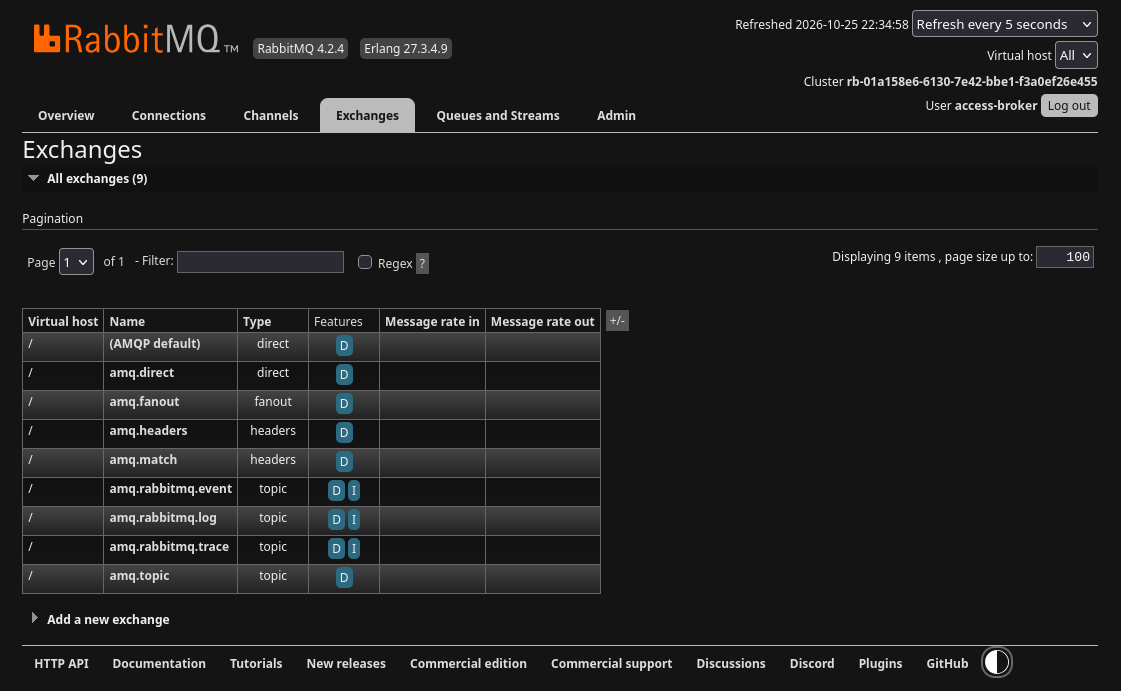
RabbitMQ creates predefined exchanges before an application creates its own queues.
The list shows the vhost, exchange name, type, features, and message rates. D marks a durable exchange; I marks an internal exchange, which applications cannot publish to directly. The number and names of predefined exchanges can vary with the broker configuration and enabled plugins.
An exchange routes messages according to its type and bindings:
direct matches a routing key exactly. The special (AMQP default) exchange uses an empty name in client code and automatically routes to a queue whose name matches the routing key.
fanout sends a copy to each bound destination, regardless of routing key. It is useful when separate applications must each receive an event.
topic matches routing-key patterns. A producer can label events such as images.ready, while bindings select the event categories each queue needs.
headers matches message-header values rather than the routing key. Use it when routing depends on attributes carried in those headers.
Open an exchange to inspect its bindings and publishing controls. A binding is a route from an exchange to a destination queue or exchange. An exchange existing in this list does not by itself mean a message has a matching destination. Add a new exchange declares another routing resource; it does not create a queue for storing its messages. See RabbitMQ’s exchange documentation for routing details.
Queues and Streams: find waiting and delivered work
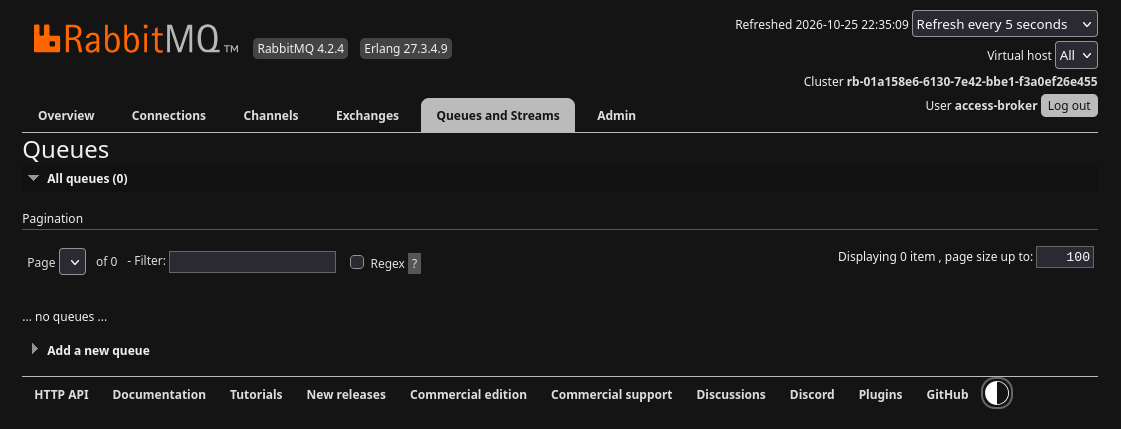
The broker is running, but no application queue has been declared.
Select Add a new queue when preparing a queue manually, or let an authorized application declare it. Choose its vhost, name, type, and durability according to the application’s needs. The tab also covers RabbitMQ streams; the work-queue examples in this section use queues.
After a queue exists, its detail page shows message counts, consumers, bindings, and message operations. Ready messages are waiting for delivery. Unacknowledged messages have been delivered but their consumers have not yet confirmed handling them. A consumer is a subscription to deliveries; applications that fetch individual messages with basic_get do not create such a subscription.
The queue’s Publish message and Get messages controls support manual tests. Use a demonstration queue: getting a message with an acknowledgement mode that removes it can take a job away from the worker. Purge removes ready messages and Delete removes the queue itself; neither action makes an application’s pending work complete.
Admin: understand access and broker configuration
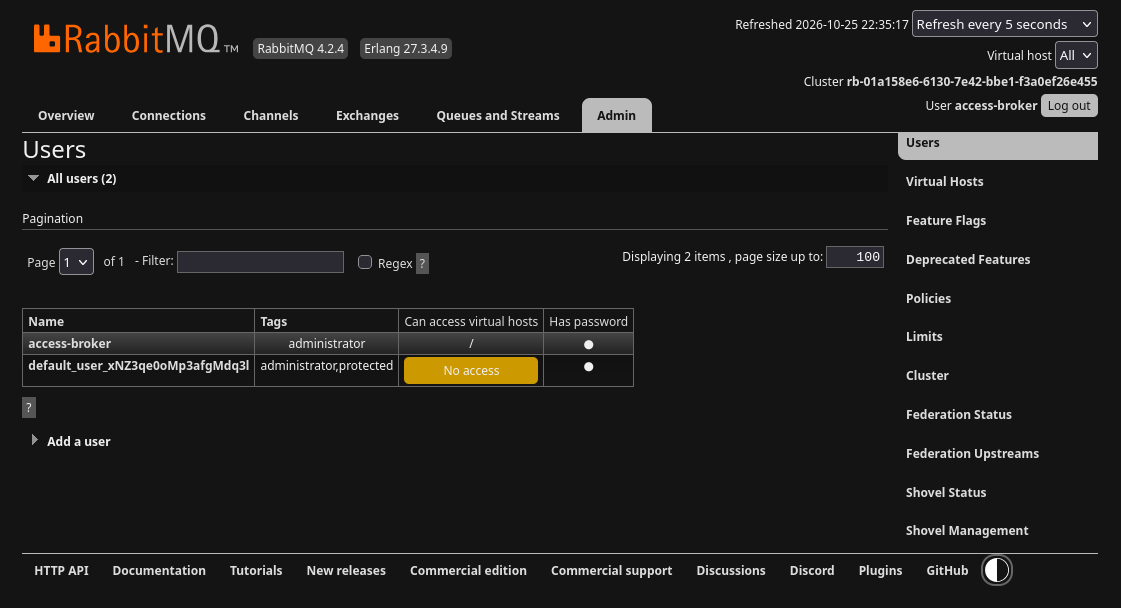
Account tags and vhost access are separate: the protected account shows No access to vhosts.
The Users table shows account names, management tags, accessible vhosts, and whether a password is set. The password indicator does not reveal the password. Open an application user to inspect its permissions, or use Add a user when an administrator needs to create a separate account.
In this screenshot, access-broker has the administrator tag and access to /. The other account has administrator,protected tags but No access to vhosts. A management tag controls console capabilities; vhost permissions control access to messaging resources.
Warning
Do not delete the protected M2M operations user or change its password. Keep this service account separate from application accounts.
The menu on the right groups the administrative controls:
Virtual Hosts separates queues, exchanges, and permissions into namespaces. Select the intended vhost in the application connection and grant its user access there.
Policies applies supported settings to matching resource names, such as expiry or dead-letter routing. Check the name pattern and scope because a policy can affect several queues.
Limits exposes resource limits, such as connection or queue limits for a vhost. These RabbitMQ limits are distinct from the organization quota for creating brokers in My Portal.
Feature Flags concerns RabbitMQ features enabled across the cluster, especially during upgrades. Deprecated Features helps identify features being phased out; these are broker maintenance controls, not switches needed for the first messaging example.
Cluster concerns the RabbitMQ cluster itself. Use My Portal for the managed deployment and ask support about changes to its topology or engine version.
Federation Upstreams defines remote sources for federation, while Federation Status shows the state of those links. Federation can move messages between independent brokers; it is separate from replication between nodes of one cluster.
Shovel Management configures transfers that consume messages from a source and publish them to a destination. Shovel Status shows those transfers’ state.
Menu visibility does not establish which advanced configurations are supported by the managed service. Confirm the intended setup with support before changing cluster features or configuring broker-to-broker transfers. RabbitMQ’s access-control documentation, Federation guide, and Shovel guide describe the underlying mechanisms.
Watch the screens change during an example
Use Process queued text jobs locally and with Sherlock on CloudFerro Cloud to see a complete job move through the broker:
Publish a job before starting the worker. The durable docs-text-jobs queue remains, with one ready message when it was previously empty.
Run the worker. Its connection and channel may appear while it processes the job; a short run can finish between refreshes.
The worker saves a result and acknowledges the delivery. The queue’s ready and unacknowledged counts return to zero when no other jobs remain.
To prepare your own vhost, account, queue, and bindings, continue with Manage RabbitMQ queues and access on CloudFerro Cloud. For resource charts and portal logs, use Monitor and troubleshoot Message Broker on CloudFerro Cloud.