
Prepare access and choose a broker on CloudFerro Cloud
Before creating a broker, decide where it will run, which computers will connect, and how much broker capacity you need. This preparation leaves you with the account access and values needed for the creation form.
The first message test needs a broker and a computer running Python. Object Storage is used by the image-processing example to hold input files; it is not needed for the Hello from Message Broker connection test.
Prerequisites
No. 1 Portal account and organization access
You need access to My Portal and the Message Broker page for your organization. The Message Broker overview shows the route through the product catalogue.
No. 2 Product availability and permission to create a broker
Your organization needs an active service or contract, and your account needs the role required to create a broker. The product must be available in the selected region, with quota available for another broker. If access or quota is missing, follow Monitor and troubleshoot Message Broker on CloudFerro Cloud.
Choose the organization and region
Select the organization that will own the broker, then check Region above its broker list. The Control Plane and the resources are regional. Resources are not replicated between regions automatically.
Region selection:
is remembered in the browser;
is stored separately for each service;
is selected automatically when only one region is available;
when several regions are available, uses the last selection, the default region, or the first available region.
Changing the region in Functions does not change the region in RabbitMQ or NATS. For a Functions integration, check that the function and broker are in the same region. The article Use Message Broker with other products on CloudFerro Cloud describes the other connection requirements.
If your team already has an active broker suitable for the test, ask its owner for the endpoint, RabbitMQ account, vhost, and permission to connect. You can then continue with Connect an application and send a first message on CloudFerro Cloud.
Choose the deployment mode and size
The creation form offers Single instance broker for one replica and Cluster deployment for three replicas.
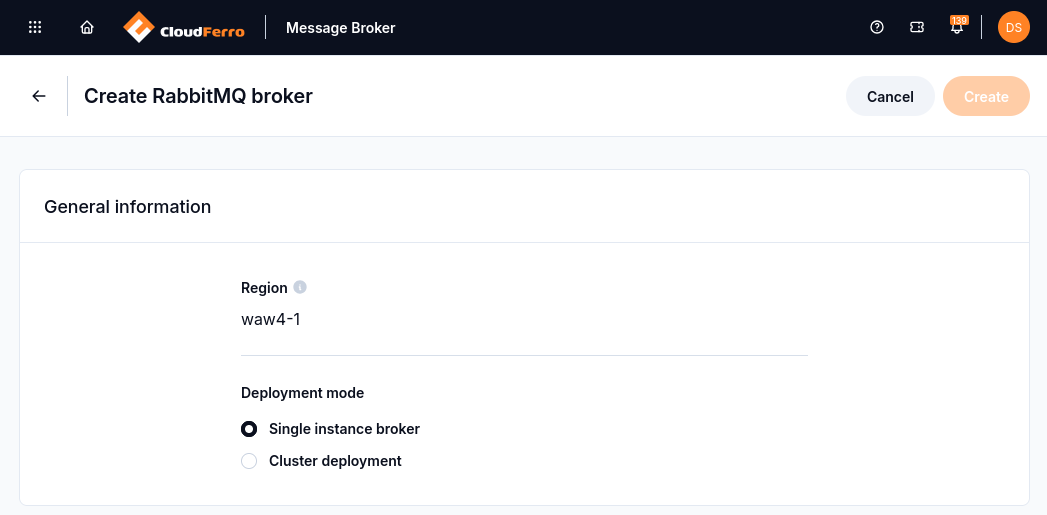
Choose the deployment mode according to the availability your application needs.
Option or feature |
How it supports your application |
|---|---|
One replica |
Suitable for development when a broker interruption is acceptable. There is no second broker node to keep the queue available. |
Three replicas |
Supports quorum queues replicated across three nodes. A queue with three members can tolerate one unavailable node; configure the queue type when creating it. |
Instance type (flavor) |
Supplies the broker’s CPU, RAM, and storage. Size it for your message rate, message sizes, and connections, then measure performance with a representative workload. |
Engine version |
Determines the RabbitMQ features and client compatibility available to your applications. Select a version supported by the client libraries you use. |
AMQPS, TLS, and Allowed IP Ranges |
Encrypt connections to the public endpoint and admit the source IP ranges used by your producers and consumers. |
Management UI, metrics, and logs |
Inspect queues, consumers, and message rates to find where processing is falling behind. This helps distinguish a worker backlog from a broker problem. |
In the creation form, Broker instance type lists the CPU, RAM, and storage for each available flavor. Use the values shown for your selected region.
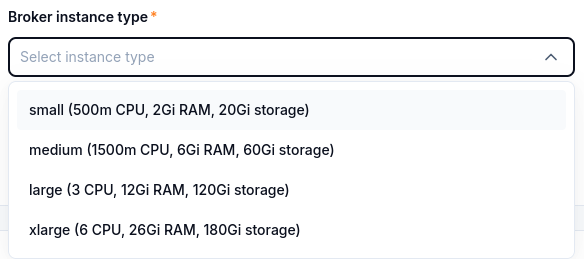
Compare the resource allocations shown beside each instance type.
Broker capacity and worker capacity serve different purposes: the broker stores and delivers requests, while your workers perform the processing. Increasing the broker flavor alone does not make image conversion or report generation faster.
A three-replica deployment does not make every queue replicated automatically. Select a quorum queue when you need the three-node behavior described above. A classic queue and a quorum queue have different replication properties. The article Manage RabbitMQ queues and access on CloudFerro Cloud covers that choice; RabbitMQ’s queue documentation and quorum queue documentation provide more detail.
Prepare the account and allowed IP range
Choose the initial RabbitMQ username and a password of 12–128 characters. Keep these credentials for the web console and the first connection test; your My Portal password is a separate credential.
Have the public outbound IP address or network range of the computer, VM, or cluster that will connect to the broker. For a first test from your computer, allow its public IPv4 address with /32. A private address such as 192.168.1.10 does not identify it on the public internet. If your network uses a VPN or shared gateway, ask its administrator which outbound address to allow.
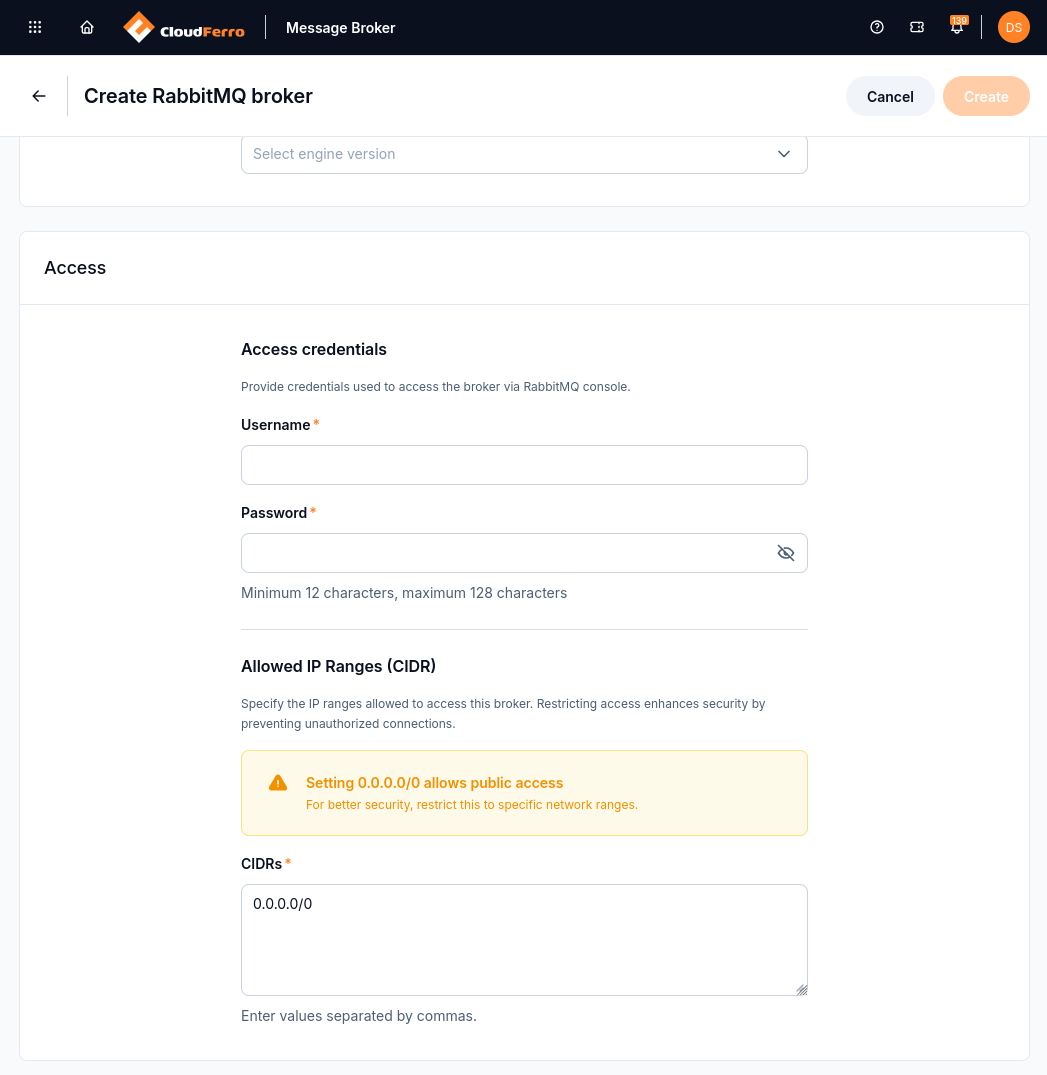
Prepare the credentials and client source range for these fields. Replace the open 0.0.0.0/0 range shown here.
0.0.0.0/0 allows traffic from the whole internet. Use the narrowest range that covers your clients and administrators. You can later change it using Manage and delete message brokers on CloudFerro Cloud.
Ready for the creation form
You are ready when you have:
the organization and region where you can create a broker;
the deployment mode, instance type, and engine version;
a broker name of up to 15 lowercase letters, numbers, and dashes;
the initial RabbitMQ username and password;
the public client IP address or range to allow.
Continue with Create your first message broker on CloudFerro Cloud to enter those values and wait for Active. You will then prepare the Python client and send the first message.