
Create and check a Kubeflow notebook on CloudFerro Cloud
When your namespace has no notebook environment yet, create one in Kubeflow under Notebooks → New Notebook. A notebook environment has its own container image, compute resources, and storage inside the MLOps Studio instance. This example selects JupyterLab as its browser interface, where you will create and run a notebook document (.ipynb). The examples use namespace mlops-namespace and notebook environment notebook1.
Prerequisites
No. 1 A running instance and a namespace with Edit access
In My Portal, open Products → MLOps Studio, find your running instance, and open Central Dashboard. The instance must have Notebooks installed. Your account needs Edit access to the namespace where you will create the notebook environment. Select that namespace in the dashboard’s top bar.
If your team has no instance yet, start with Create an MLOps Studio instance on CloudFerro Cloud. Then follow Create namespaces and manage team access on CloudFerro Cloud to create a namespace and assign access.
No. 2 An available image and enough compute and storage
Use a JupyterLab image supplied for this instance, or one agreed with the administrator. Confirm that the namespace and worker nodes can provide the requested CPU, memory, and persistent storage. The example notebook uses 1 CPU, 2 Gi of memory, and no GPU. Its workspace is backed by a persistent volume claim (PVC), which requests storage for the notebook.
Open the notebook form
Select mlops-namespace, or your assigned namespace, in Central Dashboard’s top bar.
Open Notebooks and click New Notebook. The home page also offers Create a new Notebook.
Enter notebook1 in Name, or use another name for your notebook.
Select JupyterLab. The form also offers VisualStudio Code and RStudio; this procedure uses a Python notebook in JupyterLab.
Expand Custom Notebook and select an available Image. Leave Custom Image unchecked when using an image from the list.
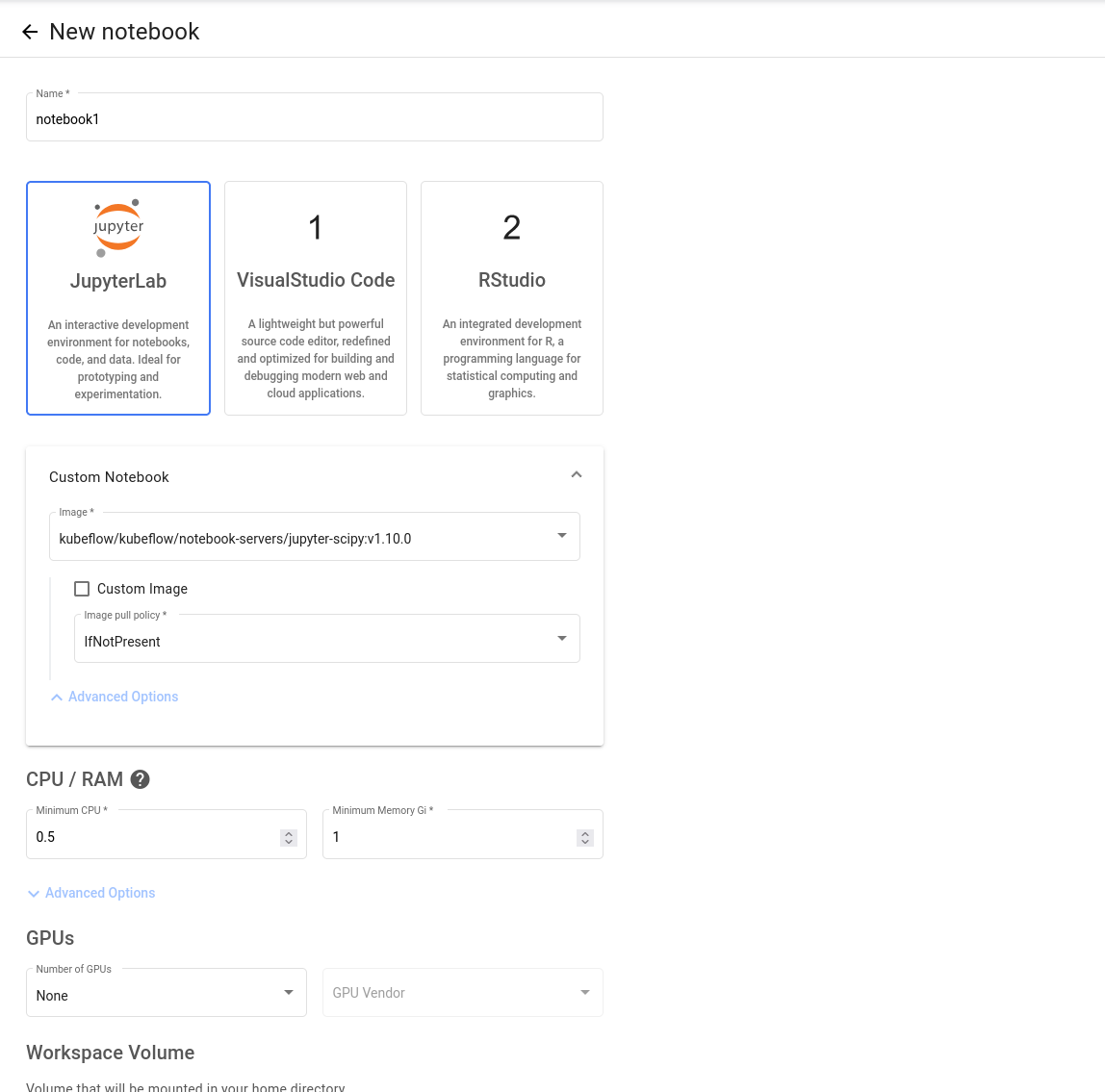
Choose the notebook interface and its container image before setting the resources.
The image determines the software available when the notebook starts. The form capture shows one image from the list; the later details capture shows a different image used for the created notebook. Use an image available in your environment rather than copying an image address from a screenshot.
Set CPU, memory, and storage
Under CPU / RAM, set Minimum CPU and Minimum Memory Gi to the resources agreed for the notebook. To match the created notebook1 shown later, use 1 and 2, respectively. The earlier form capture still shows 0.5 and 1. Under GPUs, leave Number of GPUs at None for this example.
Expand Workspace Volume and check its name, size, storage class, access mode, and mount path. The workspace is mounted in the notebook’s home directory; the example uses /home/jovyan. Keep notebook documents and other files that must survive a restart in this persistent workspace. The created notebook’s claim is named notebook1-workspace.
Additional data volumes are optional. Under Data Volumes, use Add new volume to request another volume, or Attach existing volume to select an existing one. For a new volume, check Type, Name, Size in Gi, Storage class, Access mode, and Mount path. The capture shows a 5 Gi empty volume with the default cinder-ssd class and ReadWriteOnce access.
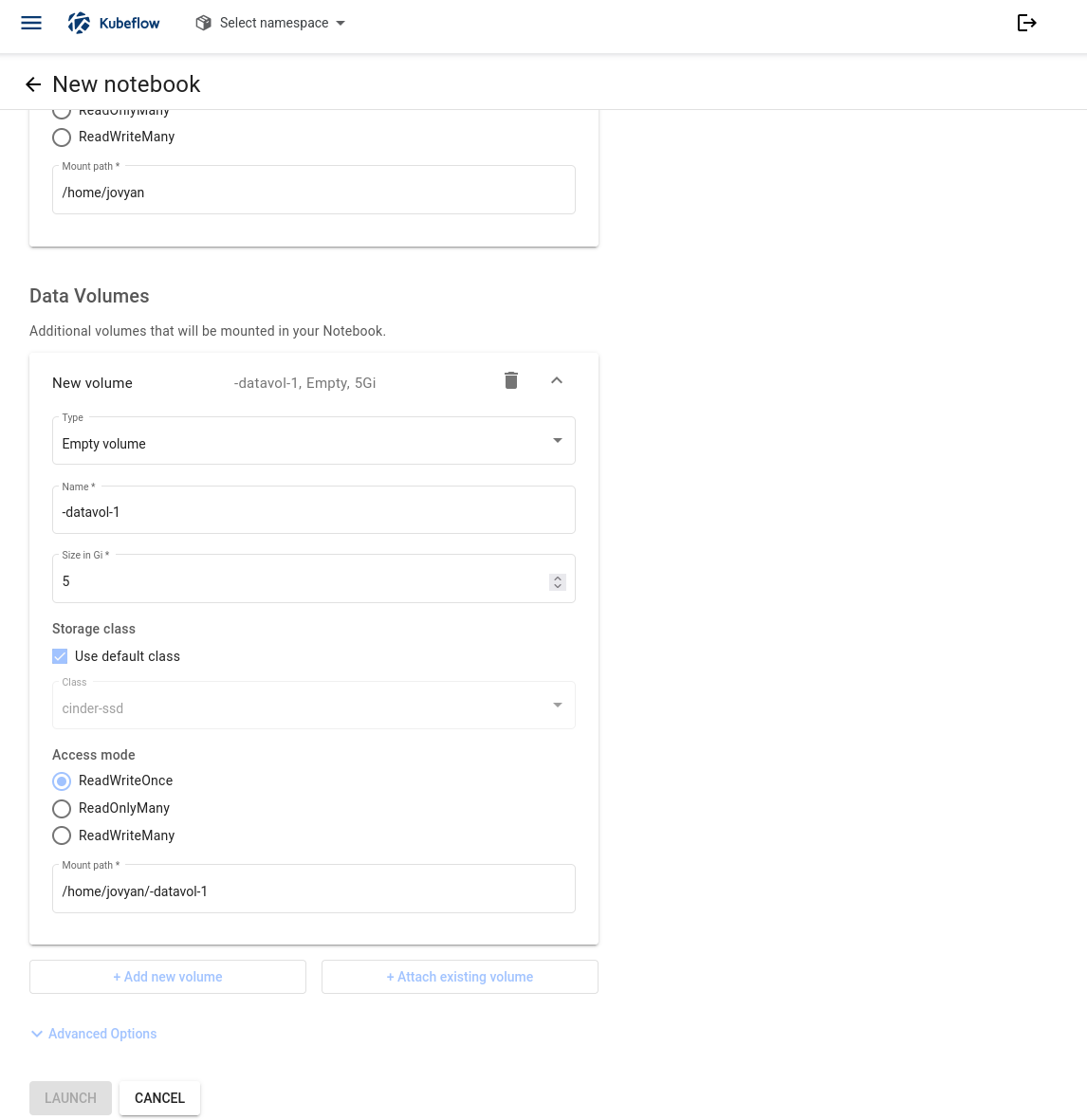
This early capture was taken before the notebook name was filled in, so the generated volume name starts with -datavol-1. Enter the notebook name first, then check the volume name and mount path.
Use the storage class and access mode supported by your environment. If attaching an existing volume, confirm that it can be used by this notebook alongside any workload already using it. A ReadWriteOnce volume can be mounted read-write on one node at a time; another workload on a different node may prevent the notebook from starting.
The advanced area also contains Configurations, Affinity / Tolerations, and Enable Shared Memory. Use any settings supplied by your administrator for the chosen image and worker pool. The created notebook shown below has shared memory enabled.
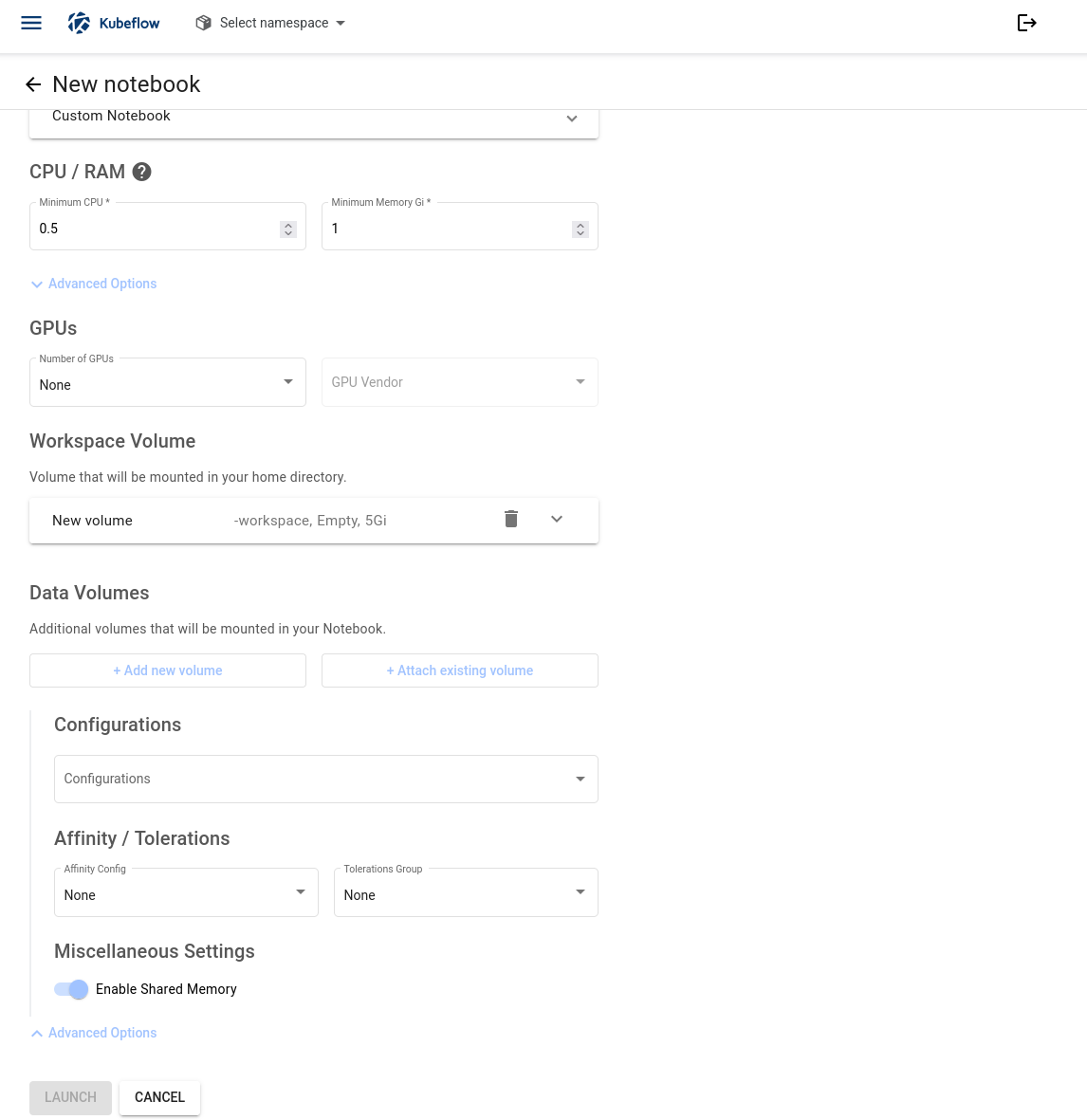
The lower part of the form contains optional settings and LAUNCH. This capture still has no namespace selected; check the required fields and namespace before submitting your notebook.
Launch and find the notebook
Check the selected namespace, notebook name, image, resource values, and volumes.
Click LAUNCH at the bottom of the form. If it is disabled, check required fields and your namespace selection and permissions.
Find notebook1 in Notebooks. Check Status, Image, GPUs, CPUs, and Memory against the configuration you submitted.
Wait until the notebook is ready and CONNECT becomes available.
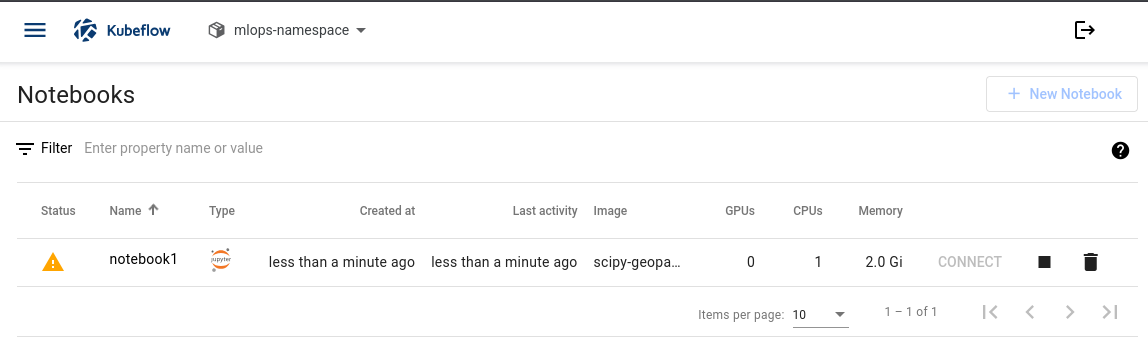
The notebook exists, but CONNECT is still unavailable. Its status needs to be checked before opening the workspace.
Creating the notebook resource does not mean its container has finished starting. The captures below show notebook1 during initialization, before a successful connection.
Check a notebook that is still initializing
Click the notebook name to open Notebook details. The captured status message is:
PodInitializing: No available message for container state.
The OVERVIEW tab shows the workspace claim, image, resource settings, shared-memory setting, and environment information. Use these saved values to confirm what was submitted.
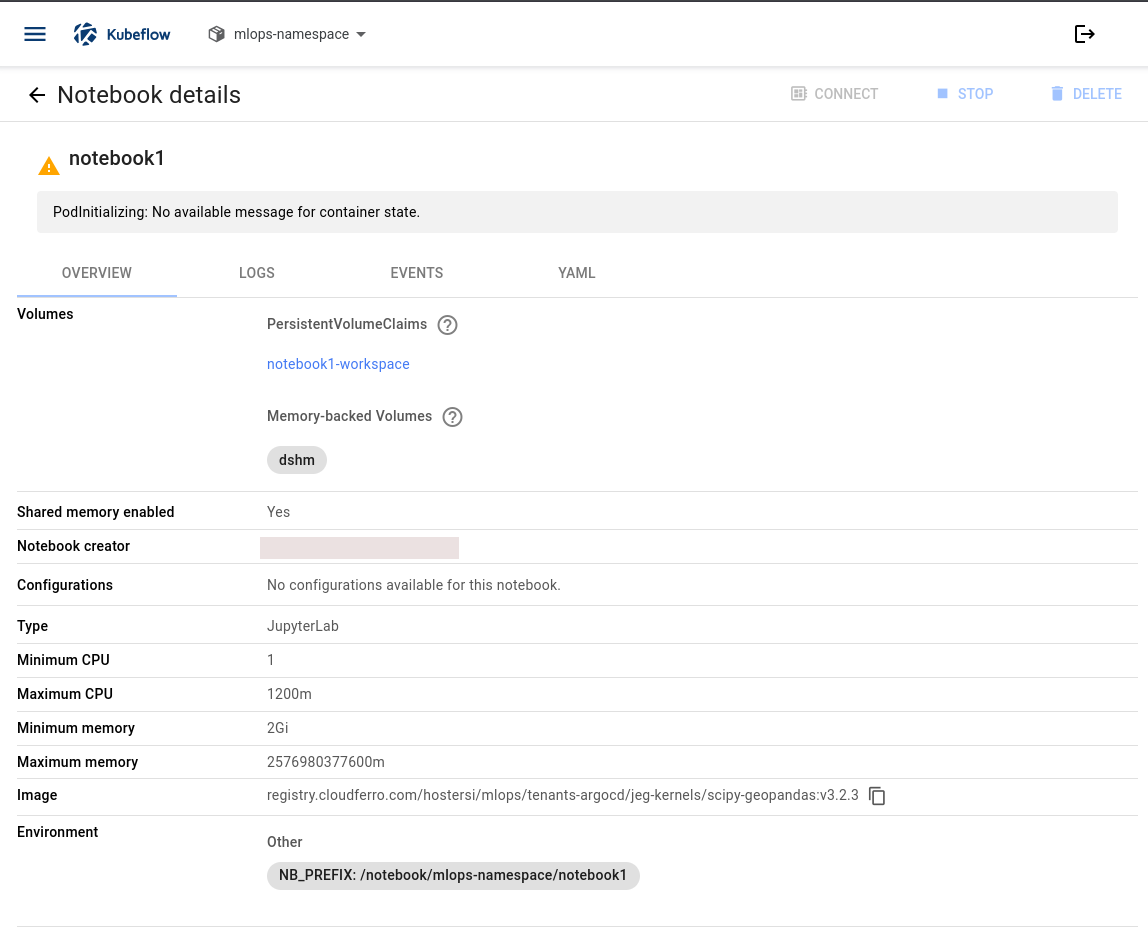
OVERVIEW confirms the notebook configuration. The status message explains why CONNECT is not yet available.
Scroll to Conditions in OVERVIEW. In the example, Initialized, PodReadyToStartContainers, and PodScheduled have green checks. Ready and ContainersReady still show warnings with reason ContainersNotReady and identify notebook1 as unready. The green scheduling and initialization checks do not mean the notebook is ready to use.
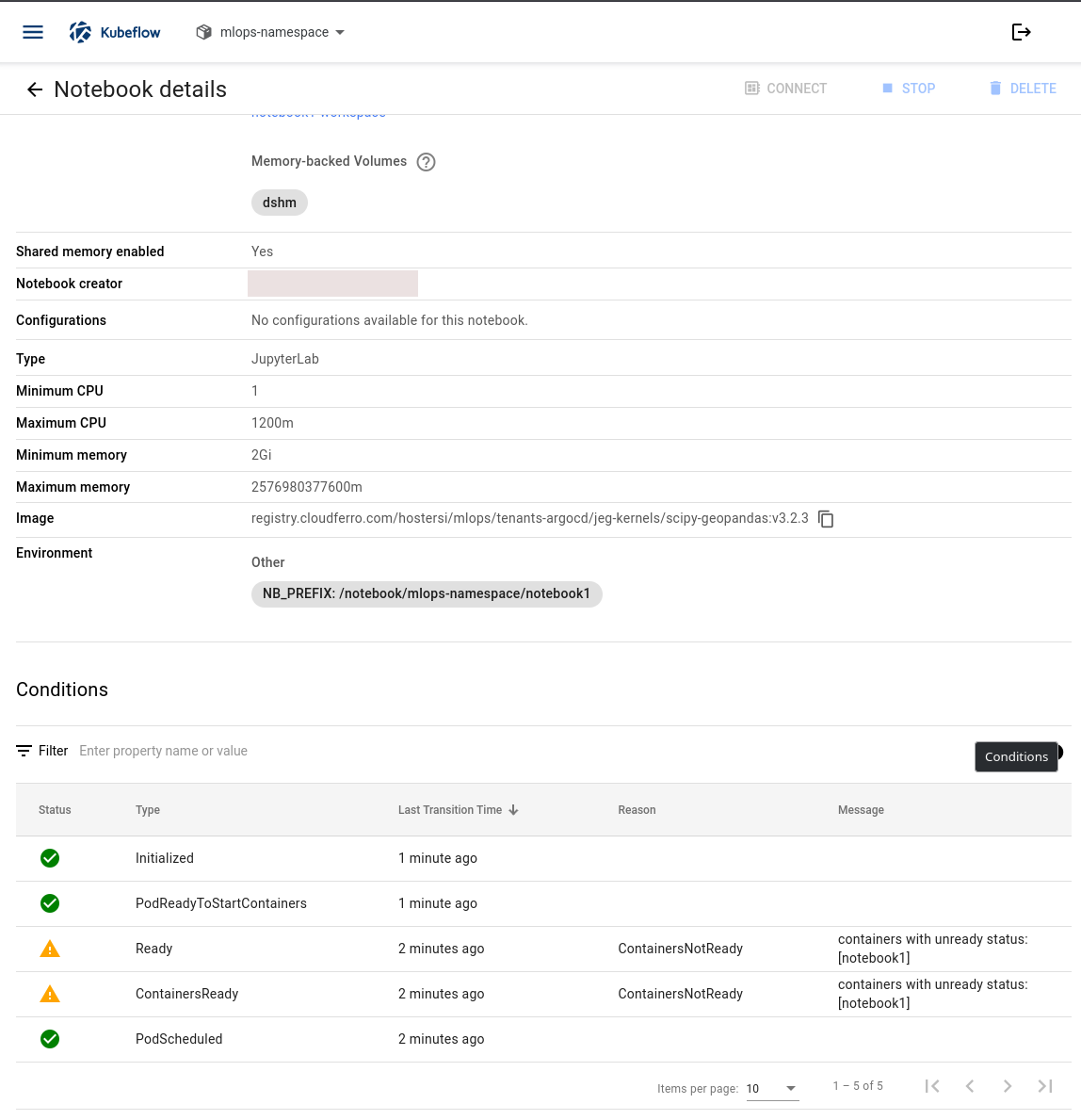
Read the Reason and Message beside the readiness warnings.
Open EVENTS to inspect startup messages and LOGS for output available from the notebook container. YAML shows its resource definition. If readiness does not progress, give the administrator the namespace, notebook name, status message, and relevant event or log text. PodInitializing and ContainersNotReady describe the observed state; they do not by themselves identify an image, storage, or capacity problem.
Open JupyterLab and check Python
Once CONNECT is active, click it to open JupyterLab. Create a notebook document with an available Python kernel and run:
print("My Python kernel is working.")
The expected output is:
My Python kernel is working.
Save the document in the mounted workspace. This checks Python execution; dataset access and any additional packages depend on the image and configuration chosen for your work.
What to do next
Continue with Say hello and train a tiny model on CloudFerro Cloud to use your new environment for a greeting, a saved file, and a tiny model.
Connect a local editor to a Kubeflow notebook on CloudFerro Cloud covers optional access from a local editor. For packages that survive restarts, use Keep Python packages across notebook restarts on CloudFerro Cloud. Troubleshoot notebooks and volume attachments on CloudFerro Cloud covers startup and volume problems. The Kubeflow Notebooks quickstart provides upstream background on notebook images, resources, and volumes.