
Create an MLOps Studio instance on CloudFerro Cloud
A team needs a running instance before it can create notebooks or share a Kubeflow workspace. This procedure creates the instance, connects its existing object-storage bucket, and checks that provisioning has finished. The example name is mlops1.
Prerequisites
No. 1 Access to My Portal
Sign in with your platform account and open MLOps Studio from Products. Access MLOps Studio, AI Experiments, and Workflows from My Portal on CloudFerro Cloud shows the sign-in route. Keep the instance list open for the steps below.
No. 2 Permission to manage the environment
Your account must be allowed to perform the instance or namespace changes described below. Ask the platform administrator to confirm your access; signing in to My Portal alone does not establish those permissions.
No. 3 Agreed capacity and application choices
Use Choose compute capacity and scaling limits on CloudFerro Cloud to choose the control plane, availability mode, worker flavors, and scaling limits. Confirm the required compute and storage allocation with your administrator. Choose tools for your machine learning work on CloudFerro Cloud explains the optional tools; include Notebooks for the first Python exercise.
No. 4 A tested object-storage connection
Prepare a writable bucket using Prepare object storage for MLOps Studio on CloudFerro Cloud. Have its endpoint, region, bucket name, access key, and secret key ready for Object storage in the creation form.
Open the creation form
If the list is empty, it shows No instances yet. Click Create New Instance in the page header or the empty-list panel. The Create New action above the list opens the same form.
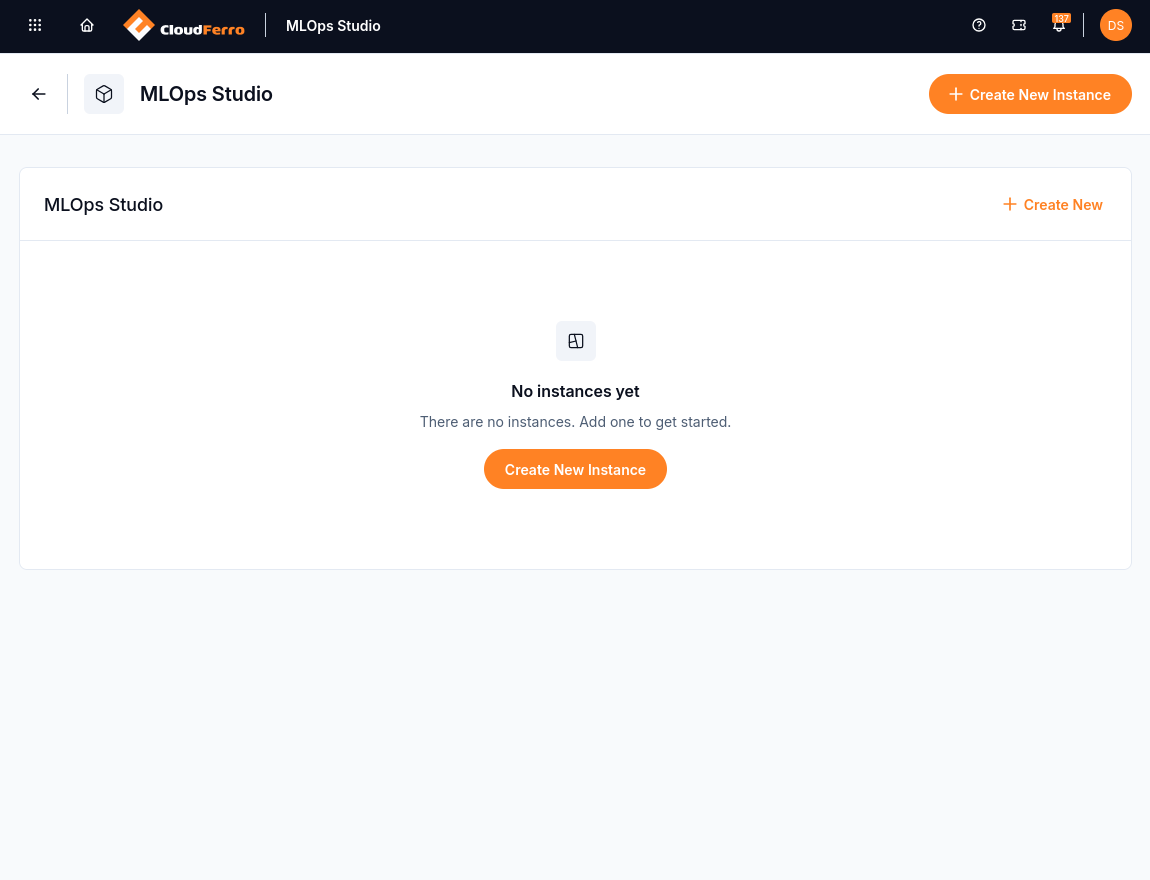
Start the team’s first environment from the empty instance list.
Step 1: Choose control plane capacity and availability
In New Instance, enter an Instance name under Control plane. This guide uses mlops1. Select the control plane size required by your team: Small, Medium, or Large. The control plane manages the environment; separate worker nodes run your notebooks and training jobs. Use the allocation agreed in Prerequisite No. 3.
Choose whether to enable High Availability (HA) using the choice agreed in Prerequisite No. 3. HA adds redundancy to the control plane so that it can tolerate failures. It does not make extra copies of your notebooks or training jobs.
Select an available Version from the required drop-down field below the size cards. The initial form has no version selected. Use the version agreed for the team’s environment.
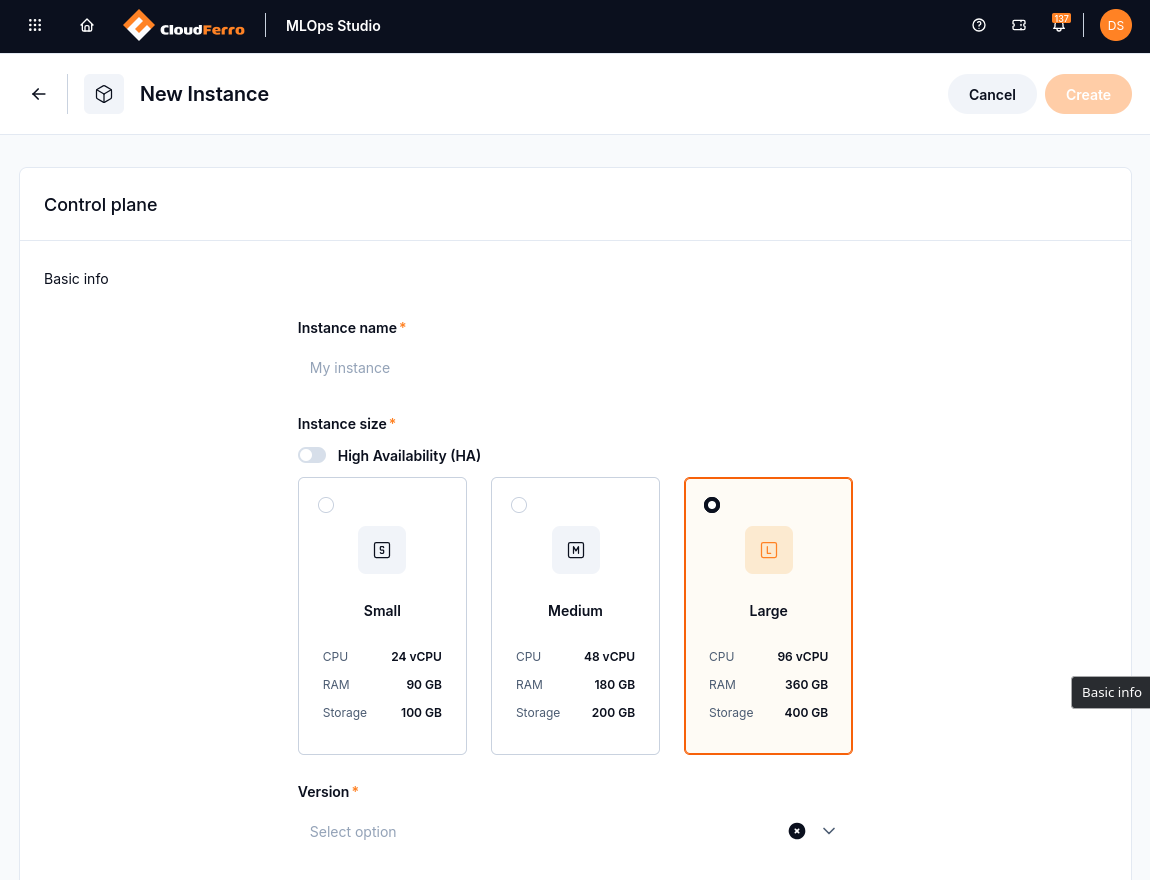
With HA off, the Large card shows 96 vCPU, 360 GB of RAM, and 400 GB of storage. Version is a separate required choice. This form capture shows Large selected; the saved mlops1 instance below uses Medium.
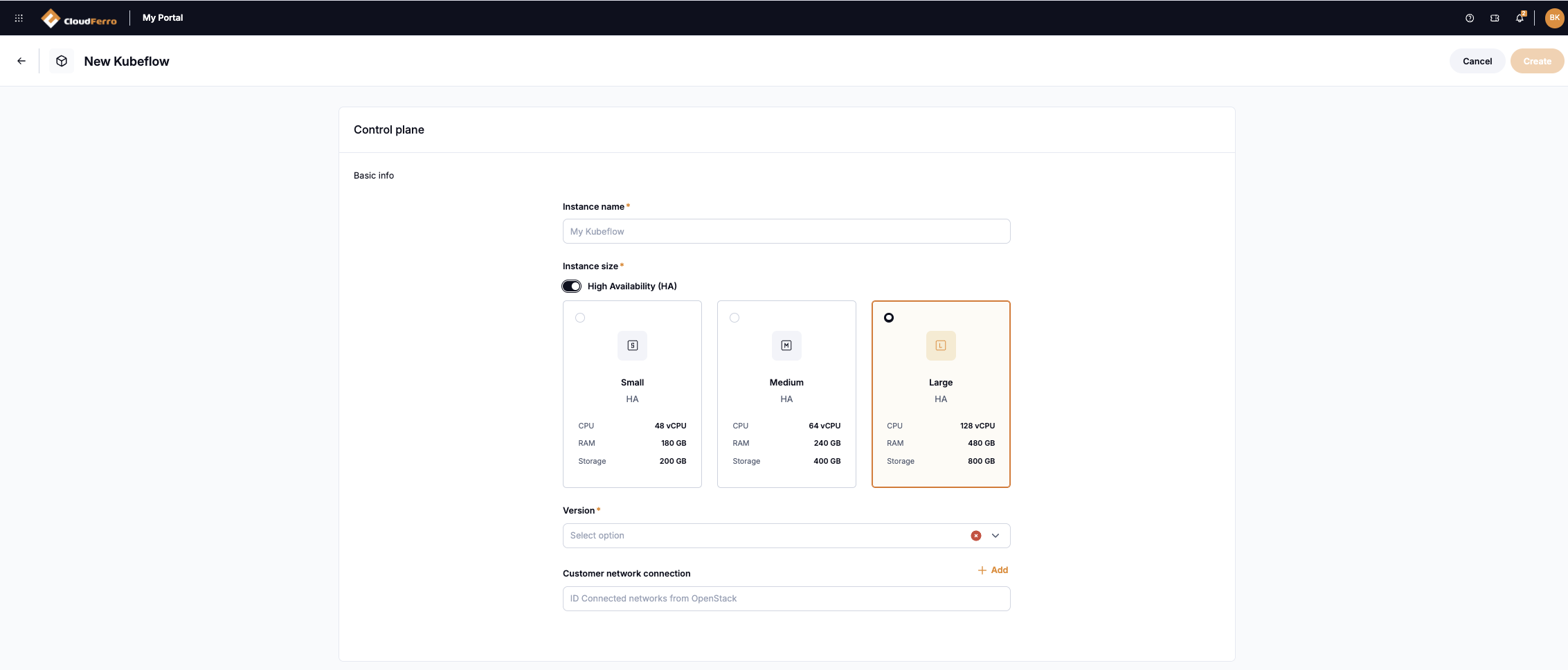
This earlier form capture shows High Availability (HA) enabled. Check the resource values offered by your own creation form before choosing a size.
Step 2: Configure worker node pools
Worker nodes run notebooks, training jobs, and model-serving workloads. The Node pools panel initially shows No node pools yet. Click Add node pool to open the worker configuration form.
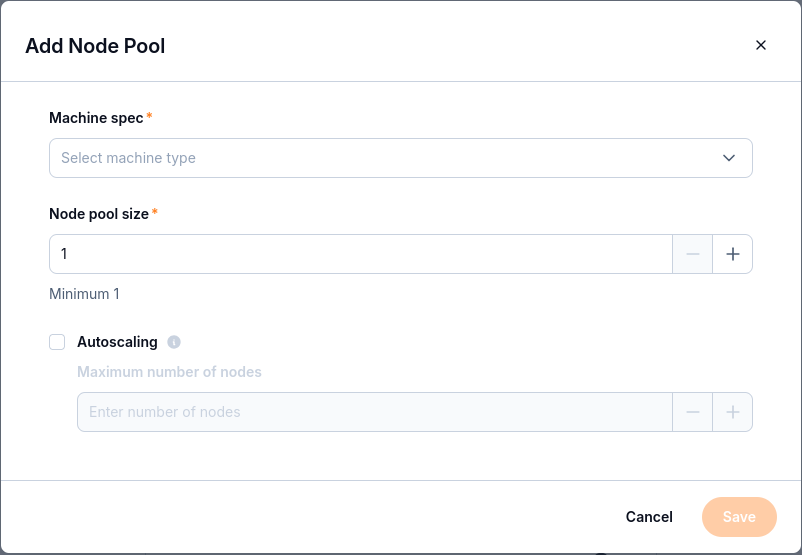
Set the worker count in Node pool size. To allow the pool to grow, enable Autoscaling and enter the Maximum number of nodes agreed for this environment.
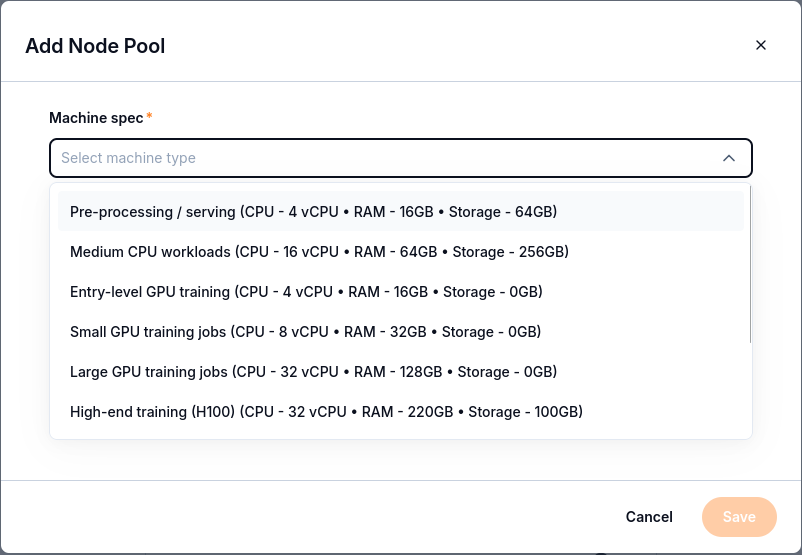
Open Machine spec to compare the CPU and GPU configurations by vCPU, RAM, and storage. Select the configuration agreed in Prerequisite No. 3, then click Save.
When autoscaling is enabled, the autoscaler adds or removes workers within the configured bounds according to workload resource requests.
The documented compute cost structure has two parts. The control plane and the minimum worker count form the baseline while the cluster is running. Additional workers above that minimum add variable compute use, up to the configured maximum. After work completes and idle workloads are terminated, scaling back to the minimum reduces that variable use. A low workload does not remove the control plane or the configured minimum workers.
Step 3: Configure and check object storage
The environment uses S3-compatible Object Storage for pipeline artifacts, staged datasets, and trained model files. Enter the values for the bucket prepared for this environment:
Field |
Value to supply |
|---|---|
Access key |
The S3 access key for the bucket prepared for this environment. |
Secret key |
The secret key paired with that access key. |
Endpoint |
Your object store endpoint. The example uses https://s3.waw4-1.cloudferro.com. |
Bucket name |
The existing bucket for the environment. The example uses mlops1. |
Region |
The region value required by your S3 endpoint. The successful check shown below uses eu-west-1. |
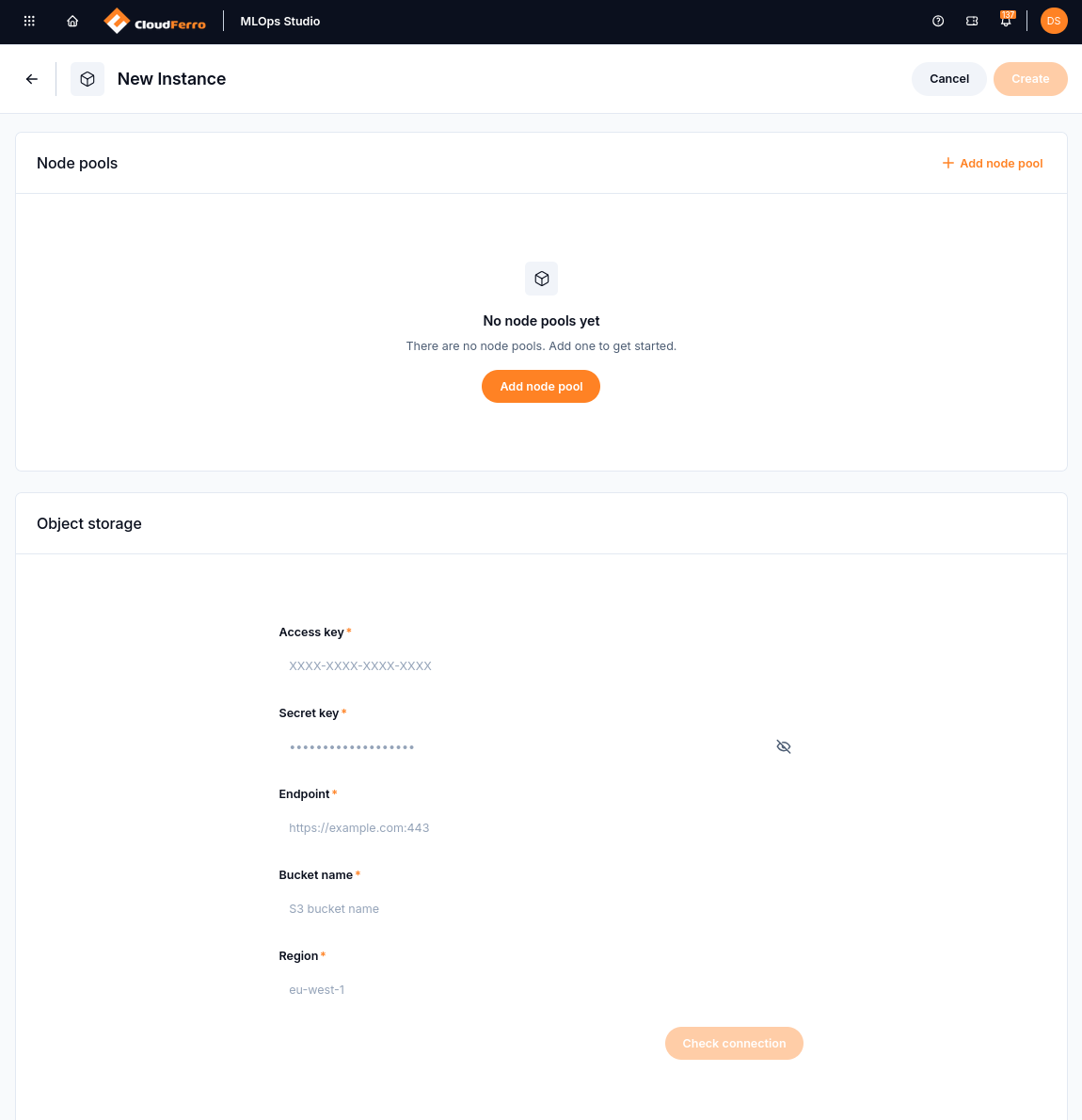
Node pools and Object storage are separate panels in the same creation form.
Click Check connection before submitting the creation request. This checks endpoint access, credentials, and read/write permissions against the S3 provider. Resolve a failed check before proceeding so that invalid storage configuration does not cause a provisioning failure. After the check, the action changes to Check connection again.
The instance and its bucket are both called mlops1 in the example. Entering a bucket name connects an existing storage resource; it does not create the bucket. Use the endpoint and region accepted by your storage service rather than deriving the region from the endpoint’s hostname.
Step 4: Choose the Kubeflow applications
Review the application choices below Object storage. Central Dashboard is marked Included. The other checkboxes select the tools for this environment. Keep Notebooks selected if the team will use the Python notebook path in the first-use guide.
The captured configuration selects KServe, Model Registry, Kubeflow Pipelines (KFP), Trainer, Volumes Web App, Notebooks, Spark Operator, Feast, Katib, and TensorBoards. Use the application choices prepared in Prerequisite No. 3 to choose the applications needed by your team. KServe auth appears as a separate switch beneath KServe; it is off in this capture.
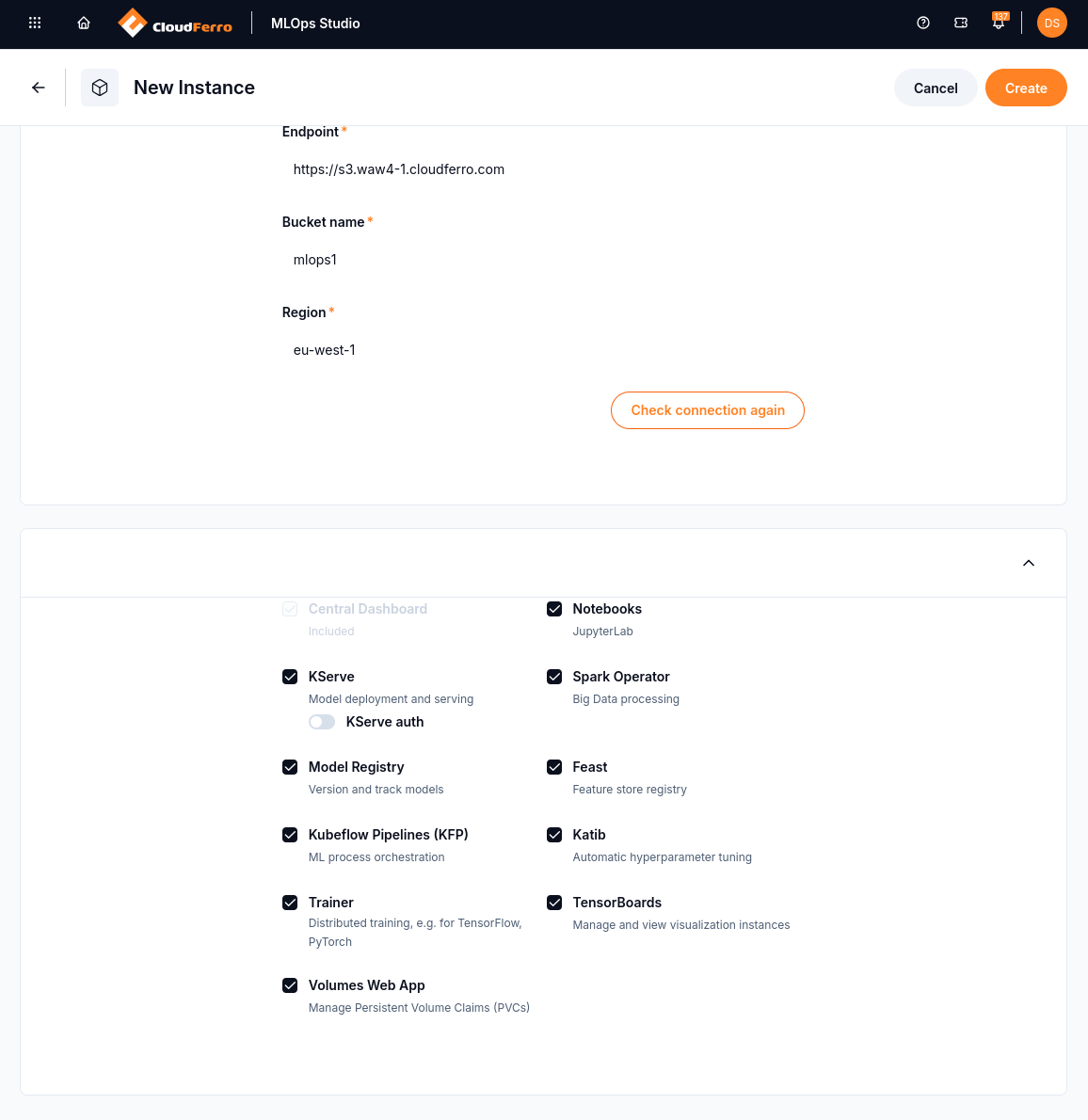
The example has passed the storage check and selected its applications. Create is active at the top of the form.
Step 5: Submit and wait for the environment
Click Create and follow the instance in the MLOps Studio list. The mlops1 example appears with CREATING and an inactive Central Dashboard button. During creating, management actions are restricted to configuration inspection and provisioning logs. Wait for running before handing the environment to users.
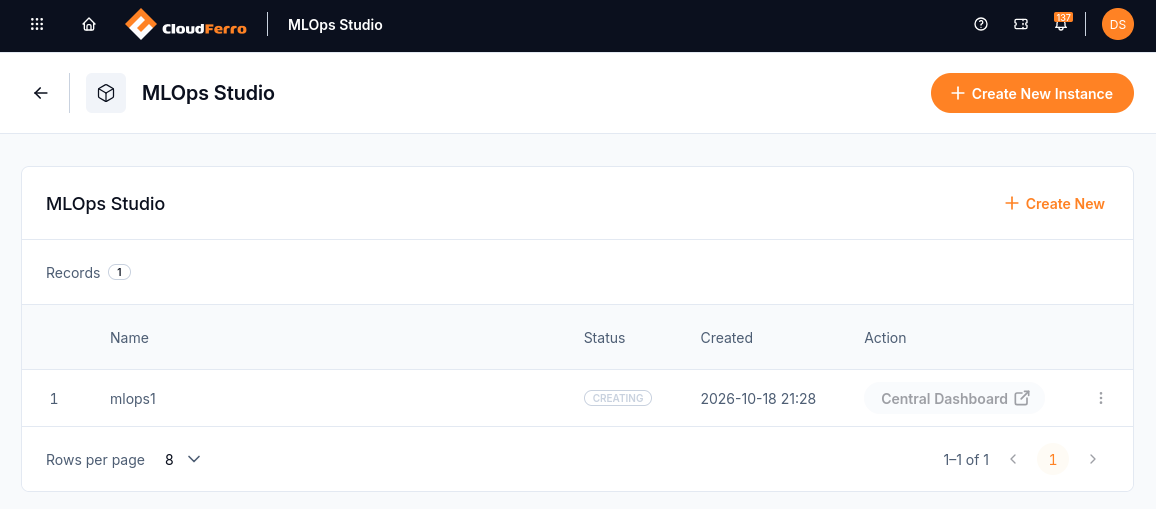
mlops1 has been submitted for provisioning. The workspace is not ready to open yet.
If the state becomes creating_error, inspect the displayed error and check resource availability, quotas, and external dependencies. Retry Provisioning submits the deployment again without requiring the configuration to be re-entered. Repeating the request alone will not resolve a resource or credential problem.
When provisioning finishes, open the instance details and check Status, Endpoint, size, and Version. The saved mlops1 example is RUNNING, with Medium, 48 vCPU, 180 GB of RAM, and version v1.10.2. INACTIVE under High Availability (HA) and OFF under GPU describe those settings; neither label means that the instance has stopped.
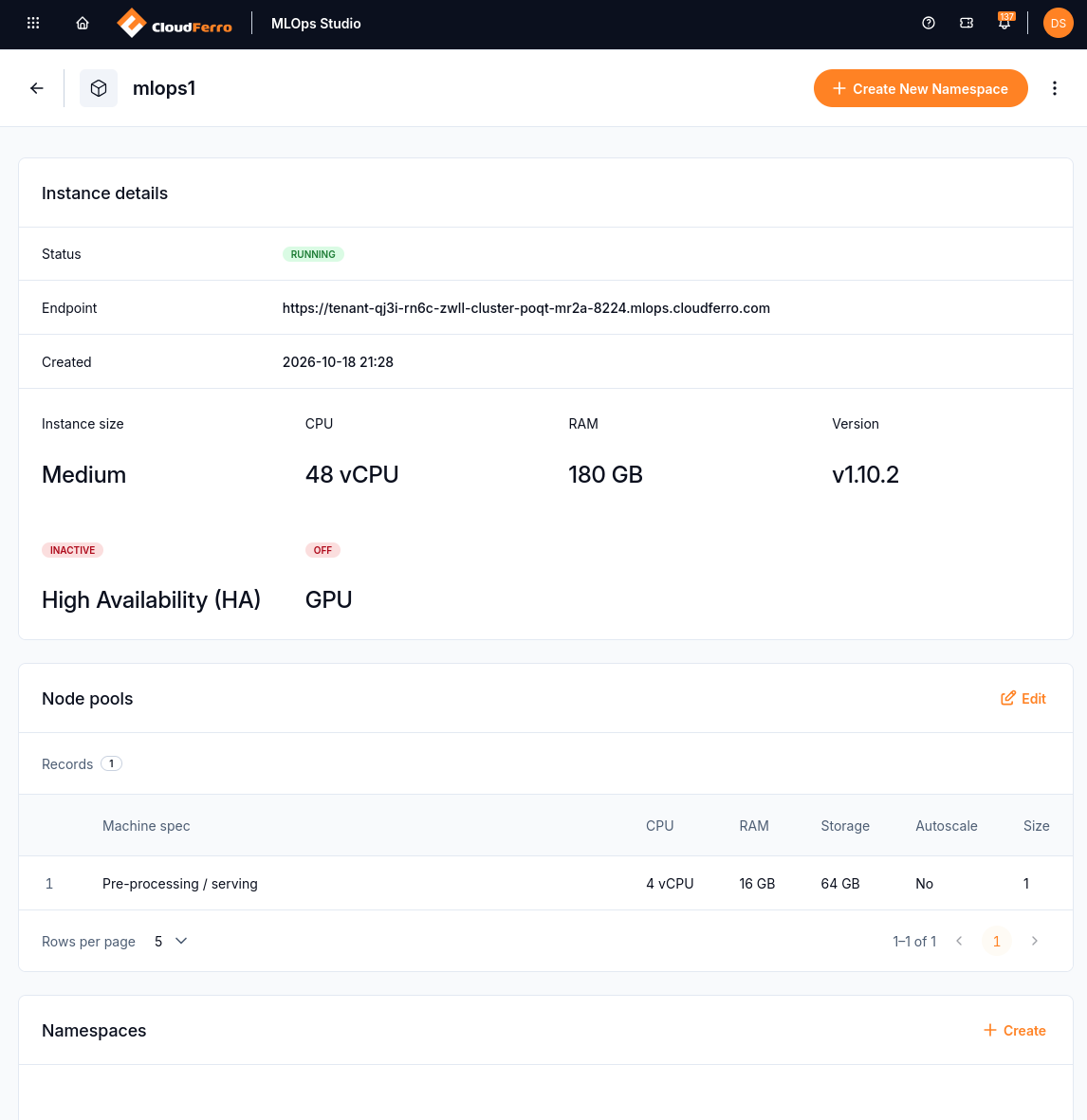
Instance capacity and worker capacity are listed separately. The worker pool shown here has one node with 4 vCPU, 16 GB of RAM, and 64 GB of storage, with autoscaling off.
What to do next
Create the team’s workspace and assign access with Create namespaces and manage team access on CloudFerro Cloud. For a failed or changing instance state, use Check instance states and manage the environment on CloudFerro Cloud.