
Access MLOps Studio, AI Experiments, and Workflows from My Portal on CloudFerro Cloud
My Portal has separate product entries for MLOps Studio, AI Experiments, and Workflows. Select a product to open its instance list. From there, you can open an existing instance or begin creating one using the guide for that service.
Prerequisites
No. 1 A platform account
You need an account for My Portal. Use the account associated with your organization. If you do not have one, contact your project administrator.
No. 2 Access to the service
Your account and project must have access to the service you want to use. If its product card is missing or opening it returns an access error, ask your project administrator to check your access. Permissions for using an existing instance are covered in the individual service guides.
Step 1: Sign in to My Portal
Open My Portal and sign in with your platform account.
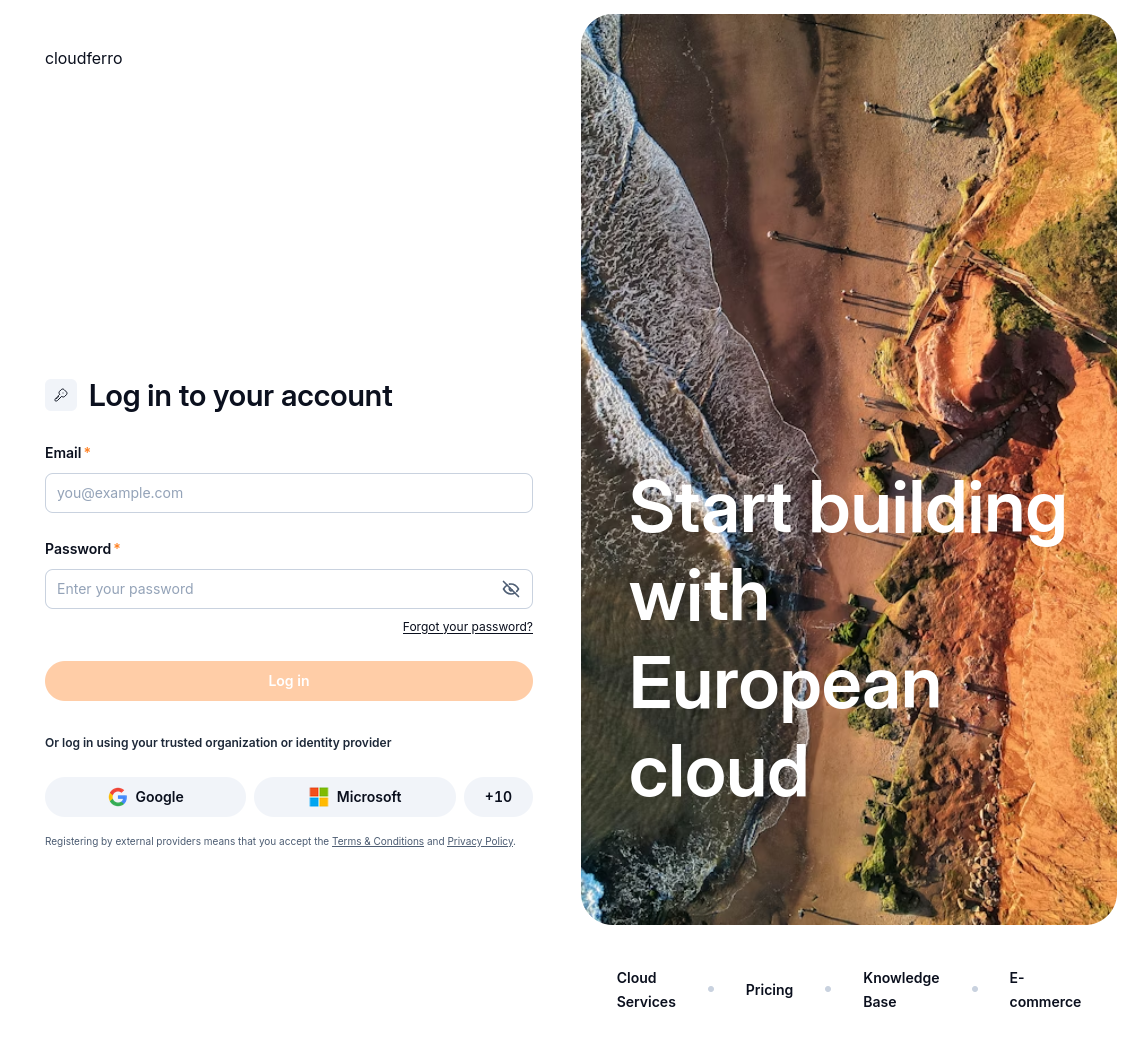
Sign in with your platform account.
After signing in, the main dashboard provides access to the product catalogue and Quick access cards.
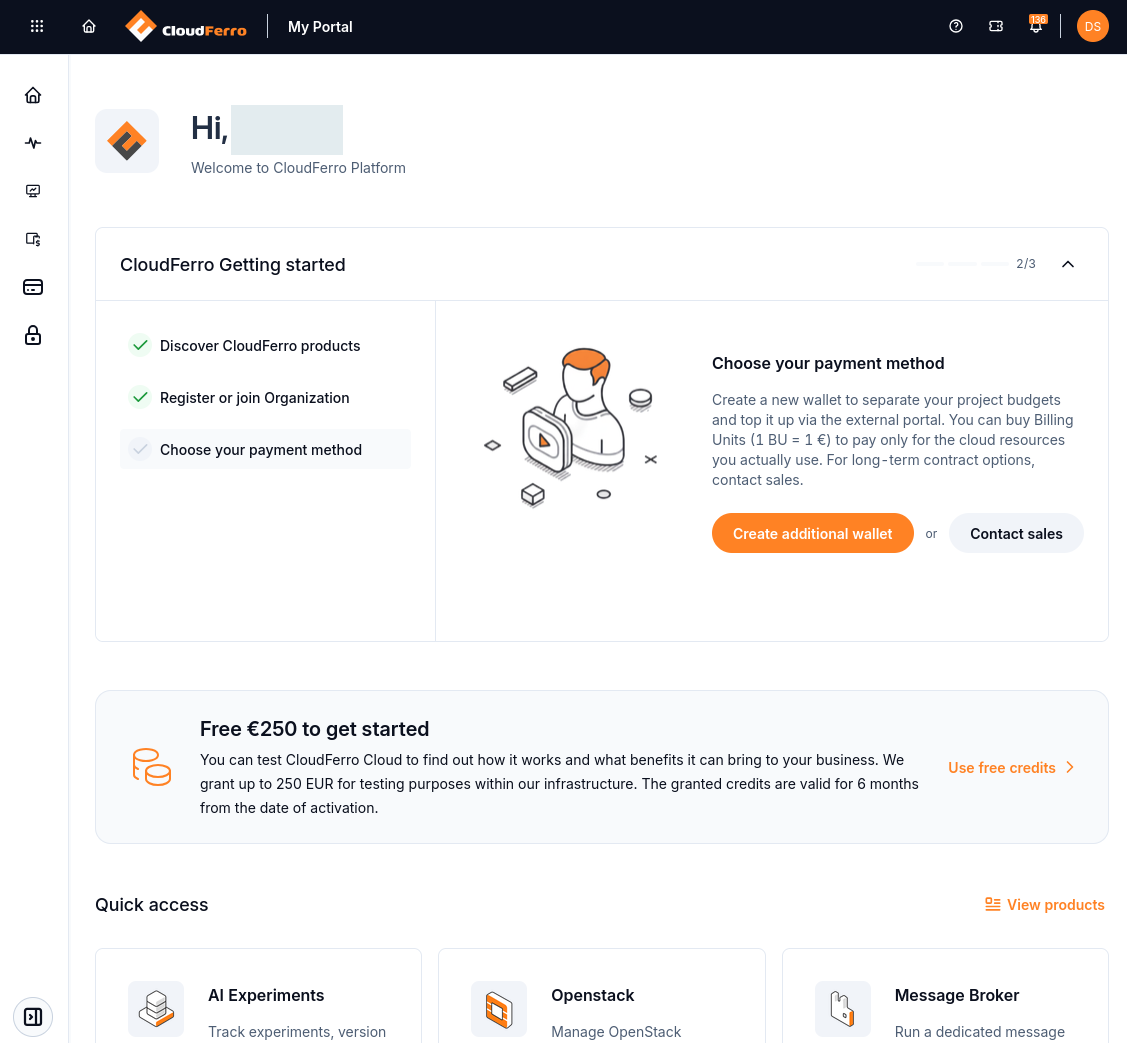
The main dashboard includes Quick access to products such as AI Experiments.
Step 2: Open the product
Open Products from the left sidebar.
Find AI Experiments, MLOps Studio, or Workflows. Scroll through the catalogue if the card is not visible.
Click Go to product on the card for the service you want to open.
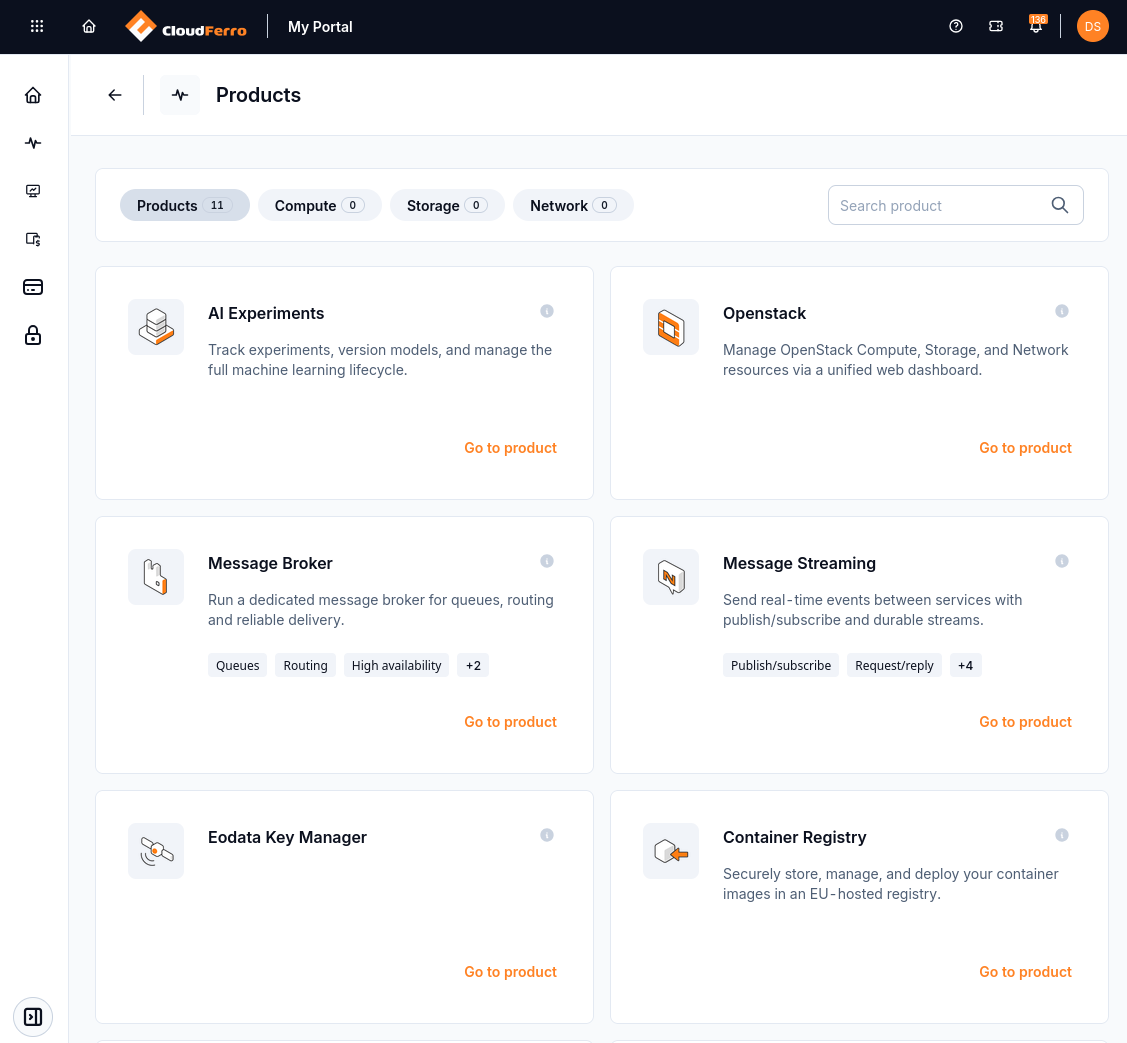
Open AI Experiments from its own product card.
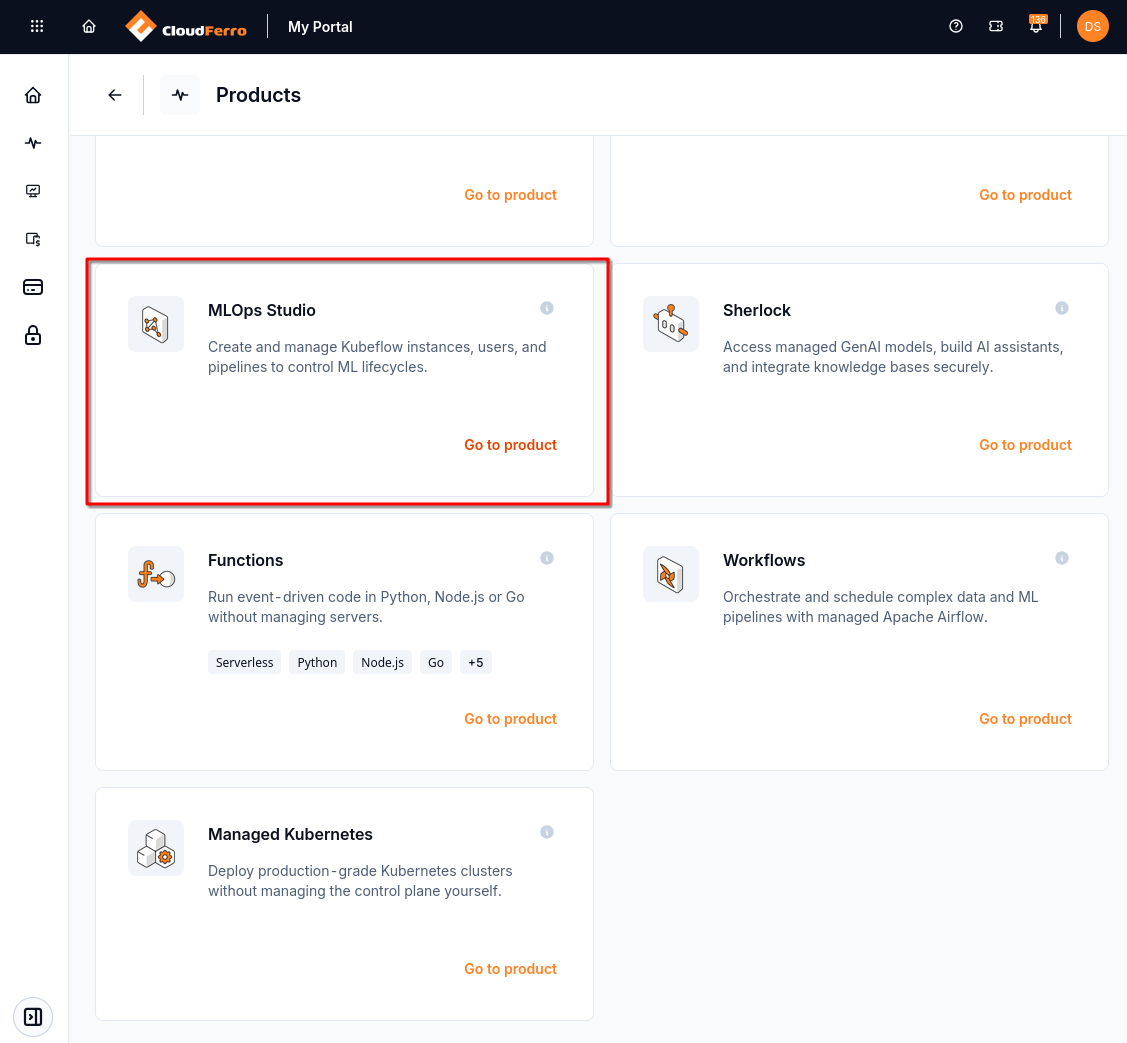
MLOps Studio and Workflows have separate cards further down the product list.
If the dashboard already shows the service under Quick access, its Go to product link opens the service directly. You do not need to pass through the Welcome to MLOps page first.
Step 3: Check the instance list
Opening a product takes you to its instance list. For AI Experiments, the page is headed My Experiments. For MLOps Studio, the page is headed MLOps Studio.
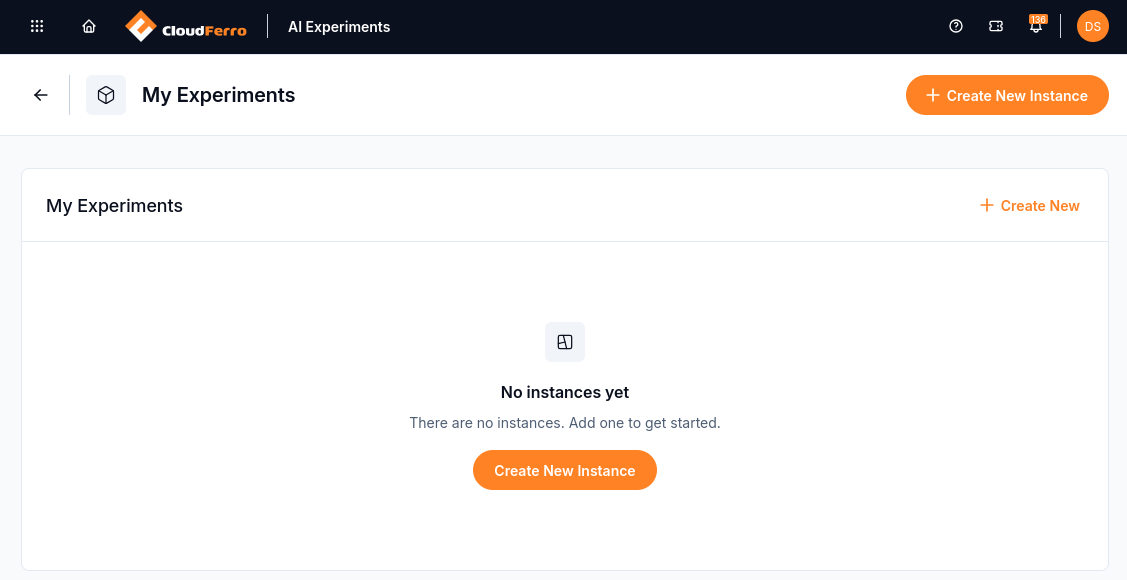
My Experiments is the instance list for AI Experiments.
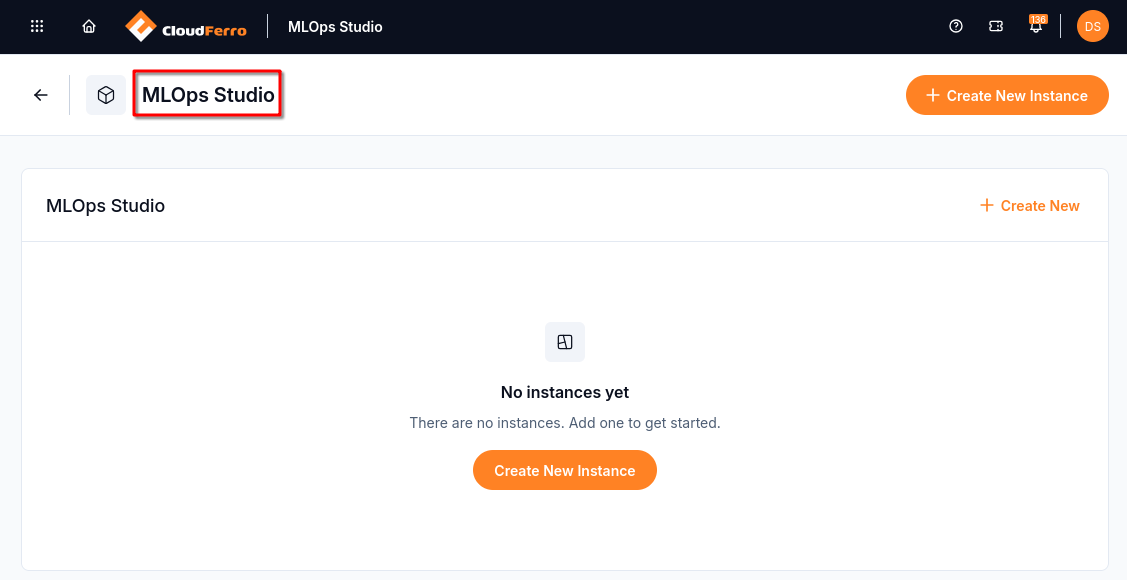
The MLOps Studio product opens its own instance list.
Workflows opens the My Workflows instance list. An empty list shows No instances yet. Create New Instance opens the creation form. To use an environment prepared for you, ask its administrator for the instance name and the required membership.
Switch between services
Click the left arrow beside the service title to open Welcome to MLOps. This application navigation arrow opens the shared service chooser even if you entered the service directly from Products or Quick access.
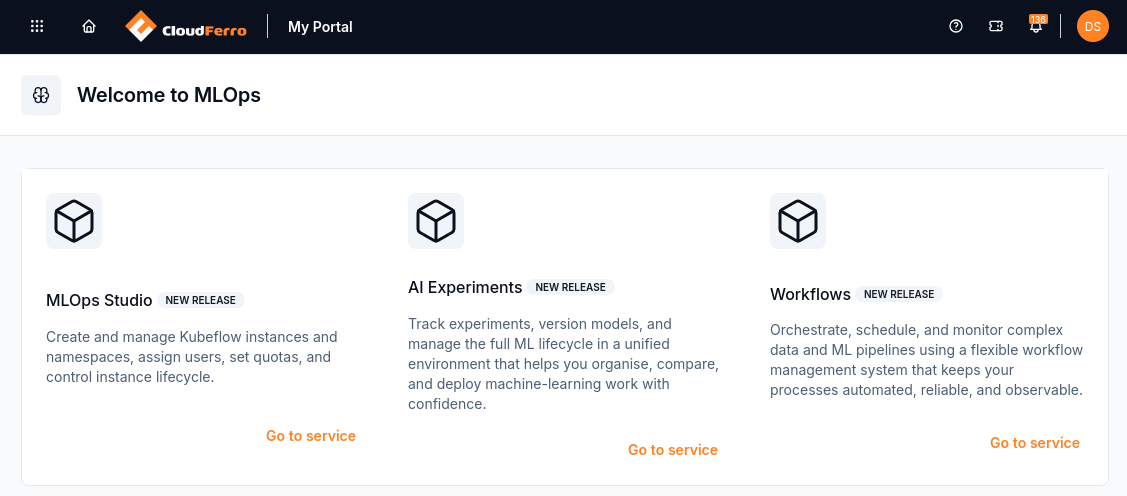
Choose Go to service under the service you want to open.
Click My Portal in the top bar to return to the main dashboard. From there, open Products to choose from the wider product catalogue.
What to do next
Continue with the guide for your service to create an instance, manage access, or open its workspace:
MLOps Studio: Open an existing Kubeflow notebook on CloudFerro Cloud
AI Experiments: Your first AI Experiments instance on CloudFerro Cloud
Workflows: Your first Workflows instance on CloudFerro Cloud