
Your first AI Experiments instance on CloudFerro Cloud
Before your code can save results in AI Experiments, it needs a service to receive them and a place to store the files it produces. If your team does not already have an instance you can use, creating one is the next part of the setup.
The setup begins with choosing an instance size and connecting the prepared storage bucket. The walkthrough then covers adding the first member and signing in to MLflow, so you can check that the instance is ready for the Python examples.
Prerequisites
No. 1 My Experiments in your cloud project
Open My Portal → Products → AI Experiments → Go to product. Your account and project need access to AI Experiments, including permission to create an instance. Access MLOps Studio, AI Experiments, and Workflows from My Portal on CloudFerro Cloud illustrates the route. If the product or creation action is unavailable, ask your project administrator to check your access.
No. 2 Prepared artifact storage
A bucket and its S3 connection values must be ready before creating the instance. The article Object storage for AI Experiments on CloudFerro Cloud covers this preparation. Have the endpoint, region eu-west-1, bucket name, access key, and secret key ready for the form. The bucket can be empty; the key pair must allow AI Experiments to read and write it.
The instance creation form
On My Experiments, click Create New Instance. The form contains Basic Settings and Object storage. Give the instance a name that you can identify later, such as experiment1, and choose its capacity using the comparison below.
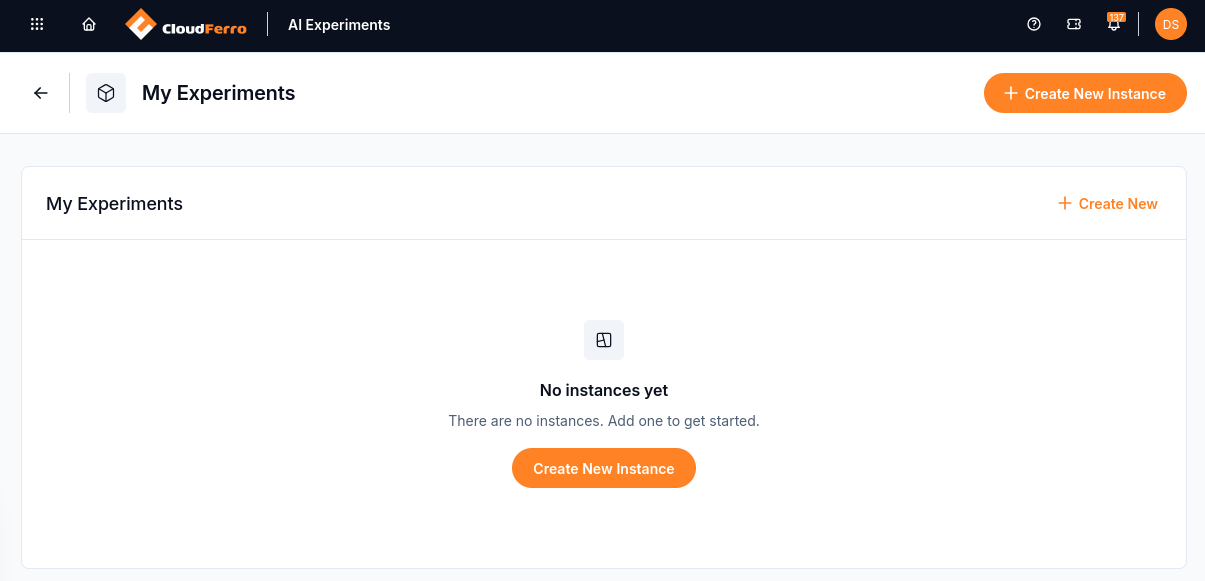
Create New Instance opens the setup form.
Name, size, and availability
Enter an Instance name in Basic Settings.
Choose Small, Medium, or Large under Instance size.
Enable High Availability (HA) if the service needs redundant server replicas.
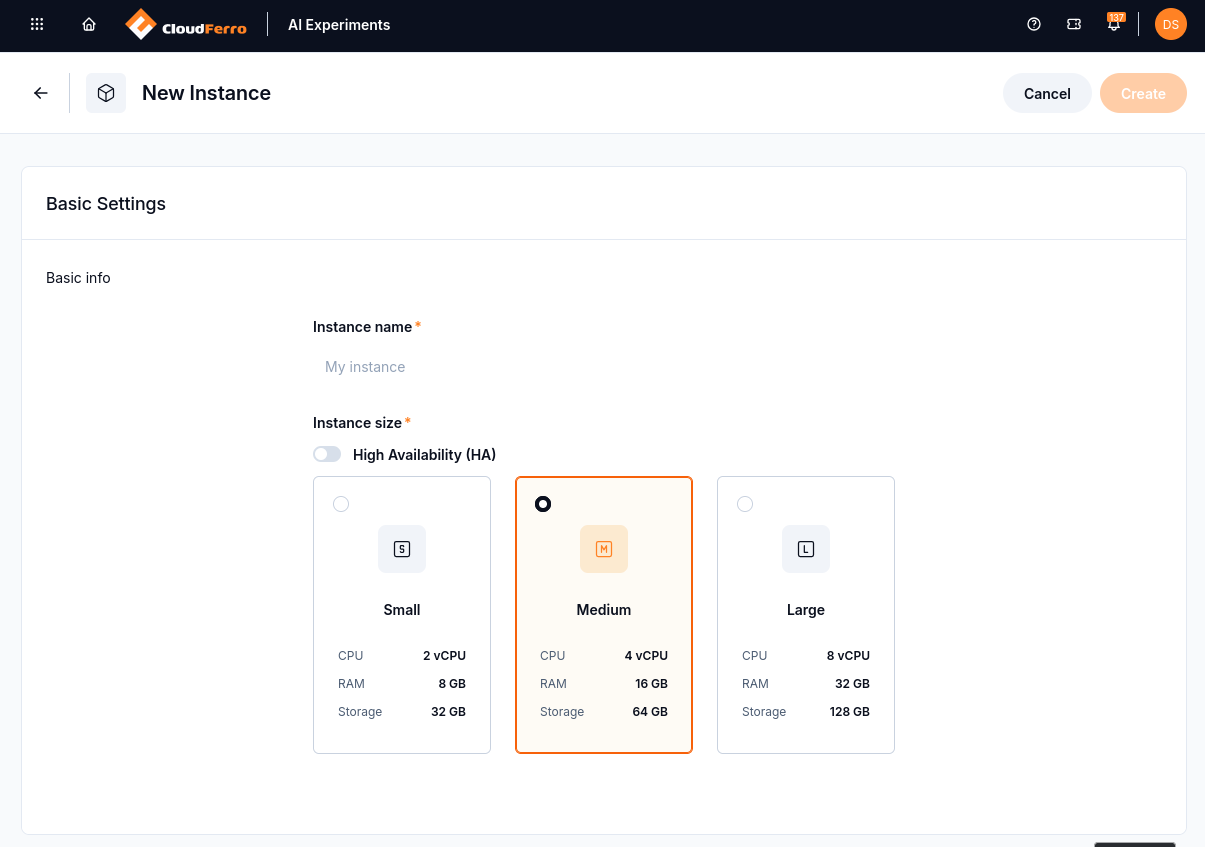
The example shows Medium selected and High Availability (HA) switched off.
Instance size |
vCPU |
RAM |
Storage |
|---|---|---|---|
Small |
2 |
8 GB |
32 GB |
Medium |
4 |
16 GB |
64 GB |
Large |
8 |
32 GB |
128 GB |
The size determines how many tracking requests, web UI sessions, and gateway calls the server can handle together. Small suits a single team logging and inspecting runs interactively. Medium suits several teams or CI pipelines logging in parallel. Large suits heavy parallel logging and busy AI Gateway traffic.
Artifact capacity depends on your S3 bucket. The storage values in the table do not set a limit on the size of files in that bucket. The example’s calculation runs in your Python environment, so choosing a larger tracking instance does not give that local calculation more CPU or memory.
High Availability
HA runs redundant server replicas behind the same URL. It is intended for production instances that need to keep serving during a component failure or rolling update. With HA enabled, each size provides double the CPU, RAM, and storage listed above. HA provides resilience; it does not increase single-request throughput.
Size and HA are chosen during creation and cannot be changed later in the UI. Contact your platform administrator or CloudFerro support if either setting needs to change.
The object storage connection
In Object storage, enter the settings collected during storage preparation:
Enter the Access key and matching Secret key.
Enter the S3 Endpoint, including https://.
Enter the Bucket name, without a folder path or an S3 URI prefix.
Enter eu-west-1 as the Region.
Click Check connection and wait for the successful connection indication.
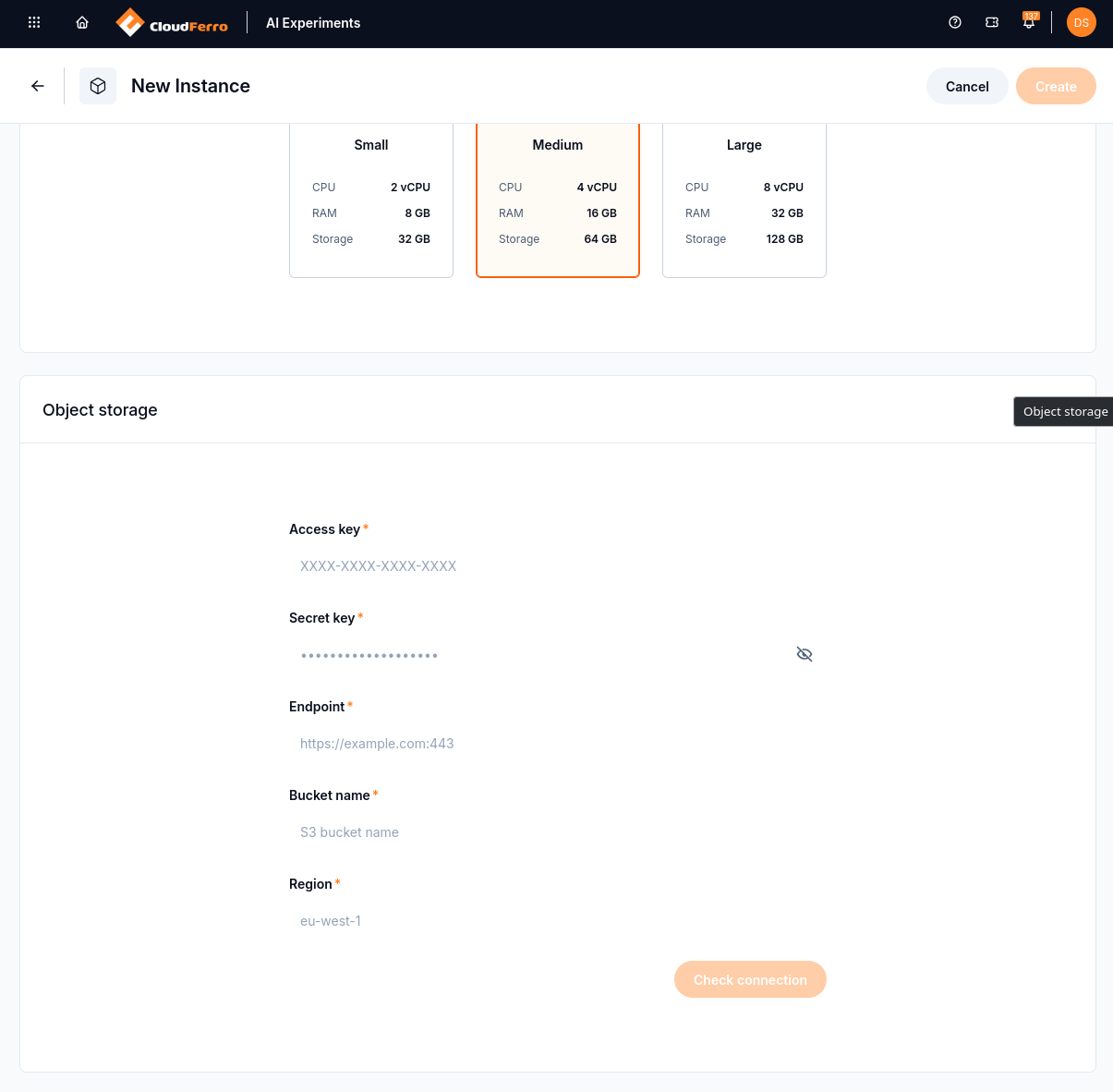
The five values prepared for your bucket belong in this form. The example placeholders are not your bucket’s connection details.
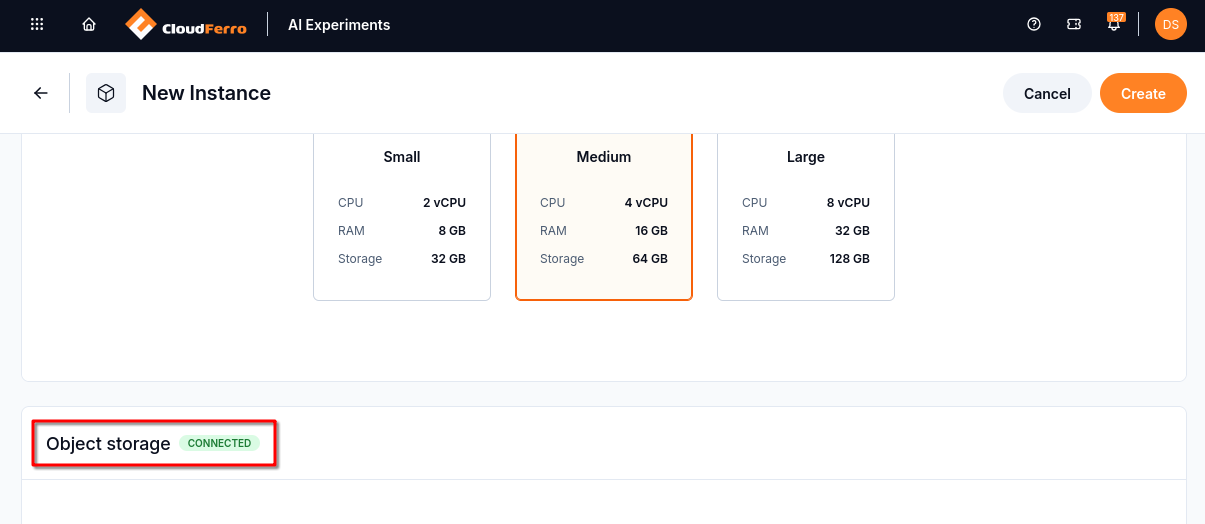
CONNECTED shows that the storage check has succeeded.
Object storage is required. If the check fails, confirm that the bucket exists at the selected endpoint, the region is eu-west-1, and the key pair has read and write access to that bucket. Create remains disabled until the storage check succeeds and the other fields are valid.
From Creating to Running
Click Create to submit the form. A notification confirms that provisioning has started, and the instance appears in My Experiments with the status Creating. Setup takes a few minutes. Wait for Running before opening the instance.
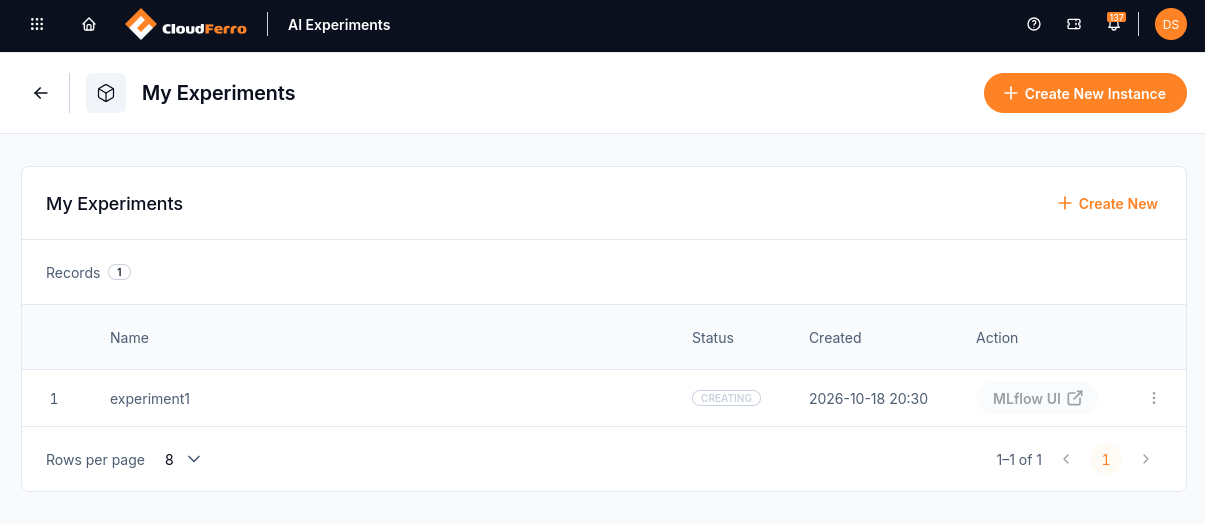
The instance has been submitted for creation. MLflow UI is unavailable while provisioning continues.
If Creating lasts more than 30 minutes, contact support with the instance name and the time you started the request.
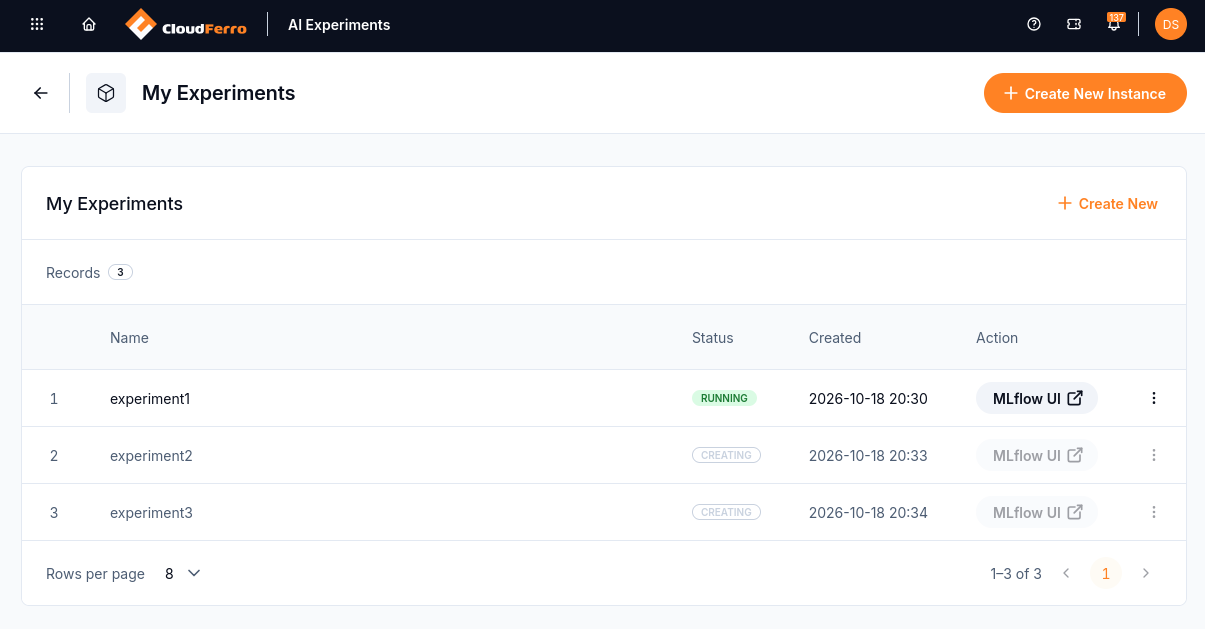
MLflow UI is active for experiment1. The other two instances are still being provisioned.
Add the first member
A new instance can have an empty member list, including for the person who created it. Running confirms that the service is ready, but your account also needs membership to enter MLflow.
Open the three-dot menu on the experiment1 row and choose Details.
Check the Members card. If it shows No Members in this space, click Add Member in the page header or Add Members on the card. Manage opens the same membership controls.
In Manage Members, find your account and switch its Members control on.
Select Admin for the account that will administer this first instance, then click Save.
Check that the account now appears on the Members card with the Admin role.
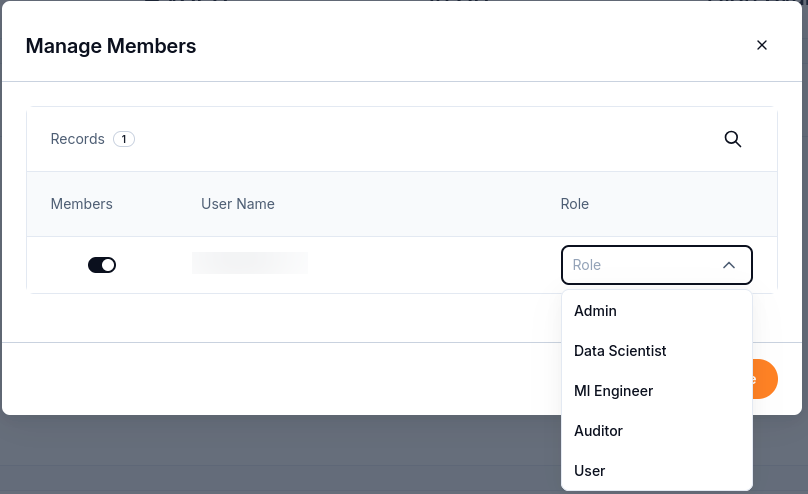
Enable membership, then choose the role. The first administrator uses Admin.
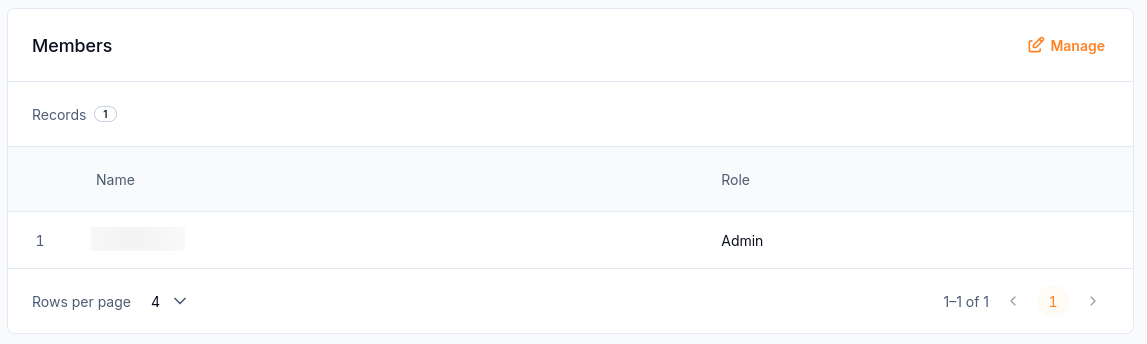
A saved member and role confirm that the account has been added to the instance.
If these controls are unavailable to you, ask your project administrator to arrange membership. Other team members can be assigned a role suited to their work; each person does not need Admin.
Open the MLflow UI
On the instance row, click MLflow UI. The same action is available on the instance details page.
Sign in with your platform account if prompted. An active portal session carries over; there is no separate MLflow password.
Check that Welcome to MLflow opens. The screenshot shows MLflow 3.14.0 in GenAI mode.
Select Model training when continuing to the Python tracking exercise. Its first run will create first-experiment.
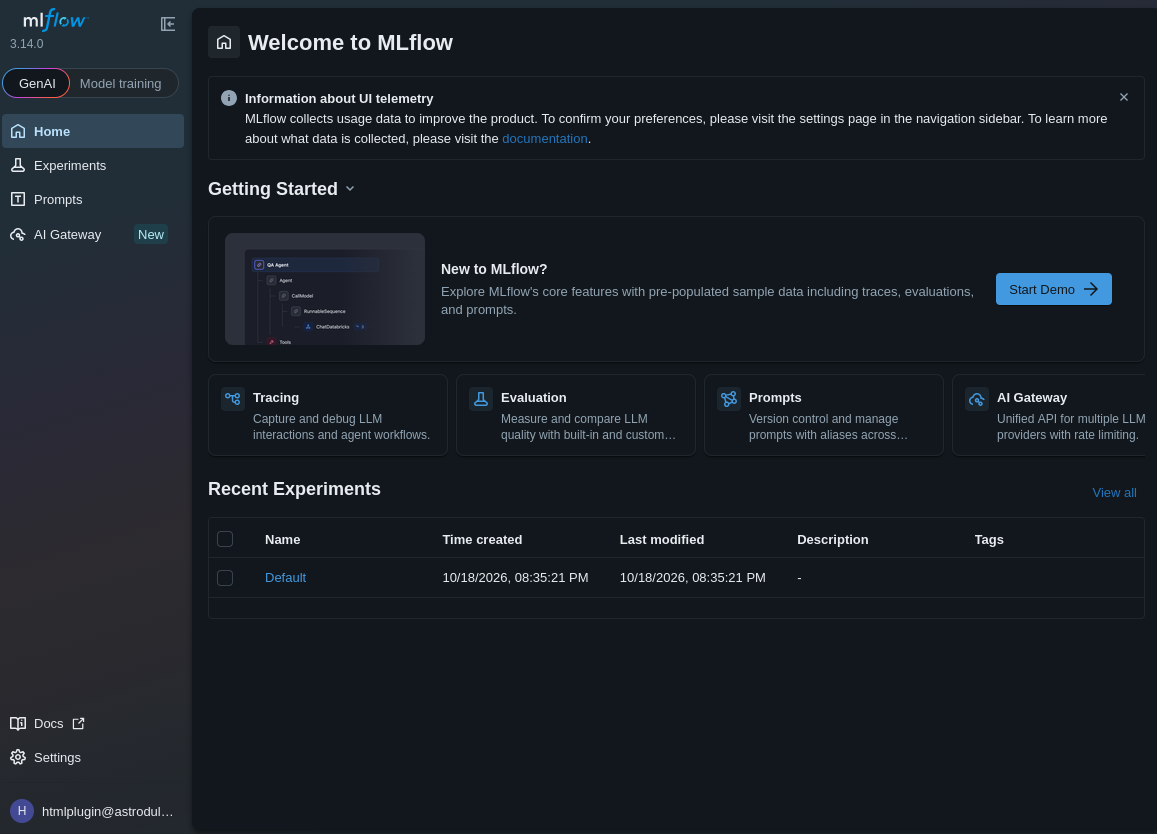
The welcome page confirms that browser sign-in and instance membership are working.
The MLflow UI button is active only for a Running instance. You can bookmark the instance URL from its details page; an expired SSO session brings up the platform sign-in page first.
Note
Access denied with a valid platform account means your email is not registered on the instance. Ask an instance administrator to add you. If you were added recently, sign out and sign in again; use a private window or clear the browser cache if needed.

This message directs you back to instance details → Add Member. It can appear even while the instance is Running.
The Start Demo button on the welcome page is optional. It supplies sample GenAI data for exploring traces, evaluations, and prompts. It does not run first_experiment.py or produce the exercise’s totals of 60 and 100.
What to do next
Connect Python and the CLI to AI Experiments on CloudFerro Cloud prepares the token and Python environment for Run and compare your first MLflow runs on CloudFerro Cloud. If the environment belongs to a team, AI Experiments members and roles on CloudFerro Cloud explains how another person gains access.
Instance status, details, and deletion are covered in AI Experiments instances on CloudFerro Cloud. For failed connection checks or provisioning errors, use Troubleshooting AI Experiments on CloudFerro Cloud.