
Python code for your first MLflow run on CloudFerro Cloud
The first connection to AI Experiments is easier to check with a result you already know. A small calculation lets you see which inputs, measurements, and files are saved before adding the complexity of a model.
A short Python program provides that starting point: it adds 10, 20, and 30, then records the total of 60 and a report in MLflow. The setup below prepares a Python environment on your own computer for this calculation, which also appears in the Workflows example and needs no training data.
For the wider context, the Introduction describes practical uses of tracked runs and how AI Experiments works with MLOps Studio, Workflows, and Sherlock.
After instance and client setup, a successful execution produces the first-total run shown below. Its Overview displays the input numbers and their total.
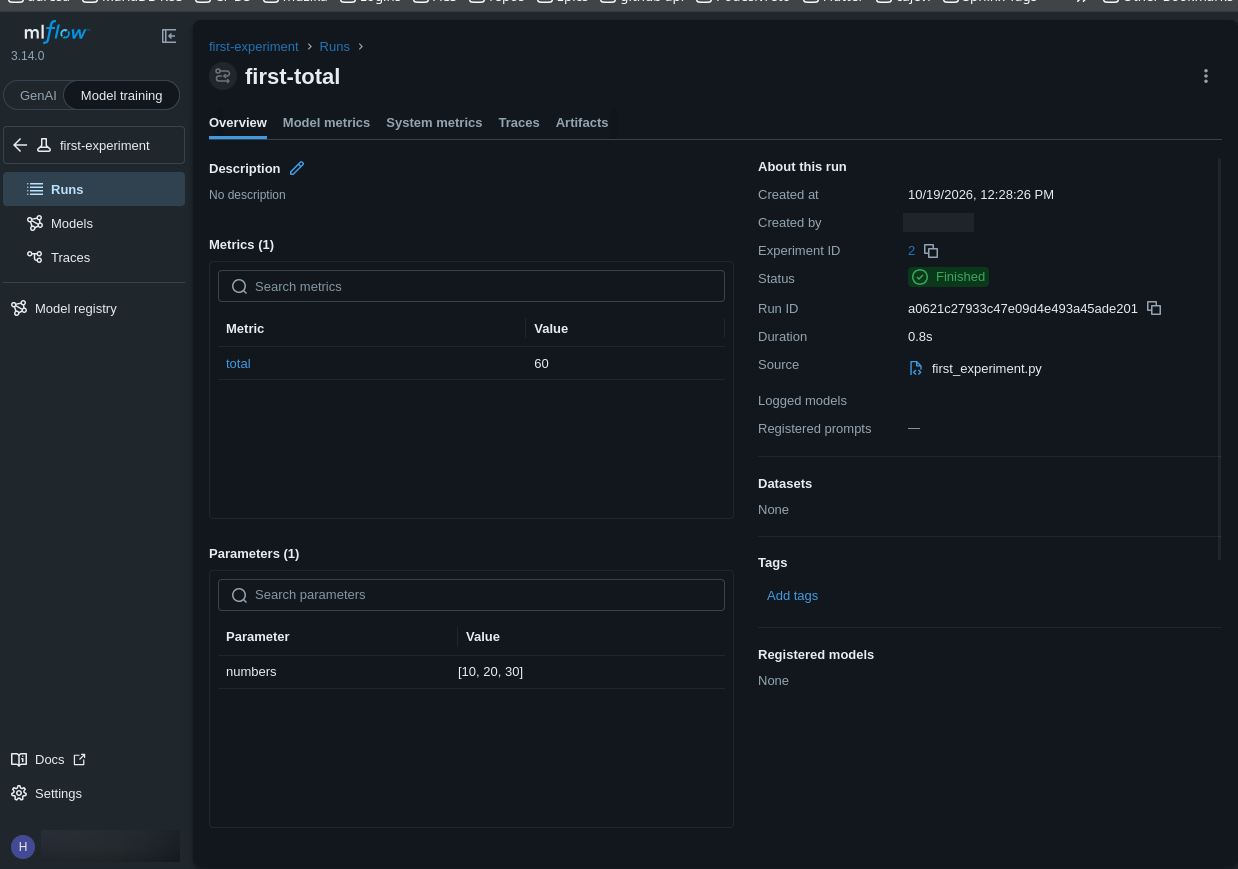
first-total appears inside the MLflow experiment first-experiment.
Prerequisites
No. 1 A computer with Python and a terminal
Use Python 3.10 or newer with pip and support for virtual environments. The commands in this guide use a Bash terminal, for example on Linux. A local computer is sufficient for the small calculation; a cloud VM or GPU is not required.
No. 2 A working directory and virtual environment
Create a folder named ai-experiments-hello-world in your home directory and enter it. This folder will hold the program, its authentication helper, and the Python environment:
mkdir -p "$HOME/ai-experiments-hello-world"
cd "$HOME/ai-experiments-hello-world"
A virtual environment keeps this example’s Python packages separate from other projects. Create and activate one named .venv, then install MLflow and the requests package used by the authentication helper. This example uses MLflow 3.14.0, matching the interface shown in the guide:
python3 -m venv .venv
source .venv/bin/activate
python -m pip install "mlflow==3.14.0" requests
After activation, python refers to the Python 3 interpreter in .venv, which is why the later commands use python.
Download first_experiment.py and get_token.py. Save both files directly in ~/ai-experiments-hello-world, keeping their filenames unchanged. The directory should contain:
ai-experiments-hello-world/
├── .venv/
├── first_experiment.py
└── get_token.py
From the same terminal, check that both files are present and that the installed packages can be imported:
ls first_experiment.py get_token.py
python -c "import mlflow, requests; print('MLflow:', mlflow.__version__)"
The first command lists both filenames; the second prints MLflow: 3.14.0. Keep this terminal open for the client setup. If you return in a new terminal, enter the folder and activate the existing environment again:
cd "$HOME/ai-experiments-hello-world"
source .venv/bin/activate
This completes the local preparation. Running the example comes after the instance and client setup in Prerequisite No. 3.
No. 3 A running instance and a configured client
To run first_experiment.py, you need an AI Experiments instance with status Running and membership for your account. The article Your first AI Experiments instance on CloudFerro Cloud covers instance creation and membership. An existing instance you can access is also suitable.
The next step is to connect your Python client to that instance. In the article Connect Python and the CLI to AI Experiments on CloudFerro Cloud, you set the instance’s Endpoint as MLFLOW_TRACKING_URI and configure your platform credentials. After that setup, return to Run the example below. The script will ask for the current six-digit code from your authentication app when it starts.
The downloadable example
The first_experiment.py file downloaded in Prerequisite No. 2 contains the following code:
"""Record a small calculation in an AI Experiments instance."""

import argparse
import json
import os

import mlflow

from get_token import get_token


def main() -> None:
    parser = argparse.ArgumentParser(description=__doc__)
    parser.add_argument("--numbers", nargs="+", type=int, default=[10, 20, 30])
    parser.add_argument("--experiment", default="first-experiment")
    parser.add_argument("--run-name", default="first-total")
    args = parser.parse_args()

    tracking_uri = os.environ.get("MLFLOW_TRACKING_URI", "").strip()
    if not tracking_uri:
        raise SystemExit("Set MLFLOW_TRACKING_URI to your instance URL first.")

    mlflow.set_tracking_uri(tracking_uri)
    os.environ["MLFLOW_TRACKING_TOKEN"] = get_token()
    mlflow.set_experiment(args.experiment)

    total = sum(args.numbers)
    with mlflow.start_run(run_name=args.run_name) as run:
        mlflow.log_param("numbers", json.dumps(args.numbers))
        mlflow.log_metric("total", total)
        mlflow.log_text(
            json.dumps({"numbers": args.numbers, "total": total}, indent=2),
            "result.json",
        )

    print(f"Total: {total}")
    print(f"Run ID: {run.info.run_id}")


if __name__ == "__main__":
    main()
The script uses MLFLOW_TRACKING_URI to identify the instance and get_token.py to obtain a sign-in token. It creates or selects the MLflow experiment first-experiment, starts a new run within it, and records the calculation. The authentication guide linked in Prerequisite No. 3 explains the helper and its environment variables.
The calls to mlflow.log_param(), mlflow.log_metric(), and mlflow.log_text() send the input numbers, total, and JSON report through the MLflow client. These calls explicitly select what is recorded. The addition and print() statements alone do not upload their results.
Run the example
With .venv active in ~/ai-experiments-hello-world and the client authentication from Prerequisite No. 3 configured, run:
python first_experiment.py
Enter a fresh six-digit TOTP code when prompted. After logging succeeds, the program prints:
Total: 60
Run ID: <generated run ID>
This creates the first-total run in first-experiment. MLflow also prints links to the run and experiment. The generated run ID identifies this execution; running the command again creates another run with a different ID.
What the script records
Record |
Name |
First-run value |
|---|---|---|
MLflow experiment |
first-experiment |
Groups the related runs. |
Run |
first-total |
Identifies this execution. |
Parameter |
numbers |
[10, 20, 30], saved as the input settings. |
Metric |
total |
60, saved as a numerical result. |
Artifact |
result.json |
A file containing the input list and total. |
The file saved by mlflow.log_text() is visible in the run’s Artifacts tab. The result.json report keeps the input list and total together:
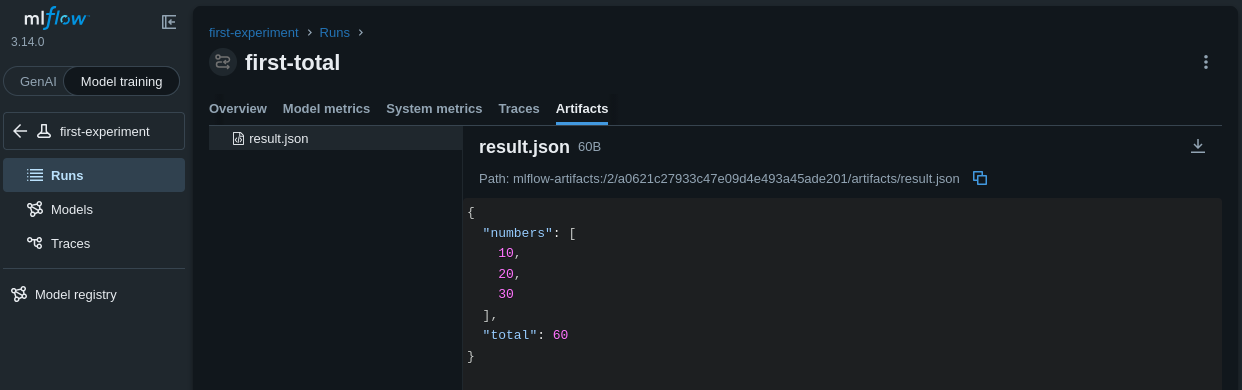
The result.json artifact contains the same inputs and total shown on Overview.
MLflow stores the report in the experiment1 bucket in OpenStack Object Storage. Horizon displays that bucket under Project → Object Store → Containers. Inside the bucket, MLflow creates the path <experiment-id>/<run-id>/artifacts/result.json when it logs the file. The run ID printed by the script identifies the folder for your execution.
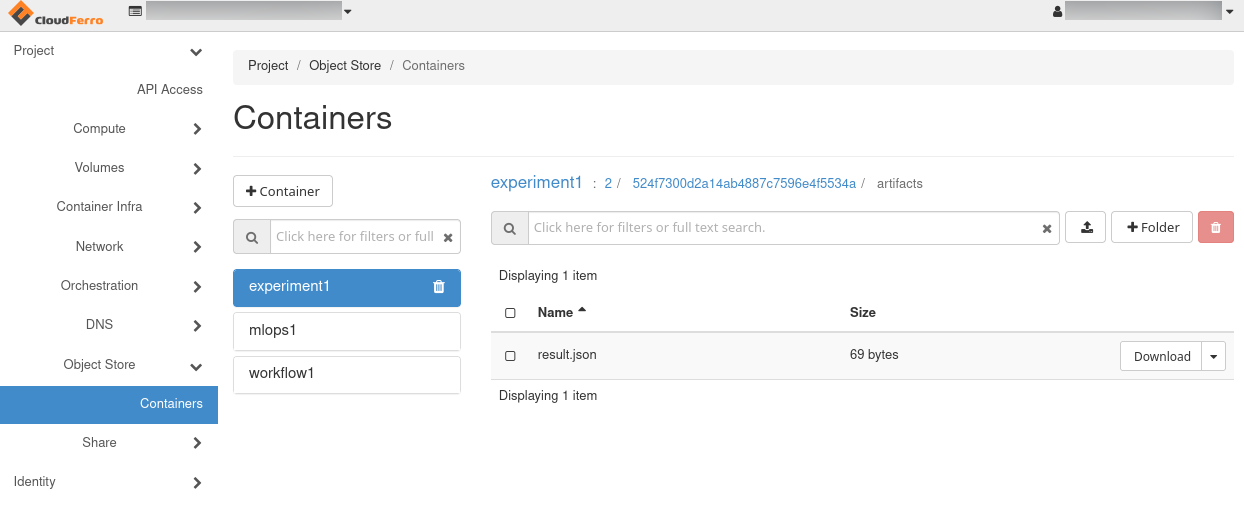
result.json in the experiment1 bucket. This capture shows the later second-total run; first-total has its own run-ID folder.
A second run can pass 10, 20, 30, and 40 through the –numbers option. That produces 100 while retaining the first run’s result. –run-name identifies the new run, and –experiment can select a different experiment name if your team already uses first-experiment.
What to do next
In the article Run and compare your first MLflow runs on CloudFerro Cloud, continue with Find the result in the MLflow UI if the command above succeeded. That guide follows the saved run in the interface, adds a second run with different inputs, and compares the two.
To adapt the calculation and choose your own parameters, metrics, and output files, continue with the article Record your own Python runs with MLflow on CloudFerro Cloud.
The MLflow Python API reference documents the logging functions used by the example.