
Introduction on CloudFerro Cloud
When you change a model, its settings, or its instructions, the next question is whether the results have improved. Answering that is easier when you can return to the settings and output from each attempt.
Practical examples show where these records are useful and how AI Experiments works alongside the other products. From there, a tour of My Portal and MLflow introduces the screens used in the later guides.
Real-world uses of MLflow
Published MLflow case studies cover several kinds of work:
Demand forecasting and production planning. Manufacturing teams have used MLflow alongside their data-processing tools to support more accurate demand forecasting, production planning, and predictive maintenance. In a forecasting project, a useful comparison keeps the training period, model settings, predicted quantities, and forecast error together. That helps a team assess whether a new model predicts demand more accurately on the same evaluation period.
Customer-support assistants. Support teams have used MLflow to evaluate changes to prompts, models, and agent behaviour before deployment, helping them improve answer quality and investigate failures. A comparable task in AI Experiments could record the answers to a fixed set of support questions, their correctness scores, and response times. The comparison then shows whether a change improves answers and what it does to speed.
Answers based on technical documents. Engineering teams have used MLflow to evaluate assistants that combine document retrieval and answer generation, tracking response quality as they refine the application. In a similar project, recording the question, retrieved passages, answer, and review score helps distinguish a retrieval problem from a problem with the generated answer.
In AI Experiments, your program can record the corresponding inputs, measurements, and files for your own comparisons. The later Sherlock exercise demonstrates this on a small set of support messages; the initial addition exercise establishes that recording works before introducing a model.
How the products work together
A project can start in an MLOps Studio notebook, become a repeatable job in Workflows, and keep its comparison results in AI Experiments. Each product has a different role:
Product |
Role in the project |
|---|---|
MLOps Studio |
Provides the Kubeflow notebook environment where you develop and execute Python code. The MLflow client in that environment can send results to your AI Experiments instance. |
Workflows |
Uses Airflow to run tasks in a defined order or on a schedule, for example preparing data, training a model, and evaluating it. A task that calls the MLflow logging API can record its results in AI Experiments. |
AI Experiments |
Receives those records and presents them in MLflow. Runs from a notebook and a workflow can belong to the same named MLflow experiment, so their settings and results can be compared. |
Sherlock |
Runs the language model and returns its answer. Your Python code measures and records the answer in AI Experiments, using separate credentials for Sherlock and MLflow. |
Object Storage |
Holds the artifact files logged through MLflow, such as evaluation reports, charts, and saved models, in the bucket configured for the AI Experiments instance. |
For example, a team could develop a support-message classifier in MLOps Studio using Sherlock, then arrange for Workflows to repeat the evaluation whenever a new prompt is ready. Each evaluation would send its results to the same AI Experiments instance. The Airflow view would show whether the tasks completed; the MLflow view would show whether classification accuracy or response time changed.
Your Python code sends the selected settings, measurements, and files to AI Experiments through the MLflow client. It needs the instance address and permission to record runs. Scheduled jobs also need a way to sign in without someone entering an authentication code.
The article Create and check a Kubeflow notebook on CloudFerro Cloud covers the notebook environment. The Workflows user guide explains task execution, and the article Connect Python and the CLI to AI Experiments on CloudFerro Cloud covers the interactive MLflow connection used in these examples.
The following screenshots introduce the two AI Experiments interfaces. My Portal is where you create an instance and manage access. The instance’s MLflow UI is where you inspect recorded runs and compare results. You can follow this tour before preparing your own setup; the prerequisites below apply when carrying out the steps in your project.
Prerequisites
No. 1 A platform account with access to AI Experiments
Use the account associated with your cloud project. The article Access MLOps Studio, AI Experiments, and Workflows from My Portal on CloudFerro Cloud shows the portal sign-in route and product navigation. Your account must be able to open AI Experiments; creating an instance also requires permission to create one in the project.
No. 2 Object Storage when creating a new instance
Prepare a bucket using the article Object storage for AI Experiments on CloudFerro Cloud. Have its endpoint, region, bucket name, access key, and secret key ready for the creation form. If your team already has an instance, ask its administrator for access and use that instance instead.
Sign-in and access
Sign in to My Portal, open Products in the left sidebar, and choose Go to product on the AI Experiments card.
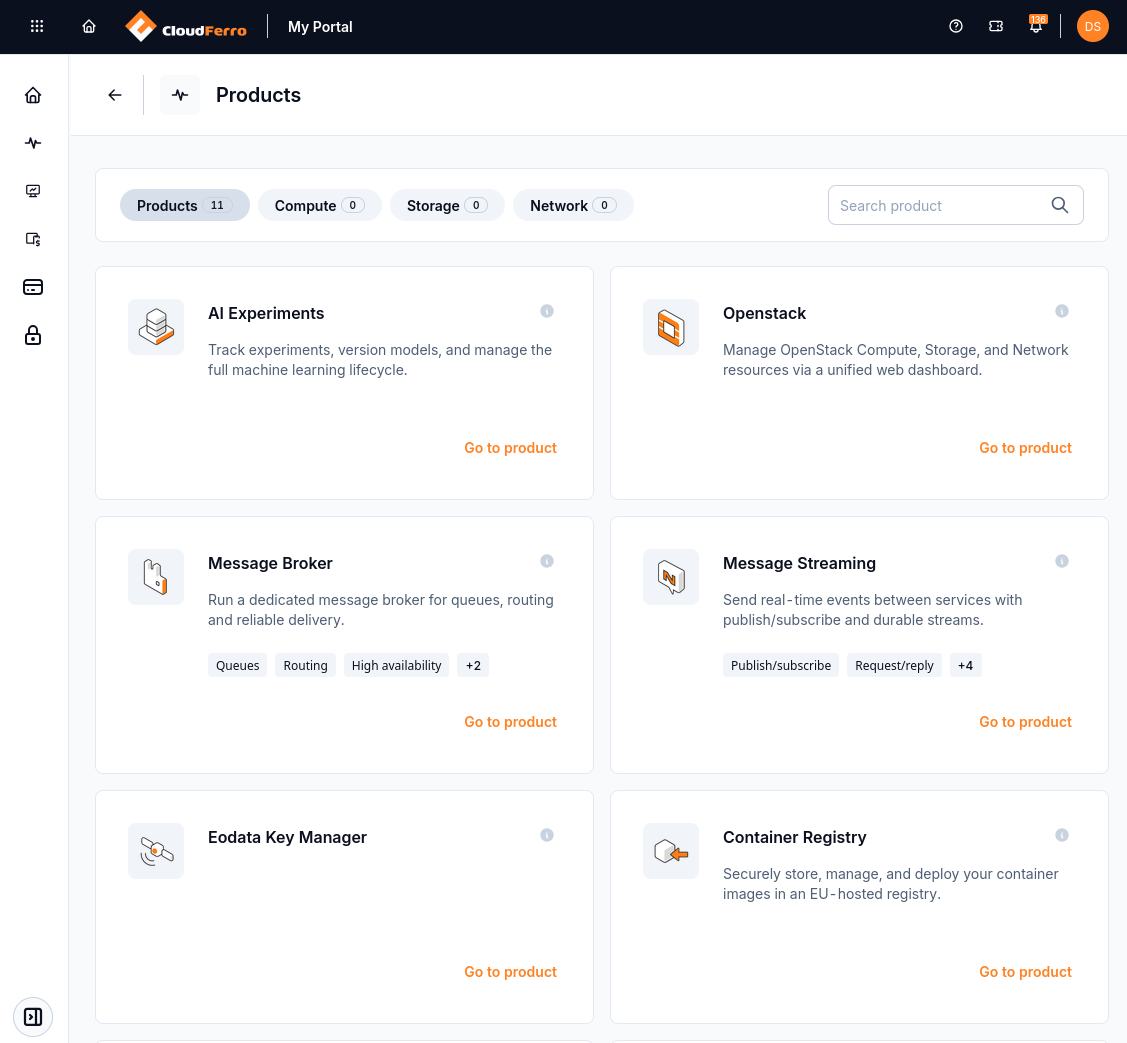
Go to product opens My Experiments.
The My Experiments page lists the instances available to you. An instance is the shared service that receives results from your code. If a colleague has already prepared one, ask for its name and membership; you can use it without creating another instance.
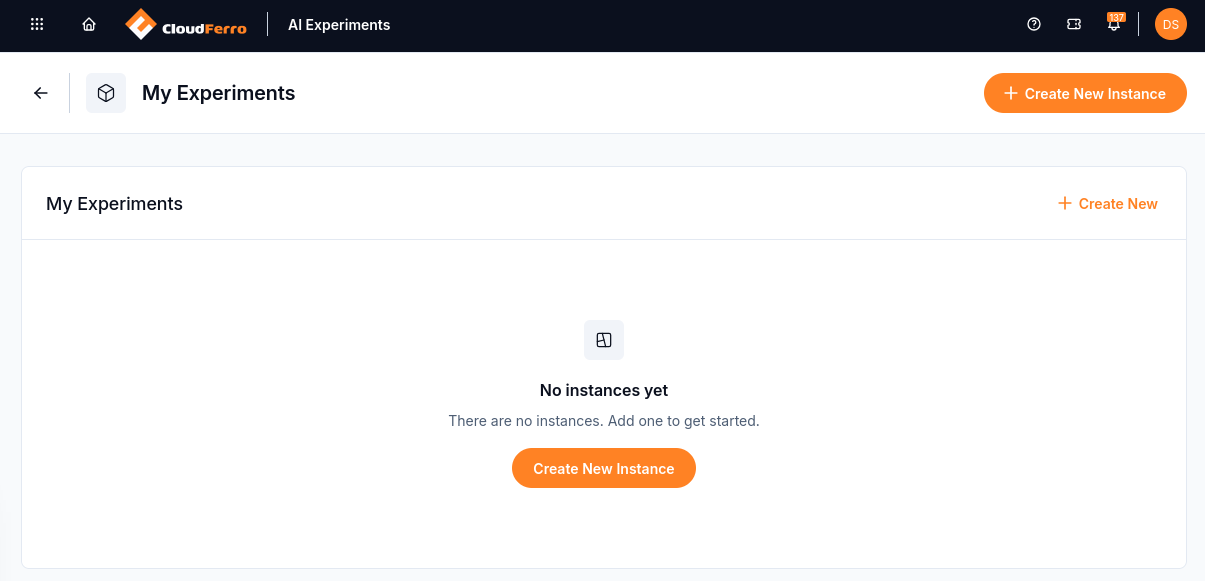
Create New Instance starts the setup when a new environment is needed.
Your first instance
The creation form brings together Basic Settings and Object storage. Basic settings give the instance a name, select Small, Medium, or Large, and enable High Availability (HA) when redundant server replicas are needed. The storage section connects an existing S3-compatible bucket for artifact files.
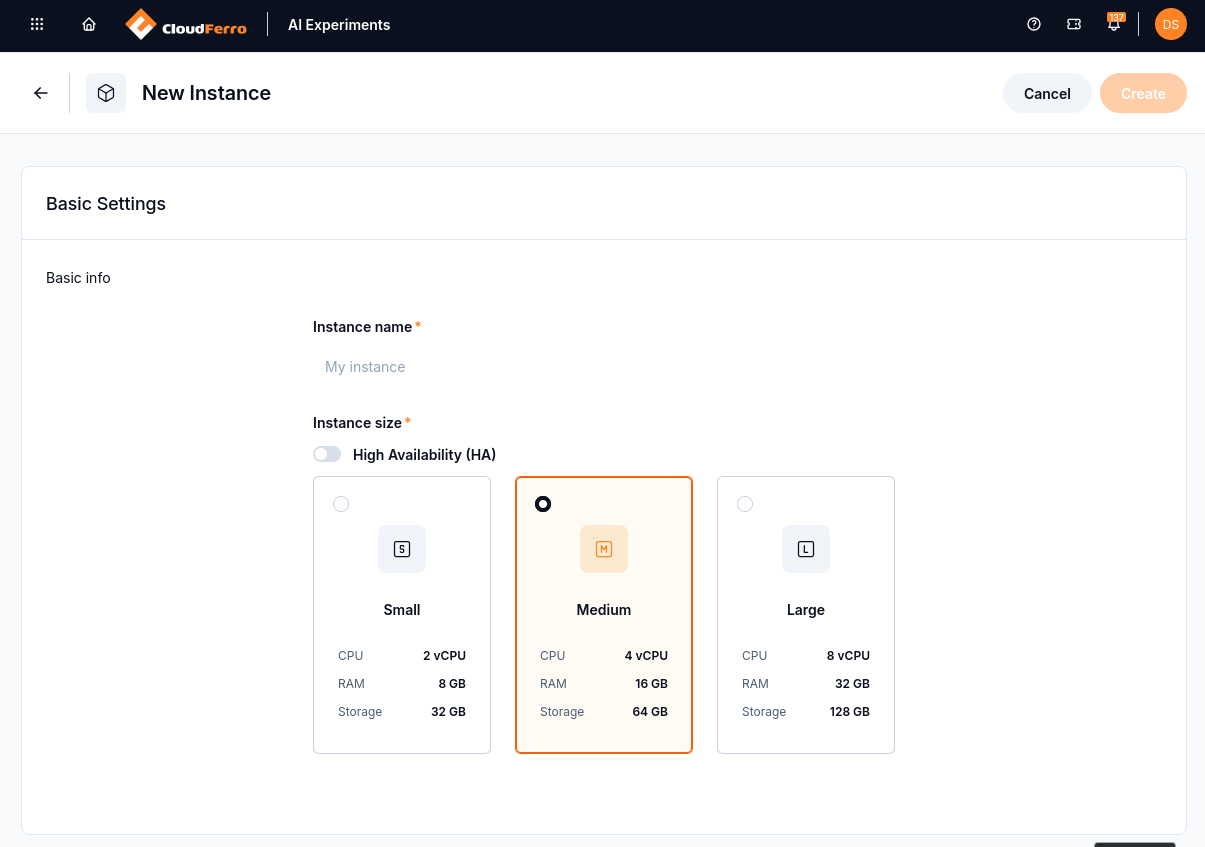
Medium is selected in this example.
The bucket must be ready first. The form uses its Endpoint, Region, Bucket name, Access key, and Secret key.
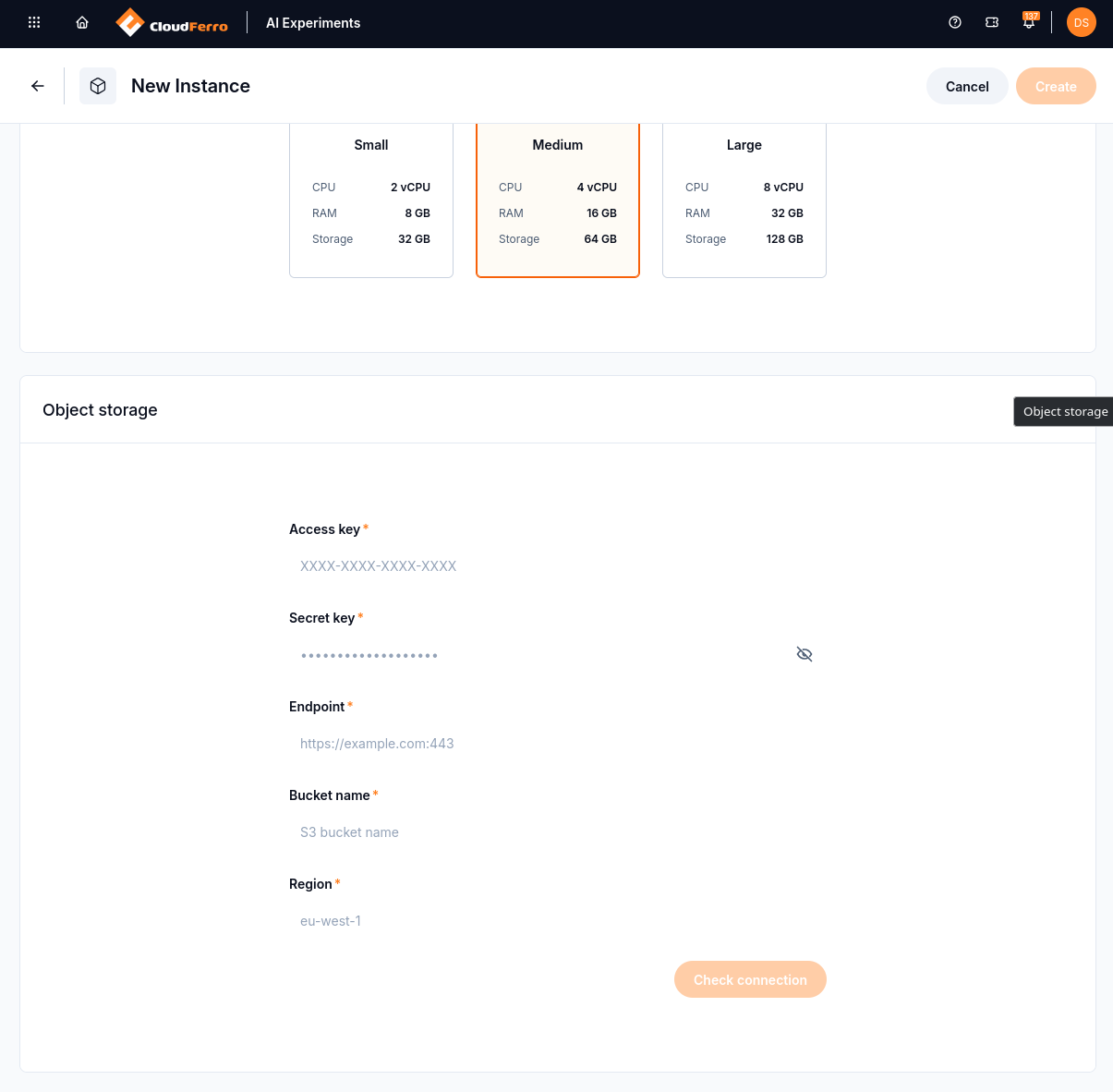
The S3 bucket connection is configured further down the same form.
Check connection verifies the storage settings. A successful check displays CONNECTED. Create becomes available when that check succeeds and the form is complete.
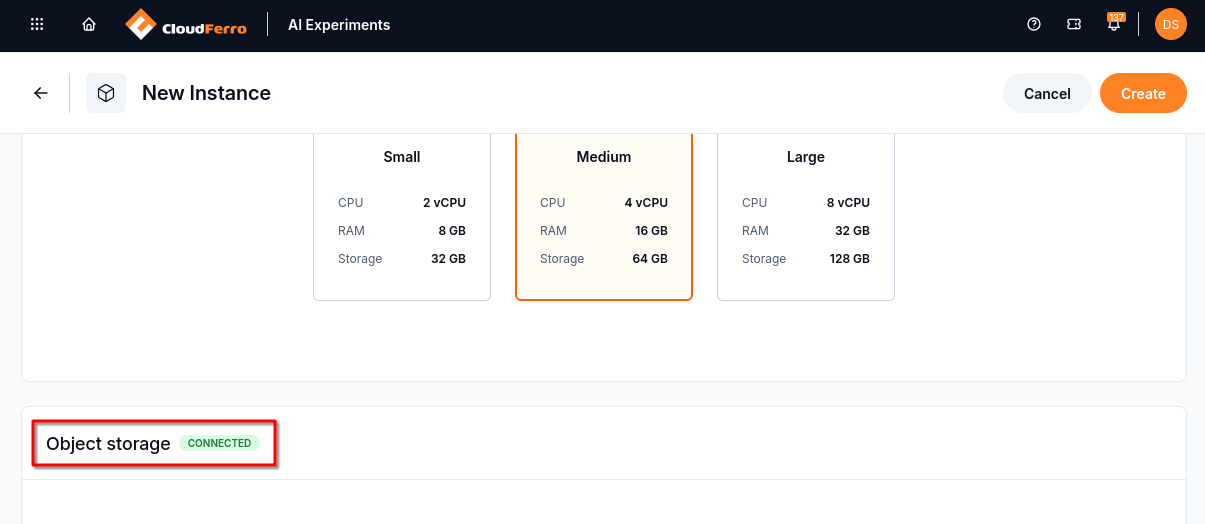
CONNECTED confirms that the storage connection check succeeded.
After creation, the status changes from Creating to Running, and the MLflow UI button becomes active. Instance membership must also be configured before your account can open that interface.
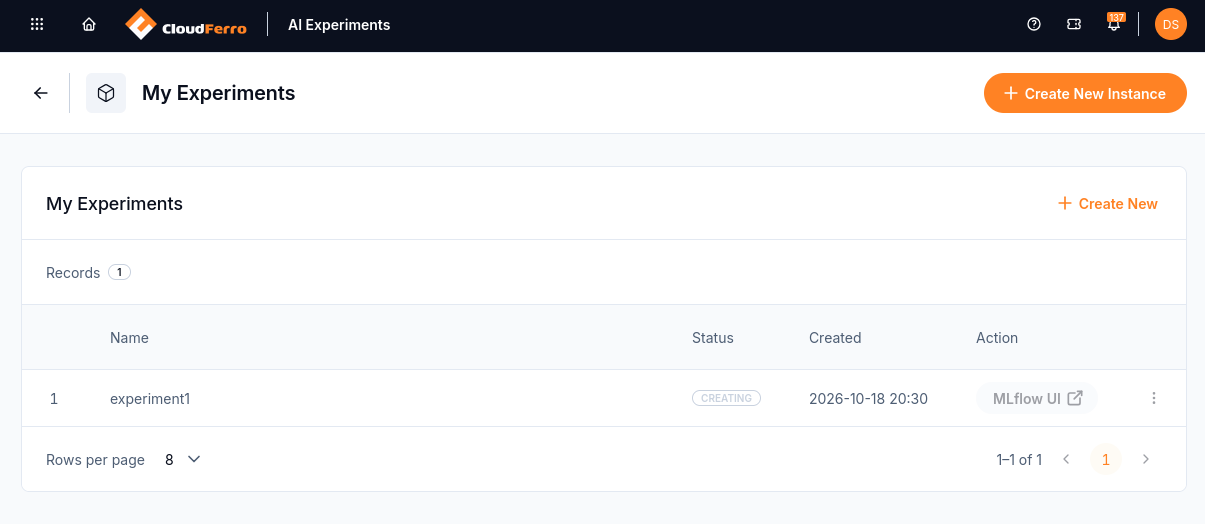
The new experiment1 instance is being provisioned. Its MLflow UI button becomes active when it is Running.
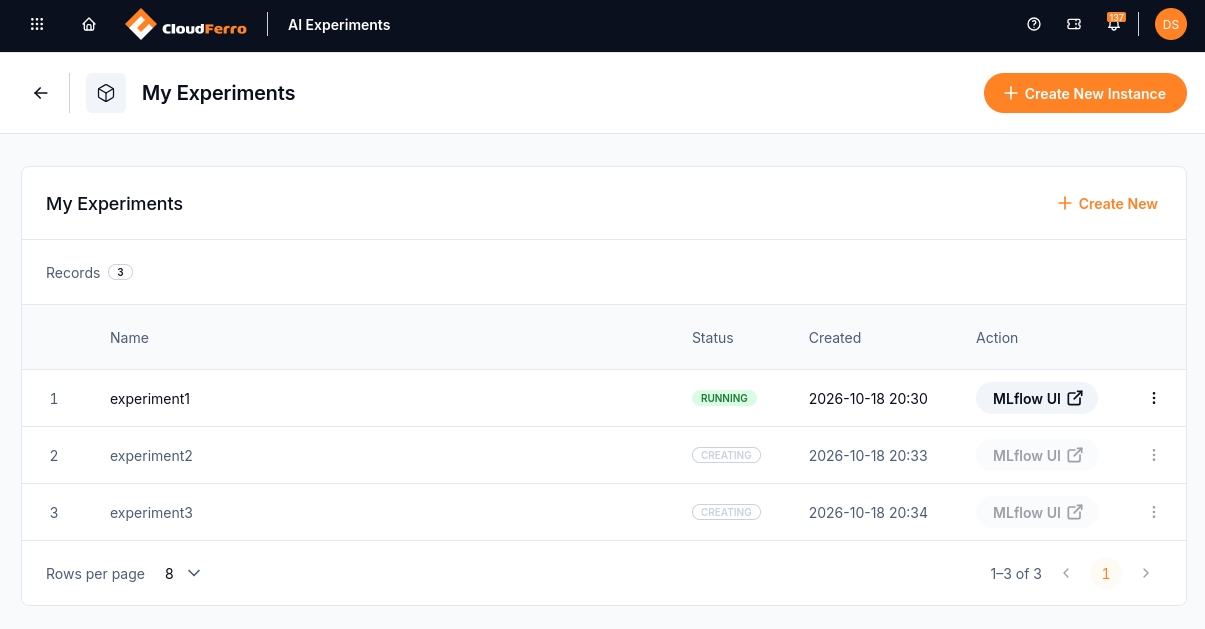
experiment1 is ready. Each instance completes provisioning independently.
Open the instance’s three-dot menu and choose Details.
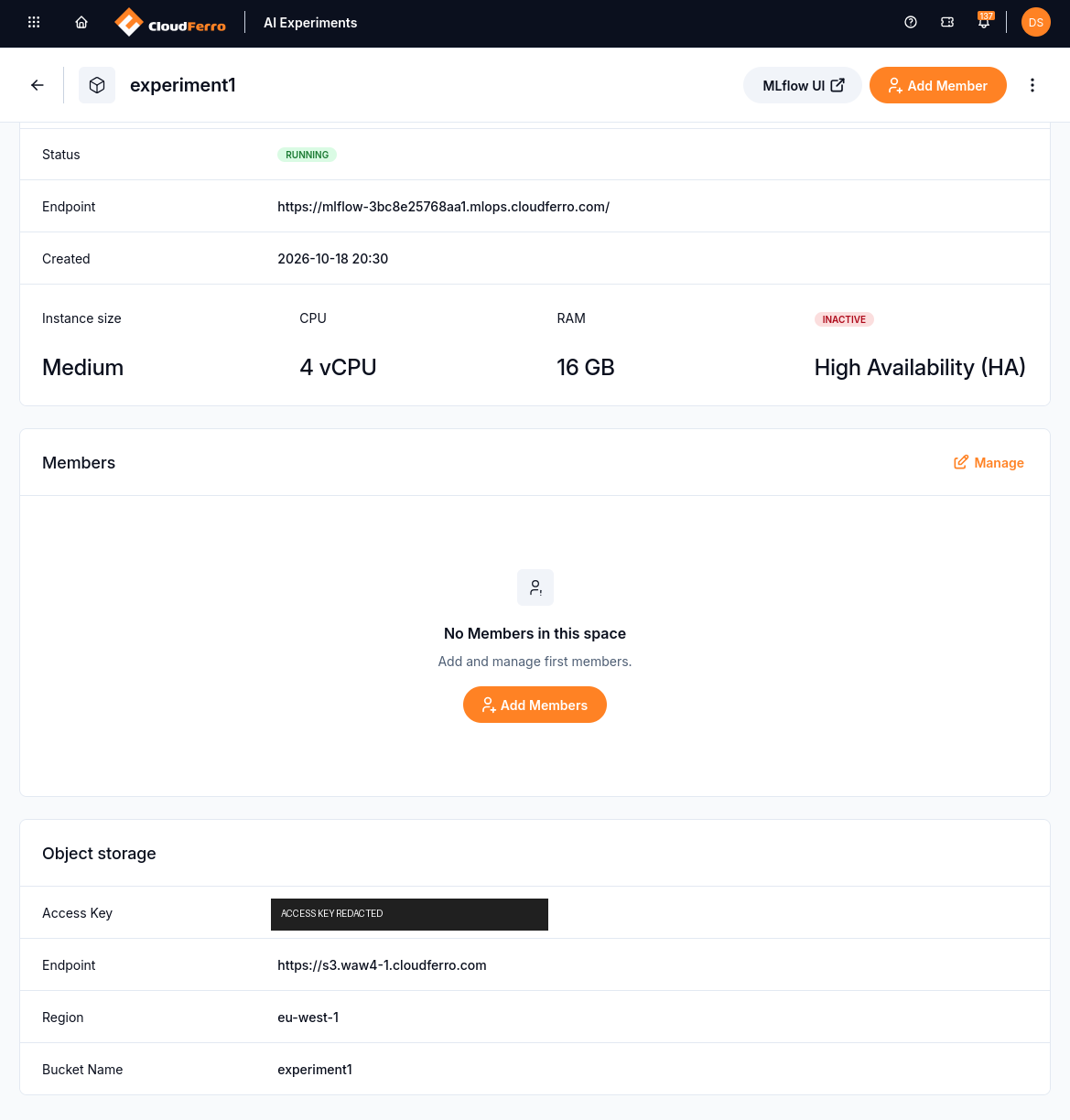
The Details page shows the instance connection, membership, and Object Storage settings.
The usual next action is Add Members, especially on your first visit to this page when the Members card is empty. You can then add the account that will administer the instance, select Admin, and save. Creating the instance in My Portal does not by itself establish membership inside MLflow.
There are two fields called Endpoint, but they differ in intent and scope.
The one directly below Status, with an address beginning https://mlflow-, identifies the MLflow instance. We will later use this URL as the MLFLOW_TRACKING_URI environment variable read by our Python code, as described in the article Connect Python and the CLI to AI Experiments on CloudFerro Cloud.
The other Endpoint, below Access Key in the Object storage section, is the S3 service address for Object Storage in OpenStack. Our Python examples do not use this address directly; they log artifact files through MLflow, which stores them in the configured bucket.
Open the MLflow interface
The MLflow UI button opens Welcome to MLflow. The interface shown in this guide uses MLflow 3.14.0 and starts in GenAI mode, with Experiments, Prompts, and AI Gateway in its sidebar. Model training switches to the view used for the Python exercise’s runs, parameters, metrics, and artifacts.
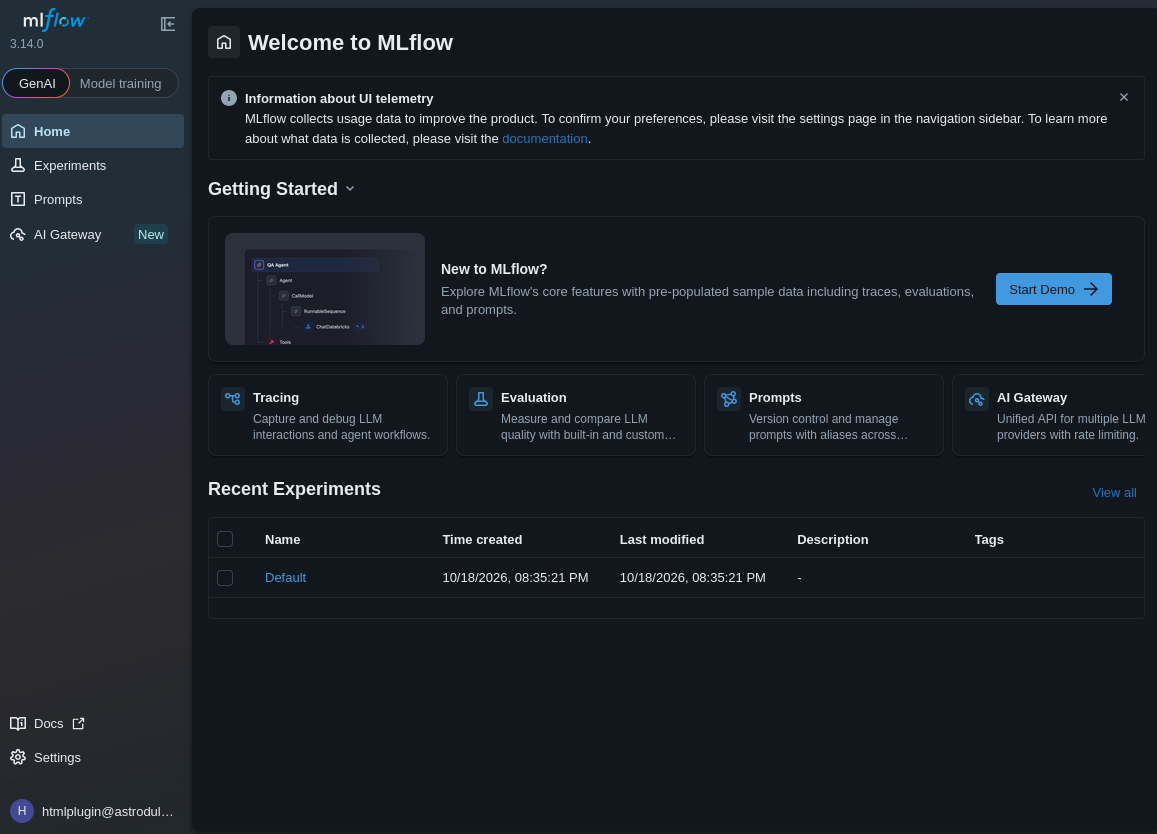
Start Demo loads sample GenAI data. The downloadable Python exercise creates its own experiment.
The platform maintains the deployment, upgrades, monitoring, and tracking database. You look after your code, the artifact bucket, and membership. Your Python program runs on the computer where you launch it; the instance receives the records sent by the MLflow client.
What to do next
Continue with the article Definitions of terms on CloudFerro Cloud to clarify the names used in these screens. Then follow the calculation guides in the same order as on the starting page:
Prepare the artifact bucket using the article Object storage for AI Experiments on CloudFerro Cloud.
Create the working folder and virtual environment, and download the example files, following the article Python code for your first MLflow run on CloudFerro Cloud.
Create an instance and configure membership using the article Your first AI Experiments instance on CloudFerro Cloud. Reuse your existing instance if it is already ready.
Set the tracking URL and configure authentication in the article Connect Python and the CLI to AI Experiments on CloudFerro Cloud.
Execute the calculation twice and compare the saved records by following the article Run and compare your first MLflow runs on CloudFerro Cloud.
Adapt the example to your own code with the article Record your own Python runs with MLflow on CloudFerro Cloud.
After the calculation exercise, explore the model and prompt tools in the article Models, prompts, and AI Gateway on CloudFerro Cloud. Then follow the article Compare models and prompts with Sherlock on CloudFerro Cloud to compare language models and prompts on the same messages.