
Models, prompts, and AI Gateway on CloudFerro Cloud
After comparing results, you may want to keep track of useful model versions, reuse the instructions sent to a language model, or give your code a configured way to call one. AI Experiments has tools for each of these tasks.
The model registry keeps track of saved model versions, prompts hold reusable instructions, and AI Gateway provides configured model endpoints through the instance. A tour of the built-in demo introduces the interface before the later sections explore these tools and present a small gateway example.
A first look at the demo needs only browser access to the instance. A logged model is needed only for registry work, and a configured gateway endpoint only for the gateway example. Neither is required for the later Sherlock comparison.
Prerequisites
No. 1 Instance membership and the required permissions
Open the MLflow UI of a Running instance. AI Experiments members and roles on CloudFerro Cloud describes the role and ownership rules. Creating a registered model is available to members; editing models owned by others requires the appropriate edit permissions.
No. 2 A logged model for registry work
Use a training run that has saved a model through MLflow. The registry associates versions with model artifacts and metadata. result.json from the first calculation is a report, not a trained model.
No. 3 Client access and a configured endpoint for the gateway example
Complete Connect Python and the CLI to AI Experiments on CloudFerro Cloud so get_token.py, the Python packages, and the tracking URI are available. Ask an instance administrator for the name of a configured AI Gateway endpoint. Calling one requires USER, DATA_SCIENTIST, ML_ENGINEER, or ADMIN; AUDITOR cannot call gateway endpoints. An account used only for registry work does not need a gateway endpoint.
Explore the built-in GenAI demo
Open MLflow UI from My Portal. In the GenAI view, the home page is headed Welcome to MLflow.
Under New to MLflow?, click Start Demo to load the sample GenAI experiment.
Open Experiments and find MLflow Demo Experiment. The captured list also contains Default, which was present before the demo was started.
Open the demo experiment and choose Overview to see its sample activity.
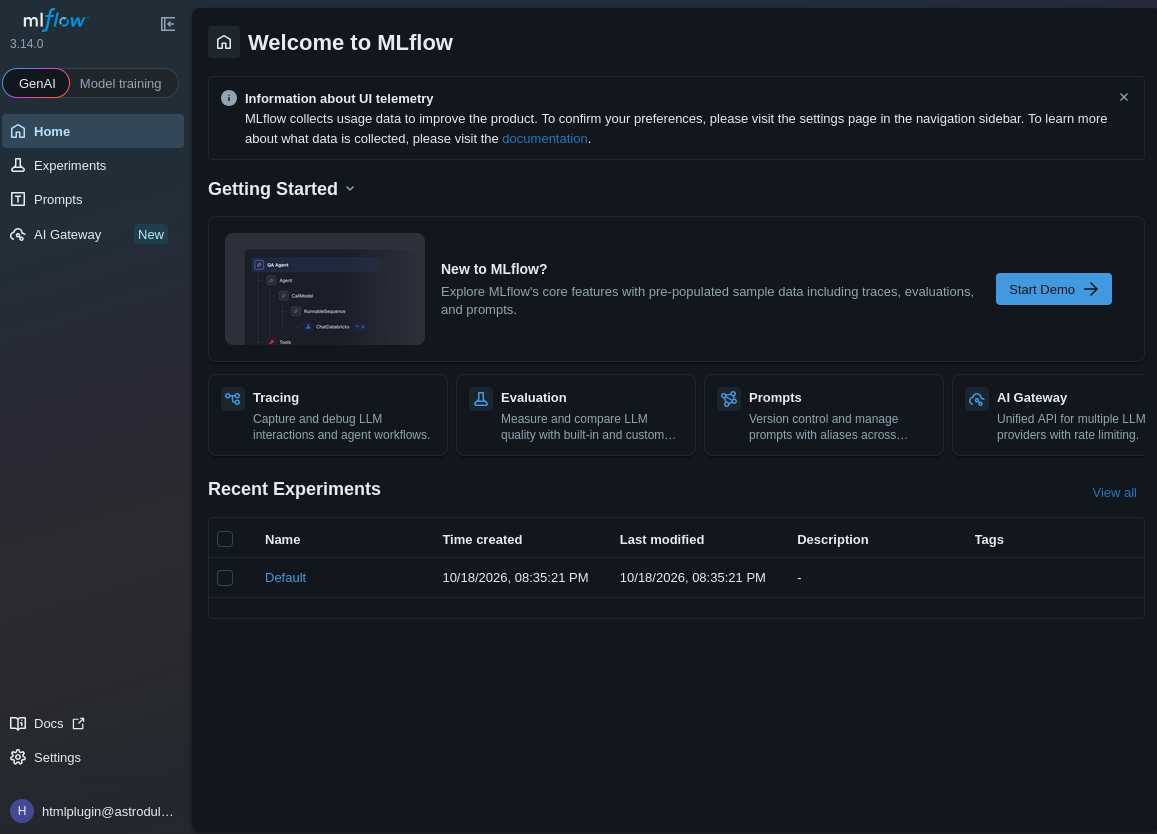
Start Demo supplies sample data for exploring GenAI features.
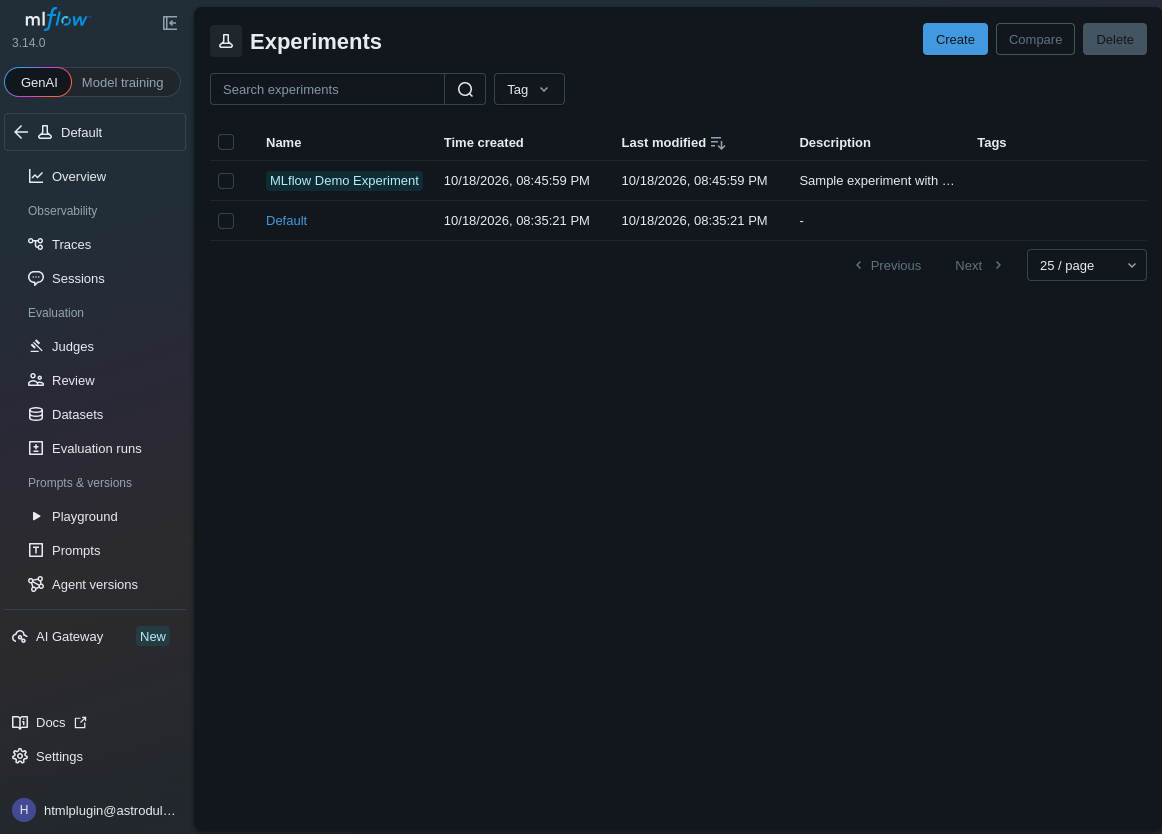
The sample experiment appears alongside Default. It is separate from first-experiment, which the downloadable Python script creates.
The GenAI experiment sidebar groups its tools by purpose. Traces and Sessions show recorded application activity. Judges, Review, Datasets, and Evaluation runs support evaluation work. Playground, Prompts, and Agent versions appear under Prompts & Versions. Use the sample experiment to locate these screens before connecting your own application.
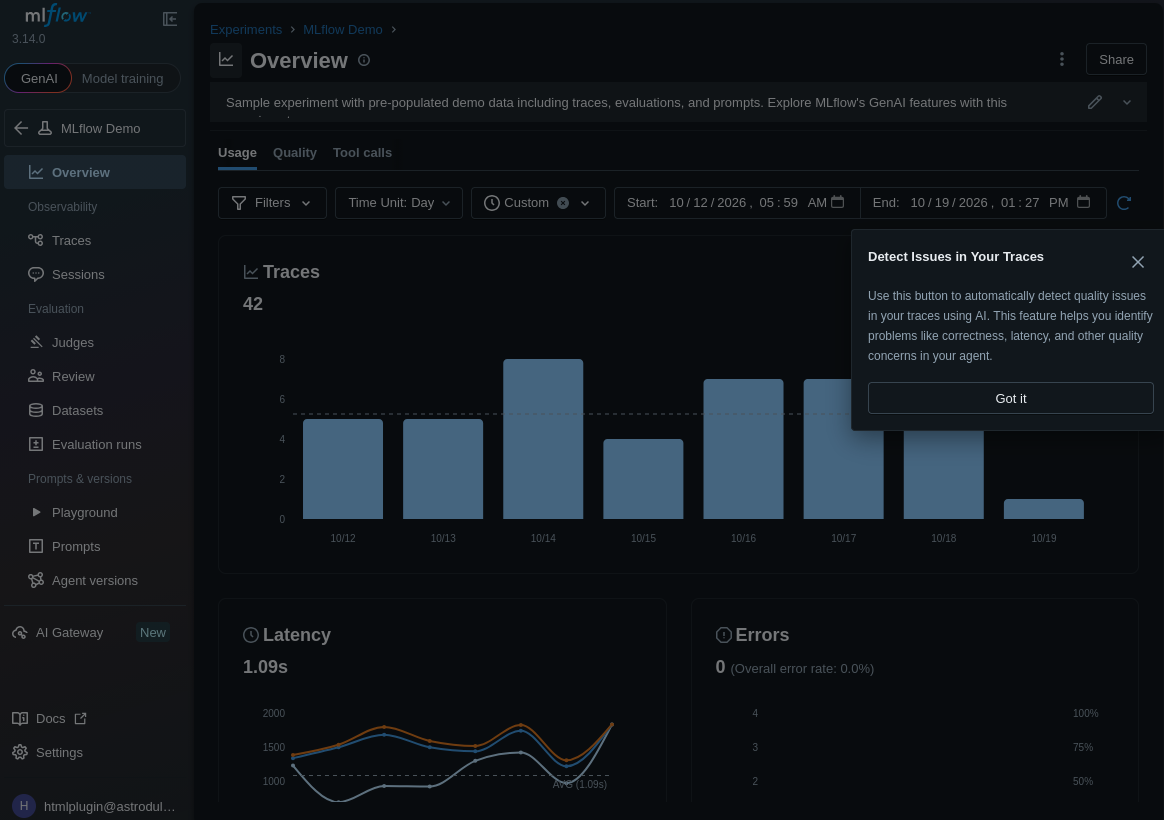
Overview displays the demo’s sample activity. Got it dismisses the introductory help dialog.
The displayed trace counts, latency, and errors belong to the demo data. They are not results from the arithmetic exercise. The Detect Issues in Your Traces message introduces the trace-analysis feature; dismiss it with Got it or the close icon to see the page underneath.
The model registry
Select Model training at the top of the sidebar, then open Models to find registered models and their versions. From a run containing a logged model, register a version, then use the registry to browse its metadata and download its artifacts. Model names group related versions so you can return to a particular result.
Use the version’s alias or, where supported by the deployed MLflow version, its stage to identify a version used in your workflow. MLflow deprecates model stages in favor of aliases and tags, so prefer aliases for new workflows.
Creating a registered model gives its creator control over that resource. Operations on models created by others follow the instance role permissions. DATA_SCIENTIST, ML_ENGINEER, and ADMIN provide edit capabilities; the members guide also describes deletion and per-resource access.
A training project could compare two classifiers on the same validation data, recording each model’s settings and accuracy in a separate run. The selected model can then be saved through MLflow, registered as a version, and loaded by another Python program for prediction. Training and prediction run in that program’s environment; registering a model does not start a prediction service.
Prompts
In GenAI mode, Prompts is available from the main sidebar and from the experiment’s Prompts & Versions group. The demo provides a way to explore this part of the interface before working with your own prompt versions.
Members with edit permissions can create, version, and manage prompts, then reference those versions from code. USER can read prompts created by others. AUDITOR has no prompt access through that role. Ownership permissions also apply to resources a member creates.
AI Gateway access
Open AI Gateway → Endpoints from the GenAI sidebar. An empty list means that no endpoints are configured in this view. The provider and model cards offer starting points for configuration.
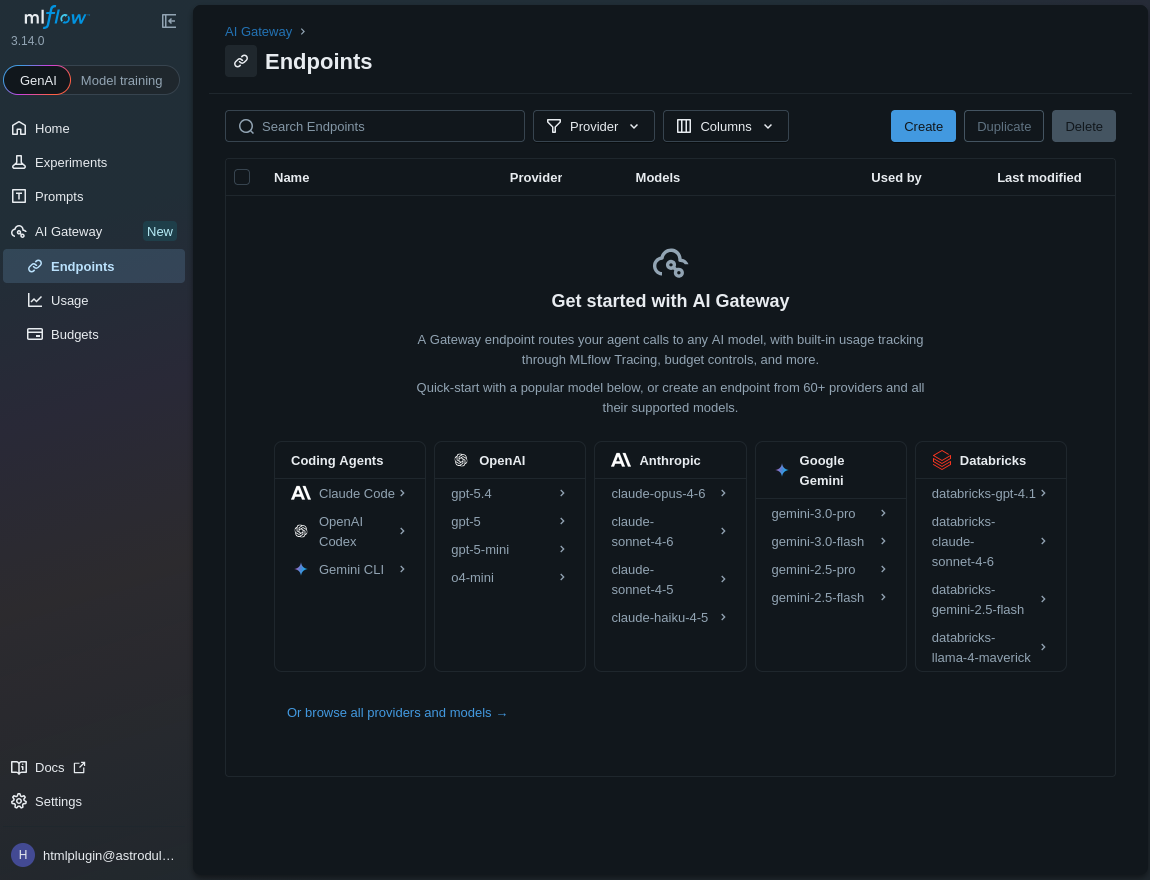
Endpoints lists configured gateway endpoints. Usage and Budgets are separate pages in the gateway sidebar.
The gateway is available behind the same instance URL and sign-in as the tracking service. ADMIN manages provider credentials. ML_ENGINEER can manage gateway endpoints and model definitions, while provider credentials remain with ADMIN. The role table describes the complete permissions.
Click Create to open Create endpoint. Enter a unique Name, then select a Provider and Model. In the initial form, the model selector stays unavailable until a provider is selected. Complete the provider credential configuration with the instance administrator, review Summary, and click Create once the required fields are complete.
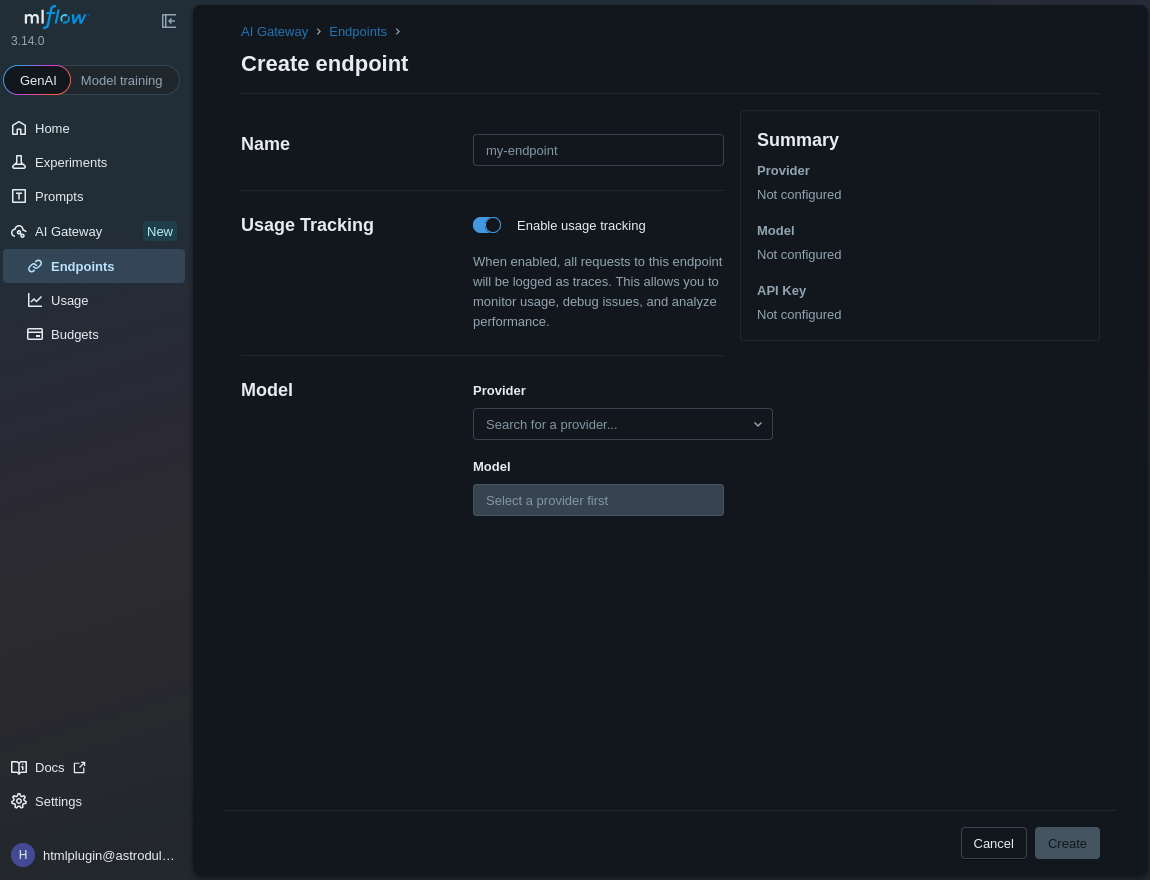
The initial form shows Not configured for the provider, model, and API key. Create is disabled until the required configuration is supplied.
Enable usage tracking records endpoint requests as traces for monitoring usage and investigating errors. It is enabled in the example. The provider credentials belong to the gateway configuration; the Python client below authenticates to the platform with your token. Use the saved endpoint’s Name as MLFLOW_GATEWAY_ENDPOINT.
For an already configured endpoint, use the platform token as the API key of an OpenAI-compatible client. The client below calls the instance gateway; MLFLOW_GATEWAY_ENDPOINT must be the endpoint name supplied by your administrator.
Run these commands in the client environment:
python -m pip install openai
read -r -p "Configured gateway endpoint name: " MLFLOW_GATEWAY_ENDPOINT
export MLFLOW_GATEWAY_ENDPOINT
Save gateway_example.py beside get_token.py:
"""Call a configured AI Experiments gateway endpoint."""

import os

from openai import OpenAI

from get_token import get_token


def main() -> None:
    tracking_uri = os.environ["MLFLOW_TRACKING_URI"].rstrip("/")
    endpoint_name = os.environ["MLFLOW_GATEWAY_ENDPOINT"]
    client = OpenAI(
        base_url=f"{tracking_uri}/gateway/mlflow/v1",
        api_key=get_token(),
    )
    response = client.chat.completions.create(
        model=endpoint_name,
        messages=[{"role": "user", "content": "Hello!"}],
    )
    print(response.choices[0].message.content)


if __name__ == "__main__":
    main()
Run the file and enter a fresh TOTP code when requested:
python gateway_example.py
The program prints the model’s reply. The text varies with the configured endpoint. If the request fails, check the endpoint name, provider configuration, instance membership, and permission to invoke the gateway.
For LLM applications that also record traces, combine gateway calls with @mlflow.trace after setting the tracking URI, tracking token, and experiment in the client. Traces record the application’s execution for inspection in the experiment.
What to do next
For a practical comparison of two language models and two prompts, follow the article Compare models and prompts with Sherlock on CloudFerro Cloud. Sherlock generates the answers, and AI Experiments records the scores and reports. The example uses a Sherlock API key and also explains where a gateway connection can fit.
Use Troubleshooting AI Experiments on CloudFerro Cloud for gateway, authentication, and artifact errors. The MLflow GenAI guide explains the built-in demo and tracing features. The MLflow model registry guide describes model versions and aliases in more detail. For provider configuration and endpoint management, use the MLflow gateway endpoint guide.