
AI Experiments members and roles on CloudFerro Cloud
Sharing an AI Experiments instance means deciding who can enter it and what each person needs to do there. A platform account alone does not give someone access to the instance or permission to change its records.
Access has two parts: the project permissions needed to reach the service and the membership and role assigned within the instance. The steps below show how to set up the first administrator, add colleagues, and change or remove access later.
Prerequisites
No. 1 Access to the instance’s member controls
Open the instance details from My Experiments, using the portal route in Access MLOps Studio, AI Experiments, and Workflows from My Portal on CloudFerro Cloud. Your portal permissions must allow you to use Add Member or Manage on the Members card. Ask your project administrator if those controls are unavailable. Identify the person by the account used for their platform sign-in.
No. 2 Project permission to read the instance role
The person’s project IAM role must allow mlops:GetMlflowRole, for example through AIExperimentsViewer or AIExperimentsAdmin. Ask the project administrator to check this separately from the role assigned inside the instance. The instance needs this permission to verify membership during sign-in.
Access to an AI Experiments instance is per member. Your email must be on the member list of the instance, with a role assigned. Users without a membership get an access denied response, in the UI and through the API alike.
The first member
Check the Members card after creating an instance. The captured example shows No Members in this space even though its creator can view the details and the instance is Running. Add the person who will administer the instance and assign Admin before trying to enter MLflow.
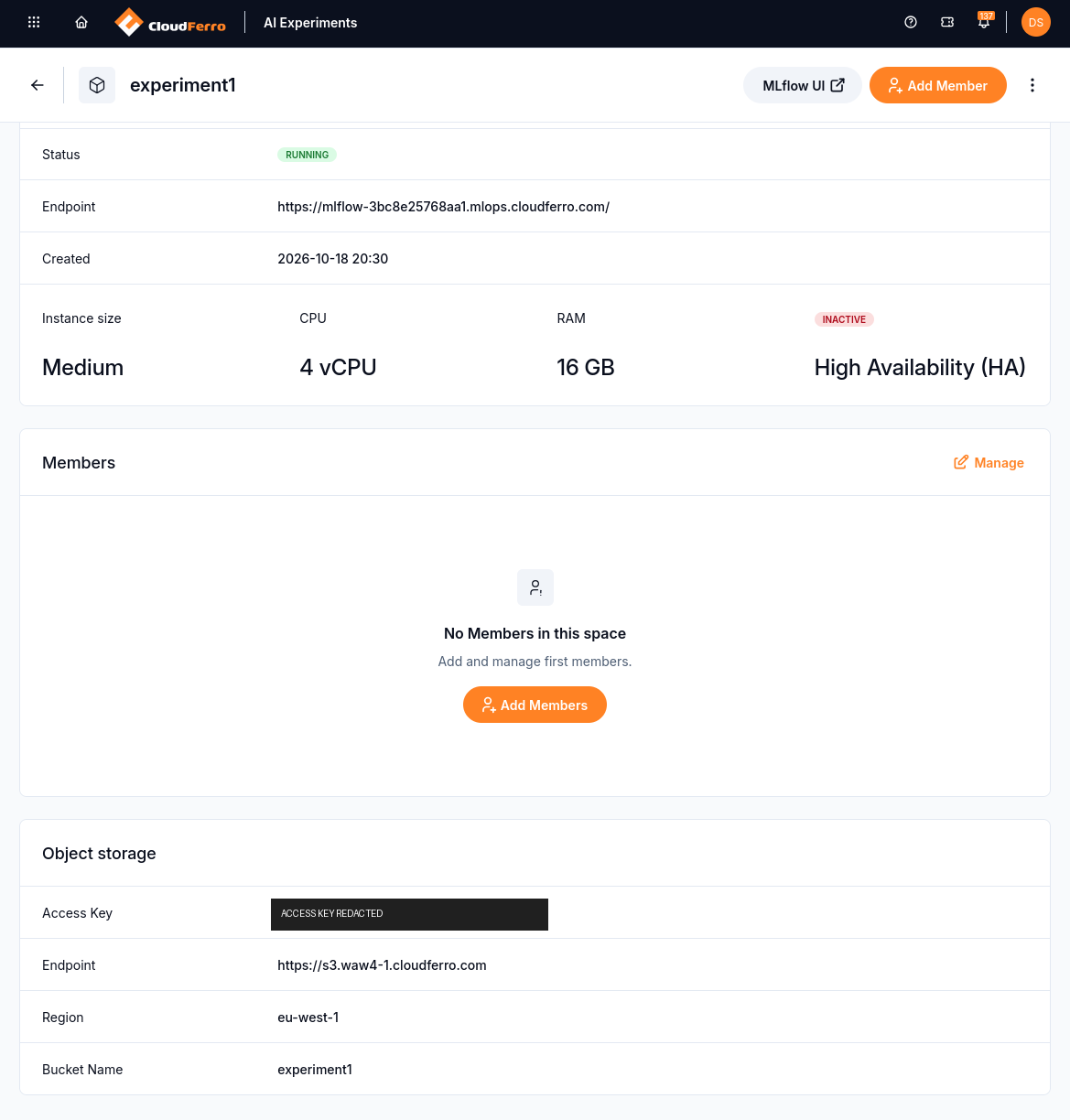
Use Add Member, Add Members, or Manage to populate the empty member list.
An active MLflow UI button indicates that the service is ready. It does not confirm that the account clicking it is a member. An account missing from the list receives this response:

Return to the portal membership controls to resolve this access error.
Available roles
The portal uses the labels Admin, Data Scientist, Ml Engineer, Auditor, and User. They correspond to the role identifiers below. Choose the role after enabling the person’s membership switch.
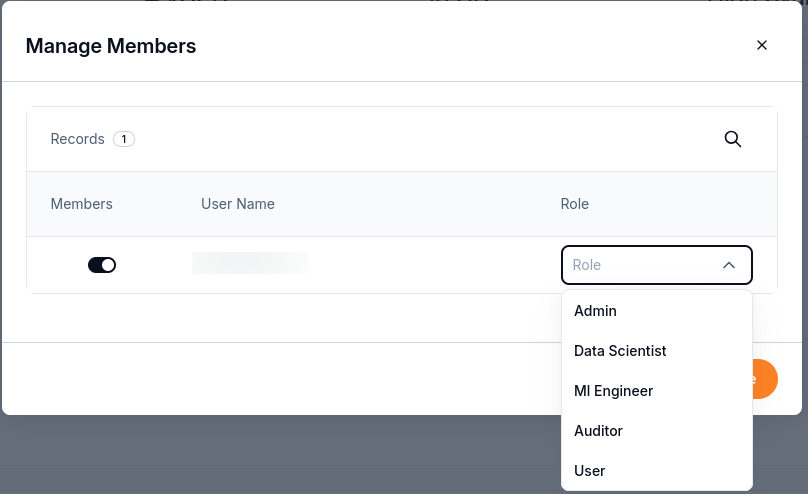
The role selector becomes available when membership is enabled.
Note
Roles govern what a member can do with resources created by others. Creating new experiments, registered models, and prompts is open to every member, and the creator gets full control over what they created. A read-only role (USER, AUDITOR) can create and manage its own resources while staying read-only on everyone else’s.
Role |
What the member can do |
|---|---|
ADMIN |
Full control: manage experiments, registered models, prompts, and AI Gateway endpoints and credentials. |
ML_ENGINEER |
Manage experiments, registered models, and prompts, including deleting them, deleting artifacts, and managing per-resource access. Manage AI Gateway endpoints and model definitions (provider credentials stay with ADMIN). Read scorers. Intended for people who operate models in production. |
DATA_SCIENTIST |
Edit experiments, registered models, and prompts: create runs, log metrics, register model versions. Invoke AI Gateway endpoints. Register and read scorers; cannot delete scorers. Intended for people who log and compare runs. |
USER |
Read experiments and registered models, read prompts, and invoke AI Gateway endpoints. This is the default role for new members. |
AUDITOR |
Read-only access to experiments and registered models, with no prompts and no AI Gateway. Intended for reviews and audits. |
Start with the smallest role that lets the person do their job. You can change the role at any time.
Note
A role change takes effect within about 2 minutes. The server caches role lookups to avoid calling the platform authorization service on every request, so the member may keep their previous permissions until the cache expires. To apply a change without waiting, the member can sign out and back in. A fresh sign-in fetches the current role.
Add a member
On My Experiments, open the instance’s three-dot menu and choose Details.
Click Add Member in the header, or Manage on the Members card. An empty card also offers Add Members.
In Manage Members, find the person’s account under User Name. Use the search control if needed. The example shows one available account.
Switch Members on for that account and select its Role. Use Admin for the first administrator; assign other members the role their work requires.
Click Save.
The Members card then lists the saved account and role. The member can open the MLflow UI using the same platform account.
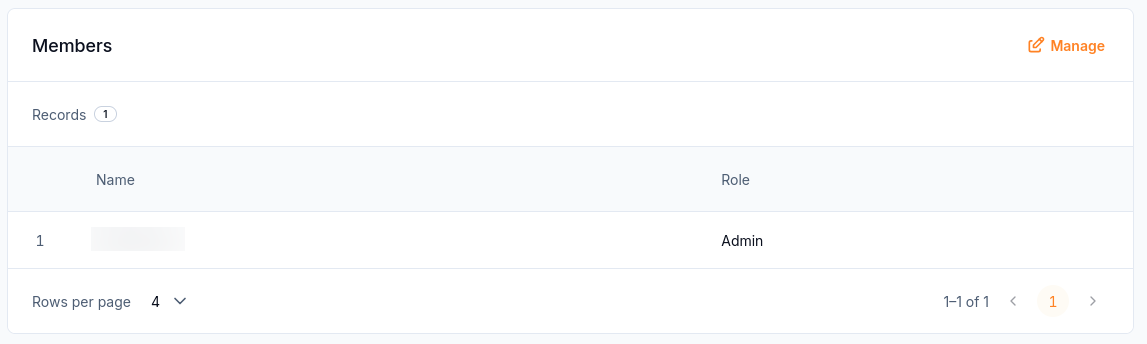
The saved Admin membership is visible on the instance details page.
Change or remove a member
Open Manage Members, adjust the role or switch the member off, and save. Removing a member revokes their access to the instance, in the UI and through the API alike. It does not delete their platform account.
Note
Keep at least one ADMIN member on every instance to administer its MLflow resources and provider credentials. Access to the portal’s member controls also depends on project permissions.
What to do next
Run and compare your first MLflow runs on CloudFerro Cloud follows a member’s first run. Models, prompts, and AI Gateway on CloudFerro Cloud describes the other resources governed by these permissions. If access still fails after membership is saved, use Troubleshooting AI Experiments on CloudFerro Cloud.