
AI Experiments instances on CloudFerro Cloud
Once an AI Experiments instance is in use, you may need to check whether it is ready, find its connection details, or remove it when it is no longer needed. These tasks concern the shared service that receives results from your programs.
The My Experiments page in My Portal brings the status, settings, and deletion controls together. The examples below show how to use them and distinguish the instance’s Running status from the outcome of an individual Python run.
Prerequisites
No. 1 An existing instance in My Experiments
Reach the list through My Portal → Products → AI Experiments → Go to product, as illustrated in Access MLOps Studio, AI Experiments, and Workflows from My Portal on CloudFerro Cloud. Your project permissions determine which instance controls are available. For a new environment, complete Your first AI Experiments instance on CloudFerro Cloud first.
Instance status
The list shows each instance’s name, status, and creation date. Click a row to open its details when the current operation allows it.
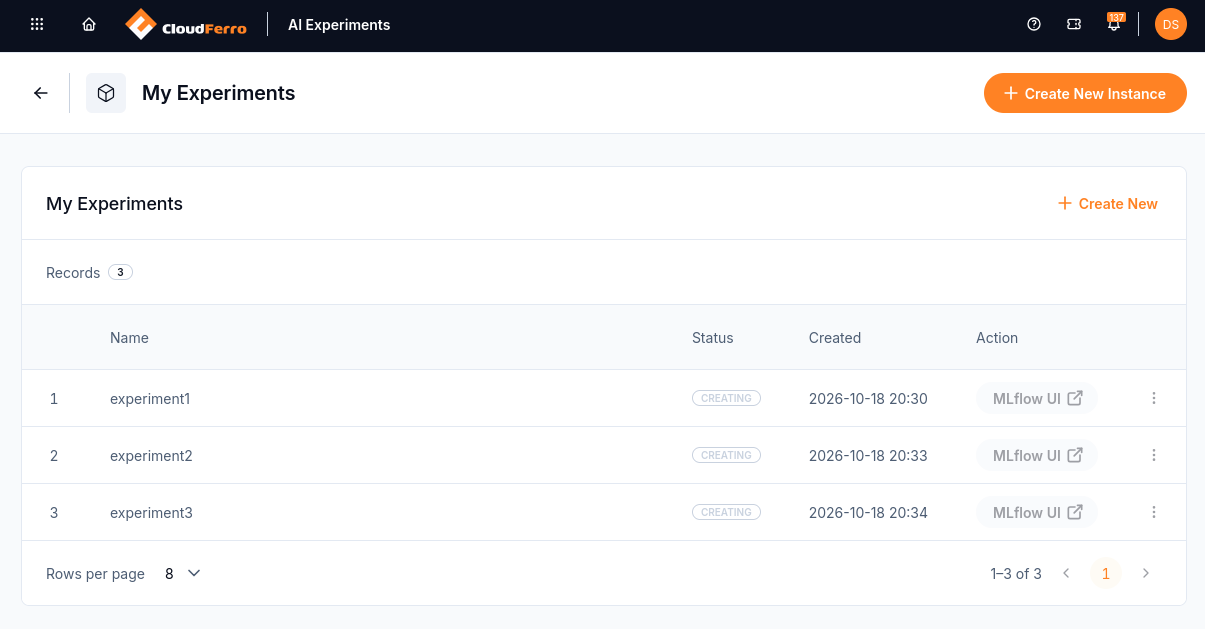
Each instance has its own status. All three shown here are still being created.
Status |
Meaning |
|---|---|
Creating |
Provisioning is in progress. Wait a few minutes. |
Running |
The instance is ready. The MLflow UI button is active. |
Updating |
The platform is applying a configuration change. |
Paused |
Support suspended the instance. Contact support to resume it. |
Deleting |
Deletion is in progress. |
Error / Creating error / Deleting error |
Something failed. Hover the status for details and use Contact Support. |
Partially operational |
The instance runs, but some components are degraded. Hover the status for details. |
While an instance is in a transitional state (creating, updating, deleting), its row is not clickable. Wait for the state to settle.
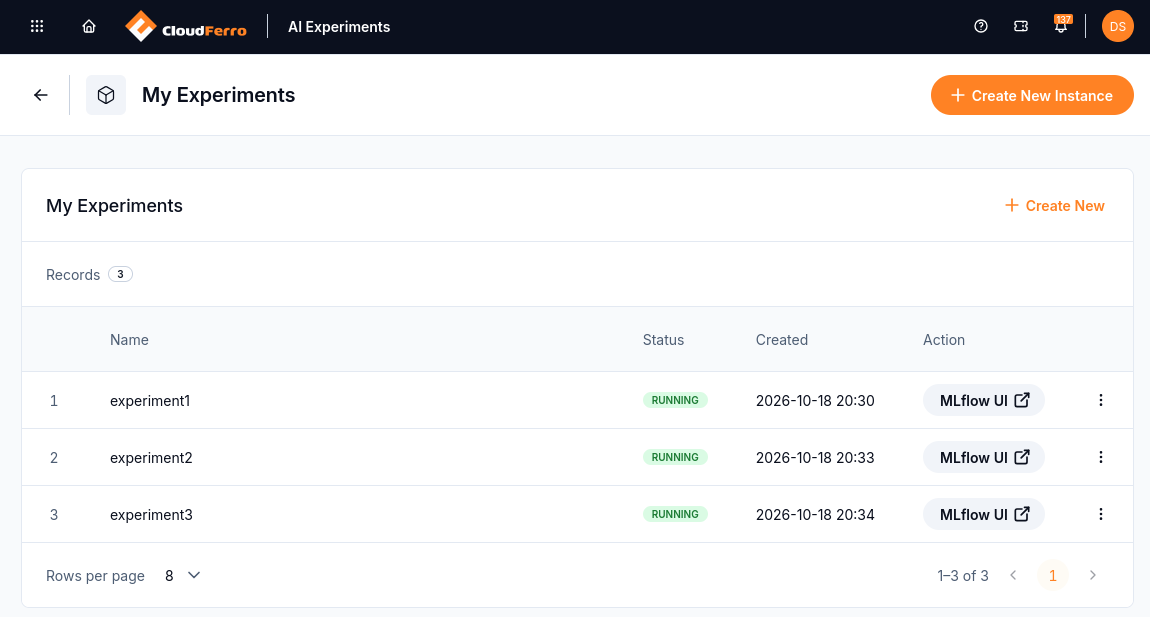
Provisioning has finished for all three instances, and their MLflow UI buttons are active.
Each row represents a separate service instance. A single instance can contain several experiments and many runs, so a new instance is not needed for each execution of your Python code. Membership is configured separately for each instance.
Instance details
Open the three-dot menu at the right of an instance row and choose Details. The same menu also offers Delete.
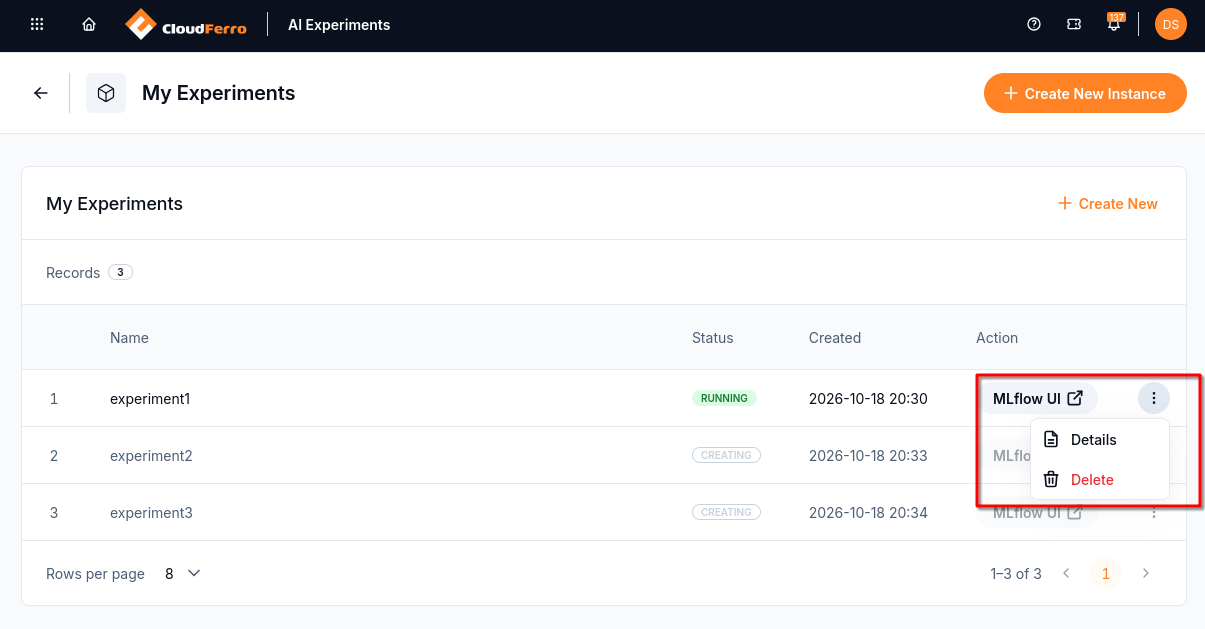
Details opens the configuration and member controls for the selected instance.
The details page shows Status, Endpoint, creation date, size, CPU, RAM, and whether High Availability is active. The Members card lists members and their roles. Object storage identifies the endpoint, region, and bucket used for artifacts.
In the captured example, experiment1 is Running, with size Medium, 4 vCPU, and 16 GB of RAM. INACTIVE beside High Availability (HA) means that redundancy was not enabled; it does not mean the instance is stopped. The Members card is initially empty, so access must be added before the first MLflow sign-in.
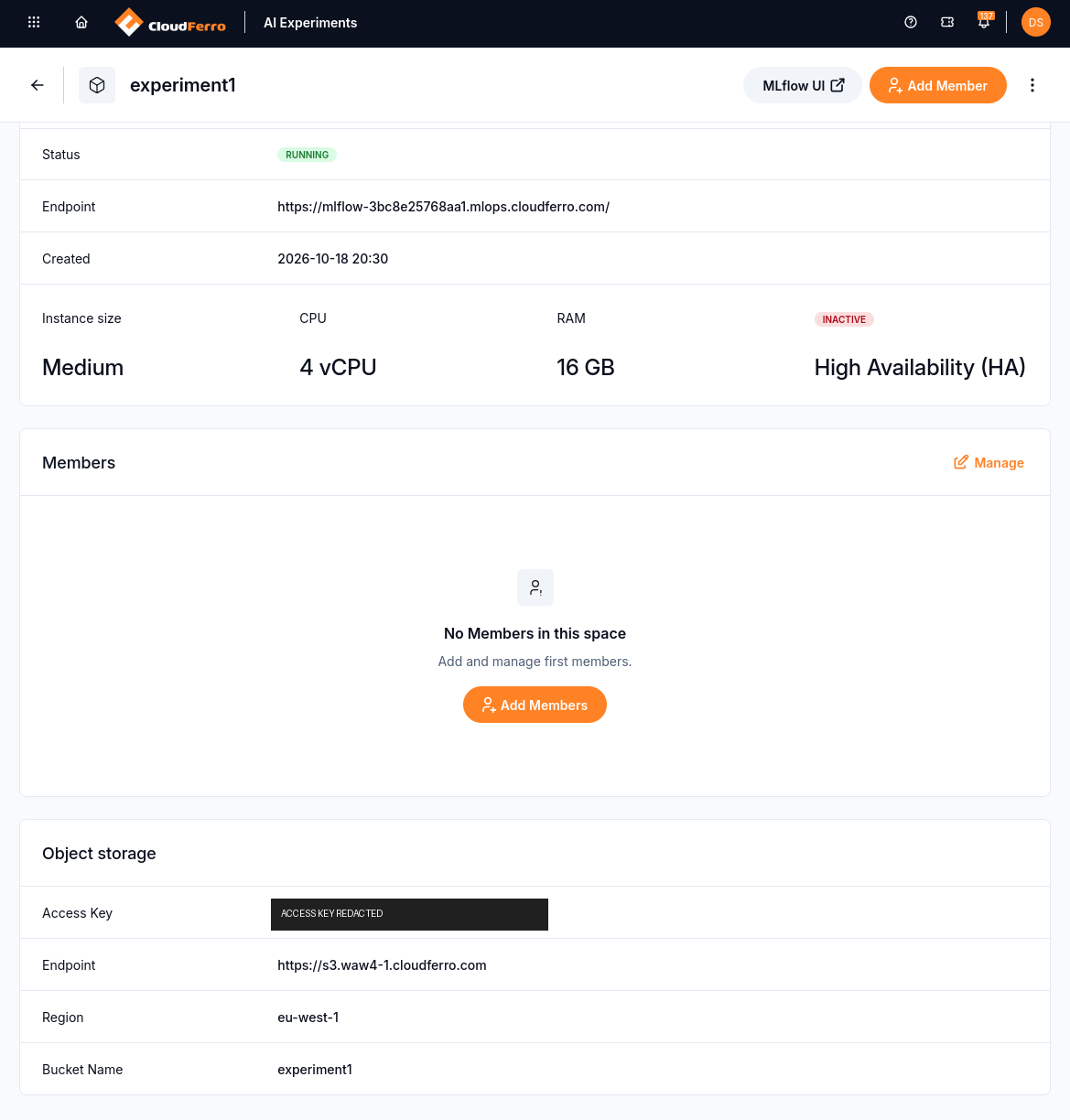
The details page separates service status, capacity, membership, and storage settings. The S3 access key is masked in this image.
MLflow UI opens experiments and model resources. Copy the instance endpoint when configuring a Python client, or bookmark it for direct browser access. An expired browser session prompts for platform sign-in again.
Size and HA are fixed in the UI after creation. Contact your platform administrator or CloudFerro support when those settings need to change. A slow interface or repeated timeouts may indicate that the current service capacity is insufficient for the load.
Instance deletion
Warning
Deleting an instance permanently removes its deployment and tracking metadata, including experiment history and registry metadata. Export or back up the metadata you need first. The instance cannot be restored through the portal. Its artifact bucket remains under your control and is not deleted.
For a small exercise, a useful record consists of the experiment and run names, run IDs, parameters, metrics, and downloaded reports from each run’s Artifacts tab. Keep each run’s files in a separate local folder so reports with the same filename do not overwrite one another. These copies preserve the results for reading; restoring the service requires a backup and recovery procedure agreed with the platform administrator.
Find the intended instance in My Experiments. The screenshots below use experiment3.
Open its three-dot menu and choose Delete. This action is also available from the instance details.
Check the instance name in the confirmation dialog, then click Delete to confirm. Cancel closes the dialog without deleting the instance.
Wait for the Deleting operation to finish. The row disappears when deletion completes.
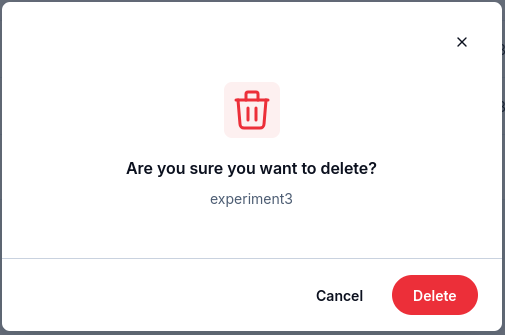
Check the name experiment3 before confirming this permanent operation.
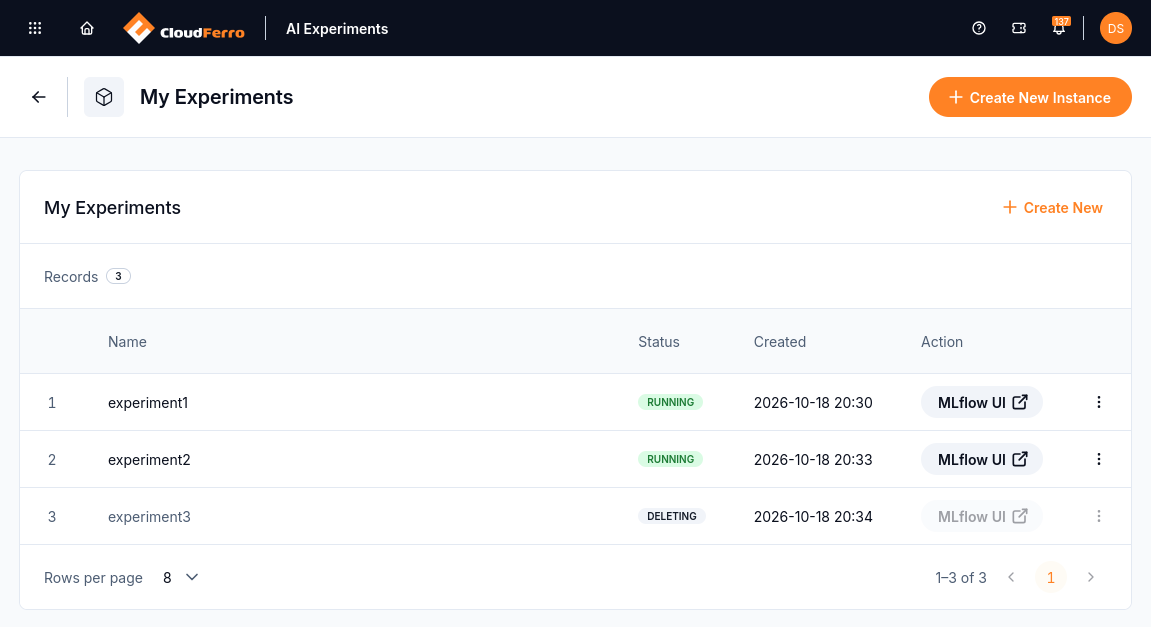
experiment3 is being deleted. The other two instances remain Running.
The artifact bucket retains its files independently of the instance. The platform does not back up or restore that bucket; keep the files and metadata needed for your own recovery process.
What to do next
Use AI Experiments members and roles on CloudFerro Cloud to add another person or change access. Object storage for AI Experiments on CloudFerro Cloud describes artifact retention and storage responsibilities. For access errors, unavailable controls, or failed operations, use Troubleshooting AI Experiments on CloudFerro Cloud.