
Object storage for AI Experiments on CloudFerro Cloud
A run may produce files you want to keep, such as a model, a plot, or a report. AI Experiments needs a storage bucket for these files, called artifacts, before a new instance can be created.
In the OpenStack Object Storage provided with your CloudFerro Cloud project, that bucket appears as a container in Horizon. The preparation below covers choosing a container and collecting the connection details AI Experiments needs to access it through S3.
The bucket can be empty at this stage. Files will appear later when your Python code logs artifacts through MLflow.
Prerequisites
No. 1 Access to your CloudFerro Cloud project in Horizon
In Horizon, your selected project must allow you to create or use a container under Project → Object Store → Containers. The article How to use Object Storage on CloudFerro Cloud explains how to create and manage these containers. The bucket for AI Experiments will belong to this project.
No. 2 S3 access key and secret key
These credentials authorize storage operations independently of your portal password. The key pair supplied to AI Experiments needs permission to read and write the selected bucket. The articles How to access object storage from CloudFerro Cloud using boto3 and How to access object storage from CloudFerro Cloud using s3cmd cover obtaining and using the project’s S3 credentials. Either client is optional for this preparation; the access key and matching secret key are required by the instance creation form.
The artifact bucket
In Horizon’s Containers page, click + Container to create a container for run artifacts, or select an existing one. The example uses experiment1. This container’s name will be entered as Bucket name when the AI Experiments instance is created.
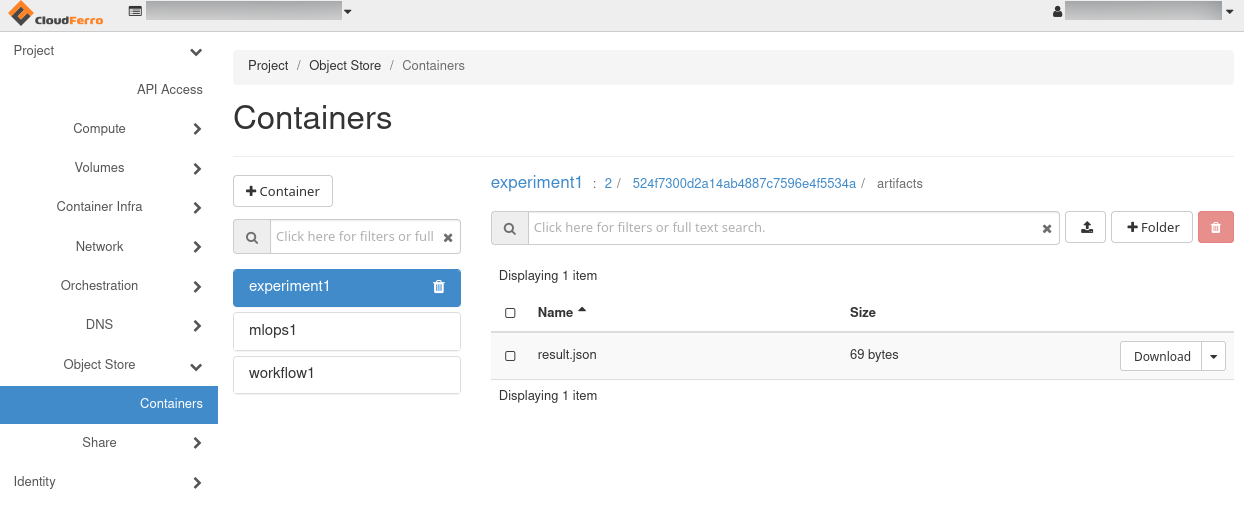
The experiment1 container in Horizon’s Object Store → Containers. This screenshot was taken after a run; during preparation, the container can be empty.
The first Python example will save a report named result.json. MLflow creates the experiment and run paths automatically when the program logs the file, so there is nothing to upload during storage preparation. The later instance example also uses the name experiment1, but the bucket and instance are separate resources; creating an instance does not create the bucket.
Connection details for the later setup
The following settings will be used in the Object storage section of Create New Instance. The Region value is always eu-west-1; the endpoint identifies the location of the bucket.
Select the region containing your bucket and copy its Endpoint:
https://s3.waw4-1.cloudferro.com
https://s3.waw3-1.cloudferro.com
https://s3.waw3-2.cloudferro.com
https://s3.fra1-2.cloudferro.com
https://s3.fra1-3.cloudferro.com
https://s3.lcj1-1.cloudferro.com
Field |
Value to carry into the creation form |
|---|---|
Endpoint |
The address shown in the selected region tab above. |
Region |
eu-west-1 |
Bucket name |
The bucket name itself, without a folder path or an S3 URI prefix. |
Access key |
The S3 access key for the project containing the bucket. |
Secret key |
The matching secret key from the same key pair. |
Storage preparation is complete when the bucket exists and these five values are ready. The instance creation form will verify the connection through Check connection before the instance can be created.
Storage responsibilities
Data |
Where it is stored |
Who backs it up |
|---|---|---|
Experiment and registry metadata: runs, metrics, parameters, and model versions |
Platform-managed tracking database |
The platform |
Artifact files: models, plots, datasets, and reports |
Your S3-compatible bucket |
You |
Configure artifact retention, backups, and lifecycle rules in your object storage service. The platform does not back up or restore your bucket, and deleting an AI Experiments instance does not delete that bucket. Deletion does remove the instance’s tracking metadata, so a retained artifact bucket alone does not restore the experiment history.
The bucket and credentials must remain usable after setup. Members whose permissions allow artifact deletion can also remove files; plan retention around the access you grant.
What to do next
The next preparation article, Python code for your first MLflow run on CloudFerro Cloud, provides the Python files and virtual environment. The article Your first AI Experiments instance on CloudFerro Cloud then uses the storage settings prepared here to create the instance and check its connection.
After the instance and Python client are ready, the article Run and compare your first MLflow runs on CloudFerro Cloud follows the two calculation runs, their reports in MLflow, and the saved files in Horizon.