
Run and compare your first MLflow runs on CloudFerro Cloud
After saving one run, you may want to change the inputs and see both results together. Keeping the earlier run available makes it possible to check what changed and which result belongs to each set of inputs.
Repeating the small calculation gives you two runs to follow through MLflow and two saved reports to find in Object Storage. Their known totals, 60 and 100, make the recording and comparison steps easy to check; neither result represents a better calculation.
The calculation runs in your Python environment; AI Experiments stores its records. No Workflows setup is needed. The screenshots show MLflow 3.14.0.
Prerequisites
No. 1 A running instance you can open
Use the instance prepared in Your first AI Experiments instance on CloudFerro Cloud, or an existing instance where you are a member. Its MLflow UI must open successfully. You need permission to create your own experiment or edit the experiment used for this exercise; AI Experiments members and roles on CloudFerro Cloud explains the ownership rules.
No. 2 The two Python files and a configured client
The article Python code for your first MLflow run on CloudFerro Cloud provides first_experiment.py and get_token.py, with the working directory ~/ai-experiments-hello-world and .venv setup. In the article Connect Python and the CLI to AI Experiments on CloudFerro Cloud, the client setup configures authentication, sets MLFLOW_TRACKING_URI, MLFLOW_USERNAME, and MLFLOW_PASSWORD, and checks the CLI connection. Both Python files must be in the working directory. Keep the configured terminal open and your two-factor authentication app ready.
No. 3 Horizon access for the optional storage check
The final part of this guide also shows the reports in Horizon. This requires access to the project and bucket configured for the instance, experiment1 in the example. The article Object storage for AI Experiments on CloudFerro Cloud covers that bucket’s preparation. Horizon access is only needed for this additional check; the reports can also be viewed through MLflow.
Start the first run
If you already recorded first-total in first-experiment, continue with Find the result in the MLflow UI below. Repeating the command creates another run with the same name and a different run ID.
In the configured terminal, change to the directory containing both files and run:
python first_experiment.py
Enter a fresh TOTP code when prompted. After the results have been logged successfully, the terminal prints:
Total: 60
Run ID: <generated run ID>
If first-experiment does not exist, MLflow reports this and creates it automatically. This is an informational message. View run first-total at: links directly to the new run, while View experiment at: opens the experiment containing it. The run ID is different for each execution. If the program reports an error instead, keep the message and check whether the failure concerns authentication, run logging, or the artifact upload.
Find the result in the MLflow UI
Open My Experiments in My Portal and click MLflow UI for the same instance used in MLFLOW_TRACKING_URI.
Select Model training at the top of the left sidebar if the interface is in GenAI mode.
Open Experiments, then first-experiment. Refresh the page if the new experiment has not appeared yet.
The portal instance, such as experiment1, contains the MLflow experiment first-experiment. Inside that experiment, Runs lists the execution named first-total. The Python script has already created this run; you do not need to click New run.
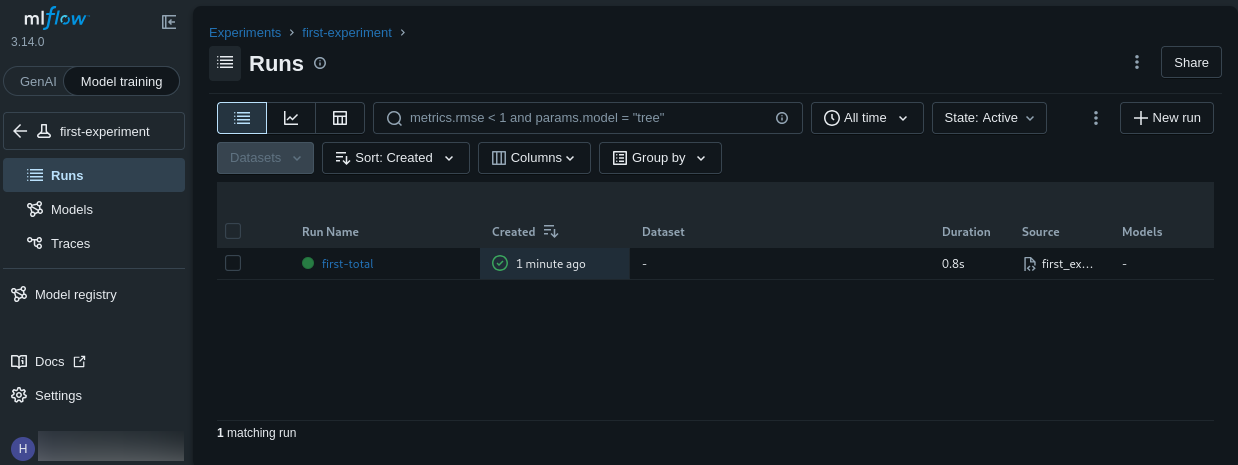
Runs shows 1 matching run after the first execution. Click first-total to inspect it.
The GenAI interface emphasizes traces, sessions, and evaluations. If you see a sample MLflow Demo Experiment, return to the experiment list in Model training and select first-experiment, the name used by the Python script.
Check the first run
Open first-total and stay on Overview. Under Metrics, check that total is 60. Under Parameters, check that numbers is [10, 20, 30]. About this run shows the Finished status, the Run ID, and first_experiment.py as the source. Match the run ID to the terminal output if you have executed the same command more than once.
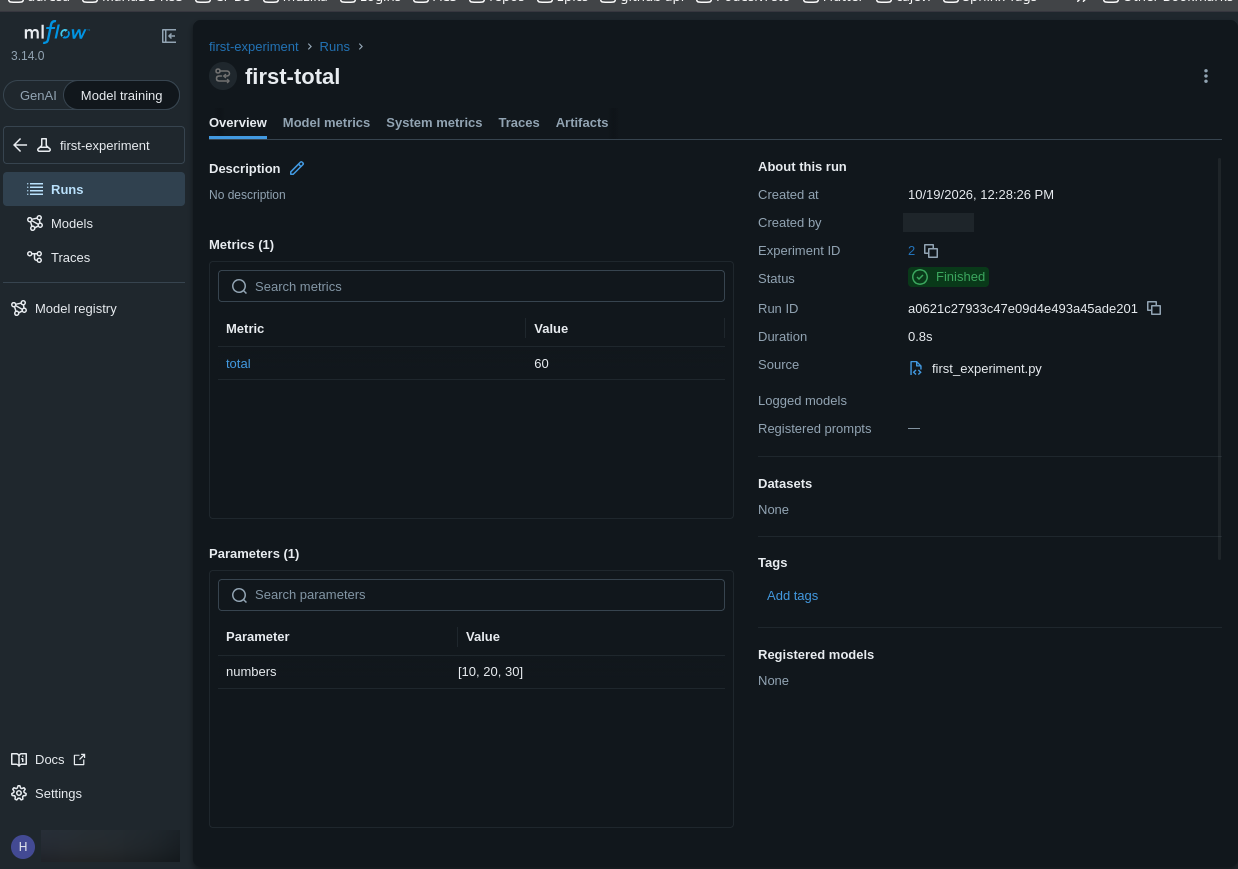
Overview brings together the input parameter, the result, and the execution details.
The empty model and dataset fields are expected for this calculation. The script records a numerical result and a JSON report without training a model or logging a dataset.
Open the saved report
The Artifacts tab belongs to an individual run’s details page. It is not shown on the experiment’s Runs list:
Click the blue first-total link in the Run Name column to open its Overview, rather than selecting the checkbox beside the row.
Click Artifacts in the tabs across the top of the run page, immediately to the right of Traces.
Select result.json in the artifact list on the left. The report appears on the right. The download icon in the upper-right corner of the report panel saves a local copy.
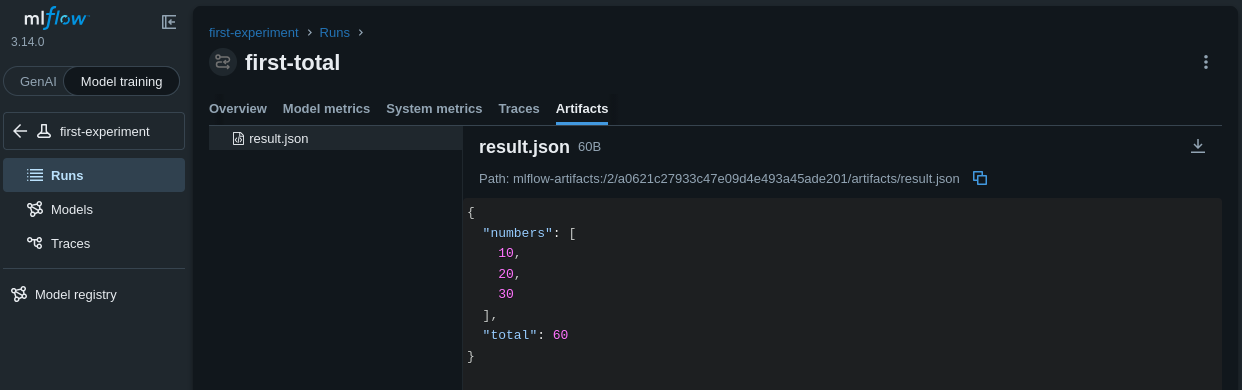
first-total → Artifacts displays result.json, with the three input numbers and a total of 60.
The saved report contains:
{
  "numbers": [10, 20, 30],
  "total": 60
}
The run’s parameters and metric are stored in the tracking database; the JSON file is an artifact in your configured bucket. Opening it through MLflow locates the file for this run without having to find its path in the bucket. Finding both checks the two parts of the logging path.
If the metric is present but the artifact upload failed, the run may still contain its earlier records, so check the program’s final output too. If artifacts fail to upload or disappear, check storage access and whether the keys have changed, then contact your platform administrator.
Run with different inputs
Keep the same experiment and pass a new list of numbers. A distinct run name makes the second execution easy to find:
python first_experiment.py --numbers 10 20 30 40 --run-name second-total
Enter a fresh TOTP code. The expected total is now 100, with a new run ID. The script logs the new input list, the new total, and another result.json attached to this run. The first run keeps its original values.
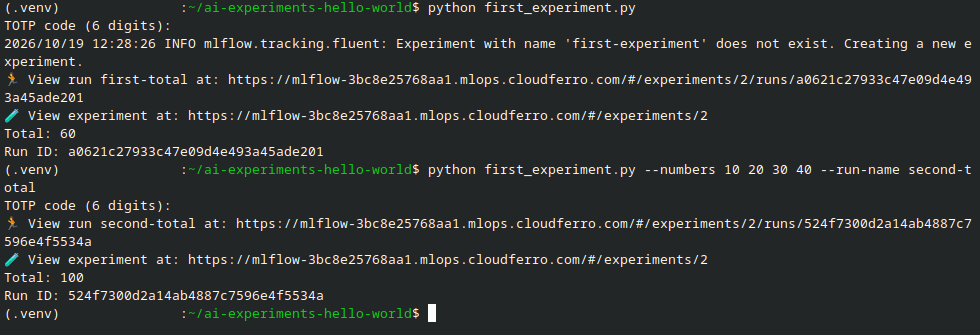
The second command changes the inputs and run name. Both executions print their own result and run link.
If first-experiment belongs to someone else and you cannot log to it, pass an experiment name of your own with –experiment, using that same name for both runs.
Return to first-experiment → Runs and refresh the list. It now contains first-total and second-total. In the captured view, the newest run appears first and the count reads 2 matching runs.
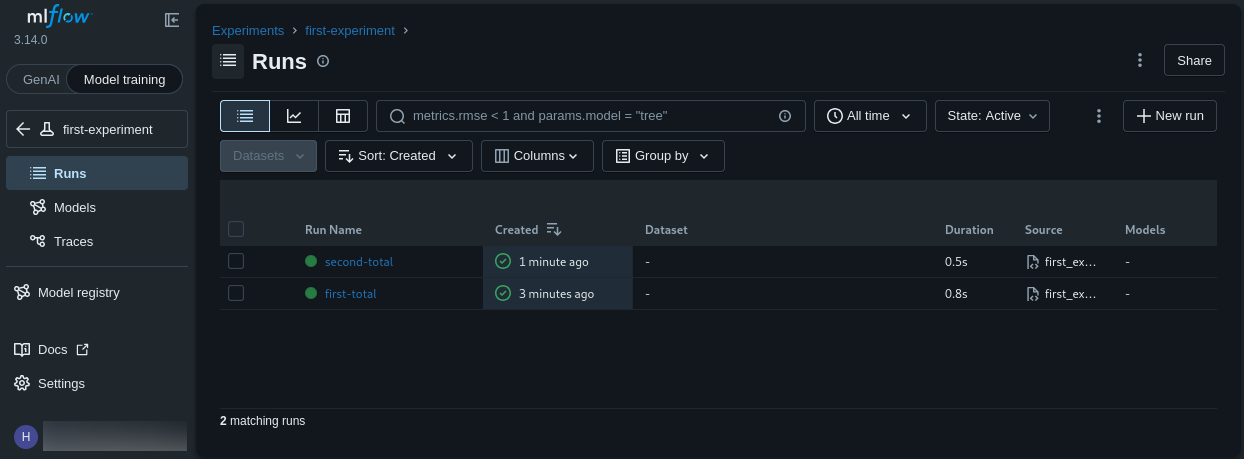
Both executions belong to first-experiment. The second run leaves the first run available for comparison.
Open second-total. Its Overview shows numbers as [10, 20, 30, 40], total as 100, and Status as Finished. The run ID differs from the first execution. Open Artifacts → result.json to check that this run’s report also contains the four inputs and the total of 100.
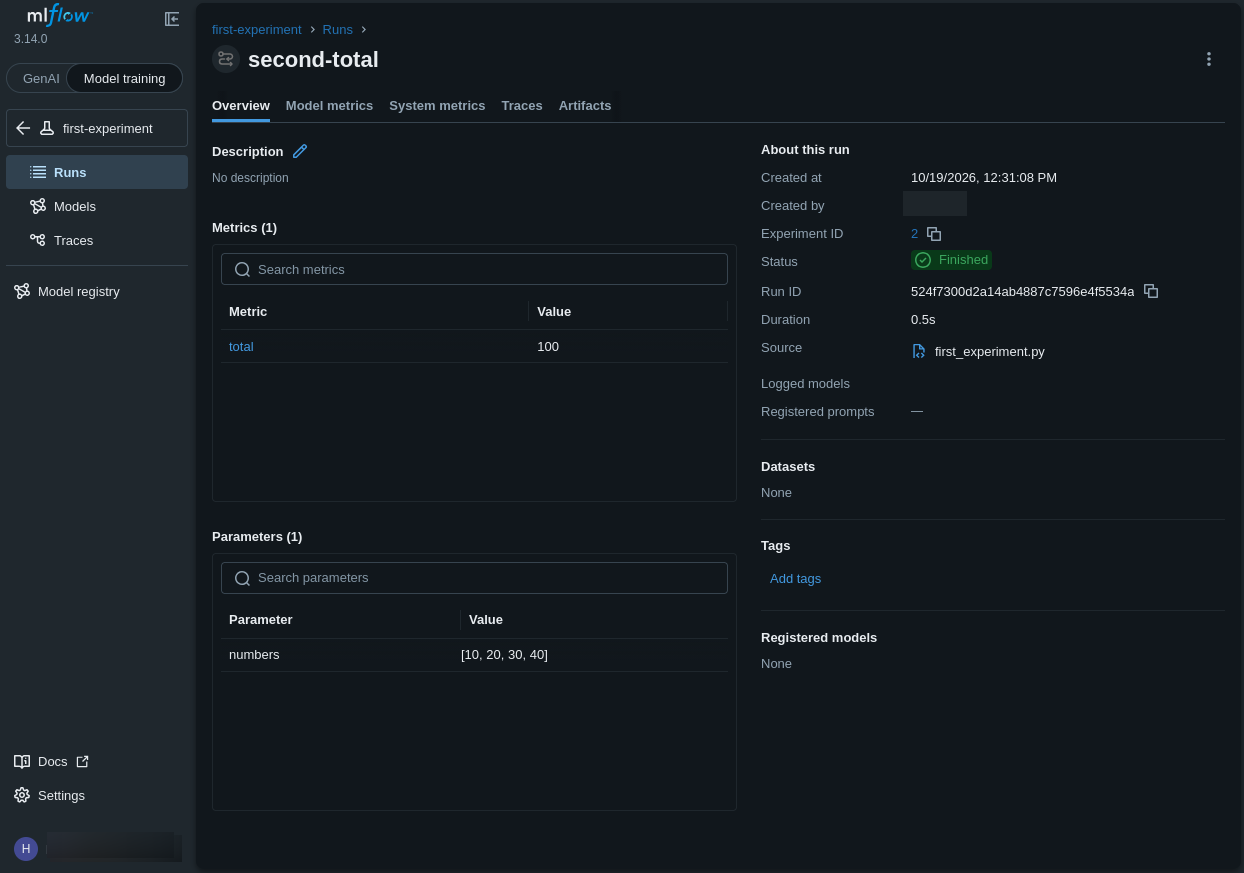
second-total records the changed inputs and result in its own run.
Compare the runs
Return to first-experiment and find first-total and second-total.
Tick the checkboxes beside those two runs, then click Compare above the table. Clicking a blue run name opens its details instead.
Compare numbers and total. The inputs distinguish the runs, and the metric shows 60 for the first and 100 for the second.
Use the chart view to display the metric side by side, or open each run to inspect its artifact.
Select the two runs inside first-experiment. The Compare action on the top-level experiment list compares experiments and is a different operation.
total is a result of this calculation, not a model-quality score. In a training program, you can use the same logging functions for settings such as a learning rate and measurements such as accuracy or loss. The web UI also exposes tags and any other artifacts your code logs.
View the report in Object Storage
Both runs save their reports in the bucket configured for the instance. Each report is named result.json, but its experiment and run IDs identify a separate object in that bucket.
If your account can access the artifact bucket in Horizon, you can also inspect the stored object there. The screenshots follow second-total, the run with four input numbers. To match it to its storage location, open that run’s Overview in MLflow and note the Experiment ID and Run ID under About this run.
In Horizon, select the project containing the artifact bucket.
Open Project → Object Store → Containers and select the bucket configured for the AI Experiments instance. In this example, it is experiment1.
Open the experiment directory, then the directory matching the run ID, and finally artifacts. The captured example uses experiment ID 2; use the IDs shown for your own run.
Find result.json and click Download on its row.
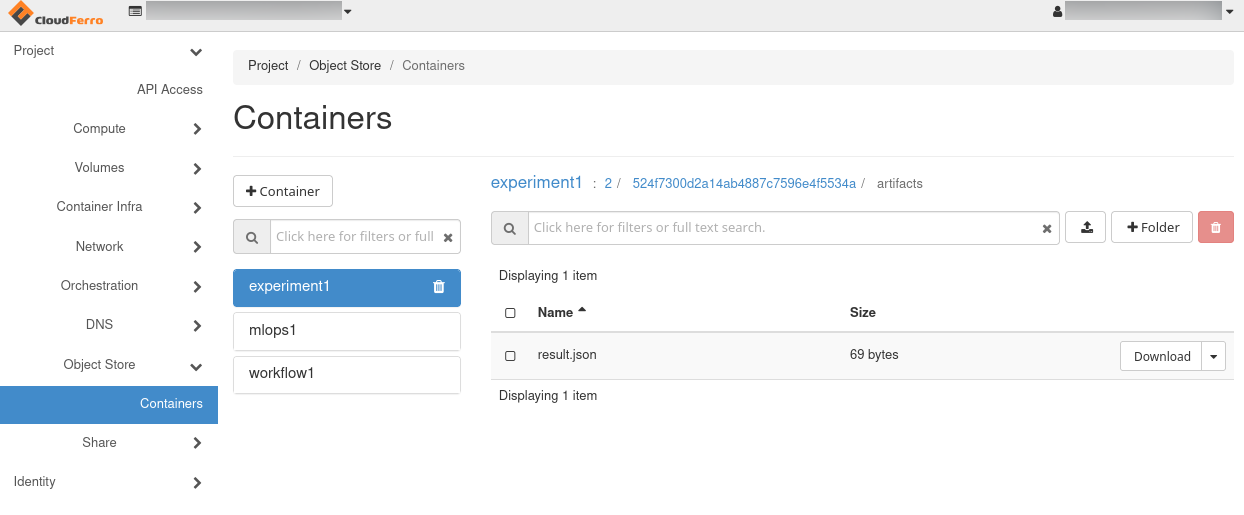
The experiment1 bucket contains the second run’s result.json file. The breadcrumb identifies the experiment and run, and the object is 69 bytes in this example.
The example’s object path inside the bucket is 2/<run-id>/artifacts/result.json. MLflow created it when the Python program logged the report. You do not need to create these directories or upload the report manually. Keeping each run’s file under its own run ID allows both reports to retain the name result.json.
Check the downloaded report
Open the downloaded result.json in a text editor. For second-total, numbers should contain [10, 20, 30, 40] and total should be 100:
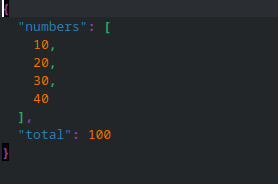
The JSON report preserves the same inputs and total shown on the second run’s MLflow Overview page.
If the downloaded report instead contains [10, 20, 30] and 60, check whether you opened the first run’s directory. Match the run ID and the report’s values together; the filename alone does not distinguish the two executions.
Finding and sharing a run later
The run list can be searched when more executions accumulate. In first-experiment → Runs, select All time and enter this filter in the search field:
attributes.run_name = 'first-total'
Repeated executions can share a name, so the creation time and Run ID identify the result you want. Opening that run and copying the browser URL gives you a link to share with a colleague. The colleague needs their own instance membership and access to the experiment; the link does not grant permission.
What to do next
To replace the addition with your own calculation and choose which results to record, follow the article Record your own Python runs with MLflow on CloudFerro Cloud.
The article Models, prompts, and AI Gateway on CloudFerro Cloud introduces model versions, prompt management, and a gateway client example. For artifact retention, use the article Object storage for AI Experiments on CloudFerro Cloud. If a run or artifact is missing, use the article Troubleshooting AI Experiments on CloudFerro Cloud.