
Compare models and prompts with Sherlock on CloudFerro Cloud
When a language model gives an unsatisfactory answer, it is not always clear whether another model would do better or whether the same model needs clearer instructions. Comparing models and instructions on the same task can help you decide what to change.
A small support-message example makes that comparison concrete: two models available through Sherlock sort the same messages into categories, using two versions of the instructions, called prompts. The supplied Python program records their answers, accuracy, and response times in AI Experiments, so you can see how the choice of model and the wording of the prompt affect the results.
The example connects directly to Sherlock; AI Gateway setup is optional.
Prerequisites
No. 1 A working AI Experiments client
Have a Running instance, permission to create or edit an experiment, and its artifact bucket connected. Complete the setup in the article Connect Python and the CLI to AI Experiments on CloudFerro Cloud, including the CLI connection check. Keep MLFLOW_TRACKING_URI, MLFLOW_USERNAME, and MLFLOW_PASSWORD configured in the terminal, with your two-factor authentication app ready.
Use the existing ~/ai-experiments-hello-world folder with get_token.py, an active .venv, MLflow 3.14.0, and requests. In the article Python code for your first MLflow run on CloudFerro Cloud, Prerequisite No. 2 supplies the folder and package setup commands. This example uses requests to call Sherlock, so the packages installed for the calculation example are sufficient.
No. 2 A Sherlock project and API key
Prepare access to Sherlock by following the article How to set up Sherlock AI on CloudFerro Cloud. In the article Authenticate to Sherlock AI with API keys on CloudFerro Cloud, follow the project API key procedure and keep the generated key ready for Step 2. This key authorizes Sherlock requests; the platform token obtained by get_token.py authorizes MLflow tracking requests.
The program calls Sherlock directly using an OpenAI-compatible request format. An OpenAI or Anthropic account is not required.
No. 3 Two available Sherlock chat models
Select two language models that support chat completion, rather than embedding models. Bielik and PLLuM are candidates for this exercise if both are available to your project. The article Sherlock AI models on CloudFerro Cloud describes the model families, and the article Sherlock chat completion endpoint on CloudFerro Cloud explains the API. Step 2 lists the current model IDs: copy those exact IDs, including any prefix, into the two model variables.
The program sends six chat requests per run, or 24 requests for all four combinations. Use models that accept the example’s temperature: 0 and max_tokens: 64 settings. Requests consume the Sherlock project’s available usage under its service terms.
The two connections have different destinations and credentials:
Connection |
Destination |
Authentication |
|---|---|---|
Generate an answer |
Sherlock’s chat completion API. |
SHERLOCK_API_KEY |
Record a run |
Your instance’s MLFLOW_TRACKING_URI |
MLFLOW_TRACKING_TOKEN, obtained by get_token.py |
The script calls Sherlock directly and records ordinary MLflow runs. Its records are therefore inspected in Model training → Experiments, even though the calculation uses language models.
No. 4 Optional AI Gateway routing
If you plan to adapt this example to use AI Gateway, confirm with the instance administrator that its provider adapter supports Sherlock’s custom API base URL. For provider settings, including custom API base URLs, consult the MLflow gateway configuration reference. This configuration is optional for the direct Sherlock connection used below.
Step 1: Save the example files
Return to the configured working directory and activate its environment:
cd "$HOME/ai-experiments-hello-world"
source .venv/bin/activate
Download the following three files into this folder, beside get_token.py. Keep their names unchanged:
compare_sherlock_models.pycalls Sherlock and records one model-and-prompt combination per execution.support_messages.jsoncontains six input messages and their expected labels.prompts.jsoncontains the baseline and guided prompt variants.
Check that the files are present:
ls compare_sherlock_models.py support_messages.json prompts.json get_token.py
The task has three labels: storage, access, and compute. Each message has one expected label, used only for scoring. The model receives the prompt and message text; it does not receive the expected answer.
The baseline prompt asks for one of the three labels. The guided prompt adds category definitions and explains that permission problems belong to access, even when a bucket or virtual machine is involved. Both prompts ask for a single label. Open prompts.json to read the complete wording or change it for a later comparison.
Step 2: Connect to Sherlock and select models
The API-key prompt below keeps the key out of the saved shell command and hides what you type or paste. Press Enter to submit the key, then set the API base URL used by the program:
IFS= read -r -s -p "Sherlock API key: " SHERLOCK_API_KEY
printf '\n'
export SHERLOCK_API_KEY
export SHERLOCK_BASE_URL="https://api-sherlock.cloudferro.com/openai/v1"
With .venv active, list the models visible through Sherlock:
python compare_sherlock_models.py --list-models
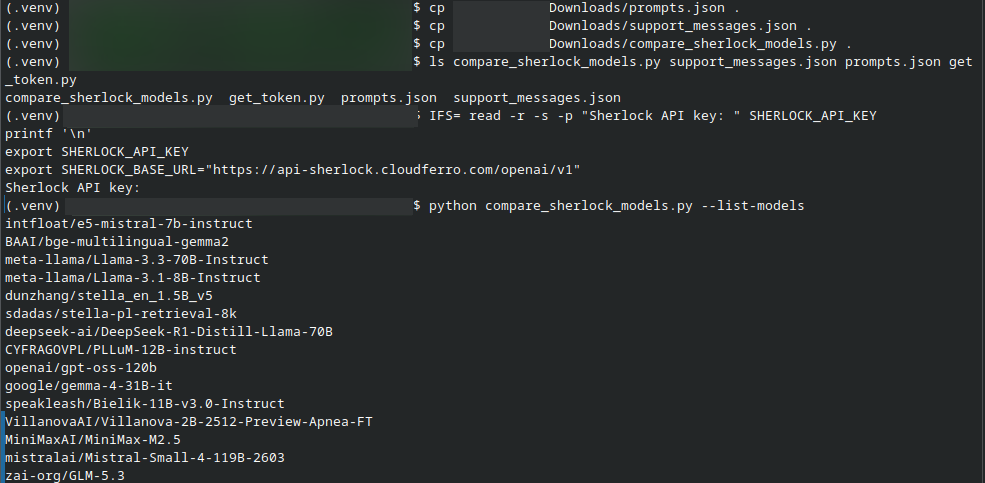
The command lists the model IDs available through Sherlock, including chat and embedding models.
This command uses the Sherlock key and does not start an MLflow run. The returned list can include embedding models, so select two chat models from the families identified in Prerequisite No. 3. Model IDs may differ from their display names or from examples in older documentation. Copy each ID exactly, including its capitalization and any organization prefix:
IFS= read -r -p "First Sherlock chat model ID: " SHERLOCK_MODEL_A
IFS= read -r -p "Second Sherlock chat model ID: " SHERLOCK_MODEL_B
export SHERLOCK_MODEL_A SHERLOCK_MODEL_B
Use different model IDs for A and B. The same two variables are used in all four commands below, while the prompt is selected with –prompt.
Step 3: Run all four combinations
Keep the six input messages unchanged while comparing the models and prompts:
Run name |
Model |
Prompt |
|---|---|---|
model-a-baseline |
SHERLOCK_MODEL_A |
baseline |
model-a-guided |
SHERLOCK_MODEL_A |
guided |
model-b-baseline |
SHERLOCK_MODEL_B |
baseline |
model-b-guided |
SHERLOCK_MODEL_B |
guided |
Run these commands one at a time, with .venv active. Each command requests a fresh TOTP code for AI Experiments before starting its six Sherlock requests. This code belongs to your platform account; Sherlock uses the separate API key already stored in the environment.
python compare_sherlock_models.py --model "$SHERLOCK_MODEL_A" --prompt baseline --run-name model-a-baseline

python compare_sherlock_models.py --model "$SHERLOCK_MODEL_A" --prompt guided --run-name model-a-guided

python compare_sherlock_models.py --model "$SHERLOCK_MODEL_B" --prompt baseline --run-name model-b-baseline

python compare_sherlock_models.py --model "$SHERLOCK_MODEL_B" --prompt guided --run-name model-b-guided
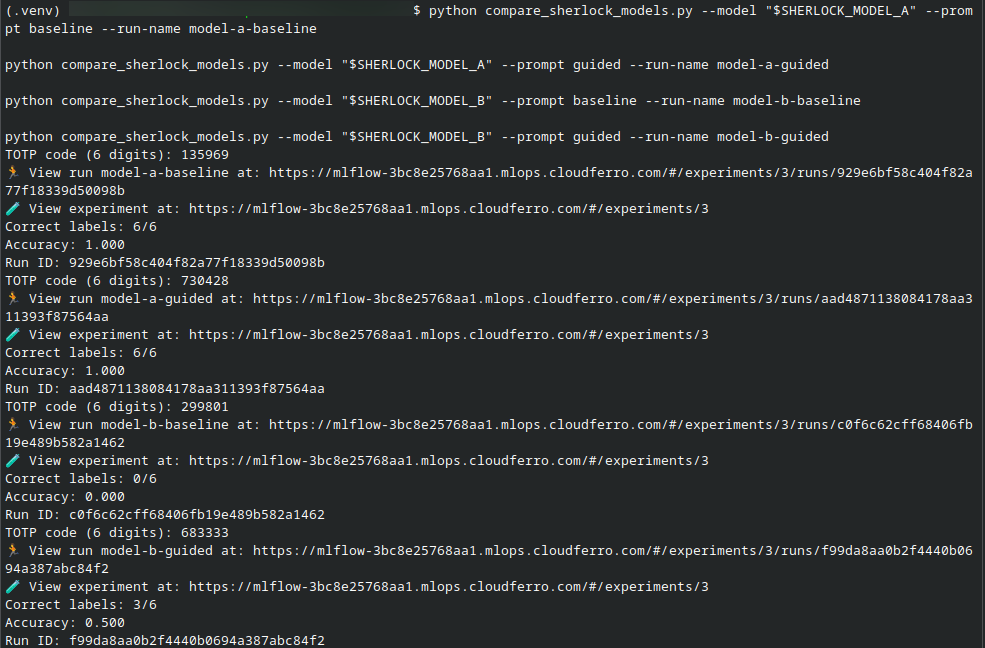
In this execution, model A scores 6/6 with both prompts. Model B improves from 0/6 with baseline to 3/6 with guided.
The program creates or selects the MLflow experiment sherlock-model-prompt-comparison and starts a new run within it. After a successful run, it prints the number of correct labels, the measured accuracy, and the run ID. The scores depend on the selected models’ answers; this guide does not prescribe an expected winner. If you need an experiment name of your own, add –experiment with that same name to all four commands.
The code that sends each inference request is the complete() function:
def complete(session, api_base, model, prompt, message):
    """Send only the instructions and input text to Sherlock."""
    started = time.perf_counter()
    response = session.post(
        f"{api_base}/chat/completions",
        json={
            "model": model,
            "messages": [
                {"role": "system", "content": prompt},
                {"role": "user", "content": message},
            ],
            "temperature": 0,
            "max_tokens": 64,
        },
        timeout=(10, 90),
    )
    response.raise_for_status()
    body = response.json()
    choice = body["choices"][0]
    answer = choice["message"].get("content")
    if not isinstance(answer, str):
        raise ValueError("Sherlock returned no text answer.")
    return {
        "response": answer,
        "latency_seconds": time.perf_counter() - started,
        "reported_model": body.get("model"),
        "finish_reason": choice.get("finish_reason"),
        "usage": body.get("usage"),
    }
The Authorization header on this request session contains the Sherlock key. The model field selects a Sherlock model ID, and messages carries the chosen prompt and one input. The response text is scored locally, then mlflow.log_params(), mlflow.log_metrics(), and the artifact logging calls save the comparison records to AI Experiments.
Step 4: Compare the recorded results
Open the instance’s MLflow UI and select Model training. On the Home page, find sherlock-model-prompt-comparison under Recent Experiments. You can also open it from Experiments in the sidebar.
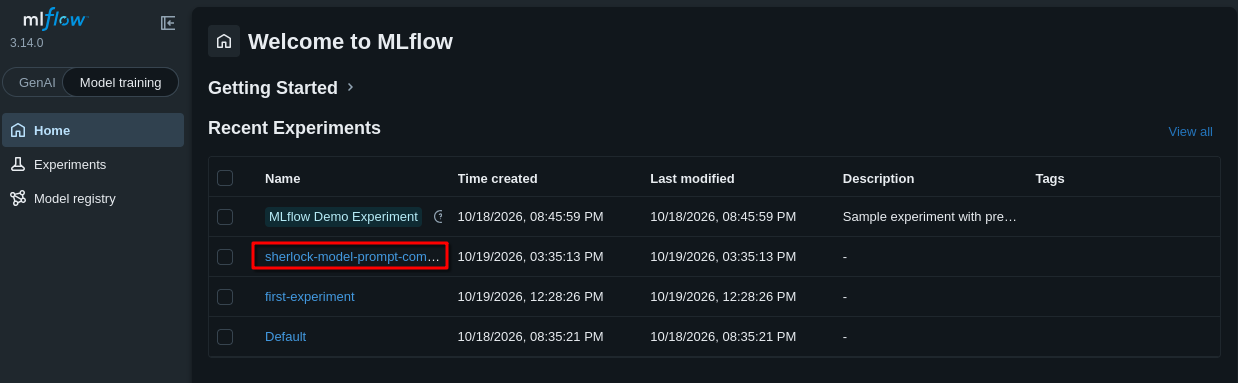
Click sherlock-model-prompt-comparison to open the experiment created by the Python script.
The Runs page lists the executions. After completing Step 3 once, look for model-a-baseline, model-a-guided, model-b-baseline, and model-b-guided. Running a command again creates another run, so the same name can appear more than once:
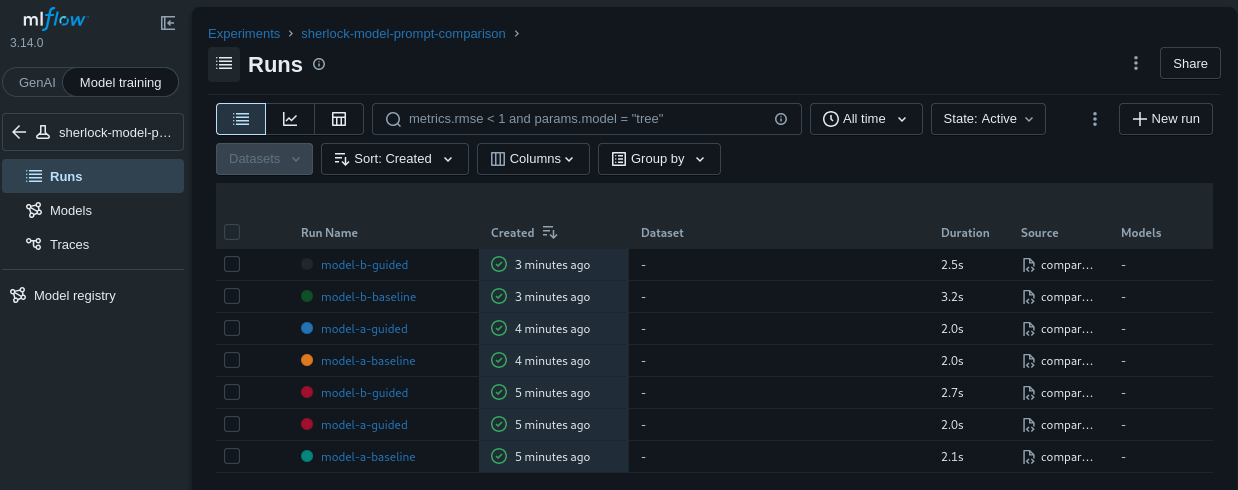
This experiment contains repeated executions. The Created column helps distinguish runs with the same name.
Select runs to compare
Start by comparing the two prompts for model A. Tick the checkboxes beside one model-a-baseline run and one model-a-guided run, then click Compare above the table. Clicking a blue run name opens that run’s details instead of selecting it for comparison.
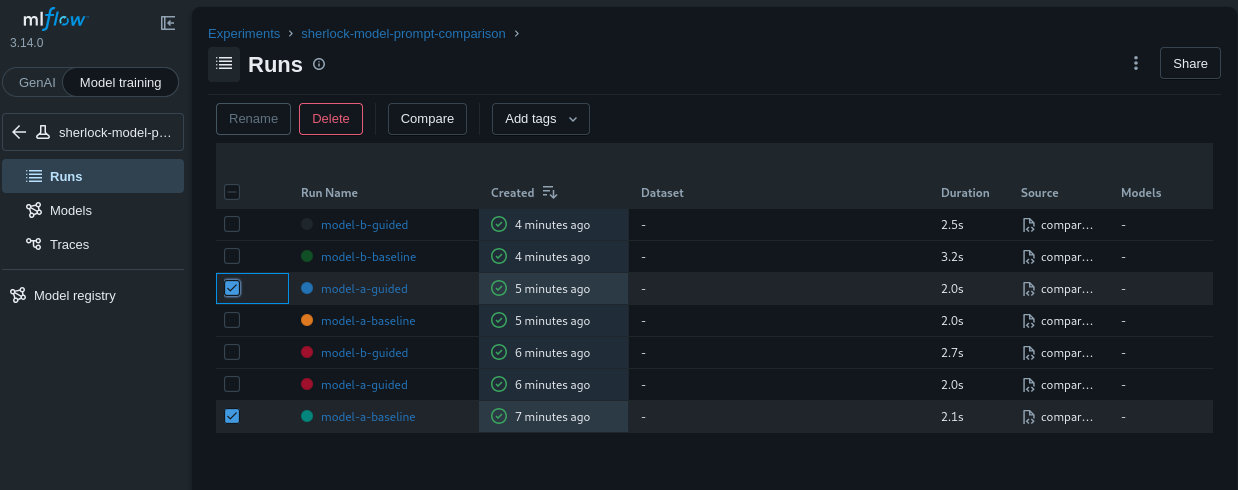
Select the baseline and guided runs for the same model to examine the effect of the prompt.
To view all four combinations together, select one completed run for each of the four names before clicking Compare. If you have repeated an execution, use its creation time and the run ID printed in the terminal to identify the intended run.
Read the comparison
The comparison page opens with Visualizations and Run details. In the captured example, Parameters contains prompt_sha256 and prompt_variant, while Metrics contains cases_completed:
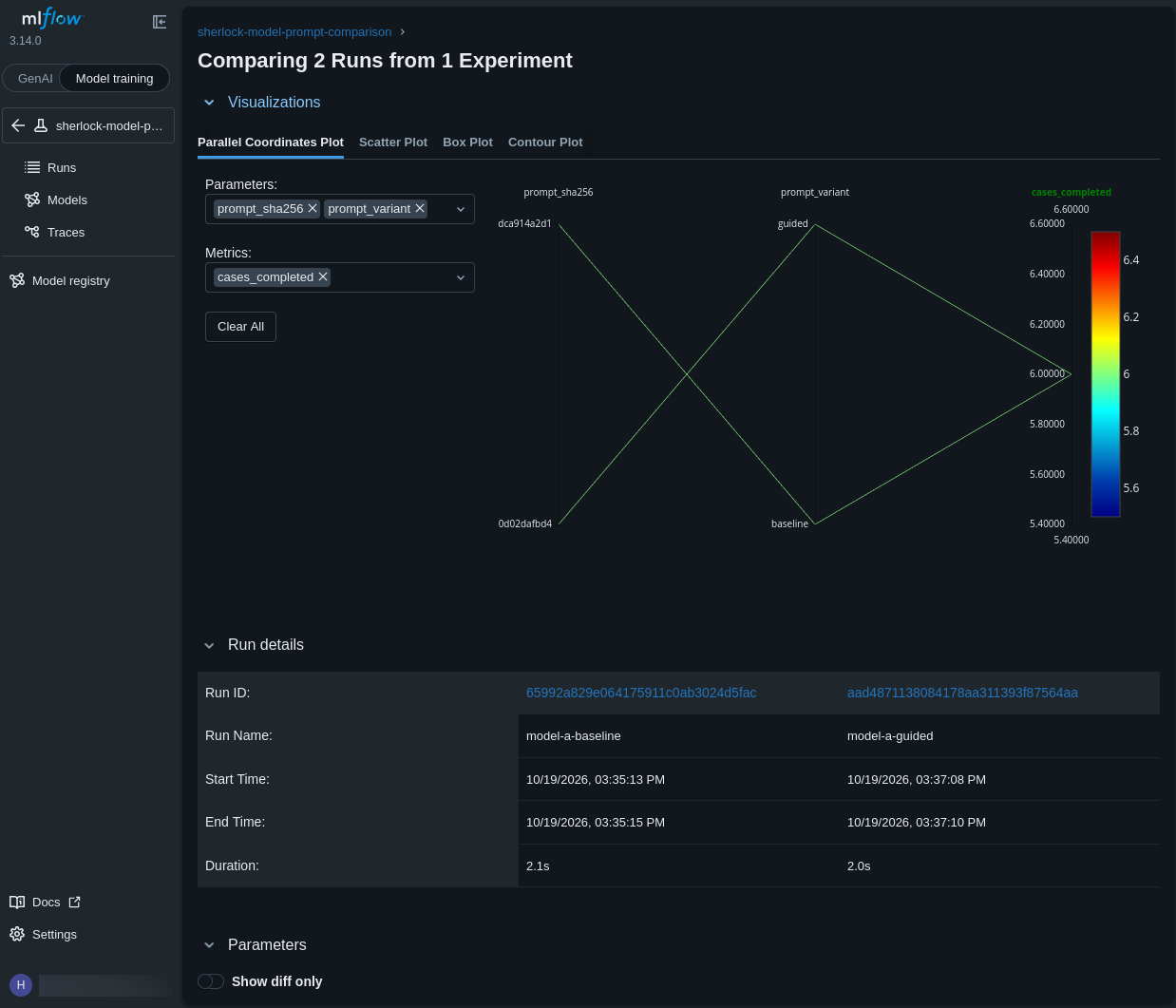
Both lines reach cases_completed: 6. The Run details table identifies the two executions by their names, IDs, and start times.
This chart confirms that both runs processed all six messages. To compare answer quality, use the Metrics selector to choose accuracy and valid_label_rate. Select mean_latency_seconds to compare response time. Use prompt_variant in the Parameters selector when comparing prompts, and include model_id when comparing models.
Check the logged parameters before interpreting the scores:
model_id identifies the requested Sherlock model.
prompt_variant identifies baseline or guided.
dataset_sha256 should be identical across the selected runs, confirming that the saved dataset bytes match.
temperature, max_tokens, and case_count should match across runs. The supplied dataset has six cases.
The metrics measure different aspects of the task:
Metric |
Meaning |
|---|---|
accuracy |
Correct labels divided by the number of cases. Higher is better; 1.0 means all six labels matched. |
valid_label_rate |
Fraction of answers containing exactly one allowed label after trimming whitespace and converting to lowercase. |
mean_latency_seconds |
Average client-observed request time, including network time and response parsing. Lower is faster for this test. |
cases_completed |
Number of responses processed. A complete run has 6 for the supplied dataset. |
Scoring trims surrounding whitespace and ignores capitalization. An answer such as storage. or The answer is storage is not an exact label and scores as incorrect. An answer containing a valid but wrong label counts toward valid_label_rate, but not accuracy. This separates following the requested output format from choosing the right category.
Compare model-a-baseline with model-a-guided to examine the effect of the prompt on one model. Compare model-a-baseline with model-b-baseline to examine the model choice under the same prompt. Repeat these comparisons for the other pair rather than changing both factors at once.
Compare another execution
Return to Runs, clear the previous selection, and select another pair. The following screenshot selects model-a-baseline and an earlier model-a-guided execution:
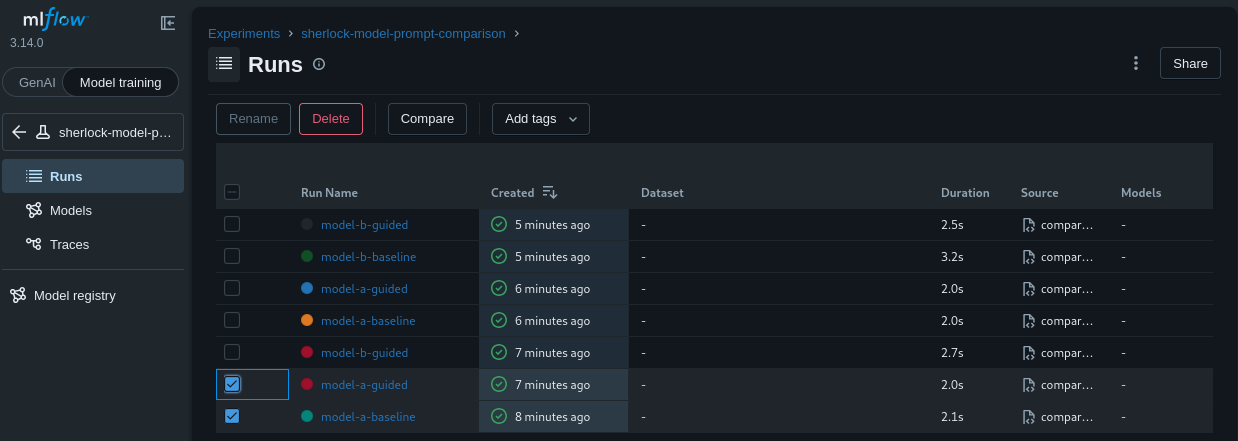
The selected model-a-guided row differs from the first selection. Check the run ID and start time when names are repeated.
Before treating repeated runs as the same test, check that their model_id, dataset_sha256, prompt_sha256, temperature, and max_tokens match. A baseline and a guided run have different prompts; their prompt hashes are expected to differ.
Step 5: Inspect answers and refine the prompt
Inspect the artifacts in MLflow
Click a run name, then open Artifacts. The program saves:
results.json: the message, expected label, raw response, normalized prediction, correctness, and timing for each case. The model ID reported by the service, finish reason, and token usage are included when returned.
prompt.txt: the exact selected prompt. The prompt_sha256 parameter identifies that text.
inputs/support_messages.json and inputs/prompts.json: the input files used for the run.
source/compare_sherlock_models.py: the program that produced the records.
Find the same files in Object Storage
If your account can access the artifact bucket in Horizon, you can also inspect the files directly in Object Store → Containers. Select the project containing the bucket, then open the container configured for your AI Experiments instance. The screenshots use experiment1.
Inside the container, open the folder matching the MLflow experiment ID. In this example, sherlock-model-prompt-comparison has experiment ID 3. You can find your experiment and run IDs in the MLflow run URL printed by the script: /experiments/<experiment-id>/runs/<run-id>.
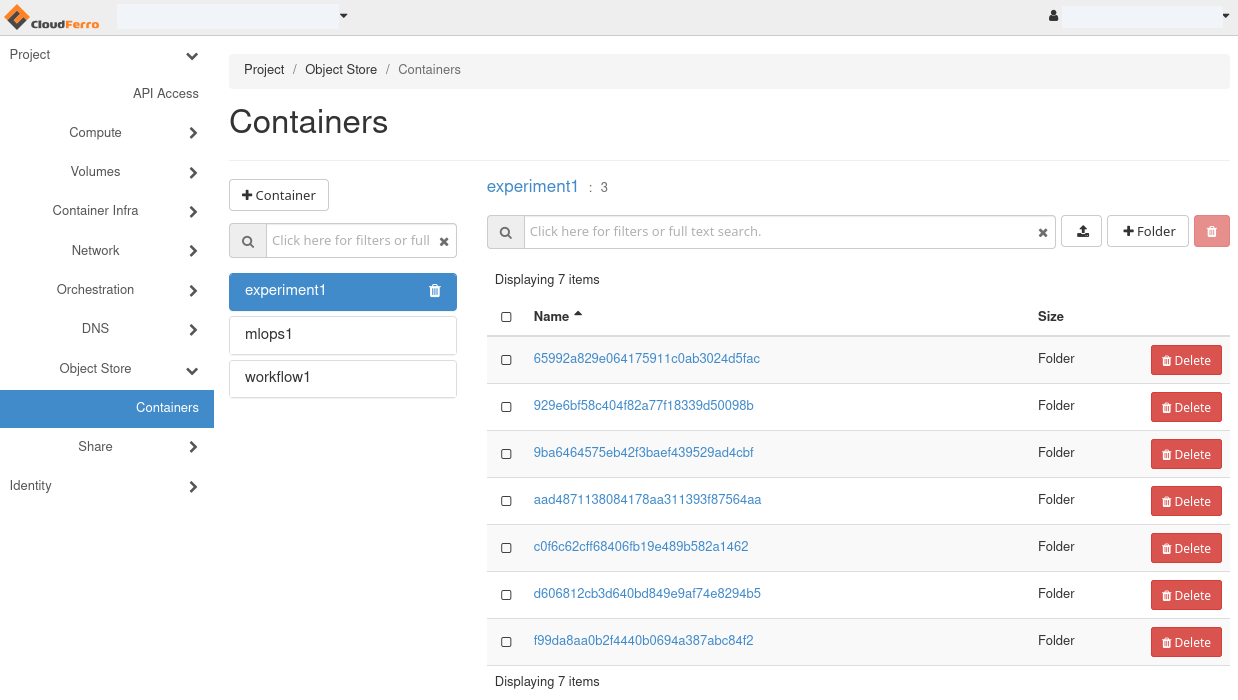
Under experiment1 → 3, each folder is named after a run ID. The seven folders correspond to the seven executions shown in the MLflow run list, including repeated runs.
Open the folder matching the run you want to inspect, then open artifacts. The following screenshot uses the model-a-baseline run whose ID begins 65992a82, also shown in the comparison view above. Match the full run ID when selecting the folder.
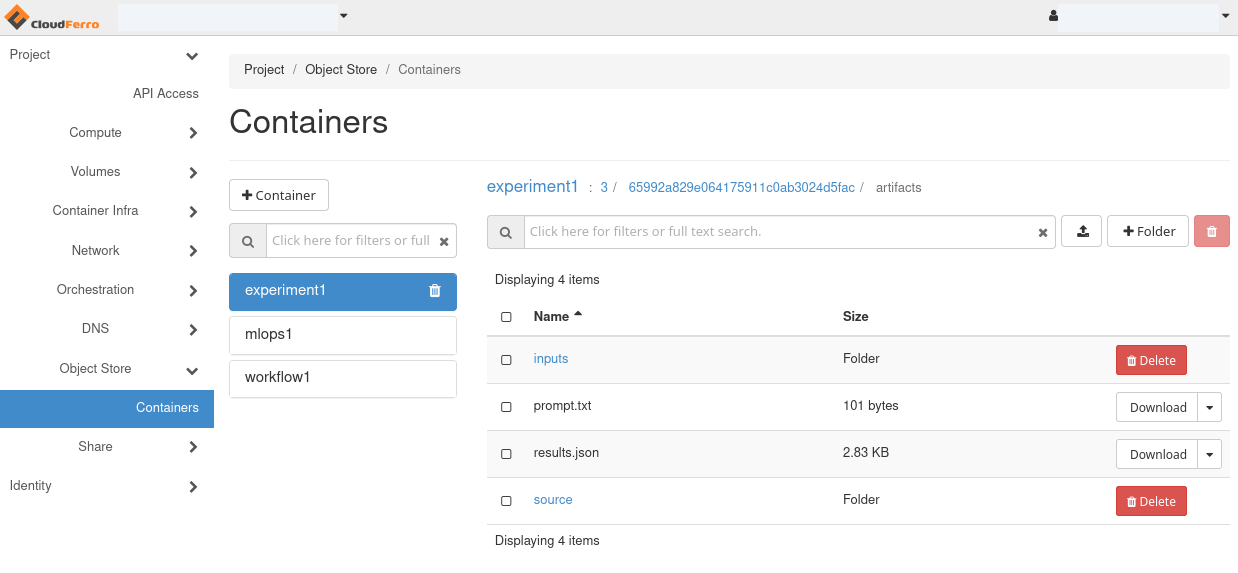
The run’s artifacts folder contains prompt.txt, results.json, and the inputs and source folders. These are the same files available through the run’s Artifacts tab in MLflow.
Click Download beside results.json to read the recorded answers and scores, or beside prompt.txt to read the exact prompt used. Open inputs for the saved dataset and prompt variants, or source for the Python program.
In this example, the report’s object path is 3/<run-id>/artifacts/results.json. The script logs the files through MLflow, which writes them to the configured Object Storage container. Each run has its own path, so repeated executions keep separate copies of files with the same names.
Use the saved answers to refine the prompt
Find the misclassified messages in results.json before changing a prompt. For example, the bucket-permission message tests whether a model identifies the access problem rather than classifying it by the word bucket alone. Edit prompts.json, run the comparison again with new run names, and inspect the saved prompt text and hash to distinguish revisions.
All four combinations may score equally on six messages. That is a valid result for this small demonstration, not evidence that the models are equivalent on other tasks. To evaluate your own use case, expand the dataset with representative messages and keep a separate set for final evaluation after prompt tuning. Repeat runs to examine variation; temperature: 0 does not guarantee identical answers or timings.
If a Sherlock request fails, the program stops and the run is marked Failed. When tracking remains available, error.json identifies the case and error type, while results.json retains earlier responses. Aggregate accuracy is logged only after all cases complete. Resolve the error and rerun that combination with a fresh platform code; compare complete runs with the same dataset.
Trying your own messages
The same program can compare models on messages relevant to your work. Save my_support_messages.json beside the script as a starting point. Each item has a unique id, an input message, and an expected label used for scoring:
[
  {
    "id": "my-storage-1",
    "input": "I want to keep yesterday's generated reports in an Object Storage bucket.",
    "expected": "storage"
  },
  {
    "id": "my-access-1",
    "input": "The project administrator needs to give my account permission to open the notebook.",
    "expected": "access"
  },
  {
    "id": "my-compute-1",
    "input": "The model training process needs more CPU cores to finish within an hour.",
    "expected": "compute"
  }
]
The –dataset option selects this file. These commands compare the two models using the same messages and guided prompt:
python compare_sherlock_models.py --dataset my_support_messages.json --model "$SHERLOCK_MODEL_A" --prompt guided --run-name my-model-a-guided

python compare_sherlock_models.py --dataset my_support_messages.json --model "$SHERLOCK_MODEL_B" --prompt guided --run-name my-model-b-guided
The supplied file has three messages, so a completed run has cases_completed: 3. For your own messages, keep the labels storage, access, and compute, which the program and prompts already recognize. Assign expected labels before looking at the model’s answers, and keep the dataset unchanged during a comparison. The saved dataset_sha256 parameter confirms that both runs used the same file.
Where AI Gateway can fit
For shared access through AI Gateway, an administrator can investigate configuring a provider connection with Sherlock’s API key and the custom API base https://api-sherlock.cloudferro.com/openai/v1. This requires the deployed gateway’s provider adapter to support a custom upstream URL. An OpenAI-compatible adapter describes the request protocol; its configured upstream must point to Sherlock for Sherlock inference.
Prepare one gateway endpoint per selected Sherlock model, with fixed model routing for a meaningful comparison. A client would then call <instance URL>/gateway/mlflow/v1/chat/completions, authenticate with the platform token, and put the gateway endpoint name in the model field. The gateway would hold the Sherlock key and forward the request to the configured Sherlock model.
The downloadable program implements the direct Sherlock connection described in Steps 1–5. Gateway routing is a separate deployment choice and should be verified with the instance administrator before adapting the request function. The run parameters should then record both the gateway endpoint and its underlying Sherlock model.
What to do next
The article Models, prompts, and AI Gateway on CloudFerro Cloud introduces gateway administration and prompt management. This example keeps its two prompt variants in prompts.json; a later application can use registered prompt versions while retaining the same comparison method. In the article Record your own Python runs with MLflow on CloudFerro Cloud, follow the logging pattern to add measurements and reports for another task.