
How to set up Sherlock AI on CloudFerro Cloud
A first conversation or assistant needs an account and a project in which to work. Start in My Portal, prepare your account and organization, then open Sherlock from the product catalogue and create or select a project.
Creating a project requires administrator privileges in the organization. If you already have the required account and project access, continue with selecting your project and try the Playground.
Step 1: Sign in to My Portal
Open My Portal and sign in with the account you will use for Sherlock AI.
If you do not have an account, follow Sign up for My Portal. Complete email verification and authentication setup, then sign in. The My Portal getting started guide covers these steps and the choice of a mobile or desktop authenticator.
After signing in, Home provides shortcuts for organization setup and a Products entry in the left-hand menu.
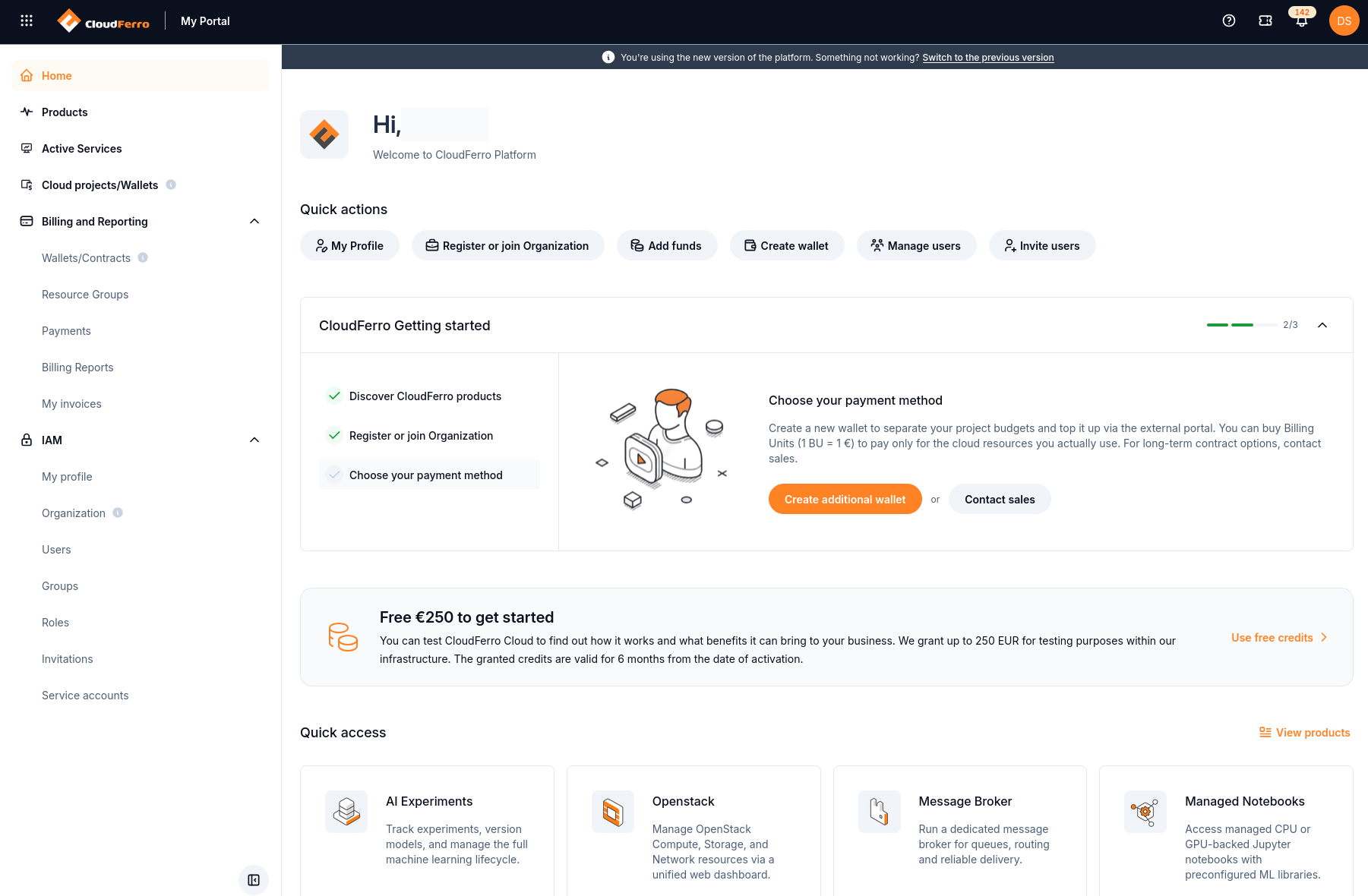
Start from Home in My Portal.
Step 2: Register or join an organization
The organization groups users, permissions, and service usage. On Home, select Register or join Organization under Quick actions.
To create an organization, follow Register an organization.
To join an existing team, obtain an invitation code from its administrator and follow Join an organization. Wait for the administrator to approve your request.
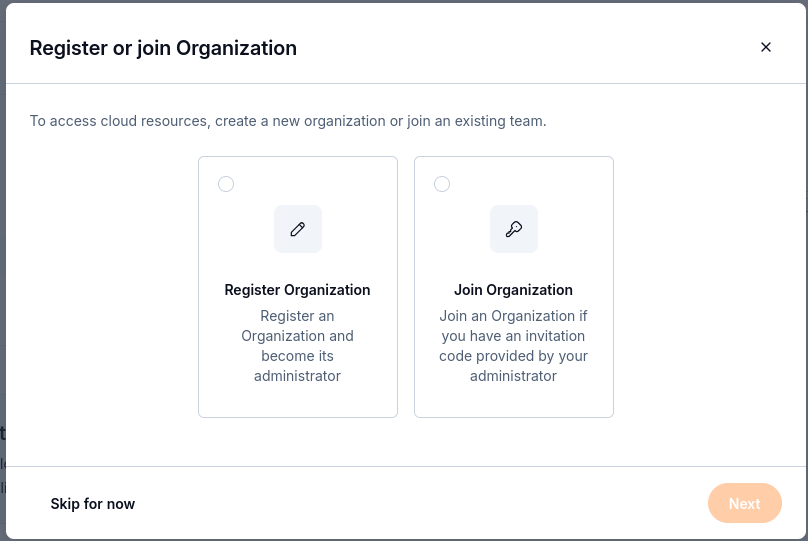
Register a new organization or join the organization that will use Sherlock.
If you already belong to the organization, continue with your existing membership. Check IAM → Organization to confirm the organization details. You need administrator privileges in that organization to create a Sherlock project; ask its administrator if you need this access.
Step 3: Open Sherlock from Products
Open Products from the left-hand menu in My Portal.
Find Sherlock in the catalogue. You can enter its name in Search product.
Select Go to product on the Sherlock card.
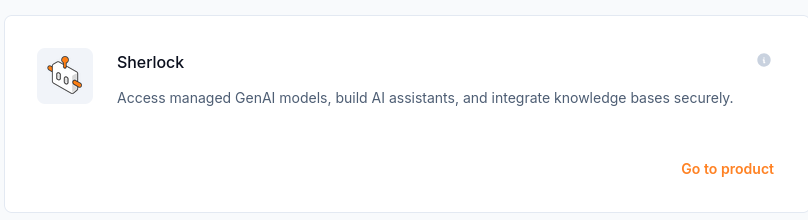
Go to product opens the Sherlock console.
The console provides Projects, Overview, Consumption, and Events history in its left-hand menu. Overview → Discover Sherlock introduces the service. Select or create a project before using the playground or build tools.
Step 4: Create or select a Sherlock project
If you already have access to a Sherlock project, choose it in the Project selector at the bottom of the expanded sidebar. Otherwise, create one:
Open Projects and select Create project.
Enter a Project name in the Create new project dialog.
Select Create, then choose the project in the Project selector.
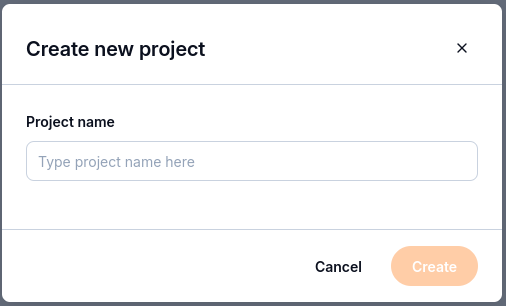
Name the project and select Create.
Open Overview → Project overview and check Project name, Project ID, and Status. Follow Create and select Sherlock projects for the project list and overview checks.
What to do next
Select your workspace with Projects and Overview.
Try a first Chat conversation if your project is ready.