
Create and select Sherlock projects on CloudFerro Cloud
Before testing a model or creating an assistant, you need to choose the project that will own your work. The Projects page creates that workspace; Overview helps you check its identity and resources.
The example creates a project named project1, matching the supplied console view. If you already have a project, select it and continue with its overview.
Prerequisites
Complete the account and organization preparation in Set up Sherlock AI. You need access to the Sherlock console and administrator privileges in the organization to create a project.
Create a project
Open Projects in the left menu.
Select Create project.
In Create new project, enter project1 in Project name, or choose a name that describes your own work.
Select Create.
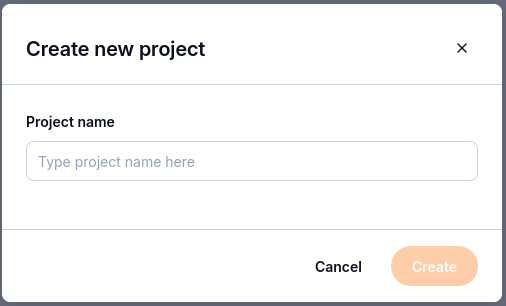
Enter the project name before selecting Create.
Return to Projects to locate the project. Each card shows its name, creation date, and status. The following capture illustrates the card layout with an existing project.
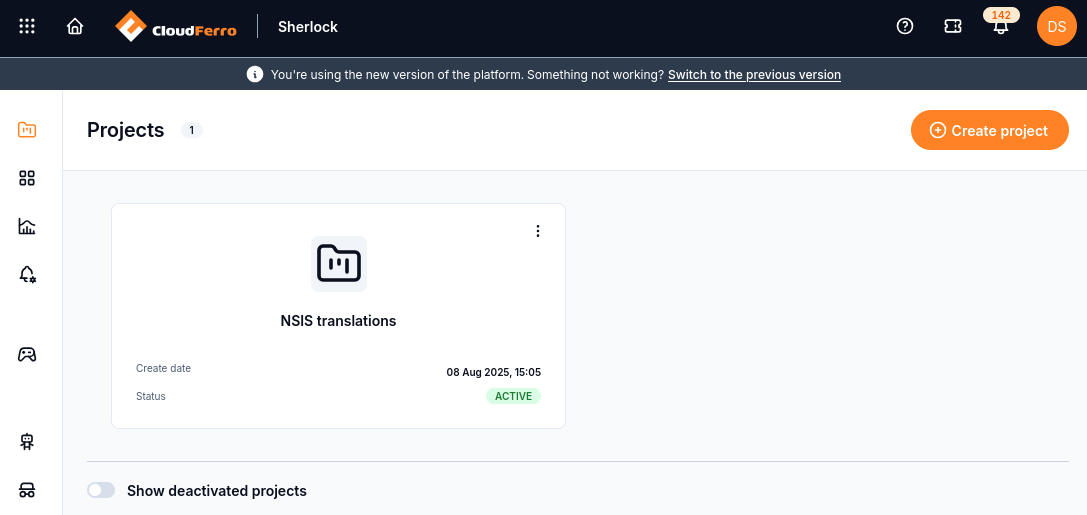
Projects lists the workspaces available to the signed-in user. Show deactivated projects reveals those entries in the list.
Select the project and inspect Overview
Use the Project selector at the bottom of the expanded sidebar to select your project.
Open Overview → Project overview.
Check Project name, Project ID, and Status to confirm the selected workspace.
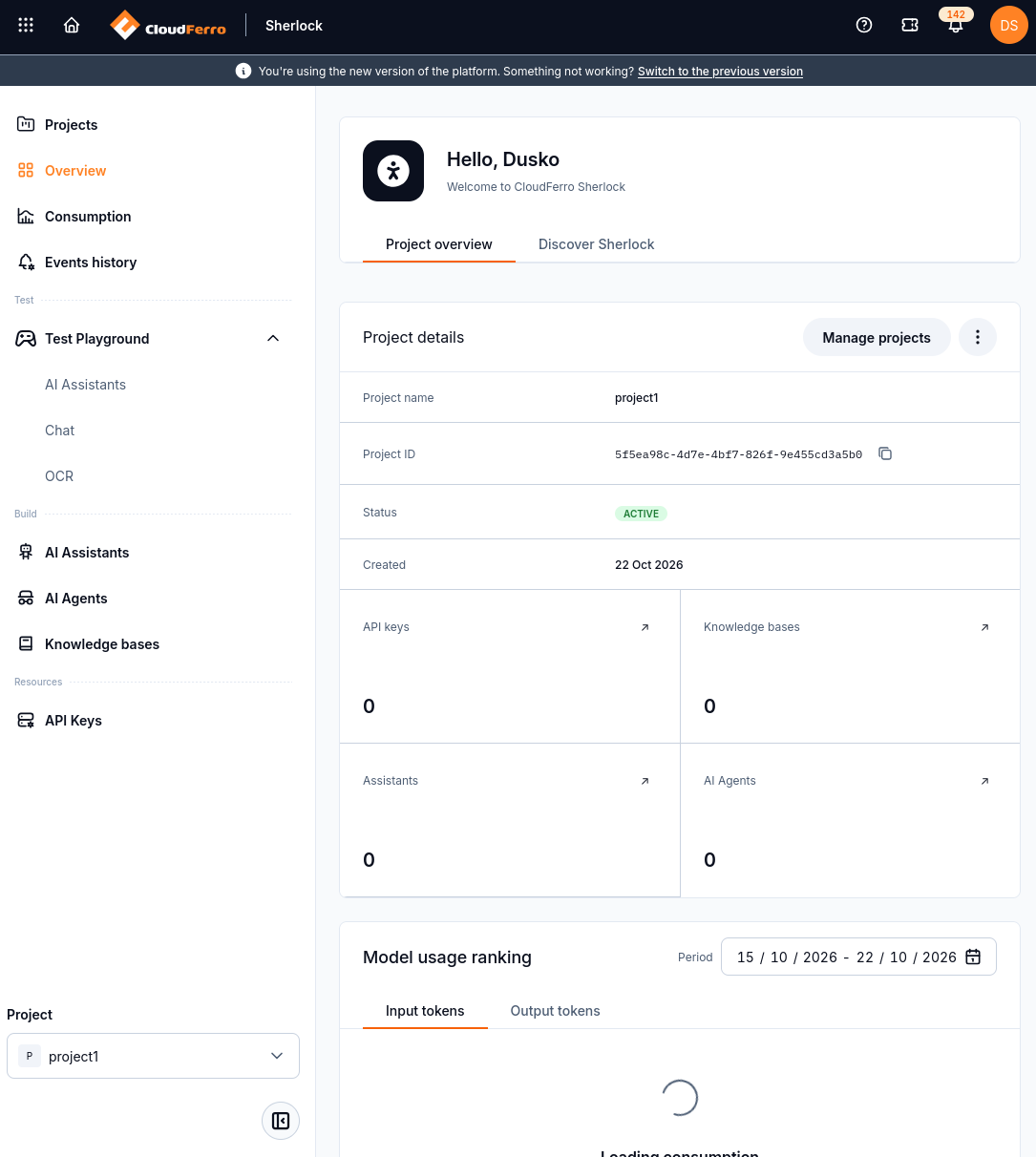
The new project is Active. API keys, knowledge bases, assistants, and AI agents each have a separate count and shortcut.
The copy icon beside Project ID copies its identifier. Manage projects returns to project management. The resource shortcuts open the selected project’s lists, so a count of zero means there are no resources of that type in this project.
Recognize project actions
The three-dot project menu contains Rename and Deactivate. Use Rename when the displayed name needs to change. Deactivate is a separate action; it is not the way to switch the current project.
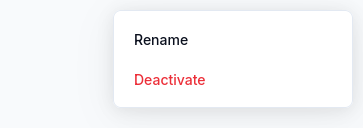
The project menu separates a name change from deactivation.
If a resource page displays Select a project first, select the project before returning to that page. This message concerns the current console selection.
What to do next
Try a prompt with Chat in Test Playground.
Create a reusable configuration with AI Assistants.
For programmatic requests, continue with API Keys.