
Configure Sherlock AI Assistants on CloudFerro Cloud
When several conversations need the same purpose and response style, repeating instructions in every prompt is inconvenient. An AI Assistant saves a model and its configuration so that you can return to it and test it in the Playground.
Start with a simple assistant called assistant1. Search agents can provide document context when you are ready to connect a knowledge base.
Prerequisites
Select a Sherlock project as described in Projects and Overview. Decide what the assistant should help with and which available model you want to try. The Chat Playground is useful for an initial model test.
Create or open an assistant
Under Build, open AI Assistants.
Select Create AI Assistant to prepare a new resource, or select an existing assistant’s name to edit it.
Enter assistant1 as Name, or use a descriptive name for your own task. Add a Description to help other project users identify its purpose.
Keep Active enabled if the assistant should be available for new requests.
Select an available Model for generating answers.
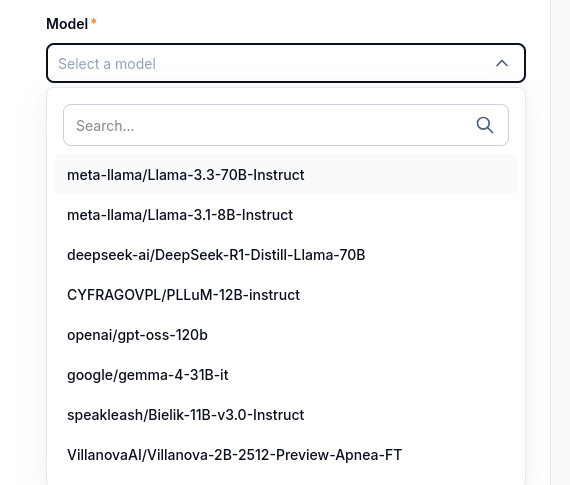
Choose a model from the list offered by the console. Model availability can change.
Set the assistant’s instructions to describe its task and the form of its answers. For a first text-only example, use:
Explain cloud-computing concepts for a beginner. Use short paragraphs.
Define unfamiliar terms. If the question is unclear, ask for clarification.
Select Save, then return to AI Assistants and locate the saved resource. The list shows the assistant name, status, and creation time.
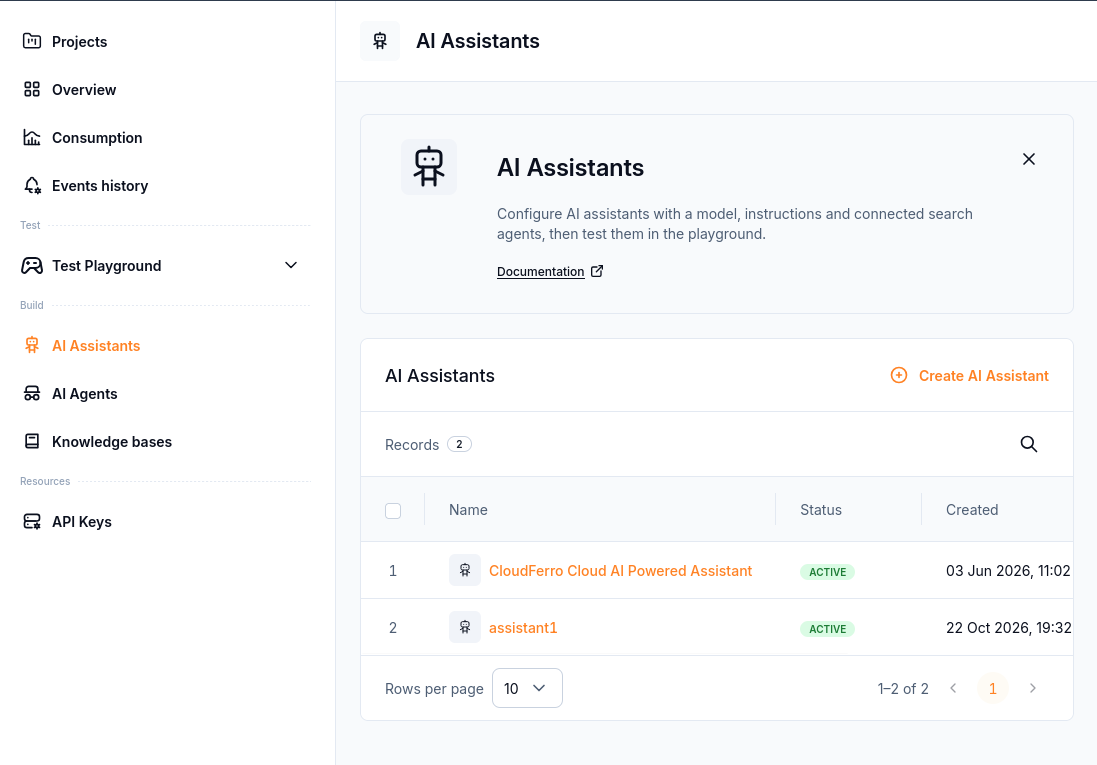
The example list contains assistant1 with Active status. This confirms the resource is saved; test a conversation to check its behavior.
Edit and test the saved configuration
Open the assistant’s name to view its Resource details and configuration. The details include its ID, status, and timestamps. Name and Description identify the resource; the instructions determine the guidance sent with a conversation.
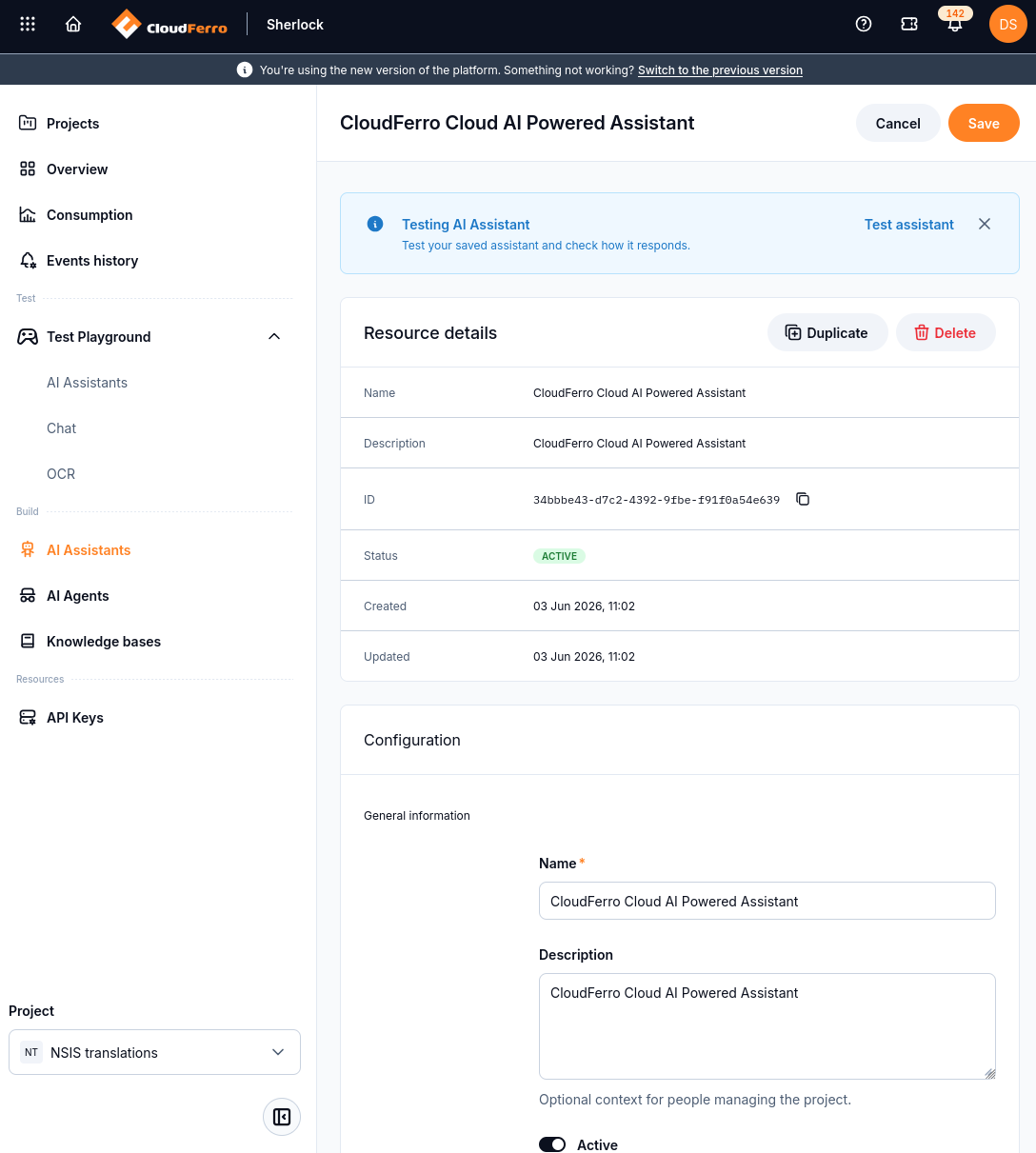
Save configuration changes, then use Test assistant to check the saved assistant in the Playground.
After saving changes, select Test assistant and follow the assistant testing guide. Check an answer against the task and response style you configured.
Prepare document context
To provide your own documents, first create a knowledge base and then a search agent. The assistant configuration supports connected search agents; the agent supplies retrieval from its knowledge base.
Check the agent’s file-processing status before testing questions about those documents. Keep model selection, assistant instructions, and document retrieval as separate checks when diagnosing an unsuitable answer.
What to do next
Prepare a knowledge base when answers need your own documents.