
Extract text with Sherlock OCR on CloudFerro Cloud
Text inside a scanned page or image cannot always be copied directly. The OCR page in Sherlock extracts text or structured content from a file so that you can inspect the result.
A small, clearly readable document or image is useful for a first test. Compare its contents with the extracted result before using that result in another task.
Prerequisites
Select a Sherlock project using Projects and Overview. Prepare an input file on your computer in one of the supported formats: PDF, PNG, JPEG, BMP, or GIF. The maximum file size is 50 MB. Check the limits displayed by your current form before uploading.
Choose an output format
The Output format selector controls how Sherlock returns the extracted content. These choices are separate from the input file formats listed above.
Output format |
Use |
|---|---|
Markdown |
Text with markup for headings, lists, and other document formatting. |
Text |
Plain text for reading or copying into another document. |
JSON |
A structured result for scripts or applications. Inspect the returned fields before using them in your code. |
Process a file
Open Test Playground → OCR.
Select an available Model. The captured form shows olmOCR-2-7B-1025.
Choose Output format. Markdown is selected in the example.
Use choose file, or drag the file into the upload area.
Select Process file.
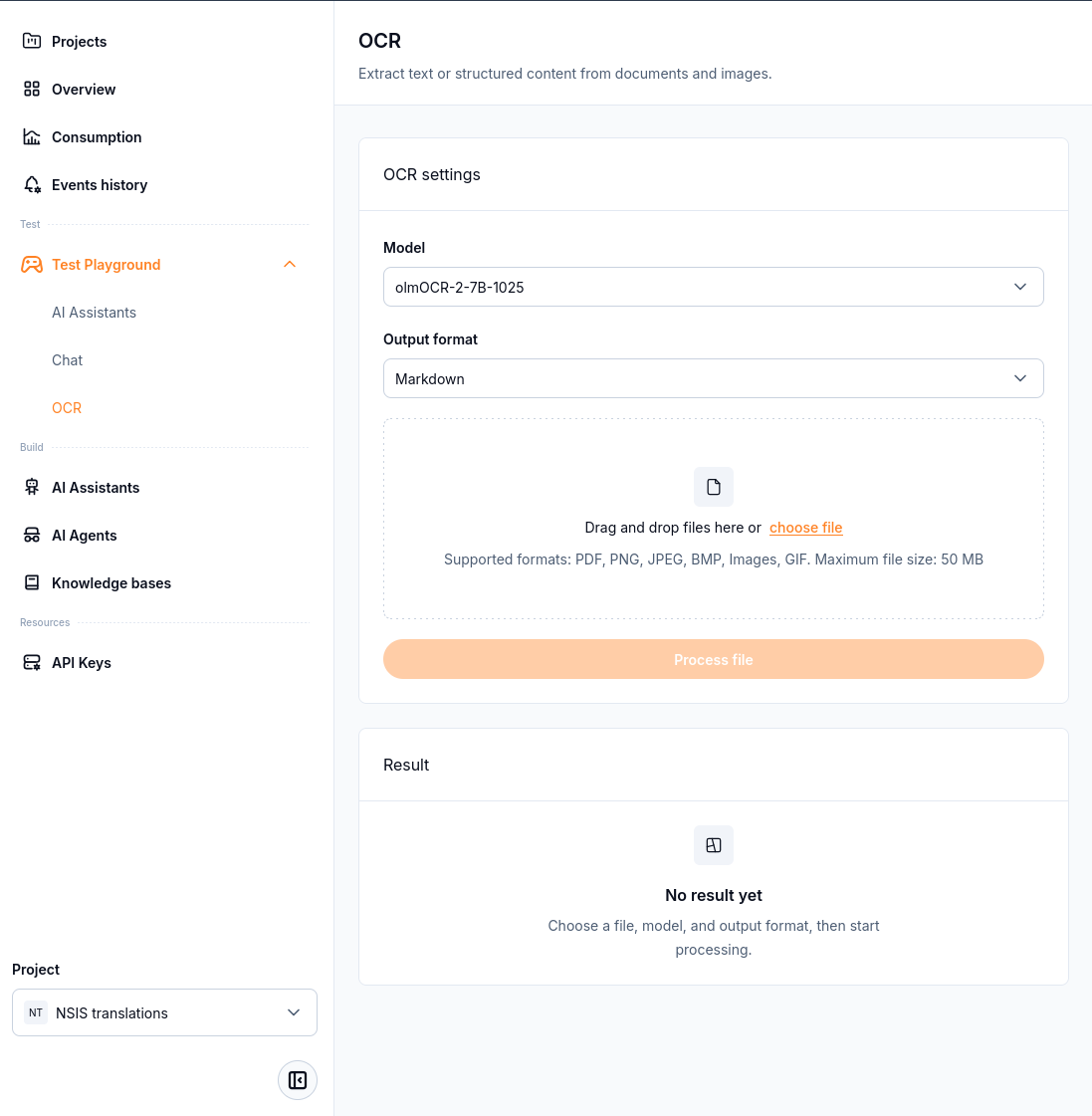
Choose a file, model, and output format before processing. The capture shows the form before a file has been processed.
Example input and output
The original PNG below is the input for this example. It shows part of a documentation page, including headings, paragraphs, navigation links, and a code fragment.
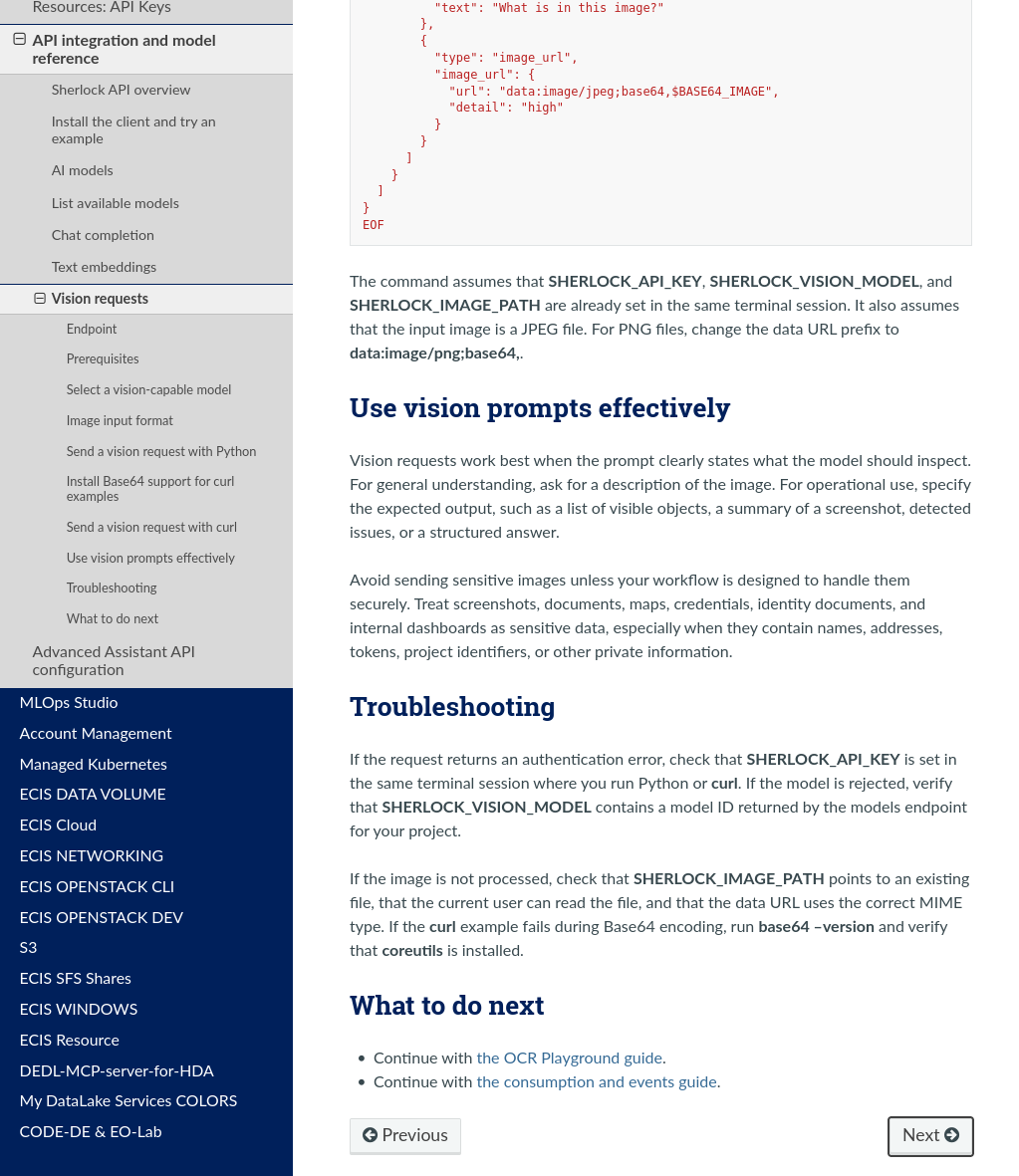
Input: the original image, Screenshot-25-10-2026-21-54-48.png.
After processing the image with olmOCR-2-7B-1025 and Markdown selected, the Result panel displays the extracted text. The output below includes the text under Use vision prompts effectively, Troubleshooting, and What to do next from the original image.
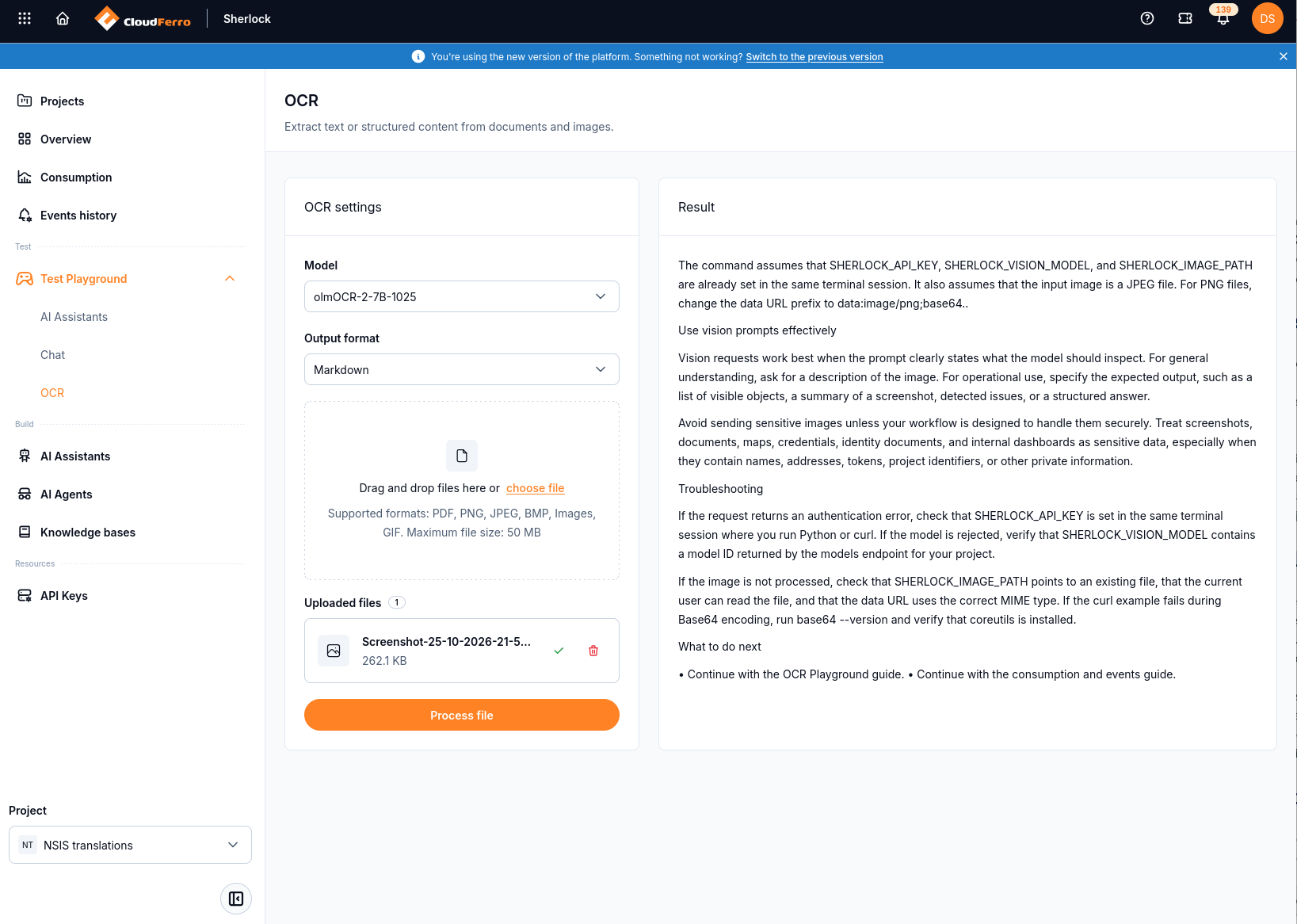
Output: the completed OCR result with Markdown selected.
Compare the Result with the original image. Check a heading, a number, and a full paragraph. If you requested structured output, check that the structure is usable as well as the extracted text.
No result yet: this is the initial state shown in the settings screenshot before processing. Choose the file and settings, then select Process file.
Process file unavailable: check that a file has been selected and that the model and output format have values. Check the file type and size against the form’s current requirements.
What to do next
To ask a question about an image from code, use the vision request guide.
To organize documents for an assistant, continue with Knowledge bases.