
Create Sherlock AI Agents for document search on CloudFerro Cloud
An assistant needs a way to find the relevant parts of your documents before answering questions about them. The search agent configured under AI Agents connects a knowledge base to an embedding model and retrieval settings.
The example creates agent1 using knowledgebase1. The console’s discovery view marks AI Agents as Public Preview. The search-agent form connects one knowledge base to an embedding model and retrieval settings.
Prerequisites
Select the project containing your knowledge base. Prepare the resource using Create and manage knowledge bases. You need to select a knowledge base and an available embedding model when creating the agent.
Important
Once selected for the agent, its knowledge base and embedding model cannot be changed later. Confirm both choices before saving.
Enter the agent details
Open Build → AI Agents.
Select Create AI Agent.
Enter agent1 in Name and add an optional Description.
Keep Active enabled if the resource should be available to new requests.
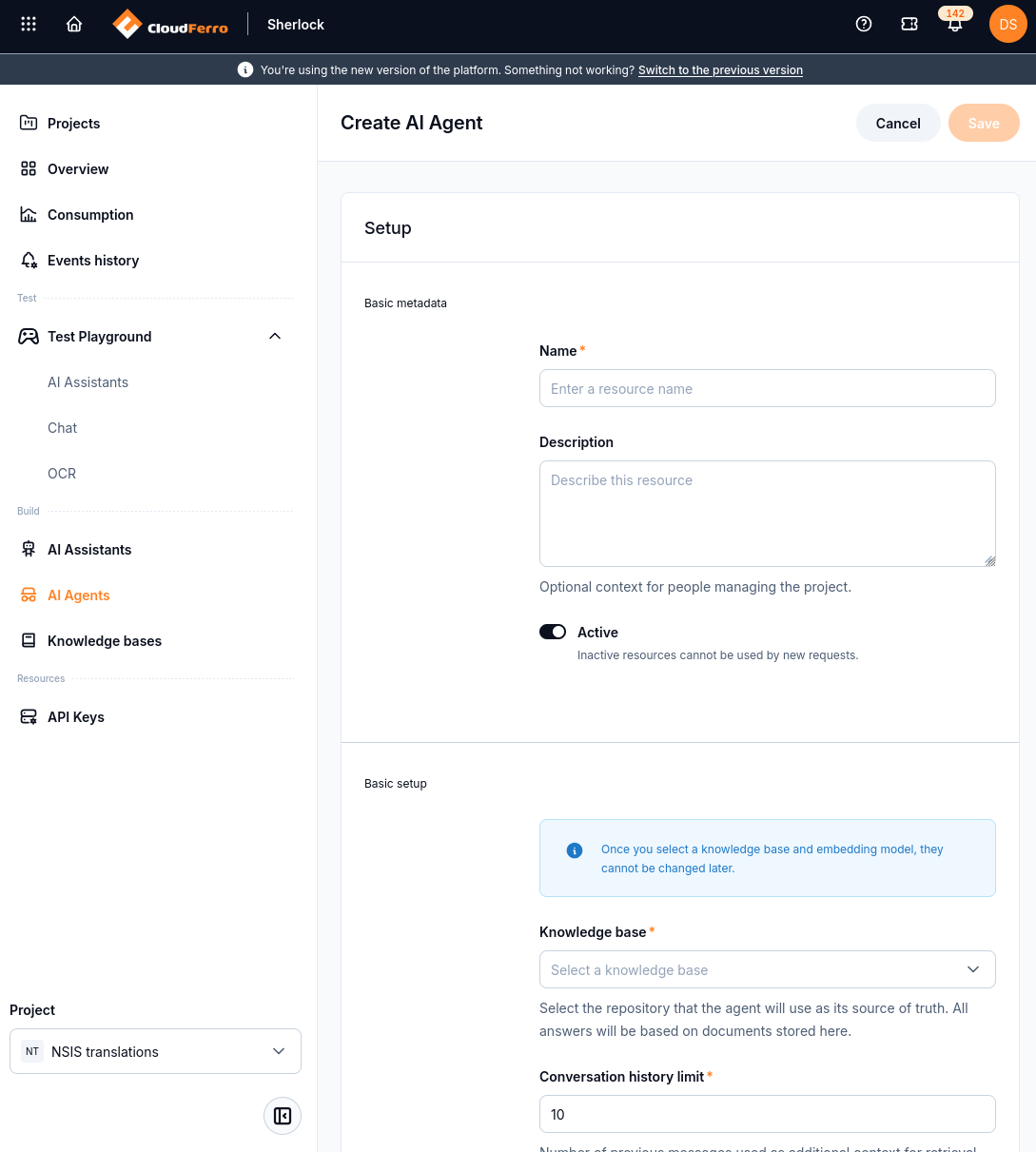
The form separates the agent name and description from its retrieval configuration.
Configure retrieval
In Basic setup, configure the fields below. The example values reproduce the captured form; they are not a recommendation for every collection of documents.
Field |
Choice and meaning |
|---|---|
Knowledge base |
Select knowledgebase1, or your own prepared knowledge base. This is the document source for the agent and cannot be changed later. |
Conversation history limit |
The example uses 10 previous messages as additional retrieval context. The displayed allowed range is 0 to 50. |
Embedding model |
The example selects gemma. The model encodes document meaning for semantic search and cannot be changed later for this agent. |
Retrieved results |
The example uses 5. The form describes this as the number of documents retrieved per query. Increasing it can add context but may slow responses. |
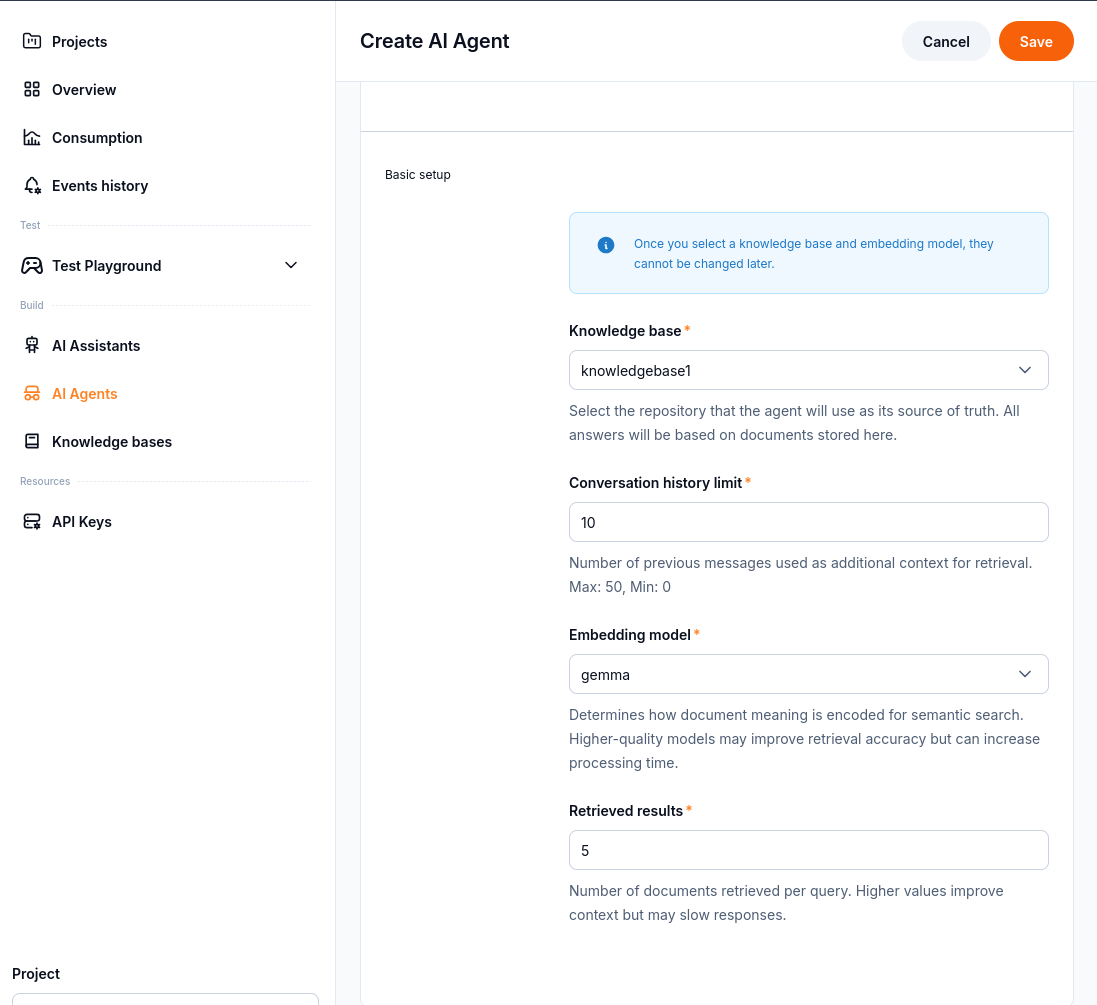
Confirm the knowledge base and embedding model before selecting Save.
The embedding-model selector in the captured interface offers intfloat, gemma, and stella. Use the choices shown by your current console. These short UI labels are not instructions to substitute them for model IDs in the separate embeddings API.
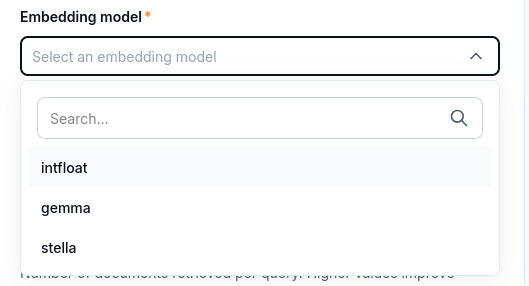
The dropdown selects the embedding model used by the search agent.
The form also provides Advanced configuration. The basic example uses the visible fields; it does not require adding undocumented JSON keys.
Select Save. Open the saved agent and check its name and Status in Resource details.
Check document processing
The saved agent includes Knowledge base files status. Check Total files, Files processing status, Processing errors, and Total size before using it for document questions.
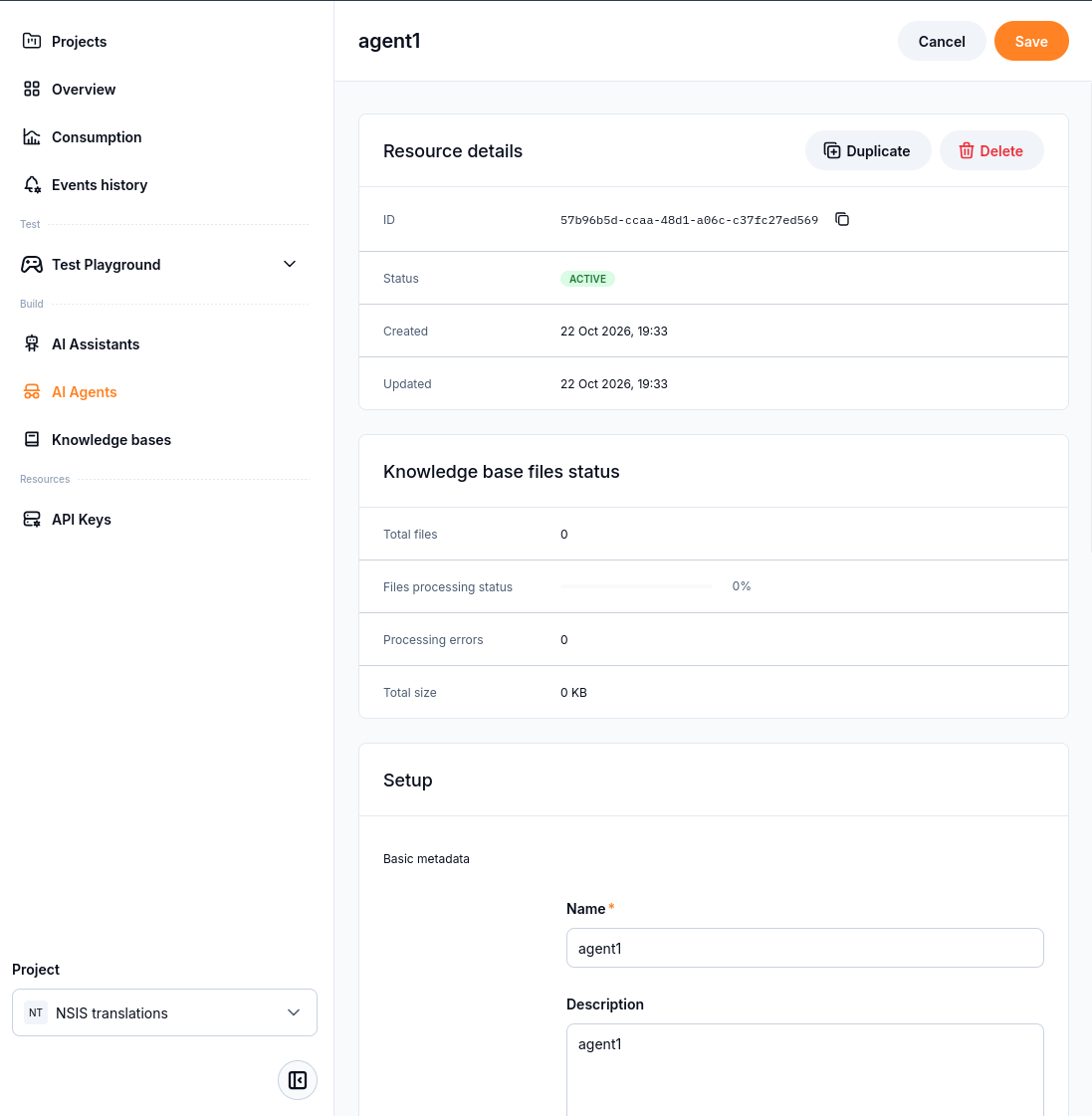
This example has zero files and zero processing errors. It does not yet demonstrate successful document ingestion.
If Total files is zero, open the knowledge base and add the intended documents. An empty collection cannot provide document content for retrieval. Check that file processing has completed and review any reported processing errors before testing the assistant.
The Duplicate and Delete actions are available in the saved resource’s details. Treat the original and any duplicate as separate resources when checking their IDs and configuration.
What to do next
Continue with AI Assistant configuration to use search agents with an assistant.
Use the Playground test guide to compare an answer with the source documents.