
Create and manage Sherlock knowledge bases on CloudFerro Cloud
Questions about your own manuals or reports need those documents to be available to the assistant’s search agent. A knowledge base groups the documents that Sherlock uses for this retrieval.
The example creates knowledgebase1. Creating the resource and adding documents are separate steps: a newly created knowledge base starts without files.
Prerequisites
Select the Sherlock project that will own the knowledge base using Projects and Overview. Have the documents you intend to add available on your computer.
Create the knowledge base
Open Build → Knowledge bases.
Select Create knowledge base.
Enter knowledgebase1 in Name, or use a name that identifies your document collection.
Add an optional Description. Keep Active enabled when the resource should be available to new requests.
Select Save.
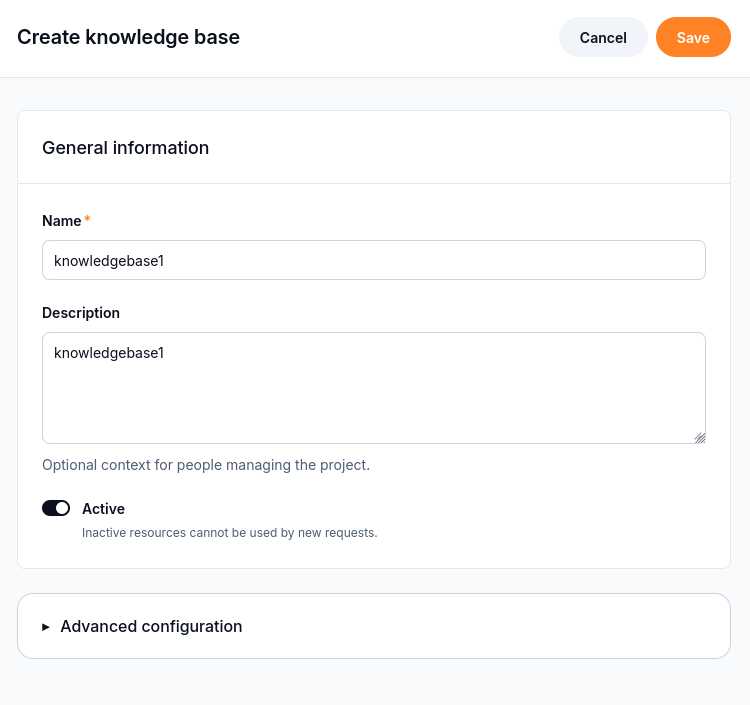
Name is required. Description provides context for people managing the project.
Advanced configuration opens a JSON editor. Its helper text states that the visible fields override matching JSON values when you save. Keep the basic example in the visible fields; the screenshot alone does not define additional configuration keys.
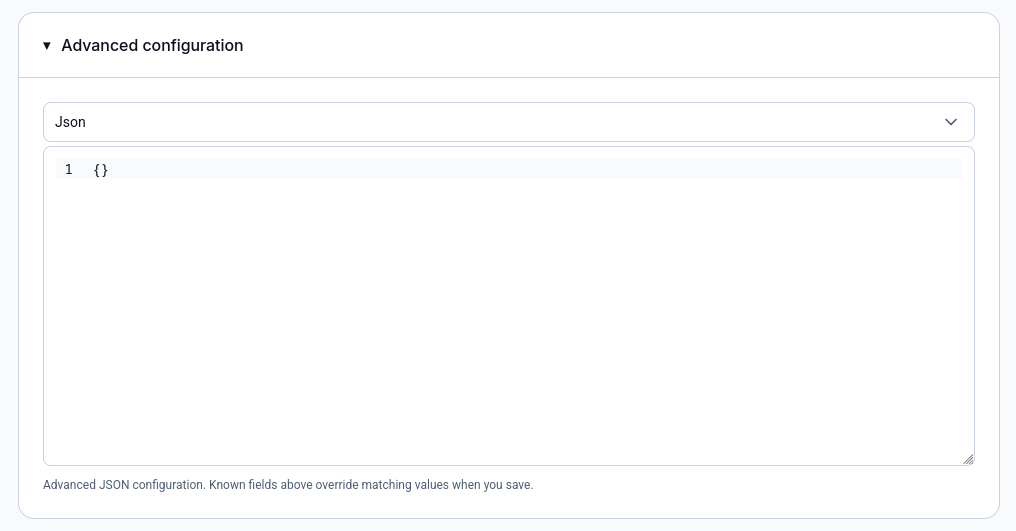
The JSON editor is separate from the basic fields. Its helper text explains precedence when saving.
After saving, the list shows the knowledge base, its status, file count, size, and timestamps. The following capture uses a separate example resource named resource1.
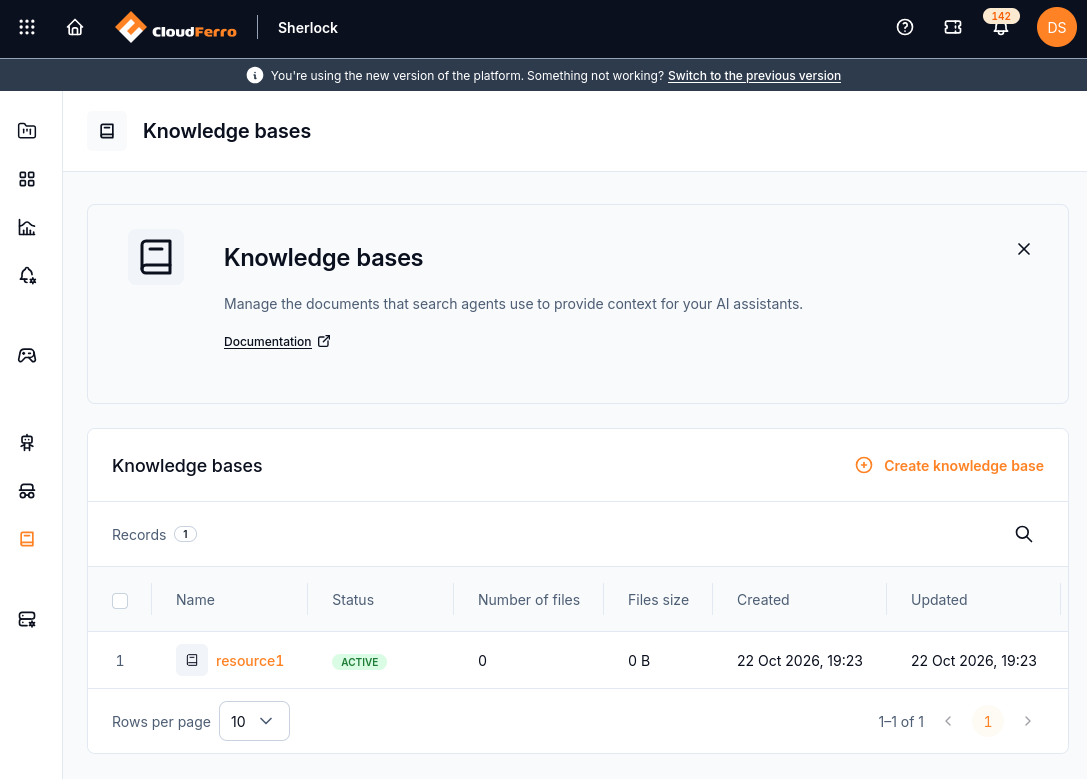
An Active knowledge base can still be empty. Check Number of files before expecting document content.
Open the resource and add documents
Select the knowledge base’s name in the list.
In Knowledge base details, check its ID, Agents usage, Total files, and Total size.
Under Files, select Add files to open the Upload documents panel.
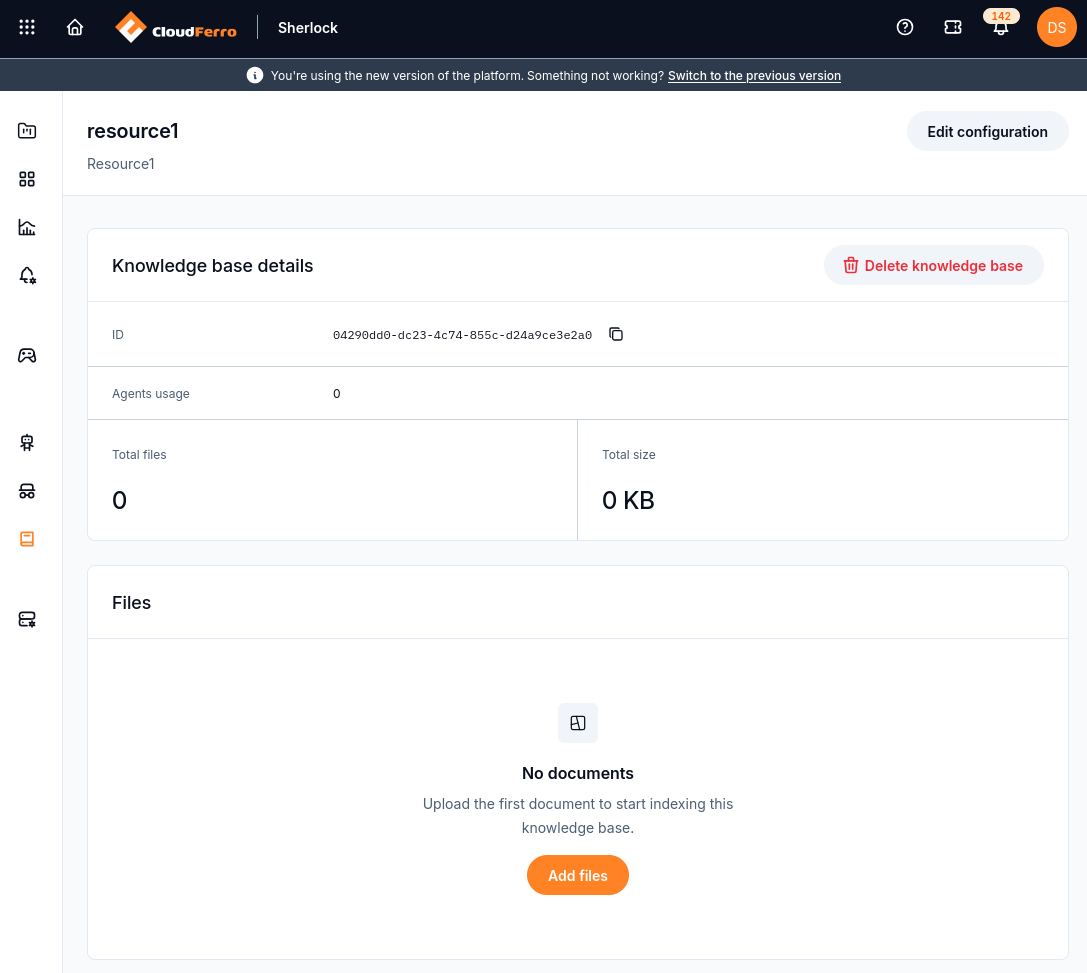
The Files section is inside the selected knowledge base. No documents means that this resource has no uploaded documents yet.
In Upload documents, drag and drop files into the outlined area, or select choose file to open the file picker and select your documents. To leave the panel without submitting them, select Cancel.
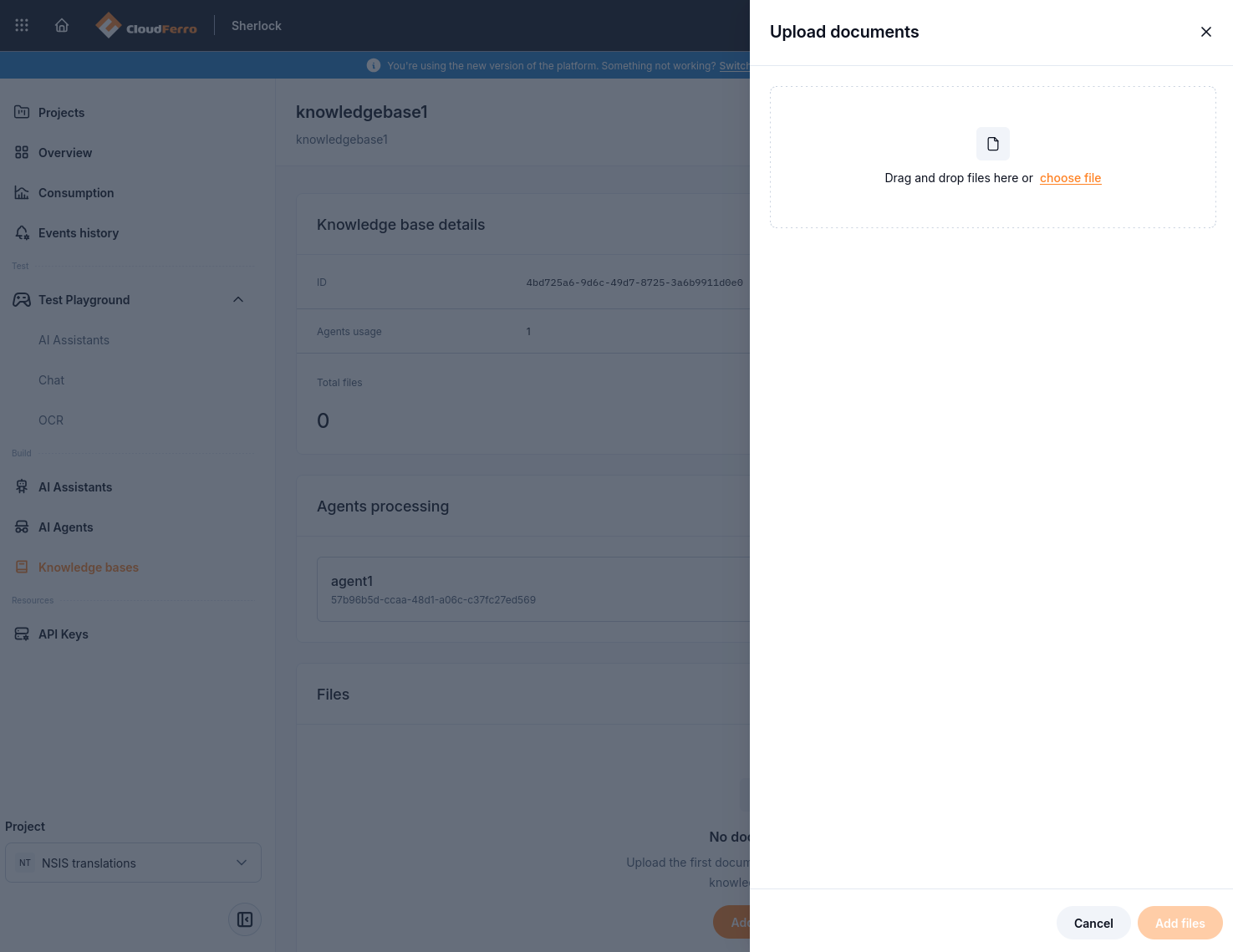
The Upload documents panel opens beside knowledgebase1. Select files before using Add files at the bottom.
The selected file appears under Files with Waiting to upload. In this example, the document is AI-Experiments-CloudFerro-Cloud.pdf. Check the filename before starting the upload.
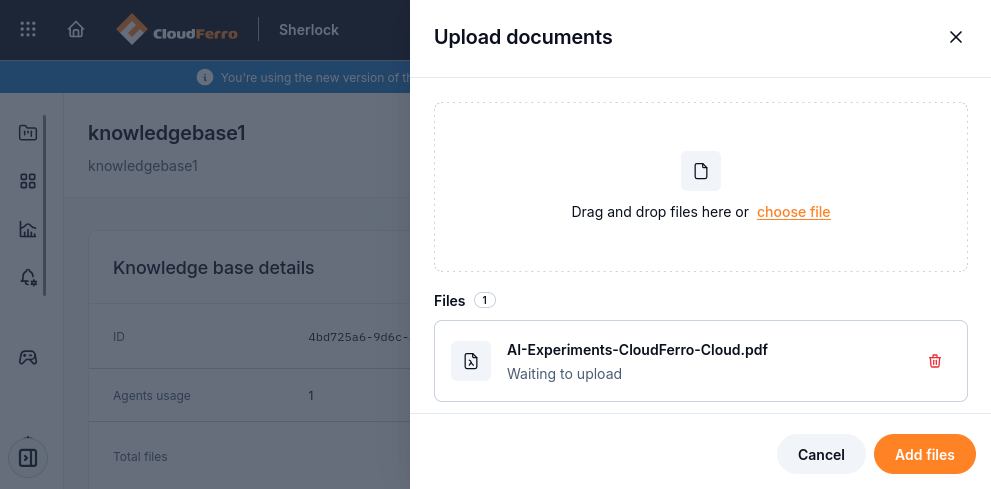
Selecting a document adds it to the upload list. It has not been uploaded yet.
Select Add files at the bottom of the panel. During the transfer, the file row shows a progress bar and percentage. The example below shows 33%.
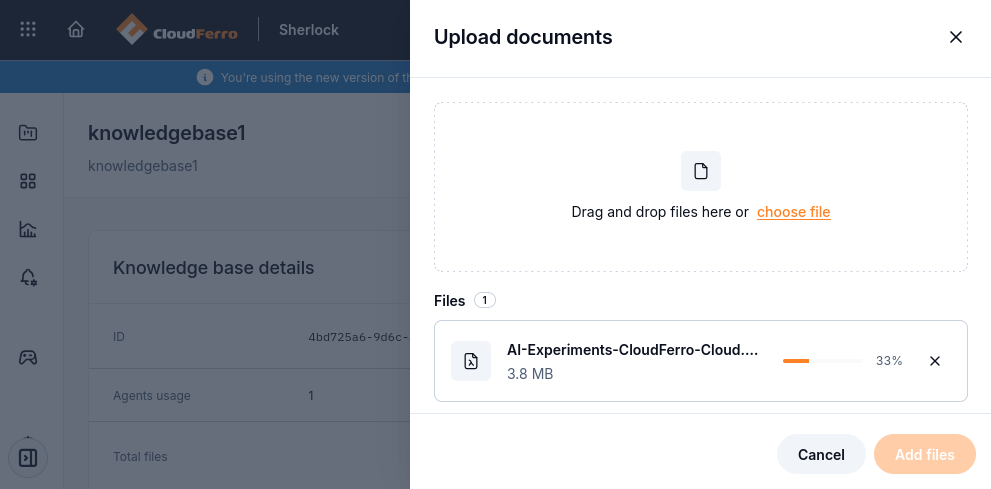
The progress indicator shows how much of the file has been uploaded.
When the upload finishes, the file row shows a green check mark. Close the panel using the × in its top-right corner to return to the knowledge base. Upload completion and document processing are separate stages; check the processing status next.
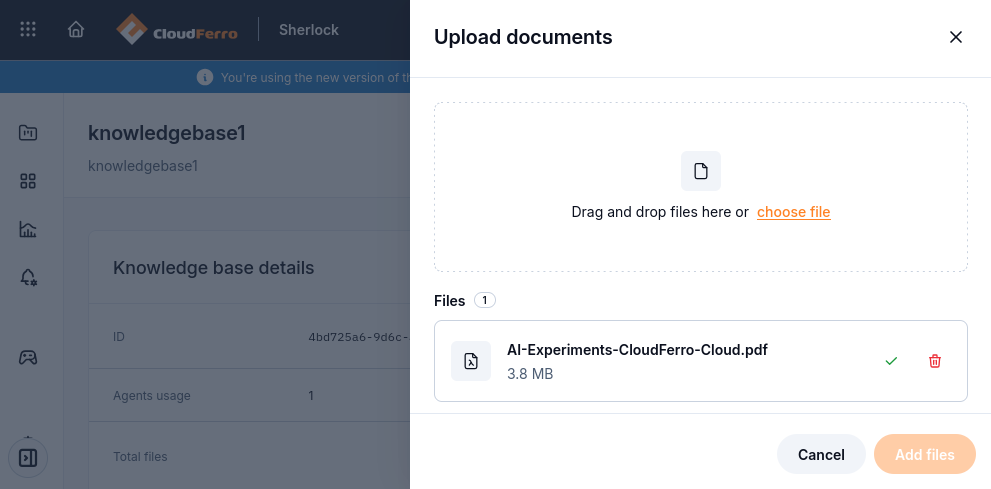
The green check mark confirms that the file upload has finished.
Check document processing
After adding documents, check Total files, Total size, and the Status column in the Files list. Documents can be at different processing stages. In the three-document example below, MLOps-Studio-CloudFerro-Cloud.pdf and Workflows-CloudFerro-Cloud.pdf are EXTRACTING, while AI-Experiments-CloudFerro-Cloud.pdf is DONE.
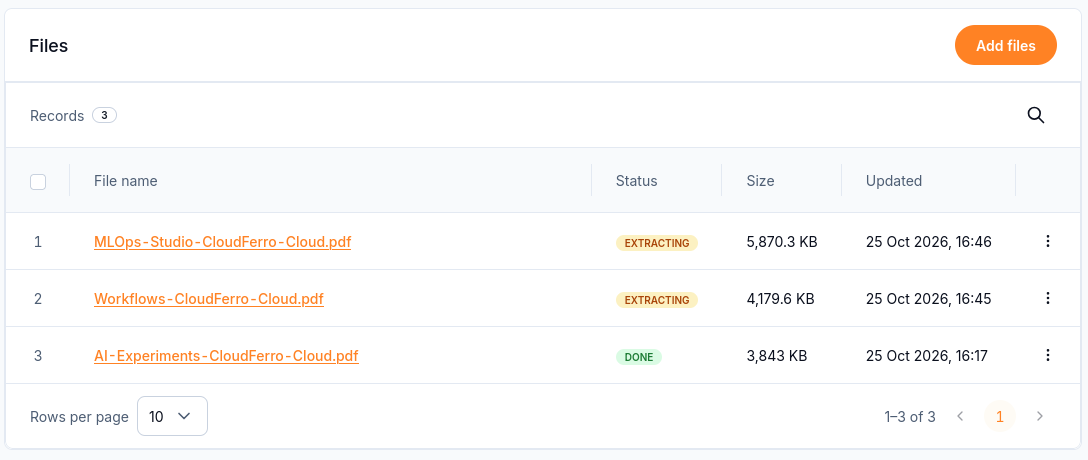
EXTRACTING shows that processing is still in progress. DONE reports completed processing for that file.
If a search agent is connected to the knowledge base, Agents processing also shows its document counts by status: DONE, ERROR, EXTRACTING, INDEXING, and WAITING. The completed example below has one file, a total size of 3,843 KB, and agent1 with DONE: 1. All other counters are zero.
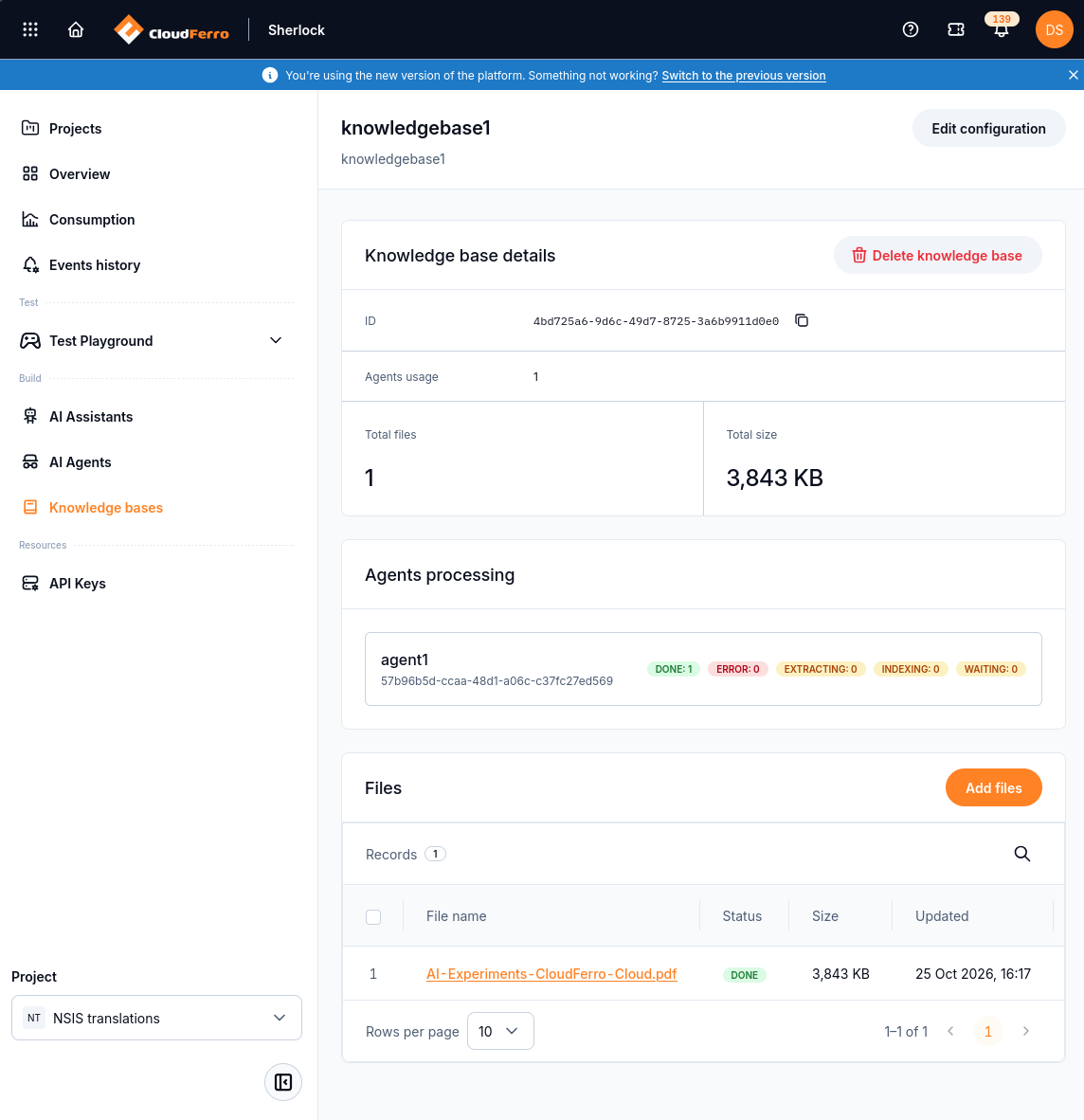
The Files list and the connected agent both show completed processing for the example document.
The agent1 entry appears because an agent has already been connected in this example. Creating a knowledge base does not create that agent. Follow Create AI Agents for document search to connect one. Before testing an assistant, wait for the intended documents to finish processing and investigate any ERROR counts.
Inspect a document
Select a filename in the Files list to open File details. The panel shows the file name and ID, Status, Size, Agents usage, and the Created and Updated timestamps. Its Agents processing area shows processing status for the file.
Under Content overview, check the extracted text. In this example, the preview contains the AI Experiments user guide title and table of contents. The Copy control is beside the preview heading. Close File details with the × in the top-right corner to return to the list.
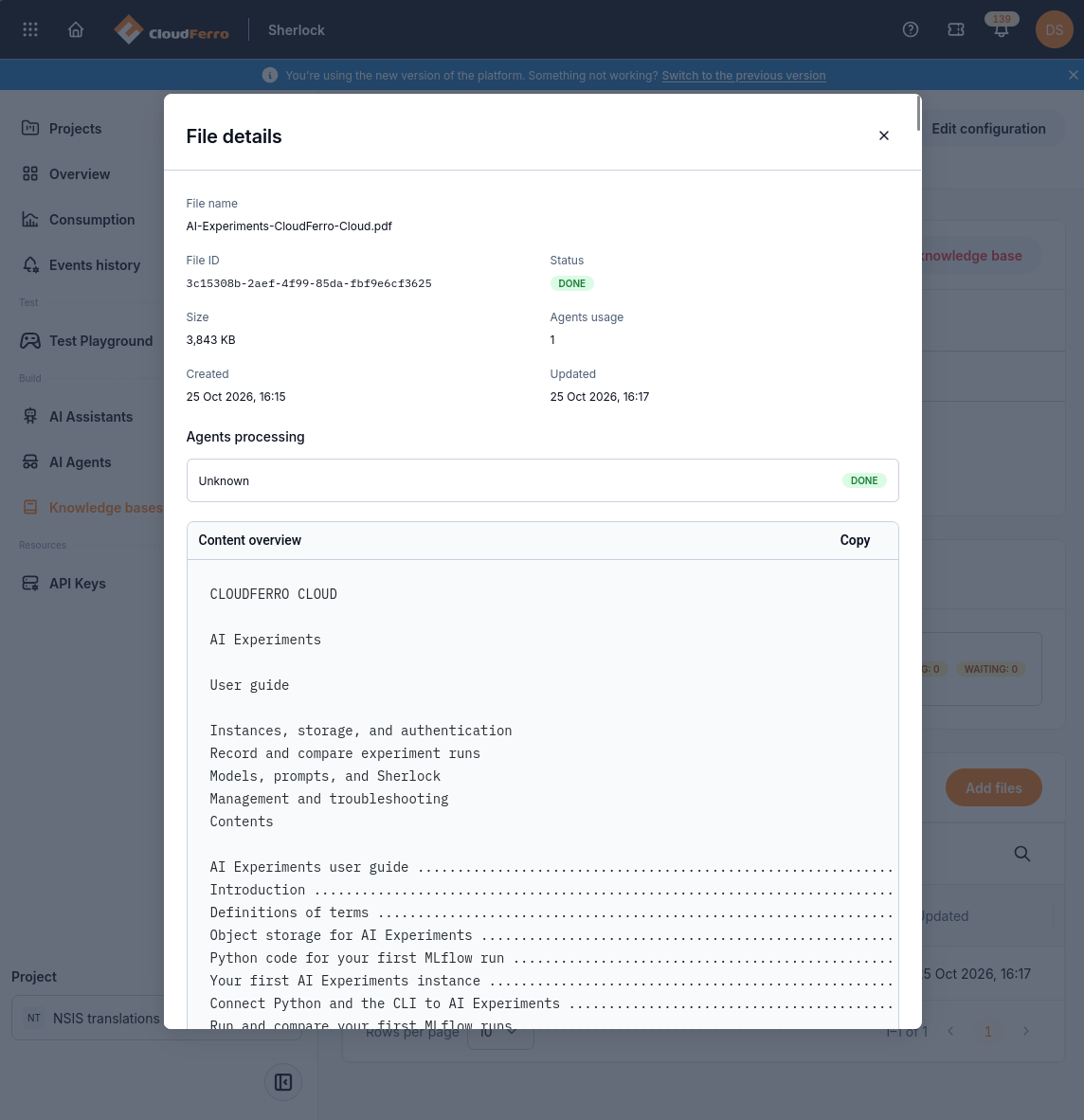
The example reports DONE and displays the document text under Content overview.
Edit or duplicate a knowledge base
Select Edit configuration on the knowledge base details page to change its name, description, or Active setting. The form states that inactive resources cannot be used by new requests. Select Save to apply changes.
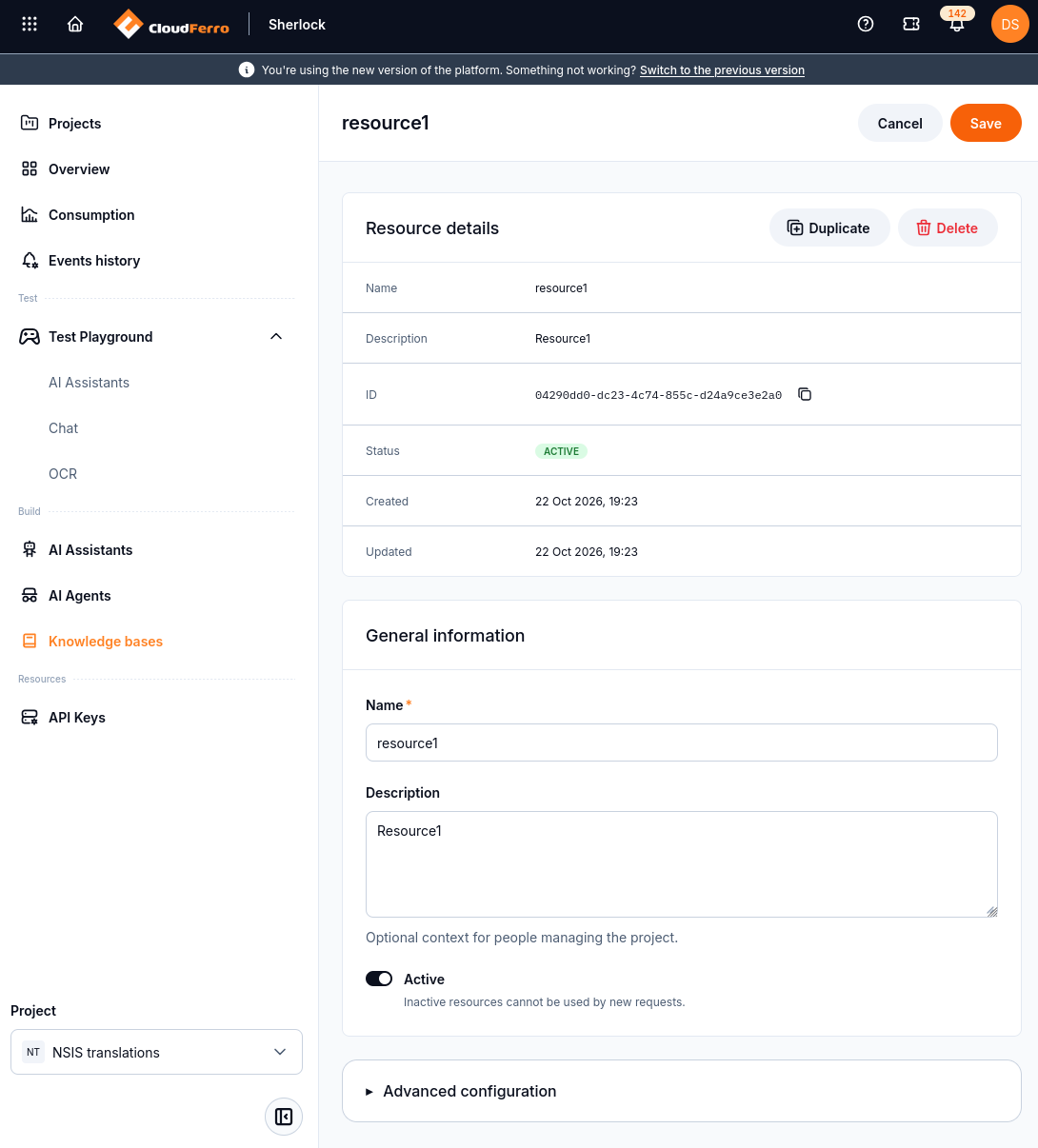
Resource details identifies the existing resource. General information contains the editable basic fields.
The configuration page also provides Duplicate. The captured list shows resource1 (copy) as a separate entry. Inspect that entry’s file count and configuration before using it; the empty-resource example does not establish how populated documents are handled by duplication.
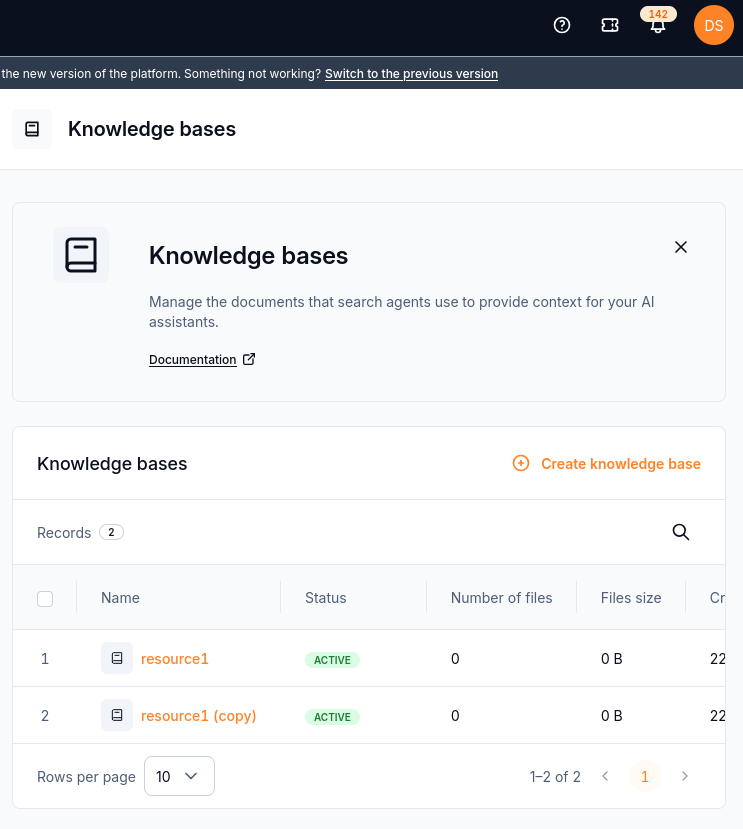
The original and its copy are listed separately. Both examples contain zero files.
Delete a knowledge base
Open the knowledge base details and select Delete knowledge base. Check the resource name in the confirmation dialog before selecting Delete, or choose Cancel to keep it.
Warning
Deleting a knowledge base cannot be undone.
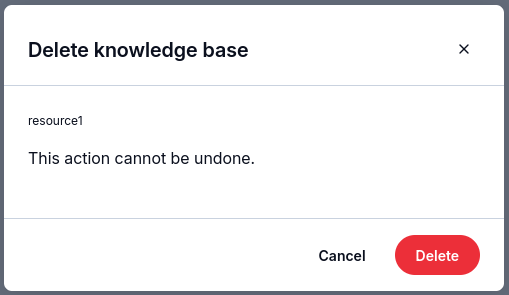
The confirmation identifies the resource to delete and states that the action cannot be undone.
What to do next
Create a search agent for the knowledge base.
Use AI Assistants for the model and instructions that produce answers.