
Test chat models in the Sherlock Playground on CloudFerro Cloud
A short browser conversation helps you see how a model answers before writing application code. The Chat page lets you select a model, send a prompt, and inspect its answer in the console.
For this first test, ask the model to explain OpenStack briefly. The result is a generated text answer; it is a starting point for assessing clarity, not a benchmark of the model.
Prerequisites
Select an accessible Sherlock project as described in Projects and Overview. You will choose a model from the list available in the Playground.
Send a prompt
Expand Test Playground and select Chat.
Choose a model in the selector above the conversation area.
Enter the following prompt in the message box:
Explain OpenStack in three short sentences for someone new to cloud computing.
Select Send. You can also press Enter to request a response; Shift+Enter adds a line in the prompt.
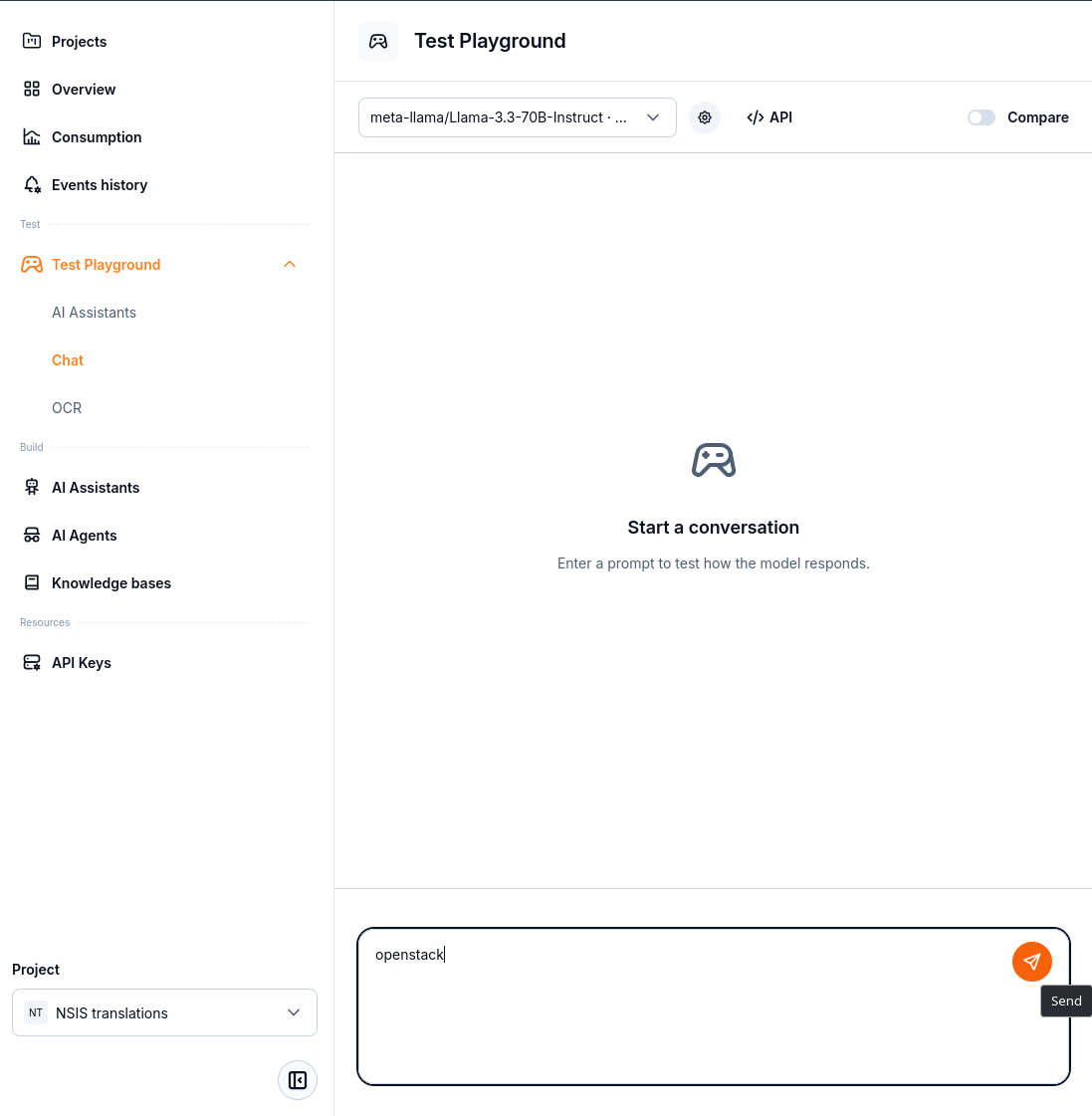
Choose a model before sending the prompt. The capture uses the shorter prompt openstack.
The answer appears above the message box. Check whether it follows the requested length and whether the explanation answers your question. Model responses can differ between requests.
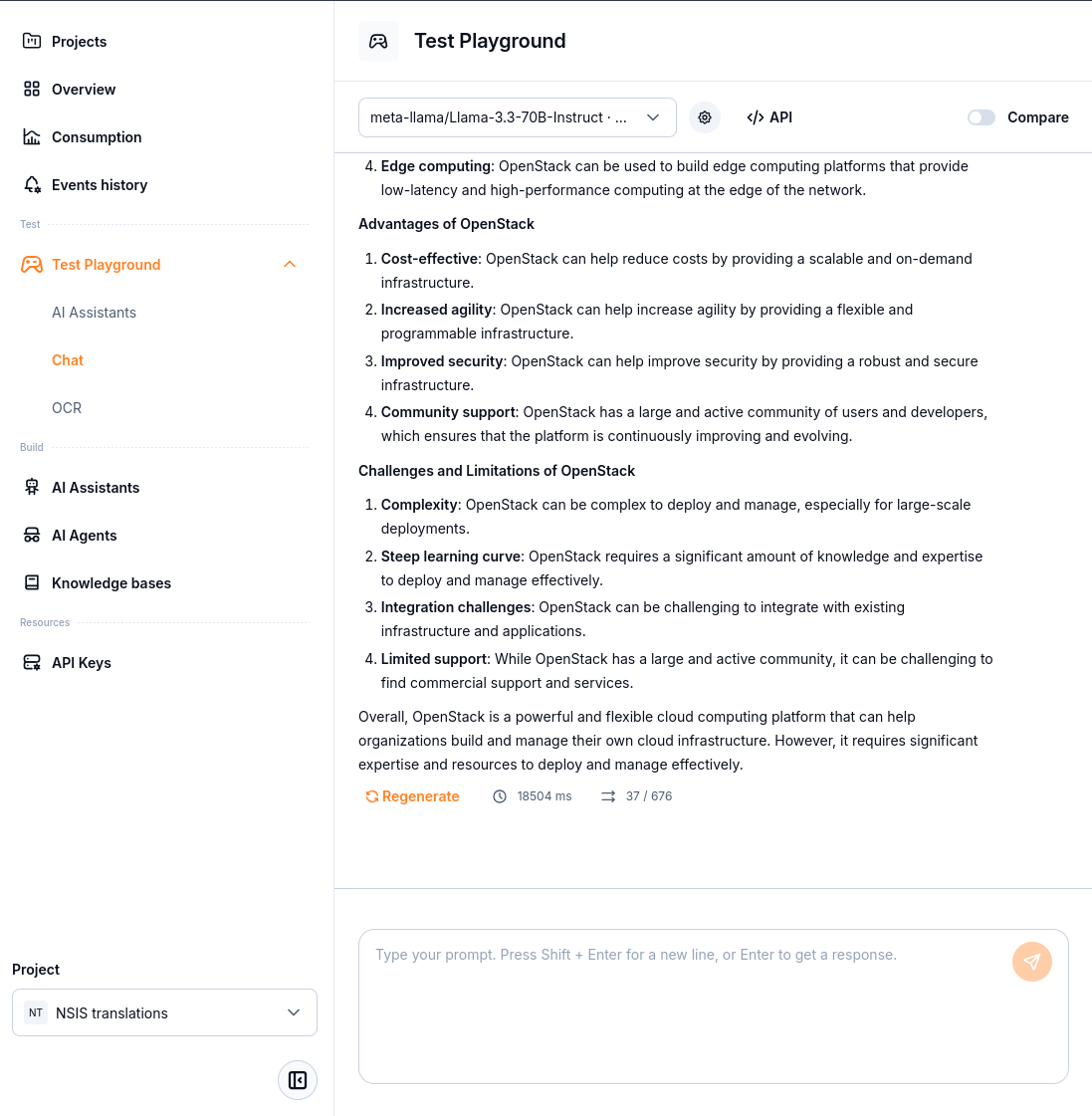
The response area displays the generated answer and a Regenerate action beneath it.
Generation settings
Click the gear icon beside the model selector to open Generation settings. The dialog controls how the selected model generates its answers. When Compare is enabled, each pane has its own gear icon; open the settings beside the model you want to adjust.
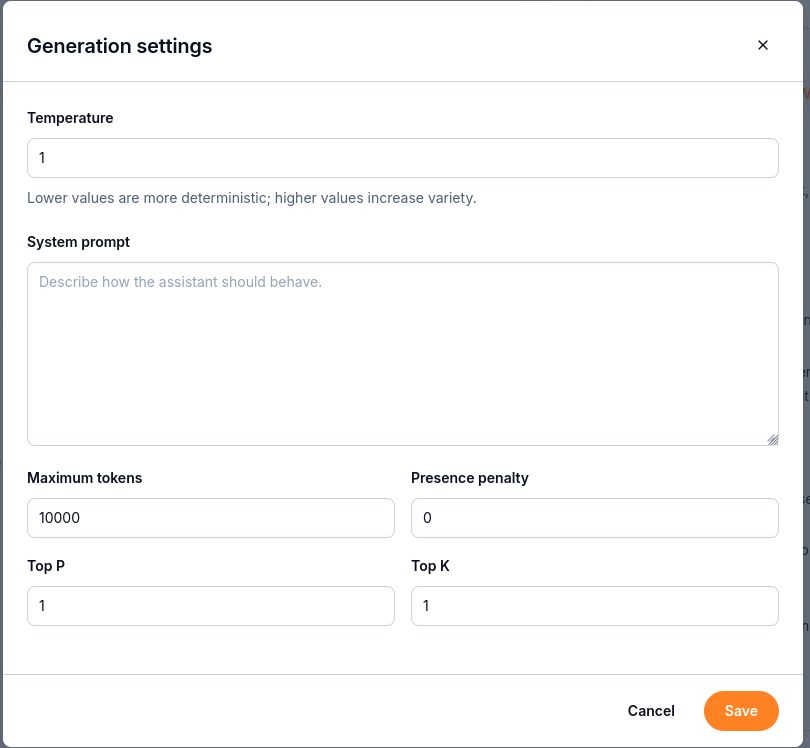
Adjust the generation parameters, then select Save to apply your changes.
The table explains the fields and the values shown in this example. The displayed values are not recommended settings for every model or task. A token is a unit of text, which may be a word or part of a word.
Parameter |
Value shown |
Meaning |
|---|---|---|
Temperature |
1 |
Controls randomness when choosing the next token. Lower values favor more predictable output; higher values allow more variety. A lower value does not guarantee a correct answer. |
System prompt |
Empty |
Instructions for the model’s behavior, such as its role, tone, or response format. For example: Explain cloud concepts for a beginner in three short sentences. Enter the question itself in the chat message box. |
Maximum tokens |
10000 |
Caps the number of tokens the model can generate for one response. The answer may stop earlier. A limit that is too low can cut an answer short; this is not a word count. |
Presence penalty |
0 |
Adjusts the reuse of tokens already generated. Positive values discourage reuse; negative values encourage it. Zero applies no presence penalty. |
Top P |
1 |
Limits the candidate tokens by their combined probability. For example, 0.9 keeps the most likely tokens whose probabilities together reach at least 90%. 1 applies no Top P filtering. |
Top K |
1 |
Limits the number of highest-probability tokens considered at each generation step. 1 keeps only the most likely token. A larger positive value allows more candidate tokens. |
Temperature, Top P, and Top K work together. With standard Top K sampling, Top K = 1 leaves only one candidate, so raising Temperature alone does not introduce variety. These sampling terms are described in the vLLM sampling parameter reference and the Transformers generation reference.
Change the fields you want to test, then select Save. Send a new prompt to observe the result. Select Cancel to close the dialog without saving your edits. Keep the prompt and model unchanged while testing one setting at a time, and use values accepted by the selected model.
Compare answers deliberately
The toolbar includes Compare, model settings, and API controls. Begin with a simple comparison: send the same prompt to two models and record which answer is clearer or more accurate for your task. To investigate prompt wording, keep the model the same and change only the prompt.
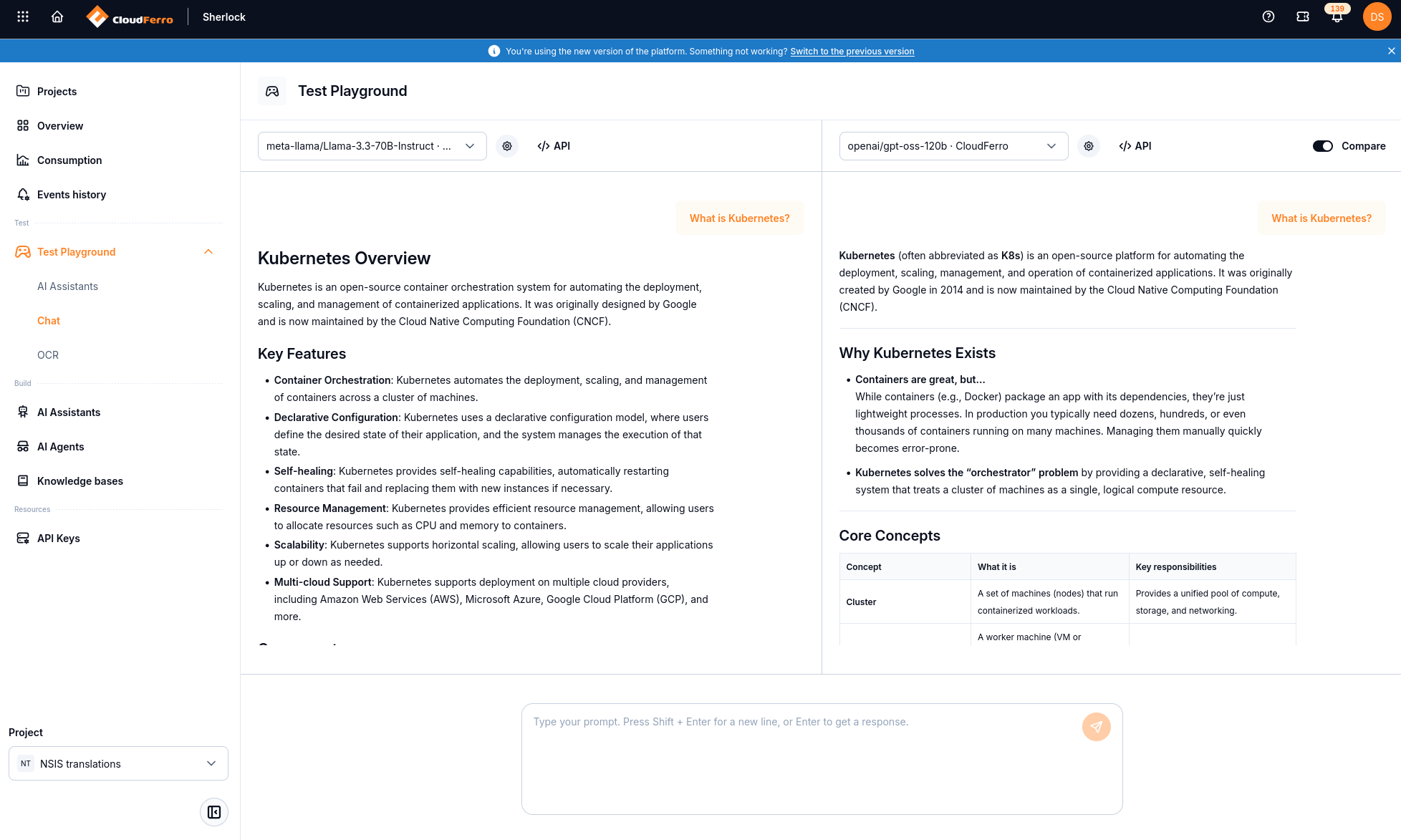
With Compare enabled, the two models answer What is Kubernetes? side by side.
Keep factual correctness separate from response length and speed. Verify factual claims against the material you want the answer to explain.
API information
Click the API icon to the right of the gear icon to open API information. Select the cURL, Python, or JavaScript tab, then use Copy code to copy the example.
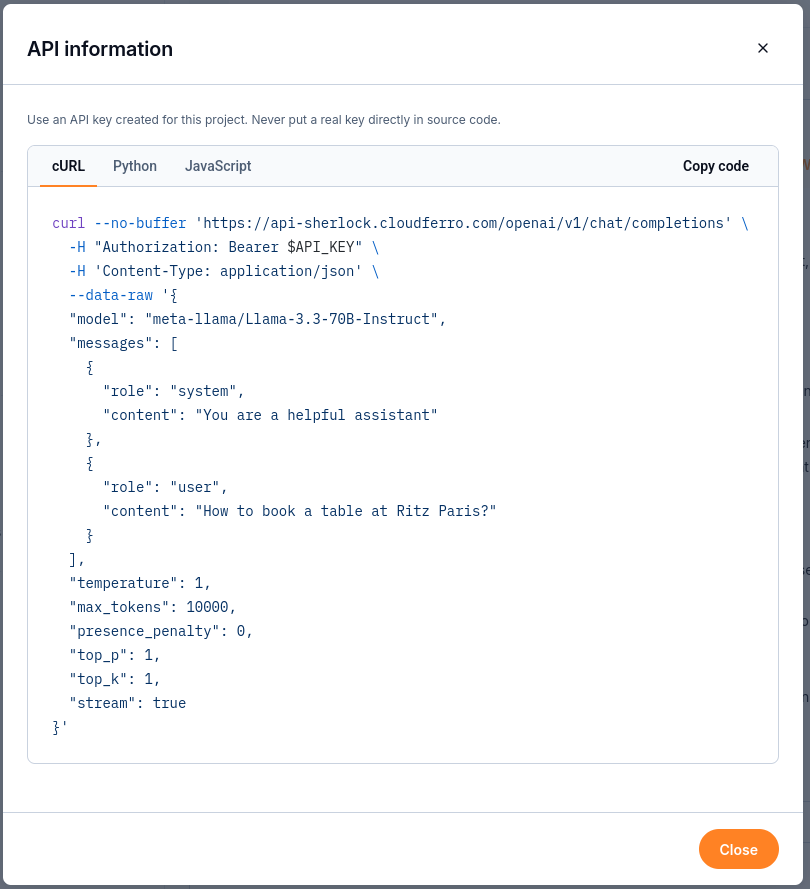
Choose a language to view an example API request.
cURL: run the command in a terminal to test requests and inspect responses interactively.
Python: use the example in a script or application running on your desktop computer or a virtual machine.
JavaScript: use the example in a JavaScript application. When the interface runs in an HTML page, send its requests through a backend service that holds the Sherlock API key.
Every request to Sherlock requires an API key for the project you want to use. Before running an example, follow Authenticate with API keys to create and store the key.
Load the key from an environment variable or a secret store instead of putting it in the source code. The cURL example shown uses the API_KEY environment variable. Set the variable expected by the copied example before running it. Never put the key in HTML or JavaScript delivered to a browser, because users can inspect that code and its network requests. Keep the authenticated Sherlock request in your backend.
For reproducible requests from an application, use the chat completion endpoint guide. To reuse a model and instructions as a saved configuration, create an AI Assistant.
What to do next
Create an assistant when you want to reuse a task configuration.
Inspect Consumption after testing to see token usage.
Continue with client installation and a first API request for code-based access.