
Introduction to Sherlock on CloudFerro Cloud
A team answering questions about its documentation needs a way to test answers, reuse instructions, and find information in its own files. Sherlock brings these activities into one console, alongside API access for applications.
You can try a model in Chat, configure an AI Assistant for a recurring task, or prepare a Knowledge base and an AI Agent to retrieve information from documents. For example, a documentation assistant can help readers find explanations while a developer integrates model requests into an application.
Recognize the console
In My Portal, open Products, find Sherlock, and select Go to product. In Overview, the Discover Sherlock tab introduces the service and the first steps. The screenshots here show the new version of the CloudFerro Sherlock console.
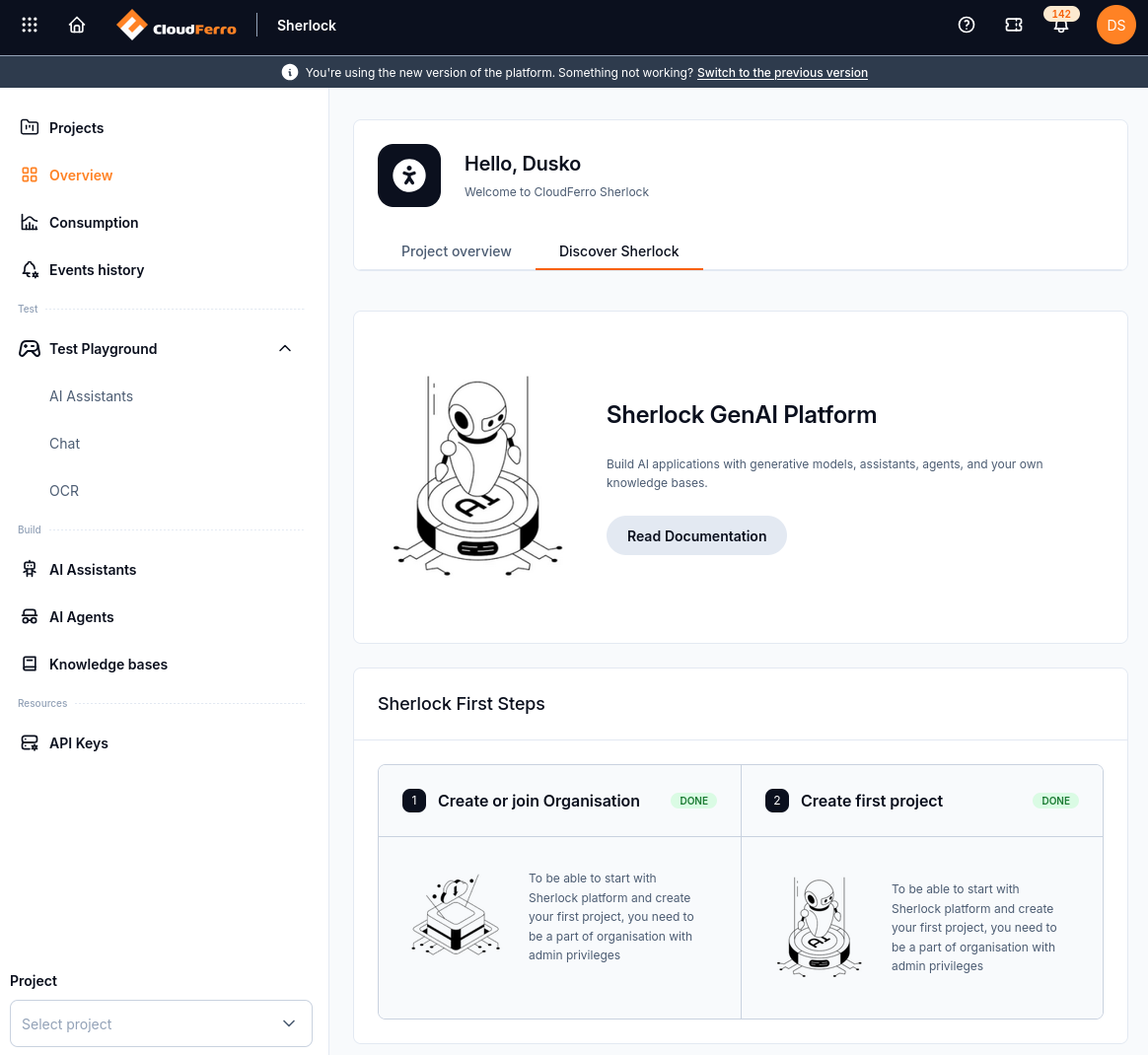
Discover Sherlock introduces the service. The left menu separates testing, building resources, and API keys.
The Project selector at the bottom of the sidebar determines which project you are working in. If a page displays Select a project first, choose a project there or use Select project. Prepare access with the setup guide, then use the project guide to create or select a project.
Try a first conversation
For a quick first result, open Test Playground → Chat, select an available model, and send a short question. The answer appears in the conversation area. The Chat guide gives a small example and explains what to check in the response.
To try an existing assistant, open Test Playground → AI Assistants. The example below shows a conversation with a configured assistant. Its answer illustrates the interface; it is not a verification of the information generated by the model.
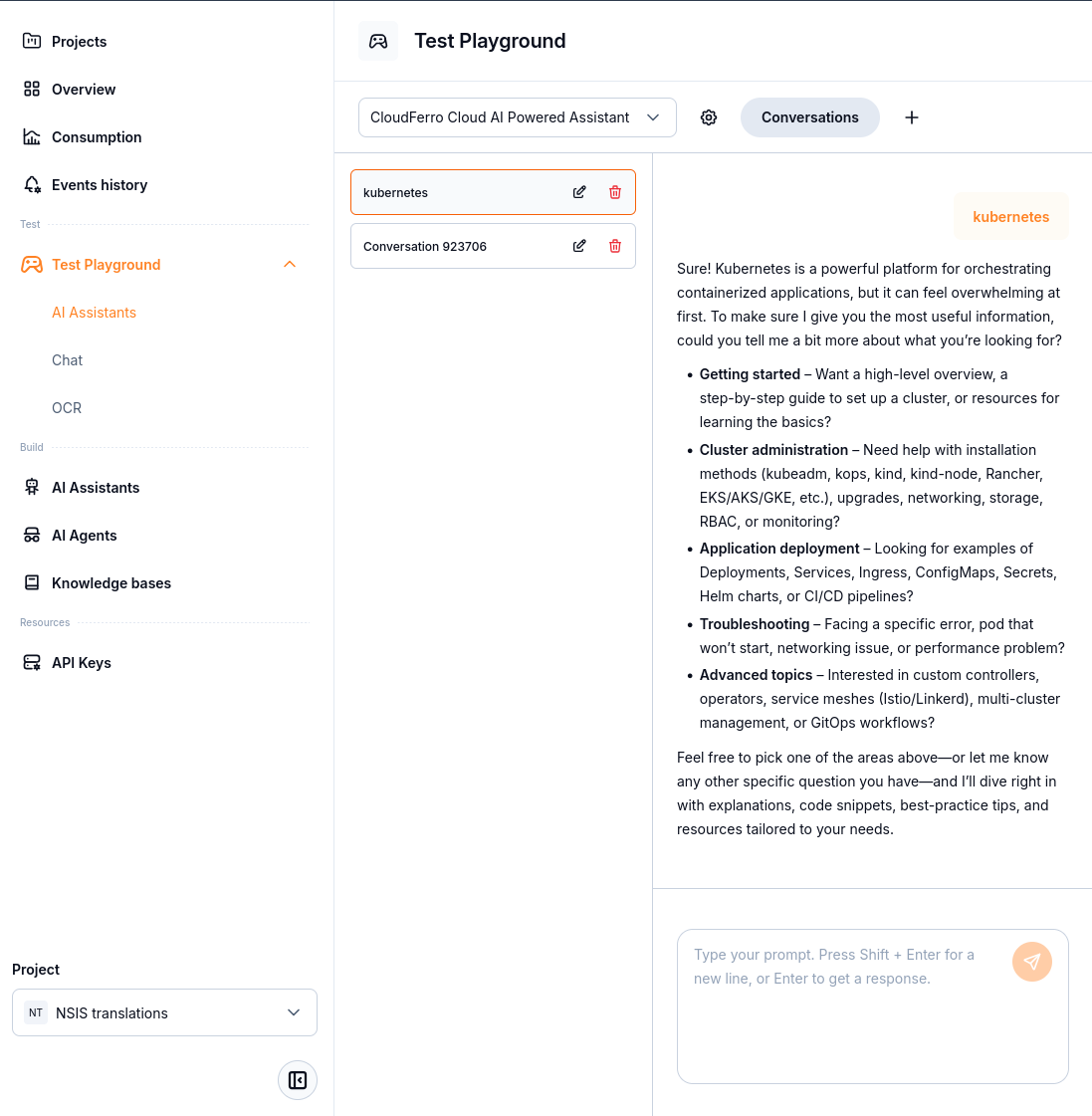
The prompt and answer appear on the right. Conversations are listed beside them.
Follow the assistant testing guide to select an assistant, send a prompt, and inspect the answer. For text extraction from a document or image, use the separate OCR guide.
Build an assistant that uses documents
The three Build entries have different roles. A knowledge base holds the documents. A search agent connects to that knowledge base and configures retrieval. An assistant combines a generative model and instructions with connected search agents.
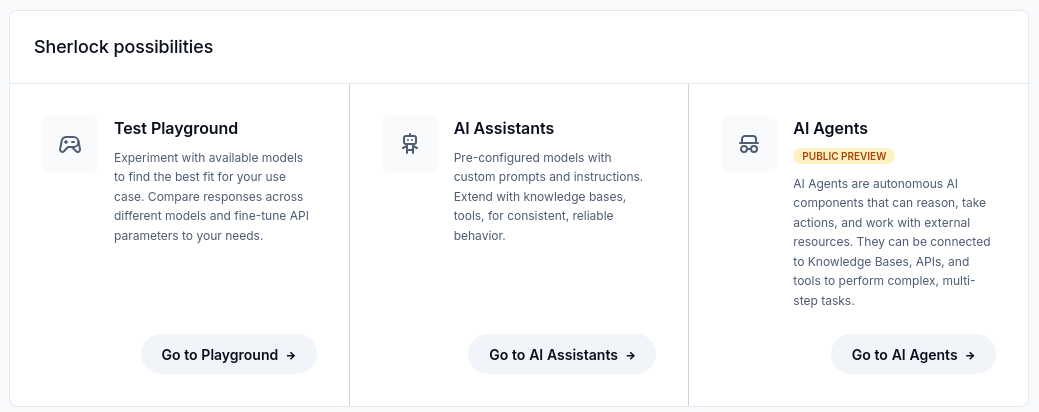
The console distinguishes model testing from saved assistants and agents. AI Agents is marked Public Preview in this view.
For document-based work, prepare a knowledge base, create a search agent, and configure an assistant. For an initial text-only assistant, start directly with its configuration guide.
The AI Assistants entry under Build configures saved assistants. The identically named entry under Test Playground runs conversations with them.
Follow usage and connect an application
The Overview page shows project details and resource counts. Consumption shows input and output tokens, while Events history records project activity. The monitoring guide explains the date filters and displayed results.
For code-based access, create a key under API Keys, then follow the client installation and first-request guide. The model and endpoint references remain available in the API group on the Sherlock landing page.
What to do next
Continue with Definitions of terms to connect the menu names to their roles.
Prepare your account and organization with Set up Sherlock AI.
If you already have a project, try a first Chat conversation.