
Register or join an organization in My Portal on CloudFerro Cloud
An organization groups users, projects, wallets, and services. Its company details are used for billing and invoicing.
Complete account registration and authentication before continuing. If needed, return to account setup.
Register or join an organization
The Register or join Organization shortcut in Home → Quick actions opens a choice between creating an organization and joining an existing one.
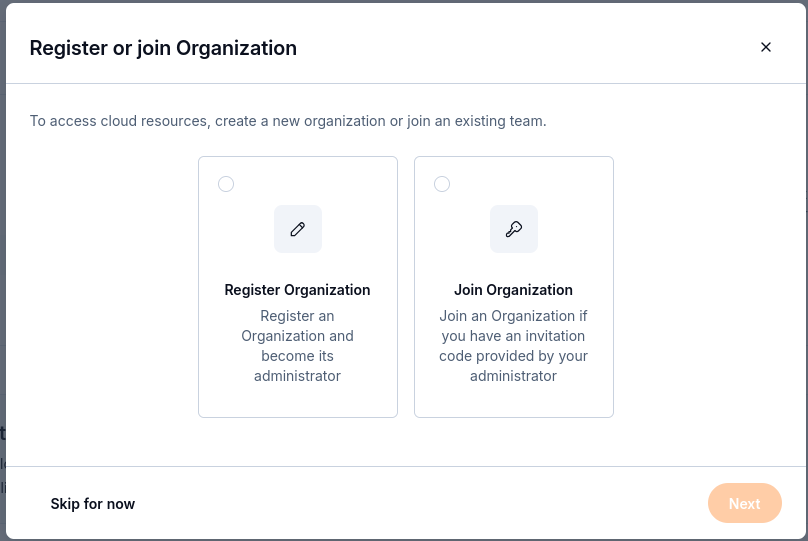
Choose whether to register a new organization or join an existing team.
Register an organization
Select Register Organization, then Next.
In Add Organization details, enter the organization’s legal company information for billing and invoicing.
Fill in the required fields: Organization (full name), Address 1, City, Country, and Postal code.
The form also includes Address 2, State, and Company tax ID / VAT number. For an EU VAT number, include its prefix as requested in the form.
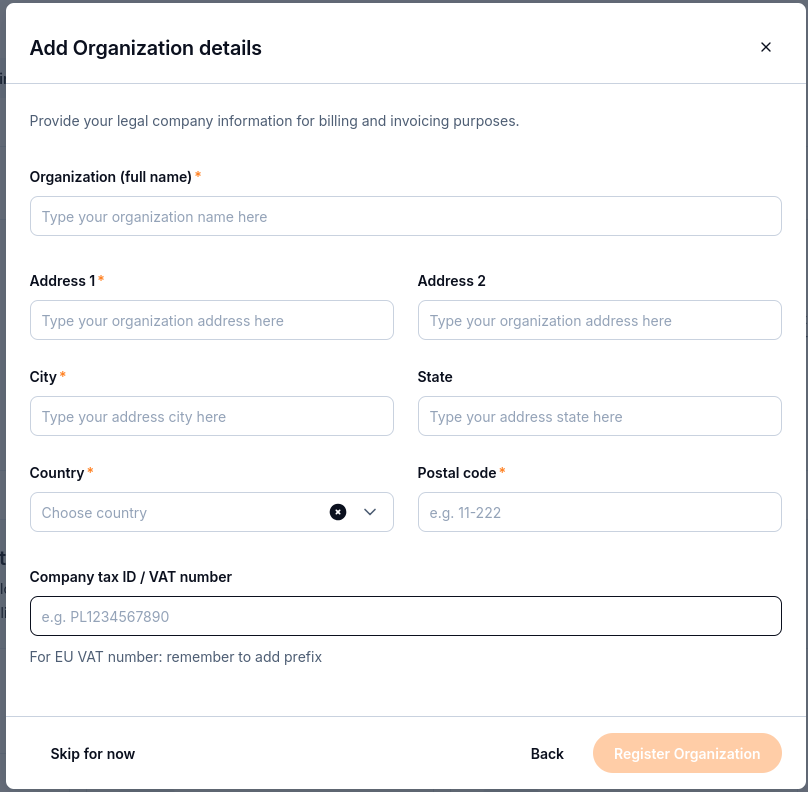
Organization details used for billing and invoicing.
Select Register Organization and follow any validation or confirmation shown.
Return to IAM → Organization to check the registered details.
The person registering an organization becomes its administrator.
Join an organization
Obtain an invitation code from the administrator of the organization you intend to join.
Select Join Organization, then Next.
Enter the code in Invitation code.
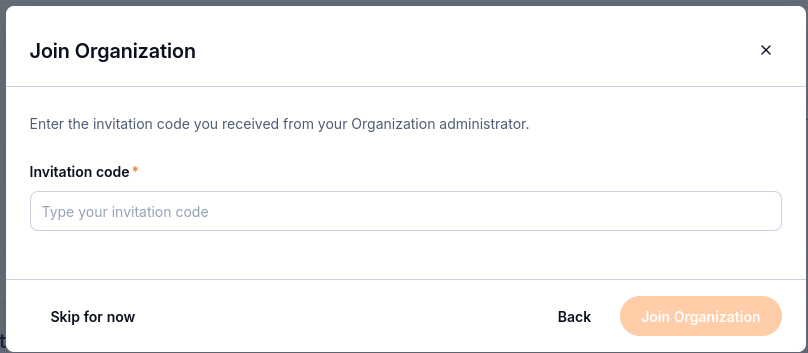
Enter the invitation code supplied by the organization administrator.
Select Join Organization to send the request. Wait for the organization administrator to approve it in Invitations.
After approval, sign in and check the organization shown under IAM → Organization.
For the invitation code, pending request, and approval steps, follow How to invite users to an organization in My Portal on CloudFerro Cloud.
Review organization details
Open IAM → Organization to review the company information, members, and invitations.
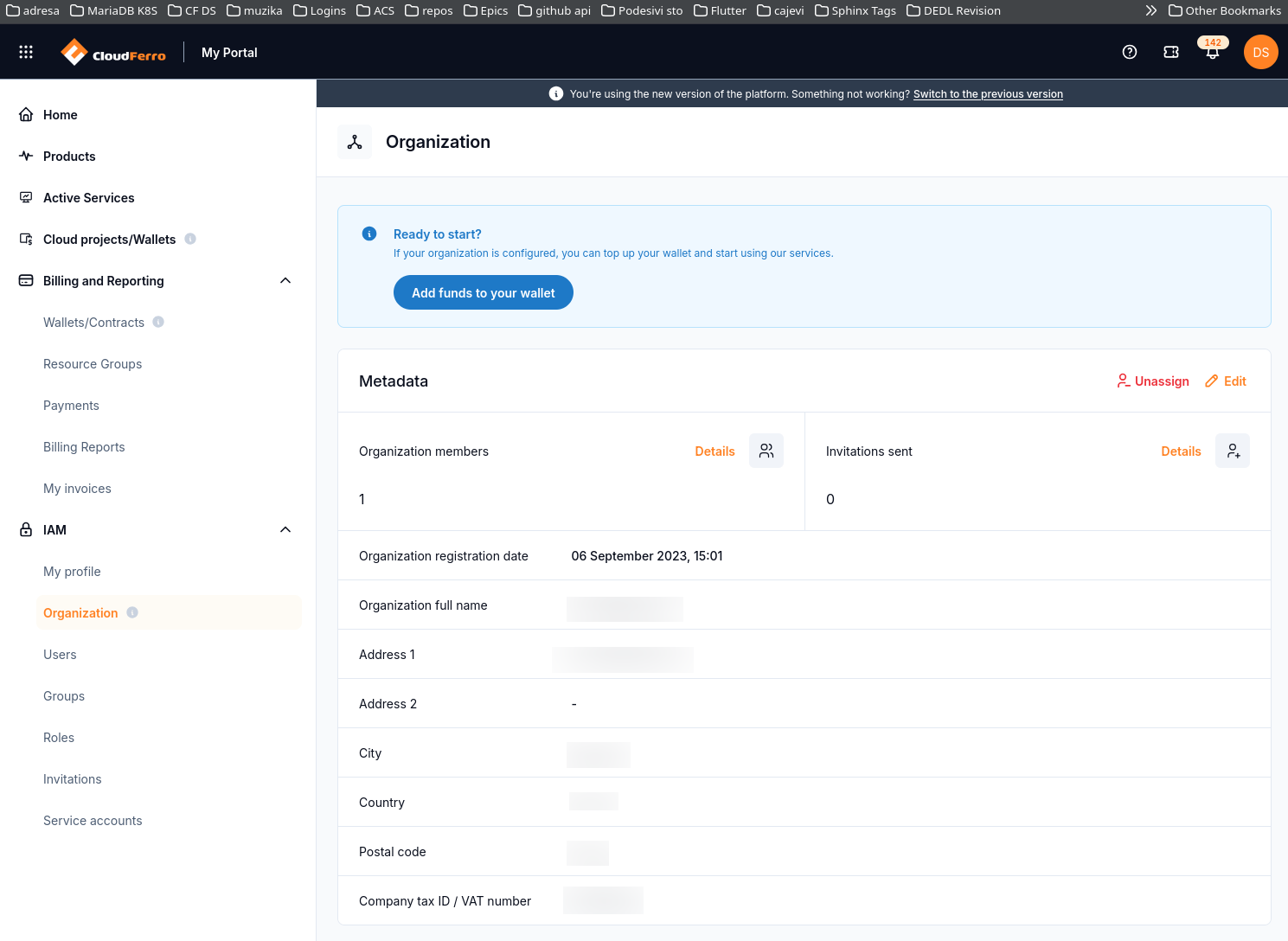
Metadata identifies the organization and provides links to its members and invitations.
The Metadata section shows the registration date, full organization name, address, country, postal code, and company tax ID or VAT number. Details beside Organization members opens the member view; Details beside Invitations sent opens the invitations view.
Select Edit to update the organization details. Unassign concerns organization membership; it is separate from editing company information. To add funds after configuring the organization, use Add funds to your wallet and follow Wallets/Contracts: review wallets and add Billing Units on CloudFerro Cloud.