
Set up two-factor authentication with a mobile app on CloudFerro Cloud
When My Portal asks you to Set up Mobile Authentication, connect an authenticator app to your CloudFerro Cloud account. The app generates a six-digit, time-based one-time password (TOTP). After setup, use a current code whenever the portal requests the second factor after your email and password.
The portal offers both a QR code and a manual setup key. The steps below use FreeOTP on Android; Microsoft Authenticator and Google Authenticator can also scan the portal’s QR code. To generate codes on your computer, use Set up two-factor authentication with KeePassXC on CloudFerro Cloud.
Prerequisites
No. 1 — A CloudFerro Cloud account
Complete registration and email verification as described in How to sign up for My Portal on CloudFerro Cloud. You can follow this procedure when the portal displays Set up Mobile Authentication during account activation. You do not need to have completed that step already.
No. 2 — A mobile authenticator
Install one of the apps listed on the portal’s setup screen. The links below lead to the publishers’ download or help pages.
App |
Installation and help |
|---|---|
FreeOTP |
FreeOTP website; the screenshots below use its Android interface. |
Google Authenticator |
|
Microsoft Authenticator |
No. 3 — Correct time on the phone
Enable automatic date and time in the phone’s settings. TOTP codes depend on the authenticator’s clock.
Step 1: Open the authentication setup screen
Open My Portal and log in with your account. If account activation is awaiting an authenticator, the portal displays Set up Mobile Authentication.
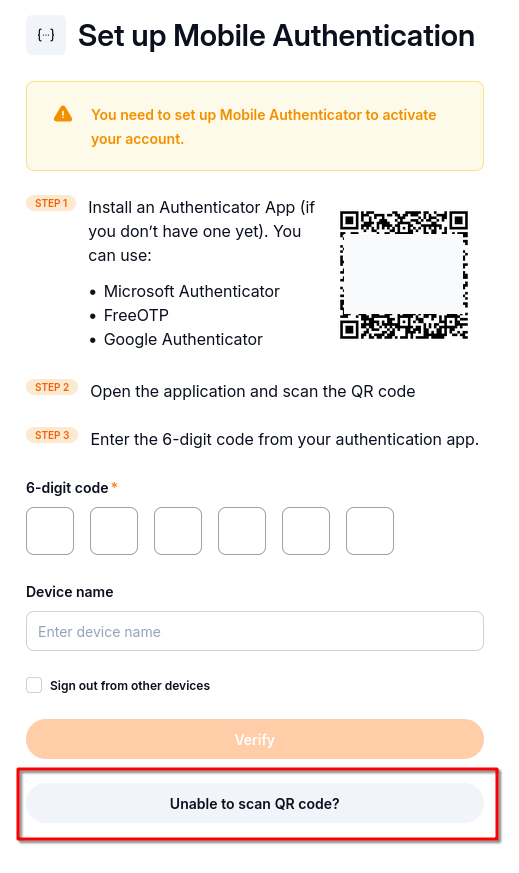
Keep this screen open while you add the account to your authenticator.
The QR code and the manual key contain the same setup secret. Use one of the two methods in Step 2. The key is entered into the app once; the changing six-digit code is entered into the portal to verify setup and later logins.
Warning
Keep the QR code and setup key private: either can be used to generate codes for your account. The examples here are obscured. Use the values displayed in your own portal session.
Step 2: Add the account to the app
Scan the QR code
In FreeOTP, tap +, then the QR-code icon. Allow camera access if requested and point the camera at the QR code on your computer screen.
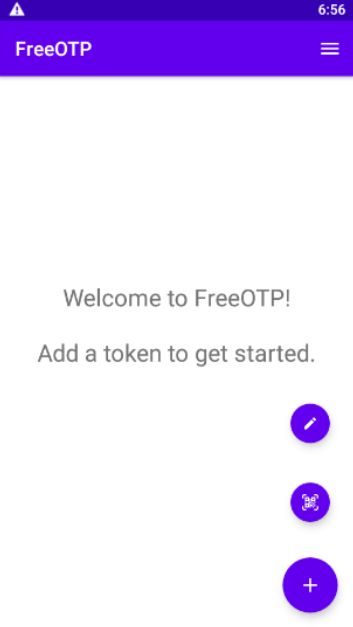
The QR-code icon starts scanning; the pencil opens manual entry.
After scanning, FreeOTP adds an account entry. Check that it belongs to the account you are setting up, then continue to Step 3. The example app screens use placeholder account details.
Enter the key without using the camera
On the portal’s setup screen, select Unable to scan QR code?. The portal shows the setup key and the code settings. Scan QR code returns to the QR view.
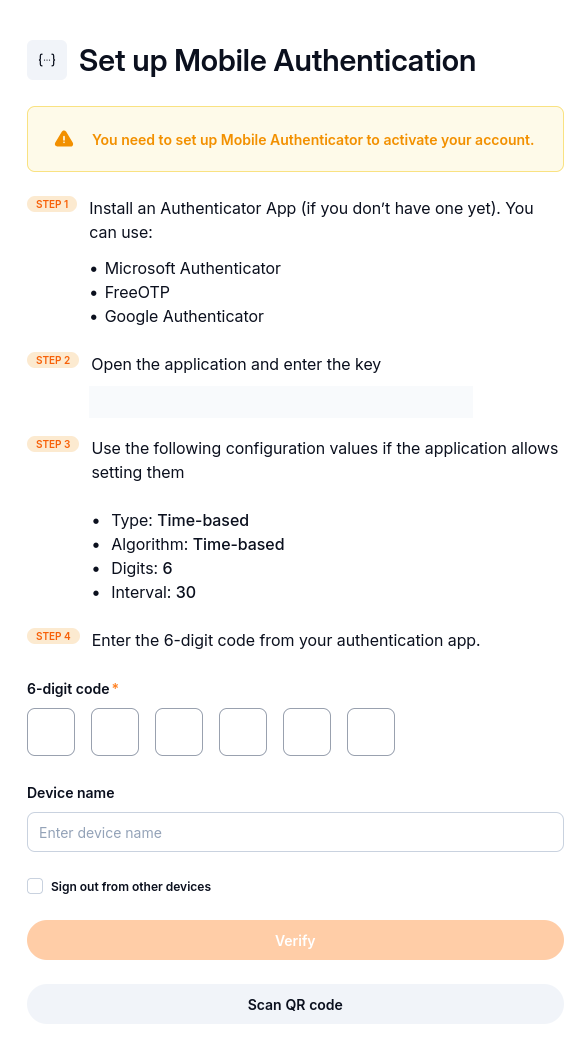
Enter the setup key into the authenticator, then return a generated code to the portal.
In FreeOTP, tap +, then the pencil icon. Enter your account email, use CloudFerro Cloud as the issuer or service label, and enter the portal’s key in Secret. Set the following values before selecting ADD TOKEN.
FreeOTP field |
Value |
|---|---|
Secret |
The complete setup key from your current portal session, without formatting spaces. |
Type |
TOTP. |
Digits |
|
Algorithm |
SHA1. |
Interval |
30 seconds. |
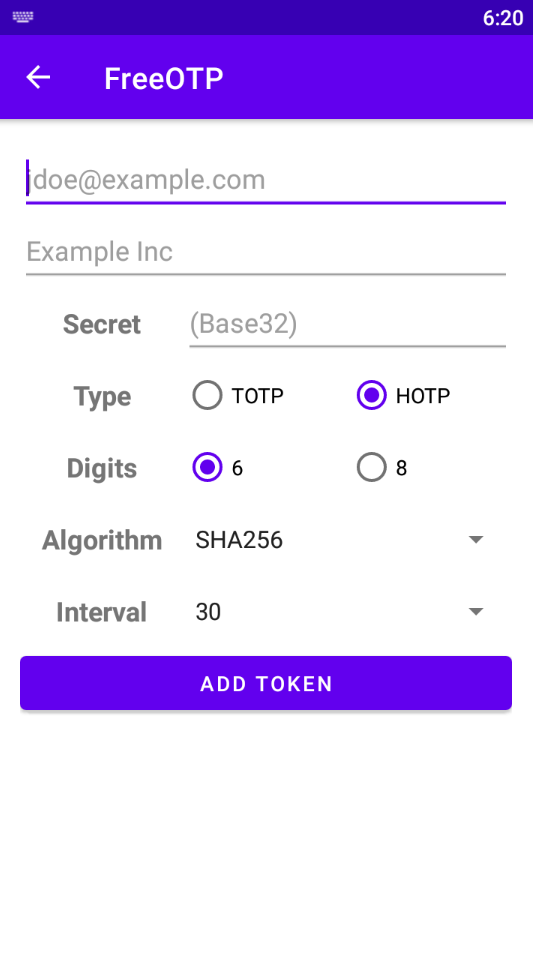
This capture shows the form before configuration. Change HOTP to TOTP and SHA256 to SHA1.
Open the Algorithm list and select SHA1, as shown below. The portal capture labels its algorithm as “Time-based”; that describes TOTP, rather than the hash algorithm selected in FreeOTP.
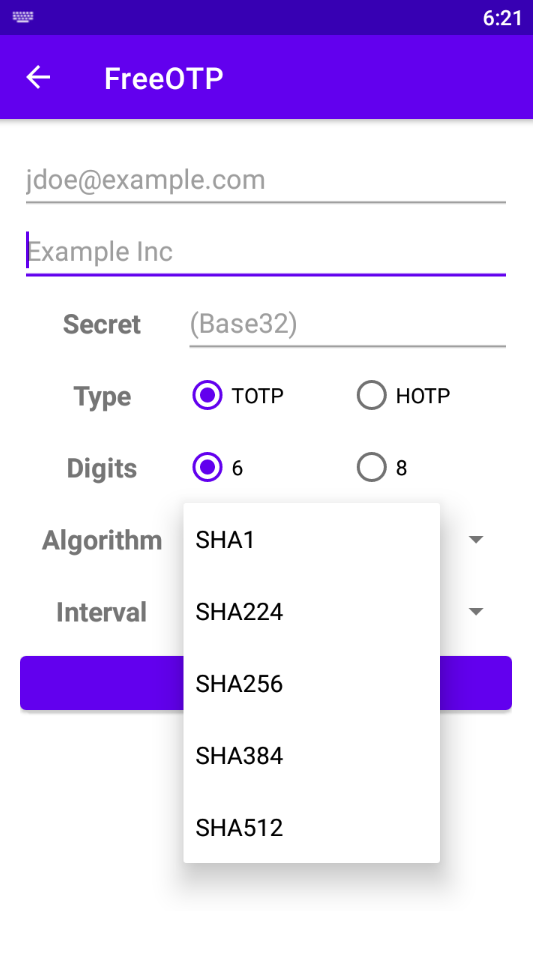
Select SHA1 before adding the token.
After selecting ADD TOKEN, the new account appears in FreeOTP.
Step 3: Verify the authenticator
Tap the account entry in FreeOTP to display its current code.
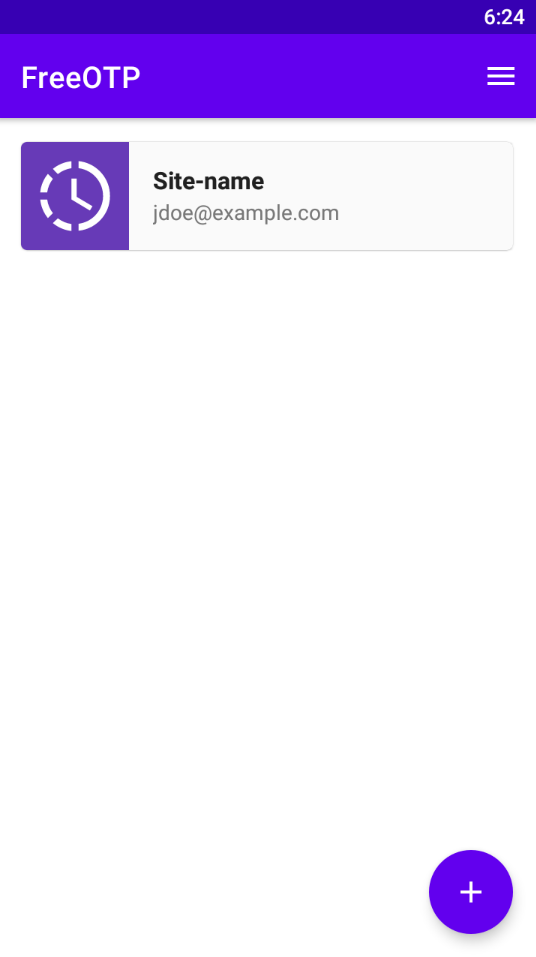
Choose the entry that matches your CloudFerro Cloud account.
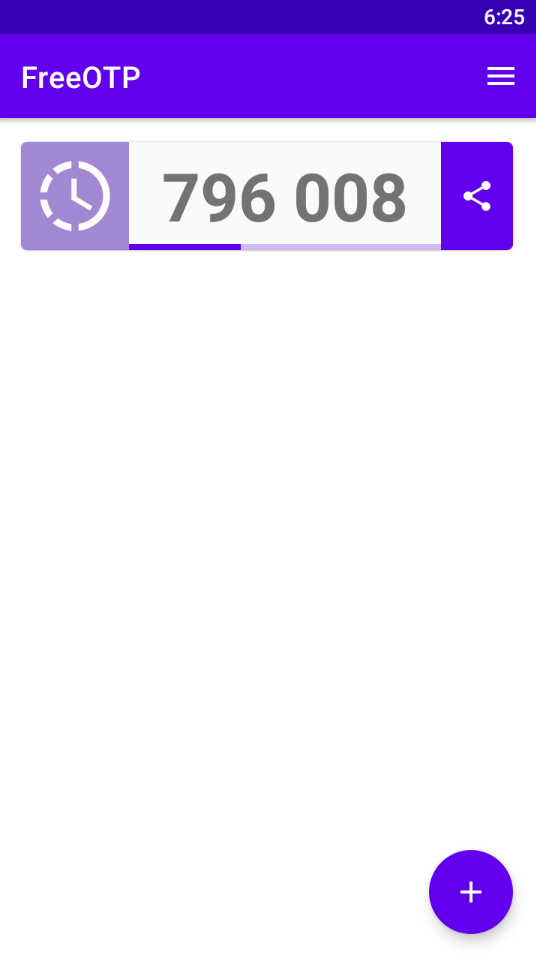
Use the current code from your app; the illustrated code is only an example.
Return to Set up Mobile Authentication and complete the form:
Enter the app’s current code in 6-digit code. If it is about to change, wait for the next code.
Optionally enter a Device name, such as My phone, to identify this authenticator.
Select Sign out from other devices if you want to end other account sessions.
Select Verify.
When the portal accepts the code, it completes this authentication step and continues account activation or opens My Portal. Keep the account entry in the authenticator: it generates the codes for subsequent logins.
Step 4: Use a code when logging in
Open My Portal, enter your account email and password, and select Log in.
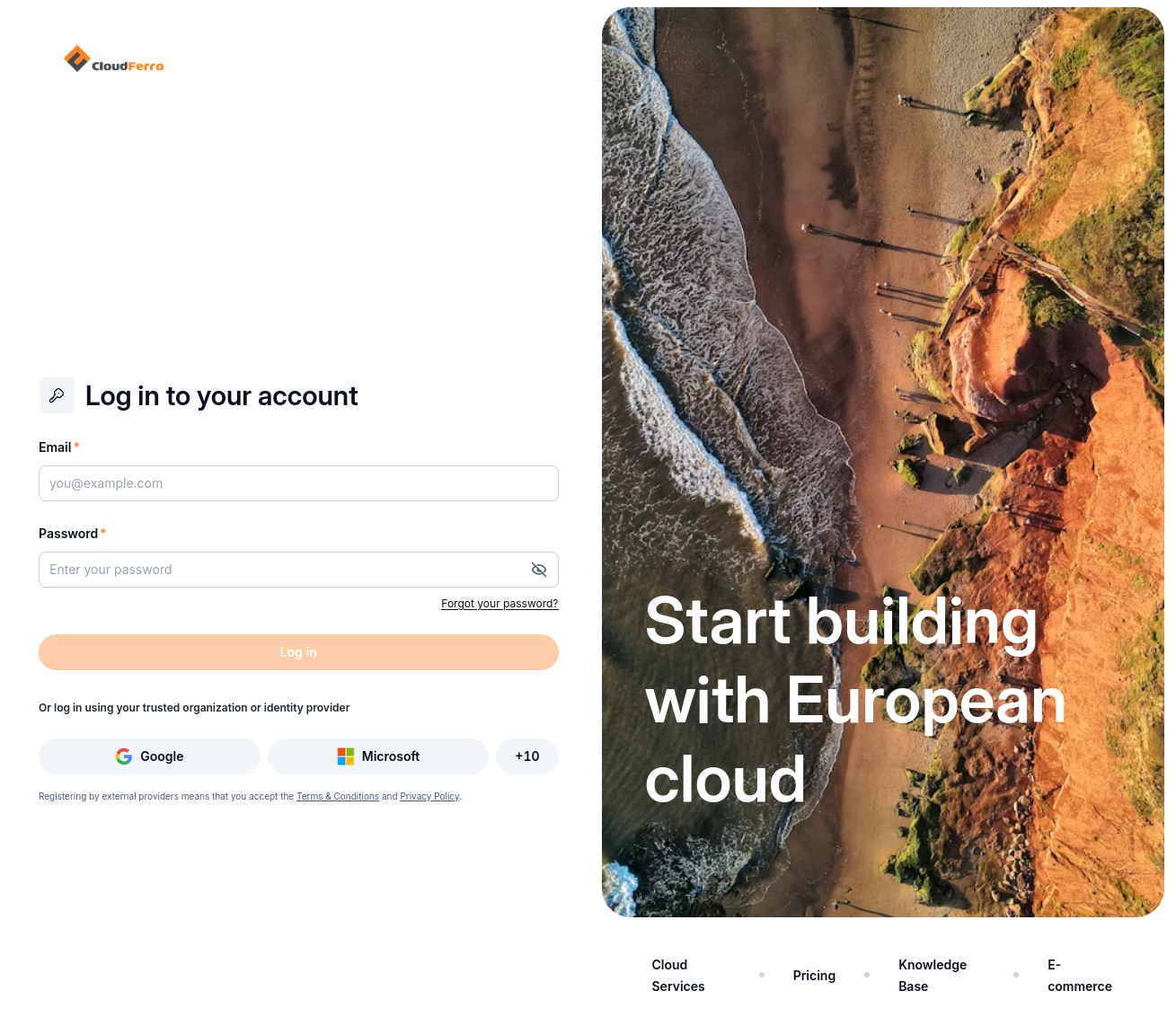
Start with your CloudFerro Cloud account credentials.
When the portal requests a code, open FreeOTP, tap the matching account, and enter its current six-digit value. Select Verify and go to platform.
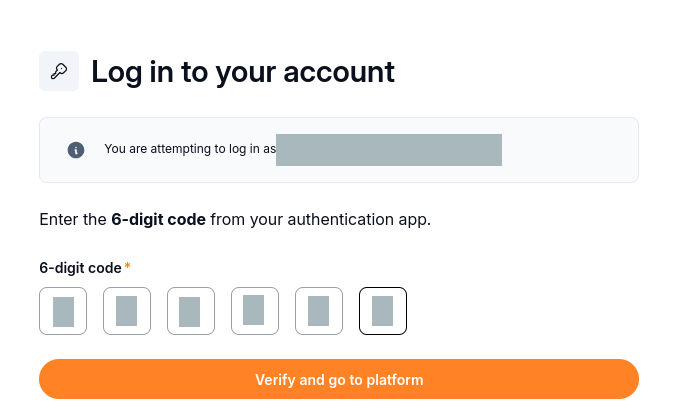
The second-factor prompt identifies the account being verified.
You do not scan the QR code or enter the setup key at each login. When opening OpenStack from My Portal, select the authentication provider and region for your project as described in Product catalogue on CloudFerro Cloud. If authentication requests a code, use the same configured account entry.