
How to change or reset your My Portal password on CloudFerro Cloud
When you want or need to change your My Portal password, you can update it from your signed-in profile or request a reset link from the login screen. The reset route also works when you have forgotten the password.
If you are already signed in, follow Change your password in My profile. To use the email reset route, follow the steps below. The reset link takes you through an authenticator check, when required, before you choose a new password.
Prerequisites
No. 1 An existing account and access to its email address
Use the email address registered with your My Portal account. You must be able to open the reset message sent to that mailbox. To create a new account instead, follow How to sign up for My Portal on CloudFerro Cloud.
No. 2 Your authenticator application, if required
Have the authenticator used for this account available. The reset example below asks for its six-digit code before allowing a password change.
Request a password reset
Open the My Portal login page and select Forgot your password? below Password.
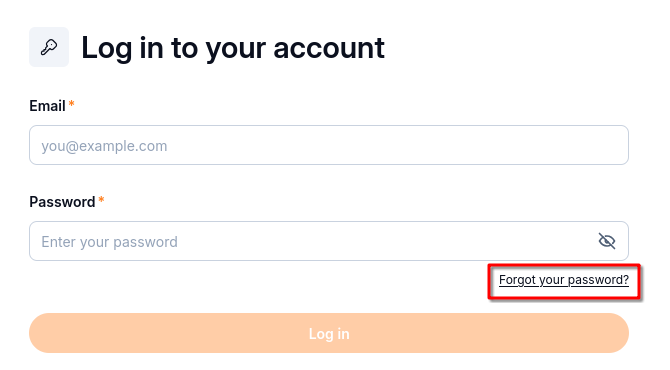
Start a password reset from the login form, including when you intentionally want to replace the password.
On Reset your password, enter the email address associated with your account.
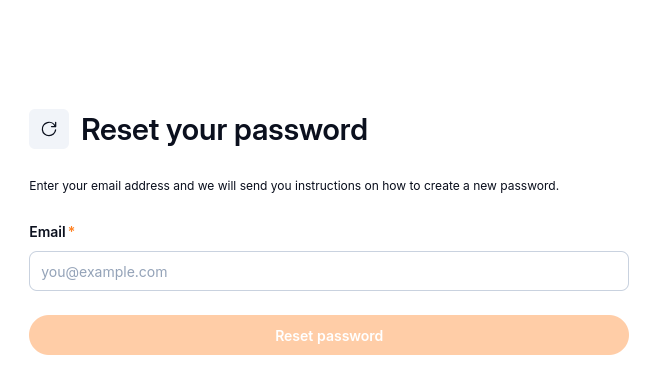
The reset instructions will be sent to the email address you enter.
Check the address before submitting. The completed example below has the address obscured.
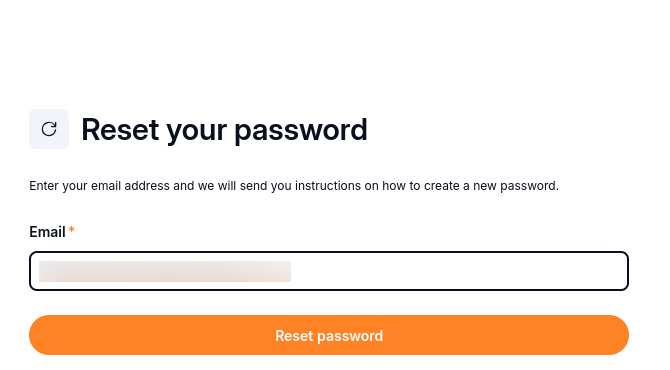
Submit the address registered with your account.
Select Reset password. The login screen displays You should receive an email shortly with further instructions.
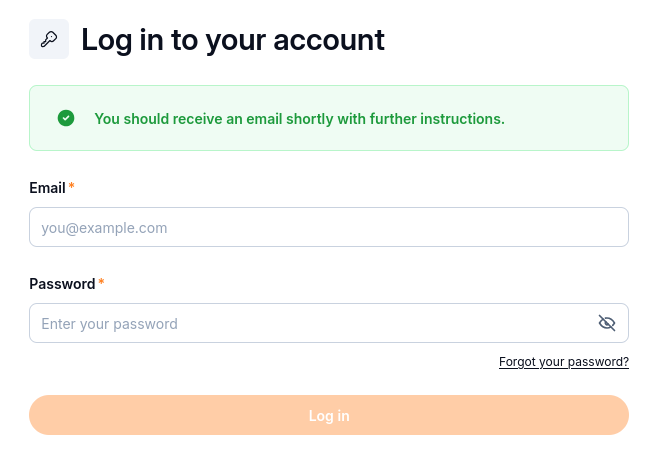
This confirms the reset request; your password has not yet been changed.
Open the reset email
Find the Reset password message from CloudFerro NoReply. Select Link to reset credentials within 15 minutes, as stated in the email.
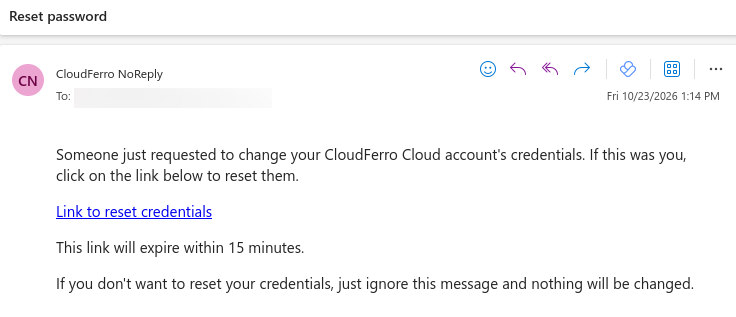
The reset link opens the next password-reset step.
If the message does not arrive, check the spam or junk folder and confirm that you requested the reset for the registered address. If the link expires, repeat the request from the login page. If you did not request a reset, the email says to ignore it; your credentials will remain unchanged.
Verify your authenticator code
If the reset screen requests a 6-digit code, open the authenticator application for this account. Enter its current code, then select Verify and go to platform.
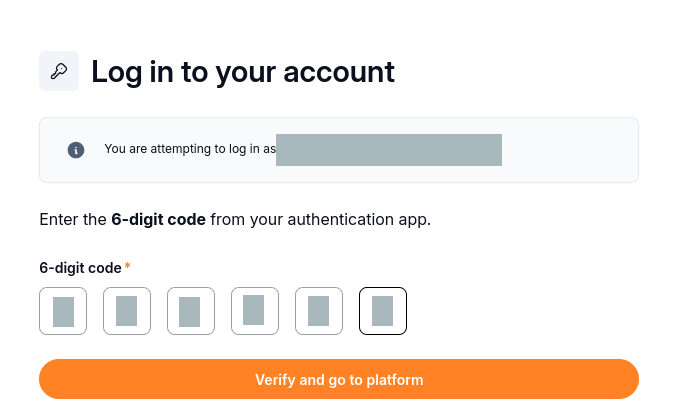
Enter the current code from your own authenticator, not the example shown here.
Invalid authenticator code means that verification did not succeed. Check that you selected the correct account in the application, enter a fresh code, and try again.
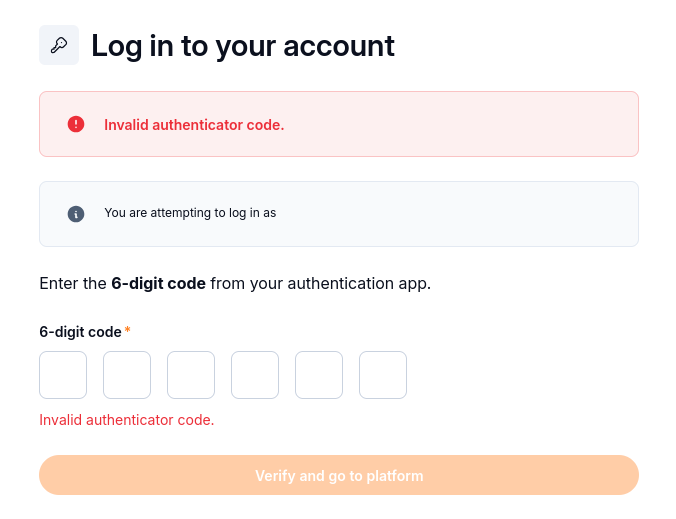
Correct the code before continuing to the password form.
Set a new password
On Update password, enter your replacement password in New password and repeat it in Confirm password. Follow any password requirements displayed by the form.
Select Sign out from other devices if you want to end your other sessions.
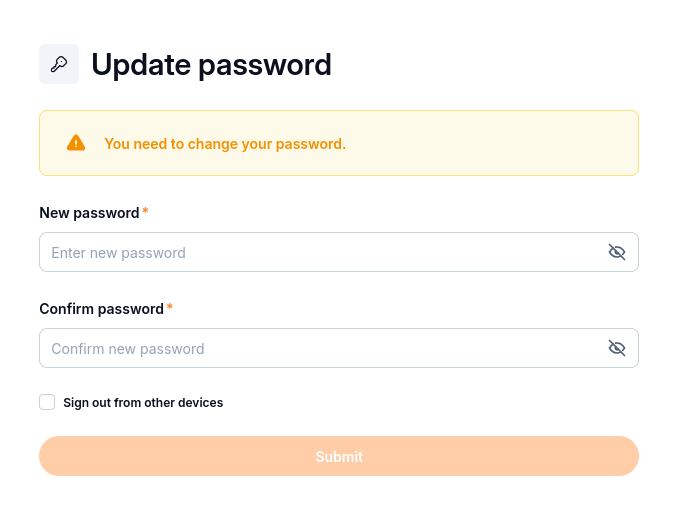
Enter the same new password in both fields before submitting.
Select Submit. Correct any validation message shown by the form. When the password change is complete, use the new password the next time you log in.