
How to sign up for My Portal on CloudFerro Cloud
To start using My Portal, you need a personal account. The registration form lets you create one with an email address and password, or use an existing account with a trusted identity provider.
For email-and-password registration, activation includes verifying your email address and setting up an authenticator. You can then register or join an organization to access cloud resources.
Prerequisites
No. 1 An email address you can access
You will need to open the verification message sent to this address to activate your account. If you already have a My Portal account, select Sign in at the top of the registration page instead of creating another account.
No. 2 An authenticator application
Use a mobile authenticator or a desktop application that generates time-based one-time passwords (TOTP). The portal lists Microsoft Authenticator, FreeOTP, and Google Authenticator.
For installation and setup instructions, follow the mobile authenticator guide or the KeePassXC guide. Have the application installed before registering; you will connect it to your account during activation.
Open the registration form
Open the My Portal registration page. The Sign up to your account form asks for your personal details and a password, and includes consent checkboxes. An asterisk marks required fields and consents.
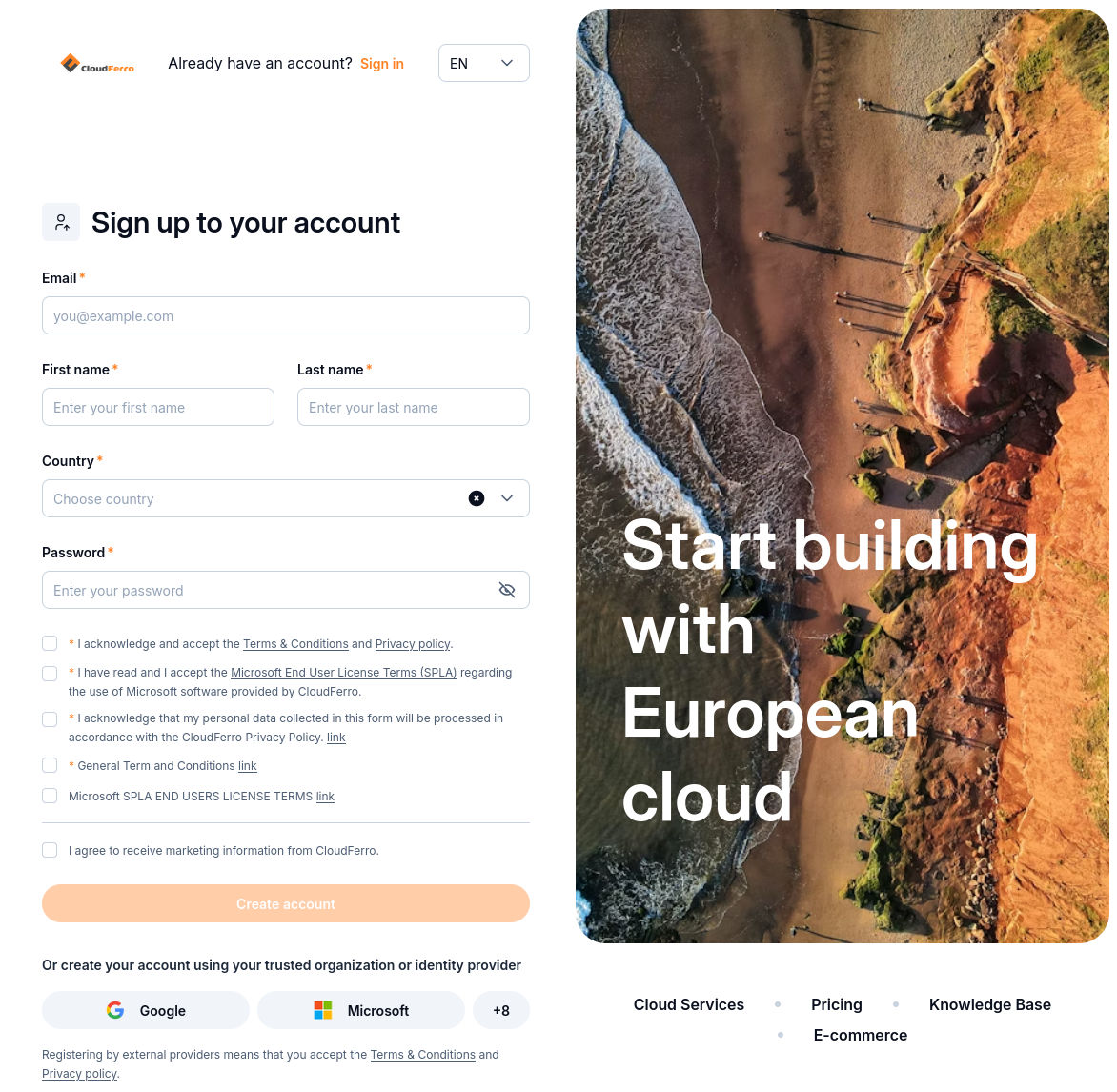
Register with an email address and password, or choose an identity provider below the form.
The language selector at the top offers EN, DE, and PL for English, German, and Polish. The screenshots in this article use English.
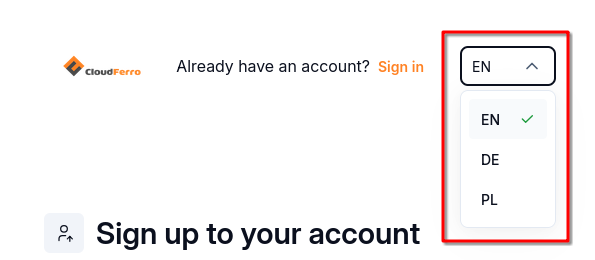
Choose the language for the registration page.
Create an account with an email address
Enter your Email, First name, and Last name, then select your Country.
Enter a Password. The checklist below the field shows whether it meets all five requirements:
At least 16 characters.
At least one lowercase letter.
At least one capital letter.
At least one number.
At least one special character.
The eye icon switches password visibility. Check the requirement indicators as you type; the example below satisfies all five and has a Very good rating.
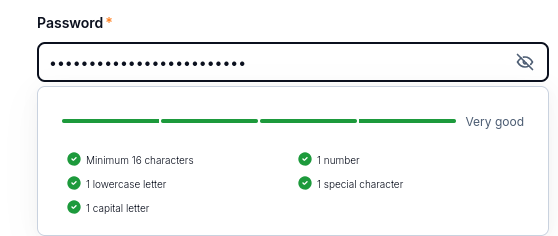
Each green check indicates that a password requirement has been met.
Open and read the documents linked beside the consent checkboxes. Select the required checkboxes marked with an asterisk if you accept their terms. These cover the terms and conditions, privacy and personal-data processing, and Microsoft licensing statements shown in the form.
The marketing-information checkbox at the bottom has no asterisk and is optional. Choose it only if you want to receive marketing information from CloudFerro.
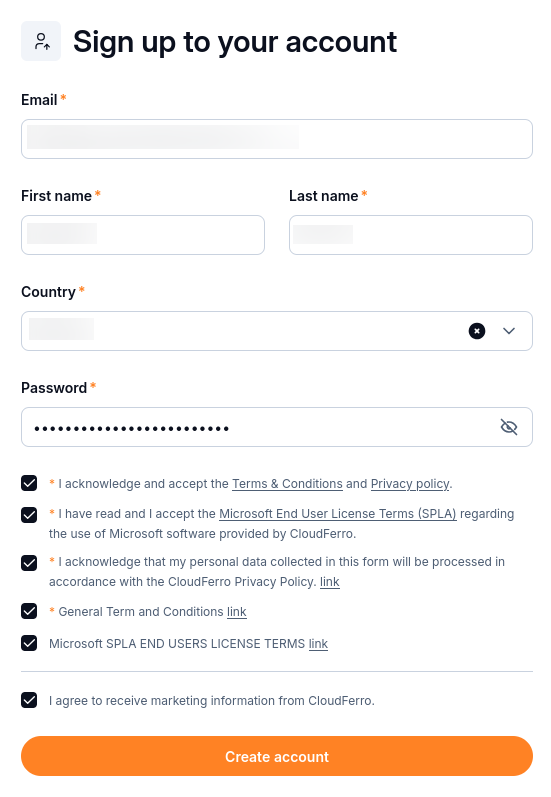
The example selects every checkbox, including the optional marketing choice. Select the optional choices according to your preferences.
Select Create account. If the form reports a validation error, correct the indicated field or required checkbox, then submit again. Successful registration displays Registration Successful! and a Log in button.
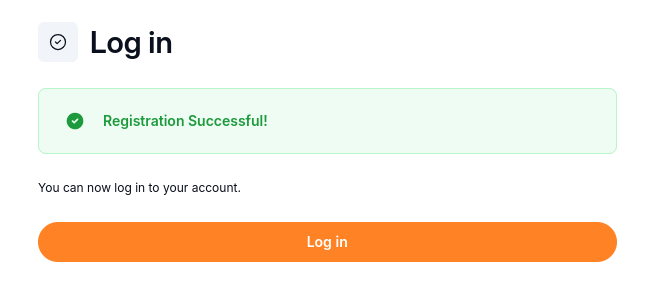
The confirmation states that you can now log in to your account.
The Account successfully created email confirms registration and includes a link to register or join an organization. Account creation and email verification are separate steps; complete the verification requested when you log in.
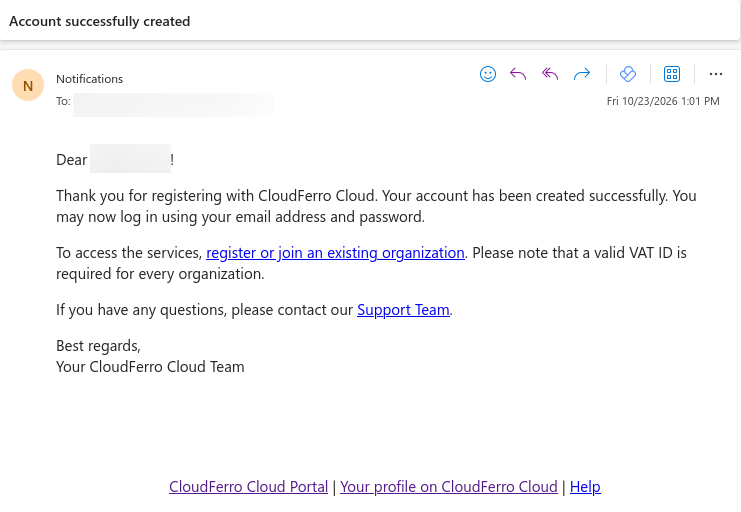
The account-created email provides links for the next setup tasks.
Use an identity provider instead
If you prefer to register with an existing identity, use the buttons below Create account. Select Google or Microsoft directly, or select +8 to open the full provider list.
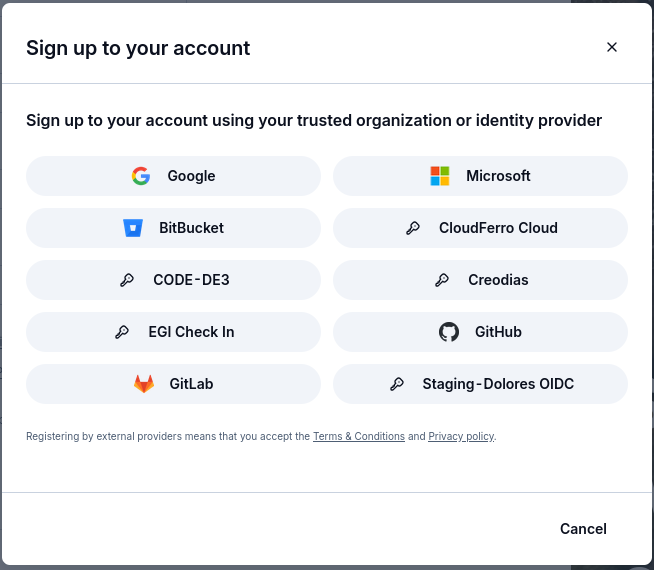
Choose the provider for the account you want to use.
The notice below the buttons states that registration through an external provider accepts the linked terms and conditions and privacy policy. Read those documents, select your provider, and follow its sign-in instructions. Cancel closes the provider list and returns to the registration form.
Log in to your new account
Select Log in on the registration confirmation screen.
Enter the Email and Password used during registration. If you registered with an identity provider, use that provider’s button below the form instead. The +10 button in this login screenshot opens additional provider choices.
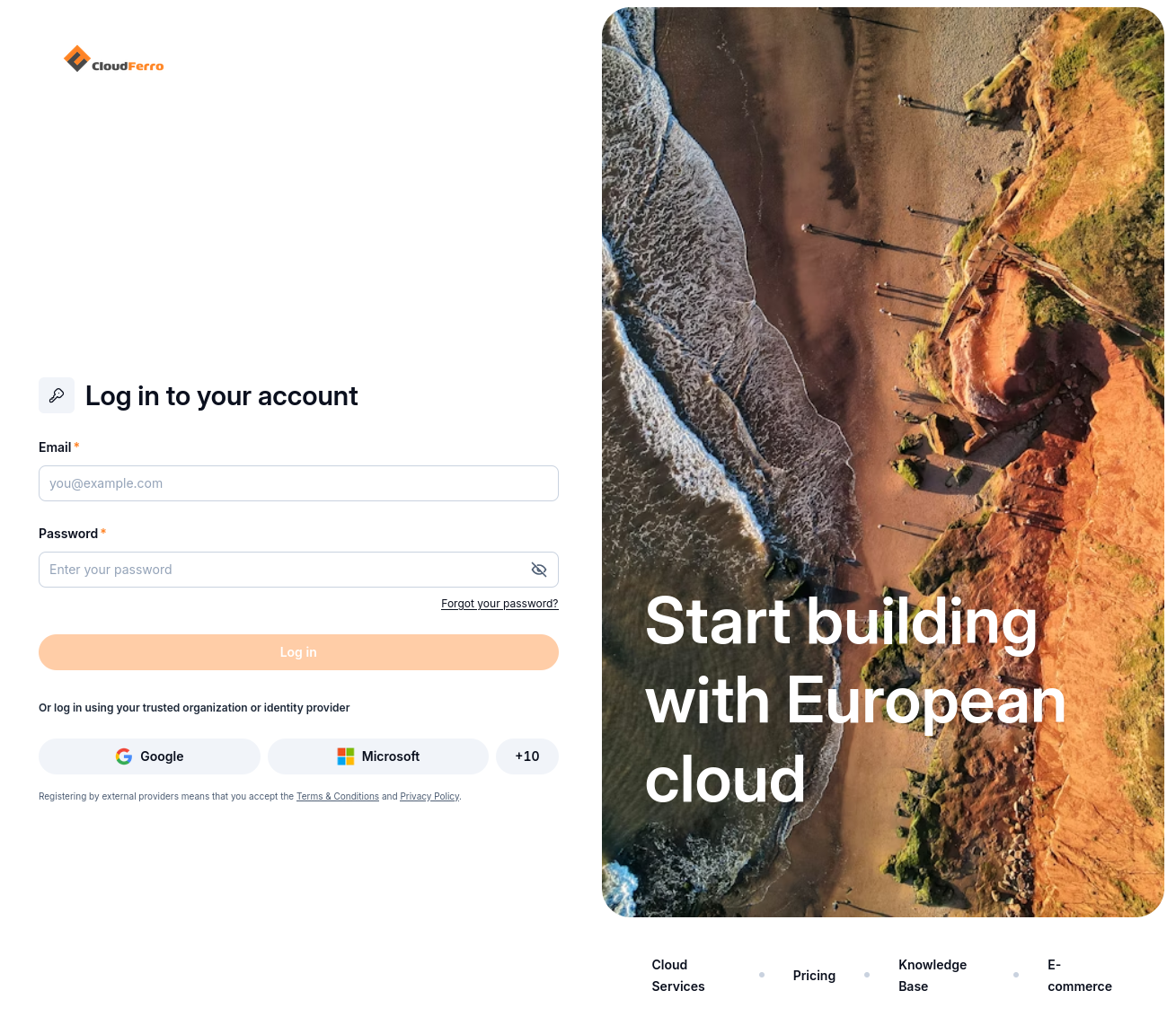
Log in with the email and password you registered, or use your identity provider.
Select Log in. To reset the password, whether you have forgotten it or want to replace it, use Forgot your password? and follow How to change or reset your My Portal password on CloudFerro Cloud.
Verify your email address
The Email verification screen states that you must verify your email address to activate your account. It also identifies the address to which the instructions were sent.
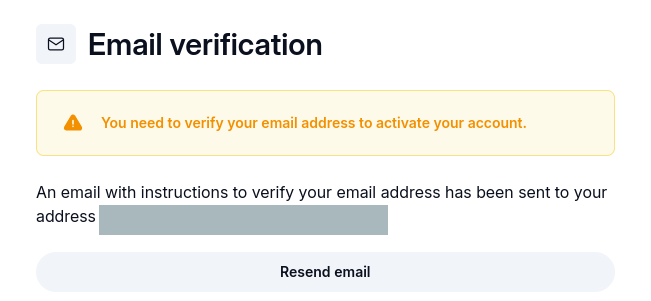
Follow the verification instructions sent to the address shown on the page.
Open your mailbox and find the Verify email message from CloudFerro NoReply.
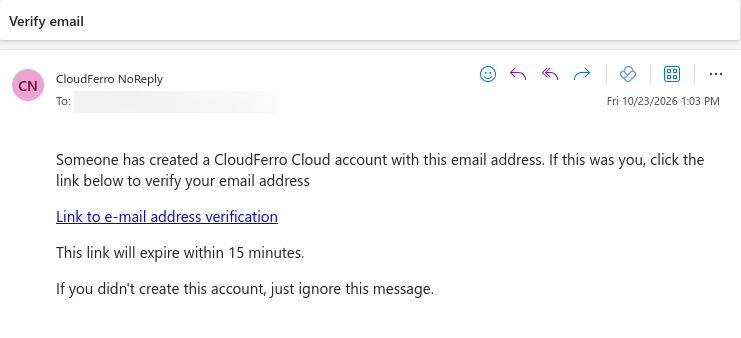
The verification link in this email expires within 15 minutes.
Select Link to e-mail address verification in the message within 15 minutes. If the message has not arrived, check the spam folder. Use Resend email on the portal page if you need another message or the link has expired.
Return to My Portal and sign in if prompted.
Set up mobile authentication
The Set up Mobile Authentication screen links your authenticator to the account. You can scan the QR code with a camera or enter the setup key manually. The authenticator uses that key to generate the six-digit codes requested by My Portal.
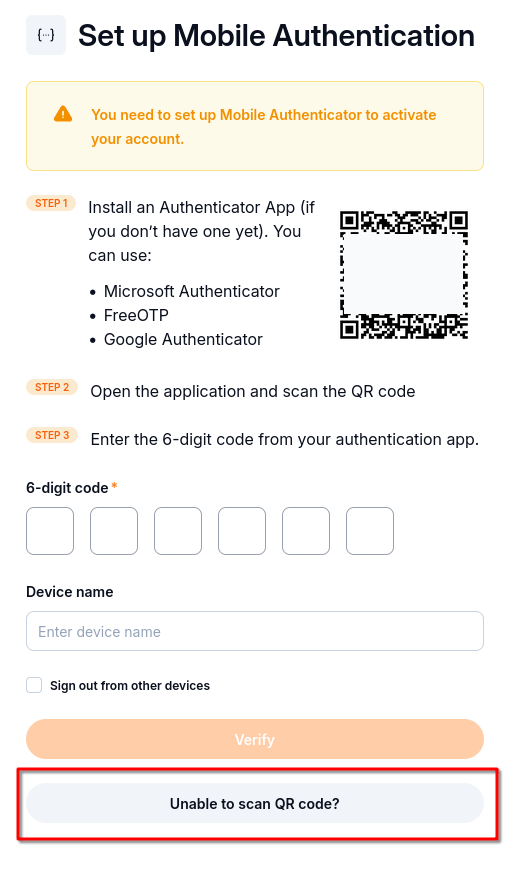
Use the QR code in your own session, or select Unable to scan QR code to display the setup key.
With a camera, add an account in your authenticator application and scan the QR code displayed by My Portal. Then complete Verify the authenticator below.
Enter the setup key manually
Select Unable to scan QR code?. The QR code is replaced by a setup key and configuration values. Scan QR code switches back to the camera option.
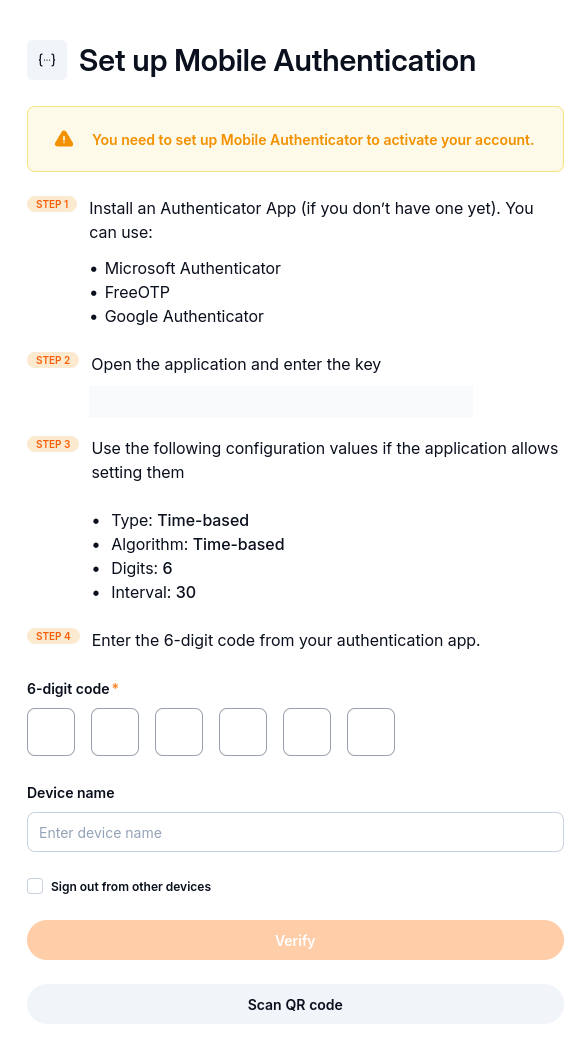
Enter the key shown in your own session into the authenticator application.
In your authenticator, choose its manual account-setup option and enter the displayed key. Configure Time-based (TOTP) codes with 6 digits and a 30-second interval if the application asks for these settings.
Save the account in the authenticator and display its current six-digit code.
The setup key is the secret used to generate codes. Enter that key in the authenticator; enter the resulting six-digit code in My Portal. The key in the screenshot is obscured.
Verify the authenticator
After either setup method, enter the authenticator’s current code into 6-digit code. Optionally, enter a Device name to identify the authenticator.
Select Sign out from other devices if you want to end your other sessions, then select Verify.
Complete the initial account setup
The Register or join Organization dialog offers two ways to access cloud resources. Choose Register Organization to create an organization and become its administrator, or Join Organization if an administrator has given you an invitation code.
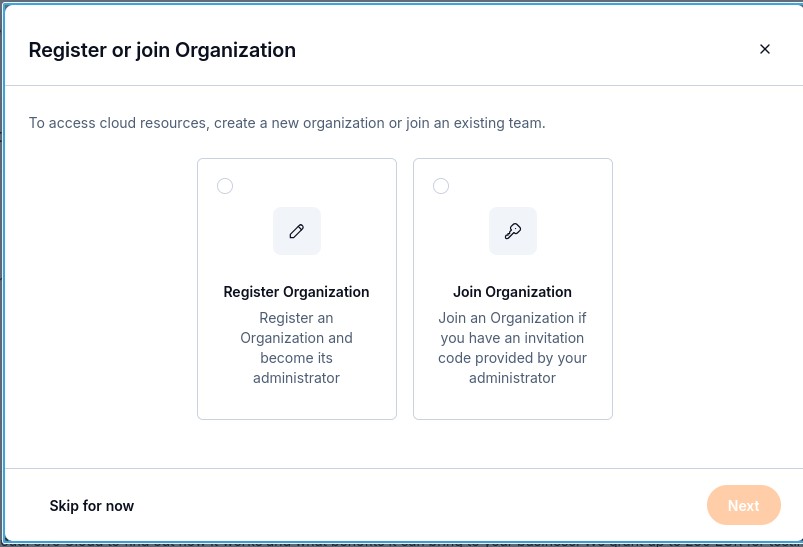
Select an organization option and continue with Next, or postpone setup with Skip for now.
Follow Register or join an organization in My Portal on CloudFerro Cloud for the organization details or invitation-code procedure. Skip for now lets you postpone this step; the portal continues to prompt you to configure an organization before using services.
On Home, the CloudFerro Getting started panel provides Discover CloudFerro products and Register or join Organization tasks. The example below shows 0/2 completed. View CloudFerro products opens the product catalogue.
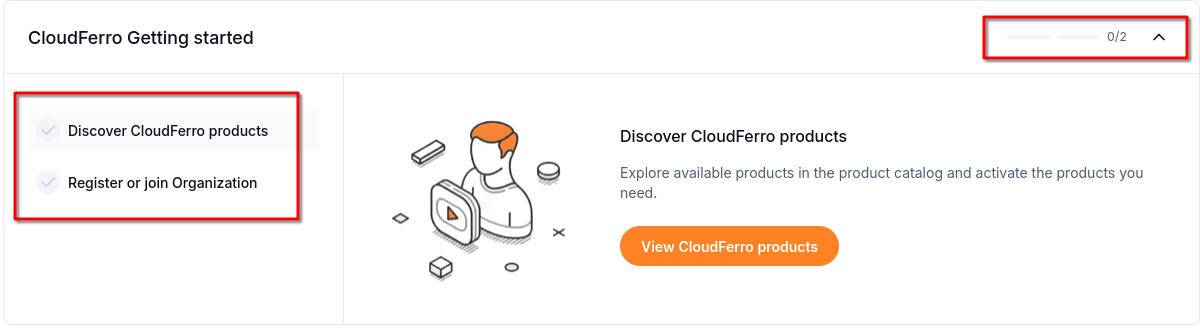
Use the checklist to continue product discovery and organization setup.
Open IAM → My profile to check the email, name, and country entered during registration. In this example, the organization reminder offers Add an organization and Go to eCommerce website. To update your personal details, follow My profile: find your account information on CloudFerro Cloud.
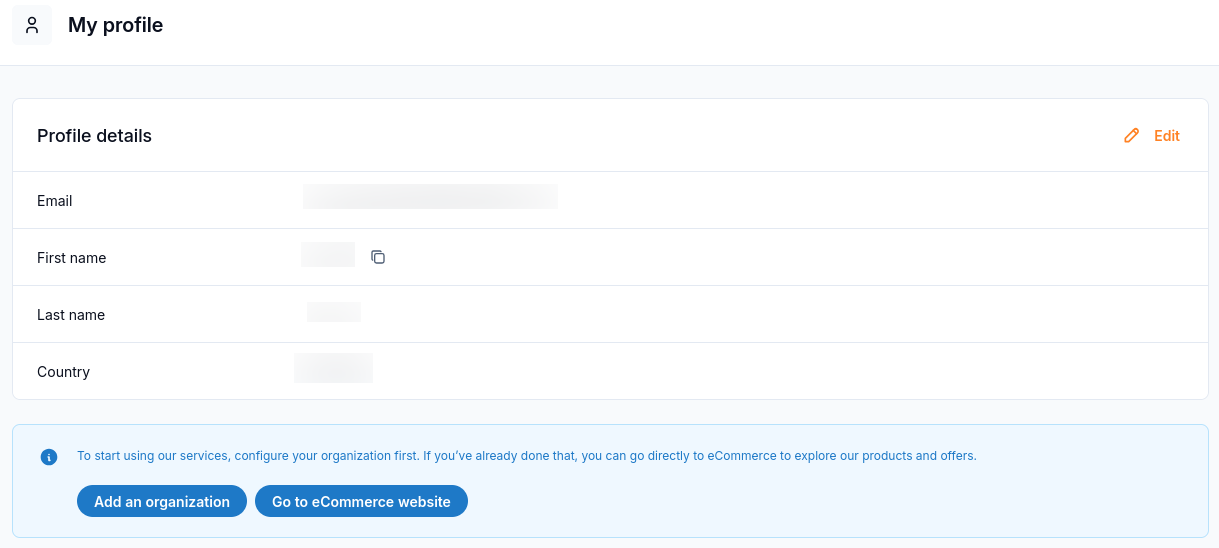
Profile details and organization setup remain available after registration.