
Service accounts: create credentials and assign roles on CloudFerro Cloud
An application or automated task may need its own identity instead of a person’s account. Service accounts lets you create that identity, save its credentials, and assign the roles needed by the task.
Prerequisites
No. 1 Access to service account management
Sign in and check your organization using Register or join an organization in My Portal on CloudFerro Cloud. Your account must be able to create service accounts and assign the required roles.
No. 2 The product’s authentication requirements
Check the product guide linked from Product catalogue on CloudFerro Cloud. Confirm that its authentication workflow uses these service-account credentials and identify the roles required for the task.
Create a service account
Open IAM → Service accounts. An organization with no existing entries shows Create service account in the empty view.
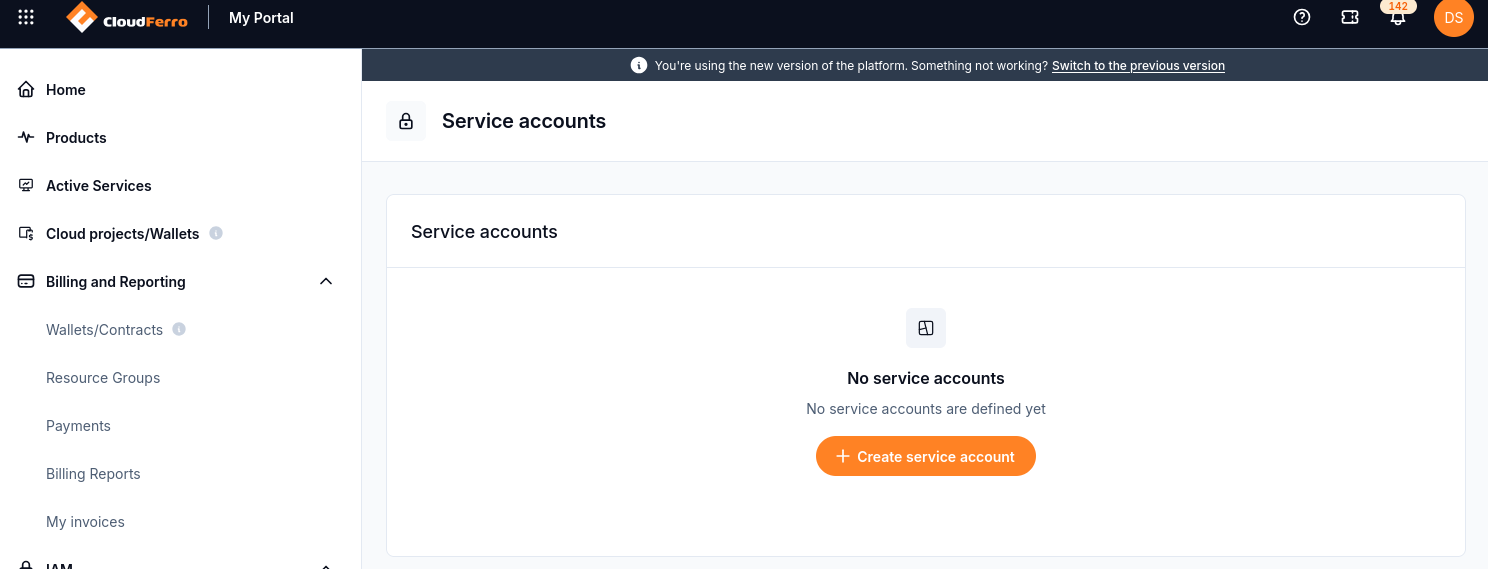
Start creation from the Service accounts page.
Select Create service account.
In New service account, enter the required Service account name and an optional Description. The dialog explains that roles can be added after creation.
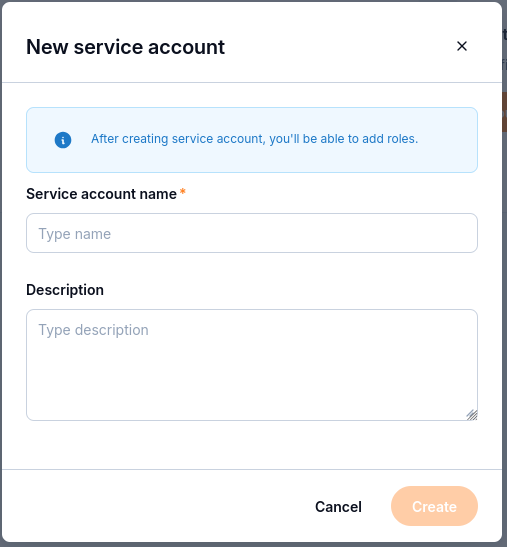
Use a name that identifies the application or automated task.
Select Create to display the new account’s credentials.
Save the credentials
The Service account created! dialog displays a Client ID and Secret key, with a copy button for each value.
Important
The secret key is displayed only once. Copy the credentials and store them securely before closing this dialog.
Copy Client ID and Secret key to the secure credential storage used for your application.
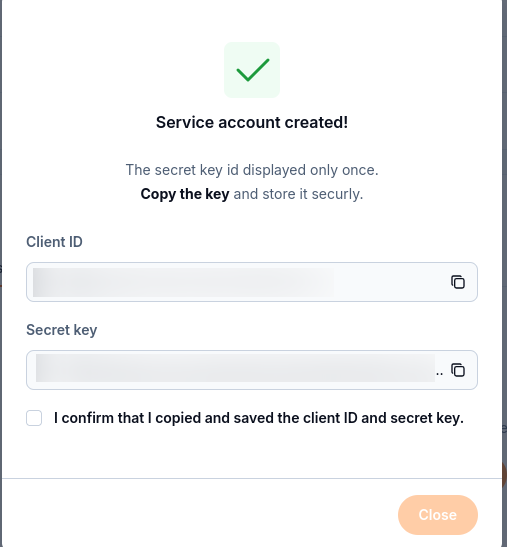
Save both credentials before confirming and closing the dialog.
Select I confirm that I copied and saved the client ID and secret key.
Select Close.
Assign roles
The account details show Name, Status, Description, and ID. The Roles section separates Direct Roles from Roles via Groups. A newly created account can have no roles assigned yet.
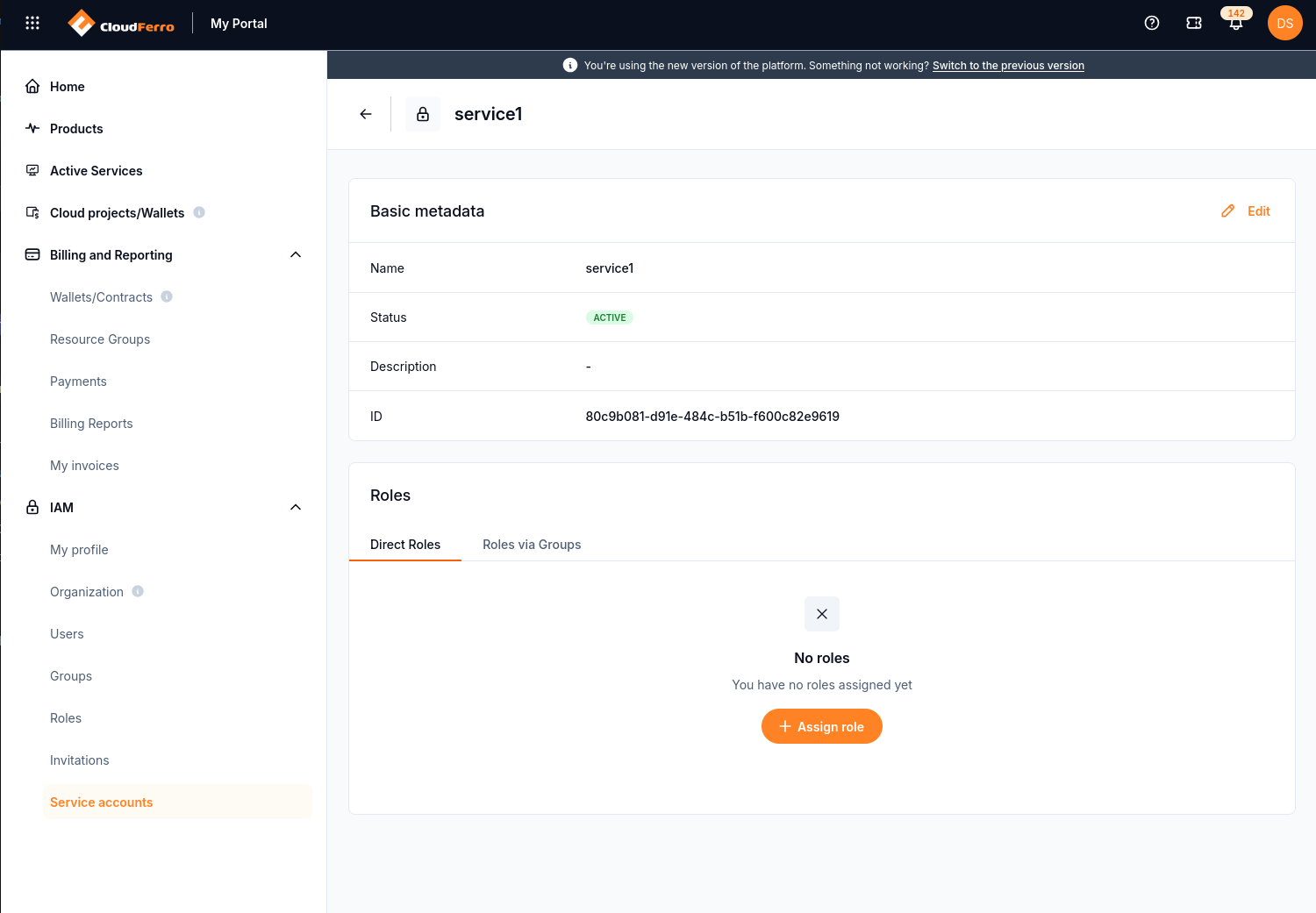
Active status and assigned roles are separate properties of the account.
In Direct Roles, select Assign role.
Search or browse the available roles. Compare Name and Services, and use the eye icon to inspect a role before selecting it.
Select the checkboxes for the roles required by the application.
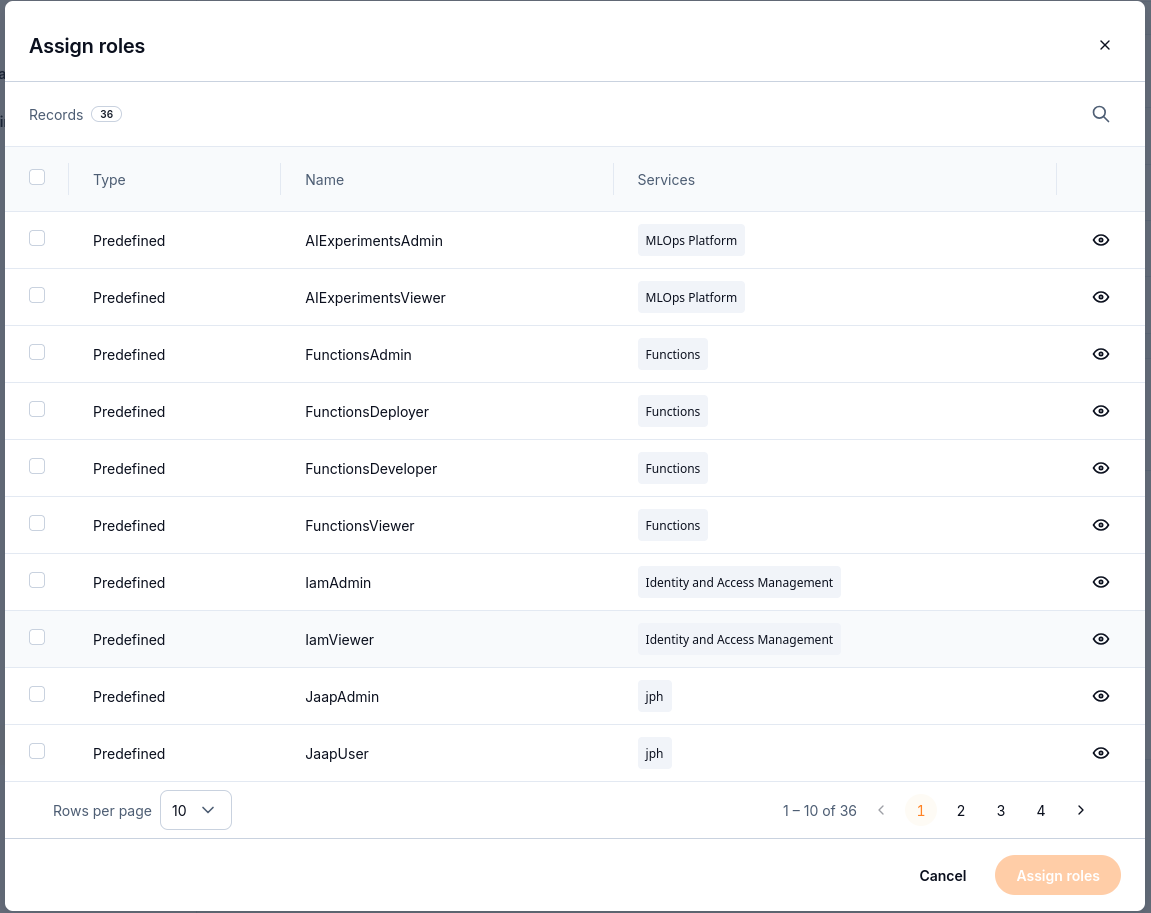
Select the roles needed by the task, then confirm the assignment.
Select Assign roles.
Check that the selected roles appear under Direct Roles. Use Roles via Groups when checking access inherited through group membership.
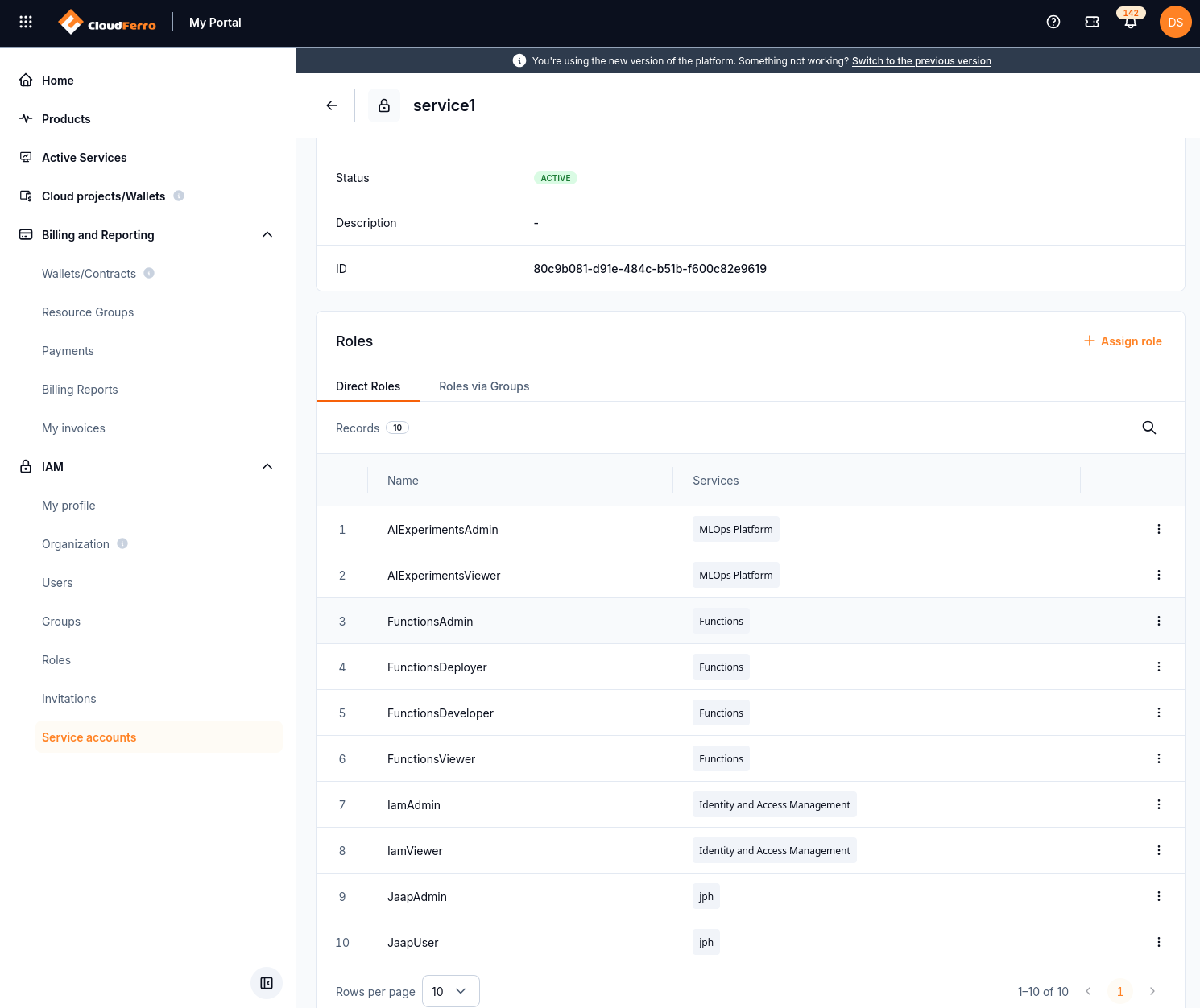
Roles assigned directly to the service account.
For role definitions, see Roles: review and create access rules on CloudFerro Cloud. For group membership, see Groups: organize users and service accounts on CloudFerro Cloud. Use the credentials according to the selected product’s authentication instructions.