
How to invite users to an organization in My Portal on CloudFerro Cloud
When someone needs access to your organization’s cloud resources, they first need to join the organization. An administrator shares an invitation code, the recipient submits a join request, and the administrator accepts or rejects it in Invitations.
Prerequisites
No. 1 Administrator access for sharing and approving invitations
Sign in as an administrator of the intended organization. Check the organization using Register or join an organization in My Portal on CloudFerro Cloud before sharing its code or accepting a request.
No. 2 A personal account for the recipient
The person joining needs their own My Portal account and the invitation code from the organization’s administrator. If they do not have an account, complete How to sign up for My Portal on CloudFerro Cloud first.
Share the organization’s invitation code
As the administrator, open IAM → Invitations. Invite users under Home → Quick actions opens the same task.
Under Invitation code, select Copy to clipboard.
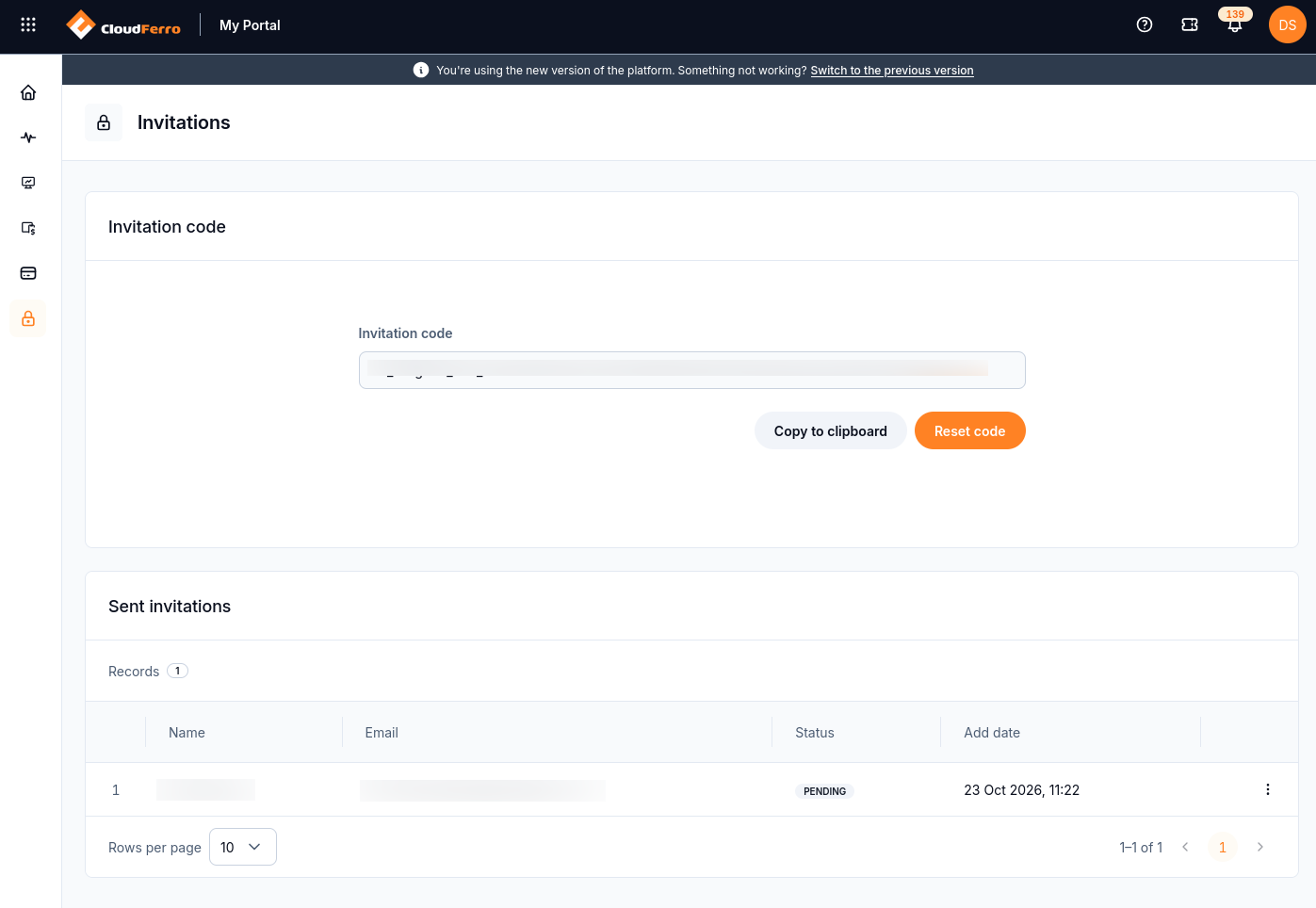
Copy the organization’s code from the upper panel. The example already contains a pending join request in the table below.
Share the code with the person who should join. The recipient completes the next steps using their own account.
Submit a request to join
As the recipient, open Register or join Organization from Home → Quick actions. Select Join Organization, then Next.
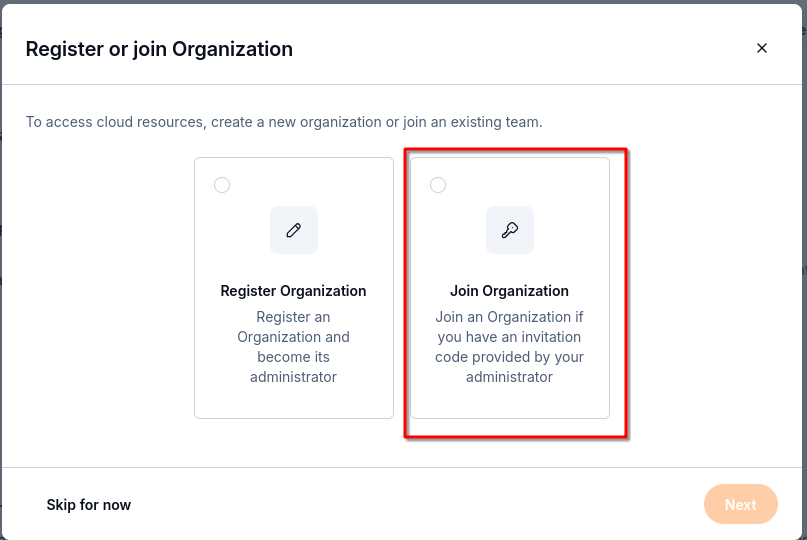
Join the existing organization using the administrator’s code.
Enter the supplied code in Invitation code.
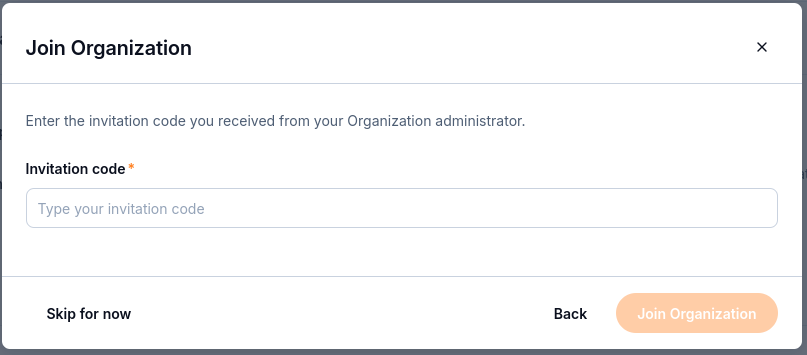
Enter the code for the organization you intend to join.
Select Join Organization. The confirmation says that the request has been sent and that you will be notified when an administrator approves it.
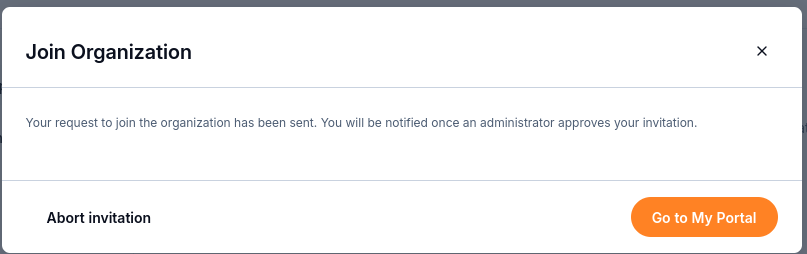
Submitting the request does not yet make you a member.
Select Go to My Portal to return to the portal while waiting. Abort invitation is available if you want to withdraw the request.
Accept or reject the request
As the administrator, return to IAM → Invitations. In Sent invitations, identify the intended person using Name and Email. A request awaiting your decision has status PENDING; Add date shows when it was added.
Open the three-dot menu at the end of the request’s row. Choose Accept to approve the request or Reject to decline it.
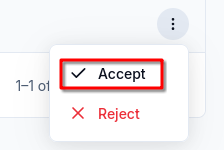
Choose the action for the intended recipient.
For acceptance, check the recipient shown in Accept invitation. Select Accept to confirm, or Cancel to leave the request unchanged.
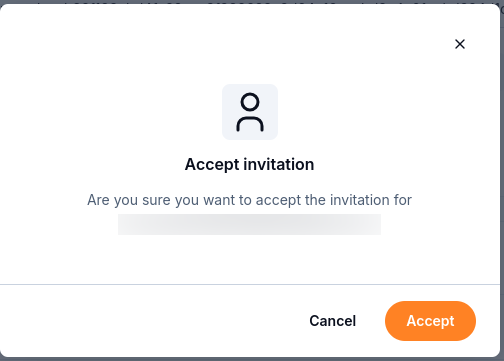
Confirm acceptance for the person identified in the dialog.
Check that the request’s status changes to ACCEPTED.
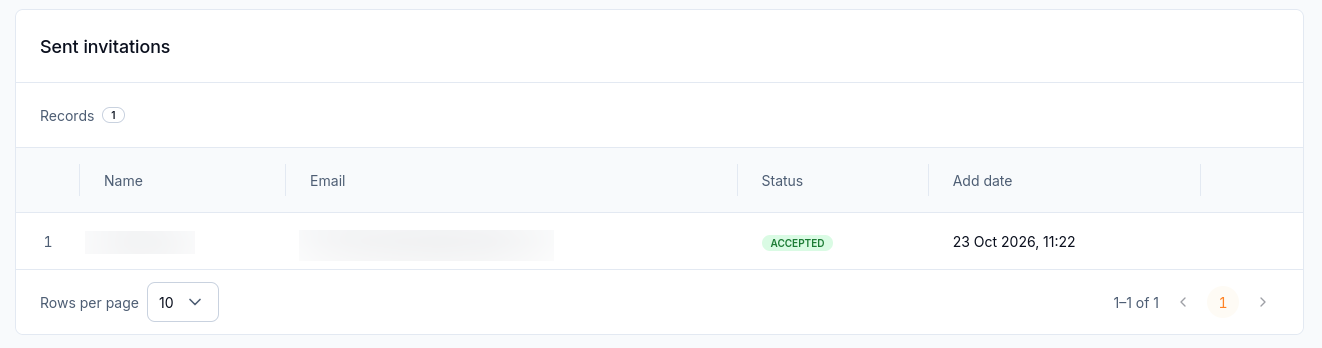
ACCEPTED records the administrator’s approval.
The recipient receives an email titled Your account has been assigned to an organization. It identifies the organization and asks them to log in to use its available services.
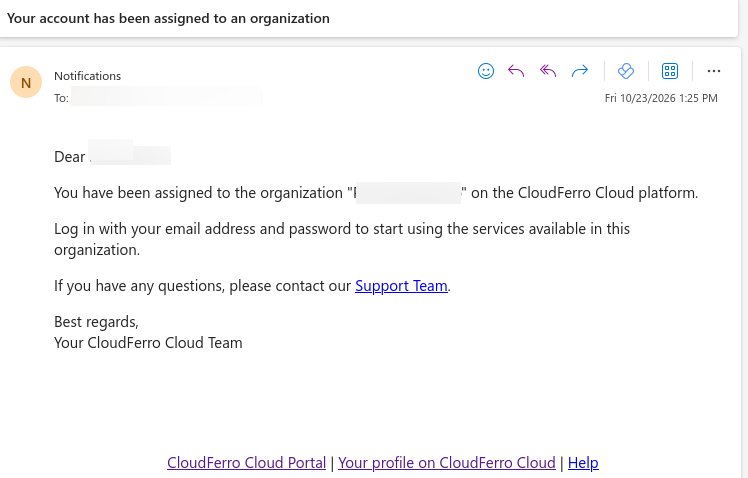
The email confirms organization membership to the recipient.
Check membership and assigned roles
Open IAM → Users and locate the new member by Name and Email. The example below contains two members. The Roles column shows some assigned roles directly and uses a count such as +13 or +34 for additional roles.
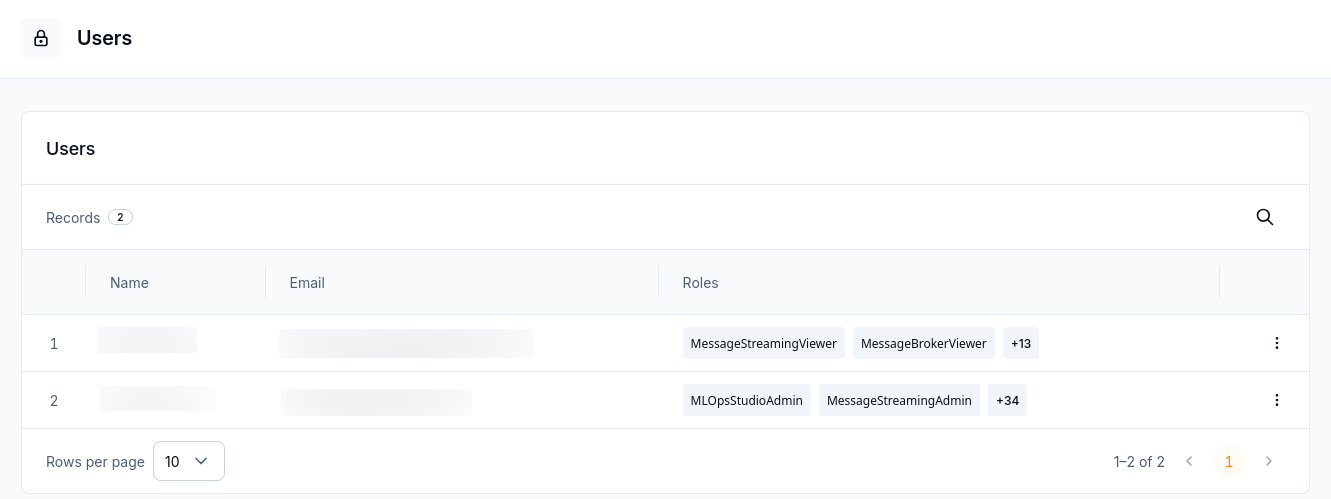
Verify that the accepted person appears in the organization’s Users list.
Select the additional-role count to see the remaining assignments. These two captures show different members’ lists; they are examples of existing assignments, not a fixed set granted by every invitation.
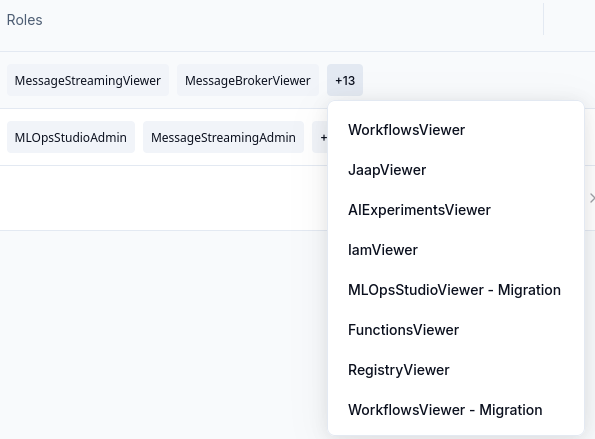
Expand the count to inspect roles hidden from the first member’s row.
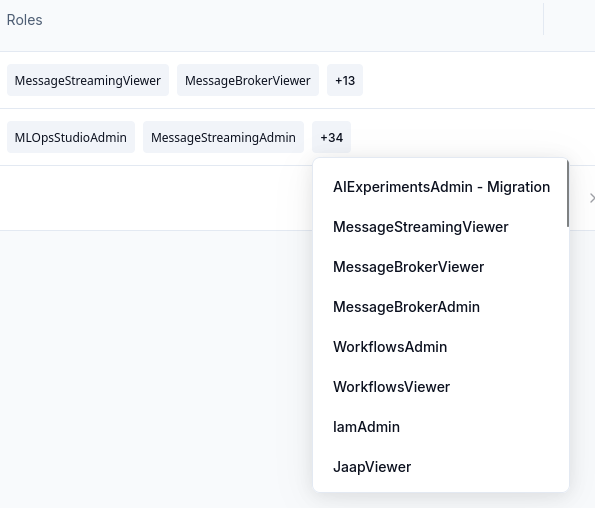
Each member has their own role assignments.
Organization membership and permission to perform a product action are separate checks. Use Roles: review and create access rules on CloudFerro Cloud to review roles and Users: find organization members on CloudFerro Cloud to find members.
Reset the invitation code
On IAM → Invitations, select Reset code.
Read the Reset invitation code confirmation.
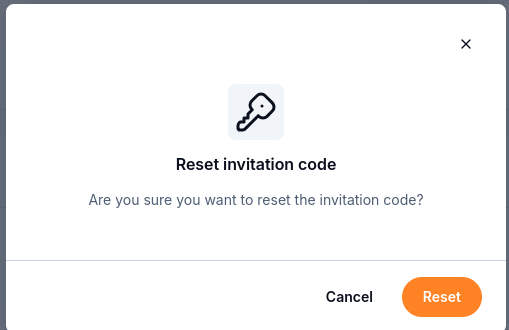
Resetting the invitation code requires confirmation.
Select Reset to replace the code, or Cancel to keep it.
Copy the resulting code when preparing a new invitation.
Remove membership after acceptance
To remove someone who has already joined, use the member’s actions under IAM → Users. The Unassign user confirmation states that the person will lose access to the organization and its resources.
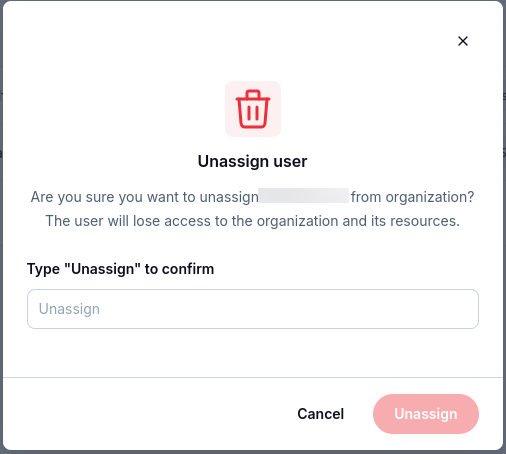
Check the selected member before confirming removal.
If you intend to remove that membership, type Unassign in the confirmation field and select Unassign. Select Cancel to keep the membership. Use Reject on a pending invitation when the person has not yet been accepted.