
Users: find organization members on CloudFerro Cloud
When you need to find a person who already belongs to your organization, start with Users. For someone who still needs to join, use Invitations.
Open the view
Open IAM → Users. You can also start from Manage users in Home → Quick actions.
Confirm the organization before selecting a user. Identify the intended person from the account information shown, then review the details and actions available to you.
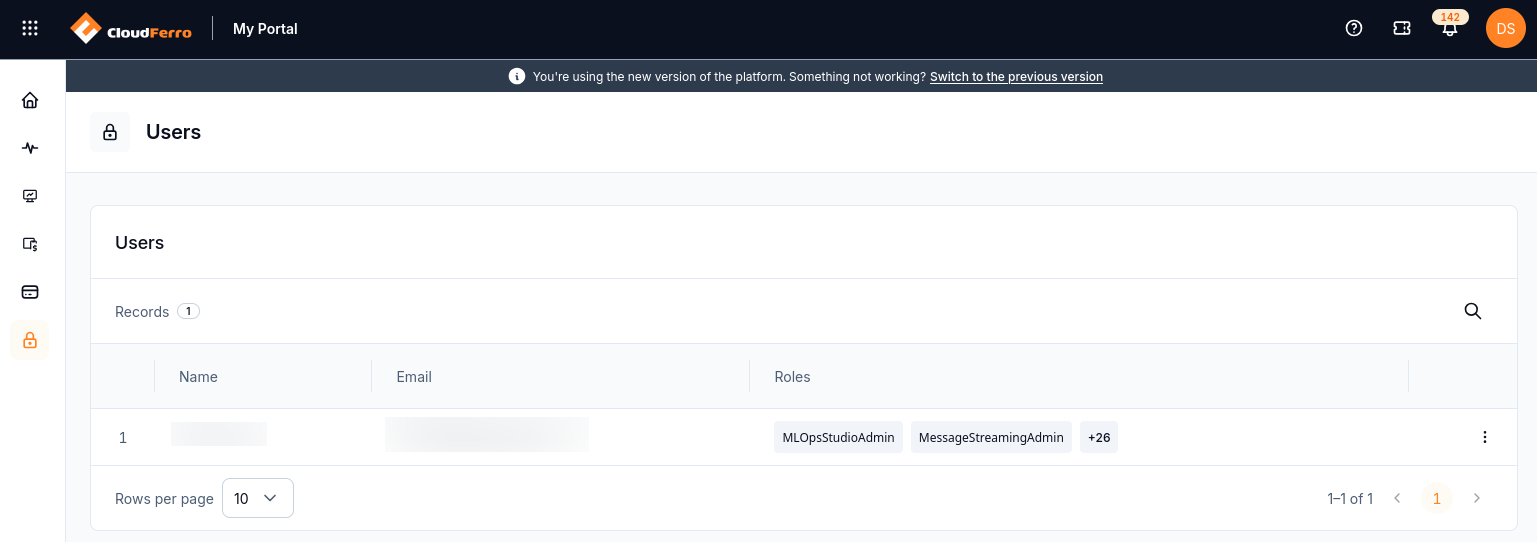
Organization members and their displayed roles.
The list shows Name, Email, and Roles. A user with more roles than fit in the row can have an additional-count label, such as +26 in this example. The row also has a three-dot menu for the actions available to your account.
Select the additional-count label to display more assigned roles. The expanded list can include roles from several products as well as IAM roles.
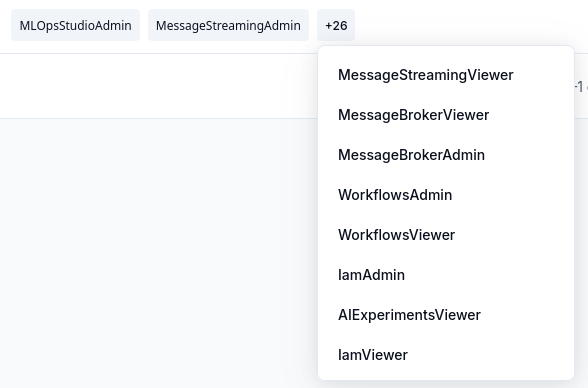
The additional-count label reveals roles that do not fit in the table row.
For a person who has not joined yet, continue with How to invite users to an organization in My Portal on CloudFerro Cloud. For the access associated with an account, see Roles: review and create access rules on CloudFerro Cloud.