
Set up two-factor authentication with KeePassXC on CloudFerro Cloud
Use KeePassXC to generate CloudFerro Cloud authentication codes on your desktop or laptop. It stores the setup key in an encrypted database and generates a six-digit, time-based one-time password (TOTP) whenever the portal requests one.
The portal calls its setup screen Set up Mobile Authentication, but you can use the manual key from that screen in KeePassXC without a phone or camera. For the mobile route, follow Set up two-factor authentication with a mobile app on CloudFerro Cloud.
Prerequisites
No. 1 — A CloudFerro Cloud account and setup key
Complete registration and email verification as described in How to sign up for My Portal on CloudFerro Cloud, stopping at Set up Mobile Authentication. The steps below show where to obtain the key on that screen.
If your account already has two-factor authentication, you need the original setup key retained securely from that enrollment to reproduce its codes in KeePassXC. A current six-digit code is not a setup key. If you have neither the key nor a working authenticator, contact CloudFerro support for account recovery.
No. 2 — A computer with KeePassXC
KeePassXC is available for Linux, Windows, and macOS. For Windows and macOS, use the official KeePassXC downloads. Ubuntu users can install it with the commands in Step 1; administrative privileges are needed. If you already have a database, you can open it and continue at Step 3.
No. 3 — Correct time and protected database storage
Enable automatic time synchronization on the computer so that generated codes match the server’s time. Choose a strong database password and a location where you can maintain a backup of the encrypted database.
Warning
Storing the account password and its TOTP key in the same database lets someone who unlocks that database obtain both factors. Keep the TOTP entry in a separate database with a different password if you need that separation, as recommended in the KeePassXC TOTP documentation.
Step 1: Install KeePassXC
On Ubuntu, open a terminal and run:
sudo apt update
sudo apt install -y keepassxc
Launch KeePassXC after installation. The desktop screenshots below show KeePassXC 2.7.12 on Linux; appearance can vary with the version and operating system.
Step 2: Create an encrypted database
On the welcome screen, select Create Database.
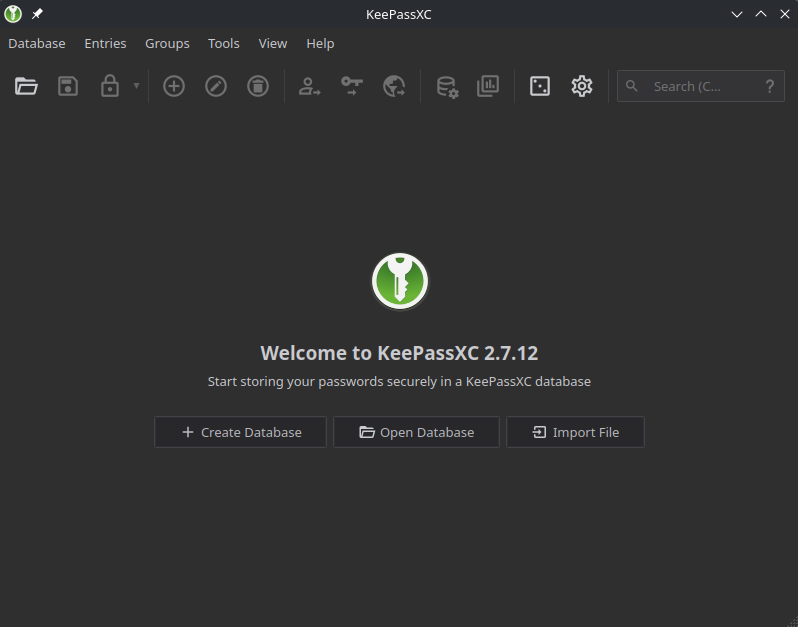
Create a database to hold the TOTP entry, or open one you already use for authentication keys.
Enter a Database Name, such as Authentication codes, and an optional Description, then select Continue. This display name is separate from the filename you choose when saving.
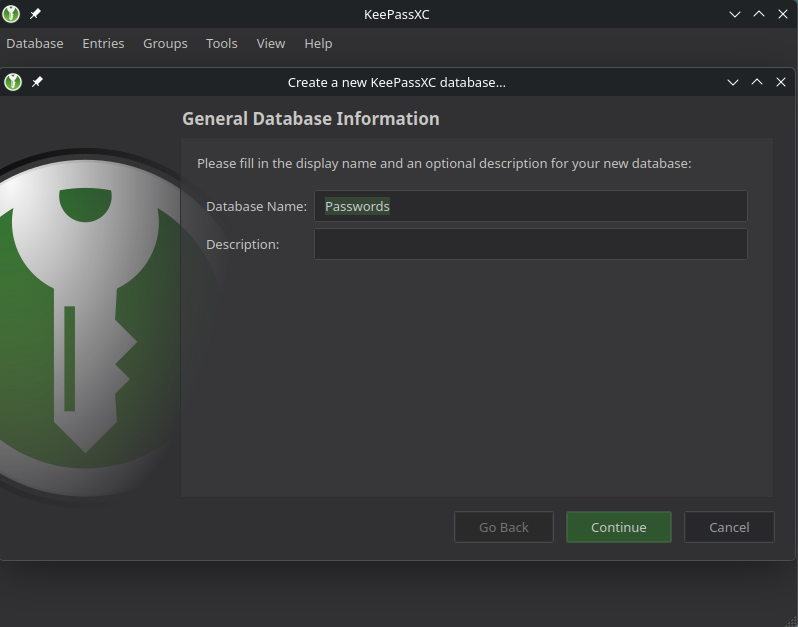
Give the database a name that identifies its purpose.
Review Encryption Settings. Keep the default database format and decryption-time settings unless your organization requires different settings, then select Continue.
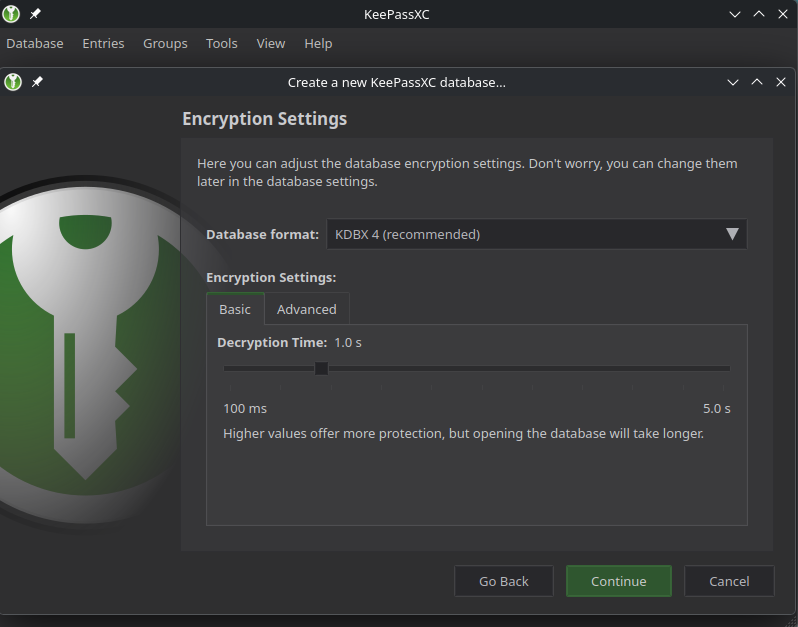
The wizard shows the database format and the time used to unlock it.
Enter and confirm a strong database password. Add additional protection… provides optional protection methods; if you configure one, retain everything needed to unlock the database. Select Done, choose a filename and location for the .kdbx file, and select Save.
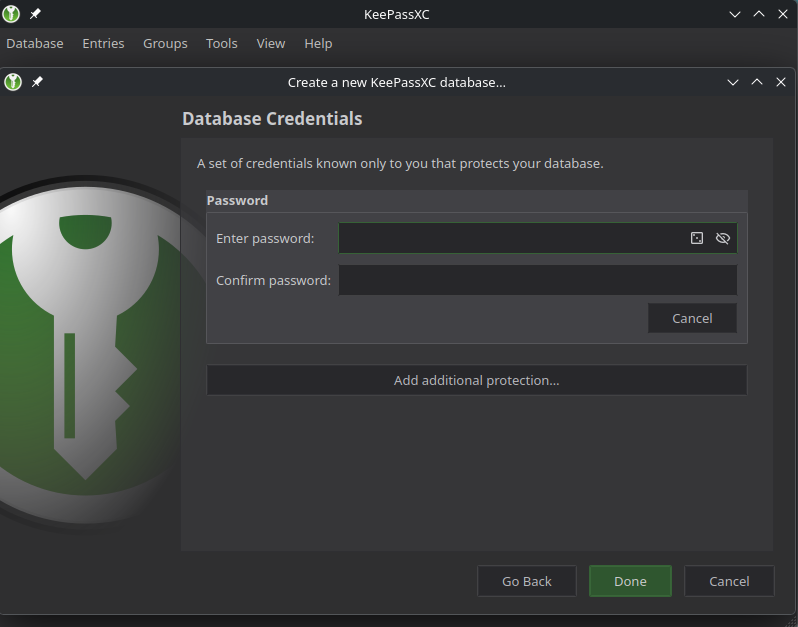
The database password protects the local file and is separate from your CloudFerro Cloud password.
Warning
Keep a backup of the encrypted database and retain its password and any additional unlock credentials. Losing the file or the means to decrypt it can leave you without your authentication codes. CloudFerro cannot recover a KeePassXC database password.
Step 3: Add an account entry
In the database, select the + toolbar button to add an entry.

Add one entry for the CloudFerro Cloud account whose key you will store.
Enter CloudFerro Cloud in Title and your account email in Username. For a database reserved for authentication keys, leave the entry’s Password field empty. Select OK to create the entry.
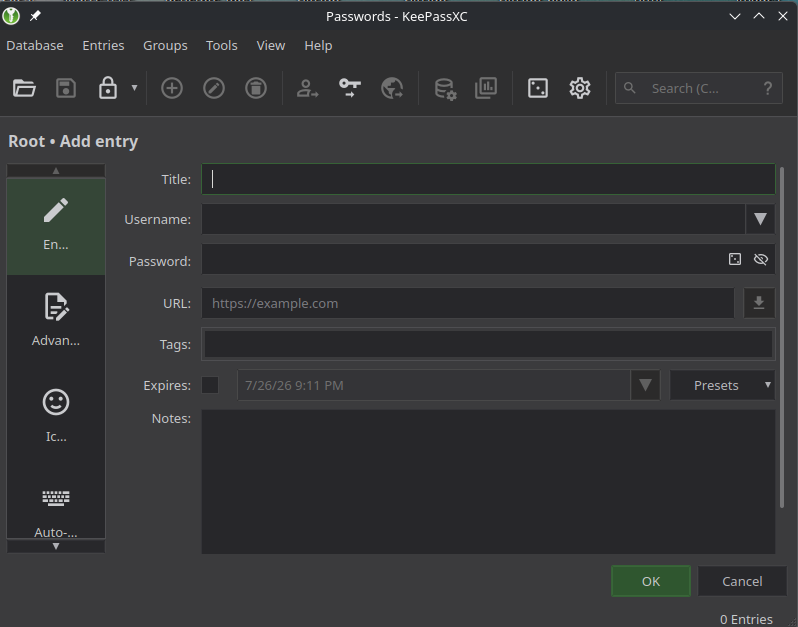
The title and username help distinguish this account from other saved entries.
Step 4: Get the setup key from My Portal
For an account awaiting authentication setup, open My Portal and log in. On Set up Mobile Authentication, select Unable to scan QR code?.
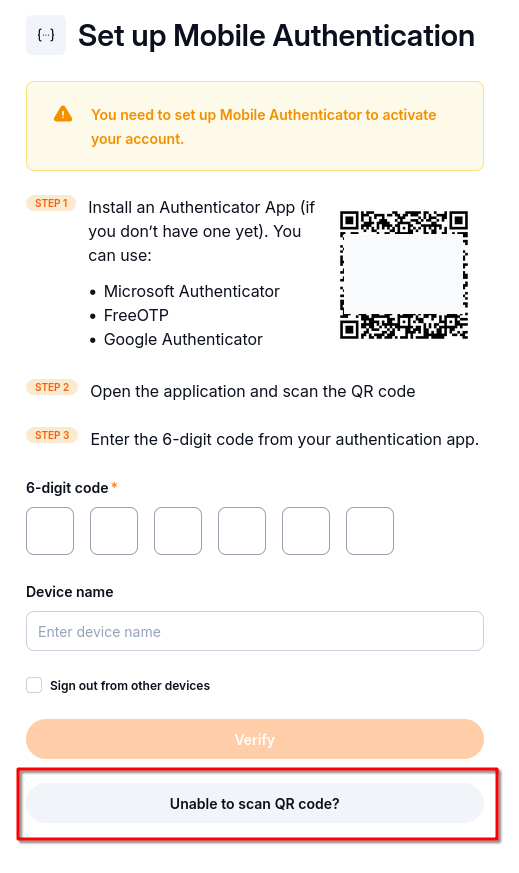
Open the manual method to use KeePassXC without scanning the screen.
The portal displays the secret setup key. Copy the complete key from your own session and keep this page open while configuring KeePassXC. If you already have a securely retained key for an existing authenticator, use that key and continue with Step 5.
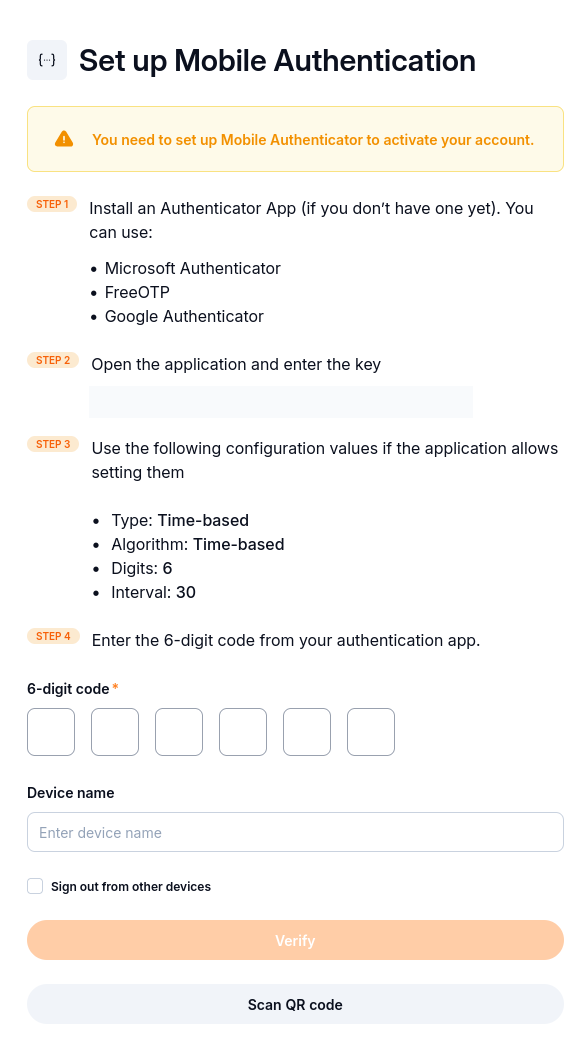
The setup key goes into KeePassXC; a code generated by KeePassXC returns to this form.
Warning
The setup key can generate future login codes. Keep it private and do not share it in tickets, email, or screenshots. The example key above is obscured.
Step 5: Configure TOTP and verify setup
In KeePassXC, right-click the account entry and select TOTP → Set up TOTP…. Paste the portal’s key into Secret Key, without formatting spaces, and use Default settings (RFC 6238). These settings use SHA-1, a 30-second time step, and six digits. Select OK.
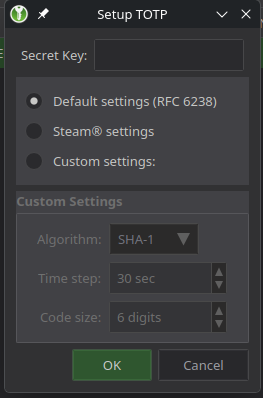
Enter the permanent setup key in Secret Key.
Save the database with Ctrl+S. With the entry selected, use Ctrl+Shift+T to display the current code or Ctrl+T to copy it. On macOS, use Cmd in place of Ctrl.
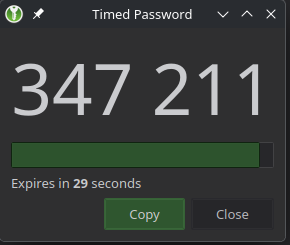
The expiry indicator shows how long the current code remains available.
For a new enrollment, return to Set up Mobile Authentication:
Enter the generated value in 6-digit code. If it is about to expire, wait for the next code.
Optionally enter KeePassXC in Device name to identify this authenticator.
Select Sign out from other devices if you want to end other account sessions.
Select Verify.
When the code is accepted, the portal completes this authentication step and continues account activation or opens My Portal. For an existing account configured from its retained key, continue with an ordinary login to check the generated code. Back up the database after saving the TOTP entry.
Step 6: Log in with a KeePassXC code
Open My Portal, enter your account email and password, and select Log in.

Use your CloudFerro Cloud password on the portal and your database password in KeePassXC.
When the portal asks for the second factor, unlock your KeePassXC database, select the matching account entry, and copy its current code with Ctrl+T. Enter it in 6-digit code and select Verify and go to platform.
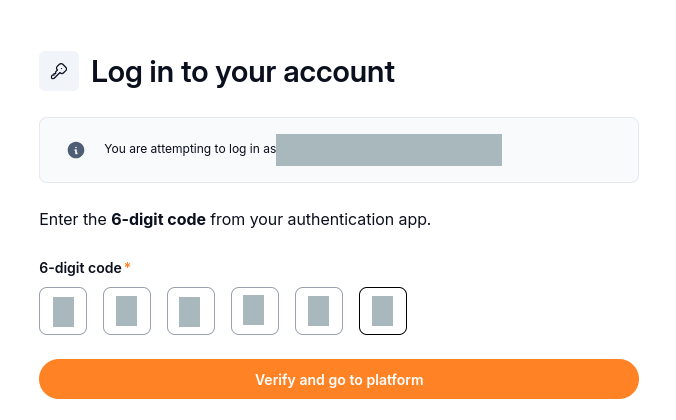
Submit a newly generated code for the account identified by the portal.
The setup key remains in KeePassXC; you do not enter it into the login form. If OpenStack requests a code when you open it from My Portal, use the same configured account entry. The product catalogue explains its provider and region selectors.
If the portal rejects a code
Check that the entry belongs to the account shown on the portal, the complete setup key was saved, and Default settings (RFC 6238) are selected. Confirm that the computer’s time is synchronized, then retry with a fresh code.
If the database is unavailable, restore your protected backup or use an authenticator already configured for the account. If neither is available, contact CloudFerro support. Resetting the CloudFerro Cloud password does not recover your KeePassXC file or its TOTP key.