
Roles: review and create access rules on CloudFerro Cloud
A signed-in user or service account needs permission to perform a task in a service. Roles brings service access rules together so that they can be reviewed and assigned to identities.
Prerequisites
No. 1 Access to role management in the expected organization
Check the organization using Register or join an organization in My Portal on CloudFerro Cloud. Creating a role requires access to the Create role action.
No. 2 The service, resources, and actions to permit or deny
Identify the task the role should support. Consult the relevant product guide from Product catalogue on CloudFerro Cloud before selecting its resources and actions.
No. 3 A complete CRN for each specific resource
For a rule using Specific resources, obtain the complete CloudFerro Resource Name (CRN) of each target resource before opening Create role. A CRN identifies the resource to which the rule applies. This preparation is not required when the intended scope is All resources.
The Functions example below uses the existing sum-numbers function in waw4-1. Use Create and deploy a function on CloudFerro Cloud if you need to prepare your own function in the expected organization and region. See Monitor and troubleshoot Functions on CloudFerro Cloud for its audit logs.
Open the existing function in Functions and select Audit logs.
Use Setup time range to include the function’s creation or another recorded operation if the table says No audit logs in this time range.
Copy the complete value from the crn column. Scroll horizontally if the value is clipped. Check which resource the event identifies; the function ID shown in the overview is only part of a CRN.
The Functions form displays this structure:
crn:faas:<cloud>:<brand_id>:<organization_id>:<resource_group_id>:<resource_type>/<resource_id>
Insert CRN inserts a template with the brand and organization identifiers already filled in. Replace the remaining placeholders with actual values. The template itself is not a complete resource identifier.
The recorded CRN used in this example was:
crn:faas:waw4-1:bb1d7da8-d974-44d7-a66b-1fac2e15abe8:ea03314d-26d0-41d4-9cf5-0fd194b1597b:019afd5b-74a7-7783-8a3c-de2ae59a445d:function/01a15904-1f88-7221-a870-4a6a3146ab62
Here, faas identifies Functions, waw4-1 is the region, and function is the resource type. The last identifier matches the Function ID of sum-numbers. The identifier immediately before function/ is the resource group ID. Use the CRN of your own resource; this recorded value was rejected during the save described below. Keep your complete CRN ready to paste into the role’s Resources field.
Review existing roles
Open IAM → Roles. The table lists each role’s Type, Name, and Services. Search for the role or use the page controls to browse the list.
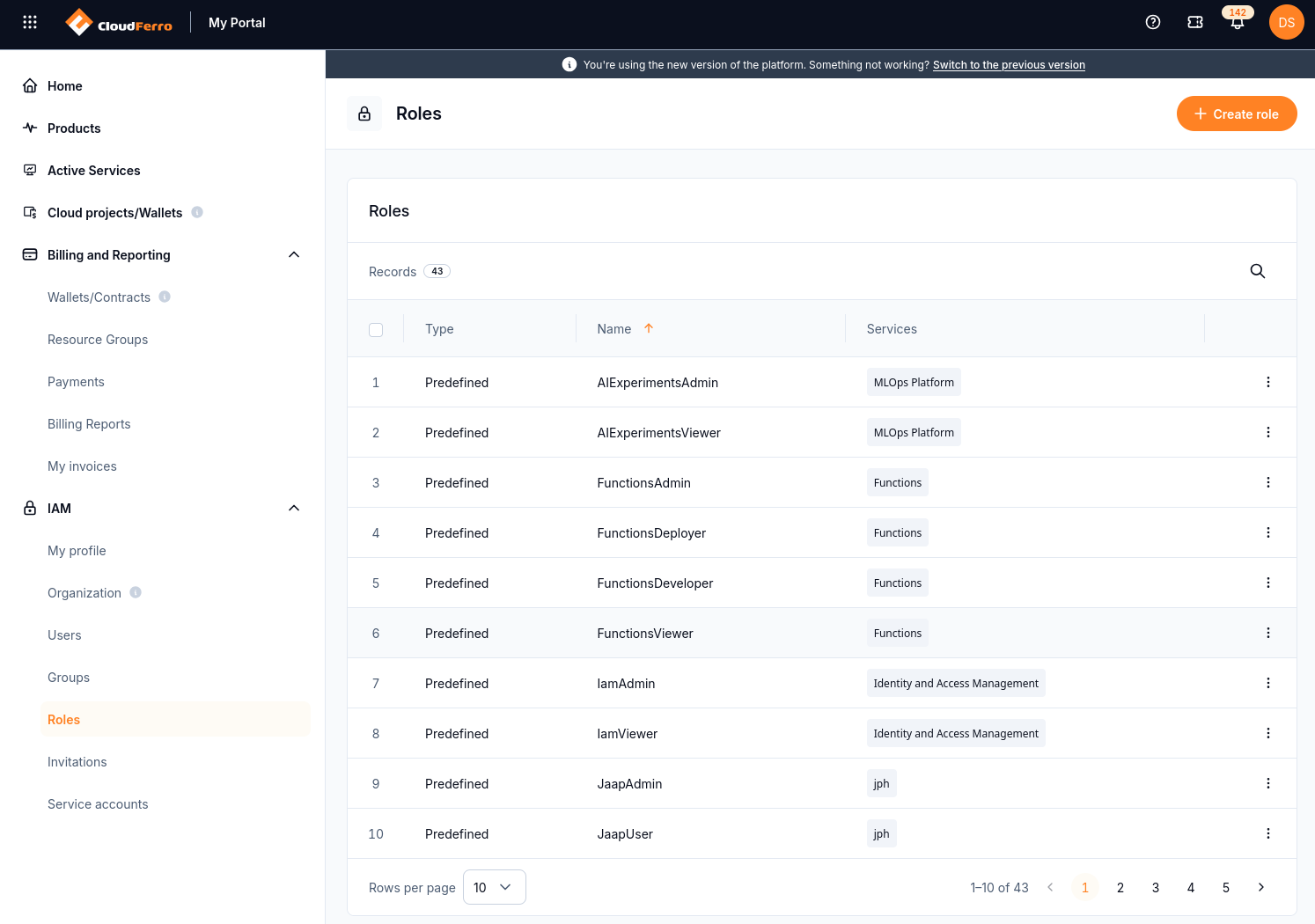
Role names identify specific services and levels of access.
Examples in the list include AIExperimentsAdmin, AIExperimentsViewer, FunctionsAdmin, FunctionsDeployer, FunctionsDeveloper, FunctionsViewer, IamAdmin, and IamViewer. Check the role’s actual rules before assigning it; its name alone does not describe every permitted action.
Create a role
Select Create role.
In Basic metadata, enter a required Name and an optional Description. Choose a name that explains the intended task.
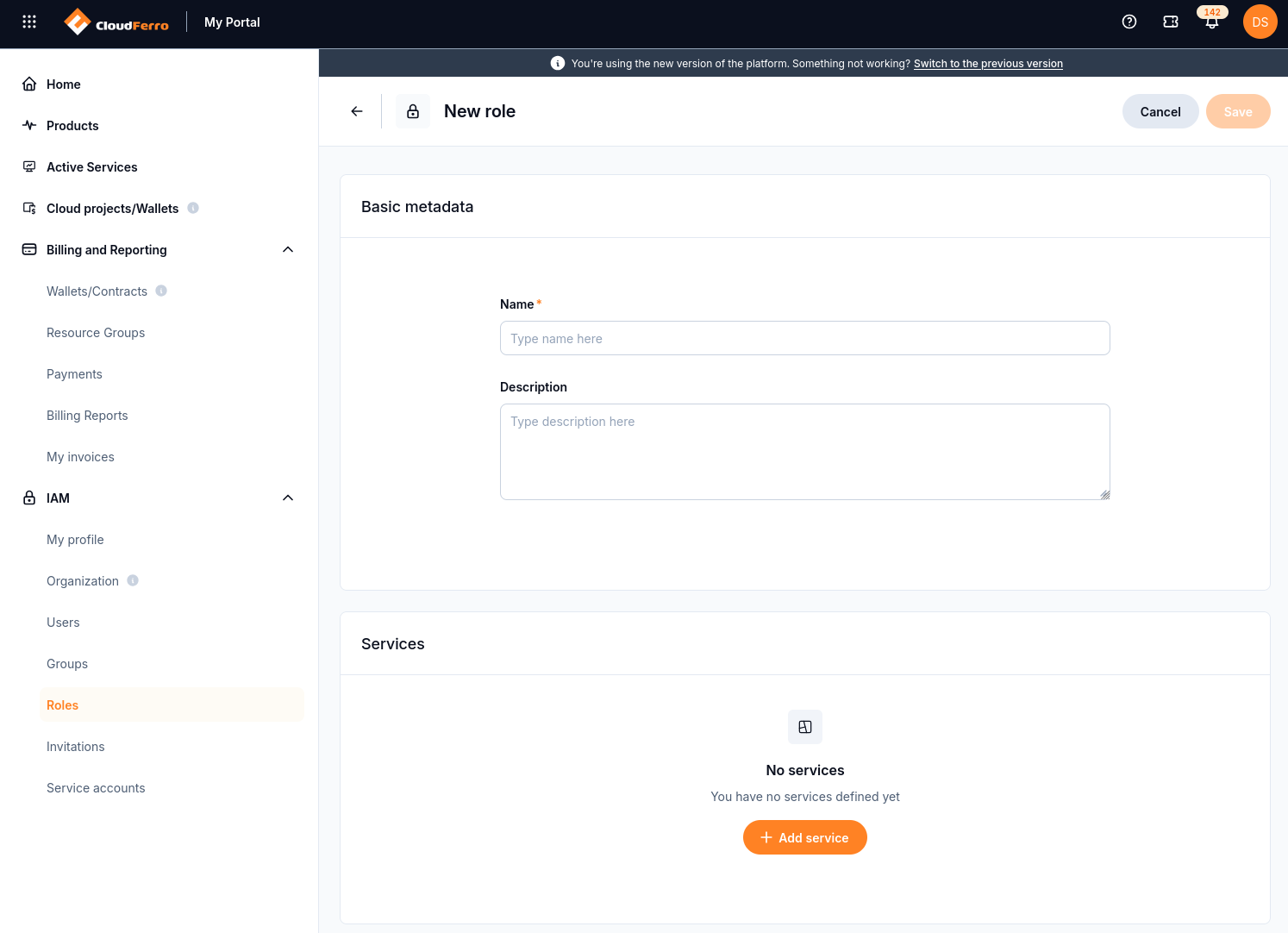
A new role starts with metadata and an empty Services section.
Under Services, select Add service. The dialog asks which service the rule concerns.
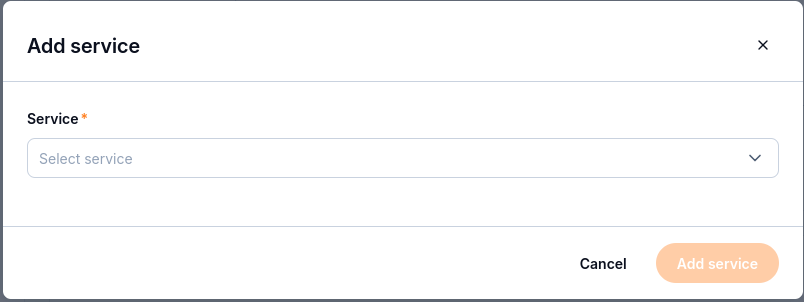
Choose the service to which the new rule will apply.
Open Service and search for or select the required entry. The screenshot shows examples such as Functions, Identity and Access Management, MLOps Platform, Message Streaming, Registry, and Message Broker. This is not an exhaustive list; more services may be added. Use the current selector to find the service you need.
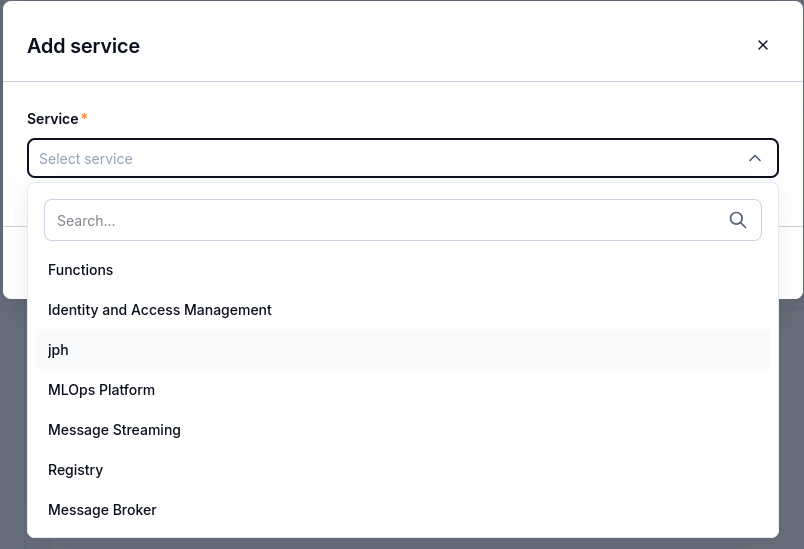
Use the selector to locate the service for this rule.
Define the service rule
The dialog combines Effect, resource scope, and action scope. All resources selects all available resources for the service, and All actions selects all available actions. Choose Specific resources or Specific actions to limit the rule’s scope.
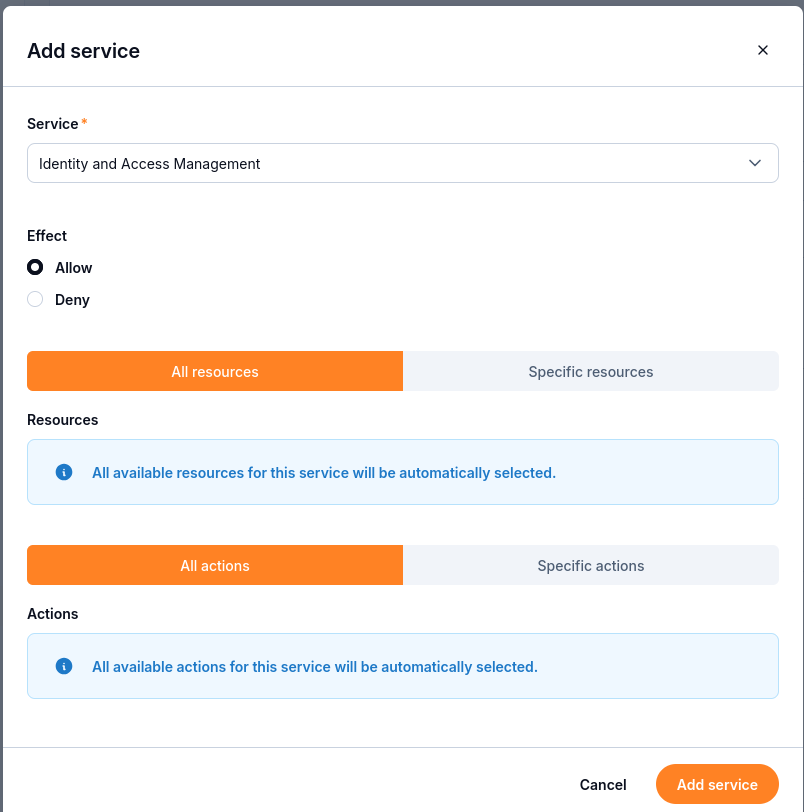
The scope controls are shown with All resources and All actions selected. The procedure below uses Specific resources and Specific actions.
Select Allow or Deny under Effect for the rule you intend to create.
Select Specific resources. The Resources field accepts a CloudFerro Resource Name (CRN). The form displays the expected CRN format below the field, beside Insert CRN.
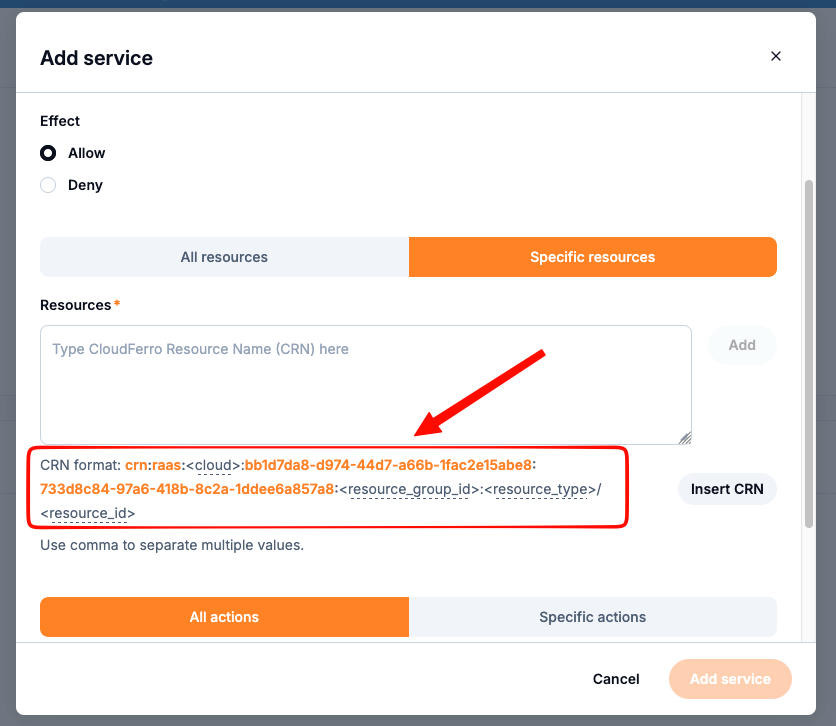
The CRN format identifies the values needed to target a specific resource.
In the displayed format, <cloud>, <resource_group_id>, <resource_type>, and <resource_id> are placeholders. The format starts with
crn:raas:and ends with<resource_type>/<resource_id>. Use the values for your own resource and the format displayed by your form; the two identifiers already filled in belong to the screenshot’s example.Enter the complete CRN collected in the prerequisites in Resources, then select Add. Separate multiple CRNs with commas, as indicated below the field.
Select Specific actions and choose only the actions required for the task from the selected service’s available choices. Resource scope and action scope are separate: selecting a specific resource does not select specific actions.
Select Add service to return to the role form.
Review and save
Review Effect, Service, Resource type, Resources, and Actions in the Services table. For the specific-scope procedure above, check that the intended resources and actions are listed. The screenshot below shows the broader all-resources and all-actions example; an asterisk represents that scope.
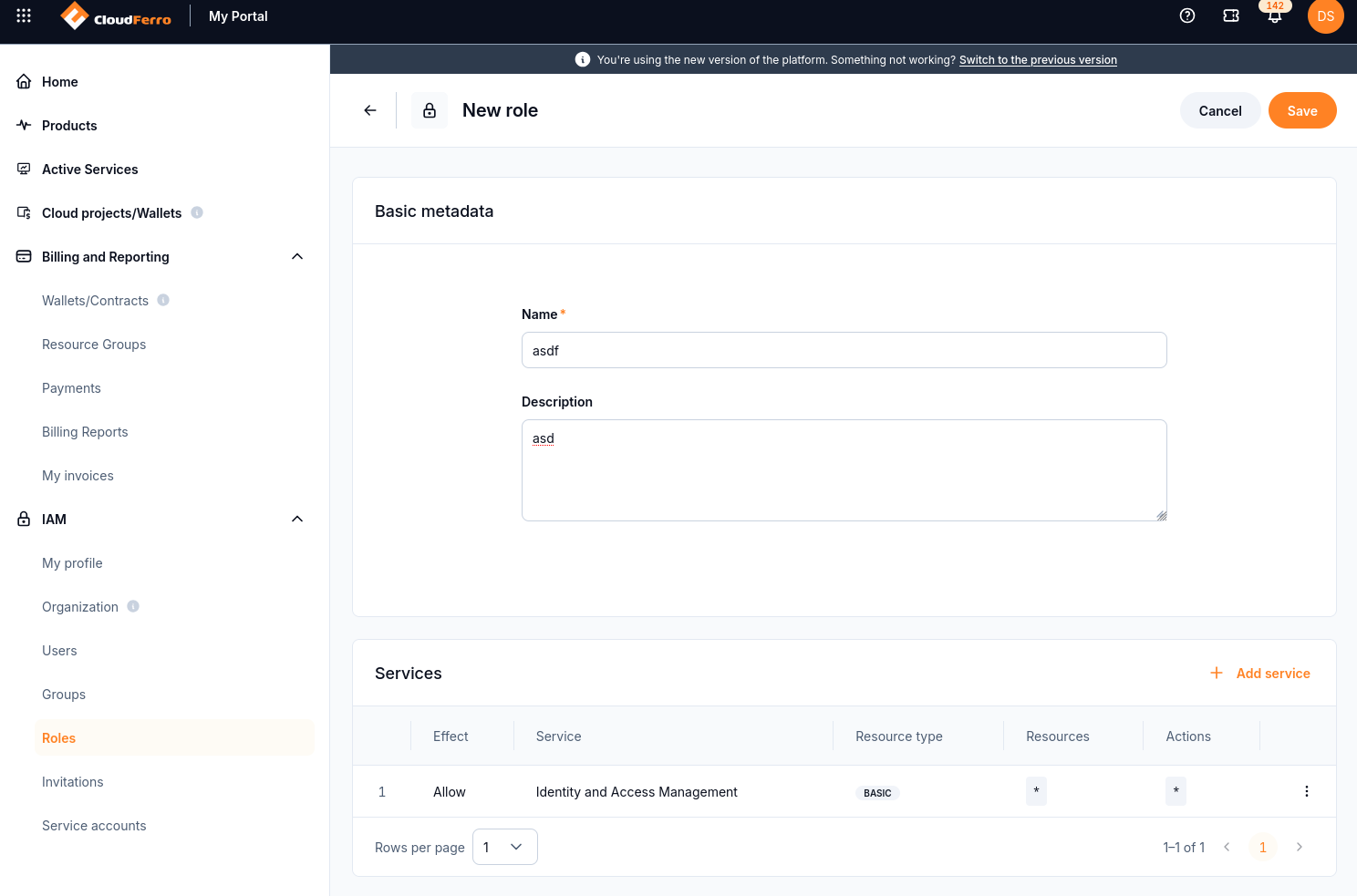
Review the service rules before saving the role. The name and description shown are example values.
Add another service if the role needs additional rules.
Select Save.
Creating a role and assigning it are separate tasks. For assignment to a service account, continue with Service accounts: create credentials and assign roles on CloudFerro Cloud. See Users: find organization members on CloudFerro Cloud for organization members and Groups: organize users and service accounts on CloudFerro Cloud for group membership.
Example: prepare a viewer role for one function
A team member may need to inspect a function and its metrics without changing or executing it. The example role TeamAFunctionsViewer requests GetFunction and GetFunctionMetrics for the existing sum-numbers function in waw4-1. The role name does not select a team or its resources; the resource entry defines the intended scope.
In this example, the form accepted the resource entry and displayed the selected actions, but the server rejected the final save with Invalid CRN format. The steps below document the configuration and that validation failure. They do not demonstrate a successfully created or tested role.
Select the resource and read actions
Start a new role with Name set to TeamAFunctionsViewer and Description set to View the sum-numbers function in waw4-1 and its metrics.
Select Add service, choose Functions, and set Effect to Allow.
Choose Specific resources, paste the complete CRN collected in the prerequisites into Resources, and select Add. The form displays the added CRN in a separate row and clears the input field. Multiple CRNs can be entered separated by commas, as indicated below the field.
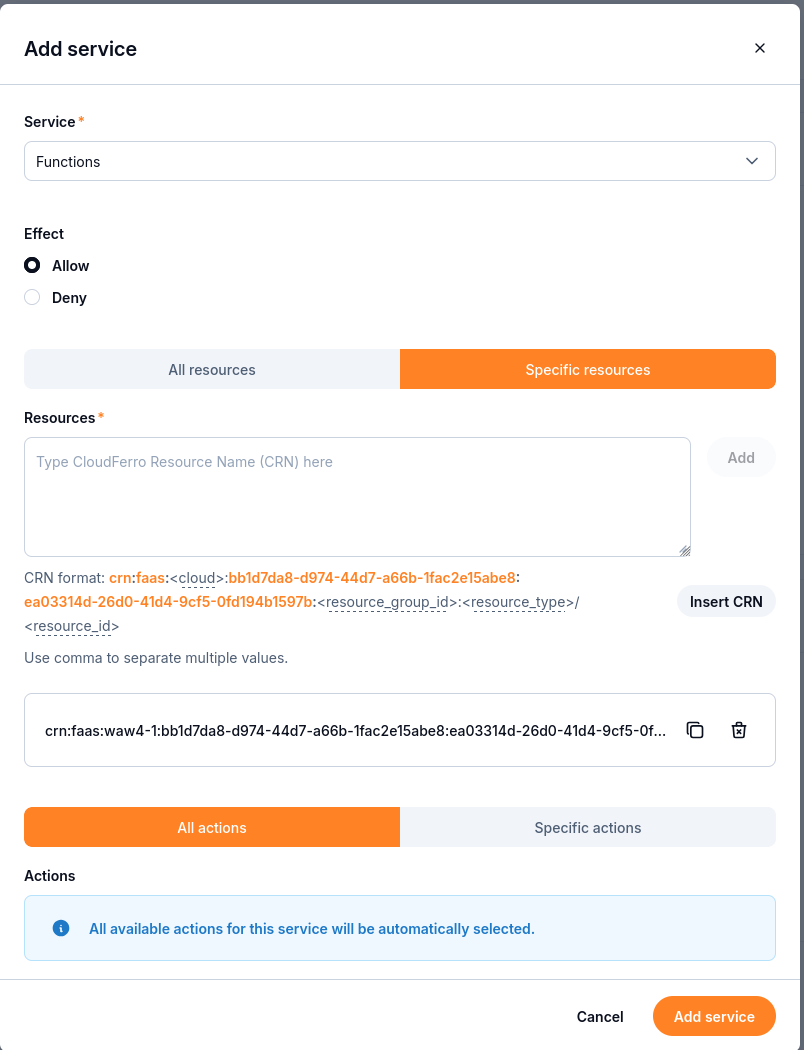
The CRN has been added to the form. All actions is still selected at this intermediate stage.
Switch to Specific actions. Select only GetFunction and GetFunctionMetrics for this example. Clear any other selections, including CreateNamespace and CreateFunction.
Select Add service to return to the role form.
The action choices are operations that the role requests permission to perform. They are not a list of deployed functions. Selecting a specific resource does not restrict the action selection automatically.
Review the rule and save result
Check that the Services row shows Allow, Functions, SPECIFIC RESOURCES, and the actions GetFunction and GetFunctionMetrics. In this capture, +1 represents the one added resource; it does not mean all resources.
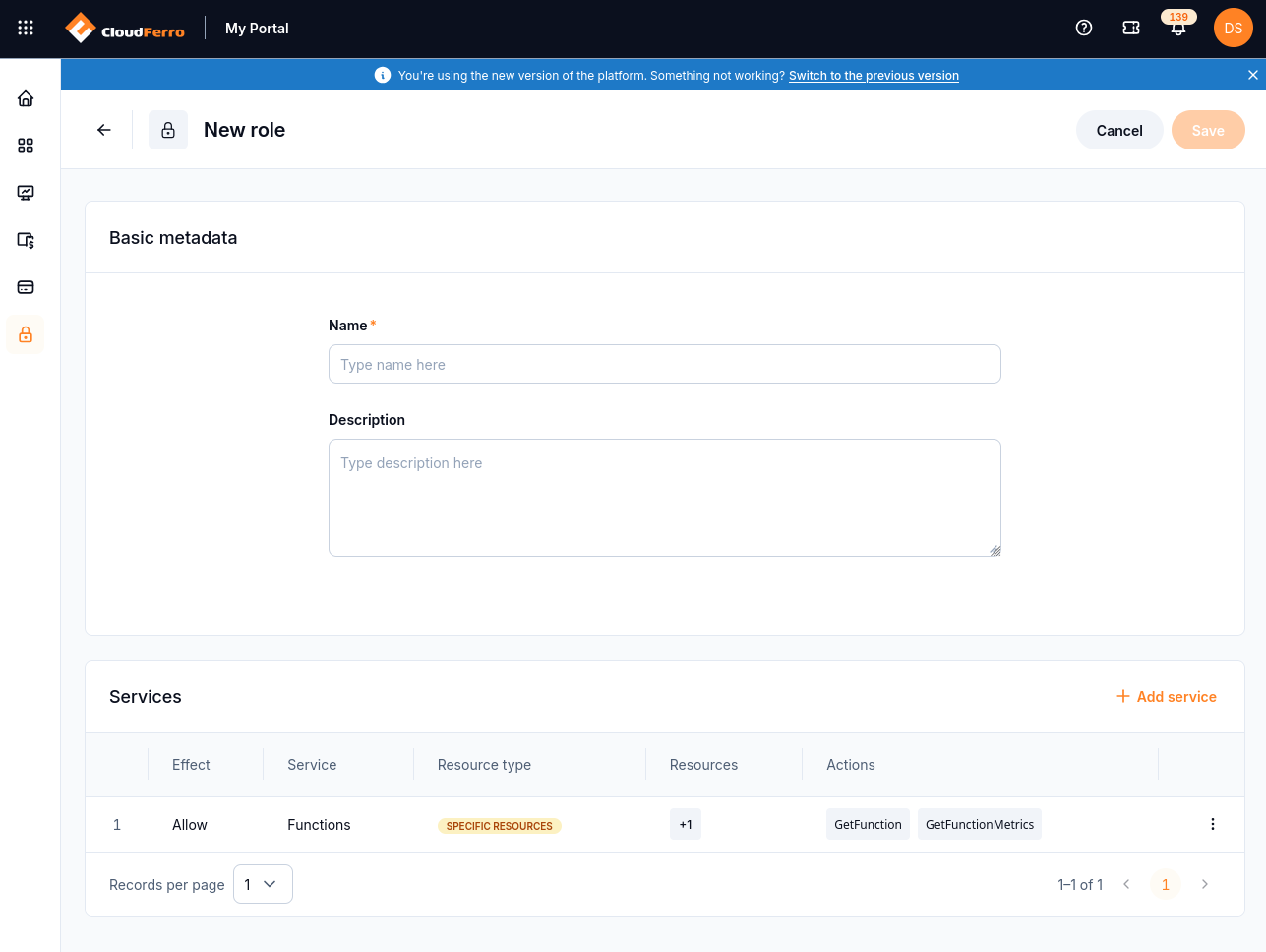
The service rule contains the intended actions. Name is still empty in this capture, so Save is disabled.
Enter or restore TeamAFunctionsViewer in the required Name field and add the description if it is missing.
Select Save and check the result. Adding a service rule to the form does not save the role.
The save attempt for this example returned errors at policy.statement[0].resource:
Value error, Invalid CRN format
Input should be '*'
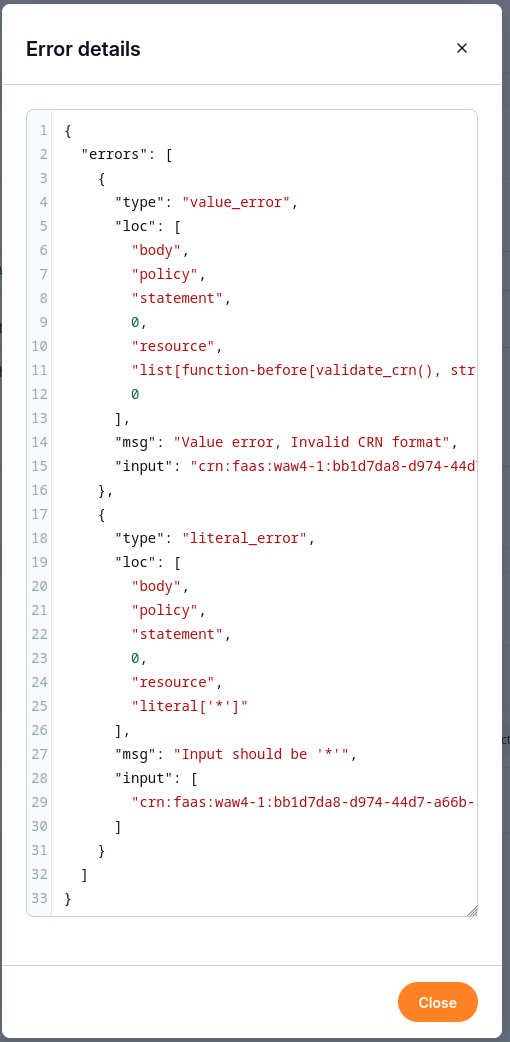
The server rejected the resource value despite the form accepting it earlier.
The second error refers to the validator’s literal['*'] alternative. Replacing the CRN with * would select all resources and change the intended scope. It is not a correction for this example.
Keep the full submitted CRN and error details when reporting the failure to support. The error alone does not identify which part of the CRN was rejected. Successful role creation and access to the function remain unverified. After the save issue is resolved, test with an identity that has no broader Functions role. Access to namespace and function lists may require additional permissions; that navigation was not verified by this example.