
Create and deploy a function on CloudFerro Cloud
To run your first function, you need a namespace to hold it and a version of its code to deploy. The portal takes you through namespace creation, source selection, and a build; the final Deploy action starts the version you choose. The Python example below accepts a list of numbers and returns their total.
Prerequisites
No. 1 Access to Functions
Follow Prepare your first function on CloudFerro Cloud to sign in, select the organization, and open Functions in the required region.
No. 2 Source archive (Upload ZIP only)
If you choose Upload ZIP, prepare a .zip file no larger than 50 MiB. The code must match the runtime and template selected from the current catalogue. Use that catalogue for the available runtimes and versions. Create from scratch does not require an uploaded archive.
No. 3 Runtime and resource settings
Choose the runtime and template for your code, then the flavor, scaling mode, replica limits, and timeout used in the creation form. Configure function resources and scaling on CloudFerro Cloud explains these settings and the cold-start behavior of request-based scaling.
Create a namespace
In My Portal, open Functions and check the region.
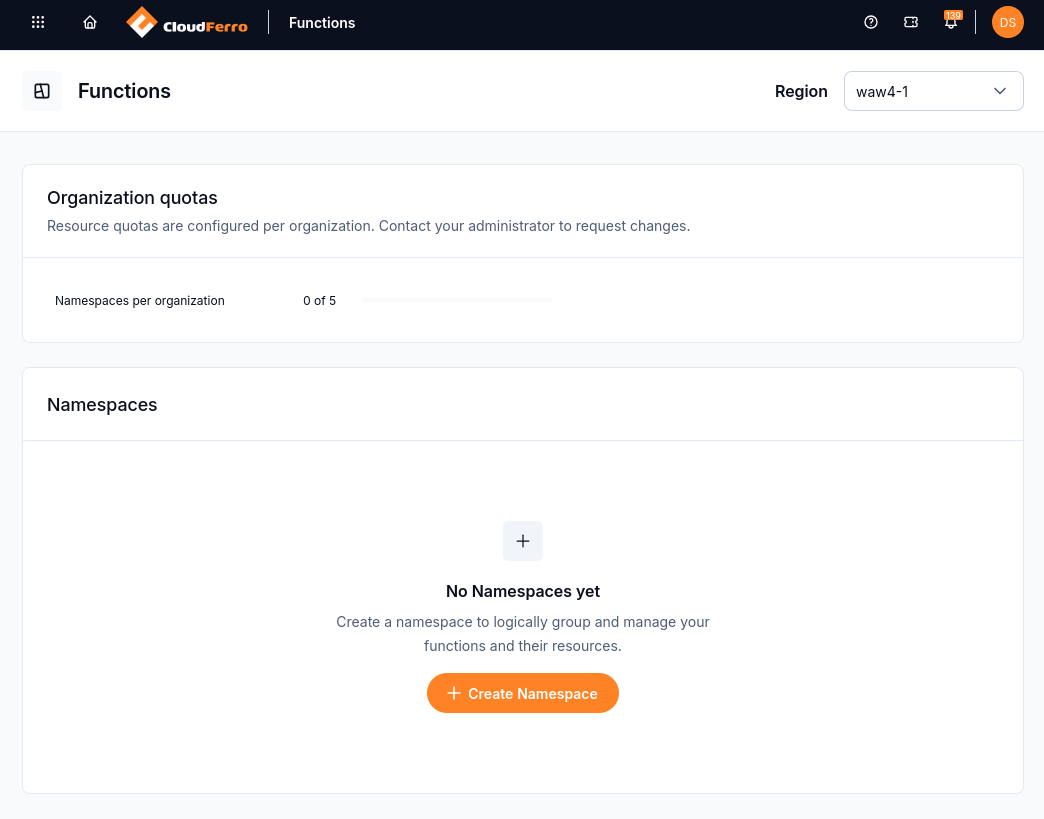
Functions in region waw4-1 before a namespace is created.
Select Create Namespace.
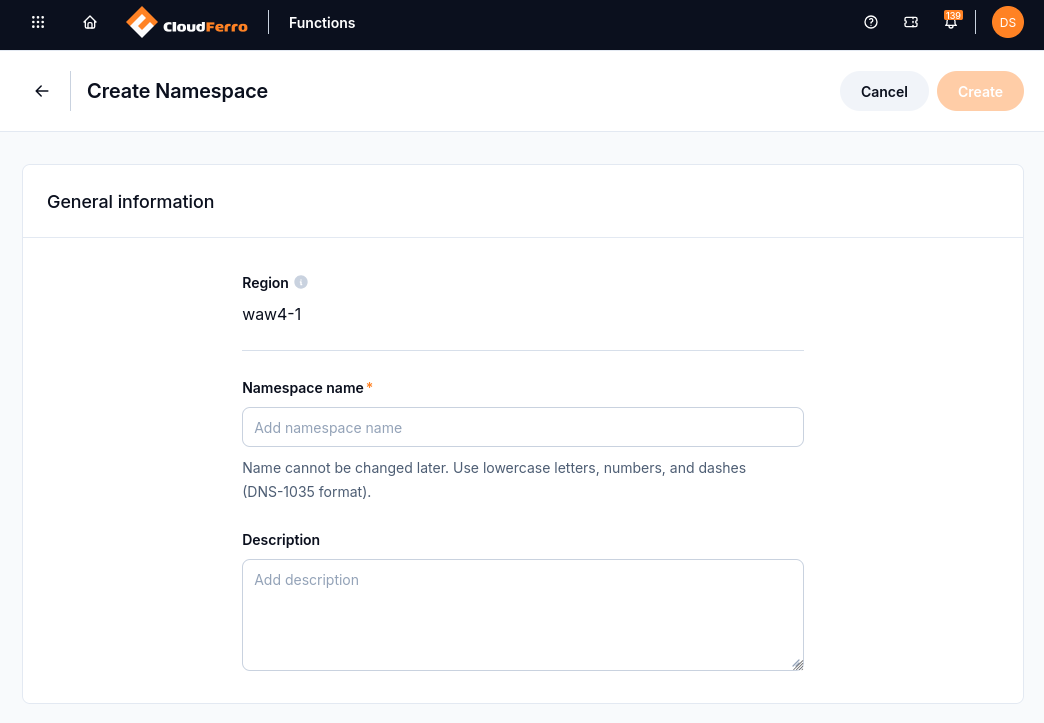
The namespace form shows the selected region and the name field.
Enter a unique DNS-1035 name, for example function1:
lowercase letters, digits, and -;
at most 63 characters;
the first character is a letter;
the last character is not -.
Optionally add a description, tags, and a resource group.
Select Create. The portal confirms that namespace provisioning has started.
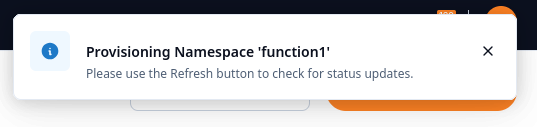
The provisioning notification asks you to refresh the namespace status.
Refresh the namespace list to check its status.
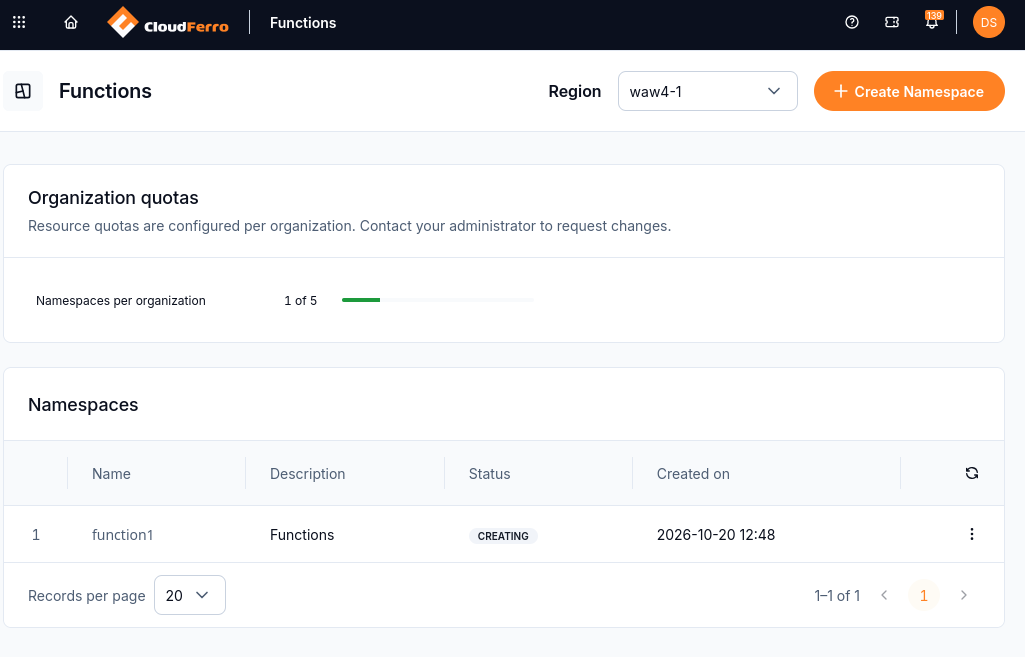
The namespace function1 is still in the Creating state.
Wait until the status changes from Creating to Active.
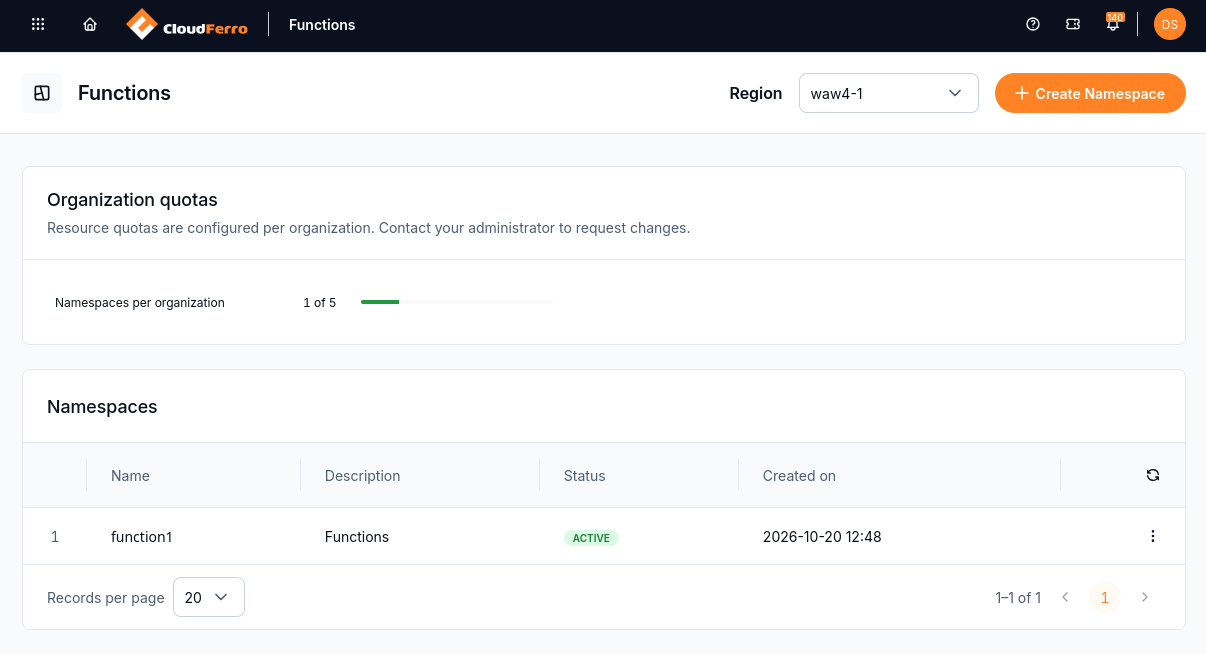
The namespace function1 is Active and ready for a function.
Choose the function source
Open the active namespace and select Create Function. Choose Upload ZIP for an existing project, or Create from scratch to load and edit a generated template in the browser.
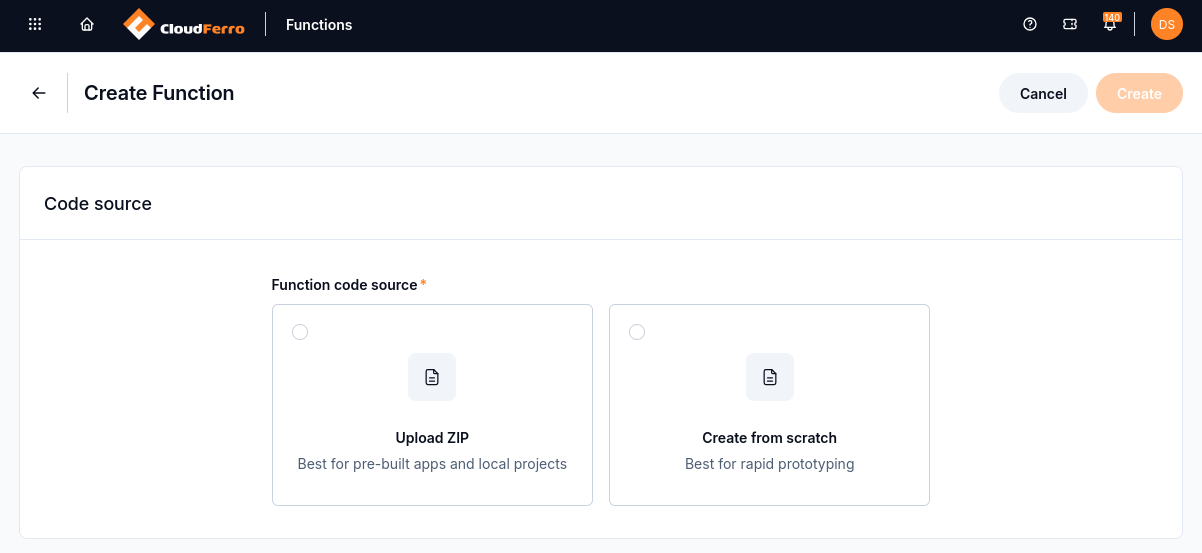
Choose Upload ZIP for existing code or Create from scratch for a generated template.
Upload an existing project
Select Upload ZIP and choose your archive. Select the matching Runtime and Runtime version, and a Template version if the form offers it. Use the current catalogue for the available versions. The archive must not exceed 50 MiB.
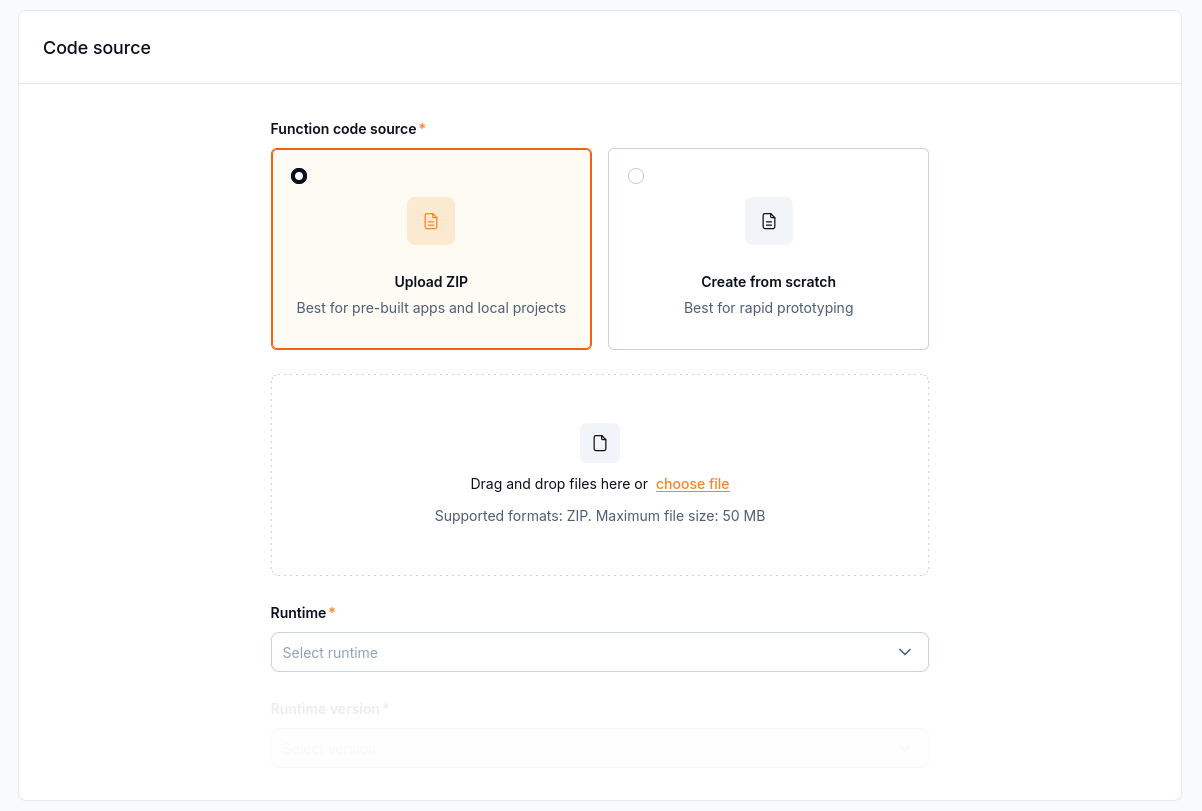
Upload ZIP accepts a source archive and requires a matching runtime.
Create from scratch: sum numbers in Python
This example creates sum-numbers. It accepts an HTTP POST with a JSON body such as {"numbers": [10, 20, 30]} and returns {"total": 60}. It needs no environment variables, secrets, or additional Python packages.
Select Create from scratch. The source editor is empty until you load a template.
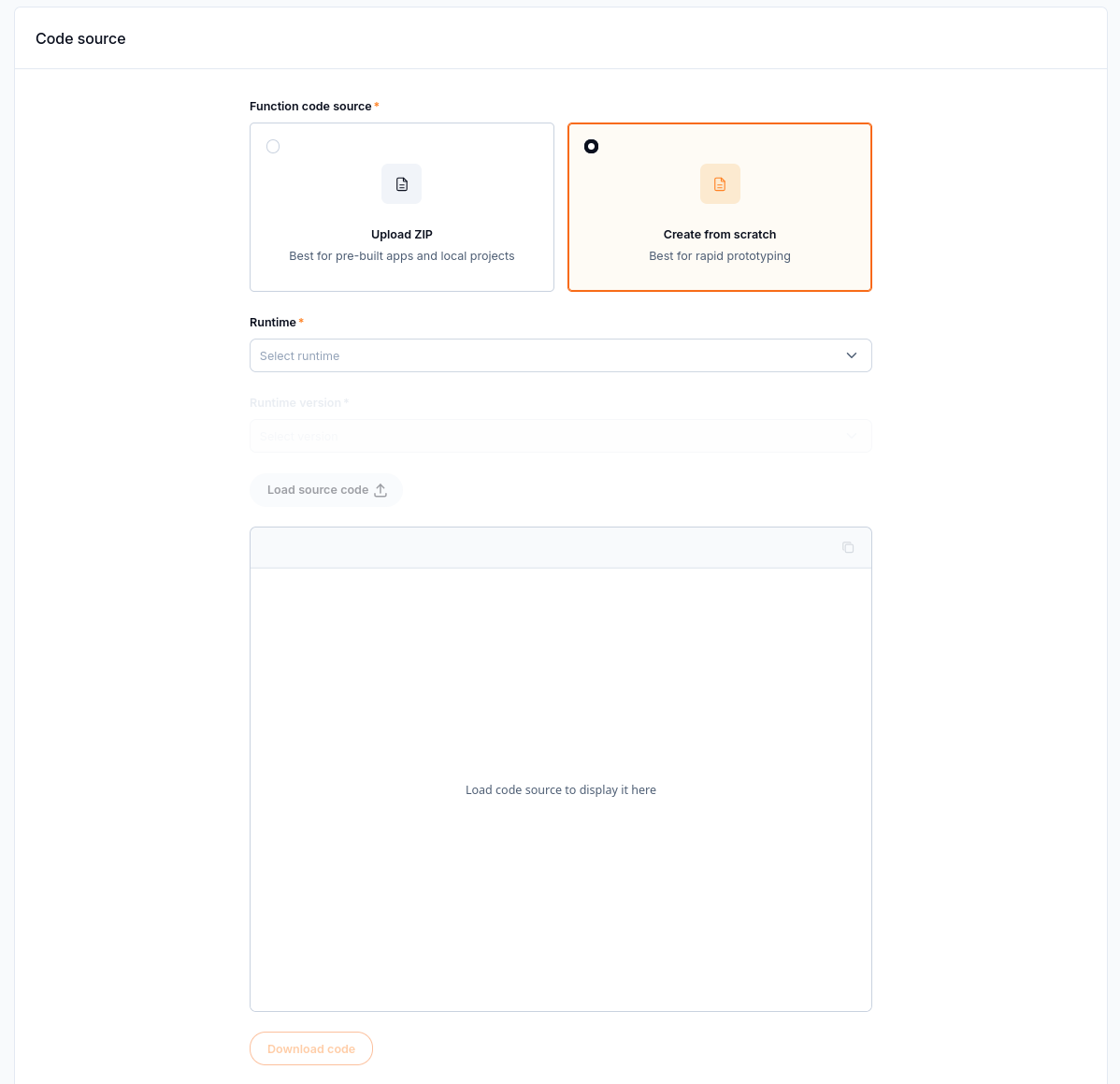
The Create from scratch editor is empty before the template is loaded.
Select Python as the runtime and 3.13 as the runtime version for this example, then select Load source code.
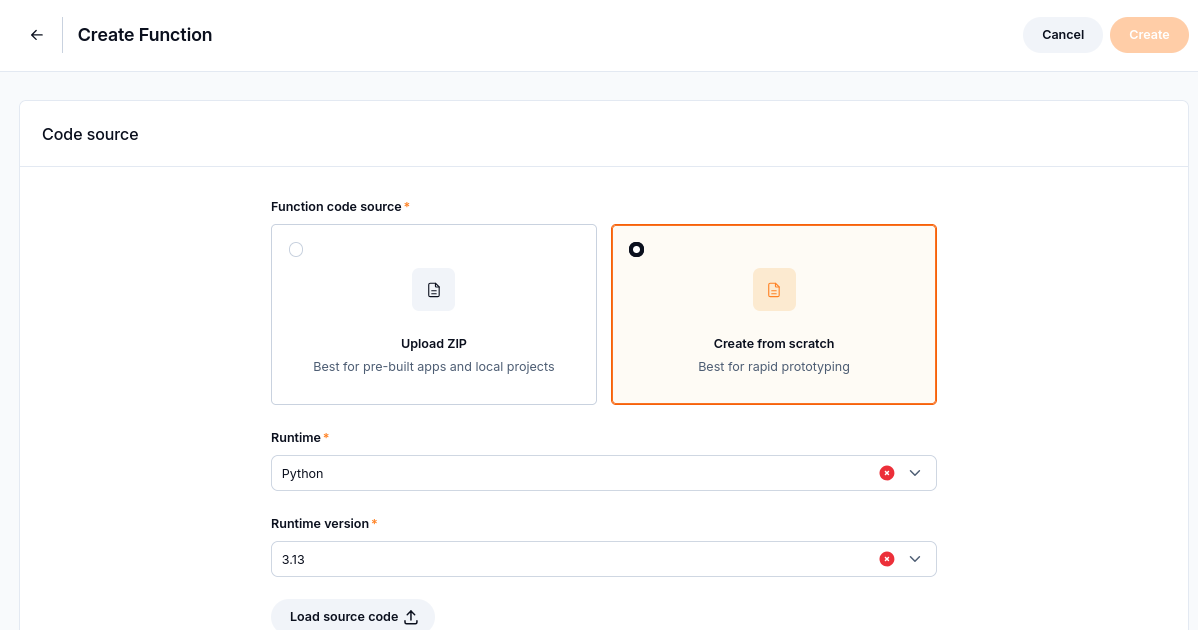
Python 3.13 selected before loading its source template.
Open the /__init__.py tab. Keep its contents unchanged:
from .func import new
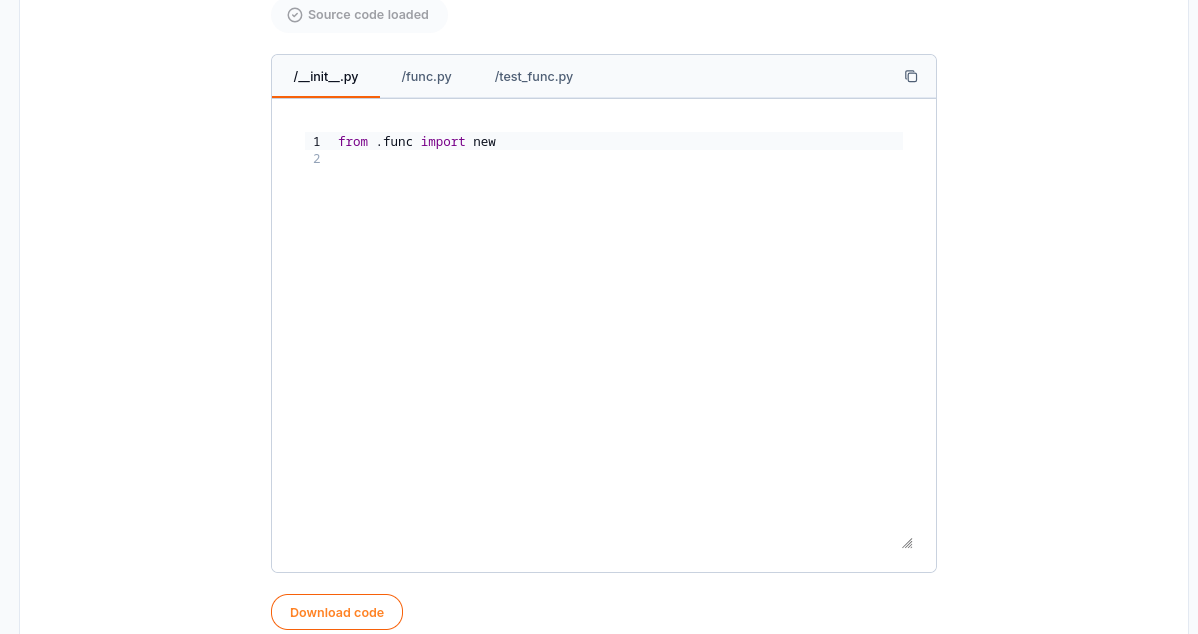
The generated __init__.py imports new from func.py.
Open /func.py. The generated handler returns OK. Replace its complete contents with
the sum-numbers handler.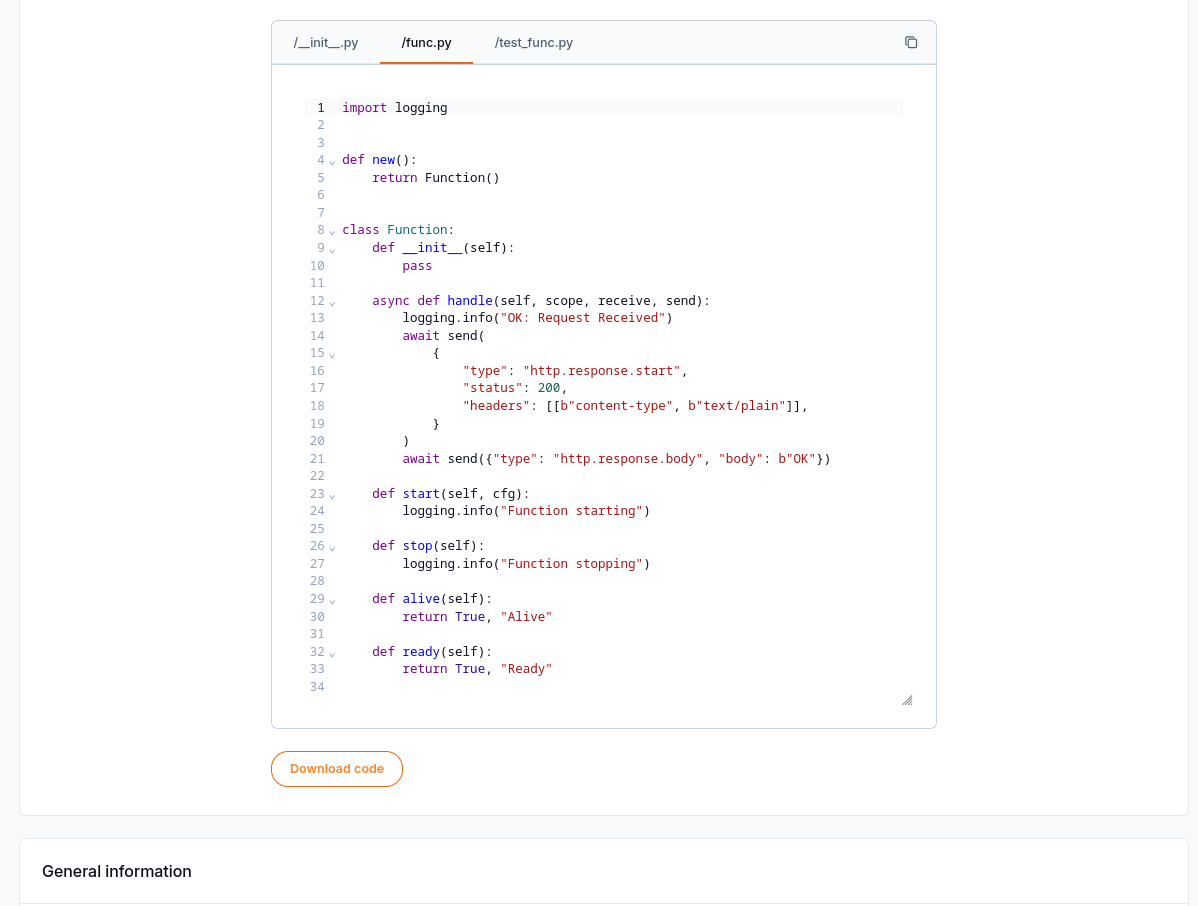
The generated func.py returns OK before you replace it with the example.
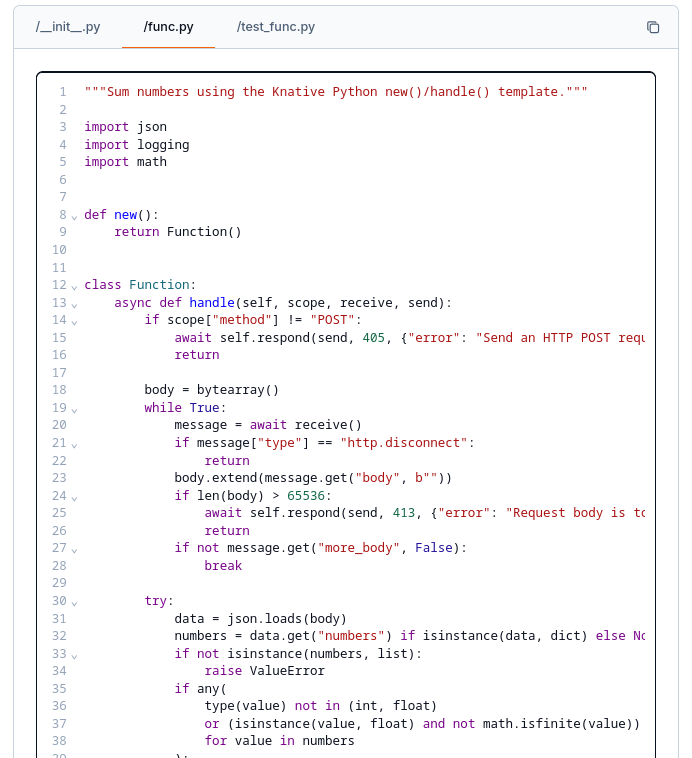
The sum-numbers handler pasted into the func.py tab.
Open /test_func.py. Replace the generated test with
the matching sum-numbers tests. These tests supply the JSON request expected by the new handler.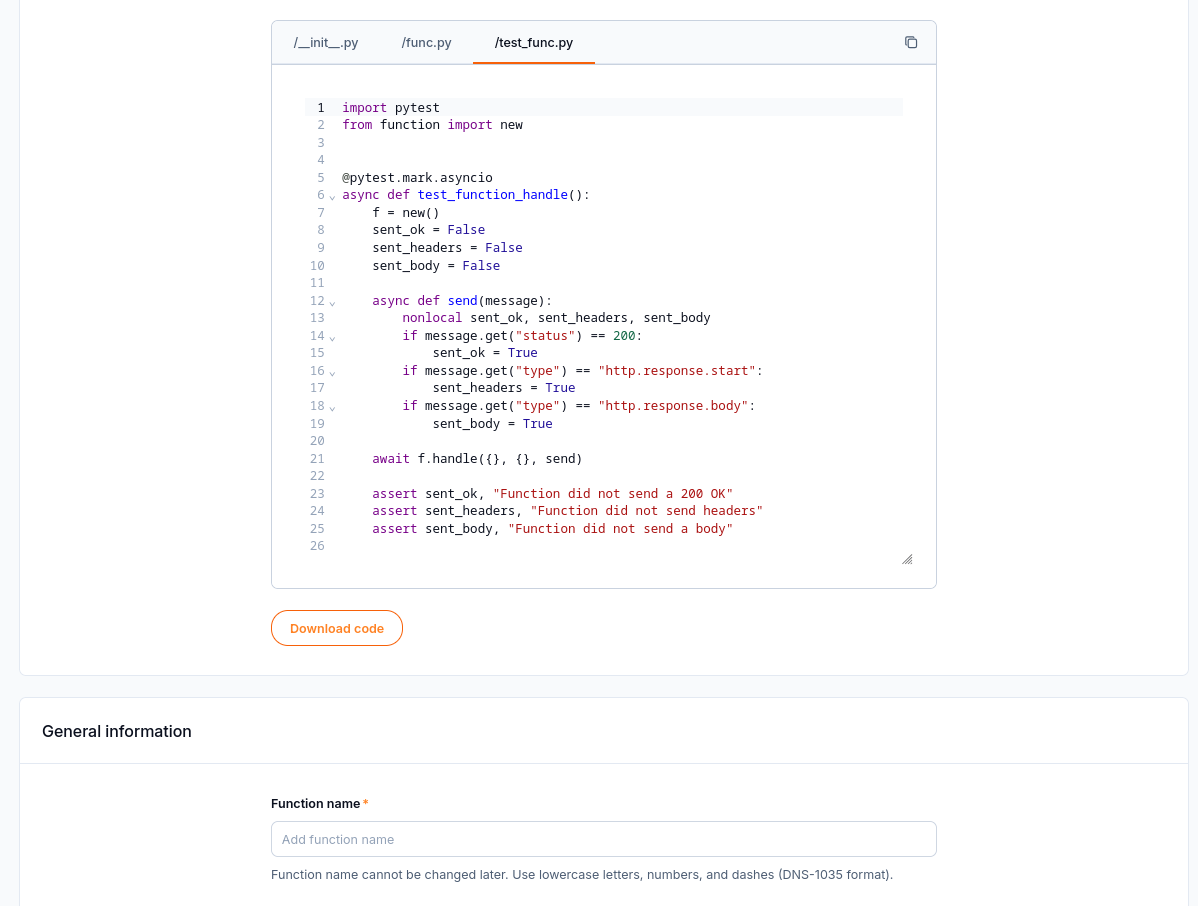
The generated test checks the default handler and must be updated for the example.
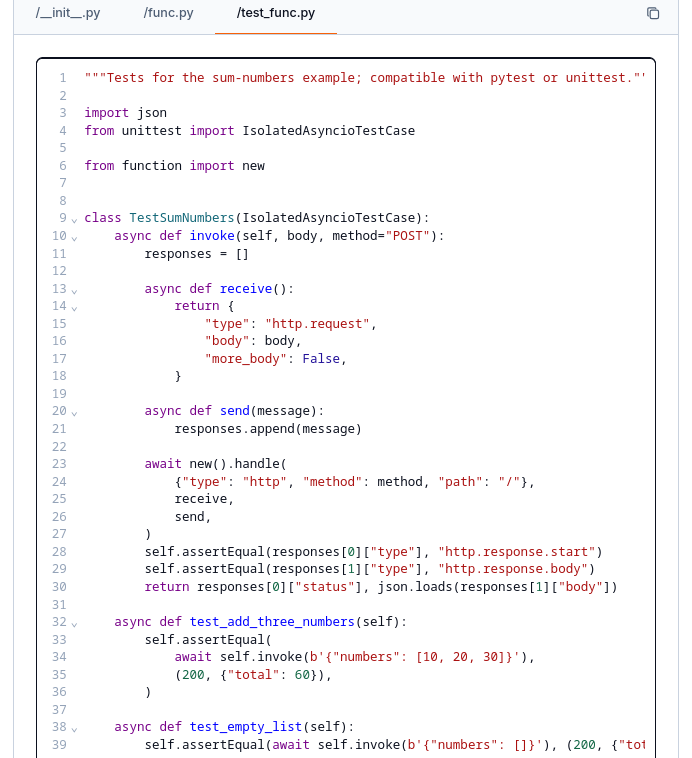
The matching sum-numbers tests pasted into the test_func.py tab.
The example retains the template’s new() entry point and Function.handle() method. Download code saves the source from the editor.
Set the name and resources
Enter a name and optional description. For the Python example, use sum-numbers, container port 8080, and function path /.
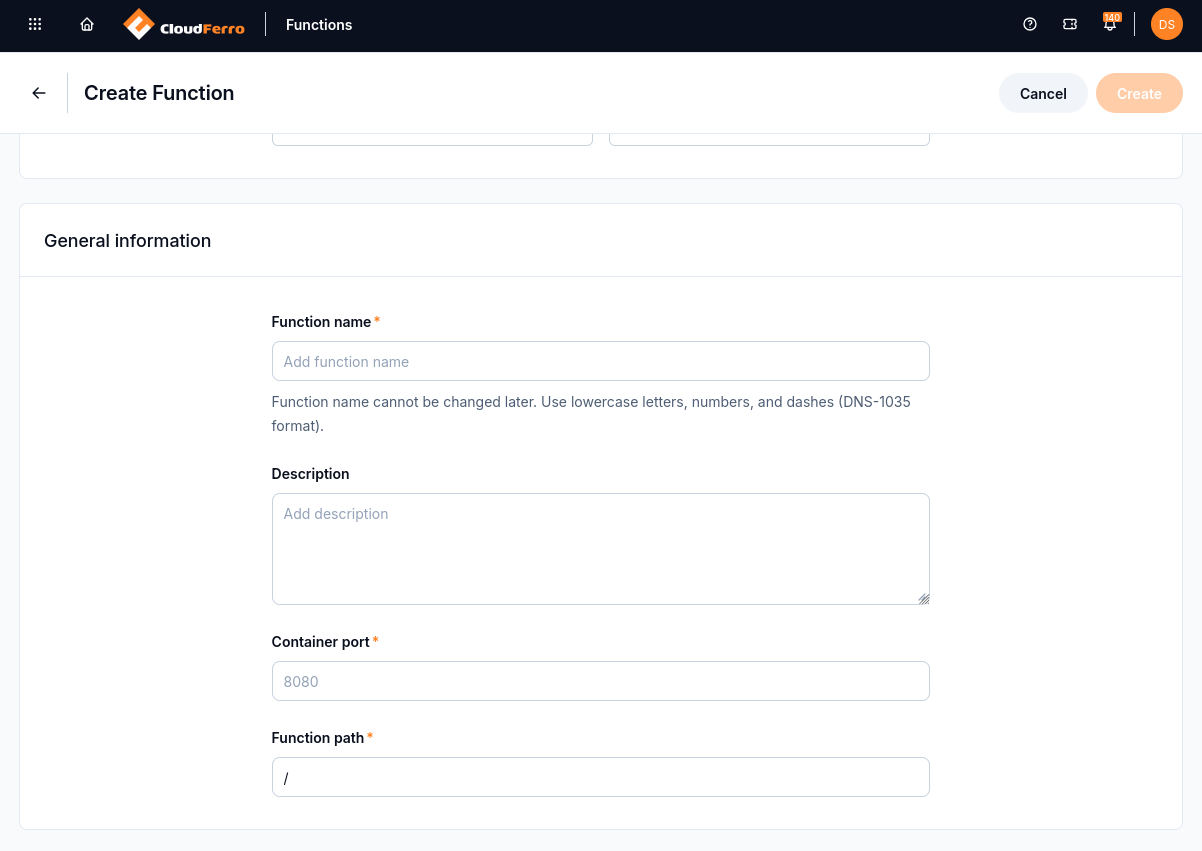
General information includes the function name, description, container port, and path.
Select Resources size. The example uses 128 MB - 70 mVCPU; choose a size from the options available in your region.
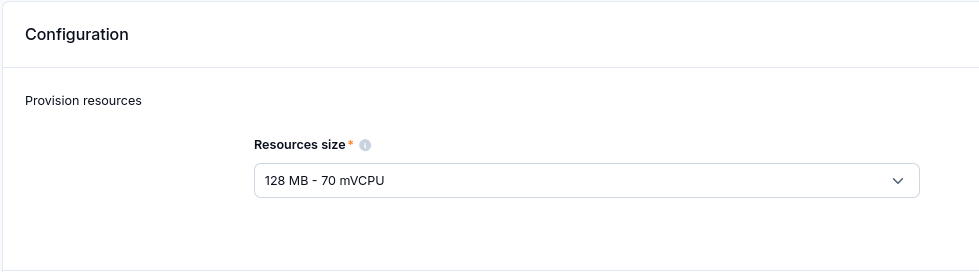
The example uses the 128 MB - 70 mVCPU resource size.
Configure the scaling mode, the minimum and maximum number of replicas, and the timeout. For the available settings, see Configure function resources and scaling on CloudFerro Cloud.
Add environment variables, secrets, and tags if your code needs them. The sum-numbers example needs none.
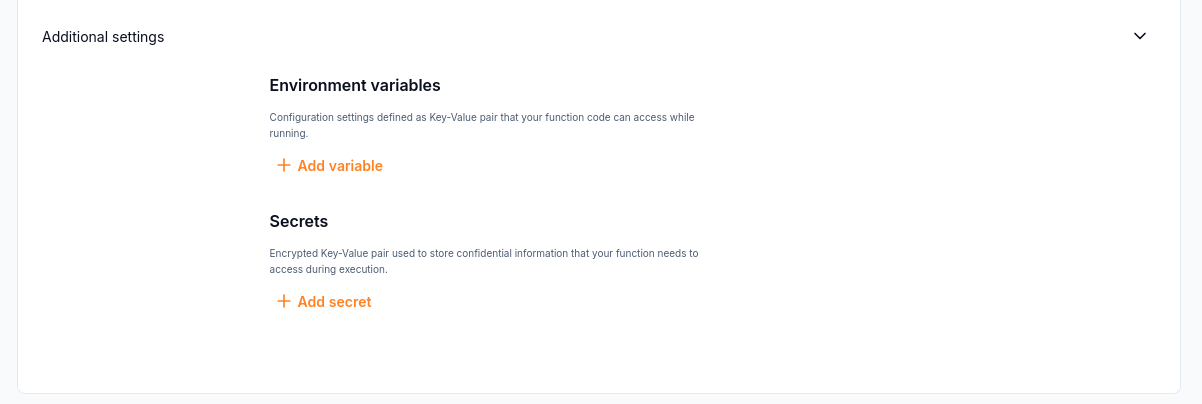
Additional settings provides fields for environment variables and secrets.
Build and deploy
Select Create. The creation notification confirms that the resource exists; it does not confirm that a version is running.
The creation notification confirms that the function resource was created.
Wait for provisioning and the build to finish.
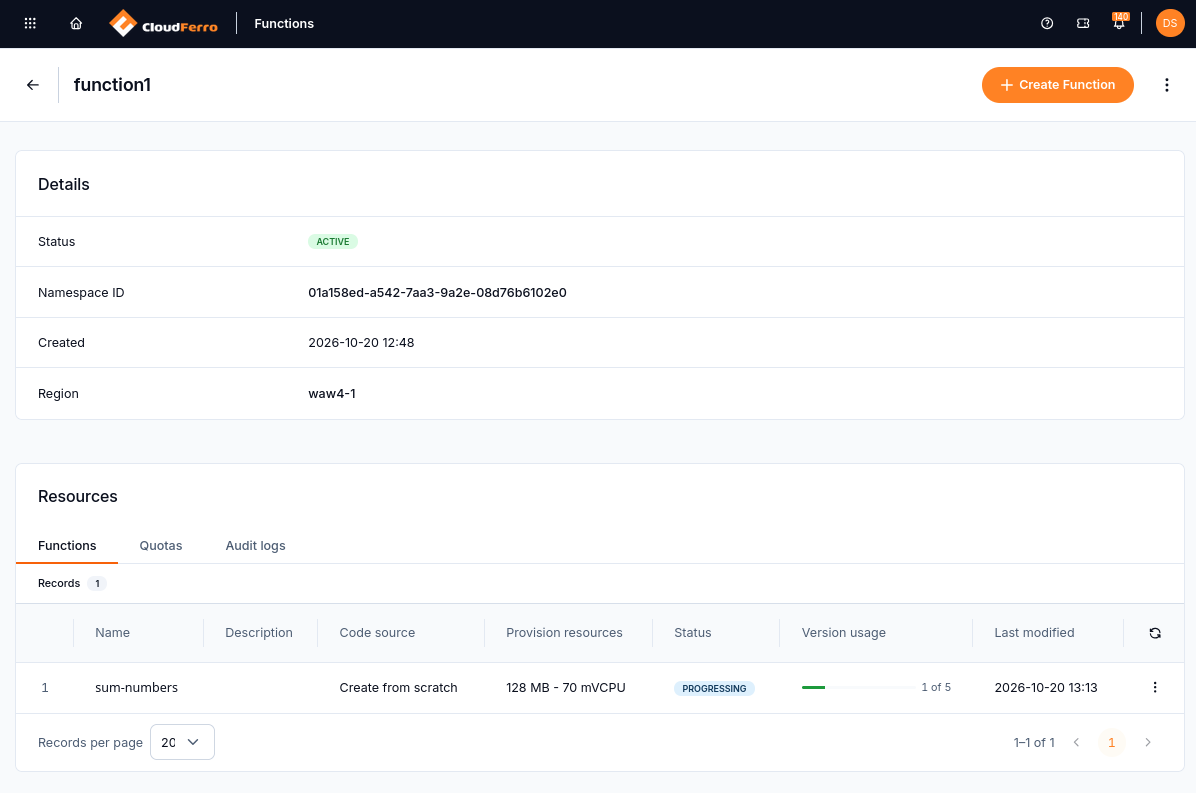
The sum-numbers function appears in its namespace while provisioning continues.
After the build finishes, the function status is Inactive. Open Versions and run Deploy for the version you want to use.
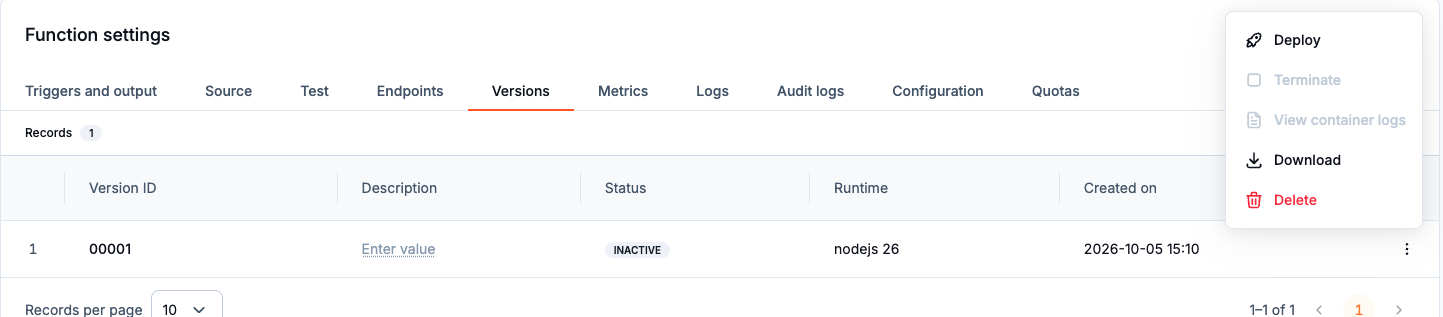
Deploy action for an inactive function version.
Wait for the deployment to finish and the function status to become Active.

Deployed function version in the Active state.
Creating a version, or changing one, does not deploy it automatically.
What to do next
Send the example request and check for HTTP 200 and total: 60 using Test a function and manage its endpoints on CloudFerro Cloud. For later code changes, deployment, and rollback, use Manage function versions and resources on CloudFerro Cloud.