
How to use My Portal for CloudFerro Cloud
Home
When you need to open a cloud service, finish account setup, or check an account notification, start from Home. The page brings these entry points together. Quick actions opens account and billing tasks, while Quick access opens products.
The top bar and left-hand menu provide navigation from other portal pages as well. The screenshots below show the CloudFerro Cloud interface; account details, balances, and notification counts belong to the example account.
Navigate with the left-hand menu
Select Home in the left-hand menu to return to the starting page. The other main entries separate product access from resource, billing, and account management:
Products opens the catalogue of services.
Active Services shows billed resources and fixed-term assignments.
Cloud projects/Wallets shows projects, locations, and their wallet assignments.
Billing and Reporting expands to wallets and contracts, resource groups, payments, billing reports, and invoices.
IAM expands to your profile, organization, users, groups, roles, invitations, and service accounts.
Select the arrow beside Billing and Reporting or IAM to expand or collapse its entries. The control at the bottom of the sidebar switches between the expanded menu and a compact icon strip. The following capture shows the expanded menu with IAM open.
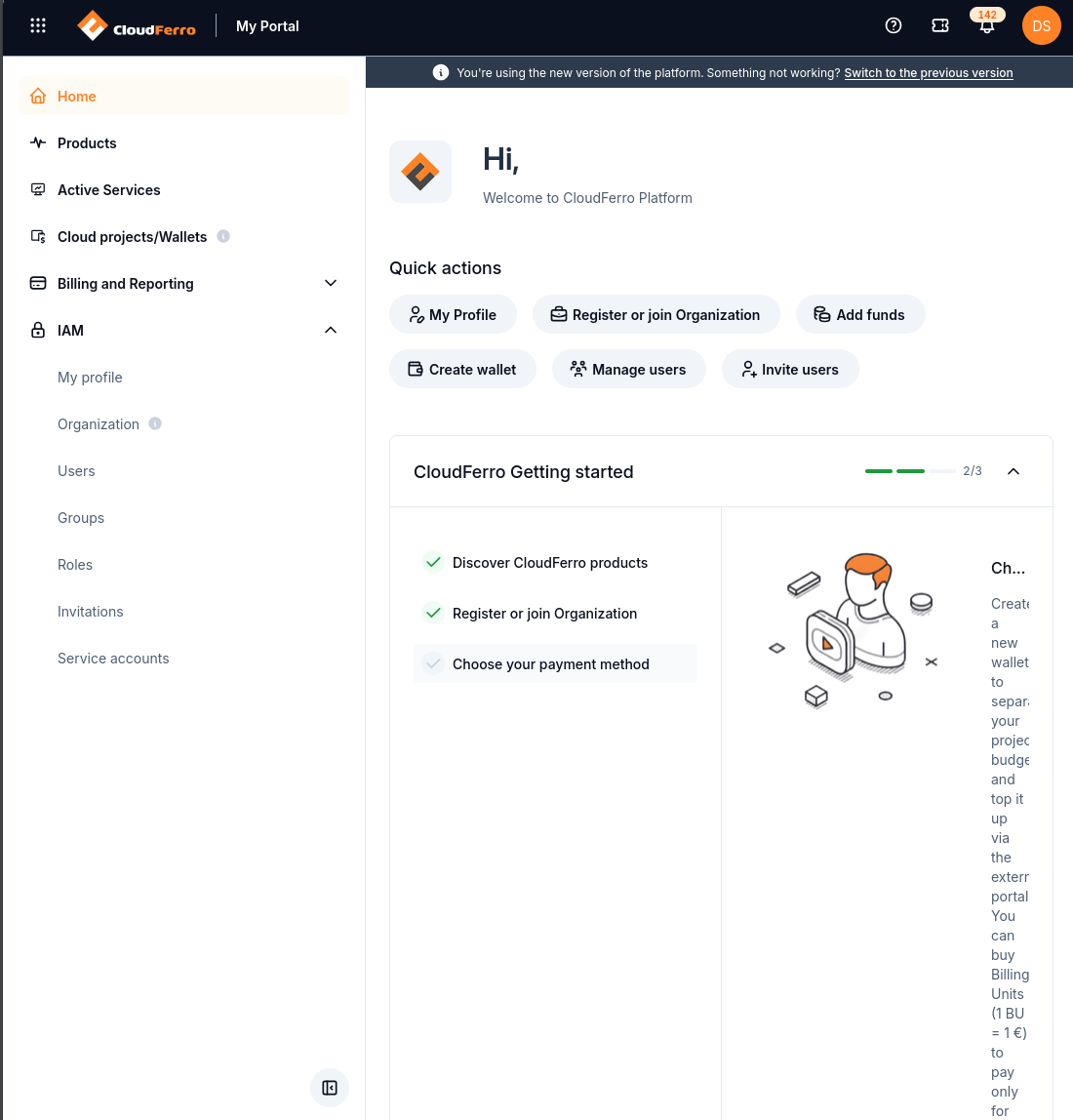
The left-hand menu identifies the current page and exposes the IAM account tasks.
The banner below the top bar identifies the new portal version and includes Switch to the previous version. This is a separate navigation choice from selecting a product or changing the page appearance.
Quick actions and Getting started
Use Quick actions for frequently needed account and billing tasks:
Shortcut |
What to use it for |
|---|---|
My Profile |
Review or edit personal details and change your password. See My profile. |
Register or join Organization |
Register a company or join a team using an invitation code. See Organization. |
Add funds |
Start the purchase of Billing Units for a prepaid wallet. See Wallets/Contracts. |
Create wallet |
Create an additional prepaid wallet. Creating a wallet and adding funds are separate actions. |
Manage users |
Find organization members and their displayed roles. See Users. |
Invite users |
Find the organization invitation code to share with a new member. See Invitations. |
The Getting started panel has three entries: discovering products, registering or joining an organization, and choosing a payment method. Green check marks and the progress indicator show the completed entries. The example shows 2/3, with Choose your payment method selected.
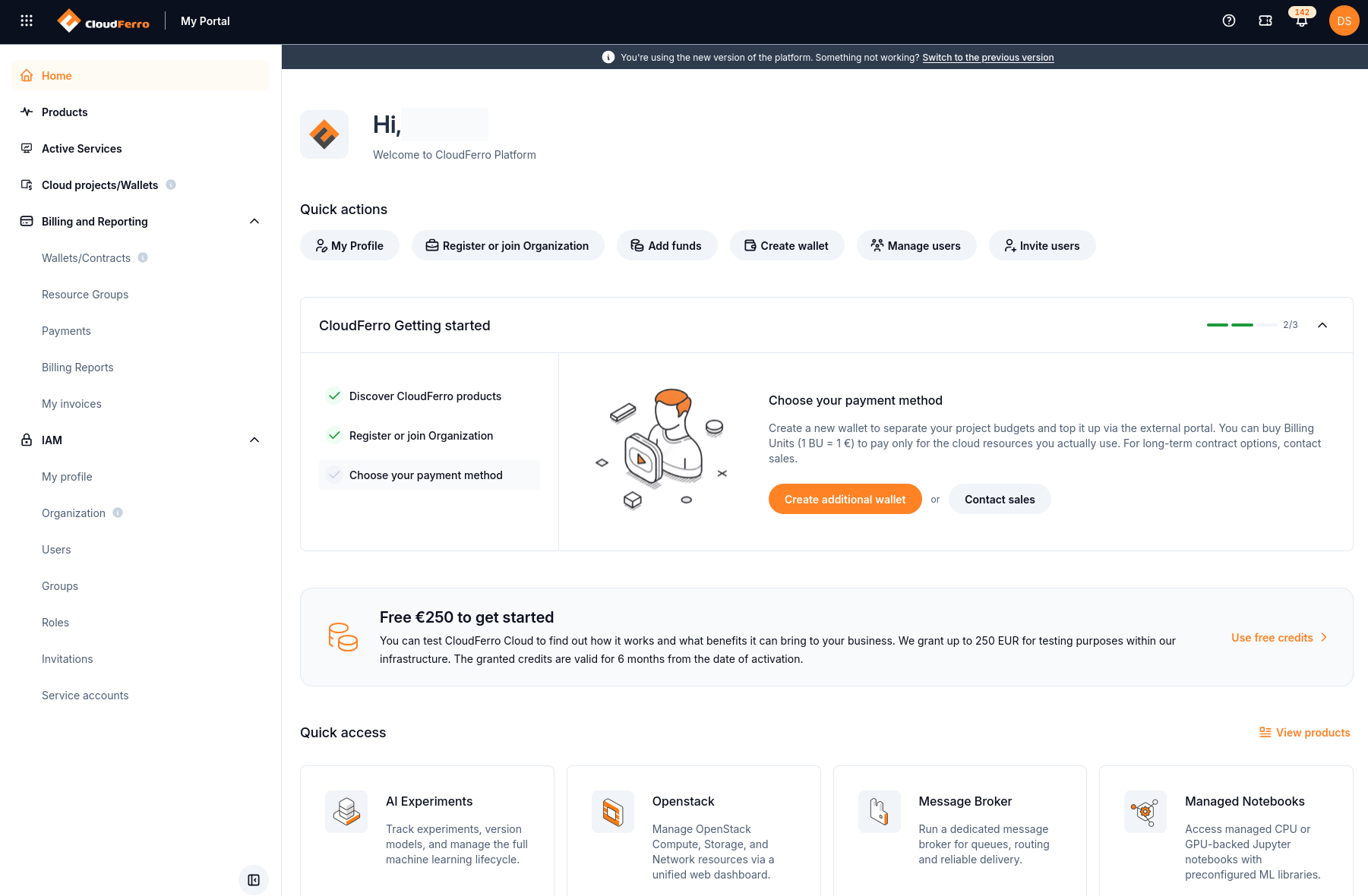
Quick actions and the Getting started checklist.
Select a checklist entry to read its guidance in the adjoining panel. The payment-method example offers Create additional wallet and Contact sales. The arrow at the right of the panel heading collapses or expands the checklist.
When the checklist is complete, the panel shows 3/3, green check marks beside all three entries, and You’re all set. The following example has Discover CloudFerro products selected, with View CloudFerro products as its next action. The × control is at the right of the completed panel heading.
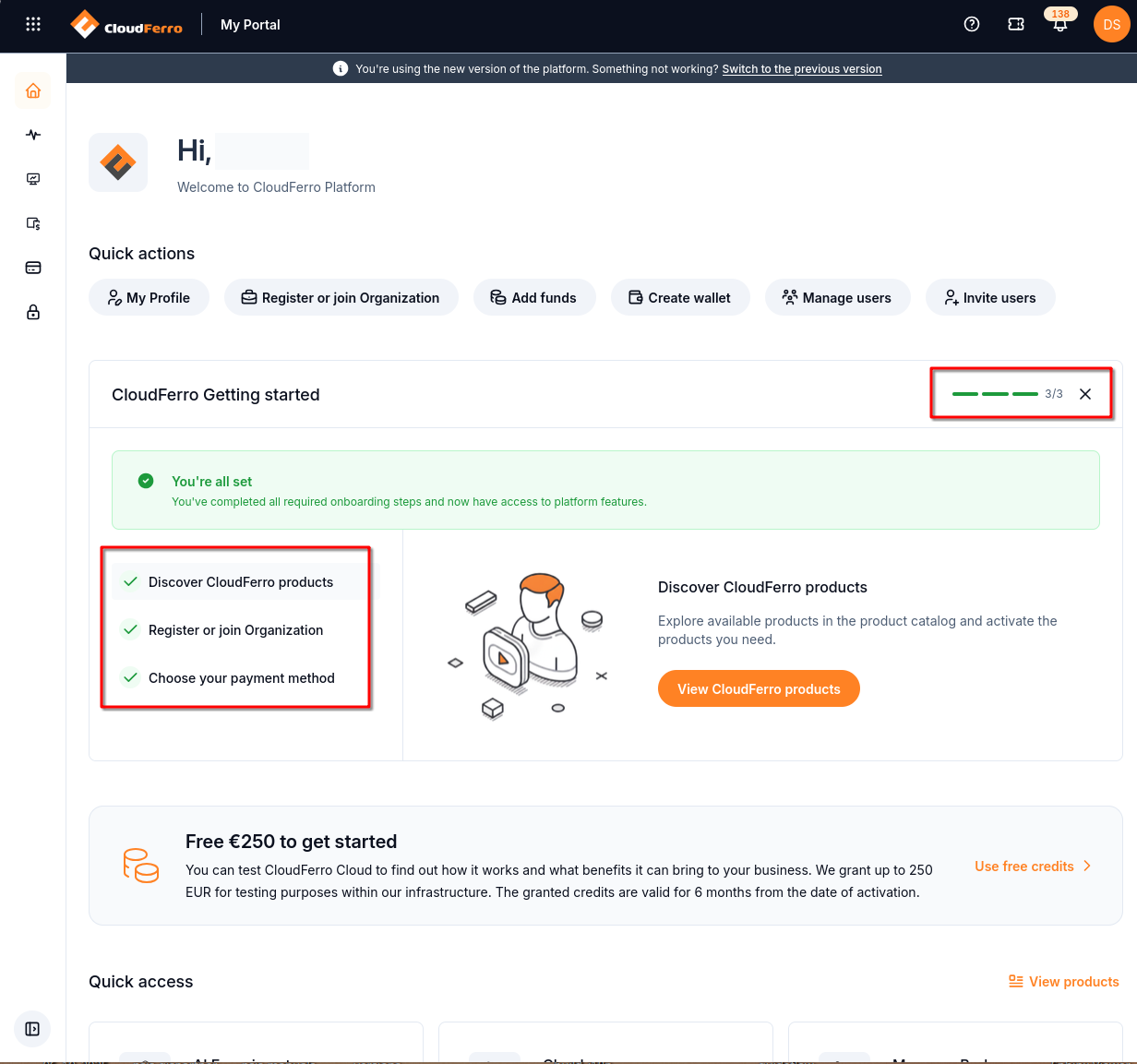
The completed checklist provides a route to the product catalogue.
Select Use free credits in the promotional banner to read the offer and its conditions.
Open the product launcher
Select the nine-dot icon at the far left of the top bar to open the product launcher. It groups the visible entries under OpenStack products, Managed platform products, and AI Products.
Enter a product name in Search product, or find its tile in the appropriate group.
Select the product tile to open its interface.
To browse the full catalogue instead, select Go to products at the bottom of the launcher. This opens Products.
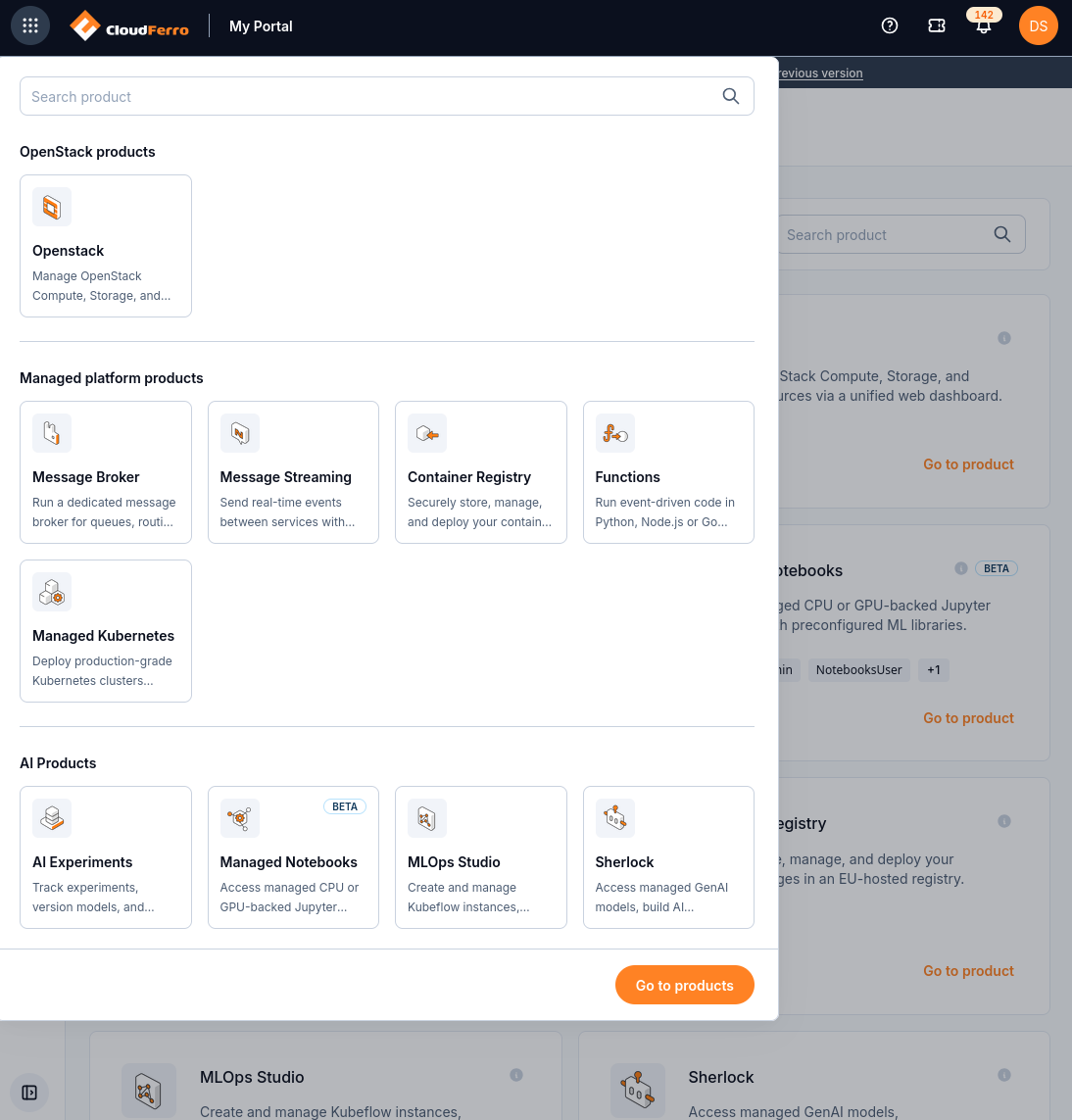
The launcher provides product entry points without first returning to Home.
The captured launcher includes Functions and Managed Kubernetes alongside messaging, registry, and AI services. For the full set of product descriptions, use Product catalogue on CloudFerro Cloud.
Quick access and useful links
Scroll down on Home to Quick access. Select Go to product on the required entry to open its interface, or select View products to open the full catalogue.
Use Open product to enter the live interface and Read guide for its documentation. Sign in with the account you use for your organization. These links open the new portal interfaces shown in this article; product access depends on your account’s permissions.
Product |
What you can do |
Live interface |
Documentation |
|---|---|---|---|
AI Experiments |
Track experiments and compare runs and models using MLflow. |
||
Openstack |
Manage compute, storage, and networking in Horizon. Check the region and project when signing in. |
||
Message Broker |
Use managed RabbitMQ for queues and message routing. |
||
Managed Notebooks |
Work in Jupyter notebooks with CPU or GPU resources. The portal entry is marked BETA. |
||
Message Streaming |
Exchange events using managed NATS messaging and durable streams. |
||
Container Registry |
Store container images and manage registry projects and access tokens. |
||
MLOps Studio |
Create a Kubeflow environment for notebooks, training, and pipelines. |
||
Sherlock |
Work with generative AI models, assistants, and knowledge bases. |
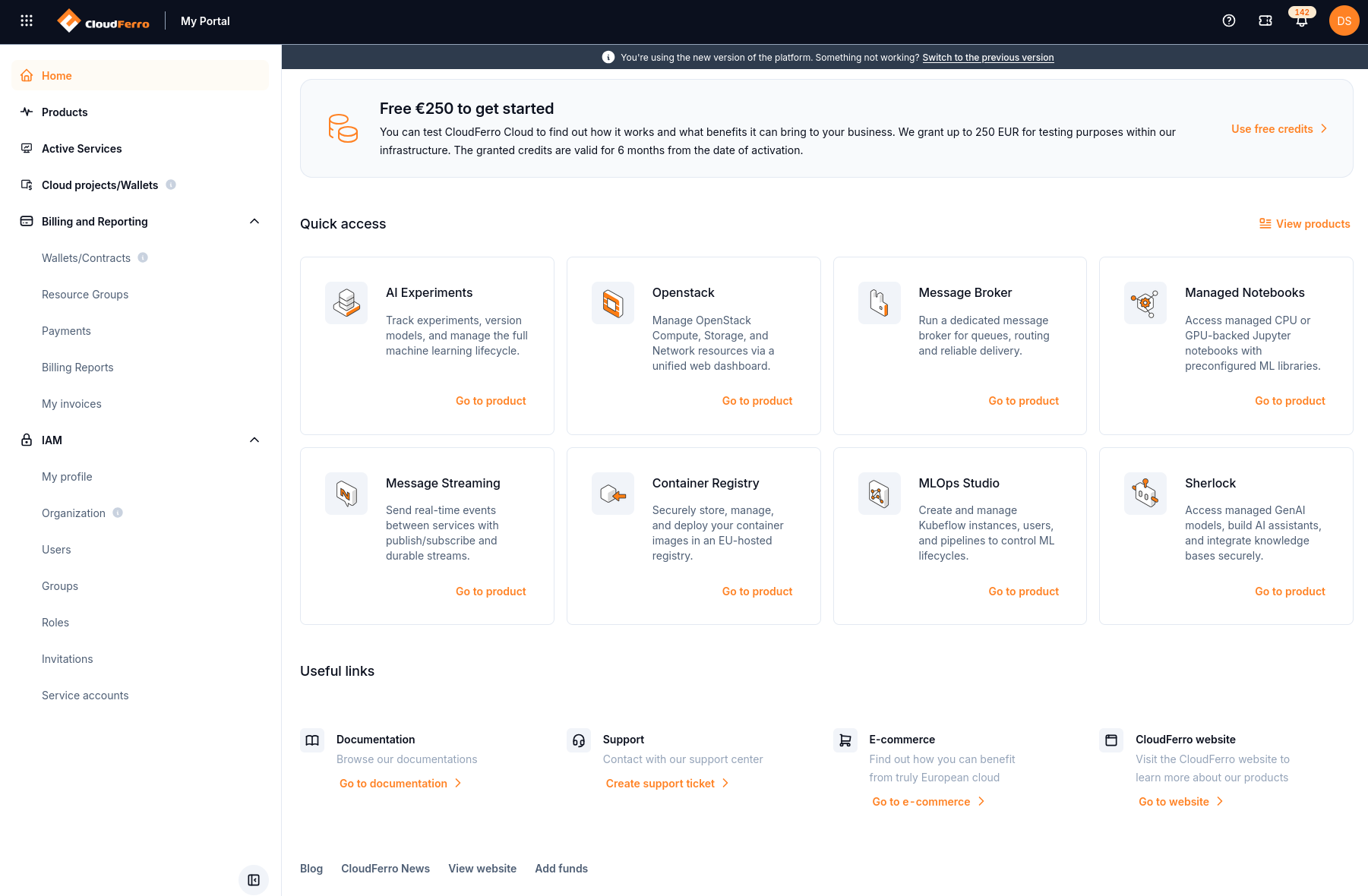
Product shortcuts and useful links below the Getting started panel.
The Useful links area below the product shortcuts provides documentation, support, e-commerce, and company website links. Under Support, Create support ticket opens the support entry point. See How to use Tickets in My Portal for CloudFerro Cloud for the information to include in a request.
Open Help, tickets, and notifications
The right-hand side of the top bar contains a question-mark icon, a ticket icon, a notification bell, and your profile avatar. Each opens a different menu or panel.
Help menu
Select the question-mark icon to open links to Documentation, Add funds, Pricing, and Free trial. External-link symbols identify those destinations. The Support part of this menu also provides Tickets and Notifications.
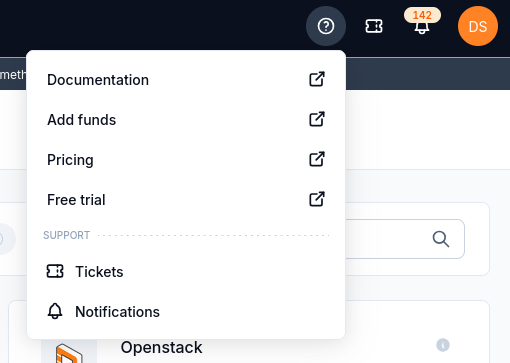
The Help menu collects documentation, commercial information, and support entry points.
Documentation
Select Documentation in the Help menu, or Go to documentation under Home → Useful links, to open CloudFerro Cloud Documentation. The captured landing page combines product guides with links to service interfaces.
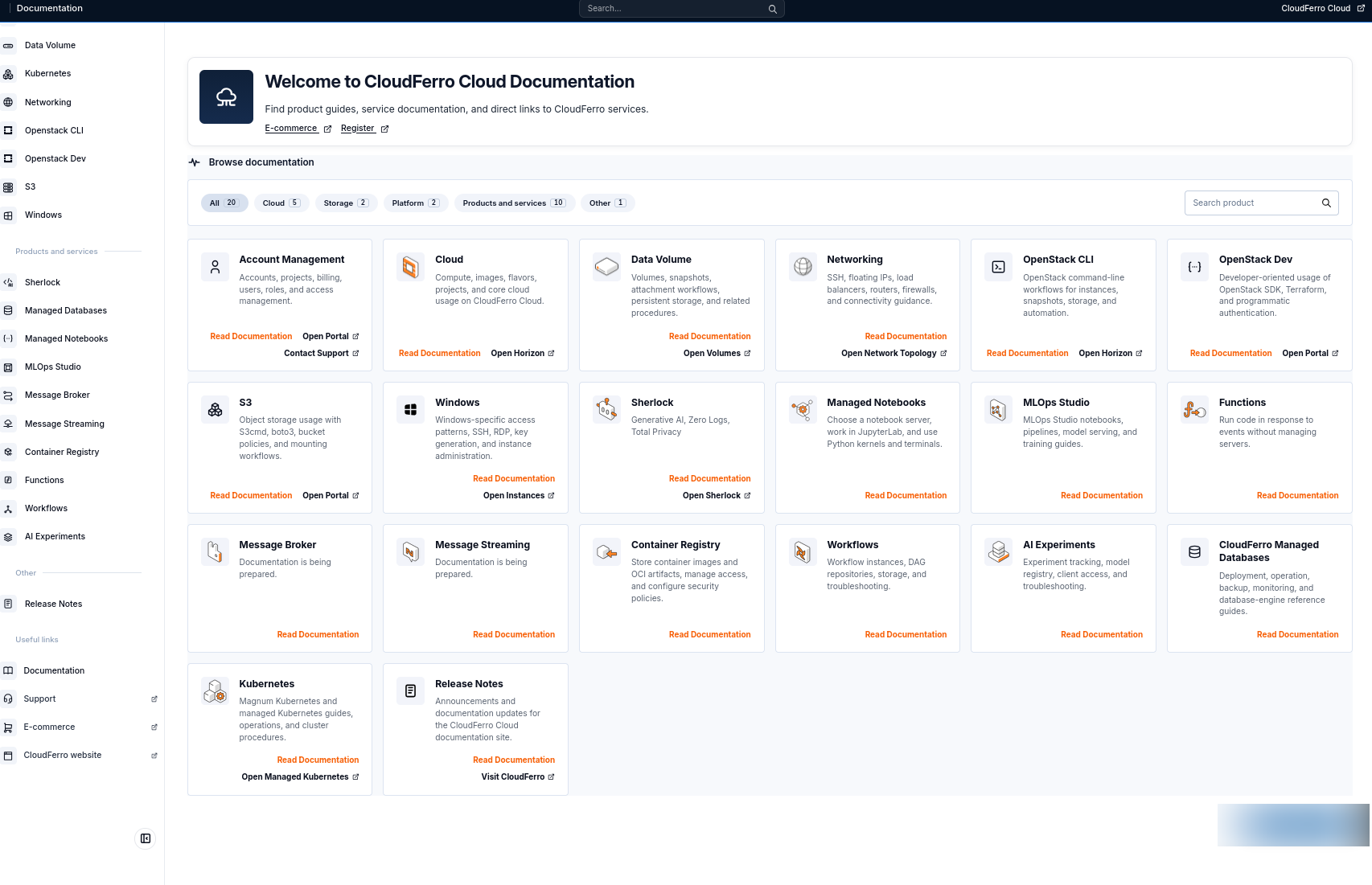
Browse documentation by product, category, or the left-hand navigation.
Under Browse documentation, choose a category such as Cloud, Storage, Platform, or Products and services. Use All to show every category.
Enter a name in Search product to find a product card.
Select Read Documentation on the required card to open its guide. Links such as Open Portal and Open Horizon open the corresponding service interface.
Add funds
Select Add funds in the Help menu or Quick actions to open the purchase flow for Billing Units. Check the wallet and purchase details using Wallets/Contracts: review wallets and add Billing Units on CloudFerro Cloud before submitting a purchase.
The supplied checkout example stops at an organization-data message: Personal tax identification numbers are not accepted. Please provide a valid organization VAT number. It offers an automatic return to Tenant Manager after a countdown and an immediately link to return sooner.
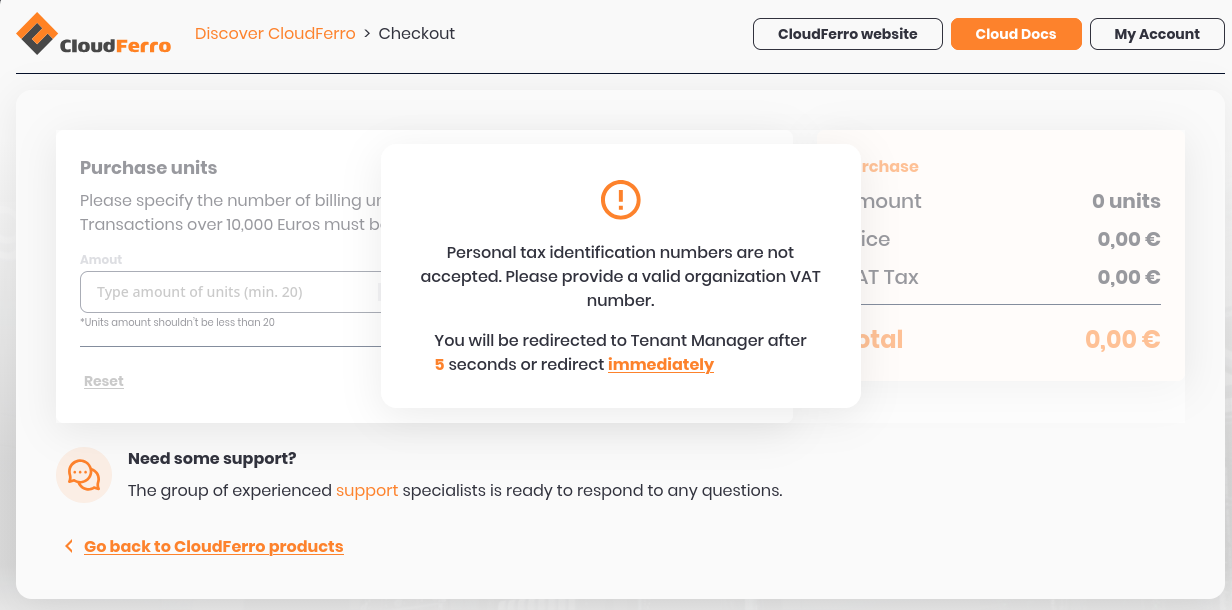
The example shows a validation message before a purchase can proceed.
If this message appears, return to My Portal and check the company details in Register or join an organization in My Portal on CloudFerro Cloud before retrying.
Pricing
Select Pricing in the Help menu to open the CloudFerro pricing website. Use its location and service categories to find the relevant table. The captured page shows Pricing tables → LCJ1-1 → Virtual Machines (VM).
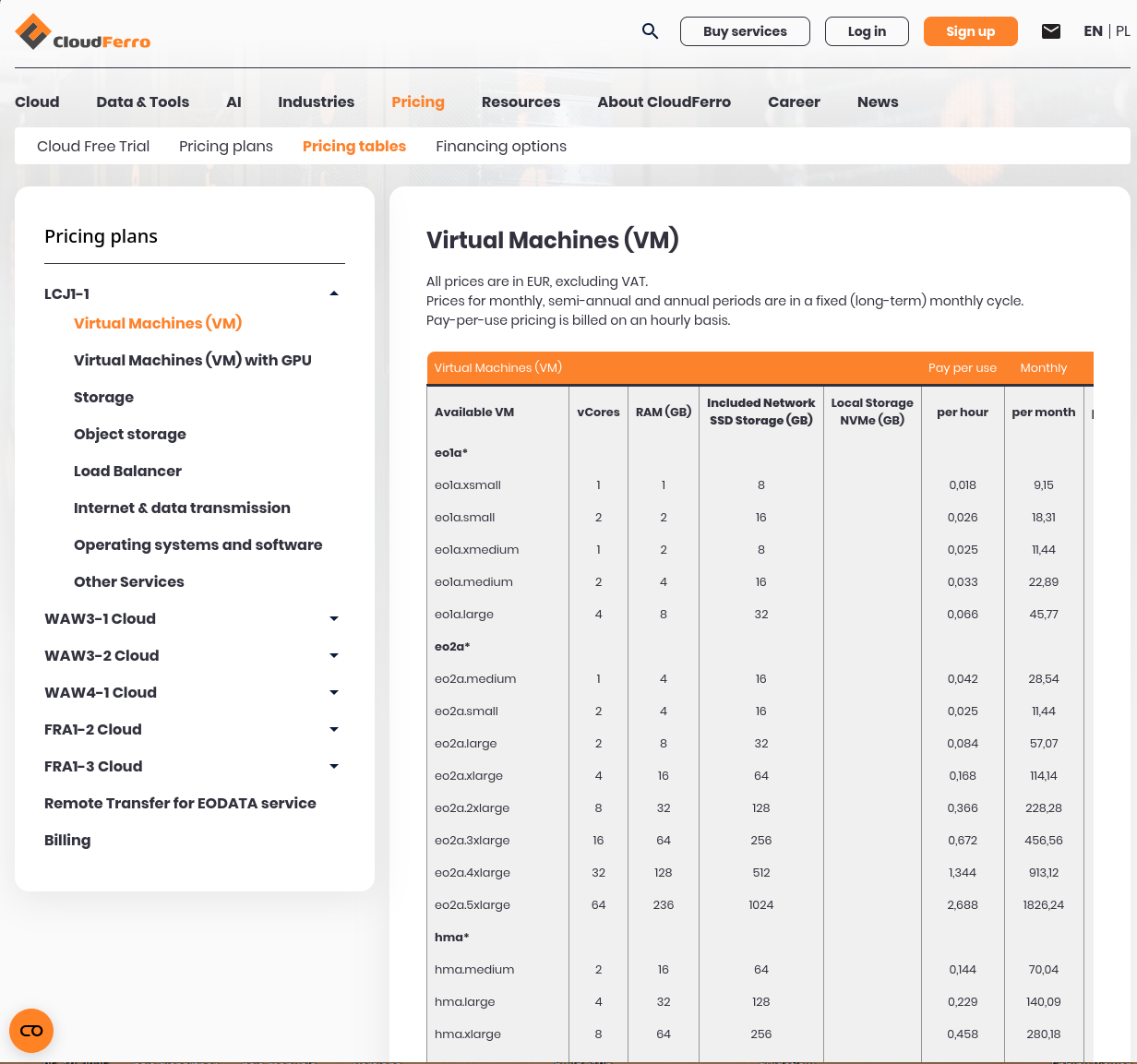
Choose the location and service before comparing the table entries.
The table identifies the flavor, vCores, RAM, included network SSD storage, local NVMe storage, and price columns. Check the live page for the current rates, currency, tax information, and billing period before choosing a service.
Free Trial
If you are setting up access for the first time, follow the trial and first-service steps to check the organization and billing arrangement before starting a resource.
Select Free trial in the Help menu or Use free credits on Home to open the trial entry point. The captured Test our services checkout contains a wallet selector, survey fields, and a Request button. Asterisks mark mandatory survey fields.
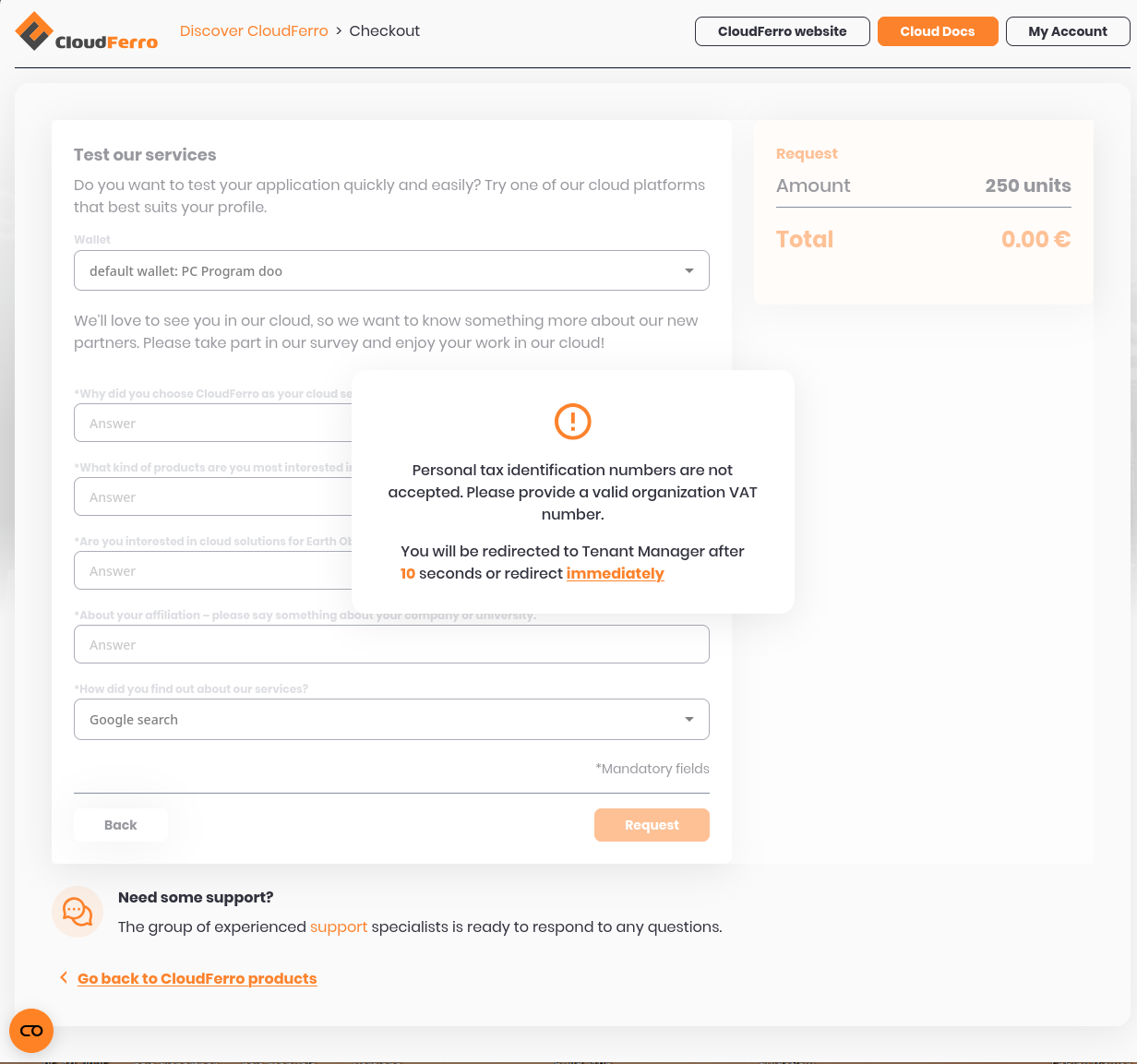
The example trial request is blocked by the organization-data message.
If the organization VAT-number message appears, use its return link and check the organization details before retrying. The example request summary shows 250 units and 0,00 €; review the current offer and conditions in your own session before submitting a request.
Tickets and notifications
Tickets panel
Select the ticket icon to check the ticket panel. The supplied example shows No tickets. For the full page and request form, use Help → Tickets and follow How to use Tickets in My Portal for CloudFerro Cloud.
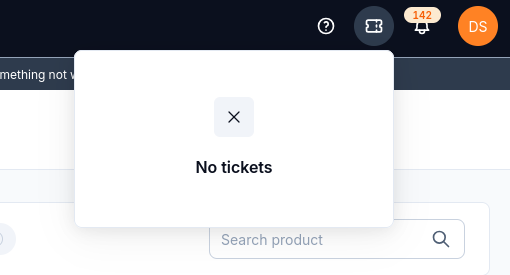
No tickets is the empty state of the ticket panel.
Notifications panel
Select the bell to open the notification list. The icon has a count badge, and individual messages show a title, date and time, and an UNREAD label where applicable. The example contains low-wallet-balance messages. Use Show all at the bottom to open the full notification view.
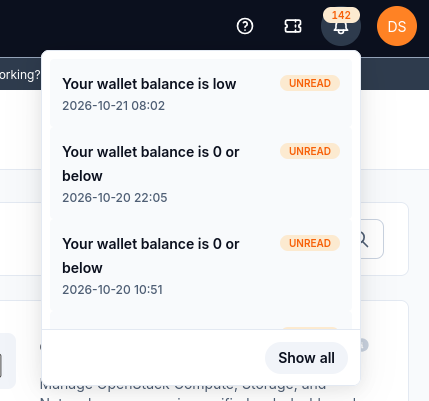
Read the notification title and time to identify the event that needs attention.
For a wallet notification, check the affected wallet in Wallets/Contracts: review wallets and add Billing Units on CloudFerro Cloud. Continue with How to use Notifications in My Portal for CloudFerro Cloud for reading alerts and finding the relevant service guidance.
Use the profile menu and change appearance
Select your initials or avatar at the far right of the top bar to open the profile menu. My Profile opens your personal account page. My Organization identifies the organization associated with your session and provides the route to its details.
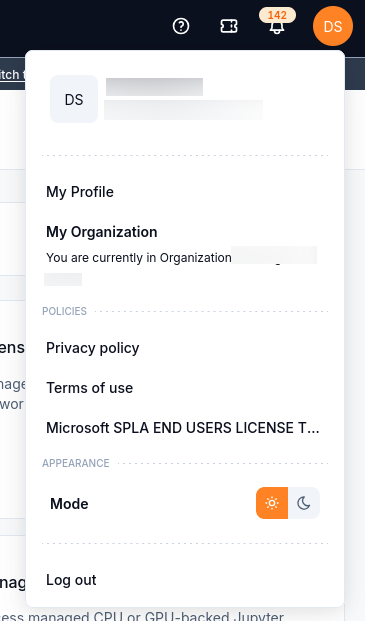
The profile menu separates account details, policy links, appearance, and sign-out.
Under Policies, the menu links to the Privacy policy, Terms of use, and Microsoft SPLA license terms. Under Appearance, Mode has a sun control for light mode and a moon control for dark mode.
Open the profile menu.
Under Appearance → Mode, select the moon to use dark mode.
To return to light mode, open the same menu and select the sun.
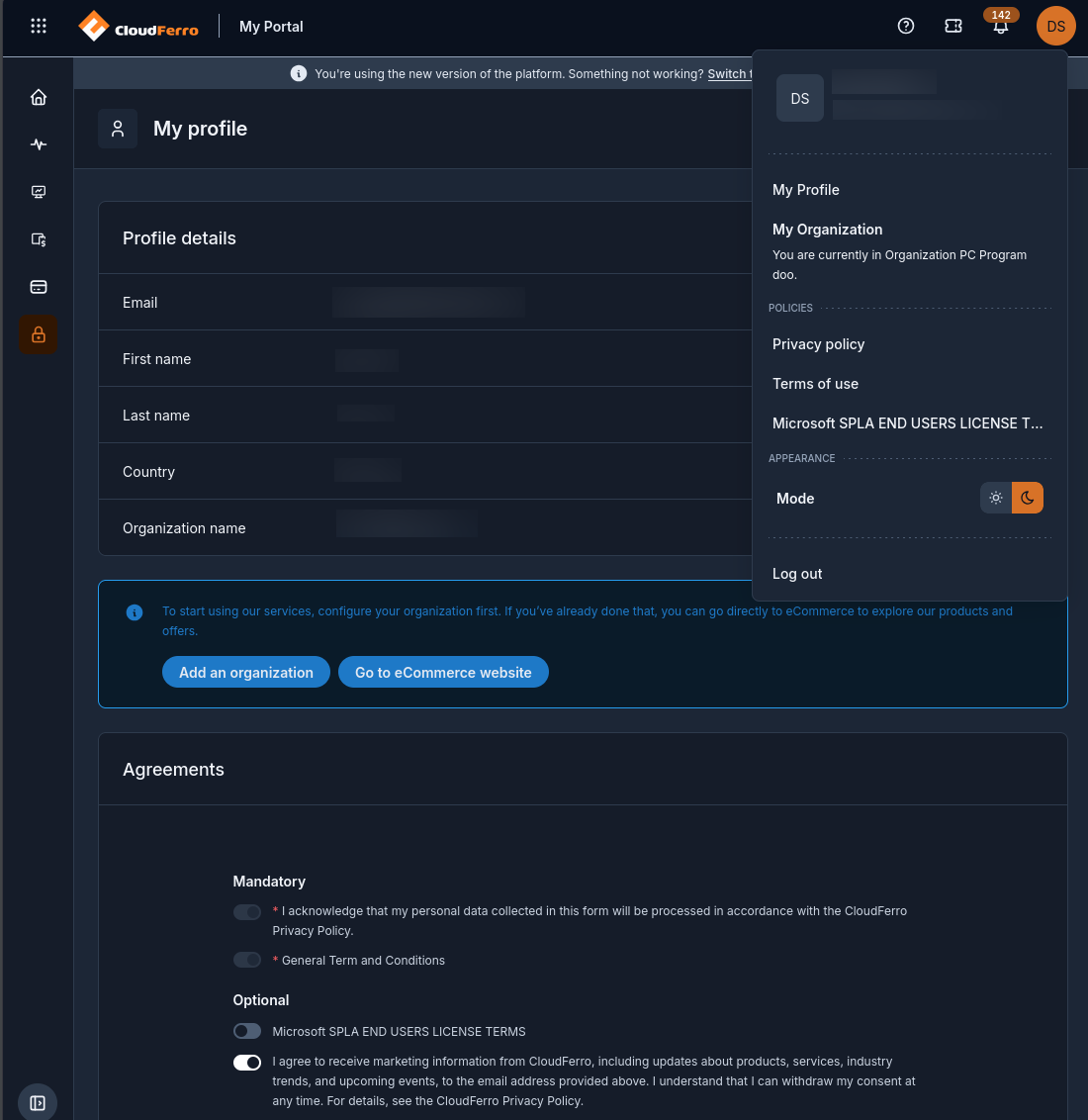
Dark mode changes the portal’s appearance; the same account and navigation controls remain available.
Select Log out at the bottom of the profile menu to end your portal session. For changes to account details or your password, continue with My profile: find your account information on CloudFerro Cloud; for company information, use Register or join an organization in My Portal on CloudFerro Cloud.