
Cloud projects/Wallets: manage project billing on CloudFerro Cloud
A cloud project can use a wallet inherited from its location or a wallet assigned directly to the project. Cloud projects/Wallets shows this relationship so that you can identify the project, check its status, and change its billing assignment when needed.
Prerequisites
No. 1 Access to the organization’s projects
You need access to the organization that owns the project. Check your membership in Register or join an organization in My Portal on CloudFerro Cloud. Creating projects or changing their billing assignments requires the appropriate administrative permission. Check the OpenStack role requirements in Tenant manager users and roles on CloudFerro Cloud.
No. 2 The target project, location, and wallet
Identify the cloud location and, for an existing project, its name or ID. Prepare a funded wallet or the applicable contract using Wallets/Contracts: review wallets and add Billing Units on CloudFerro Cloud.
Find a project and its wallet
Open Cloud projects/Wallets. The page heading reads Cloud projects & wallets.
Find the required location under the organization’s root account.
Compare Current Wallet and Next Wallet for that location.
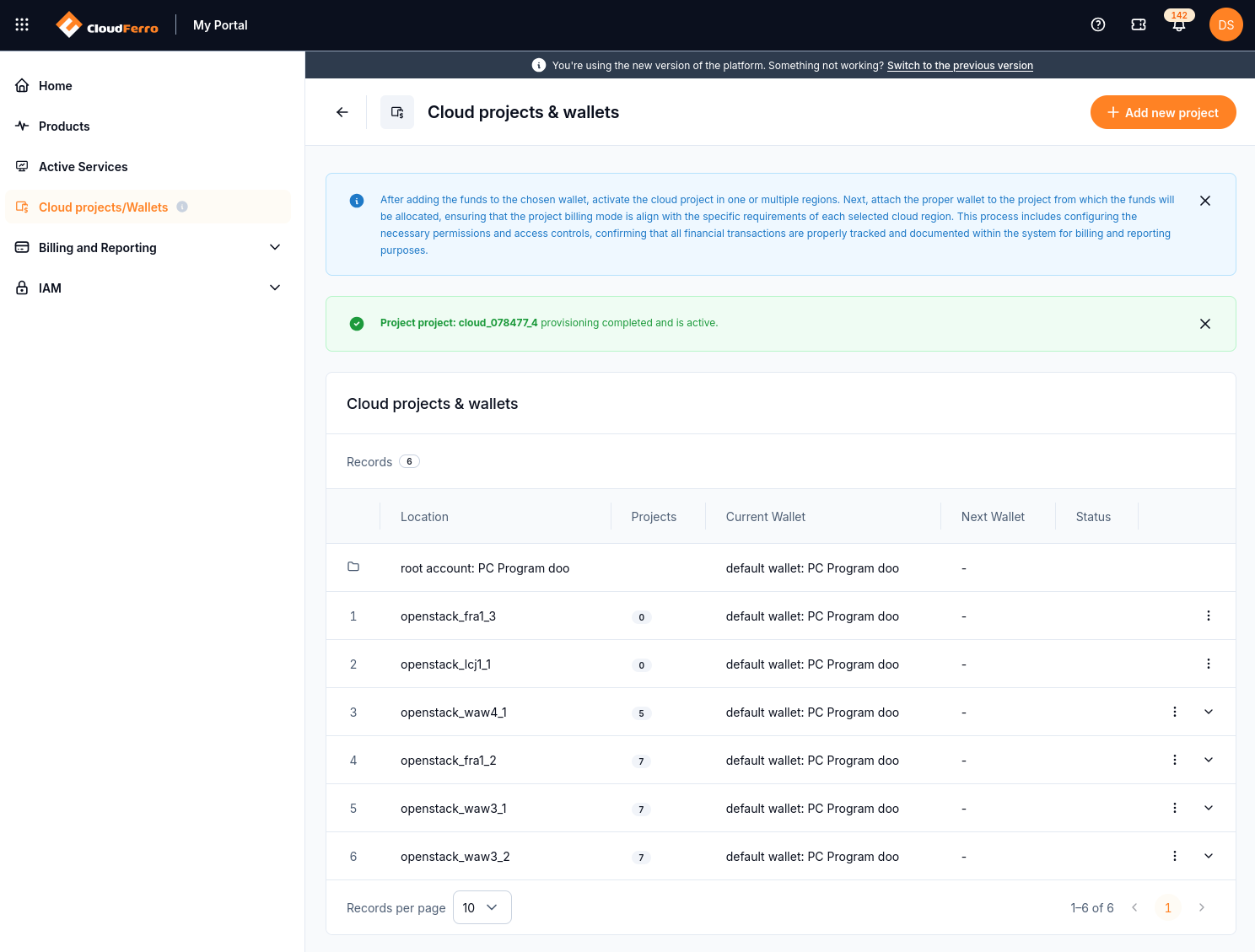
Locations group the projects belonging to the root account.
Expand the location using the arrow at the right of its row to see its projects.
Each project has its own wallet and status columns. INHERITS means that the project uses the wallet setting from its parent account. ACTIVATED identifies an activated project in this example.
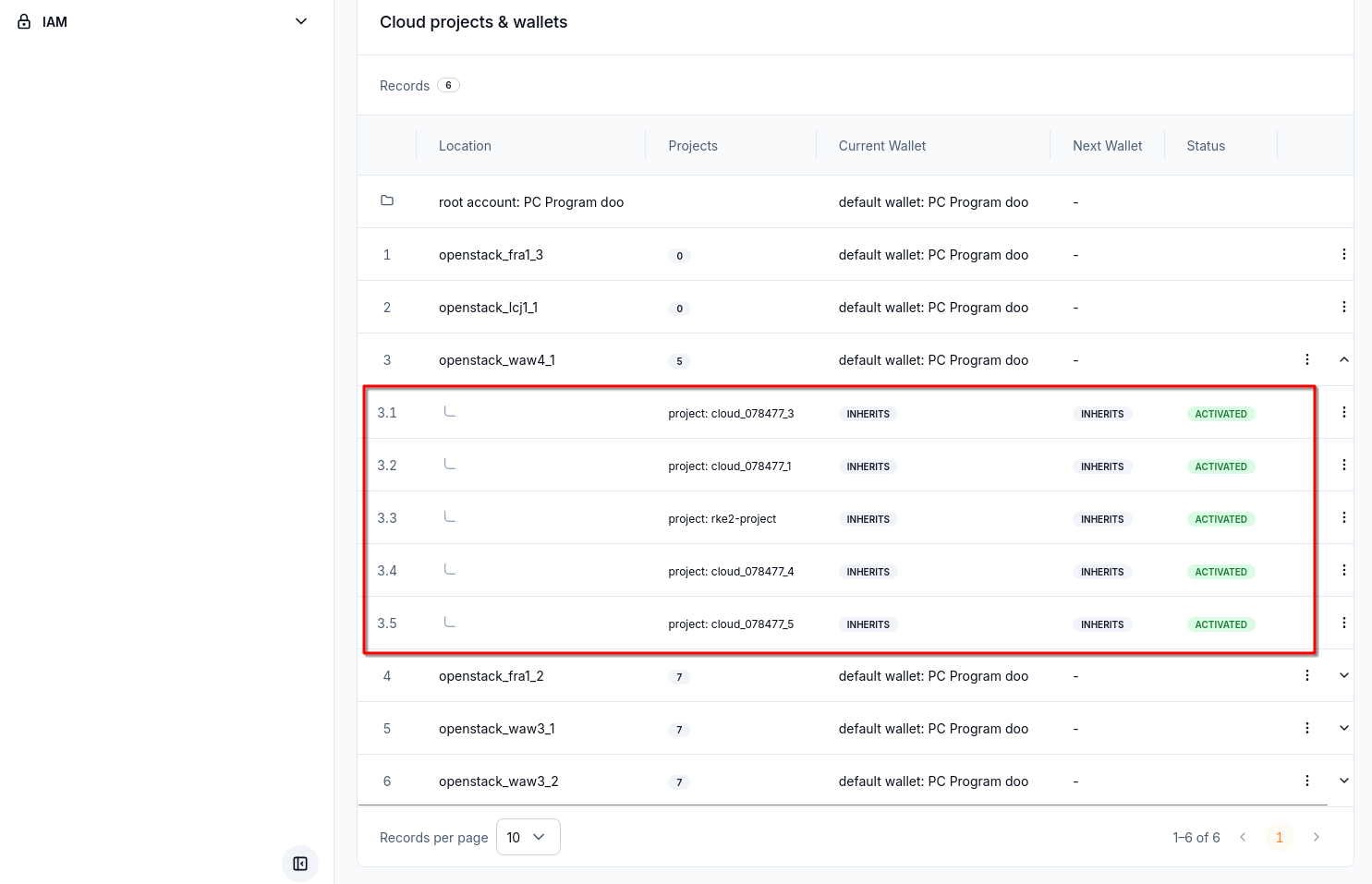
Expand a location to inspect individual projects and wallet inheritance.
Add and activate a cloud project
Open Cloud projects/Wallets and identify the cloud location you want to use.
In that location’s three-dot menu, select Add new project. You can also start from Add new project in the page header.
Check the Cloud selection in the form, complete the required project details, and submit the request.
Return to the project list and monitor the activation status. Wait for IN PROGRESS to become ACTIVATED.
Expand the location and verify the new project’s wallet assignment before creating resources.
Important
Only one project activation can run at a time. Wait for it to finish before requesting another project.
To use a project in another cloud, follow Extend a project to another cloud below. To create an independent workspace, add a separate project instead.
Open location and project actions
The location’s three-dot menu contains Add new project, Change current wallet, and Change next wallet. The page header also offers Add new project. Use the location row to identify where you intend to add the project, then follow the form presented by the portal.

The location menu operates on the selected location.
An individual project’s menu contains View project, Extend project, Change current wallet, Change next wallet, and Delete project.

Check the project row before choosing an action.
Select View project to open its Details and Resources sections. The details show the project name; the resources section in this example is empty.
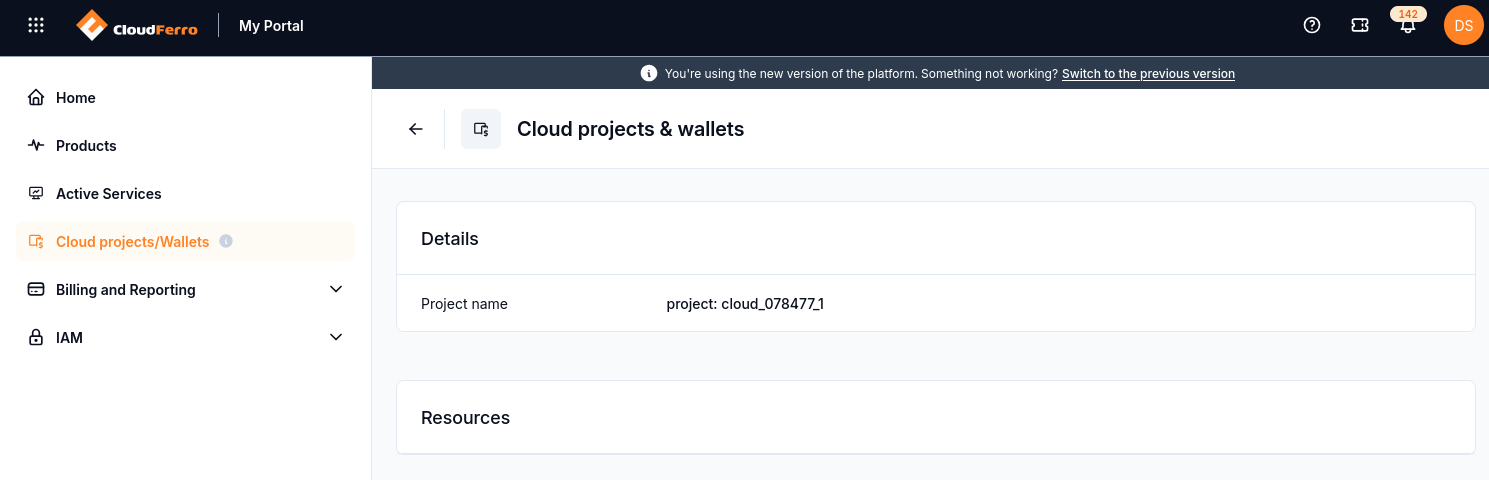
View project identifies the selected project and its resource section.
Extend a project to another cloud
Open the project’s three-dot menu and select Extend project.
Check Project name and Project ID in the dialog.
Select the required destination in Cloud.
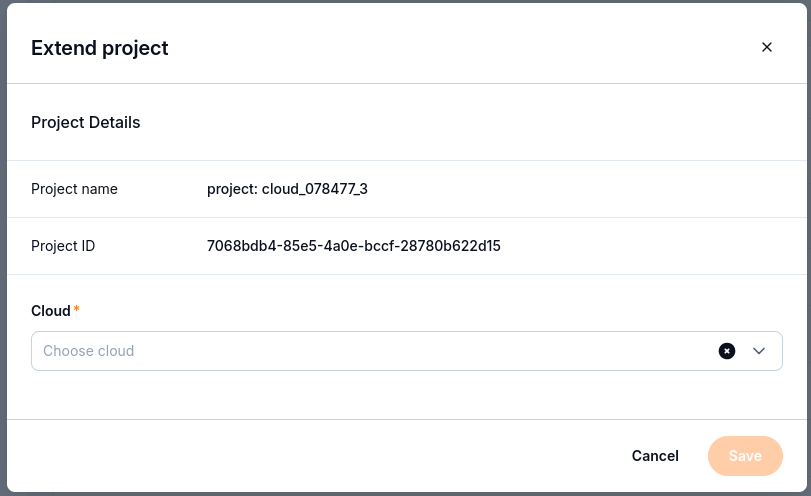
Choose the cloud to which the selected project should be extended.
Select Save and check the resulting project status in the list.
Change the current wallet
Open the three-dot menu on the location or project you intend to change.
Select Change current wallet.
Select the required Wallet. Enable Set end date if this assignment needs an end date.
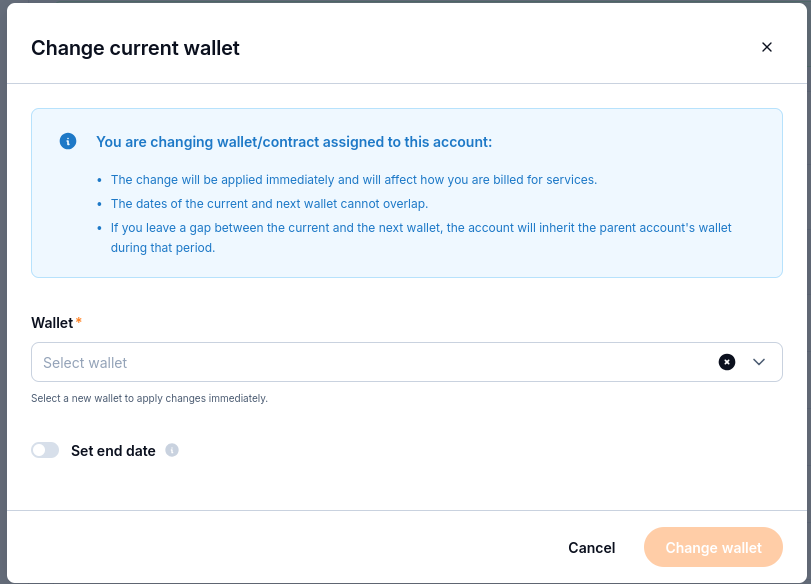
A current-wallet change applies immediately and affects billing.
The dialog states that current and next wallet dates cannot overlap. If there is a gap between assignments, the account inherits its parent’s wallet for that period.
Check the billing change, then select Change wallet.
Verify the Current Wallet value on the location or project row you changed.
Set the next wallet
Open the location or project’s three-dot menu and select Change next wallet.
Select Wallet and enter the required Start date.
Enable Set end date if needed. Check that the dates do not overlap the current assignment.
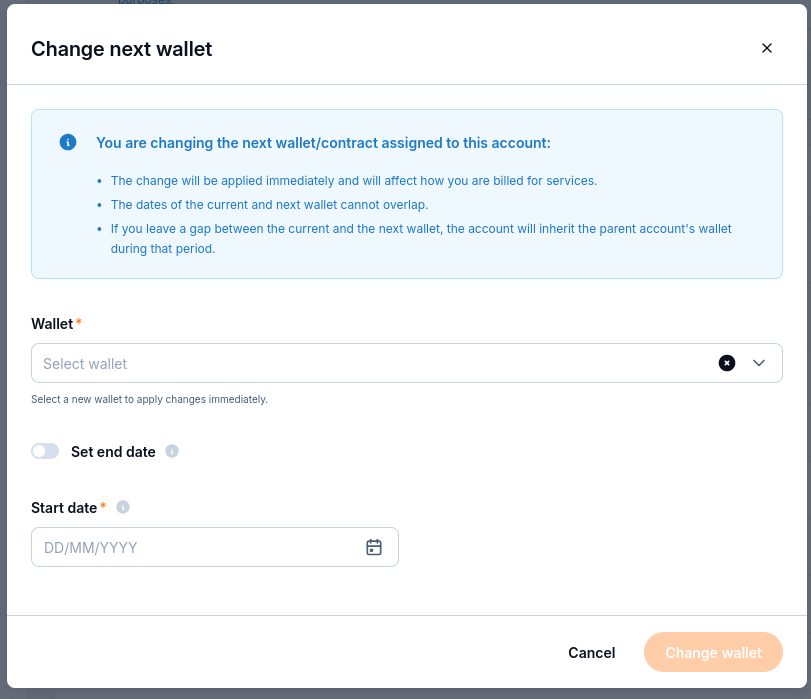
The next-wallet form includes a required start date.
Select Change wallet and verify the Next Wallet value in the list.
Delete a project
Select Delete project from the intended project’s three-dot menu.
Read the project name in the confirmation dialog.
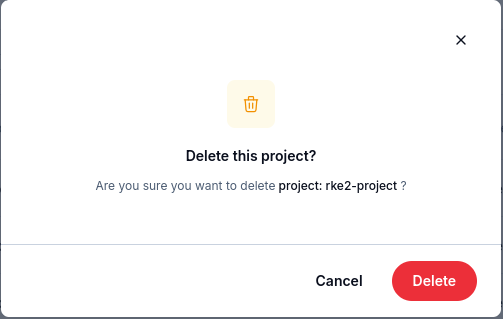
The confirmation identifies the project affected by deletion.
Select Delete only when that is the project you intend to remove, or Cancel to leave it unchanged.
Work with cloud resources
Use the Openstack entry in the Product catalogue to open Horizon. Select the matching authentication provider and region, then sign in. Check the selected project after login; a previous session may have used a different project or cloud.
Horizon shows the project’s resources and quotas. Use Compute → Overview to review usage. For command-line access, follow How to activate OpenStack CLI access to CloudFerro Cloud cloud using one- or two-factor authentication.
Verify billing and resource tracking
Check the Current Wallet and Next Wallet on the location or project row. A location-level assignment can serve several projects; a project-level assignment separates that project’s costs.
Open Active Services and match the resource ID, project, cloud, and wallet with your intended setup.
Check usage over the required period in Billing Reports.
Active Services can lag behind the product’s current resource inventory. Use Horizon to check whether an OpenStack resource exists now.
Troubleshooting
If activation stays IN PROGRESS, refresh the project list before submitting another request. Check your permissions and the project’s quotas. If activation remains stuck, send support the project, cloud, and status shown.
If a wallet change is rejected, check its balance or contract validity and the assignment dates. Current and next assignments cannot overlap. During a gap, the project inherits its parent’s wallet.